> ## Documentation Index
> Fetch the complete documentation index at: https://orgo.space/docs/llms.txt
> Use this file to discover all available pages before exploring further.
# Dashboard Organizer
> Choose which widgets appear on the member dashboard and in what order
The dashboard is the first thing members see after logging in. The Dashboard Organizer lets you create categories of widgets, choose layout types, and arrange everything by drag-and-drop so the most important information is front and center.
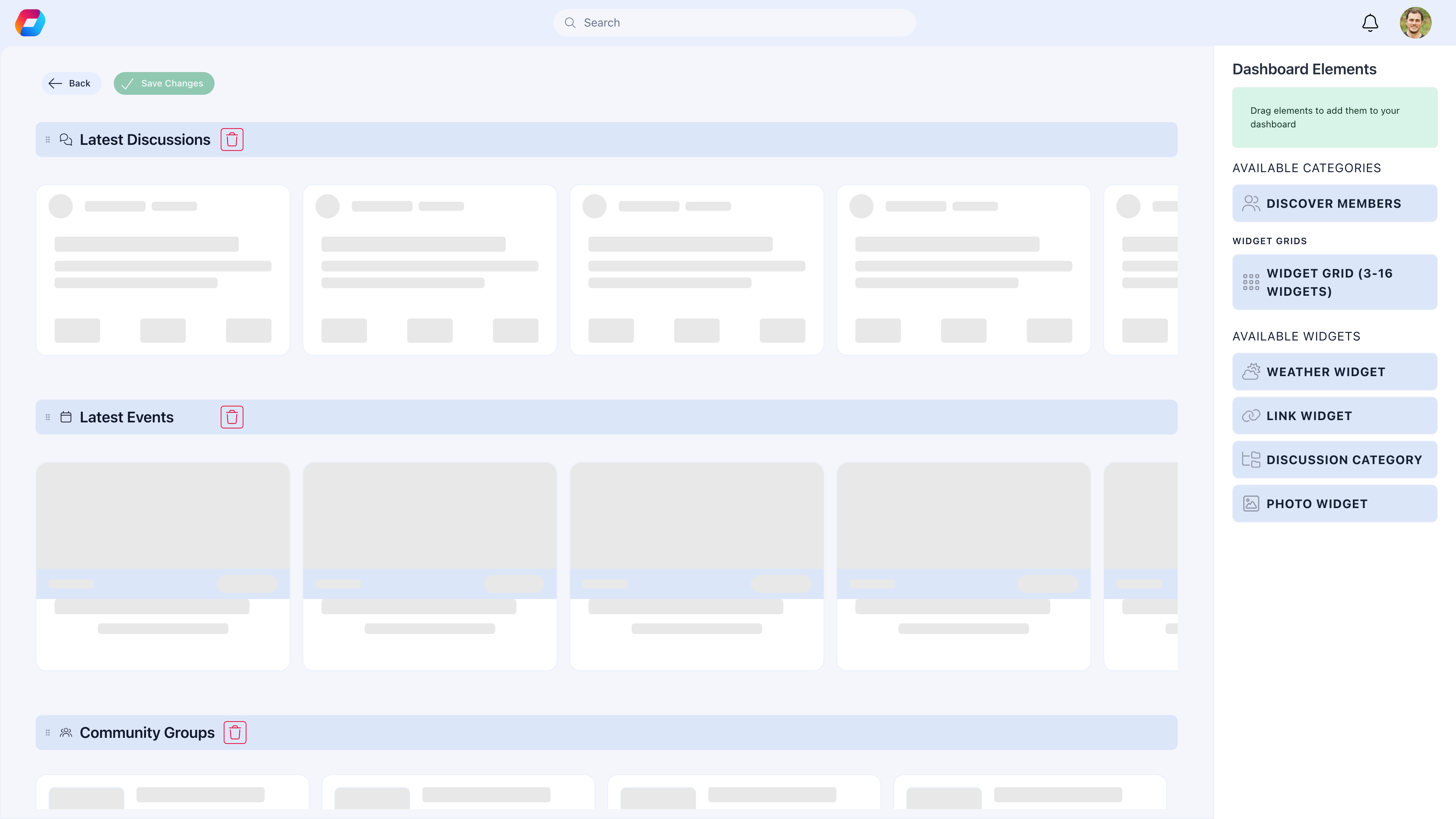 **Settings → Customization → Dashboard Organizer**
Requires **Tenant Admin** permissions.
***
## How to configure the dashboard
Go to **Settings → Customization → Dashboard Organizer** and click the **Edit** toggle in the top-right corner to switch from preview to edit mode.
Categories are sections on the dashboard, each with a name and a layout type. Click **Add Category** to create a new section. Edit the category name inline by clicking on it.
Each category has a layout that determines how its content displays:
* **Discussions** — shows recent discussion threads
* **Events** — shows upcoming events
* **Groups** — shows the member's group memberships
* **User Recommendations** — suggests members to connect with
* **Grid (3/4/6/8/16 items)** — a grid of custom widgets (links, photos, weather, discussions)
For grid-layout categories, add individual widgets:
* **Link** — custom shortcut buttons with icons (e.g., "Create Event", "View Members")
* **Discussion Namespace** — embed a specific discussion topic
* **Weather** — local weather widget
* **Photo** — image display widget
Drag categories up or down to set their display order. The first category appears at the top of the dashboard. Within grid categories, drag individual widgets to reorder them.
Each category has an active/inactive toggle. Inactive categories are hidden from the dashboard but preserved in the organizer for easy re-activation.
Click **Save**. The updated dashboard layout applies to all members immediately.
***
## Category layout types
| Layout type | What it shows | Best for |
| ------------------------ | -------------------------------------------------- | ------------------------------------- |
| **Discussions** | Latest discussion threads from the member's groups | Active community forums |
| **Events** | Upcoming events chronologically | Organizations that run regular events |
| **Groups** | The member's group memberships with quick access | Members in multiple groups |
| **User Recommendations** | Suggested members to connect with | Growing communities, networking |
| **Grid (3 items)** | 3 custom widgets in a row | Quick action buttons |
| **Grid (4 items)** | 4 custom widgets in a row | Feature shortcuts |
| **Grid (6 items)** | 6 custom widgets in two rows | Balanced shortcuts grid |
| **Grid (8 items)** | 8 custom widgets in two rows | Extended link collection |
| **Grid (16 items)** | Up to 16 widgets in a multi-row grid | Comprehensive link board |
***
## Recommended setups
### Activity-focused organization (events, meetups)
1. Welcome Message category
2. Events category (upcoming events)
3. Grid (3) with quick links: "Create Event", "My Calendar", "Browse Groups"
4. Discussions category
### Communication-focused organization (forums, updates)
1. Welcome Message category
2. Discussions category
3. Events category
4. Grid (4) with links to key resources
### Simple community
1. Welcome Message category
2. Events category
3. Groups category
Less is more. 3-5 categories is plenty. An overloaded dashboard is as useless as an empty one — members don't know where to look.
***
## Layout and responsiveness
The dashboard renders in a responsive grid:
* **Desktop:** Categories display in their full layout (grids show columns side-by-side)
* **Mobile:** Single column, categories stacked vertically. Grid items wrap into fewer columns.
The order you set determines priority — top categories appear first on both desktop and mobile. On mobile, this matters most since members scroll vertically through all content.
***
## Real-world example
> **Scenario**: A youth organization with 3,000 members, focused on events and group activities.
1. **Welcome Message** — a personalized greeting using `{firstName}` so each member sees their own name.
2. **Events** (system layout) — Shows next 5 upcoming activities automatically
3. **Grid (4)** — Four quick links: "Join an Event", "My Group", "Discussion Forum", "My Profile"
4. **Groups** (system layout) — Shows the member's patrol/troop memberships
5. **Discussions** (system layout) — Latest 5 discussion posts from their groups
Result: Members log in and immediately see what's happening, can take action with one click, and catch up on group conversations — all without navigating away from the dashboard.
***
## Troubleshooting
That's fine — it means they know where they're going. Keep the dashboard useful for members who don't yet have a specific destination. Upcoming Events and Recent Discussions are good default categories for casual browsing.
The Dashboard Organizer creates one layout for everyone. However, some widgets and content adapt automatically based on the member's role — admins may see additional statistics or management shortcuts that regular members don't.
Enable dynamic categories: Events (changes as events approach), Discussions (changes as people post), and User Recommendations (changes as the community grows). Update the Welcome Message regularly. Static grid links don't change — balance them with dynamic content.
Check that the category is set to **Active**. Inactive categories are hidden from members but remain in the organizer. Also verify that the category has at least one widget or content source — empty categories may not render.
***
## Related
* [Dashboard Welcome](/platform/customization/dashboard-welcome) — The welcome message widget
* [Menu Organizer](/platform/customization/menu-organizer) — Sidebar navigation customization
**Settings → Customization → Dashboard Organizer**
Requires **Tenant Admin** permissions.
***
## How to configure the dashboard
Go to **Settings → Customization → Dashboard Organizer** and click the **Edit** toggle in the top-right corner to switch from preview to edit mode.
Categories are sections on the dashboard, each with a name and a layout type. Click **Add Category** to create a new section. Edit the category name inline by clicking on it.
Each category has a layout that determines how its content displays:
* **Discussions** — shows recent discussion threads
* **Events** — shows upcoming events
* **Groups** — shows the member's group memberships
* **User Recommendations** — suggests members to connect with
* **Grid (3/4/6/8/16 items)** — a grid of custom widgets (links, photos, weather, discussions)
For grid-layout categories, add individual widgets:
* **Link** — custom shortcut buttons with icons (e.g., "Create Event", "View Members")
* **Discussion Namespace** — embed a specific discussion topic
* **Weather** — local weather widget
* **Photo** — image display widget
Drag categories up or down to set their display order. The first category appears at the top of the dashboard. Within grid categories, drag individual widgets to reorder them.
Each category has an active/inactive toggle. Inactive categories are hidden from the dashboard but preserved in the organizer for easy re-activation.
Click **Save**. The updated dashboard layout applies to all members immediately.
***
## Category layout types
| Layout type | What it shows | Best for |
| ------------------------ | -------------------------------------------------- | ------------------------------------- |
| **Discussions** | Latest discussion threads from the member's groups | Active community forums |
| **Events** | Upcoming events chronologically | Organizations that run regular events |
| **Groups** | The member's group memberships with quick access | Members in multiple groups |
| **User Recommendations** | Suggested members to connect with | Growing communities, networking |
| **Grid (3 items)** | 3 custom widgets in a row | Quick action buttons |
| **Grid (4 items)** | 4 custom widgets in a row | Feature shortcuts |
| **Grid (6 items)** | 6 custom widgets in two rows | Balanced shortcuts grid |
| **Grid (8 items)** | 8 custom widgets in two rows | Extended link collection |
| **Grid (16 items)** | Up to 16 widgets in a multi-row grid | Comprehensive link board |
***
## Recommended setups
### Activity-focused organization (events, meetups)
1. Welcome Message category
2. Events category (upcoming events)
3. Grid (3) with quick links: "Create Event", "My Calendar", "Browse Groups"
4. Discussions category
### Communication-focused organization (forums, updates)
1. Welcome Message category
2. Discussions category
3. Events category
4. Grid (4) with links to key resources
### Simple community
1. Welcome Message category
2. Events category
3. Groups category
Less is more. 3-5 categories is plenty. An overloaded dashboard is as useless as an empty one — members don't know where to look.
***
## Layout and responsiveness
The dashboard renders in a responsive grid:
* **Desktop:** Categories display in their full layout (grids show columns side-by-side)
* **Mobile:** Single column, categories stacked vertically. Grid items wrap into fewer columns.
The order you set determines priority — top categories appear first on both desktop and mobile. On mobile, this matters most since members scroll vertically through all content.
***
## Real-world example
> **Scenario**: A youth organization with 3,000 members, focused on events and group activities.
1. **Welcome Message** — a personalized greeting using `{firstName}` so each member sees their own name.
2. **Events** (system layout) — Shows next 5 upcoming activities automatically
3. **Grid (4)** — Four quick links: "Join an Event", "My Group", "Discussion Forum", "My Profile"
4. **Groups** (system layout) — Shows the member's patrol/troop memberships
5. **Discussions** (system layout) — Latest 5 discussion posts from their groups
Result: Members log in and immediately see what's happening, can take action with one click, and catch up on group conversations — all without navigating away from the dashboard.
***
## Troubleshooting
That's fine — it means they know where they're going. Keep the dashboard useful for members who don't yet have a specific destination. Upcoming Events and Recent Discussions are good default categories for casual browsing.
The Dashboard Organizer creates one layout for everyone. However, some widgets and content adapt automatically based on the member's role — admins may see additional statistics or management shortcuts that regular members don't.
Enable dynamic categories: Events (changes as events approach), Discussions (changes as people post), and User Recommendations (changes as the community grows). Update the Welcome Message regularly. Static grid links don't change — balance them with dynamic content.
Check that the category is set to **Active**. Inactive categories are hidden from members but remain in the organizer. Also verify that the category has at least one widget or content source — empty categories may not render.
***
## Related
* [Dashboard Welcome](/platform/customization/dashboard-welcome) — The welcome message widget
* [Menu Organizer](/platform/customization/menu-organizer) — Sidebar navigation customization