> ## Documentation Index
> Fetch the complete documentation index at: https://orgo.space/docs/llms.txt
> Use this file to discover all available pages before exploring further.
# Custom fields in an import
> How a spreadsheet column becomes a custom field answer: mapping onto existing fields, declaring new ones, choice options, value maps and encrypted fields
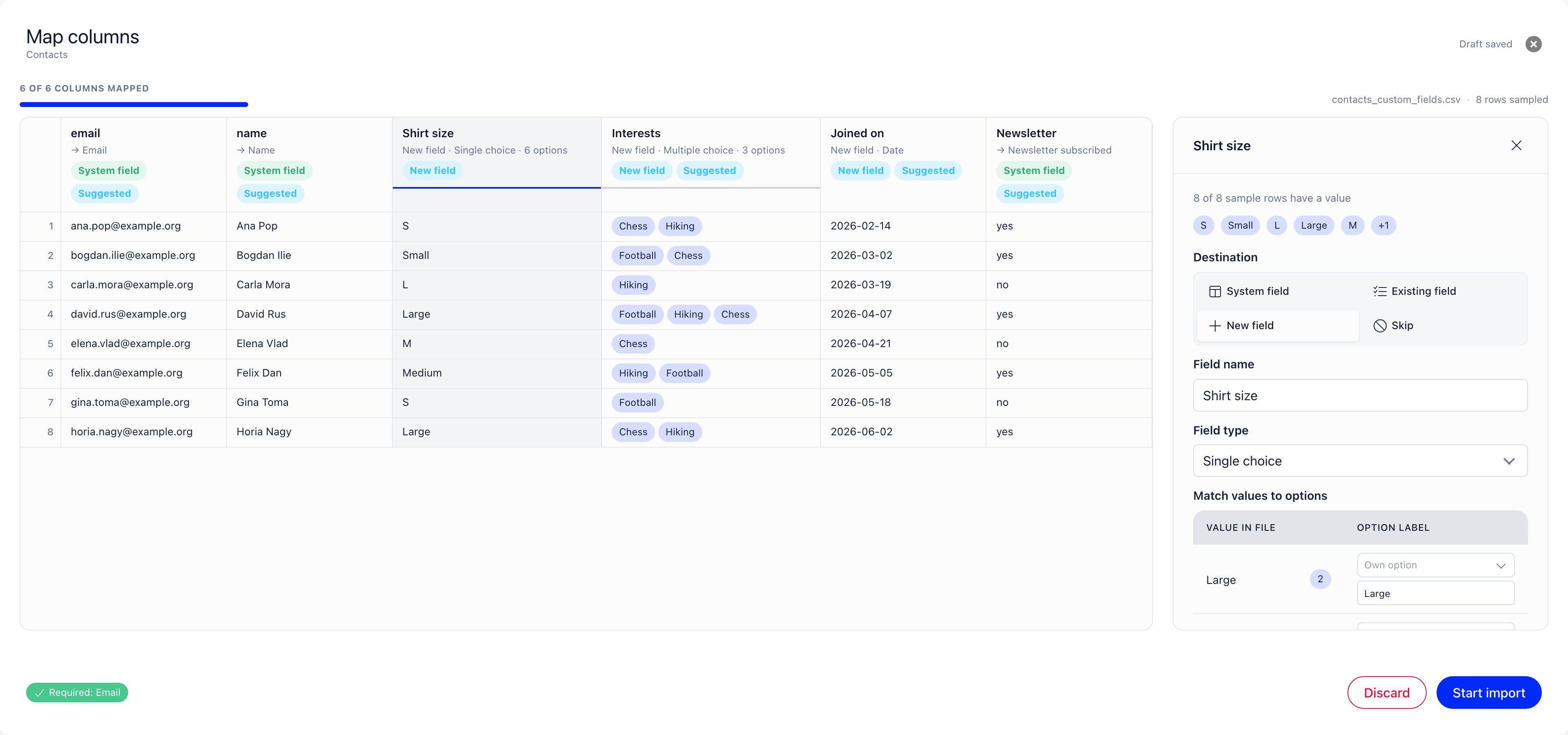
Most spreadsheets carry columns Orgo has no field for: T-shirt size, dietary needs,
the year someone joined the old association, which committees they sit on. The
import wizard can put those columns into your existing
[custom fields](/docs/platform/users/custom-fields), and it can create the field for you
from the column itself.
**Built for** the person doing a migration who does not want to define twenty fields
by hand before uploading anything, and for anyone who has watched a "Small / small / S"
column arrive as three separate options.
This page covers the custom field destinations only. For the sheet, the settings panel
and the rest of the mapping screen, see
[Mapping columns](/docs/platform/customization/import/mapping-columns).
 ***
## Which imports offer custom fields
Custom fields belong to people, so only the four person imports offer them:
| Import type | Custom field destinations |
| ----------------------------------------------------------------------------------------------- | ------------------------- |
| **Users** | Yes |
| **Contacts** | Yes |
| **Modify Users** | Yes |
| **Modify Contacts** | Yes |
| Every other type (payments, events, roles, badges, chapters, products, companies, units, lists) | No |
On the other types the settings panel offers **System field** and **Skip** only. A
payment row or a badge award has nowhere to put a profile answer, so there is no third
option to give you.
"This type has no custom fields" and "you have not defined any custom fields yet" are
different situations. On a Users or Contacts import with no profile fields defined, the
**New field** destination is still offered, and the first field you declare is created
when the import starts. On a payments import there is no custom field destination at all,
however many fields your organisation has.
The fields offered are your organisation's **profile** custom fields, the ones at
**Settings** → **Users & Profiles** → **Custom Fields**. Fields belonging to a single
event or to a form in the form builder are not in the list.
***
## Mapping onto a field you already have
Choose **Existing field** in the column's settings panel and search your profile fields
by name. The picker shows each field's name with its type beside it, and once you pick
one the panel prints **Type: Single choice** under the box.
**The field's type is fixed.** The wizard reads it and uses it; there is no way to change
a stored field's type from the import screen, and a mapping that disagrees with the stored
type is refused when it saves. If a text field should really be a dropdown, change it in
Custom Fields settings first, then come back and map the column.
Two custom field types cannot be filled by an import at all: **File Upload** and the
chapter picker. A spreadsheet cell has no file to upload, so those fields are refused if
you point a column at one.
Two columns pointing at the same custom field is not blocked, and the rightmost column
wins for every row. The wizard warns you when two columns claim the same **system** field,
but it says nothing about a duplicated custom field. If a column's values go missing after
an import, check whether a second column was aimed at the same field.
***
## Declaring a new field from the wizard
Choose **New field**. The panel pre-fills the field name from your column header, which
you can rewrite, and asks for a type:
| Field type | What the cell should contain |
| ------------------- | -------------------------------------------------------------------------------------------------------- |
| **Text** | Anything. Stored as typed, with surrounding spaces trimmed |
| **Long text** | Anything, for longer answers |
| **Number** | A number. Nothing checks this, so whatever is in the cell is stored as it stands |
| **Date** | `YYYY-MM-DD`, for example `2026-03-14`. Any other spelling of a date is reported as an error on that row |
| **Yes / No** | `true`, `1` or `yes`, in any capitalisation, for yes. Everything else is stored as no |
| **Dropdown** | One option, chosen from a list |
| **Single choice** | One option, shown as radio buttons |
| **Multiple choice** | Several options in one cell, separated by a character you pick |
Those eight are the whole set. **File Upload** and chapter fields are not offered, for the
reason given above.
**Nothing is created while you are mapping.** The field is created when you press
**Start import**, once, before the first row is read. Until then you can rename it, change
its type or switch the column to Skip with no trace left behind.
What you get is an ordinary profile custom field, indistinguishable afterwards from one
you created by hand: it belongs to the whole organisation, it is listed in Custom Fields
settings, and it carries **Public** visibility. It is not put on any form for you, so
members are not asked the question until you add it to the
[profile form](/docs/platform/users/profile-fields). It also has no position yet, so it sorts
to the top of the custom fields list until you drag it where you want it.
An import never creates an encrypted field. If the answers are sensitive, import them,
then turn encryption on in Custom Fields settings, and read what that does to the stored
values first.
***
## Choice fields: how a value finds its option
Dropdown, Single choice and Multiple choice fields do not store the text in your cell.
They store the option it matched. For every cell, and for every value inside a
multiple choice cell, Orgo works through four steps and stops at the first that hits:
If you told the wizard that this value belongs to a particular option, that decision
wins over everything else.
Options are stored under short keys, usually numbers. A cell whose text is exactly one
of those keys matches it.
`chess`, `Chess` and `Chess ` all reach the option labelled **Chess**.
Anything still unmatched becomes a new option on the field, labelled with the cell's
text.
Two consequences are worth knowing before you run a large file.
**A number in the cell can collide with an option key.** Step 2 compares your cell against
the key, and keys are usually `1`, `2`, `3`. On a field whose options are labelled
`2024`, `2025`, `2026`, a cell reading `2024` matches no key, falls through to step 3 and
lands correctly. A cell reading `1` matches the key of the first option and is stored as
**2024**, whatever you meant by it. If your column holds numbers that are answers rather
than positions, map them explicitly in the value map, or use a Number field.
**A value map entry pointing at an option that no longer exists is ignored.** If someone
deletes or rebuilds the field's options after you set the mapping up, the entry silently
stops applying and those values continue through steps 2, 3 and 4, which usually means
they create a fresh option. Reopen the column and check the value map if the options have
changed since you drafted the mapping.
Only case and spacing are treated as the same value. `Chess.`, `chess/go` and a label with
a stray non-breaking space are all different, and each becomes its own option.
***
## The value map
Under **Match values to options** the panel lists every distinct value the wizard saw in
that column, with how many times each appeared, and lets you say where each one goes. This
is how `S`, `Small` and `small` become one option instead of three.
* On a **new field**, each value starts as its own option. Rename the option in the box
beside it, or choose **Merge into** and point the value at another value's option.
* On an **existing field**, each value gets a dropdown of the field's current options,
pre-selected by label where one matches. Leave it on **Create new option** for values you
genuinely want added.
The value map belongs to one column. Mapping the same values in a second column is a
separate piece of work, and the two do not learn from each other.
The wizard reads the first 200 rows of your file and shows at most 100 distinct values per
column. When there are more, a line under the table tells you so. Values further down the
file that you never saw are still imported, they simply take the four steps above without
any decision from you.
***
## Multiple choice columns
A Multiple choice cell holds several answers at once, so Orgo needs to know where one ends
and the next begins.
Under **Values in a cell are separated by** you pick one of three characters: comma,
semicolon or pipe. The wizard guesses for you by looking at which character actually
splits your column into values that repeat across rows, which is what stops a sentence full
of commas from being read as a list. You can override the guess.
Under it, **Split preview** shows a few of your sample cells broken into tags, so you can
see the effect before you commit. Change the character and the preview rebuilds.
Each piece is trimmed and then resolved through the four steps above. Two details follow
from that:
* **Repeats inside one cell collapse.** `Chess, chess, Chess` stores Chess once. The order
of the first appearance is kept.
* **A cell of nothing but separators stores nothing.** `,,` and `;` are treated as empty.
***
## Options created during the run
Any value that reaches step 4 adds an option to the field, at the moment that row is
imported. This happens on fields you created in the wizard and on fields you have had for
years, and it is the reason a choice column never fails on an unfamiliar answer.
Orgo will not create the same option twice. Values that differ only in case or spacing land
on the option created for the first of them, whether they sit in the same batch, thousands
of rows apart, or in two imports running at the same time. A file with fifty thousand rows
and six spellings of "Small" produces one option, not six.
New options behave exactly like ones you typed in Custom Fields settings: they are on the
field for the whole organisation, they appear in the dropdown for every member and in the
member directory filters, and you can rename or reorder them afterwards.
Rename options rather than deleting them. Answers point at the option, not at its text, so
renaming updates everyone at once while deleting leaves the answers pointing at something
that is gone.
***
## Encrypted fields cannot receive imported values
An encrypted custom field appears in the picker with a lock icon at half opacity and the
note **"Encrypted fields cannot be filled by an import"**. Clicking it does nothing, and the
column stays marked **Needs attention** until you choose a different destination. The
wizard never suggests one either: a column whose header matches an encrypted field is
suggested as **Skip**.
The reason is plain. The import writes values straight into storage for speed, and that
path does not encrypt anything on the way in. Allowing it would put readable text in a
field whose whole purpose is that the text is not readable.
If you have values that need to end up in an encrypted field, either collect them through
a form, where the member is signed in and the value is encrypted as it is saved, or use
[Identity Validation](/docs/platform/identity-validation) for identity documents, which has its
own encrypted storage.
***
## An empty cell changes nothing
A blank cell is left out of the row entirely. On a Users or Contacts import that simply
means no answer is recorded. On **Modify Users** or **Modify Contacts** it means the value
already on the record is left exactly as it was.
There is no way to clear a custom field from a spreadsheet. Emptying a column and
re-importing leaves every existing answer in place. To remove answers, edit the field on
the profiles, or delete the field if you no longer want the question at all.
***
## What stays behind
Fields and options created by an import are permanent. Once the field exists it is an
ordinary part of your organisation's configuration, listed with the rest, and it stays
there afterwards along with any options that were added while rows were being read. The
same is true of options added to fields you already had.
Practically: do a small trial run of twenty rows before loading fifty thousand. If the
trial creates a field or an option you did not want, remove it in Custom Fields settings
before running the real file.
***
## Troubleshooting
Every value that does not match an existing option becomes one, and only case and
spacing are forgiven. `Chess.` and `Chess` are two different answers as far as the
import is concerned, and so are `Football/Chess` and `Football, Chess` on a single
choice field.
Clean the column in the spreadsheet first, or use the value map: it lists every
distinct value the wizard found, and you can send each one to the option you actually
want before a single row is written. On a new field, use **Merge into** to fold
variants together; on an existing field, pick the option from the dropdown instead of
leaving it on **Create new option**.
Options already created can be renamed or removed in **Settings** → **Users &
Profiles** → **Custom Fields**. Prefer renaming: answers point at the option rather
than at its text, so a rename fixes every record at once.
A Yes / No field accepts exactly three spellings of yes: `true`, `1` and `yes`, in any
capitalisation. Everything else is stored as no, with no error, because the field has
nowhere else to put it. So `y`, `Y`, `x`, `da`, `ja`, `oui` and a tick character all arrive as no.
This is easy to miss because the wizard also recognises `false` and `no` when it is
guessing the column's type, so a column of `da` and `nu` can look like a clean Yes / No
column and still come in entirely false.
Fix it in the spreadsheet: replace your yes values with `yes` or `1` and re-run the
import over the same people. A modify import will correct the stored answers.
The separator was wrong. If the column is split on commas but your file uses
semicolons, the whole cell is treated as a single answer and an option is created with
the entire string as its label.
Open the column, set **Values in a cell are separated by** to the character your file
actually uses, and check **Split preview** underneath: it shows your sample cells broken
into tags, so a wrong separator is visible before you start.
If the import has already run, delete the wrongly created options in Custom Fields
settings, correct the separator and re-run the file as a modify import.
That field is encrypted, and an import cannot fill it. The import writes values directly
into storage without encrypting them, so the field is locked in the picker rather than
quietly storing readable text in it.
Map the column to a different field, or to **Skip** and collect the answers another way.
See [Encrypted fields cannot receive imported
values](#encrypted-fields-cannot-receive-imported-values) above.
A locked field leaves the column marked **Needs attention**, which is what is stopping
you from starting the import until you choose something else.
Choosing **New field** always creates a new field. It does not check whether one of
your existing fields already has that name, and it does not check the other columns in
the same mapping, so two columns both set to **New field** with the same name produce
two fields with the same name.
The wizard tries to save you from this: when a column header matches an existing field
by name, it suggests **Existing field** and pre-selects it. Overriding that suggestion,
or renaming a new field to something that already exists, is what produces the
duplicate.
Before starting, read the destination line under each column header. It says
**Existing field** or **New field**, so a column you expected to land in a field you
already have is obvious at a glance. If a duplicate has already been created, move any
answers you need and delete the spare in Custom Fields settings.
***
## Related
* [Custom Fields](/docs/platform/users/custom-fields) for creating, editing and encrypting fields outside the import
* [Profile Fields](/docs/platform/users/profile-fields) for putting a newly created field in front of members
* [Data Import](/docs/platform/customization/import) for the wizard as a whole
* [Preparing your file](/docs/platform/customization/import/preparing-your-file) for headers, separators and value formats
* [Mapping columns](/docs/platform/customization/import/mapping-columns) for the sheet and the settings panel
* [Linking records](/docs/platform/customization/import/linking-records) for columns that point at another record
* [Import reference](/docs/platform/customization/import/reference) for the fields each import type reads
***
## Which imports offer custom fields
Custom fields belong to people, so only the four person imports offer them:
| Import type | Custom field destinations |
| ----------------------------------------------------------------------------------------------- | ------------------------- |
| **Users** | Yes |
| **Contacts** | Yes |
| **Modify Users** | Yes |
| **Modify Contacts** | Yes |
| Every other type (payments, events, roles, badges, chapters, products, companies, units, lists) | No |
On the other types the settings panel offers **System field** and **Skip** only. A
payment row or a badge award has nowhere to put a profile answer, so there is no third
option to give you.
"This type has no custom fields" and "you have not defined any custom fields yet" are
different situations. On a Users or Contacts import with no profile fields defined, the
**New field** destination is still offered, and the first field you declare is created
when the import starts. On a payments import there is no custom field destination at all,
however many fields your organisation has.
The fields offered are your organisation's **profile** custom fields, the ones at
**Settings** → **Users & Profiles** → **Custom Fields**. Fields belonging to a single
event or to a form in the form builder are not in the list.
***
## Mapping onto a field you already have
Choose **Existing field** in the column's settings panel and search your profile fields
by name. The picker shows each field's name with its type beside it, and once you pick
one the panel prints **Type: Single choice** under the box.
**The field's type is fixed.** The wizard reads it and uses it; there is no way to change
a stored field's type from the import screen, and a mapping that disagrees with the stored
type is refused when it saves. If a text field should really be a dropdown, change it in
Custom Fields settings first, then come back and map the column.
Two custom field types cannot be filled by an import at all: **File Upload** and the
chapter picker. A spreadsheet cell has no file to upload, so those fields are refused if
you point a column at one.
Two columns pointing at the same custom field is not blocked, and the rightmost column
wins for every row. The wizard warns you when two columns claim the same **system** field,
but it says nothing about a duplicated custom field. If a column's values go missing after
an import, check whether a second column was aimed at the same field.
***
## Declaring a new field from the wizard
Choose **New field**. The panel pre-fills the field name from your column header, which
you can rewrite, and asks for a type:
| Field type | What the cell should contain |
| ------------------- | -------------------------------------------------------------------------------------------------------- |
| **Text** | Anything. Stored as typed, with surrounding spaces trimmed |
| **Long text** | Anything, for longer answers |
| **Number** | A number. Nothing checks this, so whatever is in the cell is stored as it stands |
| **Date** | `YYYY-MM-DD`, for example `2026-03-14`. Any other spelling of a date is reported as an error on that row |
| **Yes / No** | `true`, `1` or `yes`, in any capitalisation, for yes. Everything else is stored as no |
| **Dropdown** | One option, chosen from a list |
| **Single choice** | One option, shown as radio buttons |
| **Multiple choice** | Several options in one cell, separated by a character you pick |
Those eight are the whole set. **File Upload** and chapter fields are not offered, for the
reason given above.
**Nothing is created while you are mapping.** The field is created when you press
**Start import**, once, before the first row is read. Until then you can rename it, change
its type or switch the column to Skip with no trace left behind.
What you get is an ordinary profile custom field, indistinguishable afterwards from one
you created by hand: it belongs to the whole organisation, it is listed in Custom Fields
settings, and it carries **Public** visibility. It is not put on any form for you, so
members are not asked the question until you add it to the
[profile form](/docs/platform/users/profile-fields). It also has no position yet, so it sorts
to the top of the custom fields list until you drag it where you want it.
An import never creates an encrypted field. If the answers are sensitive, import them,
then turn encryption on in Custom Fields settings, and read what that does to the stored
values first.
***
## Choice fields: how a value finds its option
Dropdown, Single choice and Multiple choice fields do not store the text in your cell.
They store the option it matched. For every cell, and for every value inside a
multiple choice cell, Orgo works through four steps and stops at the first that hits:
If you told the wizard that this value belongs to a particular option, that decision
wins over everything else.
Options are stored under short keys, usually numbers. A cell whose text is exactly one
of those keys matches it.
`chess`, `Chess` and `Chess ` all reach the option labelled **Chess**.
Anything still unmatched becomes a new option on the field, labelled with the cell's
text.
Two consequences are worth knowing before you run a large file.
**A number in the cell can collide with an option key.** Step 2 compares your cell against
the key, and keys are usually `1`, `2`, `3`. On a field whose options are labelled
`2024`, `2025`, `2026`, a cell reading `2024` matches no key, falls through to step 3 and
lands correctly. A cell reading `1` matches the key of the first option and is stored as
**2024**, whatever you meant by it. If your column holds numbers that are answers rather
than positions, map them explicitly in the value map, or use a Number field.
**A value map entry pointing at an option that no longer exists is ignored.** If someone
deletes or rebuilds the field's options after you set the mapping up, the entry silently
stops applying and those values continue through steps 2, 3 and 4, which usually means
they create a fresh option. Reopen the column and check the value map if the options have
changed since you drafted the mapping.
Only case and spacing are treated as the same value. `Chess.`, `chess/go` and a label with
a stray non-breaking space are all different, and each becomes its own option.
***
## The value map
Under **Match values to options** the panel lists every distinct value the wizard saw in
that column, with how many times each appeared, and lets you say where each one goes. This
is how `S`, `Small` and `small` become one option instead of three.
* On a **new field**, each value starts as its own option. Rename the option in the box
beside it, or choose **Merge into** and point the value at another value's option.
* On an **existing field**, each value gets a dropdown of the field's current options,
pre-selected by label where one matches. Leave it on **Create new option** for values you
genuinely want added.
The value map belongs to one column. Mapping the same values in a second column is a
separate piece of work, and the two do not learn from each other.
The wizard reads the first 200 rows of your file and shows at most 100 distinct values per
column. When there are more, a line under the table tells you so. Values further down the
file that you never saw are still imported, they simply take the four steps above without
any decision from you.
***
## Multiple choice columns
A Multiple choice cell holds several answers at once, so Orgo needs to know where one ends
and the next begins.
Under **Values in a cell are separated by** you pick one of three characters: comma,
semicolon or pipe. The wizard guesses for you by looking at which character actually
splits your column into values that repeat across rows, which is what stops a sentence full
of commas from being read as a list. You can override the guess.
Under it, **Split preview** shows a few of your sample cells broken into tags, so you can
see the effect before you commit. Change the character and the preview rebuilds.
Each piece is trimmed and then resolved through the four steps above. Two details follow
from that:
* **Repeats inside one cell collapse.** `Chess, chess, Chess` stores Chess once. The order
of the first appearance is kept.
* **A cell of nothing but separators stores nothing.** `,,` and `;` are treated as empty.
***
## Options created during the run
Any value that reaches step 4 adds an option to the field, at the moment that row is
imported. This happens on fields you created in the wizard and on fields you have had for
years, and it is the reason a choice column never fails on an unfamiliar answer.
Orgo will not create the same option twice. Values that differ only in case or spacing land
on the option created for the first of them, whether they sit in the same batch, thousands
of rows apart, or in two imports running at the same time. A file with fifty thousand rows
and six spellings of "Small" produces one option, not six.
New options behave exactly like ones you typed in Custom Fields settings: they are on the
field for the whole organisation, they appear in the dropdown for every member and in the
member directory filters, and you can rename or reorder them afterwards.
Rename options rather than deleting them. Answers point at the option, not at its text, so
renaming updates everyone at once while deleting leaves the answers pointing at something
that is gone.
***
## Encrypted fields cannot receive imported values
An encrypted custom field appears in the picker with a lock icon at half opacity and the
note **"Encrypted fields cannot be filled by an import"**. Clicking it does nothing, and the
column stays marked **Needs attention** until you choose a different destination. The
wizard never suggests one either: a column whose header matches an encrypted field is
suggested as **Skip**.
The reason is plain. The import writes values straight into storage for speed, and that
path does not encrypt anything on the way in. Allowing it would put readable text in a
field whose whole purpose is that the text is not readable.
If you have values that need to end up in an encrypted field, either collect them through
a form, where the member is signed in and the value is encrypted as it is saved, or use
[Identity Validation](/docs/platform/identity-validation) for identity documents, which has its
own encrypted storage.
***
## An empty cell changes nothing
A blank cell is left out of the row entirely. On a Users or Contacts import that simply
means no answer is recorded. On **Modify Users** or **Modify Contacts** it means the value
already on the record is left exactly as it was.
There is no way to clear a custom field from a spreadsheet. Emptying a column and
re-importing leaves every existing answer in place. To remove answers, edit the field on
the profiles, or delete the field if you no longer want the question at all.
***
## What stays behind
Fields and options created by an import are permanent. Once the field exists it is an
ordinary part of your organisation's configuration, listed with the rest, and it stays
there afterwards along with any options that were added while rows were being read. The
same is true of options added to fields you already had.
Practically: do a small trial run of twenty rows before loading fifty thousand. If the
trial creates a field or an option you did not want, remove it in Custom Fields settings
before running the real file.
***
## Troubleshooting
Every value that does not match an existing option becomes one, and only case and
spacing are forgiven. `Chess.` and `Chess` are two different answers as far as the
import is concerned, and so are `Football/Chess` and `Football, Chess` on a single
choice field.
Clean the column in the spreadsheet first, or use the value map: it lists every
distinct value the wizard found, and you can send each one to the option you actually
want before a single row is written. On a new field, use **Merge into** to fold
variants together; on an existing field, pick the option from the dropdown instead of
leaving it on **Create new option**.
Options already created can be renamed or removed in **Settings** → **Users &
Profiles** → **Custom Fields**. Prefer renaming: answers point at the option rather
than at its text, so a rename fixes every record at once.
A Yes / No field accepts exactly three spellings of yes: `true`, `1` and `yes`, in any
capitalisation. Everything else is stored as no, with no error, because the field has
nowhere else to put it. So `y`, `Y`, `x`, `da`, `ja`, `oui` and a tick character all arrive as no.
This is easy to miss because the wizard also recognises `false` and `no` when it is
guessing the column's type, so a column of `da` and `nu` can look like a clean Yes / No
column and still come in entirely false.
Fix it in the spreadsheet: replace your yes values with `yes` or `1` and re-run the
import over the same people. A modify import will correct the stored answers.
The separator was wrong. If the column is split on commas but your file uses
semicolons, the whole cell is treated as a single answer and an option is created with
the entire string as its label.
Open the column, set **Values in a cell are separated by** to the character your file
actually uses, and check **Split preview** underneath: it shows your sample cells broken
into tags, so a wrong separator is visible before you start.
If the import has already run, delete the wrongly created options in Custom Fields
settings, correct the separator and re-run the file as a modify import.
That field is encrypted, and an import cannot fill it. The import writes values directly
into storage without encrypting them, so the field is locked in the picker rather than
quietly storing readable text in it.
Map the column to a different field, or to **Skip** and collect the answers another way.
See [Encrypted fields cannot receive imported
values](#encrypted-fields-cannot-receive-imported-values) above.
A locked field leaves the column marked **Needs attention**, which is what is stopping
you from starting the import until you choose something else.
Choosing **New field** always creates a new field. It does not check whether one of
your existing fields already has that name, and it does not check the other columns in
the same mapping, so two columns both set to **New field** with the same name produce
two fields with the same name.
The wizard tries to save you from this: when a column header matches an existing field
by name, it suggests **Existing field** and pre-selects it. Overriding that suggestion,
or renaming a new field to something that already exists, is what produces the
duplicate.
Before starting, read the destination line under each column header. It says
**Existing field** or **New field**, so a column you expected to land in a field you
already have is obvious at a glance. If a duplicate has already been created, move any
answers you need and delete the spare in Custom Fields settings.
***
## Related
* [Custom Fields](/docs/platform/users/custom-fields) for creating, editing and encrypting fields outside the import
* [Profile Fields](/docs/platform/users/profile-fields) for putting a newly created field in front of members
* [Data Import](/docs/platform/customization/import) for the wizard as a whole
* [Preparing your file](/docs/platform/customization/import/preparing-your-file) for headers, separators and value formats
* [Mapping columns](/docs/platform/customization/import/mapping-columns) for the sheet and the settings panel
* [Linking records](/docs/platform/customization/import/linking-records) for columns that point at another record
* [Import reference](/docs/platform/customization/import/reference) for the fields each import type reads