> ## Documentation Index
> Fetch the complete documentation index at: https://orgo.space/docs/llms.txt
> Use this file to discover all available pages before exploring further.
# Labels & Terminology
> Rename default terms to match your organization — "Members" becomes "Scouts", "Groups" becomes "Patrols"
Every organization has its own vocabulary. A scouting group doesn't call people "Members" — they're "Scouts". Labels let you override any default term in the platform so Orgo speaks your language.
 Requires **Tenant Admin** permissions.
***
## How to customize a label
**Settings → Customization → Labels**
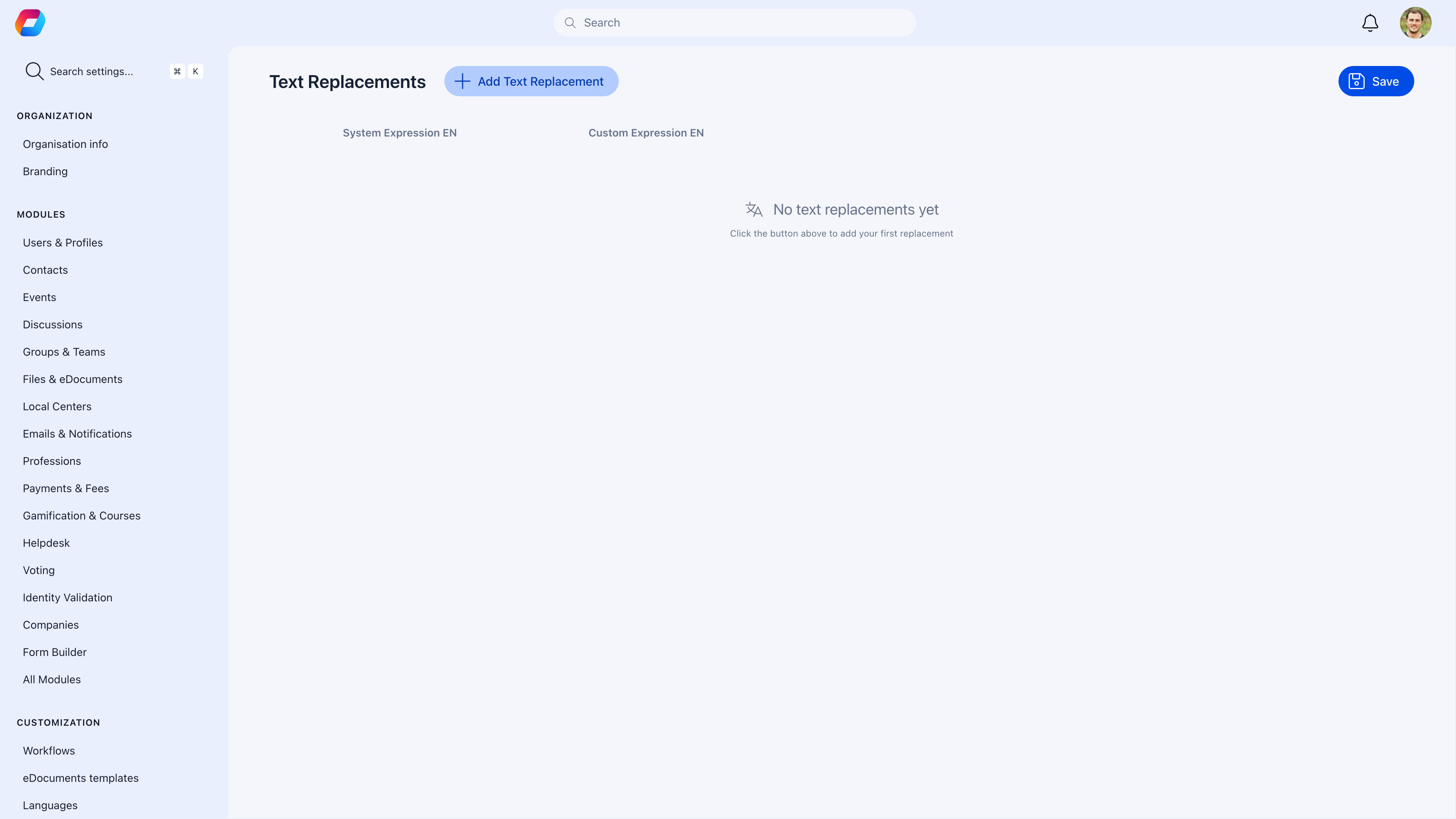
Use the autocomplete search field at the top of the page. Type the current term (e.g., "Members") and the system shows all matching translation keys from the platform. Select the one you want to override.
In the **Custom Expression** column, type the new term (e.g., "Scouts"). The **System Expression** column on the left shows the current default for reference.
Click the add button to search for and override additional terms. Remember to cover both singular and plural forms (e.g., "Member" and "Members").
Click **Save**. The change appears everywhere in the platform immediately — menus, buttons, forms, emails, and system messages.
The override is purely visual — the underlying data model doesn't change. You're renaming the display label, not restructuring the system.
***
## Common customizations
| Default term | Replace with (examples) |
| ------------------------ | ------------------------------------------------------- |
| **Member** / **Members** | Scout(s), Associate(s), Volunteer(s), Participant(s) |
| **Group** / **Groups** | Patrol(s), Chapter(s), Unit(s), Team(s), Committee(s) |
| **Local Center** | Troop, District, Branch, Region, Section |
| **Event** / **Events** | Activity/Activities, Meeting(s), Session(s), Program(s) |
| **Discussion** | Forum, Conversation, Thread, Topic |
| **Fee** / **Fees** | Dues, Subscription(s), Contribution(s), Levy/Levies |
### Example: Scouting organization
| Original | Customized |
| ------------ | ---------- |
| Members | Scouts |
| Groups | Patrols |
| Local Center | Troop |
| Events | Activities |
### Example: Professional association
| Original | Customized |
| ------------ | ----------- |
| Members | Associates |
| Groups | Committees |
| Local Center | Chapter |
| Fees | Annual Dues |
Start with the 5-6 terms that differ most for your organization. Don't customize labels that already make sense — over-customization can confuse members who've used similar platforms before.
***
## Multi-language labels
If you have multiple languages enabled, you need to provide label overrides for each language separately.
Use the language picker at the top of the Labels page to switch to the language you want to customize.
For each customized term, type the translation in that language. The system expression column updates to show the default translation for the selected language.
Switch to each enabled language and provide the corresponding override. Labels without an override fall back to the default translation for that language.
If you enable a new language after customizing labels, remember to add overrides for that language too. Otherwise, members using the new language will see the default terms, not your custom ones.
***
## What you can customize
Labels cover everything visible to members:
| Category | Examples |
| ------------------- | --------------------------------------------------------- |
| **Navigation** | Menu items, sidebar labels, page titles |
| **Buttons** | Action button text ("Create Event" → "Schedule Activity") |
| **Forms** | Field labels, placeholder text, help text |
| **Emails** | Subject lines, email body text, notification text |
| **System messages** | Success confirmations, error messages, validation text |
***
## Resetting a label
To undo a label change, find the customized label in the list, clear the **Custom Expression** field, and save. The default term is restored. You can also remove the entire row by clicking the delete button next to it.
***
## Real-world example
> **Scenario**: A volunteer fire department with 300 members across 12 stations, operating in German.
1. **Default language**: German.
2. **Label changes**: "Mitglieder" (Members) → "Kameraden" (Comrades), "Lokales Zentrum" (Local Center) → "Feuerwache" (Fire Station), "Gruppen" (Groups) → "Züge" (Platoons), "Veranstaltungen" (Events) → "Einsatzübungen" (Drills).
3. **Result**: The entire platform — sidebar, member lists, event calendar, emails — uses the fire department's terminology instead of generic organizational terms.
***
## Troubleshooting
There are multiple translation keys for singular and plural forms, and for different contexts (e.g., "Member", "Members", "member", "members"). Search broadly in the autocomplete and update all matching instances. Also check capitalized and lowercase variants.
Be careful — if you rename both "Groups" and "Local Centers" to "Teams", members won't be able to distinguish them. Keep terms distinct even when customizing. Use your organization's real vocabulary to find natural distinctions.
Custom labels are stored permanently and survive platform updates. If a label appears to have reverted, it's likely that a new translation key was added in the update that you haven't customized yet. Search for the term and add the override for the new key.
The autocomplete searches through all translation keys in the system. Try different wordings — the key might use a synonym or abbreviation. If the term is part of a longer phrase, search for the individual word rather than the full sentence.
***
## Related
* [Languages](/platform/customization/languages) — Multi-language support (enable languages before customizing labels)
* [Menu Organizer](/platform/customization/menu-organizer) — Rearrange and rename sidebar items
* [Branding](/platform/organisation/branding) — Visual customization (logos, login background)
Requires **Tenant Admin** permissions.
***
## How to customize a label
**Settings → Customization → Labels**
Use the autocomplete search field at the top of the page. Type the current term (e.g., "Members") and the system shows all matching translation keys from the platform. Select the one you want to override.
In the **Custom Expression** column, type the new term (e.g., "Scouts"). The **System Expression** column on the left shows the current default for reference.
Click the add button to search for and override additional terms. Remember to cover both singular and plural forms (e.g., "Member" and "Members").
Click **Save**. The change appears everywhere in the platform immediately — menus, buttons, forms, emails, and system messages.
The override is purely visual — the underlying data model doesn't change. You're renaming the display label, not restructuring the system.
***
## Common customizations
| Default term | Replace with (examples) |
| ------------------------ | ------------------------------------------------------- |
| **Member** / **Members** | Scout(s), Associate(s), Volunteer(s), Participant(s) |
| **Group** / **Groups** | Patrol(s), Chapter(s), Unit(s), Team(s), Committee(s) |
| **Local Center** | Troop, District, Branch, Region, Section |
| **Event** / **Events** | Activity/Activities, Meeting(s), Session(s), Program(s) |
| **Discussion** | Forum, Conversation, Thread, Topic |
| **Fee** / **Fees** | Dues, Subscription(s), Contribution(s), Levy/Levies |
### Example: Scouting organization
| Original | Customized |
| ------------ | ---------- |
| Members | Scouts |
| Groups | Patrols |
| Local Center | Troop |
| Events | Activities |
### Example: Professional association
| Original | Customized |
| ------------ | ----------- |
| Members | Associates |
| Groups | Committees |
| Local Center | Chapter |
| Fees | Annual Dues |
Start with the 5-6 terms that differ most for your organization. Don't customize labels that already make sense — over-customization can confuse members who've used similar platforms before.
***
## Multi-language labels
If you have multiple languages enabled, you need to provide label overrides for each language separately.
Use the language picker at the top of the Labels page to switch to the language you want to customize.
For each customized term, type the translation in that language. The system expression column updates to show the default translation for the selected language.
Switch to each enabled language and provide the corresponding override. Labels without an override fall back to the default translation for that language.
If you enable a new language after customizing labels, remember to add overrides for that language too. Otherwise, members using the new language will see the default terms, not your custom ones.
***
## What you can customize
Labels cover everything visible to members:
| Category | Examples |
| ------------------- | --------------------------------------------------------- |
| **Navigation** | Menu items, sidebar labels, page titles |
| **Buttons** | Action button text ("Create Event" → "Schedule Activity") |
| **Forms** | Field labels, placeholder text, help text |
| **Emails** | Subject lines, email body text, notification text |
| **System messages** | Success confirmations, error messages, validation text |
***
## Resetting a label
To undo a label change, find the customized label in the list, clear the **Custom Expression** field, and save. The default term is restored. You can also remove the entire row by clicking the delete button next to it.
***
## Real-world example
> **Scenario**: A volunteer fire department with 300 members across 12 stations, operating in German.
1. **Default language**: German.
2. **Label changes**: "Mitglieder" (Members) → "Kameraden" (Comrades), "Lokales Zentrum" (Local Center) → "Feuerwache" (Fire Station), "Gruppen" (Groups) → "Züge" (Platoons), "Veranstaltungen" (Events) → "Einsatzübungen" (Drills).
3. **Result**: The entire platform — sidebar, member lists, event calendar, emails — uses the fire department's terminology instead of generic organizational terms.
***
## Troubleshooting
There are multiple translation keys for singular and plural forms, and for different contexts (e.g., "Member", "Members", "member", "members"). Search broadly in the autocomplete and update all matching instances. Also check capitalized and lowercase variants.
Be careful — if you rename both "Groups" and "Local Centers" to "Teams", members won't be able to distinguish them. Keep terms distinct even when customizing. Use your organization's real vocabulary to find natural distinctions.
Custom labels are stored permanently and survive platform updates. If a label appears to have reverted, it's likely that a new translation key was added in the update that you haven't customized yet. Search for the term and add the override for the new key.
The autocomplete searches through all translation keys in the system. Try different wordings — the key might use a synonym or abbreviation. If the term is part of a longer phrase, search for the individual word rather than the full sentence.
***
## Related
* [Languages](/platform/customization/languages) — Multi-language support (enable languages before customizing labels)
* [Menu Organizer](/platform/customization/menu-organizer) — Rearrange and rename sidebar items
* [Branding](/platform/organisation/branding) — Visual customization (logos, login background)