> ## Documentation Index
> Fetch the complete documentation index at: https://orgo.space/docs/llms.txt
> Use this file to discover all available pages before exploring further.
# Create Event
> Step-by-step guide to creating events, from simple meetings to ticketed conferences
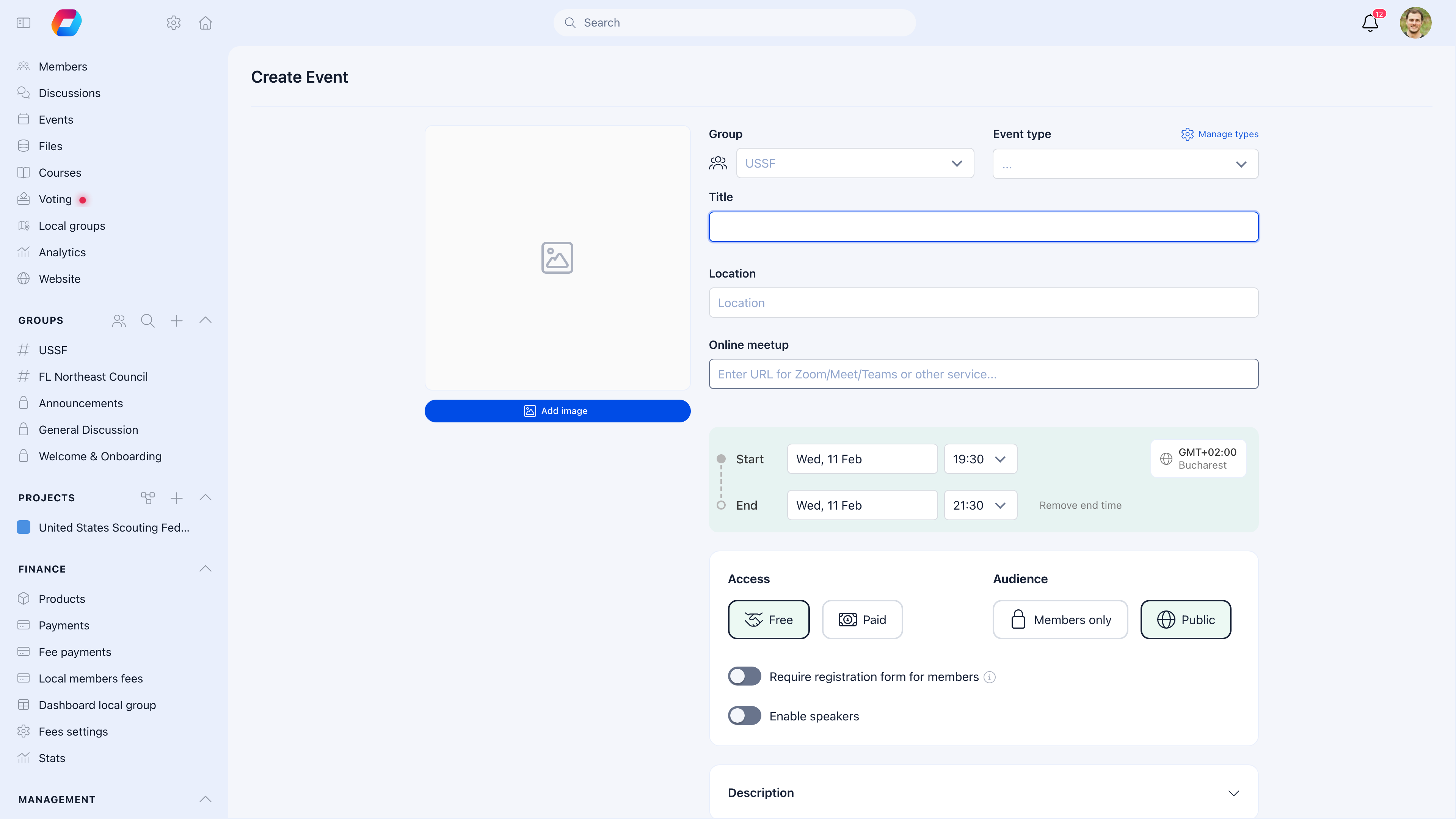
Creating an event in Orgo covers everything from a 10-person committee meeting to a 500-person ticketed conference. This guide walks through every option so you know what to use and what to skip.
 ***
## How to create an event
**Events** → **Create Event**, or from the Dashboard quick actions.
Enter the event title, start/end dates and times, and select the hosting group.
Write the event description (rich text with images and links). Add a physical address, an online meeting link, or both.
Decide whether people can register, set capacity, configure ticket types, and choose which fields to collect.
Upload a hero image, set accent colors, and configure the public page appearance.
Review everything, then publish. The event goes live and members are notified.
***
## Event details
### Required fields
| Field | What to enter |
| ------------------- | -------------------------------------------------------------------------------------------------------------------------------- |
| **Title** | Clear, descriptive name — "Annual Leadership Conference 2026" not "Event" |
| **Start date/time** | When the event begins, including time and timezone |
| **End date/time** | When the event ends |
| **Group** | Which group is hosting — this determines who sees it in their calendar. You must have posting permissions in the selected group. |
### Optional but recommended
| Field | When to use |
| --------------- | ------------------------------------------------------------------------------------------------------ |
| **Description** | Always — this is your event's sales pitch. Rich text formatting, images, and links supported. |
| **Location** | Physical events — enter the venue name and address |
| **Online link** | Virtual events — paste your Zoom, Teams, or Meet link |
| **Event type** | Always, if you've set up [Event Types](/platform/events/event-types) — enables filtering and reporting |
| **Hero image** | Public events and any event you want to look polished. Recommended: 1200x675px, 16:9 ratio. |
| **Timezone** | Multi-timezone organizations — defaults to your profile timezone |
***
## Visibility: public vs. private
This is a key decision:
| Setting | What it means |
| --------------------- | -------------------------------------------------------------------------------------------------------------------------------------------------- |
| **Public** | Anyone can view the event page — even without an Orgo account. The event gets a shareable URL. Use for open events you want to promote externally. |
| **Private** (default) | Only members of the hosting group can see the event. Use for internal meetings, member-only activities. |
### Attendable vs. informational
| Setting | What it means |
| -------------------- | --------------------------------------------------------------------------------------------------------------------------- |
| **Attendable** — ON | People can register or RSVP. Enables capacity, tickets, waitlist. |
| **Attendable** — OFF | The event is informational only — it shows on the calendar but nobody registers. Use for holidays, deadlines, or reminders. |
***
## Registration settings
When "Attendable" is enabled, configure how registration works:
### Capacity
| Setting | What it does |
| ----------------- | ------------------------------------------------------------------------------------ |
| **Max attendees** | Hard limit on registrations. Leave empty for unlimited. |
| **Waitlist** | When capacity is reached, new registrants join a waitlist instead of being rejected. |
### Registration deadline
Set a date/time after which registration closes automatically. Useful for events with preparation requirements (name badges, catering headcount, etc.).
### Registration fields
Choose what information to collect when someone registers:
| Field | Collect when |
| ---------------------------- | ------------------------------------------------- |
| **Name** | Always (usually required) |
| **Email** | Always (usually required) |
| **Phone** | You need to contact attendees directly |
| **Organisation** | External attendees from various companies |
| **Role/Title** | Networking events, professional conferences |
| **Town** | Geographic spread matters |
| **LinkedIn / X / Instagram** | Networking events where social connections matter |
Fewer registration fields = more registrations. Only ask for what you'll actually use. You can always collect more information at check-in.
***
## Ticketing
For paid events or events with multiple registration tiers, enable ticketing. This is a deep topic — see [Ticketing](/platform/events/ticketing) for the full guide.
Quick overview: you create ticket types (General Admission, Early Bird, VIP, Member, Student), set prices, and optionally limit quantities. Attendees pay via Stripe checkout and receive a QR code ticket.
Paid tickets require [Stripe setup](/platform/fees/stripe-integration). Without Stripe configured, you can only create free ticket types.
***
## Event page customization
Every event has a page — for public events, this is what the world sees. Customize it to match your brand:
| Setting | What it controls |
| ---------------------------- | ---------------------------------------------------------- |
| **Organization logo** | Show/hide your org logo on the event page |
| **Show title** | Display event title prominently over the hero image |
| **Hero image corners** | None, Small, Medium, or Large border radius |
| **Accent color** | Affects buttons, links, and highlights throughout the page |
| **Button color** | Specific color for the register/purchase button |
| **Light theme only** | Force light theme even if the visitor uses dark mode |
| **Hide newsletter checkbox** | Remove the "subscribe to updates" checkbox from the form |
| **Disable registration** | Show event info but no registration form (info-only mode) |
***
## SDG tagging
If your organization tracks impact against the UN Sustainable Development Goals (common for NGOs and civil society organizations), you can tag each event with the relevant SDGs (1-17). These tags feed into [Annual Reports](/platform/events/annual-report) for impact reporting.
***
## Draft vs. published
Events start as **drafts**:
| State | Visibility | Notifications |
| ------------- | --------------------------------------- | -------------------------------------------- |
| **Draft** | Only you and admins can see it | None sent |
| **Published** | Visible based on public/private setting | Members notified, event appears in calendars |
Work on drafts until everything looks right, then publish. You can still edit most fields after publishing — dates, description, location, tickets.
***
## After publishing
Once live, you can:
* **Track registrations** — see who signed up in the Participants tab
* **Send invitations** — invite specific members or entire groups
* **Send updates** — notify registered attendees of changes
* **Manage waitlist** — approve waitlisted people when spots open
* **Cancel the event** — registrants are notified automatically
***
## Common scenarios
Orgo doesn't have a built-in recurrence feature. Create each instance individually, or create the first one and duplicate it for future dates. For recurring meetings, some organizations create a Private Group with the meeting info pinned as a discussion post, and only create formal events for special sessions.
Yes. You can update the title, description, location, times, and hero image. Registered attendees won't be automatically notified of changes — use the "Send update" feature to notify them explicitly.
Add both a physical location and an online meeting link. The event page shows both. You might create separate ticket types: "In-Person" and "Online" to track attendance mode.
You need posting permissions in that Local Center. Select the center as the hosting group when creating the event. Or have the local admin create it — they have the permissions by default.
Yes, if the event is **public**. Non-members register as guests — they provide their name, email, and any required fields. They receive a ticket/QR code by email. They don't need an Orgo account.
***
## Related
* [Events Overview](/platform/events) — Module setup and configuration
* [Event Types](/platform/events/event-types) — Categorize your events
* [Ticketing](/platform/events/ticketing) — Paid tickets and pricing strategies
* [Public Event Pages](/platform/events/public-page) — Shareable branded event pages
* [Attendance](/platform/events/attendance) — Check-in and tracking
***
## How to create an event
**Events** → **Create Event**, or from the Dashboard quick actions.
Enter the event title, start/end dates and times, and select the hosting group.
Write the event description (rich text with images and links). Add a physical address, an online meeting link, or both.
Decide whether people can register, set capacity, configure ticket types, and choose which fields to collect.
Upload a hero image, set accent colors, and configure the public page appearance.
Review everything, then publish. The event goes live and members are notified.
***
## Event details
### Required fields
| Field | What to enter |
| ------------------- | -------------------------------------------------------------------------------------------------------------------------------- |
| **Title** | Clear, descriptive name — "Annual Leadership Conference 2026" not "Event" |
| **Start date/time** | When the event begins, including time and timezone |
| **End date/time** | When the event ends |
| **Group** | Which group is hosting — this determines who sees it in their calendar. You must have posting permissions in the selected group. |
### Optional but recommended
| Field | When to use |
| --------------- | ------------------------------------------------------------------------------------------------------ |
| **Description** | Always — this is your event's sales pitch. Rich text formatting, images, and links supported. |
| **Location** | Physical events — enter the venue name and address |
| **Online link** | Virtual events — paste your Zoom, Teams, or Meet link |
| **Event type** | Always, if you've set up [Event Types](/platform/events/event-types) — enables filtering and reporting |
| **Hero image** | Public events and any event you want to look polished. Recommended: 1200x675px, 16:9 ratio. |
| **Timezone** | Multi-timezone organizations — defaults to your profile timezone |
***
## Visibility: public vs. private
This is a key decision:
| Setting | What it means |
| --------------------- | -------------------------------------------------------------------------------------------------------------------------------------------------- |
| **Public** | Anyone can view the event page — even without an Orgo account. The event gets a shareable URL. Use for open events you want to promote externally. |
| **Private** (default) | Only members of the hosting group can see the event. Use for internal meetings, member-only activities. |
### Attendable vs. informational
| Setting | What it means |
| -------------------- | --------------------------------------------------------------------------------------------------------------------------- |
| **Attendable** — ON | People can register or RSVP. Enables capacity, tickets, waitlist. |
| **Attendable** — OFF | The event is informational only — it shows on the calendar but nobody registers. Use for holidays, deadlines, or reminders. |
***
## Registration settings
When "Attendable" is enabled, configure how registration works:
### Capacity
| Setting | What it does |
| ----------------- | ------------------------------------------------------------------------------------ |
| **Max attendees** | Hard limit on registrations. Leave empty for unlimited. |
| **Waitlist** | When capacity is reached, new registrants join a waitlist instead of being rejected. |
### Registration deadline
Set a date/time after which registration closes automatically. Useful for events with preparation requirements (name badges, catering headcount, etc.).
### Registration fields
Choose what information to collect when someone registers:
| Field | Collect when |
| ---------------------------- | ------------------------------------------------- |
| **Name** | Always (usually required) |
| **Email** | Always (usually required) |
| **Phone** | You need to contact attendees directly |
| **Organisation** | External attendees from various companies |
| **Role/Title** | Networking events, professional conferences |
| **Town** | Geographic spread matters |
| **LinkedIn / X / Instagram** | Networking events where social connections matter |
Fewer registration fields = more registrations. Only ask for what you'll actually use. You can always collect more information at check-in.
***
## Ticketing
For paid events or events with multiple registration tiers, enable ticketing. This is a deep topic — see [Ticketing](/platform/events/ticketing) for the full guide.
Quick overview: you create ticket types (General Admission, Early Bird, VIP, Member, Student), set prices, and optionally limit quantities. Attendees pay via Stripe checkout and receive a QR code ticket.
Paid tickets require [Stripe setup](/platform/fees/stripe-integration). Without Stripe configured, you can only create free ticket types.
***
## Event page customization
Every event has a page — for public events, this is what the world sees. Customize it to match your brand:
| Setting | What it controls |
| ---------------------------- | ---------------------------------------------------------- |
| **Organization logo** | Show/hide your org logo on the event page |
| **Show title** | Display event title prominently over the hero image |
| **Hero image corners** | None, Small, Medium, or Large border radius |
| **Accent color** | Affects buttons, links, and highlights throughout the page |
| **Button color** | Specific color for the register/purchase button |
| **Light theme only** | Force light theme even if the visitor uses dark mode |
| **Hide newsletter checkbox** | Remove the "subscribe to updates" checkbox from the form |
| **Disable registration** | Show event info but no registration form (info-only mode) |
***
## SDG tagging
If your organization tracks impact against the UN Sustainable Development Goals (common for NGOs and civil society organizations), you can tag each event with the relevant SDGs (1-17). These tags feed into [Annual Reports](/platform/events/annual-report) for impact reporting.
***
## Draft vs. published
Events start as **drafts**:
| State | Visibility | Notifications |
| ------------- | --------------------------------------- | -------------------------------------------- |
| **Draft** | Only you and admins can see it | None sent |
| **Published** | Visible based on public/private setting | Members notified, event appears in calendars |
Work on drafts until everything looks right, then publish. You can still edit most fields after publishing — dates, description, location, tickets.
***
## After publishing
Once live, you can:
* **Track registrations** — see who signed up in the Participants tab
* **Send invitations** — invite specific members or entire groups
* **Send updates** — notify registered attendees of changes
* **Manage waitlist** — approve waitlisted people when spots open
* **Cancel the event** — registrants are notified automatically
***
## Common scenarios
Orgo doesn't have a built-in recurrence feature. Create each instance individually, or create the first one and duplicate it for future dates. For recurring meetings, some organizations create a Private Group with the meeting info pinned as a discussion post, and only create formal events for special sessions.
Yes. You can update the title, description, location, times, and hero image. Registered attendees won't be automatically notified of changes — use the "Send update" feature to notify them explicitly.
Add both a physical location and an online meeting link. The event page shows both. You might create separate ticket types: "In-Person" and "Online" to track attendance mode.
You need posting permissions in that Local Center. Select the center as the hosting group when creating the event. Or have the local admin create it — they have the permissions by default.
Yes, if the event is **public**. Non-members register as guests — they provide their name, email, and any required fields. They receive a ticket/QR code by email. They don't need an Orgo account.
***
## Related
* [Events Overview](/platform/events) — Module setup and configuration
* [Event Types](/platform/events/event-types) — Categorize your events
* [Ticketing](/platform/events/ticketing) — Paid tickets and pricing strategies
* [Public Event Pages](/platform/events/public-page) — Shareable branded event pages
* [Attendance](/platform/events/attendance) — Check-in and tracking