> ## Documentation Index
> Fetch the complete documentation index at: https://orgo.space/docs/llms.txt
> Use this file to discover all available pages before exploring further.
# Membership Fees
> Collect membership dues, track who has paid, send reminders, and manage subscriptions
The Fees module is where you track and collect money from members — annual dues, monthly subscriptions, or one-time payments. It handles online payments via Stripe, manual payment recording for cash/bank transfers, and gives you a dashboard showing who's paid and who hasn't.
 ***
## Setting up fees
***
## Setting up fees
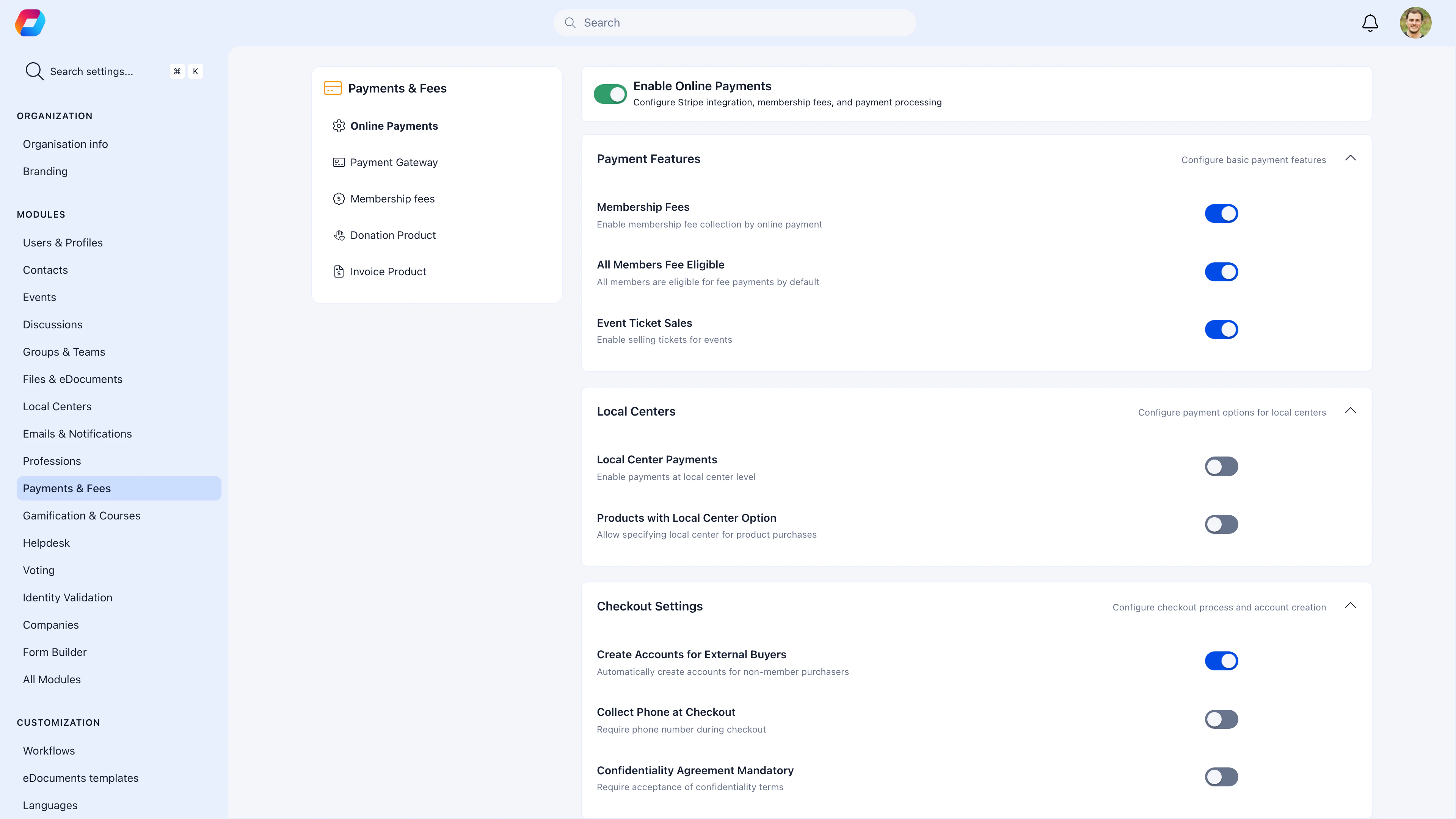 Three things need to be in place before you can collect:
**Settings** → **Fees** → **Stripe Integration**. Follow the setup wizard to link your Stripe account. See [Stripe Integration](/docs/platform/fees/stripe-integration).
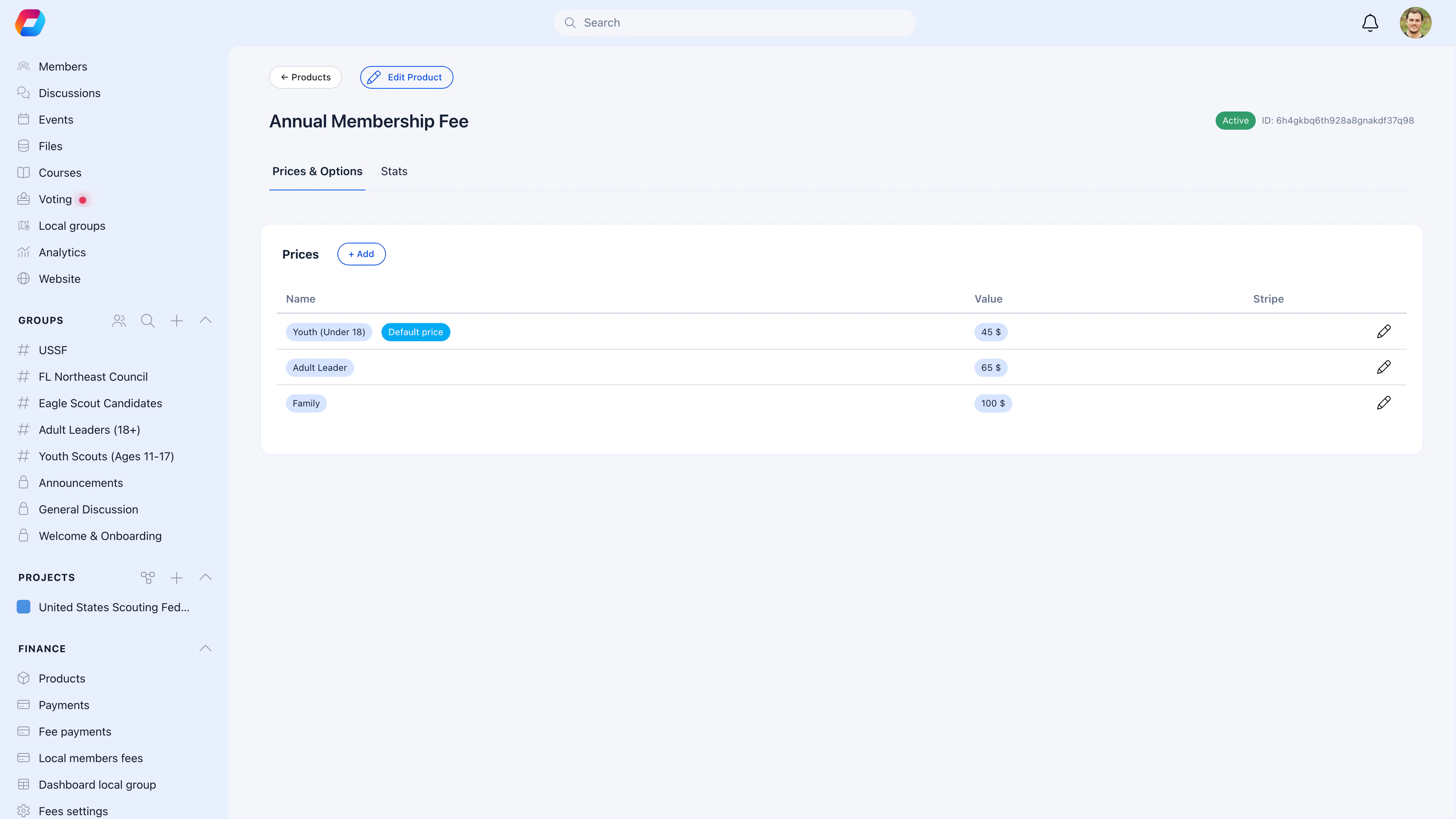
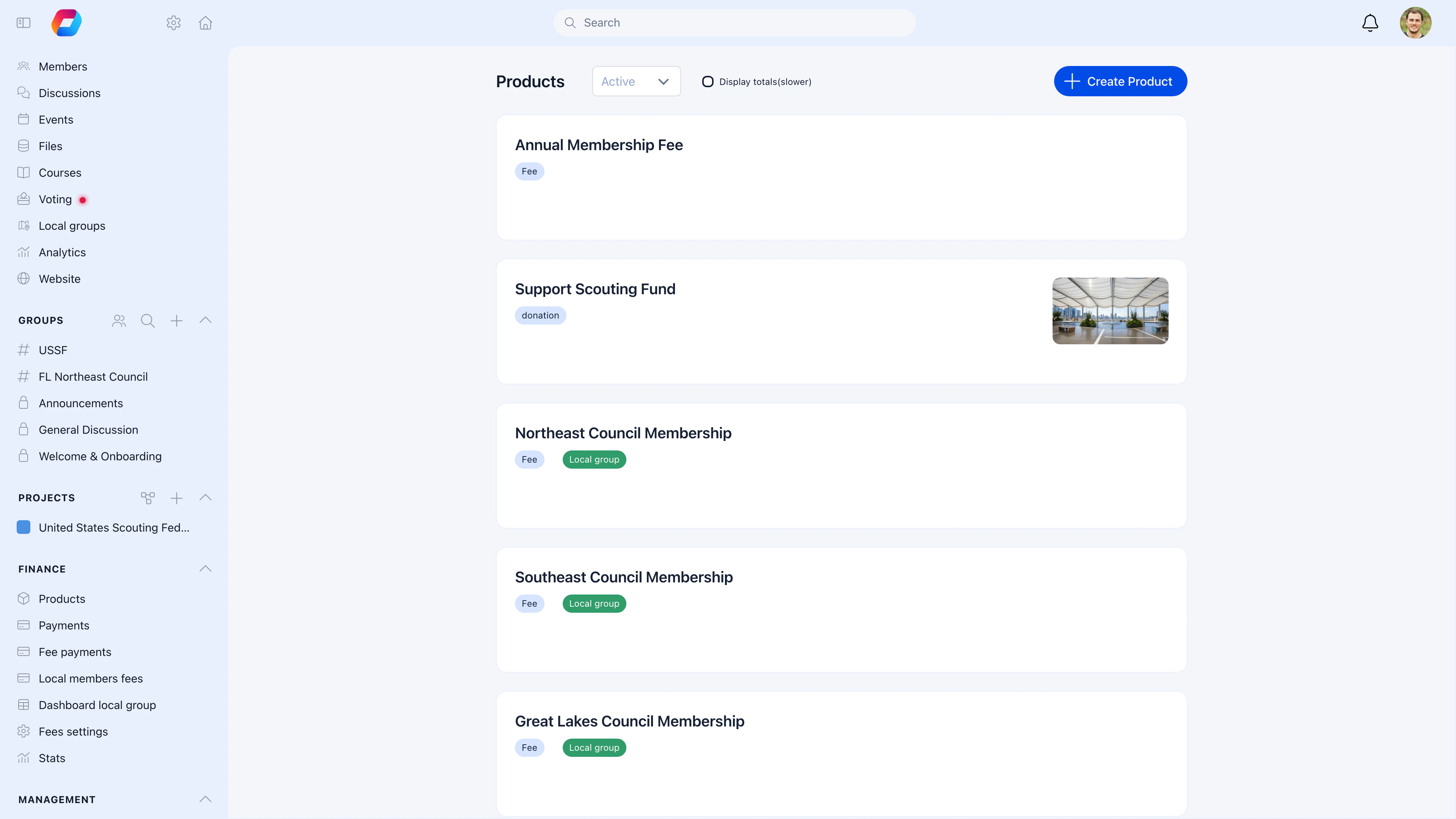
**Settings** → **Fees** → **Products** → create a product of type "Fee". Add price tiers for different membership levels. See [Products](/docs/platform/fees/products).
**Settings** → **Fees** → **Module Settings**. Turn on the module and optionally make fees mandatory for membership.
***
## The fees dashboard
**Sidebar** → **Fees**
Three things need to be in place before you can collect:
**Settings** → **Fees** → **Stripe Integration**. Follow the setup wizard to link your Stripe account. See [Stripe Integration](/docs/platform/fees/stripe-integration).
**Settings** → **Fees** → **Products** → create a product of type "Fee". Add price tiers for different membership levels. See [Products](/docs/platform/fees/products).
**Settings** → **Fees** → **Module Settings**. Turn on the module and optionally make fees mandatory for membership.
***
## The fees dashboard
**Sidebar** → **Fees**
 The dashboard gives you a complete picture:
| Section | What it shows |
| ----------------- | -------------------------------------------------------------------------------- |
| **Overview** | Total collected, collection rate, breakdown by method |
| **Payments** | All payments — filterable by status, product, member, date, amount, Local Center |
| **Pending** | Payments awaiting admin action (manual payments to approve) |
| **Subscriptions** | Active recurring subscriptions with next billing dates |
| **Unpaid** | Members who haven't paid for the current period |
***
## Payment statuses
| Status | What it means |
| ------------------ | ------------------------------------------------------------------------------- |
| **Success** | Paid — Stripe processed the charge or admin confirmed manual payment |
| **Open** | Payment initiated but not completed (abandoned checkout, pending bank transfer) |
| **Pending Accept** | Manual payment (cash, bank transfer) recorded — needs admin approval |
| **Refunded** | Payment returned to the payer |
| **Canceled** | Payment was canceled before completion |
***
## Member fee status
Each member has a fee status for the current period:
| Status | What it means | What to do |
| ----------- | --------------------------------------------------- | ------------------------------------------ |
| **Paid** | Current period fee is paid in full | Nothing — they're good |
| **Partial** | Some amount paid, but not the full fee | Contact member for remaining balance |
| **Unpaid** | No payment for the current period | Send a reminder |
| **Exempt** | Member is exempt from fees (e.g., honorary members) | Nothing — manually set by admin |
| **Expired** | Fee period has passed without payment | Decide: send late reminder, or take action |
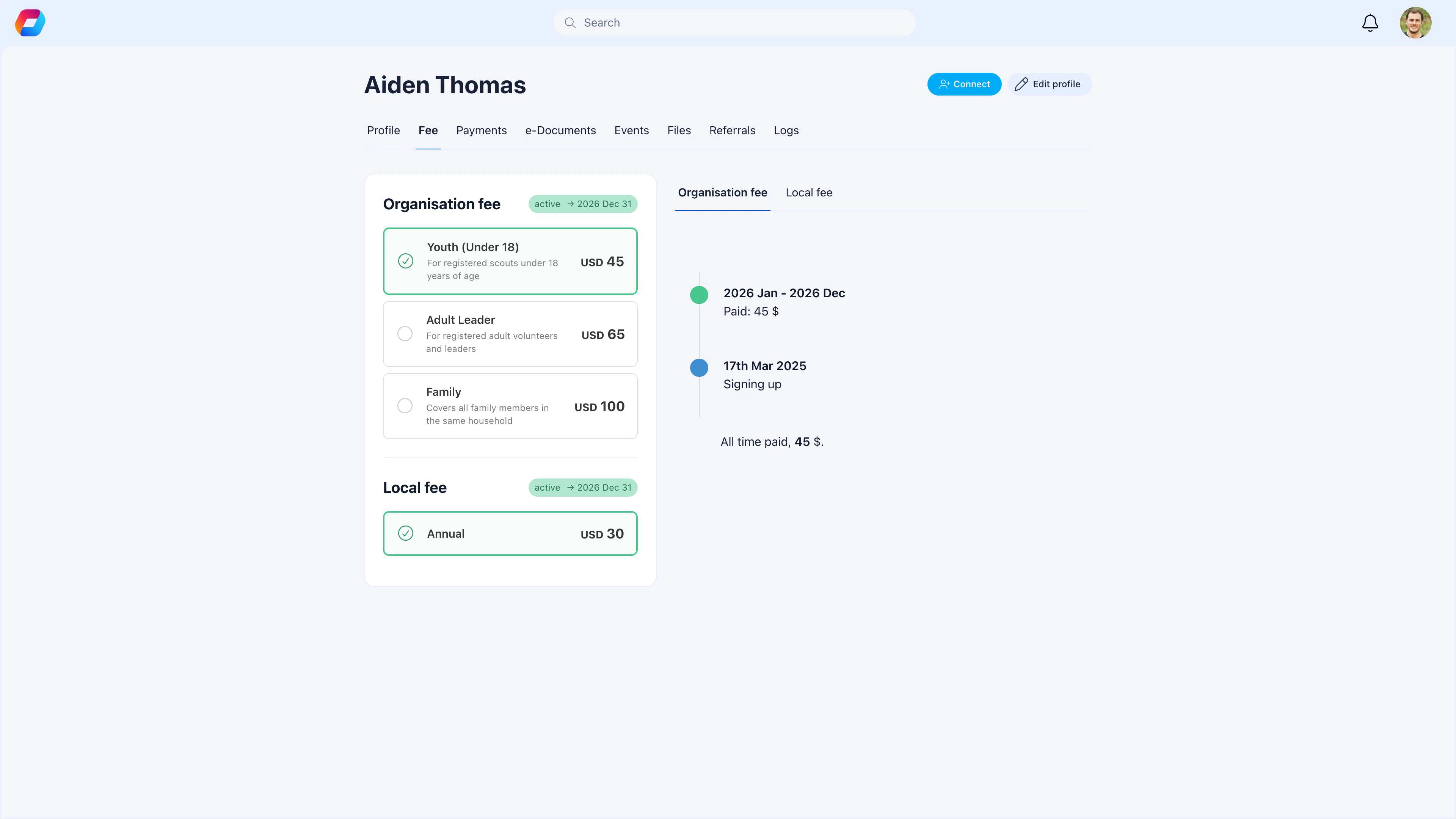
View a member's payment history: **Members** → select member → **Fee** tab to see their current fee level and history, or **Payments** tab for the full transaction log.
The dashboard gives you a complete picture:
| Section | What it shows |
| ----------------- | -------------------------------------------------------------------------------- |
| **Overview** | Total collected, collection rate, breakdown by method |
| **Payments** | All payments — filterable by status, product, member, date, amount, Local Center |
| **Pending** | Payments awaiting admin action (manual payments to approve) |
| **Subscriptions** | Active recurring subscriptions with next billing dates |
| **Unpaid** | Members who haven't paid for the current period |
***
## Payment statuses
| Status | What it means |
| ------------------ | ------------------------------------------------------------------------------- |
| **Success** | Paid — Stripe processed the charge or admin confirmed manual payment |
| **Open** | Payment initiated but not completed (abandoned checkout, pending bank transfer) |
| **Pending Accept** | Manual payment (cash, bank transfer) recorded — needs admin approval |
| **Refunded** | Payment returned to the payer |
| **Canceled** | Payment was canceled before completion |
***
## Member fee status
Each member has a fee status for the current period:
| Status | What it means | What to do |
| ----------- | --------------------------------------------------- | ------------------------------------------ |
| **Paid** | Current period fee is paid in full | Nothing — they're good |
| **Partial** | Some amount paid, but not the full fee | Contact member for remaining balance |
| **Unpaid** | No payment for the current period | Send a reminder |
| **Exempt** | Member is exempt from fees (e.g., honorary members) | Nothing — manually set by admin |
| **Expired** | Fee period has passed without payment | Decide: send late reminder, or take action |
View a member's payment history: **Members** → select member → **Fee** tab to see their current fee level and history, or **Payments** tab for the full transaction log.
 ***
## Collecting payments
### Online payments (Stripe)
Members pay directly through Orgo — either from the product payment page or from their profile. Stripe handles cards, bank transfers, Apple Pay, Google Pay, and other local methods.
### Manual payment recording ("Mark as paid")
For cash, bank transfers, or checks received outside Stripe:
1. **Fees** → **Record Manual Payment** (or from the member's profile → Payments tab)
2. Select the member
3. Choose the fee product and tier
4. Select payment method: **Card**, **Check**, or **Bank transfer (IBAN)**
5. Enter the amount received
6. Add a note (e.g., "Cash received at AGM", "Bank transfer ref #1234")
7. Save — payment appears as **Pending Accept**
An admin or HR user then reviews and accepts the payment, moving it to **Success**. The system records who marked the payment and who accepted it for audit purposes.
For bank transfers, you can also display your organization's IBAN on the member payment page so members can initiate transfers themselves — these arrive as pending payments for admin approval.
### Bulk recording
If you received many payments at once (e.g., bank transfer batch):
1. **Fees** → **Bulk Actions**
2. Upload a CSV with member IDs and amounts
3. Review and confirm
4. All payments recorded at once
***
## Billing cycles and proration
Fees aren't just flat charges — they support full cycle-based billing with automatic proration for mid-cycle joins.
### Cycle settings
Configure these on each fee product:
| Setting | What it does | Example |
| ------------------ | ----------------------------------------- | ----------------------------------------------- |
| **Billing period** | How many months per cycle | 12 (annual), 3 (quarterly), 1 (monthly) |
| **Cycle day** | Day of month the cycle starts | 1 (first of month) |
| **Cycle month** | Month the annual cycle starts | 1 (January) or 9 (September for fiscal year) |
| **Recurrences** | Number of cycles before subscription ends | Empty = indefinite, 3 = three cycles then stops |
### Proration
When a member joins mid-cycle, proration calculates a fair partial amount for the remaining period.
**Example:** Annual fee is \$120, cycle runs January–December. A member joins in April.
* Remaining months: 9 (April–December)
* Prorated amount: $120 × (9/12) = **$90\*\*
Enable proration per product with the **Prorate mid-cycle joins** toggle. You can also set a minimum months threshold — if the member joins late enough in the cycle, they pay full price for the next cycle instead.
Most membership organizations use a yearly cycle starting January 1 with proration enabled. Members who join mid-year pay a fair partial amount, then full price from the following January.
### Advance payment
Enable **Allow payment for next year** so members can pay ahead before their current period expires. This is useful during renewal season — members can pay for next year without waiting for their current membership to expire.
***
## Making fees mandatory
Fees can be mandatory at two levels — organization-wide and per local center.
### Organization-level mandatory fees
**Settings** → **Fees** → **Module Settings** → enable **Mandatory Fees**
When enabled:
* Members must pay their fee to access full platform features
* Unpaid members see restricted functionality until they pay
* Fee status becomes a key part of member management
* Enable **Continuity mandatory** to require uninterrupted payment history
### Local center-level fees
***
## Collecting payments
### Online payments (Stripe)
Members pay directly through Orgo — either from the product payment page or from their profile. Stripe handles cards, bank transfers, Apple Pay, Google Pay, and other local methods.
### Manual payment recording ("Mark as paid")
For cash, bank transfers, or checks received outside Stripe:
1. **Fees** → **Record Manual Payment** (or from the member's profile → Payments tab)
2. Select the member
3. Choose the fee product and tier
4. Select payment method: **Card**, **Check**, or **Bank transfer (IBAN)**
5. Enter the amount received
6. Add a note (e.g., "Cash received at AGM", "Bank transfer ref #1234")
7. Save — payment appears as **Pending Accept**
An admin or HR user then reviews and accepts the payment, moving it to **Success**. The system records who marked the payment and who accepted it for audit purposes.
For bank transfers, you can also display your organization's IBAN on the member payment page so members can initiate transfers themselves — these arrive as pending payments for admin approval.
### Bulk recording
If you received many payments at once (e.g., bank transfer batch):
1. **Fees** → **Bulk Actions**
2. Upload a CSV with member IDs and amounts
3. Review and confirm
4. All payments recorded at once
***
## Billing cycles and proration
Fees aren't just flat charges — they support full cycle-based billing with automatic proration for mid-cycle joins.
### Cycle settings
Configure these on each fee product:
| Setting | What it does | Example |
| ------------------ | ----------------------------------------- | ----------------------------------------------- |
| **Billing period** | How many months per cycle | 12 (annual), 3 (quarterly), 1 (monthly) |
| **Cycle day** | Day of month the cycle starts | 1 (first of month) |
| **Cycle month** | Month the annual cycle starts | 1 (January) or 9 (September for fiscal year) |
| **Recurrences** | Number of cycles before subscription ends | Empty = indefinite, 3 = three cycles then stops |
### Proration
When a member joins mid-cycle, proration calculates a fair partial amount for the remaining period.
**Example:** Annual fee is \$120, cycle runs January–December. A member joins in April.
* Remaining months: 9 (April–December)
* Prorated amount: $120 × (9/12) = **$90\*\*
Enable proration per product with the **Prorate mid-cycle joins** toggle. You can also set a minimum months threshold — if the member joins late enough in the cycle, they pay full price for the next cycle instead.
Most membership organizations use a yearly cycle starting January 1 with proration enabled. Members who join mid-year pay a fair partial amount, then full price from the following January.
### Advance payment
Enable **Allow payment for next year** so members can pay ahead before their current period expires. This is useful during renewal season — members can pay for next year without waiting for their current membership to expire.
***
## Making fees mandatory
Fees can be mandatory at two levels — organization-wide and per local center.
### Organization-level mandatory fees
**Settings** → **Fees** → **Module Settings** → enable **Mandatory Fees**
When enabled:
* Members must pay their fee to access full platform features
* Unpaid members see restricted functionality until they pay
* Fee status becomes a key part of member management
* Enable **Continuity mandatory** to require uninterrupted payment history
### Local center-level fees
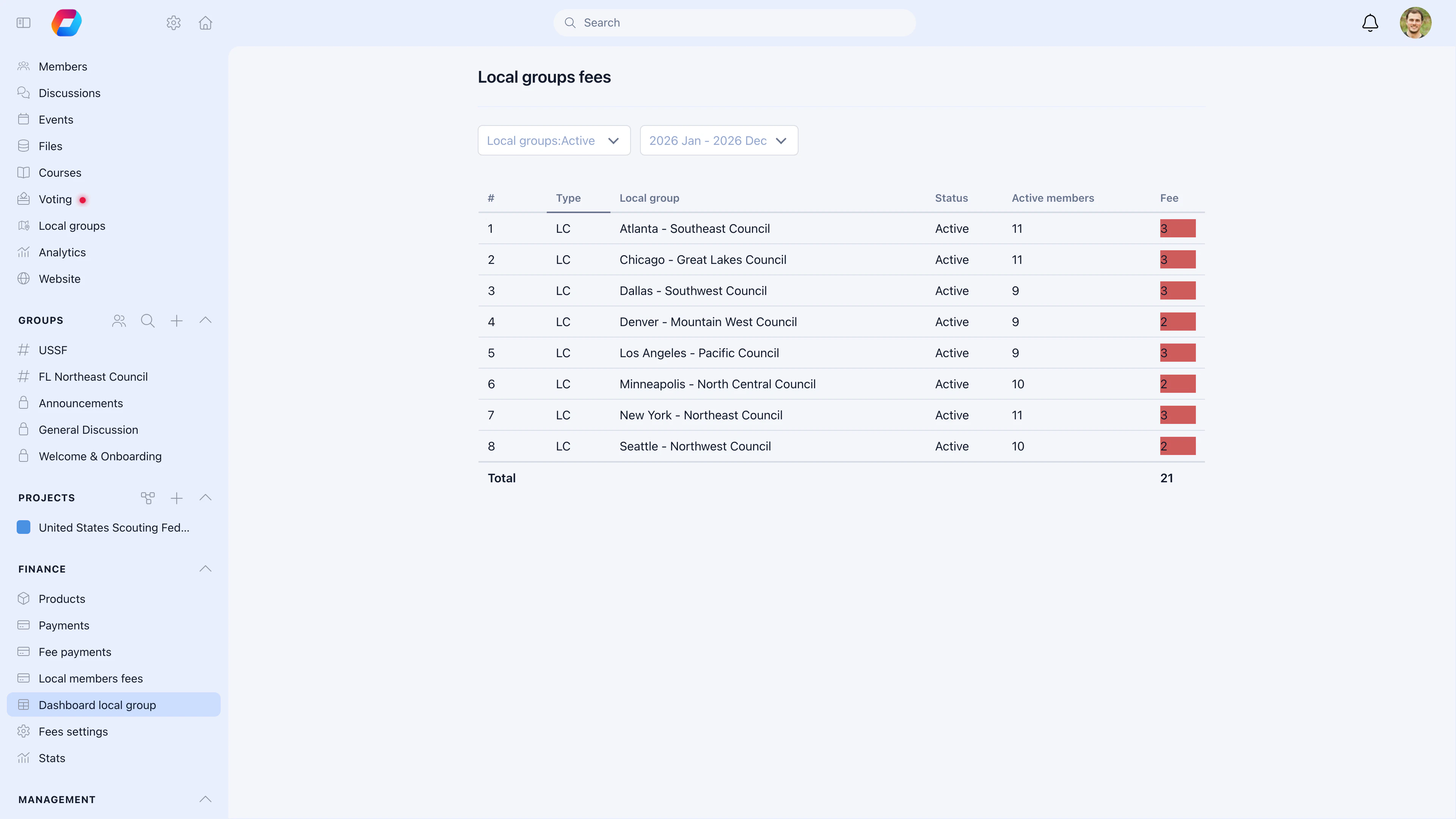
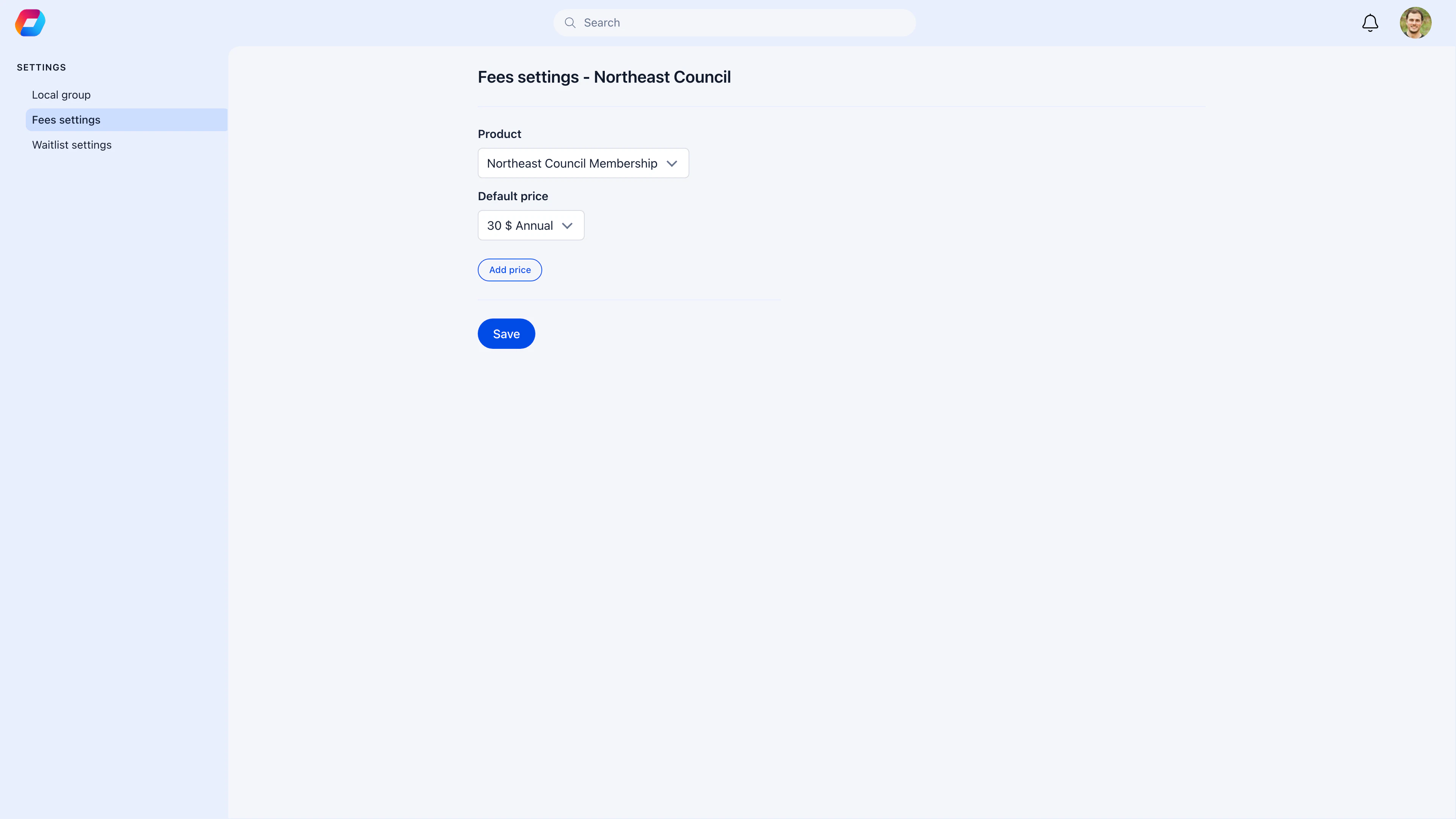 Each local center can have its own fee product with independent pricing and its own Stripe Connect account. This supports federated organizations where chapters collect their own dues.
| Setting | Where to configure | What it does |
| ---------------------------- | --------------------- | ---------------------------------------------------- |
| **Local center fee product** | Local center settings | Separate fee product with local pricing |
| **Local Stripe account** | Local center settings | Payments go directly to the chapter's bank account |
| **Local fee is mandatory** | Tenant fee settings | Members must pay both org-level AND local-level fees |
This means a member in the "Northeast Council" might pay:
* **\$100/year** to the national organization (org Stripe account)
* **\$50/year** to the Northeast Council (local Stripe account)
Both payments are tracked independently with separate statuses.
Making fees mandatory is a significant decision. It means members with unpaid fees have a degraded experience. Most organizations use this for annual membership renewal — you're essentially saying "pay your dues to maintain full membership."
***
## Sending reminders
For members with unpaid fees:
1. **Fees** → **Unpaid**
2. Filter by period, Local Center, or member type
3. Select members (or select all)
4. Click **Send Reminder**
The reminder email includes the fee amount, payment link, and your customized message. Customize the email template in **Settings** → **Emails** → **Templates**.
***
## Managing subscriptions
Active recurring subscriptions are managed in **Fees** → **Subscriptions**:
| Info shown | Detail |
| -------------- | ---------------------------- |
| Member name | Who's subscribed |
| Product | Which fee product |
| Amount | Recurring charge amount |
| Frequency | Monthly, quarterly, yearly |
| Next billing | When Stripe will charge next |
| Payment method | Card type/last 4 digits |
Members can manage their own subscription from their profile:
* Update payment method (expired card, new bank account)
* View billing history
* Cancel subscription (if allowed)
***
## Refunds
1. Find the payment in **Fees** → **Payments**
2. Click to open payment details
3. Click **Refund**
4. Enter full or partial refund amount
5. Confirm
Refunds are processed through Stripe — the money returns to the payer's original payment method. Ensure your Stripe account has sufficient balance. Stripe's processing fee is not refunded.
***
## Fee reports and export
### Export payments
**Fees** → **Payments** → apply filters → **Export** → CSV or Excel
Use exports for:
* Accounting and bookkeeping
* Bank reconciliation
* Tax filing
* Board financial reports
### Collection statistics
Each local center can have its own fee product with independent pricing and its own Stripe Connect account. This supports federated organizations where chapters collect their own dues.
| Setting | Where to configure | What it does |
| ---------------------------- | --------------------- | ---------------------------------------------------- |
| **Local center fee product** | Local center settings | Separate fee product with local pricing |
| **Local Stripe account** | Local center settings | Payments go directly to the chapter's bank account |
| **Local fee is mandatory** | Tenant fee settings | Members must pay both org-level AND local-level fees |
This means a member in the "Northeast Council" might pay:
* **\$100/year** to the national organization (org Stripe account)
* **\$50/year** to the Northeast Council (local Stripe account)
Both payments are tracked independently with separate statuses.
Making fees mandatory is a significant decision. It means members with unpaid fees have a degraded experience. Most organizations use this for annual membership renewal — you're essentially saying "pay your dues to maintain full membership."
***
## Sending reminders
For members with unpaid fees:
1. **Fees** → **Unpaid**
2. Filter by period, Local Center, or member type
3. Select members (or select all)
4. Click **Send Reminder**
The reminder email includes the fee amount, payment link, and your customized message. Customize the email template in **Settings** → **Emails** → **Templates**.
***
## Managing subscriptions
Active recurring subscriptions are managed in **Fees** → **Subscriptions**:
| Info shown | Detail |
| -------------- | ---------------------------- |
| Member name | Who's subscribed |
| Product | Which fee product |
| Amount | Recurring charge amount |
| Frequency | Monthly, quarterly, yearly |
| Next billing | When Stripe will charge next |
| Payment method | Card type/last 4 digits |
Members can manage their own subscription from their profile:
* Update payment method (expired card, new bank account)
* View billing history
* Cancel subscription (if allowed)
***
## Refunds
1. Find the payment in **Fees** → **Payments**
2. Click to open payment details
3. Click **Refund**
4. Enter full or partial refund amount
5. Confirm
Refunds are processed through Stripe — the money returns to the payer's original payment method. Ensure your Stripe account has sufficient balance. Stripe's processing fee is not refunded.
***
## Fee reports and export
### Export payments
**Fees** → **Payments** → apply filters → **Export** → CSV or Excel
Use exports for:
* Accounting and bookkeeping
* Bank reconciliation
* Tax filing
* Board financial reports
### Collection statistics
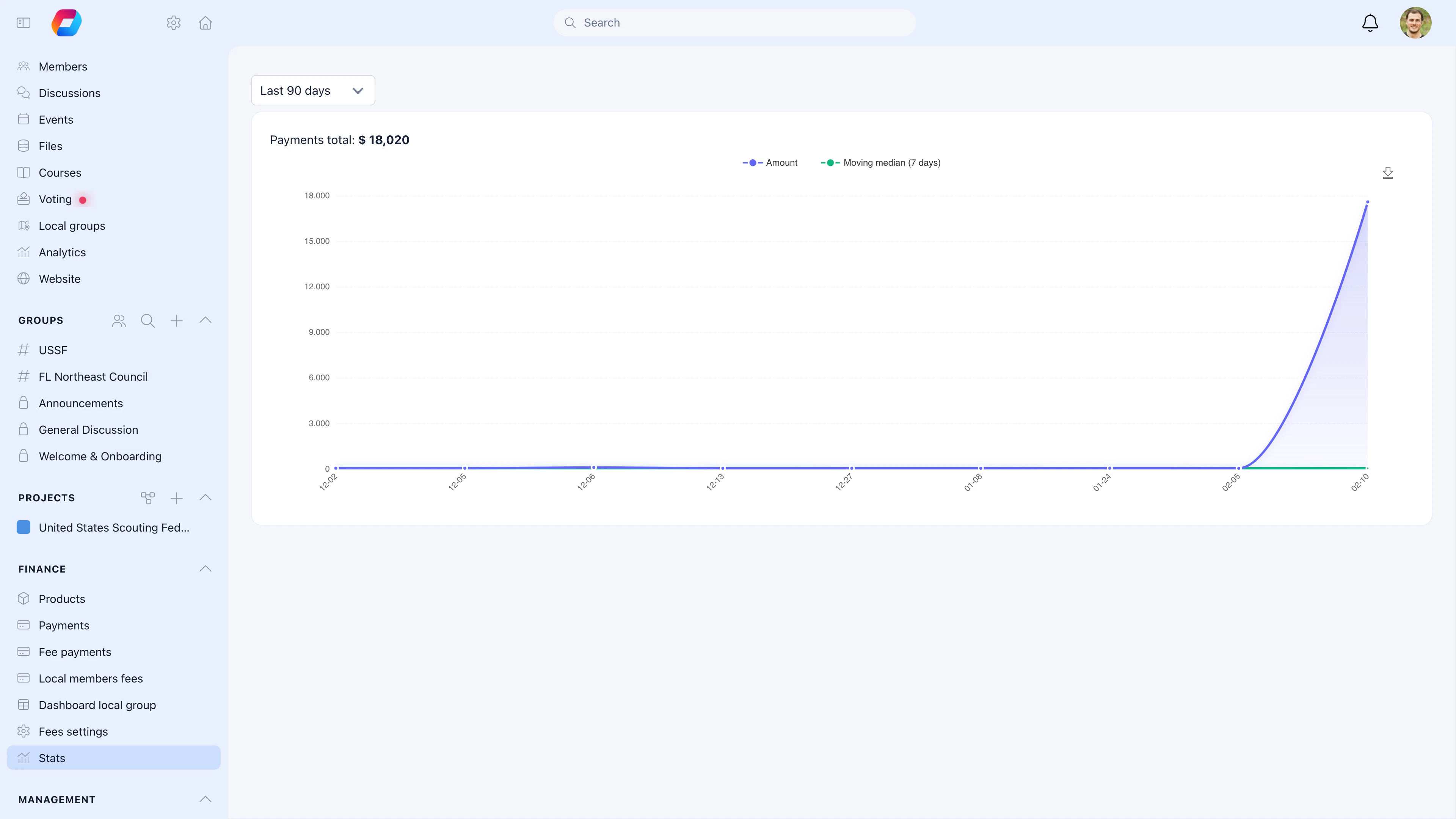 The dashboard overview shows:
* Total collected for any period
* Collection rate (paid ÷ total members)
* Breakdown by payment method (online vs. manual)
* Breakdown by Local Center
The dashboard overview shows:
* Total collected for any period
* Collection rate (paid ÷ total members)
* Breakdown by payment method (online vs. manual)
* Breakdown by Local Center
 ***
## Common scenarios
Check if the payment was linked to the correct member. Search by payment date, amount, or check the Stripe dashboard directly. For bank transfers, the admin who records it may have missed the entry.
Check the fee period dates on the payment. Status is calculated from current date vs. payment period. If the subscription payment was recorded for a different period, it won't clear the current period's status.
Check the Stripe dashboard for the subscription. Common causes: expired card, insufficient funds, or the member's bank declined the charge. The member may need to update their payment method.
Each Local Center can have its own fee products with local pricing. See [Local Center Fees](/docs/platform/local-group-fees/create-local-fees). Or create one national product with price tiers labeled by center.
Set their fee status to **Exempt** on their member profile. Exempt members won't appear in unpaid lists or receive reminders.
***
## Related
* [Products](/docs/platform/fees/products) — Creating fee products and price tiers
* [Stripe Integration](/docs/platform/fees/stripe-integration) — Payment processing setup
* [Donations](/docs/platform/fees/donations) — Fundraising campaigns
* [Local Center Fees](/docs/platform/local-group-fees/create-local-fees) — Branch-level fee collection
***
## Common scenarios
Check if the payment was linked to the correct member. Search by payment date, amount, or check the Stripe dashboard directly. For bank transfers, the admin who records it may have missed the entry.
Check the fee period dates on the payment. Status is calculated from current date vs. payment period. If the subscription payment was recorded for a different period, it won't clear the current period's status.
Check the Stripe dashboard for the subscription. Common causes: expired card, insufficient funds, or the member's bank declined the charge. The member may need to update their payment method.
Each Local Center can have its own fee products with local pricing. See [Local Center Fees](/docs/platform/local-group-fees/create-local-fees). Or create one national product with price tiers labeled by center.
Set their fee status to **Exempt** on their member profile. Exempt members won't appear in unpaid lists or receive reminders.
***
## Related
* [Products](/docs/platform/fees/products) — Creating fee products and price tiers
* [Stripe Integration](/docs/platform/fees/stripe-integration) — Payment processing setup
* [Donations](/docs/platform/fees/donations) — Fundraising campaigns
* [Local Center Fees](/docs/platform/local-group-fees/create-local-fees) — Branch-level fee collection