> ## Documentation Index
> Fetch the complete documentation index at: https://orgo.space/docs/llms.txt
> Use this file to discover all available pages before exploring further.
# Invoices
> Create invoices, understand numbering and series, apply templates, and get the document to the customer
An invoice in Orgo is a document plus a state machine. The document is a PDF you
can download, email and re-send. The state (unpaid, paid, voided, refunded) is
what drives membership validity, event attendance and your financial totals.
**Built for** membership organisations that need to bill members, companies and
external contacts for dues, event places and one-off services, and to show a
proper document for each.
**Replaces** hand-made invoice spreadsheets and separate invoicing tools for
member billing, not a full accounting ledger.
Invoices are a module. Switch **Invoices** on in **Settings** → **All Modules**.
While it is off, **Invoices** does not appear in the sidebar, opening the list
sends you back to the dashboard, and the **Invoice Templates** settings tab is
hidden. Every administrator action described here needs `ADMIN_TENANT`.
***
## Before you can create an invoice
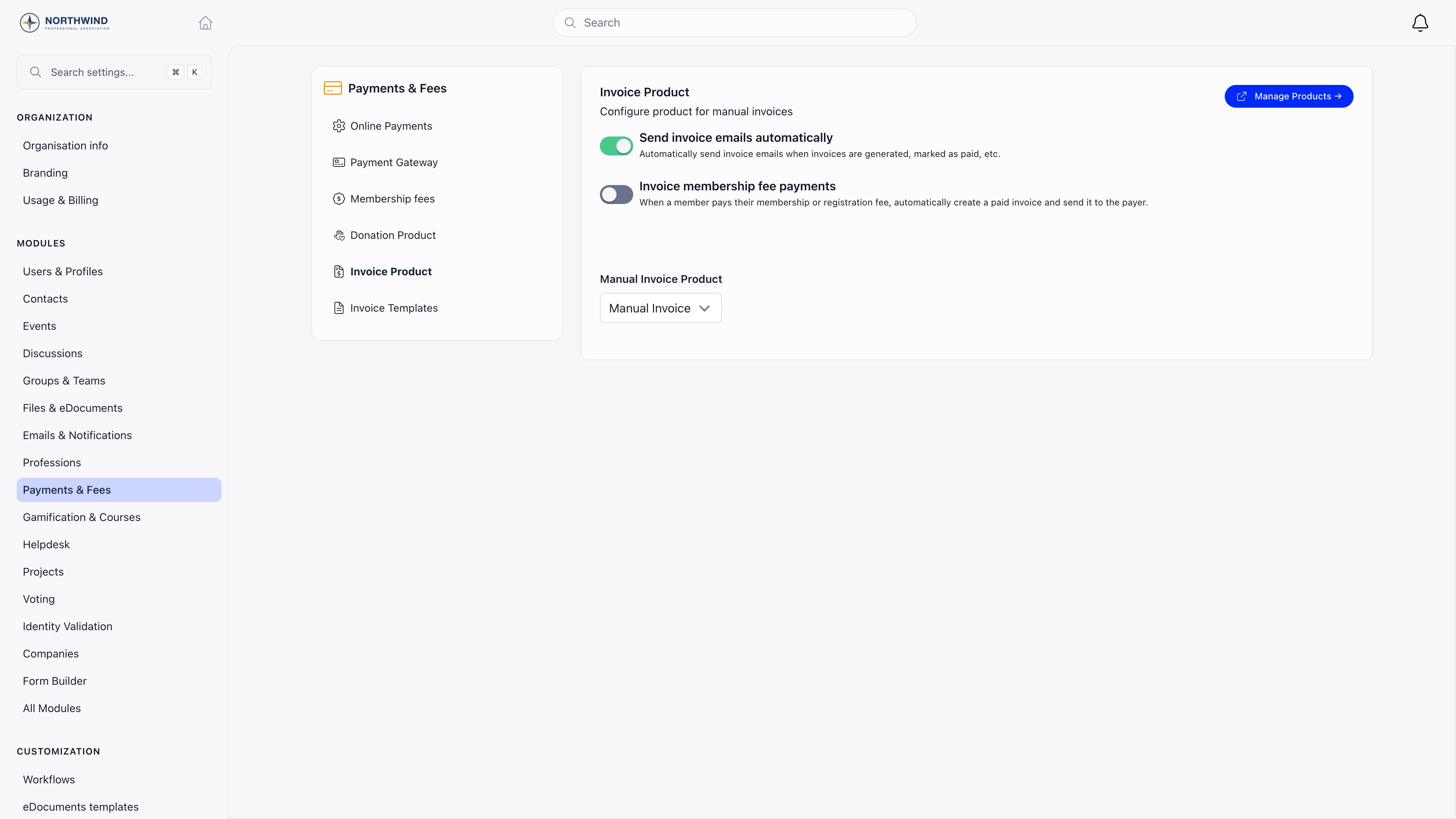
Set **Manual Invoice Product** in **Settings** → **Modules** → **Payments & Fees**
→ **Invoice Product**. Without it, invoice creation fails with a message telling
you to review that screen. The same screen holds the rest of the invoicing
behaviour:
| Setting | What it does |
| ------------------------------------- | --------------------------------------------------------------------------------------------------------------------------------------------------- |
| **Send invoice emails automatically** | On by default. Sends the invoice to the customer when it is created and again when it is marked as paid. Turn it off to send only by hand. |
| **Invoice membership fee payments** | Off by default. When a member pays a membership or registration fee online, create a paid invoice and email it to them. |
| **Invoice template** | Only appears when the setting above is on. Which template those automatic invoices use. Leave on **Default template** to follow the tenant default. |
| **Manual Invoice Product** | The product every manual invoice is booked against. Required. |
 ***
## Creating an invoice
**Invoices** → **create invoice**. The form is on the left, a live preview of the
document on the right.
***
## Creating an invoice
**Invoices** → **create invoice**. The form is on the left, a live preview of the
document on the right.
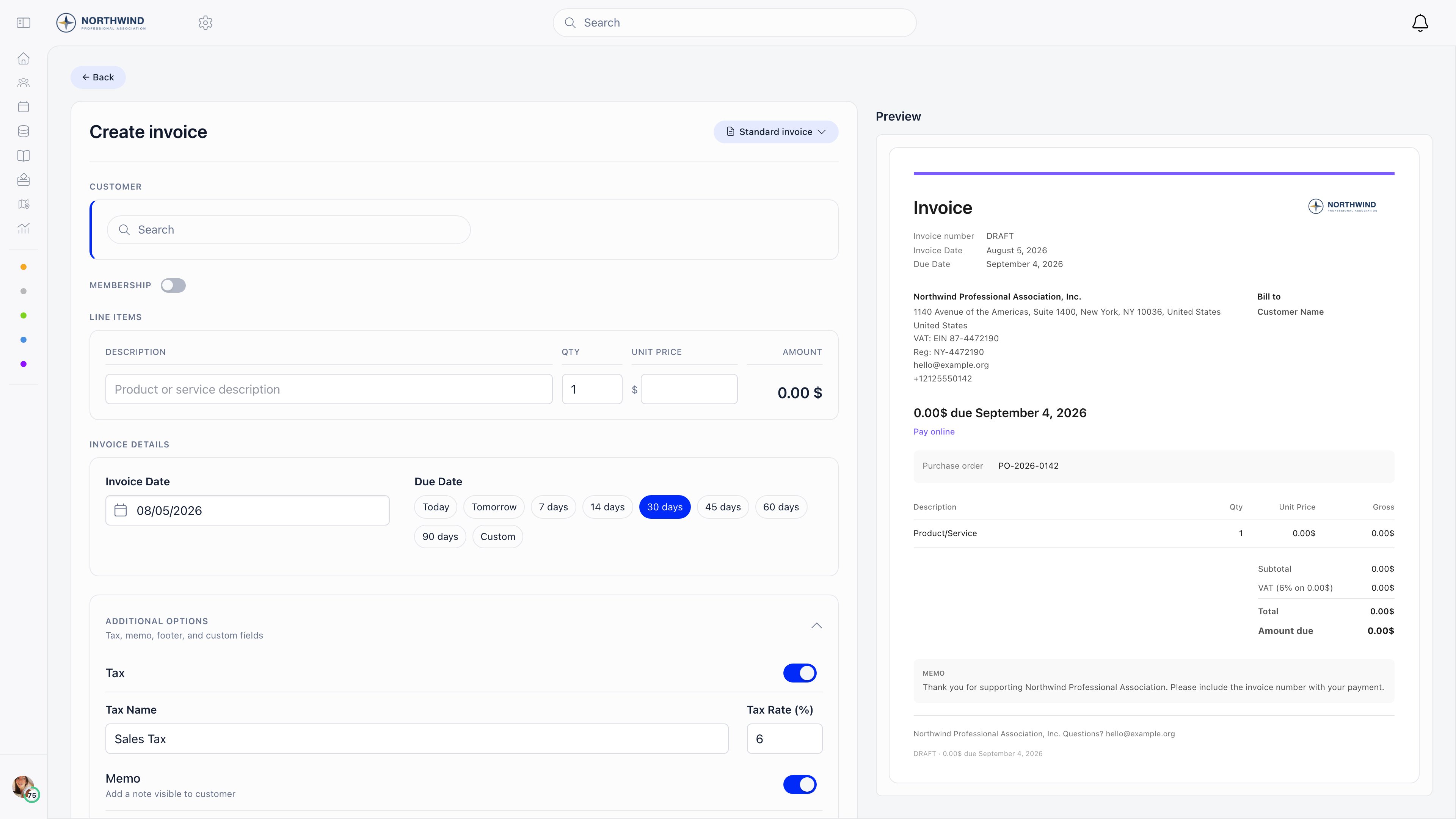 Search for a member, a contact or a company. Exactly one of the three: an
invoice cannot be split across two payers. Selecting one loads its billing
block (**Billing Name**, **Address**, **VAT Number**, **Registration
Number**, **Email**, **Phone**), which you can edit for this invoice only.
Leave **Also update customer record with these details** ticked to write your
edits back to the member, contact or company as well.
The **Membership** switch turns the invoice into a membership invoice: pick a
membership level (or **Custom**), a start date and an end date. This is what
makes marking it paid extend the member's or company's membership. Contacts
cannot be given membership invoices.
A manual invoice carries one line: description, quantity and unit price.
Multi-line invoices exist, but only on invoices Orgo generates itself for
membership payments, where the joining fee is a second line.
**Invoice Date**, then a **Due Date** chip: Today, Tomorrow, 7, 14, 30, 45,
60 or 90 days, or Custom. 30 days is the default.
**Additional Options** holds the tax name and rate, a **Memo** (visible to
the customer), a **Footer**, and **Custom Fields** (label and value pairs
printed on the document). **Internal Notes** at the bottom are never shown to
the customer.
Saving creates the invoice as **unpaid**, gives it a number and a series,
renders the PDF, and (unless you turned automatic emails off) sends it to the
customer straight away.
***
## Numbering and series
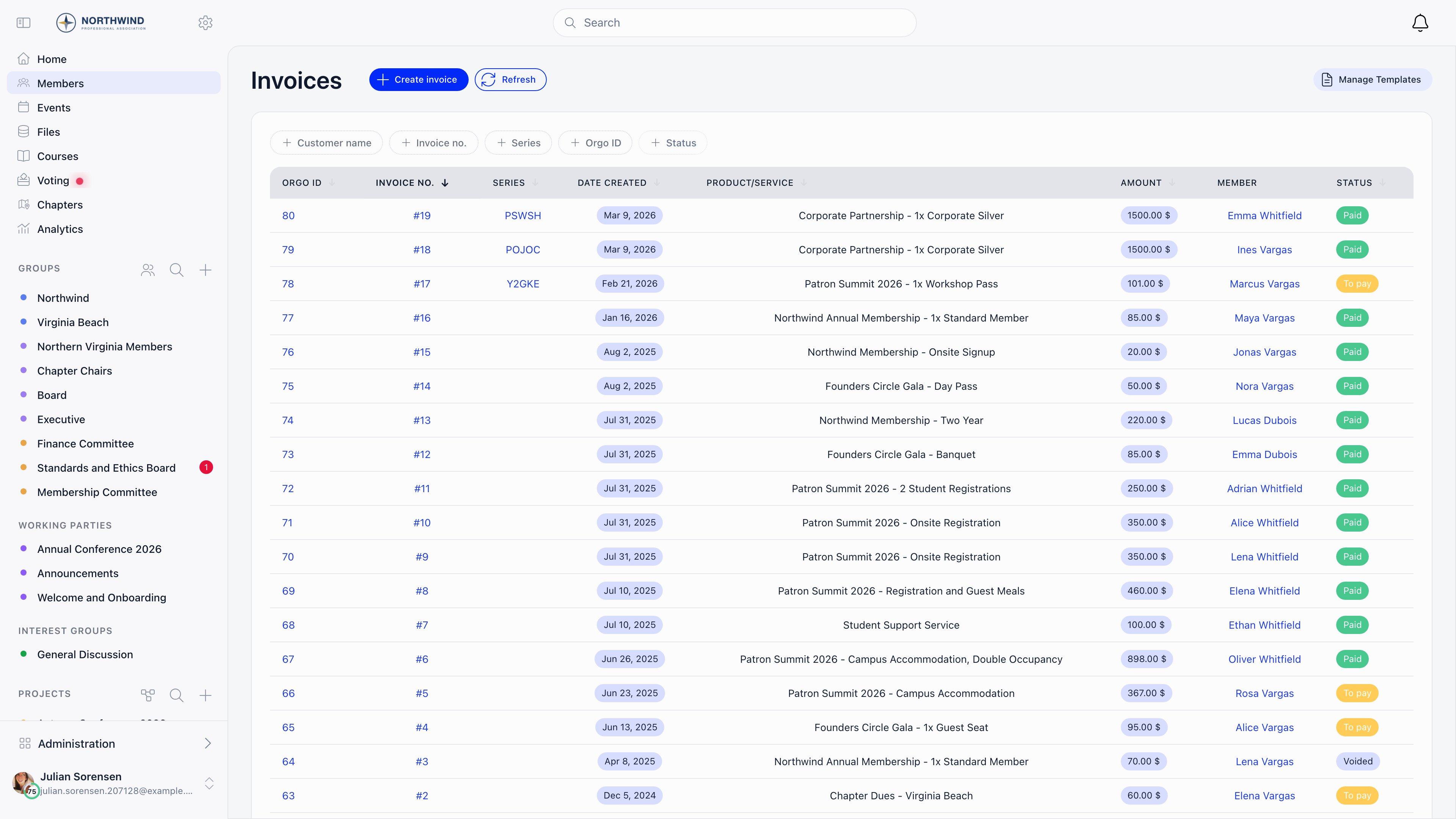
Every invoice gets two identifiers.
* **Invoice number**: the highest number already used in your organisation, plus
one. It starts at 1, is unique to your organisation, and does not reset at the
start of a year.
* **Series**: five random characters drawn from `ABCDEFGHJKMNOPQRSTUVWXYZ` and
`123456789`, retried until it is unique. The characters I, L and 0 are left out
so the code cannot be misread.
The printed document shows the series when there is one, and falls back to the
number. The list lets you search on either, plus the customer name and the
internal Orgo ID.
Search for a member, a contact or a company. Exactly one of the three: an
invoice cannot be split across two payers. Selecting one loads its billing
block (**Billing Name**, **Address**, **VAT Number**, **Registration
Number**, **Email**, **Phone**), which you can edit for this invoice only.
Leave **Also update customer record with these details** ticked to write your
edits back to the member, contact or company as well.
The **Membership** switch turns the invoice into a membership invoice: pick a
membership level (or **Custom**), a start date and an end date. This is what
makes marking it paid extend the member's or company's membership. Contacts
cannot be given membership invoices.
A manual invoice carries one line: description, quantity and unit price.
Multi-line invoices exist, but only on invoices Orgo generates itself for
membership payments, where the joining fee is a second line.
**Invoice Date**, then a **Due Date** chip: Today, Tomorrow, 7, 14, 30, 45,
60 or 90 days, or Custom. 30 days is the default.
**Additional Options** holds the tax name and rate, a **Memo** (visible to
the customer), a **Footer**, and **Custom Fields** (label and value pairs
printed on the document). **Internal Notes** at the bottom are never shown to
the customer.
Saving creates the invoice as **unpaid**, gives it a number and a series,
renders the PDF, and (unless you turned automatic emails off) sends it to the
customer straight away.
***
## Numbering and series
Every invoice gets two identifiers.
* **Invoice number**: the highest number already used in your organisation, plus
one. It starts at 1, is unique to your organisation, and does not reset at the
start of a year.
* **Series**: five random characters drawn from `ABCDEFGHJKMNOPQRSTUVWXYZ` and
`123456789`, retried until it is unique. The characters I, L and 0 are left out
so the code cannot be misread.
The printed document shows the series when there is one, and falls back to the
number. The list lets you search on either, plus the customer name and the
internal Orgo ID.
 Voided and refunded invoices keep their number. That is the point: a missing
number would be unexplainable, a voided one is not.
***
## Templates
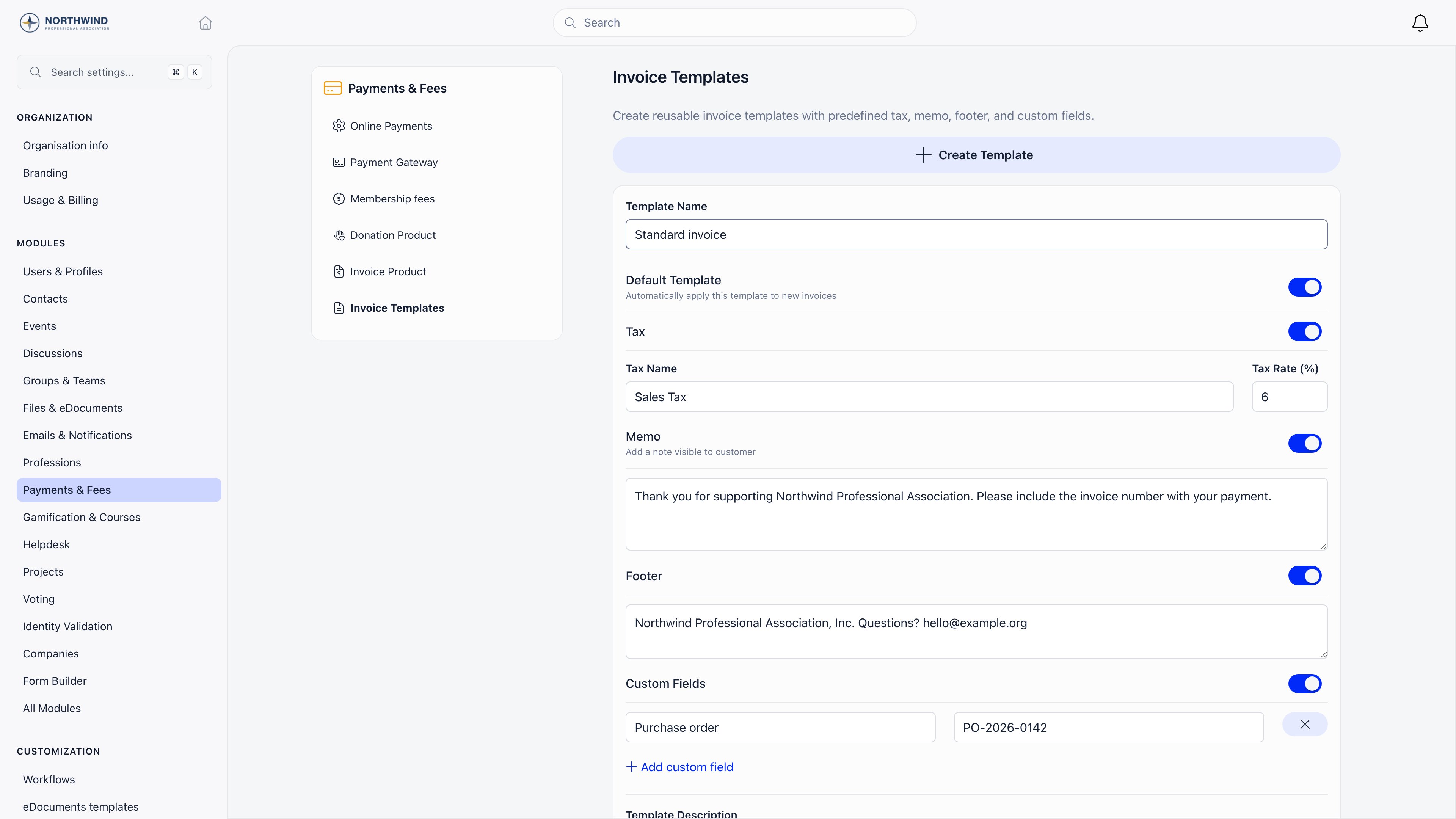
Templates pre-fill the parts of an invoice that are the same every time.
**Settings** → **Modules** → **Payments & Fees** → **Invoice Templates**, or
**Manage Templates** from the invoices list.
| Field | What it does |
| ------------------------ | -------------------------------------------------------------------------------- |
| **Template Name** | How the template appears in the picker. |
| **Default Template** | Applied automatically to new invoices. Setting a new default clears the old one. |
| **Tax** | A **Tax Name** (for example VAT, GST) and a **Tax Rate** in percent. |
| **Memo** | A note printed on the invoice, visible to the customer. |
| **Footer** | Footer text at the bottom of the document. |
| **Custom Fields** | Label and value pairs printed on the invoice, with optional default values. |
| **Template Description** | Internal reminder of when to use this template. Not printed. |
Voided and refunded invoices keep their number. That is the point: a missing
number would be unexplainable, a voided one is not.
***
## Templates
Templates pre-fill the parts of an invoice that are the same every time.
**Settings** → **Modules** → **Payments & Fees** → **Invoice Templates**, or
**Manage Templates** from the invoices list.
| Field | What it does |
| ------------------------ | -------------------------------------------------------------------------------- |
| **Template Name** | How the template appears in the picker. |
| **Default Template** | Applied automatically to new invoices. Setting a new default clears the old one. |
| **Tax** | A **Tax Name** (for example VAT, GST) and a **Tax Rate** in percent. |
| **Memo** | A note printed on the invoice, visible to the customer. |
| **Footer** | Footer text at the bottom of the document. |
| **Custom Fields** | Label and value pairs printed on the invoice, with optional default values. |
| **Template Description** | Internal reminder of when to use this template. Not printed. |
 Applying a template overwrites the tax, memo, footer and custom fields on the
invoice you are editing, so apply it first and type your overrides afterwards.
The default template is applied automatically when the form opens. On invoices
Orgo generates for membership payments the template's flat tax rate is ignored,
because each line carries the VAT rate from its own price.
The invoice layout itself is fixed. There is no place to write your own
placeholders into a memo or footer: the organisation and customer details, line
table, totals and VAT breakdown are filled in by Orgo from your organisation
profile and the customer record.
***
## Getting the invoice to the customer
Open an invoice and you get three actions under the document.
* **Download PDF** saves it as `Invoice - {your short name} - {number}.pdf`.
* **Send via email** sends it now, even when automatic emails are switched off.
The email carries the PDF as an attachment and lands in your
[email log](/docs/platform/emails/email-log).
* **Copy payment link** copies a public link that opens Stripe Checkout for this
invoice. The link works only while the invoice is unpaid.
The email goes to the member's address, or the company's contact address (with
the company's CC addresses copied in), or the contact's address. If none of them
has an email, nothing is sent.
Automatic invoice emails need the **Send invoice emails automatically** switch.
**Send via email** ignores it, so you can keep automatic sending off and still
send individual invoices by hand.
***
## What language the invoice is in
The document and the email that carries it are written in your organisation's
default language, the one set at **Settings** → **Customization** →
**Languages**. Not the customer's own language: everyone billed by the same
organisation gets the same wording.
All 14 interface languages are covered, and a default outside them falls back to
English. A Czech organisation gets **Faktura**, Czech column headings and
totals, **IČ** and **DIČ** where an English document says Reg and VAT, dates
written the Czech way and comma decimals. The email follows the same language:
subject line, the paid or due-on line, the labels and the **Pay this invoice**
button.
What you typed is never translated. Line descriptions, the memo, the footer and
your custom fields print exactly as entered, which is worth remembering if you
write them in a different language from your organisation default. The one line
Orgo writes itself, the joining fee on a membership invoice, follows the
organisation language like the rest of the document.
***
## Where invoices come from
Not every invoice is typed by hand.
| Type | Created by | Shown as |
| ------------------ | ----------------------------------------------------------------------------------------------------------------------------------- | -------------- |
| Manual invoice | An administrator using **create invoice** | **Invoice** |
| Membership renewal | A member or company choosing bank transfer for a membership fee, or **Invoice membership fee payments** after an online fee payment | **Membership** |
| Event registration | An attendee choosing to pay an event registration by invoice | **Event** |
You can also raise an invoice after the fact for a membership fee that was
already paid: **Payments**, open the row menu on a successful fee payment that
has no invoice yet, then **Generate Invoice**. It opens the new invoice for
editing and does not email the payer, so you can check it first and send it
yourself.
***
## Related
* [Recording a payment](/docs/platform/fees/record-payment) marking an invoice paid and logging offline payments
* [Cancelling and correcting invoices](/docs/platform/fees/cancelling-invoices) voiding and refunding
* [VAT and invoice templates](/docs/platform/fees/vat) tax on the document
* [Membership fees](/docs/platform/fees/fees) what members are billed for
* [Stripe integration](/docs/platform/fees/stripe-integration) online payment setup
Applying a template overwrites the tax, memo, footer and custom fields on the
invoice you are editing, so apply it first and type your overrides afterwards.
The default template is applied automatically when the form opens. On invoices
Orgo generates for membership payments the template's flat tax rate is ignored,
because each line carries the VAT rate from its own price.
The invoice layout itself is fixed. There is no place to write your own
placeholders into a memo or footer: the organisation and customer details, line
table, totals and VAT breakdown are filled in by Orgo from your organisation
profile and the customer record.
***
## Getting the invoice to the customer
Open an invoice and you get three actions under the document.
* **Download PDF** saves it as `Invoice - {your short name} - {number}.pdf`.
* **Send via email** sends it now, even when automatic emails are switched off.
The email carries the PDF as an attachment and lands in your
[email log](/docs/platform/emails/email-log).
* **Copy payment link** copies a public link that opens Stripe Checkout for this
invoice. The link works only while the invoice is unpaid.
The email goes to the member's address, or the company's contact address (with
the company's CC addresses copied in), or the contact's address. If none of them
has an email, nothing is sent.
Automatic invoice emails need the **Send invoice emails automatically** switch.
**Send via email** ignores it, so you can keep automatic sending off and still
send individual invoices by hand.
***
## What language the invoice is in
The document and the email that carries it are written in your organisation's
default language, the one set at **Settings** → **Customization** →
**Languages**. Not the customer's own language: everyone billed by the same
organisation gets the same wording.
All 14 interface languages are covered, and a default outside them falls back to
English. A Czech organisation gets **Faktura**, Czech column headings and
totals, **IČ** and **DIČ** where an English document says Reg and VAT, dates
written the Czech way and comma decimals. The email follows the same language:
subject line, the paid or due-on line, the labels and the **Pay this invoice**
button.
What you typed is never translated. Line descriptions, the memo, the footer and
your custom fields print exactly as entered, which is worth remembering if you
write them in a different language from your organisation default. The one line
Orgo writes itself, the joining fee on a membership invoice, follows the
organisation language like the rest of the document.
***
## Where invoices come from
Not every invoice is typed by hand.
| Type | Created by | Shown as |
| ------------------ | ----------------------------------------------------------------------------------------------------------------------------------- | -------------- |
| Manual invoice | An administrator using **create invoice** | **Invoice** |
| Membership renewal | A member or company choosing bank transfer for a membership fee, or **Invoice membership fee payments** after an online fee payment | **Membership** |
| Event registration | An attendee choosing to pay an event registration by invoice | **Event** |
You can also raise an invoice after the fact for a membership fee that was
already paid: **Payments**, open the row menu on a successful fee payment that
has no invoice yet, then **Generate Invoice**. It opens the new invoice for
editing and does not email the payer, so you can check it first and send it
yourself.
***
## Related
* [Recording a payment](/docs/platform/fees/record-payment) marking an invoice paid and logging offline payments
* [Cancelling and correcting invoices](/docs/platform/fees/cancelling-invoices) voiding and refunding
* [VAT and invoice templates](/docs/platform/fees/vat) tax on the document
* [Membership fees](/docs/platform/fees/fees) what members are billed for
* [Stripe integration](/docs/platform/fees/stripe-integration) online payment setup