> ## Documentation Index
> Fetch the complete documentation index at: https://orgo.space/docs/llms.txt
> Use this file to discover all available pages before exploring further.
# Private Groups
> Member-created spaces for project teams, committees, interest groups, and working groups
Private Groups are the flexible, member-driven group type. Unlike Local Centers (geographic) or Role Groups (automatic), Private Groups are created by members, have manually controlled membership, and can serve any purpose — project teams, committees, interest communities, event planning, board governance.
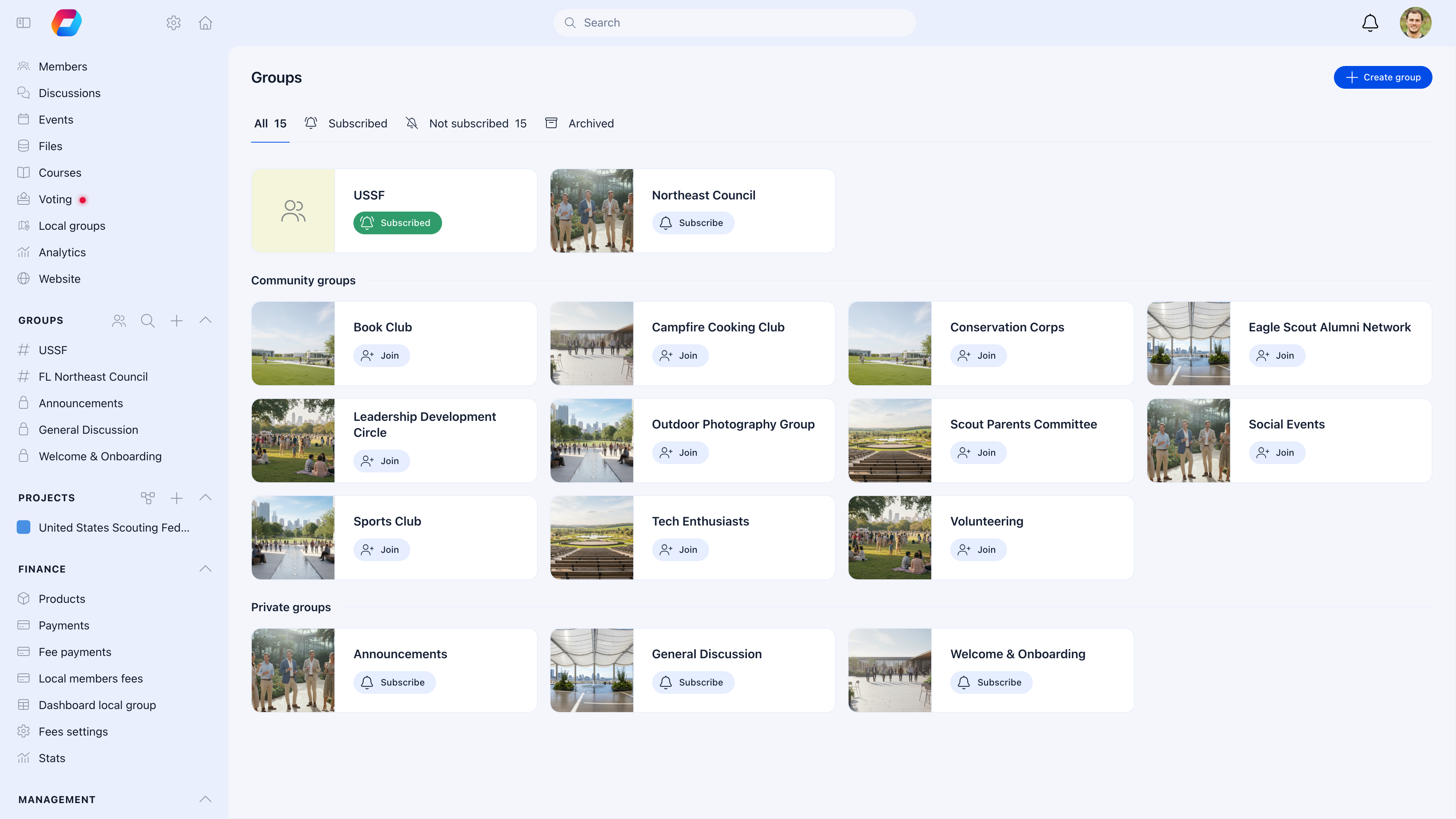 They're the closest thing to a Slack channel or Microsoft Teams group: create one, invite people, start collaborating.
***
## Do I need Private Groups?
| Your situation | Use |
| --------------------------------------------------------------------- | ----------------------------------------------------- |
| A committee needs a space to collaborate | Private Group |
| A project team needs task tracking and file sharing | Private Group with Issues enabled |
| Members want to form interest-based communities (Photography, Hiking) | Private Group with "joinable" enabled |
| You're planning a specific event and the team needs a workspace | Private Group — archive it when the event is done |
| A board needs a confidential discussion space | Private Group — restrict to board members only |
| You want a space that auto-includes all members of a type | [Role Group](/platform/groups/role-groups) instead |
| You need geographic branches | [Local Center](/platform/groups/local-groups) instead |
***
## Creating a Private Group
Any member with permission can create a group. Click **+ New Group** in the sidebar, or go to **Groups** → **Create Group**.
Give the group a clear name that explains its purpose. "Q4 Marketing Campaign" is better than "Marketing Group". Add a description so members know what to expect.
**Private** — only members can see the group and its content. **Joinable** — any member can discover the group and join without an invitation.
If your organization uses [group categories](/platform/groups), pick one: Working Group, Committee, Interest Group, Project Team, etc. This helps members find groups.
Toggle on only what you need:
| Feature | Enable when |
| --------------- | -------------------------------------------------------- |
| **Discussions** | The group needs conversations — updates, decisions, Q\&A |
| **Events** | The group schedules meetings or activities |
| **Files** | The group shares documents, presentations, or resources |
| **Issues** | The group tracks tasks, action items, or deliverables |
Create the group, then add members from the Members tab.
Only enable the features you actually need. A board meeting group probably needs Discussions + Files. A hiking club needs Discussions + Events. A software project needs all four. Fewer features = less clutter.
***
## Private vs. joinable
This is the key decision when creating a group:
| Mode | How members join | Best for |
| ------------ | ----------------------------------------- | ----------------------------------------------------------------------- |
| **Private** | Invited by the group owner or admin only | Committees, boards, sensitive projects — you control exactly who's in |
| **Joinable** | Any member can find and join on their own | Interest groups, social clubs, open communities — members self-organize |
You can change this setting later. Starting private and opening it up is safer than starting open and needing to restrict.
***
## Managing members
### Adding members
1. Go to the group → **Members** tab
2. Click **Add Members**
3. Search by name and select people
4. They're added immediately
### Group roles
| Role | What they can do |
| ---------- | --------------------------------------------------------------------------------------------------------------------------- |
| **Owner** | Full control — manage members, settings, and features. Can delete the group. The person who created the group is the owner. |
| **Admin** | Can manage members and settings, but cannot delete the group. Promote trusted members to admin for shared management. |
| **Member** | Can participate based on group permission settings (post, upload, create events — unless restricted to admins only). |
### Removing members
Go to **Members** tab → find the member → remove. Removed members lose access to all group content immediately.
***
## Issue tracking
Private Groups with Issues enabled become lightweight project management spaces. This is one of the most powerful features for teams that need to track work.
### Creating issues
Go to the group → **Issues** tab → **Create Issue**
Each issue can have:
| Field | Description |
| --------------- | ----------------------------------------- |
| **Title** | What needs to be done |
| **Description** | Details, context, acceptance criteria |
| **Assignee** | Who's responsible |
| **Priority** | High, Medium, Low (if enabled) |
| **Due date** | Deadline (if enabled) |
| **Type** | Task, Bug, Feature, Question (if enabled) |
| **Status** | Open → In Progress → Done |
### Configure issue tracking
When enabling Issues on a group, you can toggle:
| Setting | What it does |
| ------------------- | -------------------------------------------- |
| **Priority levels** | Allow High/Medium/Low priority on issues |
| **Due dates** | Allow setting deadlines |
| **Issue types** | Categorize issues (Task, Bug, Feature, etc.) |
| **Status tracking** | Track progress through workflow stages |
For simple groups (a committee tracking action items), enable Issues with just priorities. For project teams, enable everything — types, due dates, and statuses give you a mini project management tool.
***
## Controlling who can do what
| Setting | ON | OFF |
| --------------------------------- | ------------------------------------------------------ | -------------------------------- |
| **Only admins can post** | Group is announcement-only — admins post, members read | Any member can start discussions |
| **Only admins can create events** | Admins schedule all meetings and activities | Any member can create events |
| **Only admins can upload files** | Document management is controlled | Any member can share files |
| **Only admins can add members** | Only admins invite new people | Any member can invite others |
For most project teams, leave everything open — everyone contributes. For boards and governance groups, restrict posting and file uploads to admins.
***
## Group lifecycle
Private Groups are often temporary. Here's how to manage them through their lifecycle:
| Phase | What to do |
| -------------- | --------------------------------------------------------------------------------------------------------------------------------------------- |
| **Create** | Set up the group, invite members, enable features |
| **Active use** | Members collaborate — discussions, files, issues, events |
| **Wind down** | When the project ends or the committee finishes its work |
| **Archive** | Archive the group — content is preserved for reference, but the group is hidden from the sidebar. Members are removed from the active roster. |
| **Delete** | If the content isn't worth preserving, delete the group entirely. This is permanent. |
Always prefer archiving over deleting. Archived groups preserve institutional knowledge — meeting notes, decisions, files. You can always delete later, but you can't un-delete.
***
## Common scenarios
Yes — this is exactly what joinable Private Groups are for. Members create the group, set it as joinable, and others discover and join on their own. You get organic community building with zero admin work. If you want some oversight, require a group category and review new groups occasionally.
Archive it. The group disappears from the sidebar but all content (discussions, files, issues) is preserved. If someone needs to reference old project files or decisions six months later, an admin can find the archived group.
No — they're fundamentally different. Private Groups have manual membership; Role Groups have criteria-based automatic membership. If you realize the membership should be automatic (e.g., "all people with User Type = Board Member"), create a new Role Group and archive the Private Group.
Enable [Group Categories](/platform/groups) to organize groups by type (Working Group, Committee, Interest Group, etc.). Also consider archiving inactive groups — a clean list is easier to navigate than a cluttered one.
A national admin can access any group and reassign ownership. Go to the group settings and promote another member to owner.
Create the group as joinable (so everyone can find and join it), then enable "Only admins can post". This gives you a broadcast channel where admins share updates and members can read — similar to a Slack announcement channel.
***
## Related
* [Groups Overview](/platform/groups) — All group types and when to use each
* [Issues](/platform/issues) — Task tracking within groups
* [Role Groups](/platform/groups/role-groups) — For automatic, criteria-based membership
* [Local Centers](/platform/groups/local-groups) — For geographic branches
They're the closest thing to a Slack channel or Microsoft Teams group: create one, invite people, start collaborating.
***
## Do I need Private Groups?
| Your situation | Use |
| --------------------------------------------------------------------- | ----------------------------------------------------- |
| A committee needs a space to collaborate | Private Group |
| A project team needs task tracking and file sharing | Private Group with Issues enabled |
| Members want to form interest-based communities (Photography, Hiking) | Private Group with "joinable" enabled |
| You're planning a specific event and the team needs a workspace | Private Group — archive it when the event is done |
| A board needs a confidential discussion space | Private Group — restrict to board members only |
| You want a space that auto-includes all members of a type | [Role Group](/platform/groups/role-groups) instead |
| You need geographic branches | [Local Center](/platform/groups/local-groups) instead |
***
## Creating a Private Group
Any member with permission can create a group. Click **+ New Group** in the sidebar, or go to **Groups** → **Create Group**.
Give the group a clear name that explains its purpose. "Q4 Marketing Campaign" is better than "Marketing Group". Add a description so members know what to expect.
**Private** — only members can see the group and its content. **Joinable** — any member can discover the group and join without an invitation.
If your organization uses [group categories](/platform/groups), pick one: Working Group, Committee, Interest Group, Project Team, etc. This helps members find groups.
Toggle on only what you need:
| Feature | Enable when |
| --------------- | -------------------------------------------------------- |
| **Discussions** | The group needs conversations — updates, decisions, Q\&A |
| **Events** | The group schedules meetings or activities |
| **Files** | The group shares documents, presentations, or resources |
| **Issues** | The group tracks tasks, action items, or deliverables |
Create the group, then add members from the Members tab.
Only enable the features you actually need. A board meeting group probably needs Discussions + Files. A hiking club needs Discussions + Events. A software project needs all four. Fewer features = less clutter.
***
## Private vs. joinable
This is the key decision when creating a group:
| Mode | How members join | Best for |
| ------------ | ----------------------------------------- | ----------------------------------------------------------------------- |
| **Private** | Invited by the group owner or admin only | Committees, boards, sensitive projects — you control exactly who's in |
| **Joinable** | Any member can find and join on their own | Interest groups, social clubs, open communities — members self-organize |
You can change this setting later. Starting private and opening it up is safer than starting open and needing to restrict.
***
## Managing members
### Adding members
1. Go to the group → **Members** tab
2. Click **Add Members**
3. Search by name and select people
4. They're added immediately
### Group roles
| Role | What they can do |
| ---------- | --------------------------------------------------------------------------------------------------------------------------- |
| **Owner** | Full control — manage members, settings, and features. Can delete the group. The person who created the group is the owner. |
| **Admin** | Can manage members and settings, but cannot delete the group. Promote trusted members to admin for shared management. |
| **Member** | Can participate based on group permission settings (post, upload, create events — unless restricted to admins only). |
### Removing members
Go to **Members** tab → find the member → remove. Removed members lose access to all group content immediately.
***
## Issue tracking
Private Groups with Issues enabled become lightweight project management spaces. This is one of the most powerful features for teams that need to track work.
### Creating issues
Go to the group → **Issues** tab → **Create Issue**
Each issue can have:
| Field | Description |
| --------------- | ----------------------------------------- |
| **Title** | What needs to be done |
| **Description** | Details, context, acceptance criteria |
| **Assignee** | Who's responsible |
| **Priority** | High, Medium, Low (if enabled) |
| **Due date** | Deadline (if enabled) |
| **Type** | Task, Bug, Feature, Question (if enabled) |
| **Status** | Open → In Progress → Done |
### Configure issue tracking
When enabling Issues on a group, you can toggle:
| Setting | What it does |
| ------------------- | -------------------------------------------- |
| **Priority levels** | Allow High/Medium/Low priority on issues |
| **Due dates** | Allow setting deadlines |
| **Issue types** | Categorize issues (Task, Bug, Feature, etc.) |
| **Status tracking** | Track progress through workflow stages |
For simple groups (a committee tracking action items), enable Issues with just priorities. For project teams, enable everything — types, due dates, and statuses give you a mini project management tool.
***
## Controlling who can do what
| Setting | ON | OFF |
| --------------------------------- | ------------------------------------------------------ | -------------------------------- |
| **Only admins can post** | Group is announcement-only — admins post, members read | Any member can start discussions |
| **Only admins can create events** | Admins schedule all meetings and activities | Any member can create events |
| **Only admins can upload files** | Document management is controlled | Any member can share files |
| **Only admins can add members** | Only admins invite new people | Any member can invite others |
For most project teams, leave everything open — everyone contributes. For boards and governance groups, restrict posting and file uploads to admins.
***
## Group lifecycle
Private Groups are often temporary. Here's how to manage them through their lifecycle:
| Phase | What to do |
| -------------- | --------------------------------------------------------------------------------------------------------------------------------------------- |
| **Create** | Set up the group, invite members, enable features |
| **Active use** | Members collaborate — discussions, files, issues, events |
| **Wind down** | When the project ends or the committee finishes its work |
| **Archive** | Archive the group — content is preserved for reference, but the group is hidden from the sidebar. Members are removed from the active roster. |
| **Delete** | If the content isn't worth preserving, delete the group entirely. This is permanent. |
Always prefer archiving over deleting. Archived groups preserve institutional knowledge — meeting notes, decisions, files. You can always delete later, but you can't un-delete.
***
## Common scenarios
Yes — this is exactly what joinable Private Groups are for. Members create the group, set it as joinable, and others discover and join on their own. You get organic community building with zero admin work. If you want some oversight, require a group category and review new groups occasionally.
Archive it. The group disappears from the sidebar but all content (discussions, files, issues) is preserved. If someone needs to reference old project files or decisions six months later, an admin can find the archived group.
No — they're fundamentally different. Private Groups have manual membership; Role Groups have criteria-based automatic membership. If you realize the membership should be automatic (e.g., "all people with User Type = Board Member"), create a new Role Group and archive the Private Group.
Enable [Group Categories](/platform/groups) to organize groups by type (Working Group, Committee, Interest Group, etc.). Also consider archiving inactive groups — a clean list is easier to navigate than a cluttered one.
A national admin can access any group and reassign ownership. Go to the group settings and promote another member to owner.
Create the group as joinable (so everyone can find and join it), then enable "Only admins can post". This gives you a broadcast channel where admins share updates and members can read — similar to a Slack announcement channel.
***
## Related
* [Groups Overview](/platform/groups) — All group types and when to use each
* [Issues](/platform/issues) — Task tracking within groups
* [Role Groups](/platform/groups/role-groups) — For automatic, criteria-based membership
* [Local Centers](/platform/groups/local-groups) — For geographic branches