> ## Documentation Index
> Fetch the complete documentation index at: https://orgo.space/docs/llms.txt
> Use this file to discover all available pages before exploring further.
# Identity Validation
> Verify member identities with document scanning, OCR, and admin review
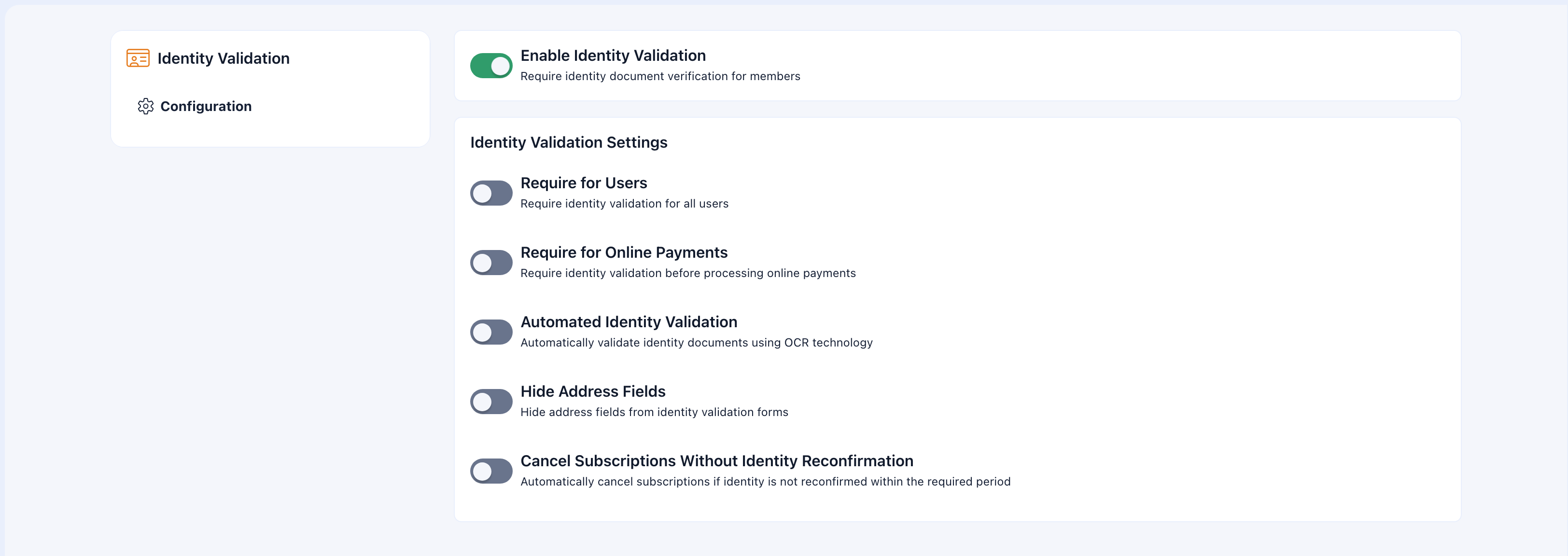
Identity Validation ensures your members are who they say they are. Members upload an ID document, the system extracts data via OCR, and an admin verifies everything matches. Verified members get a badge on their profile.
**When to enable this:**
* Professional associations that need to verify credentials or qualifications
* Organizations handling sensitive activities (working with children, financial services)
 * Regulatory requirements for member identification
* Any situation where you need to confirm someone's real identity
**When you don't need it:**
* Casual communities, hobby groups, or social clubs where identity verification is overkill
***
## How to enable
**Settings** → **Modules** → **Identity Validation**
| Setting | What it does |
| --------------------------- | -------------------------------------------------------------------------------------------- |
| **Require ID validation** | Make identity verification mandatory for all members |
| **Accepted document types** | Choose which documents you accept: national ID, passport, driver's license, residence permit |
| **Require selfie** | Members must take a selfie that's compared against their document photo |
| **Auto-expire reminder** | Days before document expiry to notify the member (e.g., 30 days) |
***
## What the member does
**Path:** Profile → Identity Documents
* Regulatory requirements for member identification
* Any situation where you need to confirm someone's real identity
**When you don't need it:**
* Casual communities, hobby groups, or social clubs where identity verification is overkill
***
## How to enable
**Settings** → **Modules** → **Identity Validation**
| Setting | What it does |
| --------------------------- | -------------------------------------------------------------------------------------------- |
| **Require ID validation** | Make identity verification mandatory for all members |
| **Accepted document types** | Choose which documents you accept: national ID, passport, driver's license, residence permit |
| **Require selfie** | Members must take a selfie that's compared against their document photo |
| **Auto-expire reminder** | Days before document expiry to notify the member (e.g., 30 days) |
***
## What the member does
**Path:** Profile → Identity Documents
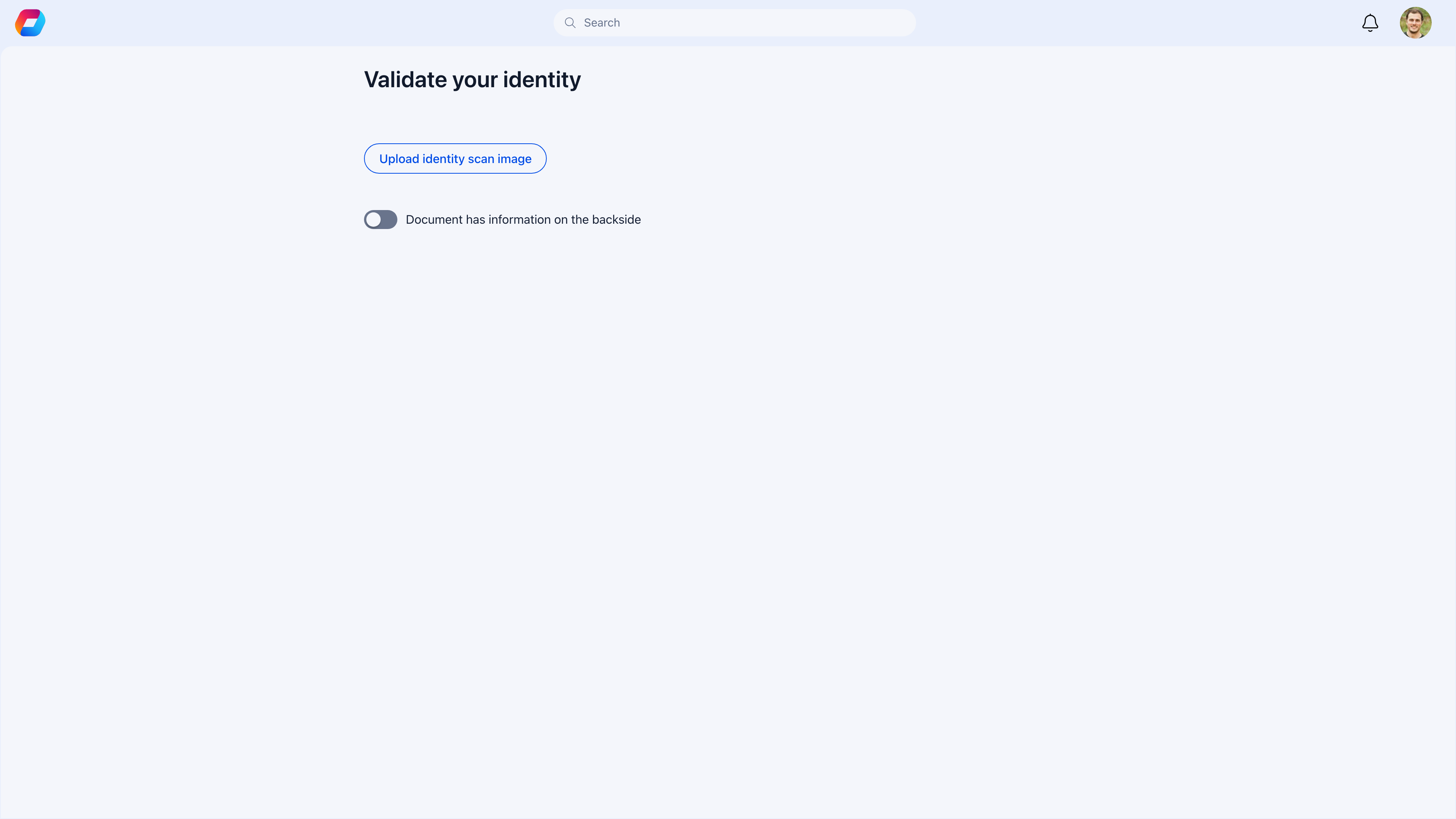 The member-facing upload page presents a clean form with upload areas for the front and back of their ID document, plus a separate area for a profile photo or selfie. Each upload area shows a drag-and-drop zone or file picker button. Below the uploads, any OCR-extracted data appears in editable form fields (first name, last name, date of birth, document number) so the member can review and correct before submitting.
Member uploads photos of the front and back of their ID document (national ID, passport, or driver's license).
If a selfie is required, they also upload a current photo for comparison.
The system automatically extracts data from the document: name, date of birth, document number, expiry date. The member reviews and corrects any OCR errors.
The verification request is sent to the admin queue.
### What OCR extracts
| Field | Source |
| ------------------------- | -------------------------- |
| **First name, Last name** | From the document |
| **Date of birth** | From the document |
| **Document number** | ID or passport number |
| **Expiry date** | Document expiration |
| **Address** | If present on the document |
If OCR misreads anything (it's not perfect), the member can correct the values before submitting.
***
## What the admin does
### Review queue
Admins see pending verifications in their review queue. Each entry shows the member's name, submission date, document type, and status.
### Verification process
When reviewing a submission:
1. **Check the document** — Is it clear, readable, and appears authentic?
2. **Compare photos** — Does the profile photo match the document photo?
3. **Review extracted data** — Does the OCR data match what's visible on the document?
4. **Take action:**
| Action | When to use |
| -------------------- | ------------------------------------------------------------------------------------------------ |
| **Approve** | Document is valid, photos match, data is correct. Member gets a verified badge. |
| **Reject** | Document is invalid, expired, or photos don't match. Provide a reason — the member can resubmit. |
| **Request resubmit** | Images are blurry or partially obscured. Asks for better quality without rejecting outright. |
### Verification statuses
| Status | What it means |
| ----------------- | -------------------------------------------------------------- |
| **Not submitted** | Member hasn't uploaded documents yet |
| **Pending** | Submitted, awaiting admin review |
| **Verified** | Identity confirmed — badge displayed on profile |
| **Rejected** | Verification failed — member can resubmit |
| **Expired** | Document has passed its expiry date — member needs to resubmit |
***
## Combining with adhesion
For maximum vetting, combine identity validation with [Adhesion](/platform/users/adhesion):
1. Applicant submits a membership application (adhesion)
2. As part of the application, they upload identity documents
3. OCR pre-fills form fields from the document data
4. Admin verifies identity as part of the application review
5. Approval confirms both the application and the identity
***
## Document expiry management
When you set an **auto-expire reminder** (e.g., 30 days), the system:
* Tracks document expiry dates
* Sends reminders to members before expiry
* Changes status to **Expired** when the document expires
* The member must upload a new document to regain verified status
***
## Privacy and security
* Uploaded documents are encrypted at rest
* Access is restricted to administrators only
* You can configure retention policies (delete after verification, keep for X months/years, or manual deletion only)
* Members can delete their own documents from their profile
***
## Common scenarios
When rejecting, provide a clear reason: "Document expired", "Photo doesn't match profile", "Image too blurry to read". The member receives a notification with your reason and can resubmit. Specific feedback prevents repeated failures.
OCR isn't perfect, especially with non-Latin scripts or damaged documents. The member can correct OCR errors before submitting. If they missed an error, reject with "Name doesn't match document" and ask them to resubmit with corrected data.
Require selfies if you need to verify that the person uploading the document is actually the person on the document. Skip it for lower-stakes verification where the document itself is sufficient (e.g., confirming they have a valid professional license, regardless of who uploaded it).
That depends on your configuration. If identity validation is mandatory, an expired document may restrict their access until they resubmit. If it's optional, expiry just removes the verified badge but doesn't affect access.
***
## Technical requirements
* **OCR processing:** Requires AWS Lambda configuration
* **Document storage:** AWS S3 for uploaded files
* Both are part of the standard Orgo cloud setup — no additional services needed.
***
## Related
* [Adhesion](/platform/users/adhesion) — Combine identity verification with membership applications
* [Profile Fields](/platform/users/profile-fields) — Additional member data
* [Privacy Settings](/platform/users/privacy-settings) — Data visibility controls
The member-facing upload page presents a clean form with upload areas for the front and back of their ID document, plus a separate area for a profile photo or selfie. Each upload area shows a drag-and-drop zone or file picker button. Below the uploads, any OCR-extracted data appears in editable form fields (first name, last name, date of birth, document number) so the member can review and correct before submitting.
Member uploads photos of the front and back of their ID document (national ID, passport, or driver's license).
If a selfie is required, they also upload a current photo for comparison.
The system automatically extracts data from the document: name, date of birth, document number, expiry date. The member reviews and corrects any OCR errors.
The verification request is sent to the admin queue.
### What OCR extracts
| Field | Source |
| ------------------------- | -------------------------- |
| **First name, Last name** | From the document |
| **Date of birth** | From the document |
| **Document number** | ID or passport number |
| **Expiry date** | Document expiration |
| **Address** | If present on the document |
If OCR misreads anything (it's not perfect), the member can correct the values before submitting.
***
## What the admin does
### Review queue
Admins see pending verifications in their review queue. Each entry shows the member's name, submission date, document type, and status.
### Verification process
When reviewing a submission:
1. **Check the document** — Is it clear, readable, and appears authentic?
2. **Compare photos** — Does the profile photo match the document photo?
3. **Review extracted data** — Does the OCR data match what's visible on the document?
4. **Take action:**
| Action | When to use |
| -------------------- | ------------------------------------------------------------------------------------------------ |
| **Approve** | Document is valid, photos match, data is correct. Member gets a verified badge. |
| **Reject** | Document is invalid, expired, or photos don't match. Provide a reason — the member can resubmit. |
| **Request resubmit** | Images are blurry or partially obscured. Asks for better quality without rejecting outright. |
### Verification statuses
| Status | What it means |
| ----------------- | -------------------------------------------------------------- |
| **Not submitted** | Member hasn't uploaded documents yet |
| **Pending** | Submitted, awaiting admin review |
| **Verified** | Identity confirmed — badge displayed on profile |
| **Rejected** | Verification failed — member can resubmit |
| **Expired** | Document has passed its expiry date — member needs to resubmit |
***
## Combining with adhesion
For maximum vetting, combine identity validation with [Adhesion](/platform/users/adhesion):
1. Applicant submits a membership application (adhesion)
2. As part of the application, they upload identity documents
3. OCR pre-fills form fields from the document data
4. Admin verifies identity as part of the application review
5. Approval confirms both the application and the identity
***
## Document expiry management
When you set an **auto-expire reminder** (e.g., 30 days), the system:
* Tracks document expiry dates
* Sends reminders to members before expiry
* Changes status to **Expired** when the document expires
* The member must upload a new document to regain verified status
***
## Privacy and security
* Uploaded documents are encrypted at rest
* Access is restricted to administrators only
* You can configure retention policies (delete after verification, keep for X months/years, or manual deletion only)
* Members can delete their own documents from their profile
***
## Common scenarios
When rejecting, provide a clear reason: "Document expired", "Photo doesn't match profile", "Image too blurry to read". The member receives a notification with your reason and can resubmit. Specific feedback prevents repeated failures.
OCR isn't perfect, especially with non-Latin scripts or damaged documents. The member can correct OCR errors before submitting. If they missed an error, reject with "Name doesn't match document" and ask them to resubmit with corrected data.
Require selfies if you need to verify that the person uploading the document is actually the person on the document. Skip it for lower-stakes verification where the document itself is sufficient (e.g., confirming they have a valid professional license, regardless of who uploaded it).
That depends on your configuration. If identity validation is mandatory, an expired document may restrict their access until they resubmit. If it's optional, expiry just removes the verified badge but doesn't affect access.
***
## Technical requirements
* **OCR processing:** Requires AWS Lambda configuration
* **Document storage:** AWS S3 for uploaded files
* Both are part of the standard Orgo cloud setup — no additional services needed.
***
## Related
* [Adhesion](/platform/users/adhesion) — Combine identity verification with membership applications
* [Profile Fields](/platform/users/profile-fields) — Additional member data
* [Privacy Settings](/platform/users/privacy-settings) — Data visibility controls