> ## Documentation Index
> Fetch the complete documentation index at: https://orgo.space/docs/llms.txt
> Use this file to discover all available pages before exploring further.
# Newsletter builder
> Design campaign emails with the drag-and-drop editor, personalise them with placeholders, and reuse designs as templates
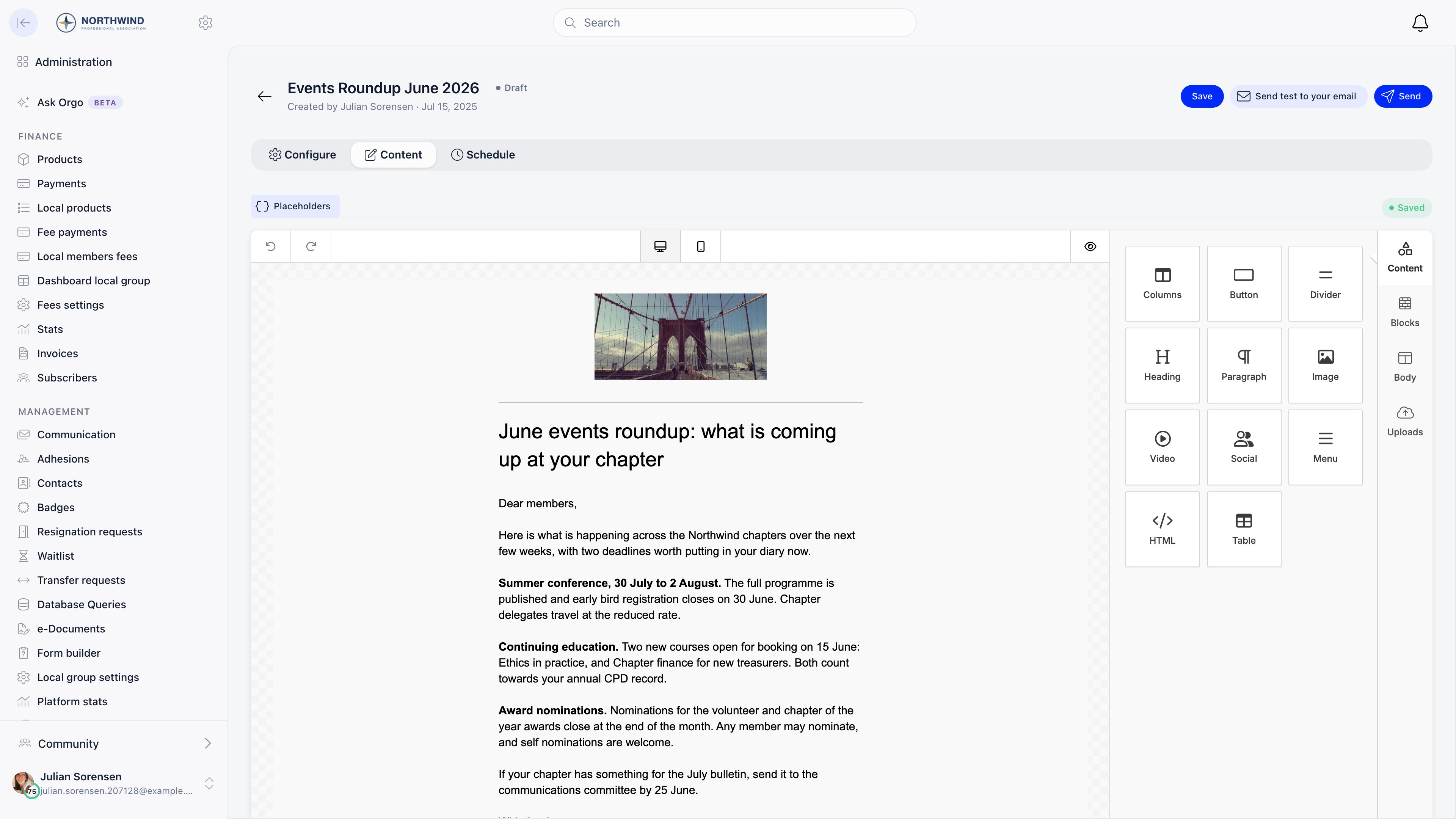
The builder is where a [campaign](/docs/platform/newsletter) gets its content. It is
a drag-and-drop email editor: blocks on the right, the email in the middle, and
a placeholder menu for inserting each recipient's own data.
**Built for** people who send member emails without writing HTML and still need
the result to survive Outlook, Gmail, and a phone screen.
**Replaces** hand-built HTML emails and the "paste from Word and hope" workflow.
 ***
## Opening the editor
Open a draft campaign and switch to the **Content** tab. Content saves
automatically while you work, and the toolbar shows **Saving** and then
**Saved**; **Save** forces it. The same editor opens standalone when you create
or edit a template.
The editor loads inside the page from Orgo's canonical app domain, so it works
the same on a [custom domain](/docs/platform/custom-domain).
***
## Blocks
Drag a block from the right-hand palette onto the canvas, then click it to edit
its content and styling.
| Block | Use it for |
| ------------- | -------------------------------------------------------- |
| **Columns** | Splitting a row into two or more side-by-side areas |
| **Heading** | Section titles |
| **Paragraph** | Body text with inline formatting and links |
| **Image** | Photos, graphics, and logos |
| **Button** | A call to action such as register, donate, or read more |
| **Divider** | A rule between sections |
| **Social** | A row of social network icons |
| **Menu** | A row of links, typically a header nav |
| **Video** | A linked video thumbnail |
| **Table** | Tabular content |
| **HTML** | Raw HTML when you need something the blocks do not cover |
The side tabs are **Content** (the palette above), **Blocks**, **Body**, and
**Uploads**. The toolbar has undo and redo, a desktop and mobile preview toggle,
and a full preview.
Stock image search and the Facebook, Google, and Unsplash integrations are
switched off. Upload your images or paste their URLs.
***
## Placeholders
**Placeholders** in the toolbar copies a token to your clipboard; paste it
anywhere in the design and it is replaced per recipient at send time.
| Placeholder | Resolves to |
| --------------------------------------------------------------------------------------- | ----------------------------------------------------- |
| `{firstName}`, `{fullName}` | The recipient's name |
| `{userPhoneNumber}`, `{userAddress}`, `{userPostalCode}`, `{userTown}`, `{userCountry}` | Their contact details |
| `{userProfileURL}` | A link to their profile |
| `{userCompanyName}`, `{companyName}` | Their company, when the Companies module is on |
| `{contactEmail}` | Your organization's contact email |
| `{membershipLevelName}`, `{membershipLevelPrice}`, `{currentPeriodEnd}` | Their membership tier, its price, and when it expires |
| `{preferencesUrl}` | Their notification settings |
| `{unsubscribeUrl}` | The unsubscribe link |
A campaign attached to an event gets eight more: `{eventTitle}`,
`{eventDescription}`, `{eventDateBegin}`, `{eventDateEnd}`, `{eventTimezone}`,
`{eventLocation}`, `{eventRegisterUrl}`, and `{eventAgendaUrl}`. Event dates are
rendered in the recipient's own timezone where they have one, otherwise the
event's, otherwise the organization's.
Notes that save people time:
* Both `{firstName}` and `{{firstName}}` work.
* Placeholders work inside link URLs as well as in text. `{unsubscribeUrl}` and
`{preferencesUrl}` become a bare URL inside an `href` and a ready-made link
when used on their own.
* Anything that does not resolve for a given recipient (a phone number they
never filled in) is replaced with nothing, not left as raw text.
* `{eventAgendaUrl}` only resolves for recipients with a confirmed registration
for that event.
* If the design contains no `{unsubscribeUrl}`, Orgo appends an unsubscribe
footer automatically before sending.
Always use **Send test to your email** before a real send: it renders the
placeholders against your own record, so an empty field shows up immediately.
***
## Templates
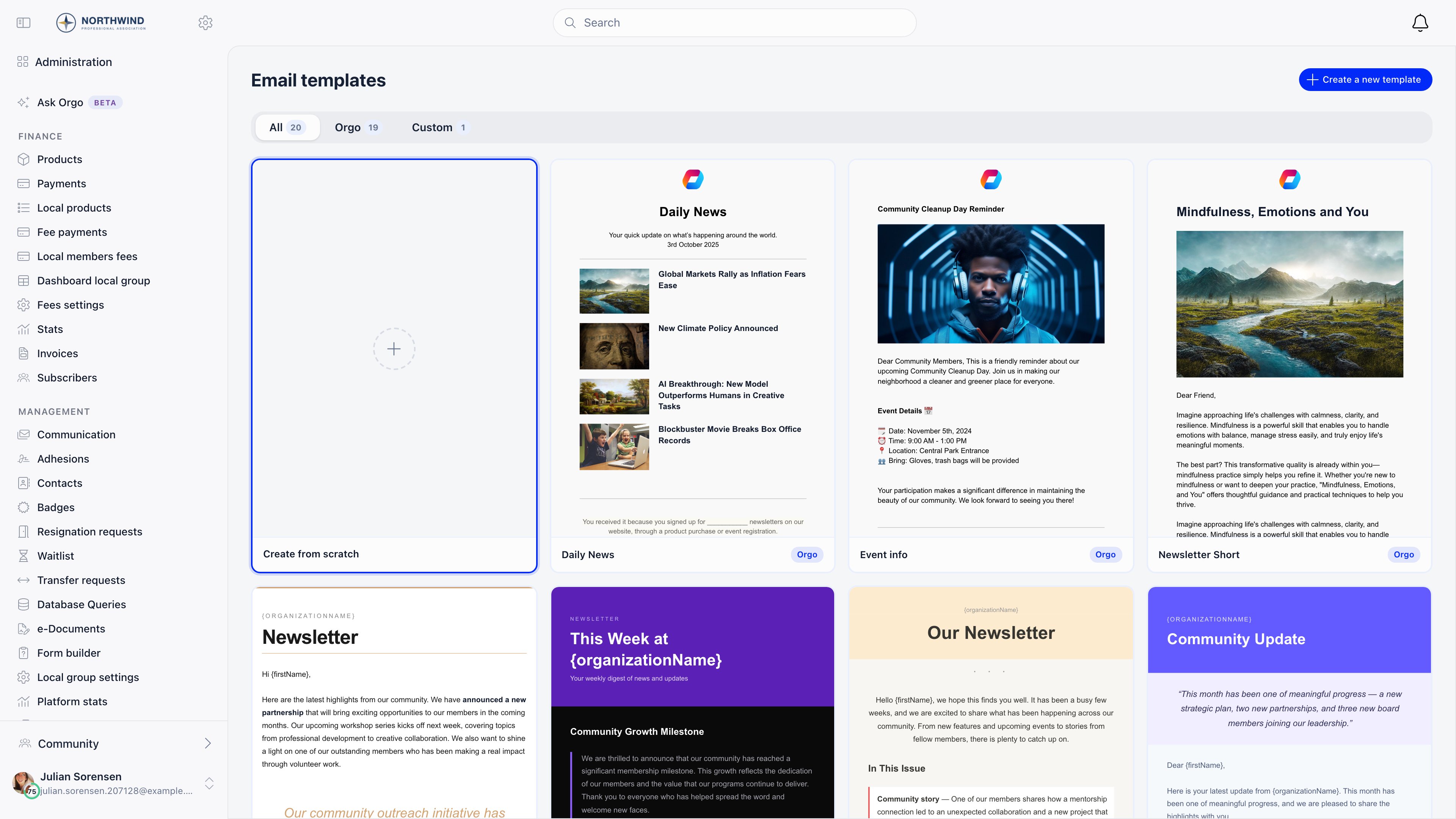
**Administration** → **COMMUNICATION** → **Campaign templates** holds the
reusable designs. They are filtered by **All**, **Orgo** (the designs that ship
with the platform), and **Custom** (yours), with a badge on each card.
***
## Opening the editor
Open a draft campaign and switch to the **Content** tab. Content saves
automatically while you work, and the toolbar shows **Saving** and then
**Saved**; **Save** forces it. The same editor opens standalone when you create
or edit a template.
The editor loads inside the page from Orgo's canonical app domain, so it works
the same on a [custom domain](/docs/platform/custom-domain).
***
## Blocks
Drag a block from the right-hand palette onto the canvas, then click it to edit
its content and styling.
| Block | Use it for |
| ------------- | -------------------------------------------------------- |
| **Columns** | Splitting a row into two or more side-by-side areas |
| **Heading** | Section titles |
| **Paragraph** | Body text with inline formatting and links |
| **Image** | Photos, graphics, and logos |
| **Button** | A call to action such as register, donate, or read more |
| **Divider** | A rule between sections |
| **Social** | A row of social network icons |
| **Menu** | A row of links, typically a header nav |
| **Video** | A linked video thumbnail |
| **Table** | Tabular content |
| **HTML** | Raw HTML when you need something the blocks do not cover |
The side tabs are **Content** (the palette above), **Blocks**, **Body**, and
**Uploads**. The toolbar has undo and redo, a desktop and mobile preview toggle,
and a full preview.
Stock image search and the Facebook, Google, and Unsplash integrations are
switched off. Upload your images or paste their URLs.
***
## Placeholders
**Placeholders** in the toolbar copies a token to your clipboard; paste it
anywhere in the design and it is replaced per recipient at send time.
| Placeholder | Resolves to |
| --------------------------------------------------------------------------------------- | ----------------------------------------------------- |
| `{firstName}`, `{fullName}` | The recipient's name |
| `{userPhoneNumber}`, `{userAddress}`, `{userPostalCode}`, `{userTown}`, `{userCountry}` | Their contact details |
| `{userProfileURL}` | A link to their profile |
| `{userCompanyName}`, `{companyName}` | Their company, when the Companies module is on |
| `{contactEmail}` | Your organization's contact email |
| `{membershipLevelName}`, `{membershipLevelPrice}`, `{currentPeriodEnd}` | Their membership tier, its price, and when it expires |
| `{preferencesUrl}` | Their notification settings |
| `{unsubscribeUrl}` | The unsubscribe link |
A campaign attached to an event gets eight more: `{eventTitle}`,
`{eventDescription}`, `{eventDateBegin}`, `{eventDateEnd}`, `{eventTimezone}`,
`{eventLocation}`, `{eventRegisterUrl}`, and `{eventAgendaUrl}`. Event dates are
rendered in the recipient's own timezone where they have one, otherwise the
event's, otherwise the organization's.
Notes that save people time:
* Both `{firstName}` and `{{firstName}}` work.
* Placeholders work inside link URLs as well as in text. `{unsubscribeUrl}` and
`{preferencesUrl}` become a bare URL inside an `href` and a ready-made link
when used on their own.
* Anything that does not resolve for a given recipient (a phone number they
never filled in) is replaced with nothing, not left as raw text.
* `{eventAgendaUrl}` only resolves for recipients with a confirmed registration
for that event.
* If the design contains no `{unsubscribeUrl}`, Orgo appends an unsubscribe
footer automatically before sending.
Always use **Send test to your email** before a real send: it renders the
placeholders against your own record, so an empty field shows up immediately.
***
## Templates
**Administration** → **COMMUNICATION** → **Campaign templates** holds the
reusable designs. They are filtered by **All**, **Orgo** (the designs that ship
with the platform), and **Custom** (yours), with a badge on each card.
 Hovering a card offers:
* **Start Campaign**, which opens the create form with that template preselected
* **Preview**, a full-size render
* **Duplicate**, which copies it into a new custom template you can edit
* **Edit** and **Delete**, on your own templates only
Orgo templates cannot be edited or deleted; duplicate one and change the copy.
**Blank** is not a template, it is the "start from scratch" card. Templates are
shared across the whole organization, and local communication managers can read,
create, and edit them so they can build their own center's campaigns.
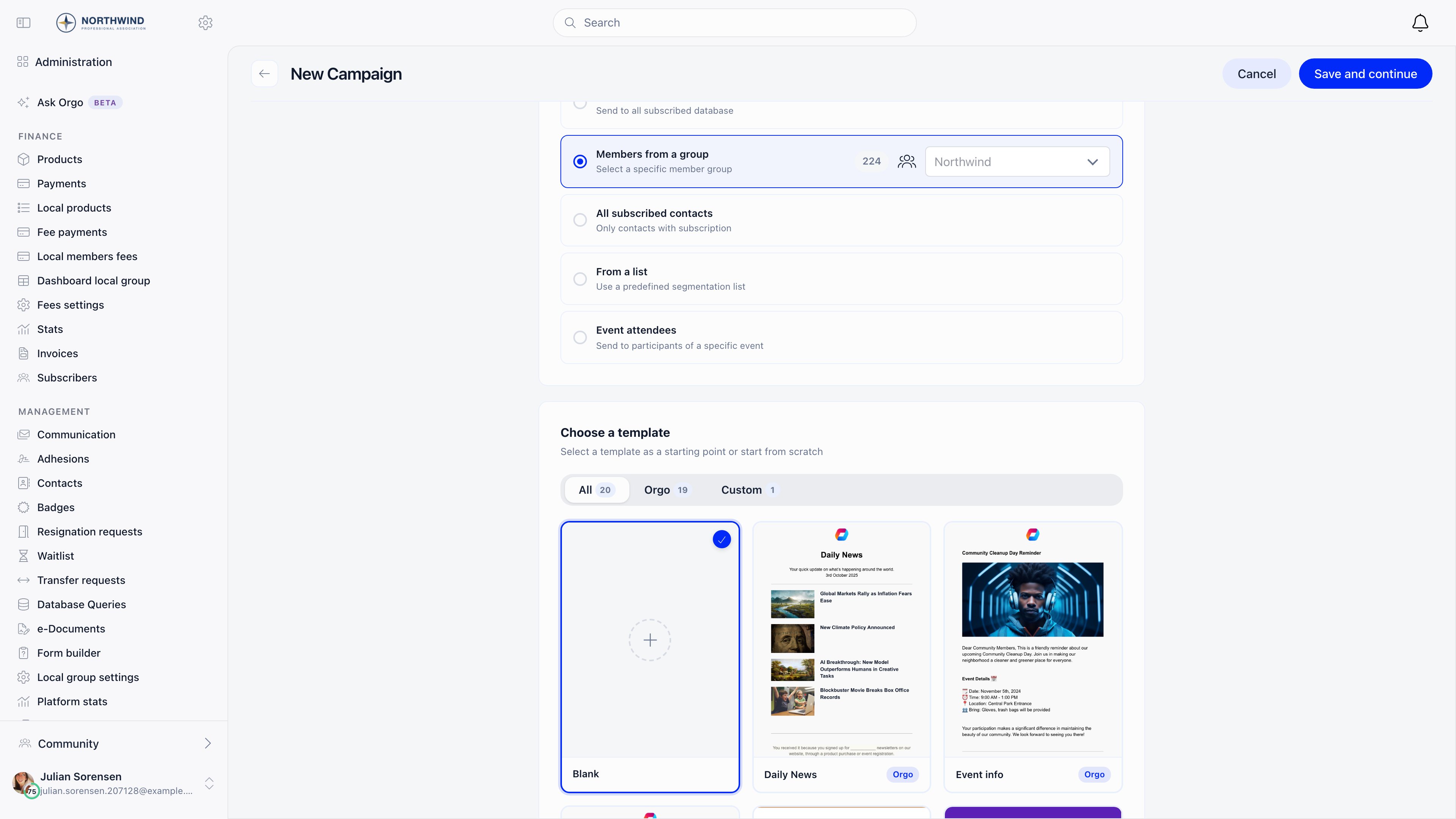
Picking a template while creating a campaign replaces the design only. The title,
subject, sender name, reply-to, and audience you already chose are kept.
Hovering a card offers:
* **Start Campaign**, which opens the create form with that template preselected
* **Preview**, a full-size render
* **Duplicate**, which copies it into a new custom template you can edit
* **Edit** and **Delete**, on your own templates only
Orgo templates cannot be edited or deleted; duplicate one and change the copy.
**Blank** is not a template, it is the "start from scratch" card. Templates are
shared across the whole organization, and local communication managers can read,
create, and edit them so they can build their own center's campaigns.
Picking a template while creating a campaign replaces the design only. The title,
subject, sender name, reply-to, and audience you already chose are kept.
 ***
## Troubleshooting
It was almost certainly misspelled or is not in the list above. Copy it from
the **Placeholders** menu rather than typing it, and check the case:
`{firstname}` is not `{firstName}`.
Mail clients strip modern CSS. Keep to the blocks, avoid pasting styled
content from a word processor, and check the mobile preview before sending.
Test sends are the only reliable check.
Build it once, save it as a template, then use **Start Campaign** from the
template each month. **Duplicate campaign** on a sent campaign is the other
route, and it also carries the settings across.
***
## Related
* [Newsletter](/docs/platform/newsletter) for audiences, sending, and reporting
* [Signup widgets](/docs/platform/newsletter-widgets) for collecting subscribers
* [Email templates](/docs/platform/emails/email-templates) for automatic system emails
* [Branding](/docs/platform/organisation/branding) for logos used in emails
***
## Troubleshooting
It was almost certainly misspelled or is not in the list above. Copy it from
the **Placeholders** menu rather than typing it, and check the case:
`{firstname}` is not `{firstName}`.
Mail clients strip modern CSS. Keep to the blocks, avoid pasting styled
content from a word processor, and check the mobile preview before sending.
Test sends are the only reliable check.
Build it once, save it as a template, then use **Start Campaign** from the
template each month. **Duplicate campaign** on a sent campaign is the other
route, and it also carries the settings across.
***
## Related
* [Newsletter](/docs/platform/newsletter) for audiences, sending, and reporting
* [Signup widgets](/docs/platform/newsletter-widgets) for collecting subscribers
* [Email templates](/docs/platform/emails/email-templates) for automatic system emails
* [Branding](/docs/platform/organisation/branding) for logos used in emails