> ## Documentation Index
> Fetch the complete documentation index at: https://orgo.space/docs/llms.txt
> Use this file to discover all available pages before exploring further.
# Newsletter
> Send email campaigns to your members with segmentation, templates, and analytics
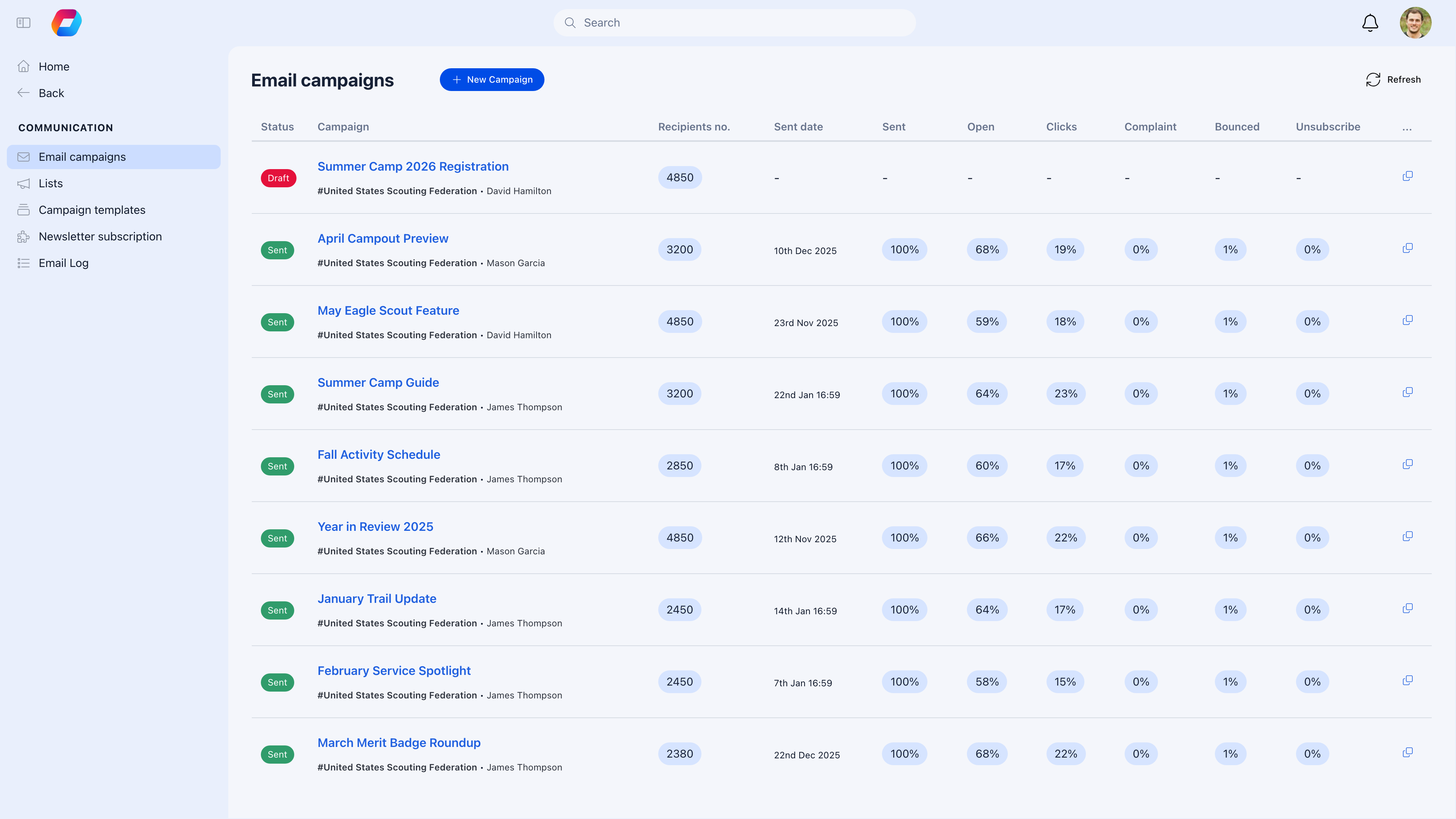
The Newsletter module lets you send email campaigns to your members — announcements, monthly updates, event promotions, or anything else you want in their inbox. Segment by Local Center, user type, or role so the right people get the right message.
 ***
## Setting up newsletters
**Settings** → **Modules** → enable **Newsletter**
Email sending uses AWS SES (configured as part of your Orgo cloud setup — no additional setup needed).
***
## Creating a campaign
**Newsletter** → **Create Campaign**
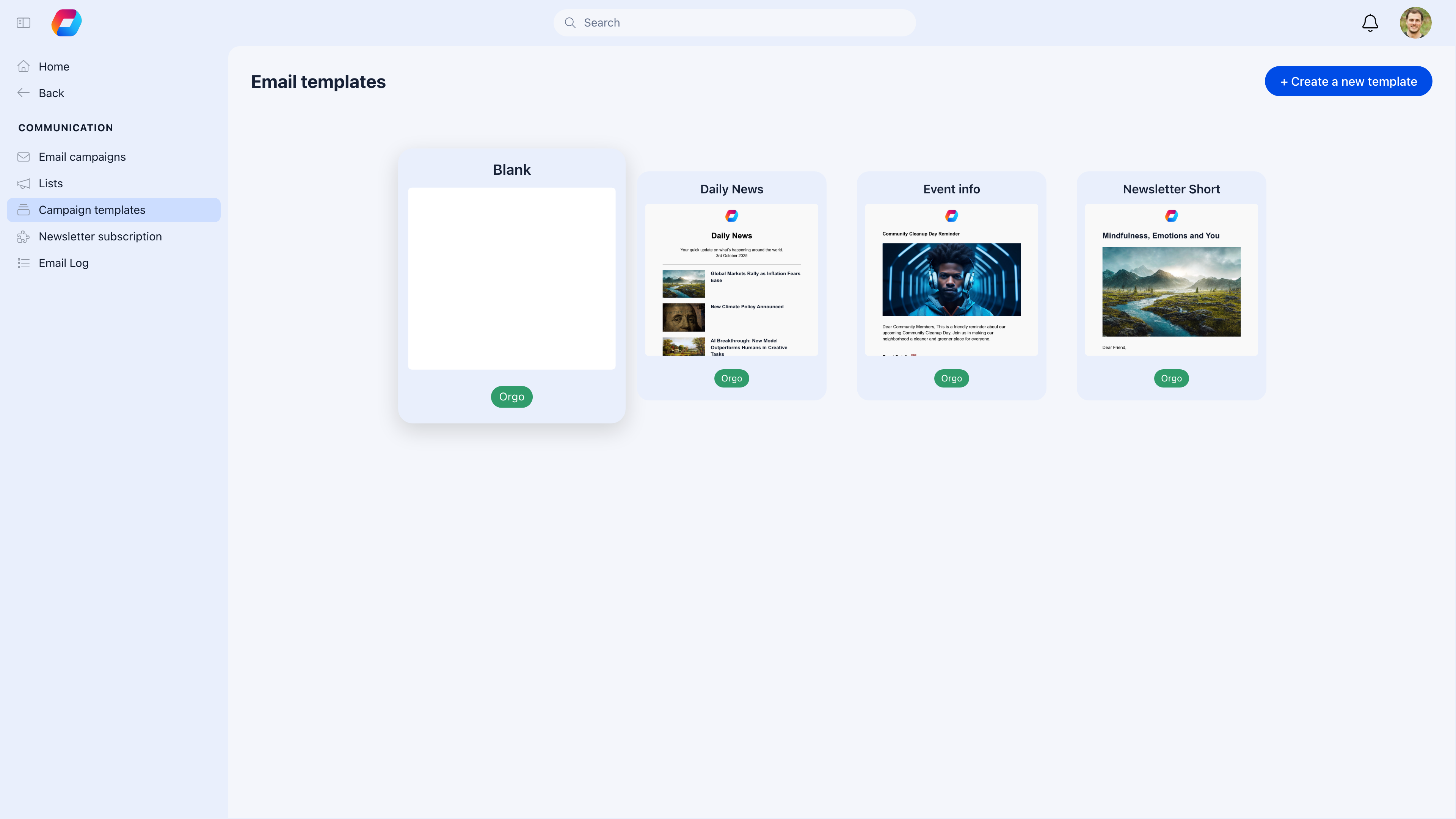
Start by picking a template — Blank, Daily News, Event Info, or one of your saved designs. Then fill out the campaign details.
***
## Setting up newsletters
**Settings** → **Modules** → enable **Newsletter**
Email sending uses AWS SES (configured as part of your Orgo cloud setup — no additional setup needed).
***
## Creating a campaign
**Newsletter** → **Create Campaign**
Start by picking a template — Blank, Daily News, Event Info, or one of your saved designs. Then fill out the campaign details.
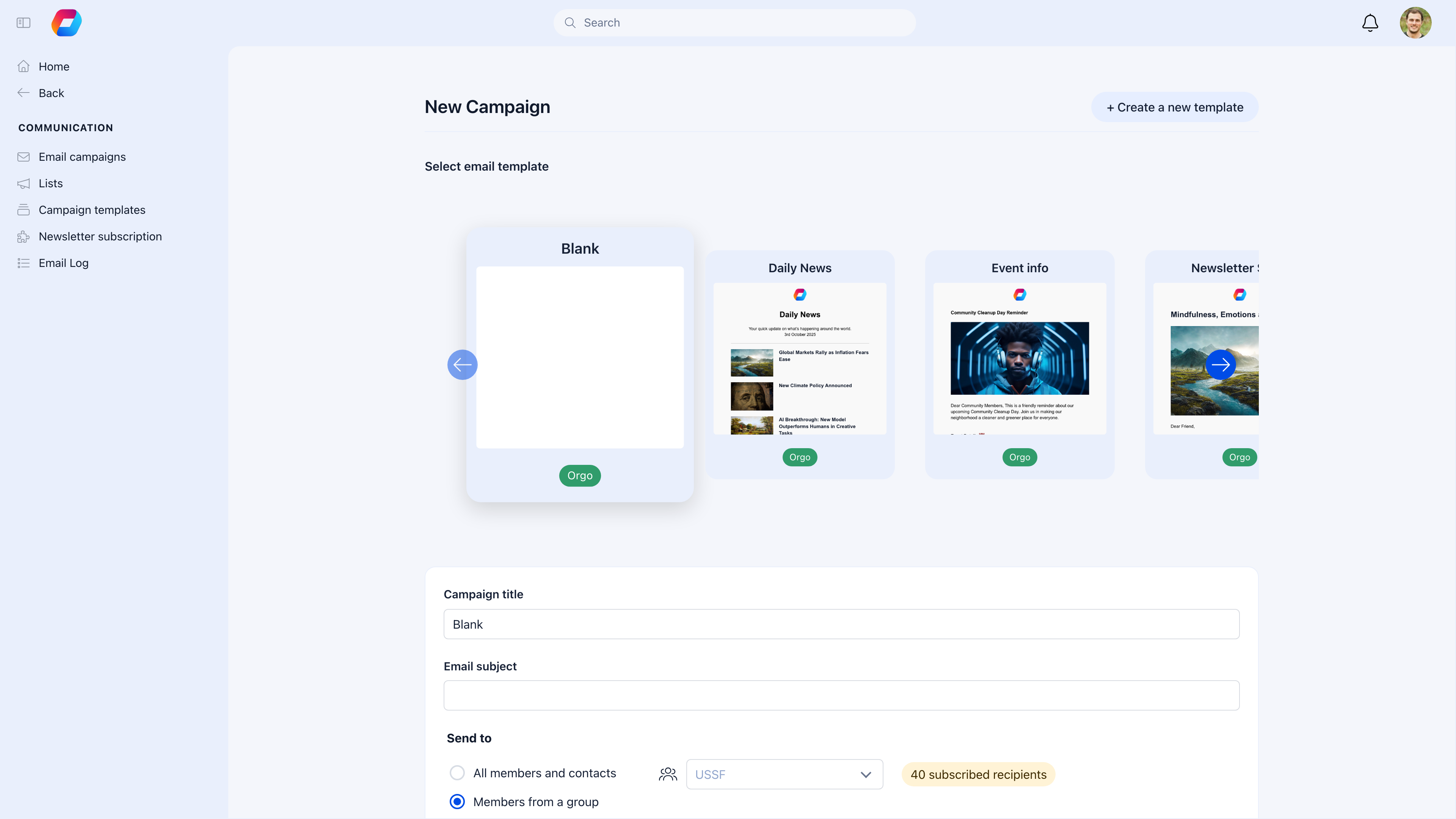 Choose a starting design from your template library. Start from scratch with Blank, or use a pre-built layout.
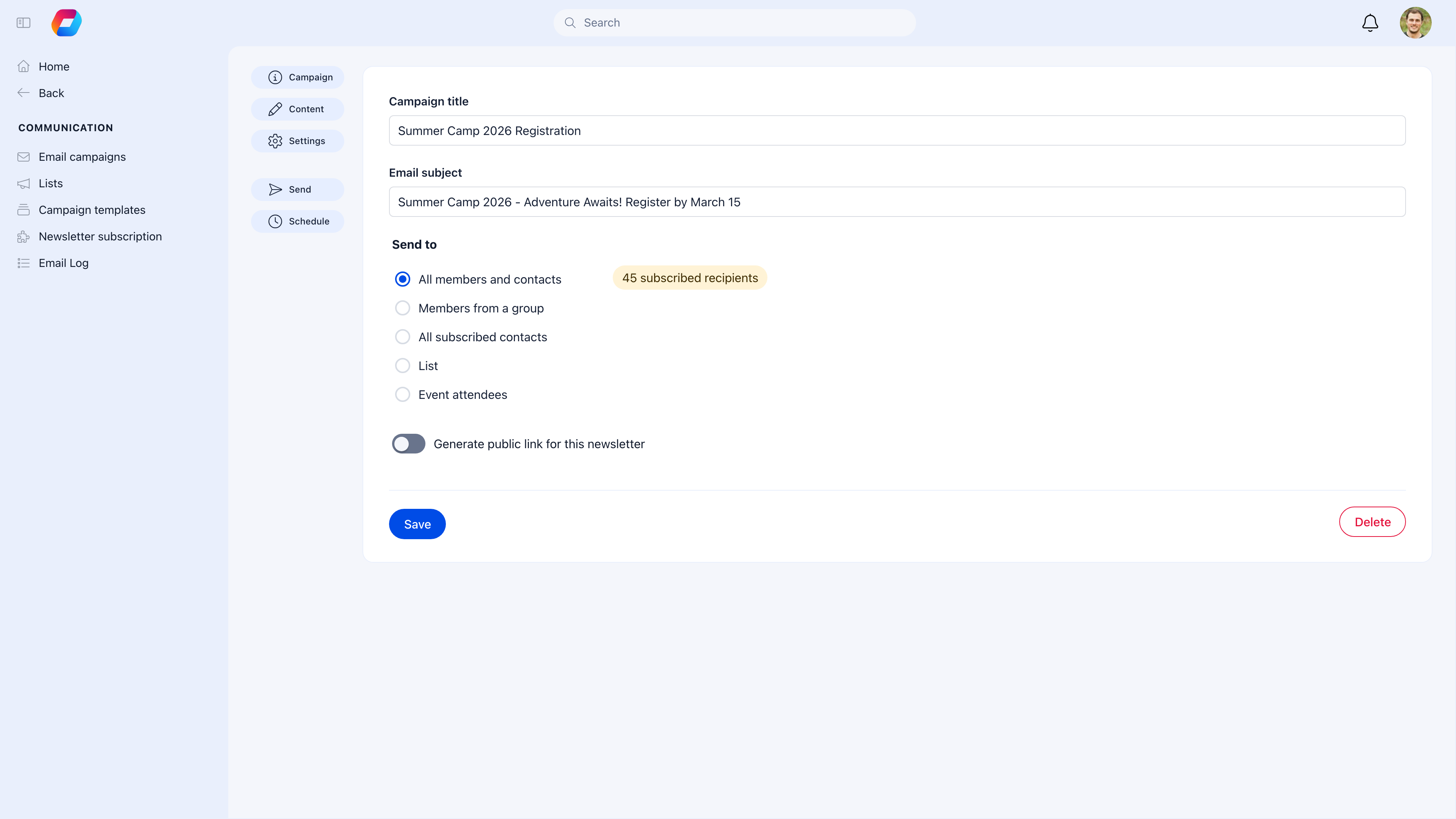
Add a campaign title (internal), email subject (what recipients see), and select your audience. The sidebar gives you quick access to Campaign details, Content editor, Settings, Send, and Schedule.
Use the drag-and-drop editor to design your email with text, images, buttons, dividers, and social links.
Send a test email to yourself to verify formatting, links, and personalization before sending to everyone.
Send immediately or schedule for a specific date/time.
Choose a starting design from your template library. Start from scratch with Blank, or use a pre-built layout.
Add a campaign title (internal), email subject (what recipients see), and select your audience. The sidebar gives you quick access to Campaign details, Content editor, Settings, Send, and Schedule.
Use the drag-and-drop editor to design your email with text, images, buttons, dividers, and social links.
Send a test email to yourself to verify formatting, links, and personalization before sending to everyone.
Send immediately or schedule for a specific date/time.
 ***
## The email editor
The drag-and-drop editor lets you build professional emails visually. The left sidebar shows placeholders and actions, the center is your email canvas, and the right panel has content blocks you can drag in.
***
## The email editor
The drag-and-drop editor lets you build professional emails visually. The left sidebar shows placeholders and actions, the center is your email canvas, and the right panel has content blocks you can drag in.
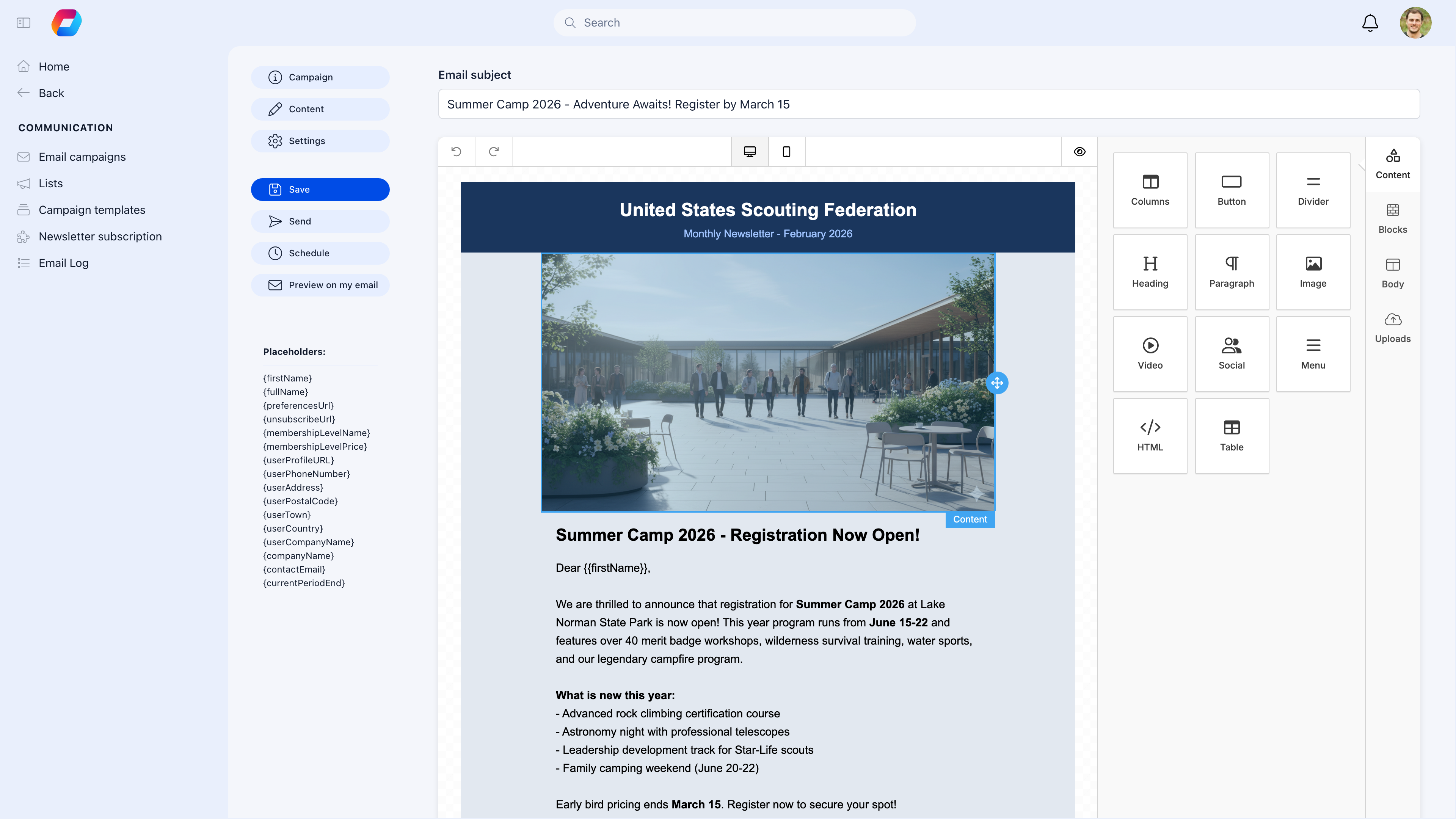 Available content blocks:
| Block | What it does |
| ----------- | ---------------------------------------------------- |
| **Text** | Rich text content with formatting |
| **Image** | Photos, graphics, logos |
| **Button** | Call-to-action buttons (register, donate, read more) |
| **Divider** | Visual separators between sections |
| **Spacer** | Empty space for layout |
| **Social** | Social media icon links |
### Personalization
Insert dynamic fields that resolve to each recipient's data:
| Variable | Output |
| -------------------- | ----------------------------------------- |
| `{firstName}` | Member's first name |
| `{fullName}` | Member's full name |
| `{userCompanyName}` | Member's company name |
| `{eventTitle}` | Event title (for event-related campaigns) |
| `{eventDateBegin}` | Event start date and time |
| `{eventLocation}` | Event location |
| `{eventRegisterUrl}` | Event registration link |
| `{unsubscribeUrl}` | Unsubscribe link |
| `{preferencesUrl}` | Email preferences link |
### Templates
Save any email design as a template for reuse. Organize templates by purpose: Announcements, Event Promotions, Monthly Updates, Welcome Emails.
Available content blocks:
| Block | What it does |
| ----------- | ---------------------------------------------------- |
| **Text** | Rich text content with formatting |
| **Image** | Photos, graphics, logos |
| **Button** | Call-to-action buttons (register, donate, read more) |
| **Divider** | Visual separators between sections |
| **Spacer** | Empty space for layout |
| **Social** | Social media icon links |
### Personalization
Insert dynamic fields that resolve to each recipient's data:
| Variable | Output |
| -------------------- | ----------------------------------------- |
| `{firstName}` | Member's first name |
| `{fullName}` | Member's full name |
| `{userCompanyName}` | Member's company name |
| `{eventTitle}` | Event title (for event-related campaigns) |
| `{eventDateBegin}` | Event start date and time |
| `{eventLocation}` | Event location |
| `{eventRegisterUrl}` | Event registration link |
| `{unsubscribeUrl}` | Unsubscribe link |
| `{preferencesUrl}` | Email preferences link |
### Templates
Save any email design as a template for reuse. Organize templates by purpose: Announcements, Event Promotions, Monthly Updates, Welcome Emails.
 ***
## Audience segmentation
| Segment | Use when |
| ----------------- | ------------------------------------------------------ |
| **All members** | Org-wide announcements everyone should see |
| **Local Center** | News relevant to one branch |
| **User type** | Content specific to leaders, volunteers, youth, etc. |
| **Role** | Communication to board members, financial admins, etc. |
| **Custom filter** | Advanced criteria combining multiple attributes |
Members who have unsubscribed or have bounced email addresses are automatically excluded.
***
## Campaign analytics
After sending, track performance:
| Metric | What it tells you |
| ---------------- | --------------------------------------- |
| **Sent** | Total emails dispatched |
| **Delivered** | Successfully reached inboxes |
| **Opens** | How many people opened the email |
| **Clicks** | How many clicked a link |
| **Bounces** | Failed deliveries (invalid addresses) |
| **Unsubscribes** | People who opted out from this campaign |
Use open and click rates to understand what content resonates. Typical benchmarks: 20-30% open rate, 2-5% click rate for membership organizations.
***
## Subscriber management
Members control their own email preferences:
* Newsletter opt-in/opt-out from their profile settings
* One-click unsubscribe link in every email footer (required for compliance)
* Frequency preferences (if configured)
As an admin, you cannot override a member's unsubscribe — this is required by email regulations (GDPR, CAN-SPAM).
***
## Common scenarios
Check that your sending domain has proper authentication set up (SPF, DKIM, DMARC). Avoid spam trigger words in subject lines. Send consistently — irregular sending patterns trigger spam filters. Ask members to add your sender address to their contacts.
Use audience segmentation. Create one campaign per Local Center, or use the Local Center segment to send the same template with localized content. Personalization variables like `{firstName}` and `{fullName}` can tailor the greeting.
Check: (1) are they unsubscribed? (2) was the email bounced? (3) check their spam/junk folder. In the campaign analytics, search for their email to see the delivery status.
Use **newsletter** for one-way communication that should reach inboxes — announcements, updates, campaigns. Use **discussion posts** for conversations where you want replies, reactions, and interaction. Many organizations post the content in both: a discussion post for engagement and a newsletter for reach.
***
## Related
* [Notifications](/platform/notifications) — In-app and push notifications
* [Discussions](/platform/discussion) — Forum-style communication
* [Groups](/platform/groups) — Audience structure for segmentation
***
## Audience segmentation
| Segment | Use when |
| ----------------- | ------------------------------------------------------ |
| **All members** | Org-wide announcements everyone should see |
| **Local Center** | News relevant to one branch |
| **User type** | Content specific to leaders, volunteers, youth, etc. |
| **Role** | Communication to board members, financial admins, etc. |
| **Custom filter** | Advanced criteria combining multiple attributes |
Members who have unsubscribed or have bounced email addresses are automatically excluded.
***
## Campaign analytics
After sending, track performance:
| Metric | What it tells you |
| ---------------- | --------------------------------------- |
| **Sent** | Total emails dispatched |
| **Delivered** | Successfully reached inboxes |
| **Opens** | How many people opened the email |
| **Clicks** | How many clicked a link |
| **Bounces** | Failed deliveries (invalid addresses) |
| **Unsubscribes** | People who opted out from this campaign |
Use open and click rates to understand what content resonates. Typical benchmarks: 20-30% open rate, 2-5% click rate for membership organizations.
***
## Subscriber management
Members control their own email preferences:
* Newsletter opt-in/opt-out from their profile settings
* One-click unsubscribe link in every email footer (required for compliance)
* Frequency preferences (if configured)
As an admin, you cannot override a member's unsubscribe — this is required by email regulations (GDPR, CAN-SPAM).
***
## Common scenarios
Check that your sending domain has proper authentication set up (SPF, DKIM, DMARC). Avoid spam trigger words in subject lines. Send consistently — irregular sending patterns trigger spam filters. Ask members to add your sender address to their contacts.
Use audience segmentation. Create one campaign per Local Center, or use the Local Center segment to send the same template with localized content. Personalization variables like `{firstName}` and `{fullName}` can tailor the greeting.
Check: (1) are they unsubscribed? (2) was the email bounced? (3) check their spam/junk folder. In the campaign analytics, search for their email to see the delivery status.
Use **newsletter** for one-way communication that should reach inboxes — announcements, updates, campaigns. Use **discussion posts** for conversations where you want replies, reactions, and interaction. Many organizations post the content in both: a discussion post for engagement and a newsletter for reach.
***
## Related
* [Notifications](/platform/notifications) — In-app and push notifications
* [Discussions](/platform/discussion) — Forum-style communication
* [Groups](/platform/groups) — Audience structure for segmentation