> ## Documentation Index
> Fetch the complete documentation index at: https://orgo.space/docs/llms.txt
> Use this file to discover all available pages before exploring further.
# Branding
> Your logos and login screen — make the platform look like yours.
Branding is the first thing your members see. A custom logo and login background turn a generic platform into *your* platform. Upload logos for both light and dark themes, and set a branded login screen.
**Settings → Organization → Branding**
 Requires **Tenant Admin** permissions.
***
## Setting up your brand
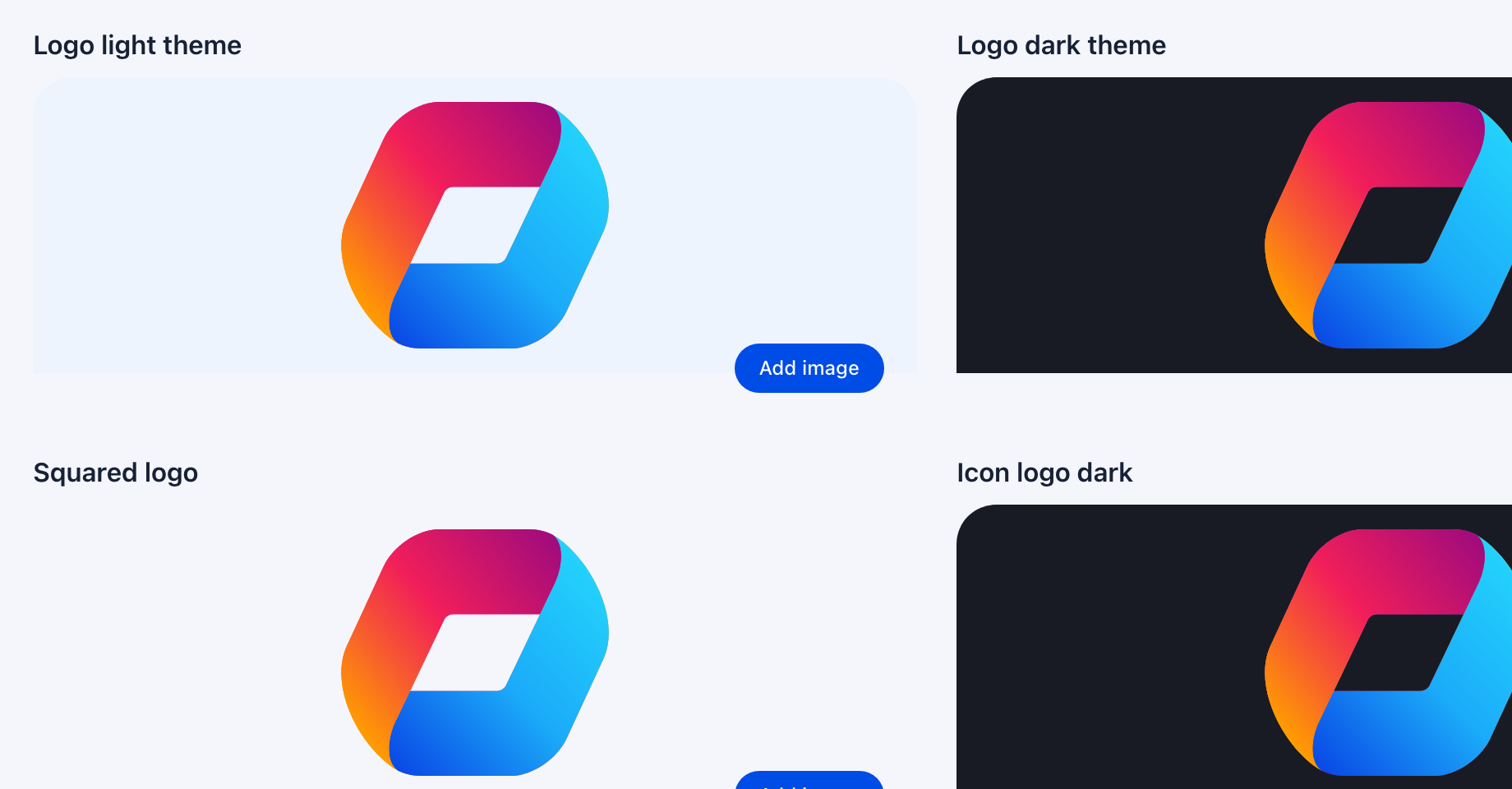
Go to **Settings → Organization → Branding**. You'll see a 2×2 grid of logo upload areas and a login background section below.
Upload all four logo variants (see details below). Click each upload area or drag and drop your image files. Use PNG with transparent background for best results.
Scroll down to the **Auth Background** section. Paste a publicly accessible HTTPS URL for the image you want behind your login, registration, and password reset screens.
Click **Save**. Logos update immediately across the platform. The login background appears on the next page load.
***
## Logos
Upload four logo variants so your brand looks sharp everywhere:
Your main logo for sidebar, headers, and emails on light backgrounds. Use a horizontal PNG with transparent background.
A lighter version that pops on dark backgrounds. Same spots as the light logo, but in dark mode.
Square crop for the collapsed sidebar, mobile app icon, and browser favicon.
Square crop for compact displays in dark mode.
| Logo slot | Recommended size | Aspect ratio | Where it's used |
| --------------- | ---------------- | ------------ | ----------------------------------------------- |
| **Light theme** | 400×100px+ | Horizontal | Sidebar (expanded), email headers, public pages |
| **Dark theme** | 400×100px+ | Horizontal | Same spots in dark mode |
| **Squared** | 200×200px+ | 1:1 (square) | Collapsed sidebar, mobile app, favicon |
| **Icon dark** | 200×200px+ | 1:1 (square) | Same compact spots in dark mode |
PNG with transparent background works best for all four slots. It keeps logos clean on both light and dark themes without white rectangles around them.
***
## Login background
Requires **Tenant Admin** permissions.
***
## Setting up your brand
Go to **Settings → Organization → Branding**. You'll see a 2×2 grid of logo upload areas and a login background section below.
Upload all four logo variants (see details below). Click each upload area or drag and drop your image files. Use PNG with transparent background for best results.
Scroll down to the **Auth Background** section. Paste a publicly accessible HTTPS URL for the image you want behind your login, registration, and password reset screens.
Click **Save**. Logos update immediately across the platform. The login background appears on the next page load.
***
## Logos
Upload four logo variants so your brand looks sharp everywhere:
Your main logo for sidebar, headers, and emails on light backgrounds. Use a horizontal PNG with transparent background.
A lighter version that pops on dark backgrounds. Same spots as the light logo, but in dark mode.
Square crop for the collapsed sidebar, mobile app icon, and browser favicon.
Square crop for compact displays in dark mode.
| Logo slot | Recommended size | Aspect ratio | Where it's used |
| --------------- | ---------------- | ------------ | ----------------------------------------------- |
| **Light theme** | 400×100px+ | Horizontal | Sidebar (expanded), email headers, public pages |
| **Dark theme** | 400×100px+ | Horizontal | Same spots in dark mode |
| **Squared** | 200×200px+ | 1:1 (square) | Collapsed sidebar, mobile app, favicon |
| **Icon dark** | 200×200px+ | 1:1 (square) | Same compact spots in dark mode |
PNG with transparent background works best for all four slots. It keeps logos clean on both light and dark themes without white rectangles around them.
***
## Login background
 Paste a URL for the image you want behind your login, registration, and password reset screens. Use something that represents your organization — a team photo, an event shot, a branded graphic.
The result:
Paste a URL for the image you want behind your login, registration, and password reset screens. Use something that represents your organization — a team photo, an event shot, a branded graphic.
The result:
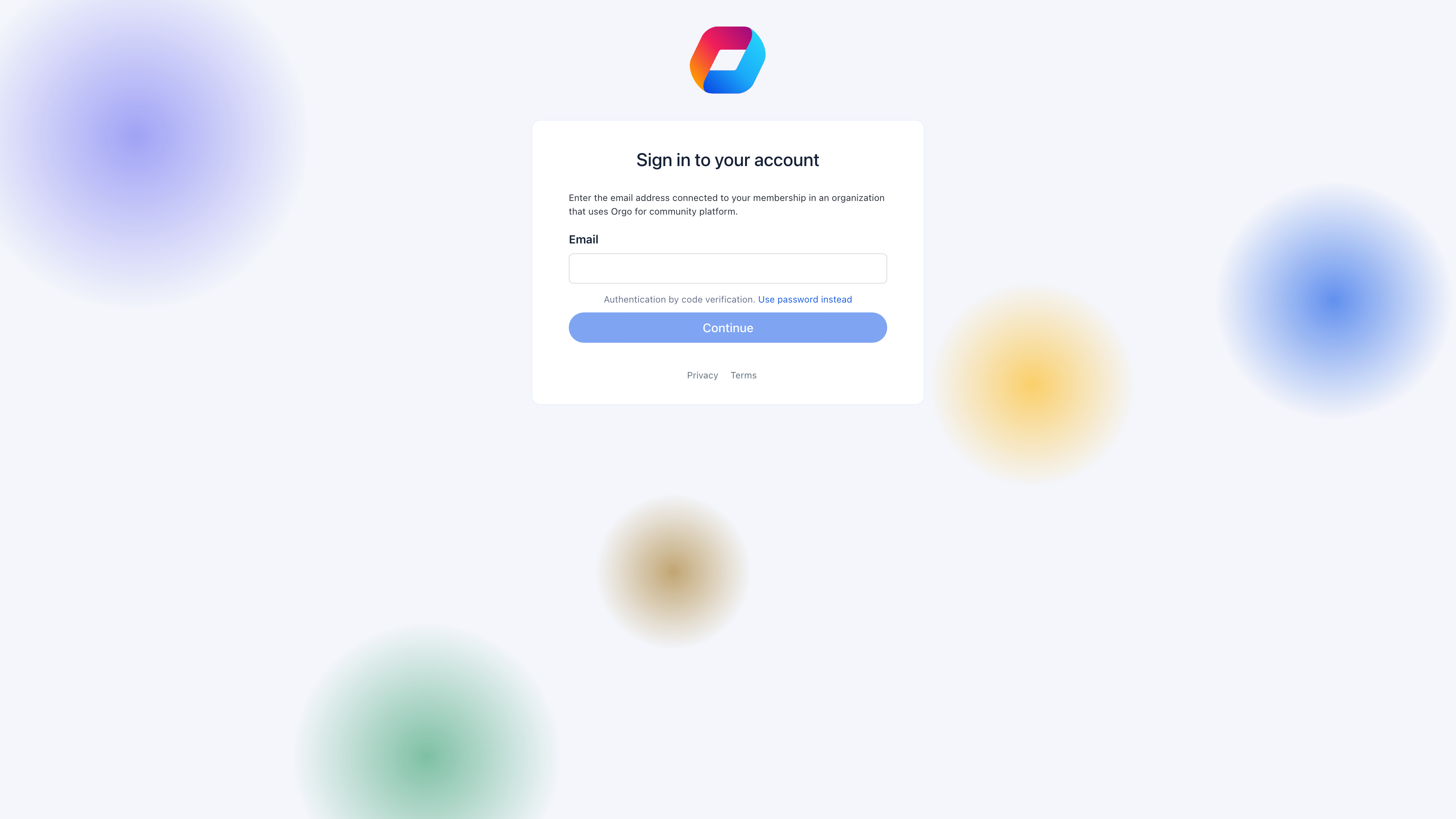 Aim for at least **1920×1080px** resolution so the image looks sharp on large monitors. The image URL must be publicly accessible over HTTPS — images behind a login or private CDN won't load.
***
## Real-world example
> **Scenario**: A youth sports federation rebranding their Orgo instance.
1. **Light logo**: Horizontal federation logo (blue text on transparent background) — appears in the sidebar and all member emails.
2. **Dark logo**: White version of the same logo — used when members switch to dark mode.
3. **Squared logo**: The federation's shield/crest icon only — appears in the collapsed sidebar and as the mobile app icon.
4. **Icon dark**: White version of the shield — for dark mode compact displays.
5. **Login background**: A wide-angle photo from their national championship event — makes the login page feel like arriving at a federation event.
Result: Members see the federation's brand at every touchpoint — login, sidebar, emails, and mobile. Dark mode users see properly contrasted versions instead of invisible logos.
***
## Troubleshooting
Use PNG with transparent background. Main logos should be horizontal (wide, not tall). Squared/icon logos should be perfectly square (1:1 ratio). Avoid excessive padding around the logo in the file itself — the platform adds its own spacing.
Confirm the URL is publicly accessible over HTTPS. Try opening the URL directly in an incognito browser window. If it loads there, the issue is browser cache — clear cache or wait. If it doesn't load, the image hosting may require authentication.
Check you uploaded to the right slot — **Logo dark theme** (top-right in the grid) for the full horizontal logo, **Icon logo dark** (bottom-right) for the square version. Each slot serves a different purpose.
Your image file is likely JPEG (which doesn't support transparency) or a PNG that was exported with a white background. Re-export from your design tool as PNG with transparency enabled. In Figma: export as PNG, check "transparent background". In Photoshop: Save as PNG, don't flatten layers.
***
## Related
* [Organization Info](/platform/organisation/organisation-info) — Name, contact, and financial details
* [Modules](/platform/organisation/modules) — Enable/disable platform features
* [Labels & Terminology](/platform/customization/labels) — Rename default terms to match your brand language
Aim for at least **1920×1080px** resolution so the image looks sharp on large monitors. The image URL must be publicly accessible over HTTPS — images behind a login or private CDN won't load.
***
## Real-world example
> **Scenario**: A youth sports federation rebranding their Orgo instance.
1. **Light logo**: Horizontal federation logo (blue text on transparent background) — appears in the sidebar and all member emails.
2. **Dark logo**: White version of the same logo — used when members switch to dark mode.
3. **Squared logo**: The federation's shield/crest icon only — appears in the collapsed sidebar and as the mobile app icon.
4. **Icon dark**: White version of the shield — for dark mode compact displays.
5. **Login background**: A wide-angle photo from their national championship event — makes the login page feel like arriving at a federation event.
Result: Members see the federation's brand at every touchpoint — login, sidebar, emails, and mobile. Dark mode users see properly contrasted versions instead of invisible logos.
***
## Troubleshooting
Use PNG with transparent background. Main logos should be horizontal (wide, not tall). Squared/icon logos should be perfectly square (1:1 ratio). Avoid excessive padding around the logo in the file itself — the platform adds its own spacing.
Confirm the URL is publicly accessible over HTTPS. Try opening the URL directly in an incognito browser window. If it loads there, the issue is browser cache — clear cache or wait. If it doesn't load, the image hosting may require authentication.
Check you uploaded to the right slot — **Logo dark theme** (top-right in the grid) for the full horizontal logo, **Icon logo dark** (bottom-right) for the square version. Each slot serves a different purpose.
Your image file is likely JPEG (which doesn't support transparency) or a PNG that was exported with a white background. Re-export from your design tool as PNG with transparency enabled. In Figma: export as PNG, check "transparent background". In Photoshop: Save as PNG, don't flatten layers.
***
## Related
* [Organization Info](/platform/organisation/organisation-info) — Name, contact, and financial details
* [Modules](/platform/organisation/modules) — Enable/disable platform features
* [Labels & Terminology](/platform/customization/labels) — Rename default terms to match your brand language