> ## Documentation Index
> Fetch the complete documentation index at: https://orgo.space/docs/llms.txt
> Use this file to discover all available pages before exploring further.
# Organisational Chart
> Visualize your leadership structure — who holds which roles at central and local levels
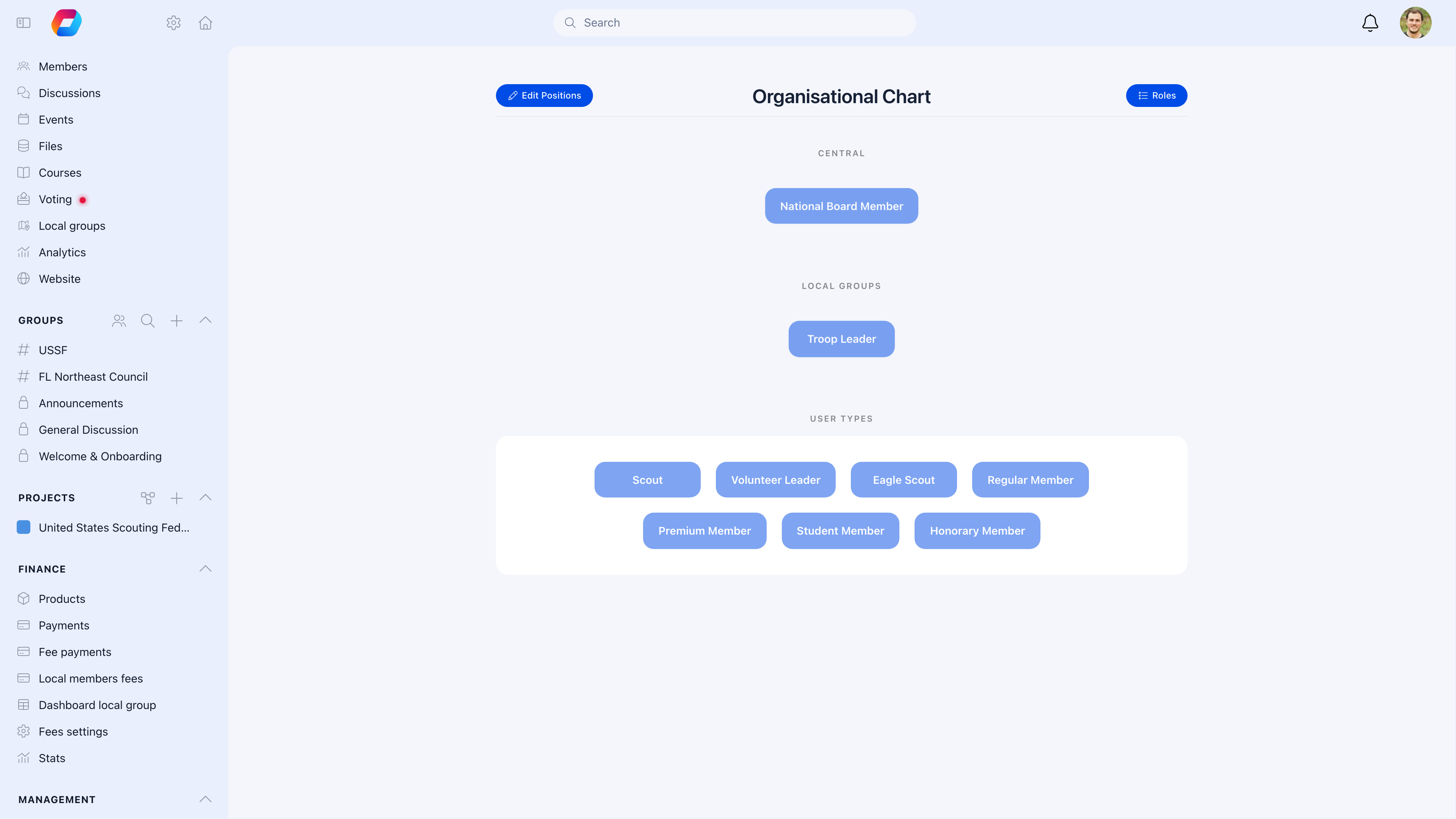
The Organisational Chart gives members a visual map of your organization's leadership. See who holds which roles at the central and local level, click through to profiles, and understand the reporting structure at a glance.
 ***
## Do I need the org chart?
| Your situation | Use it? |
| ----------------------------------------------- | ------------------------------------------------ |
| Members need to know who the leaders are | Yes — makes leadership visible and accessible |
| You have central + local leadership tiers | Yes — the chart shows both levels clearly |
| New members need orientation on structure | Yes — visual hierarchy is easier than a list |
| Your org has formal governance (board, council) | Yes — document who holds each position |
| You're a small, flat organization | Optional — a simple members list might be enough |
***
## How it works
**Enable:** Settings → Modules → Users → enable **Has Organisation Chart**
**Access:** Members find it via **Menu** → **Organisation Chart**
The chart is auto-generated from your roles and role assignments. When you assign a member to a role, they appear in the chart. When they leave the role, they disappear. No manual chart-building needed.
***
## What the chart shows
### Central section
Your organization's main leadership positions:
| Role example | Typical use |
| ------------------ | -------------------------- |
| President | Head of organization |
| Vice-President | Deputy leadership |
| Council Member | Board or council positions |
| Executive Director | Operational leadership |
| Secretary | Administrative lead |
| Treasurer | Financial oversight |
### Local groups section
Leadership within each Local Center:
* Local center presidents
* Local coordinators
* Committee members
Each center shows its own leadership tree under the central section.
***
## Interacting with the chart
* **Click any role box** to see the members currently holding that position
* **See member counts** — each role shows how many people are assigned
* **View start dates** — when each person joined the role
* **Click a member's name** to go to their profile
***
## Setting up roles for the chart
Roles displayed in the chart come from your role configuration:
Go to **Settings** → **Users & Profiles** → **Roles**. Create roles like President, Secretary, Committee Member.
Arrange roles in the order they should appear — the chart reflects this ordering.
On a member's profile, go to **Roles** → **Add Role** → select the role and set a start date.
Assignments, removals, and new Local Centers all reflect in the chart immediately.
***
## Visibility
Control who can see the organisational chart:
| Setting | Who can view |
| ----------------------- | ------------------------------------------------- |
| **All members** | Any logged-in member |
| **Specific groups** | Only members of selected groups |
| **Public** | Anyone, including non-members (no login required) |
| **Administrators only** | Internal reference only |
***
## Common scenarios
Roles exist but no members are assigned to them. Go to member profiles and assign people to roles. The chart populates from role assignments, not from the chart settings.
Remove the old role assignment from the previous holder's profile and add it to the new person. The chart updates automatically.
Set visibility to **Public**. The chart page can then be linked or embedded without requiring login.
Yes — role names, descriptions, display order, and color coding are all configurable in the role settings. The chart renders whatever you've configured.
Local Centers appear in the chart only if they have members assigned to leadership roles. Centers with no role assignments aren't displayed.
***
## Related
* [User Types & Roles](/platform/users/user-types) — Configure roles and permissions
* [Local Centers](/platform/groups/local-groups) — Local center management
* [Members](/platform/users) — Member profiles and role assignments
***
## Do I need the org chart?
| Your situation | Use it? |
| ----------------------------------------------- | ------------------------------------------------ |
| Members need to know who the leaders are | Yes — makes leadership visible and accessible |
| You have central + local leadership tiers | Yes — the chart shows both levels clearly |
| New members need orientation on structure | Yes — visual hierarchy is easier than a list |
| Your org has formal governance (board, council) | Yes — document who holds each position |
| You're a small, flat organization | Optional — a simple members list might be enough |
***
## How it works
**Enable:** Settings → Modules → Users → enable **Has Organisation Chart**
**Access:** Members find it via **Menu** → **Organisation Chart**
The chart is auto-generated from your roles and role assignments. When you assign a member to a role, they appear in the chart. When they leave the role, they disappear. No manual chart-building needed.
***
## What the chart shows
### Central section
Your organization's main leadership positions:
| Role example | Typical use |
| ------------------ | -------------------------- |
| President | Head of organization |
| Vice-President | Deputy leadership |
| Council Member | Board or council positions |
| Executive Director | Operational leadership |
| Secretary | Administrative lead |
| Treasurer | Financial oversight |
### Local groups section
Leadership within each Local Center:
* Local center presidents
* Local coordinators
* Committee members
Each center shows its own leadership tree under the central section.
***
## Interacting with the chart
* **Click any role box** to see the members currently holding that position
* **See member counts** — each role shows how many people are assigned
* **View start dates** — when each person joined the role
* **Click a member's name** to go to their profile
***
## Setting up roles for the chart
Roles displayed in the chart come from your role configuration:
Go to **Settings** → **Users & Profiles** → **Roles**. Create roles like President, Secretary, Committee Member.
Arrange roles in the order they should appear — the chart reflects this ordering.
On a member's profile, go to **Roles** → **Add Role** → select the role and set a start date.
Assignments, removals, and new Local Centers all reflect in the chart immediately.
***
## Visibility
Control who can see the organisational chart:
| Setting | Who can view |
| ----------------------- | ------------------------------------------------- |
| **All members** | Any logged-in member |
| **Specific groups** | Only members of selected groups |
| **Public** | Anyone, including non-members (no login required) |
| **Administrators only** | Internal reference only |
***
## Common scenarios
Roles exist but no members are assigned to them. Go to member profiles and assign people to roles. The chart populates from role assignments, not from the chart settings.
Remove the old role assignment from the previous holder's profile and add it to the new person. The chart updates automatically.
Set visibility to **Public**. The chart page can then be linked or embedded without requiring login.
Yes — role names, descriptions, display order, and color coding are all configurable in the role settings. The chart renders whatever you've configured.
Local Centers appear in the chart only if they have members assigned to leadership roles. Centers with no role assignments aren't displayed.
***
## Related
* [User Types & Roles](/platform/users/user-types) — Configure roles and permissions
* [Local Centers](/platform/groups/local-groups) — Local center management
* [Members](/platform/users) — Member profiles and role assignments