> ## Documentation Index
> Fetch the complete documentation index at: https://orgo.space/docs/llms.txt
> Use this file to discover all available pages before exploring further.
# Orgo for scouting and youth organizations
> How a scouting association sets Orgo up: your own vocabulary, groups and sections, youth members with parents, adult volunteers, badges, and camps
**Built for** scouting associations, guiding organizations, cadet forces, church youth work and any organization whose members are mostly children led by vetted adult volunteers.
**Replaces** the group secretary's spreadsheet, the district's separate copy of it, and the paper consent pack that gets rebuilt before every camp.
Orgo is a general membership platform, so nothing in it is called a troop or a patrol out of the box. This page is the route map: which features carry the shape of a youth organization, what each one genuinely enforces, and where you will have to work around a limit.
***
## Who this is for
You are in the right place if most of these are true:
* Your members are organized geographically (district, group, section) rather than as one flat list.
* A large share of your members are children, enrolled by a parent who also needs an account.
* Adults are volunteers holding named positions with terms, not employees.
* You award progression: badges, levels, promises, training courses.
* You run residential events where you must know who is allergic to what, and who signed the consent form.
* Your organization has its own words for all of the above, and "member of local center" is not one of them.
### Before you start
Settle these before you open a single settings screen. Each one is a decision the setup will ask you for, and each is more expensive to change once members exist. Tick them off on paper first.
* [ ] **Structure named.** You can name every layer, from the national body down to the smallest team, and you know which layer owns the member list.
* [ ] **One word per concept.** You have written down what you call a district, a group, a section, a patrol and an age level. One word each, no synonyms.
* [ ] **Age sections listed with their ranges.** For example Beavers 6 to 8, Cubs 8 to 10.5, Scouts 10.5 to 14. You know which section a member sits in and which age level they count as for pricing.
* [ ] **Volunteers listed with their posts.** Each adult, the position they hold, the layer that position belongs to, and the date they started.
* [ ] **Safeguarding policy on the desk.** You know what your policy makes you record for every adult, and which of those records expires and after how long.
* [ ] **Youth data audience decided.** You know who is allowed to read a child's medical, dietary and contact details: everyone who can open an event, chapter administrators only, or a named safeguarding lead.
* [ ] **Parent consent approach chosen.** Either a signed document you must be able to produce on demand, or a tick you only need to have collected. The two lead to different features.
* [ ] **Subs schedule decided.** What each age level pays, whether the group charges its own dues on top of the national ones, when the fee year runs, and in which currency.
* [ ] **Data ready.** You have dates of birth for your members, and you know which languages your organization runs in.
***
## Speaking your language
Start here, before you configure anything else. Orgo lets you replace the wording it ships with your own, which is how "full member" becomes "Promise", "user type" becomes "Age level" and "chapters" becomes "Local groups".
The feature is called **Texts**, at **Settings** → **Customization** → **Texts**, and it needs `ADMIN_TENANT`.
The page is a two-column table: **System Expression** on the left is the phrase Orgo ships, **Custom Expression** on the right is the phrase you want in its place, with one Custom Expression column per language you have enabled. You do not type technical keys. **Add Text Replacement** opens a search over the whole interface catalogue, and you tick the results you want to override.
### A worked mapping
These are the phrases a scouting association usually changes first. The middle column matters: one concept is almost never one row, because the catalogue stores singular, plural and lowercase forms separately, and stores longer sentences whole.
| Orgo's wording | Rows you will find when you search for it | Scouting wording |
| -------------- | --------------------------------------------------------------------------------------------------------- | -------------------------------- |
| Member | `Member`, `Members`, `member`, `members` | Scout, Scouts |
| Full member | `Full member`, `Full members`, `Only full members`, `Only NOT full members`, `Date joined as full member` | Invested member, Date of Promise |
| Chapter | `Chapter`, `Chapters` | Group, Groups |
| Local Center | `Local Center`, `Local center` | District |
| User type | `User type`, `User Types` | Age level, Age levels |
| Group | `Group`, `group`, `groups` | Team, Teams |
| Event | `Event`, `Events`, `event`, `events` | Activity, Activities |
| Membership fee | `Membership`, `Membership fee`, `Fees` | Subs, Annual subs |
| Badge | `Badge`, `Badges` | Award, Awards |
| Volunteer | `Volunteer` | Leader |
Searching one fragment shows why. Typing "full member" into **Add Text Replacement** returns eight separate rows, each an independent replacement you have to tick and fill in:
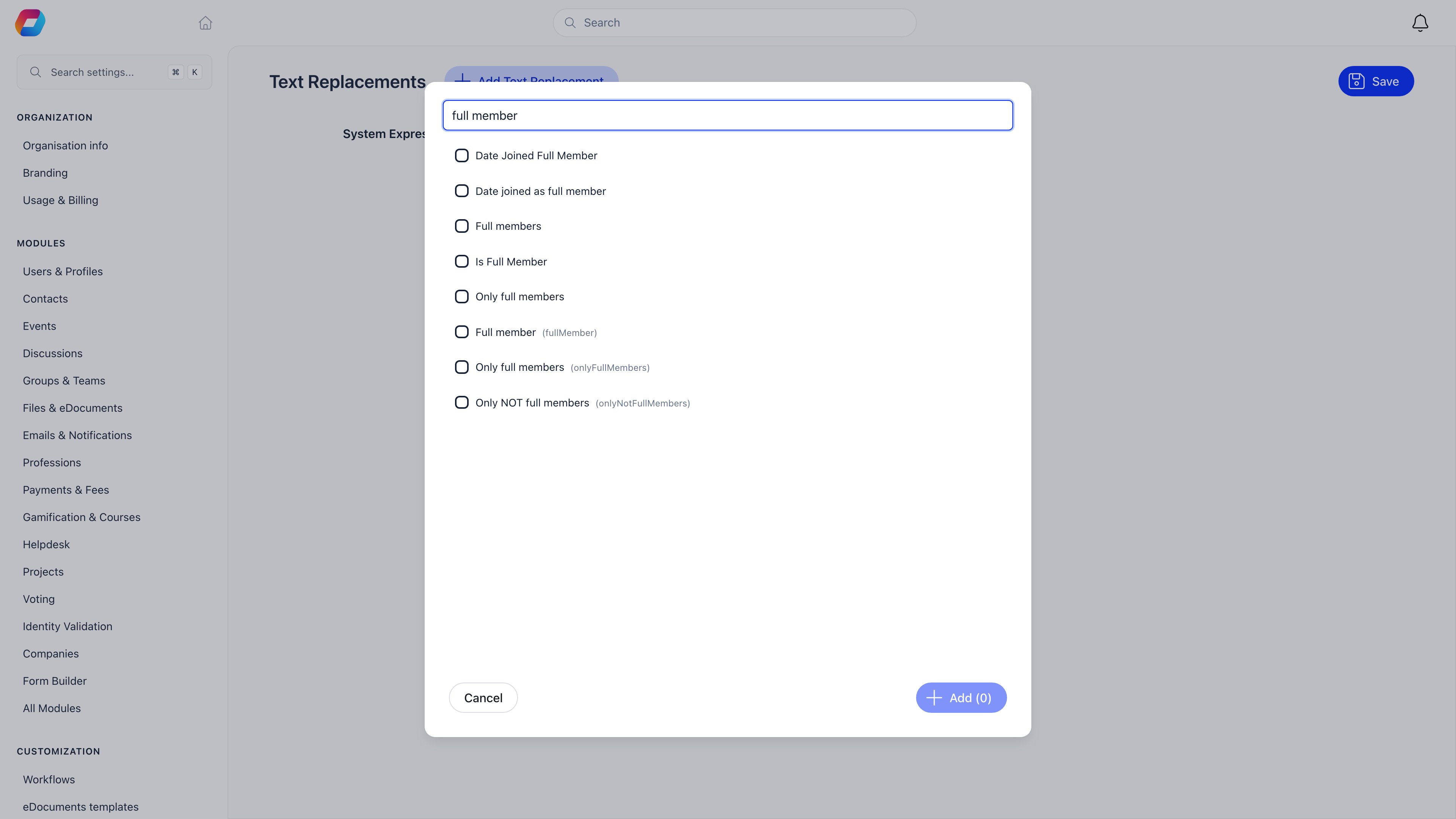 So: search a distinctive fragment, tick every form the search returns in one pass, then fill in the **Custom Expression** column for each enabled language and save. Your own session updates immediately; other people pick the new wording up on their next page load.
You do not need to relabel unit layers. A unit type carries its own **Title** and **Plural name**, which you type yourself at **Settings** → **Modules** → **Groups & Teams** → **Unit Types**. Call the type "Section" or "Patrol" there and it appears that way on tabs and buttons without any text replacement.
### The real limit
**Texts is applied in the browser only.** The replacements are stored on your organization and merged into the interface translation catalogue when the app loads (`client/src/utils/i18n.js`). Nothing on the server reads them.
| Surface | Uses your wording |
| --------------------------------------------------------------------- | ------------------------------ |
| Sidebar, page titles, tabs, buttons, form labels, empty states | Yes |
| The event app and the mobile app | Yes, same catalogue |
| **System and notification emails** | **No** |
| **Generated PDFs** (invoices, adhesions, signed documents) | **No** |
| Your own data: group names, event names, badge names, unit type names | Not applicable, you wrote them |
An organization that renames "member" to "scout" everywhere in the interface will still send emails that say "member". Fix that separately by editing the wording in [Email templates](/docs/platform/emails/email-templates). Plan for it: it is the single most common surprise after a relabelling pass.
Two more things worth knowing before you start replacing words. A replacement swaps that exact phrase everywhere it appears, so a short common word like "Group" also changes inside sentences that merely use it. And nothing stops you giving two different features the same name, which is easy to do when both chapters and groups become "Teams".
Full detail: [Texts](/docs/platform/customization/labels).
***
## What to turn on
Every module and setting below is at **Settings** → **Modules**, and every one of them requires `ADMIN_TENANT` to change. Most are off until you switch them on. The two marked **already on** ship enabled, so your job there is to confirm rather than to enable.
| Module and tab | Setting | What it buys you |
| --------------------------------------------------------------- | -------------------------------------------- | ----------------------------------------------------------------------------------------------------------------------------------------------- |
| **Groups & Teams** → **Local Centers** | **Enable Local Centers Module** (already on) | Chapters: your groups or districts, each with their own members, events, files, dues and admins |
| **Groups & Teams** → **Local Centers** | **Enable Parent Centers** | Layers above a chapter, nested as deep as you need, and the `ADMIN_PARENT_LOCAL` and `HR_PARENT_LOCAL` permissions that reach down through them |
| **Groups & Teams** → **Local Centers** | **Enable Regions** | A flat region label for grouping and filtering. Grants no permissions |
| **Groups & Teams** → **Configuration** | **Enable Organizational Units** | Sections and patrols inside a chapter |
| **Groups & Teams** → **Configuration** | **Enable Role Groups** | Groups whose membership is a query over roles and profile data |
| **Groups & Teams** → **Unit Types** | one type per layer | Define **Section**, then **Patrol** with **Parent unit type** set to Section |
| **Users & Profiles** → **Configuration** | **Enable User Types** | Age levels as a member category, one per member |
| **Users & Profiles** → **Configuration** | **Enable Roles** | Named positions with terms and permissions |
| **Users & Profiles** → **Configuration** | **Enable Volunteer Roles** | Adds a **Volunteer** flag to a user type |
| **Users & Profiles** → **Configuration** | **Enable Family Members** | The Family tab: parents, guardians and children in one record |
| **Users & Profiles** → **Configuration** | **Non-Member Family Profiles** | Name and contact details for relatives who never sign in |
| **Users & Profiles** → **Custom Fields** | your own fields | Medical notes, dietary needs, emergency contact, check expiry dates |
| **Gamification & Courses** → **Gamification** | **Enable Gamification Module** | Badges and the Badges tab on every profile |
| **Gamification & Courses** → **Gamification** | **Enable badge categories** | Groups badges so the award picker stays usable |
| **Gamification & Courses** → **Gamification** | **Enable hours tracking** | Volunteering hours, and badges awarded from an hours total |
| **Gamification & Courses** → **Courses** | **Enable Courses** (already on) | Leader training as self-paced courses |
| **Files & eDocuments** → **eDocuments** | **Enable eDocuments Module** | Consent forms, volunteer agreements and codes of conduct, signed on screen |
| **Identity Validation** | **Enable Identity Validation** | ID document upload and admin review. Read the limits in [Adult volunteers](#adult-volunteers) first |
| **Payments & Fees** → **Membership fees** | **Enable Membership Fees** | Subs. Also **Local Center Fees Enabled** for a second, group-level fee |
| **Payments & Fees** → **Membership fees** → **Pricing Options** | **Enable Age Restrictions on Prices** | Age-conditioned fee prices. Read the limit in [Limits worth knowing](#limits-worth-knowing-before-you-start) |
Not a module: **Texts** and **Languages** live under **Settings** → **Customization**.
### Check the chapter layer first
**Settings** → **Modules** → **Groups & Teams** → **Local Centers** carries your group and district structure, and it is the one screen worth opening before all the others, because people go looking for a switch that is already flipped.
So: search a distinctive fragment, tick every form the search returns in one pass, then fill in the **Custom Expression** column for each enabled language and save. Your own session updates immediately; other people pick the new wording up on their next page load.
You do not need to relabel unit layers. A unit type carries its own **Title** and **Plural name**, which you type yourself at **Settings** → **Modules** → **Groups & Teams** → **Unit Types**. Call the type "Section" or "Patrol" there and it appears that way on tabs and buttons without any text replacement.
### The real limit
**Texts is applied in the browser only.** The replacements are stored on your organization and merged into the interface translation catalogue when the app loads (`client/src/utils/i18n.js`). Nothing on the server reads them.
| Surface | Uses your wording |
| --------------------------------------------------------------------- | ------------------------------ |
| Sidebar, page titles, tabs, buttons, form labels, empty states | Yes |
| The event app and the mobile app | Yes, same catalogue |
| **System and notification emails** | **No** |
| **Generated PDFs** (invoices, adhesions, signed documents) | **No** |
| Your own data: group names, event names, badge names, unit type names | Not applicable, you wrote them |
An organization that renames "member" to "scout" everywhere in the interface will still send emails that say "member". Fix that separately by editing the wording in [Email templates](/docs/platform/emails/email-templates). Plan for it: it is the single most common surprise after a relabelling pass.
Two more things worth knowing before you start replacing words. A replacement swaps that exact phrase everywhere it appears, so a short common word like "Group" also changes inside sentences that merely use it. And nothing stops you giving two different features the same name, which is easy to do when both chapters and groups become "Teams".
Full detail: [Texts](/docs/platform/customization/labels).
***
## What to turn on
Every module and setting below is at **Settings** → **Modules**, and every one of them requires `ADMIN_TENANT` to change. Most are off until you switch them on. The two marked **already on** ship enabled, so your job there is to confirm rather than to enable.
| Module and tab | Setting | What it buys you |
| --------------------------------------------------------------- | -------------------------------------------- | ----------------------------------------------------------------------------------------------------------------------------------------------- |
| **Groups & Teams** → **Local Centers** | **Enable Local Centers Module** (already on) | Chapters: your groups or districts, each with their own members, events, files, dues and admins |
| **Groups & Teams** → **Local Centers** | **Enable Parent Centers** | Layers above a chapter, nested as deep as you need, and the `ADMIN_PARENT_LOCAL` and `HR_PARENT_LOCAL` permissions that reach down through them |
| **Groups & Teams** → **Local Centers** | **Enable Regions** | A flat region label for grouping and filtering. Grants no permissions |
| **Groups & Teams** → **Configuration** | **Enable Organizational Units** | Sections and patrols inside a chapter |
| **Groups & Teams** → **Configuration** | **Enable Role Groups** | Groups whose membership is a query over roles and profile data |
| **Groups & Teams** → **Unit Types** | one type per layer | Define **Section**, then **Patrol** with **Parent unit type** set to Section |
| **Users & Profiles** → **Configuration** | **Enable User Types** | Age levels as a member category, one per member |
| **Users & Profiles** → **Configuration** | **Enable Roles** | Named positions with terms and permissions |
| **Users & Profiles** → **Configuration** | **Enable Volunteer Roles** | Adds a **Volunteer** flag to a user type |
| **Users & Profiles** → **Configuration** | **Enable Family Members** | The Family tab: parents, guardians and children in one record |
| **Users & Profiles** → **Configuration** | **Non-Member Family Profiles** | Name and contact details for relatives who never sign in |
| **Users & Profiles** → **Custom Fields** | your own fields | Medical notes, dietary needs, emergency contact, check expiry dates |
| **Gamification & Courses** → **Gamification** | **Enable Gamification Module** | Badges and the Badges tab on every profile |
| **Gamification & Courses** → **Gamification** | **Enable badge categories** | Groups badges so the award picker stays usable |
| **Gamification & Courses** → **Gamification** | **Enable hours tracking** | Volunteering hours, and badges awarded from an hours total |
| **Gamification & Courses** → **Courses** | **Enable Courses** (already on) | Leader training as self-paced courses |
| **Files & eDocuments** → **eDocuments** | **Enable eDocuments Module** | Consent forms, volunteer agreements and codes of conduct, signed on screen |
| **Identity Validation** | **Enable Identity Validation** | ID document upload and admin review. Read the limits in [Adult volunteers](#adult-volunteers) first |
| **Payments & Fees** → **Membership fees** | **Enable Membership Fees** | Subs. Also **Local Center Fees Enabled** for a second, group-level fee |
| **Payments & Fees** → **Membership fees** → **Pricing Options** | **Enable Age Restrictions on Prices** | Age-conditioned fee prices. Read the limit in [Limits worth knowing](#limits-worth-knowing-before-you-start) |
Not a module: **Texts** and **Languages** live under **Settings** → **Customization**.
### Check the chapter layer first
**Settings** → **Modules** → **Groups & Teams** → **Local Centers** carries your group and district structure, and it is the one screen worth opening before all the others, because people go looking for a switch that is already flipped.
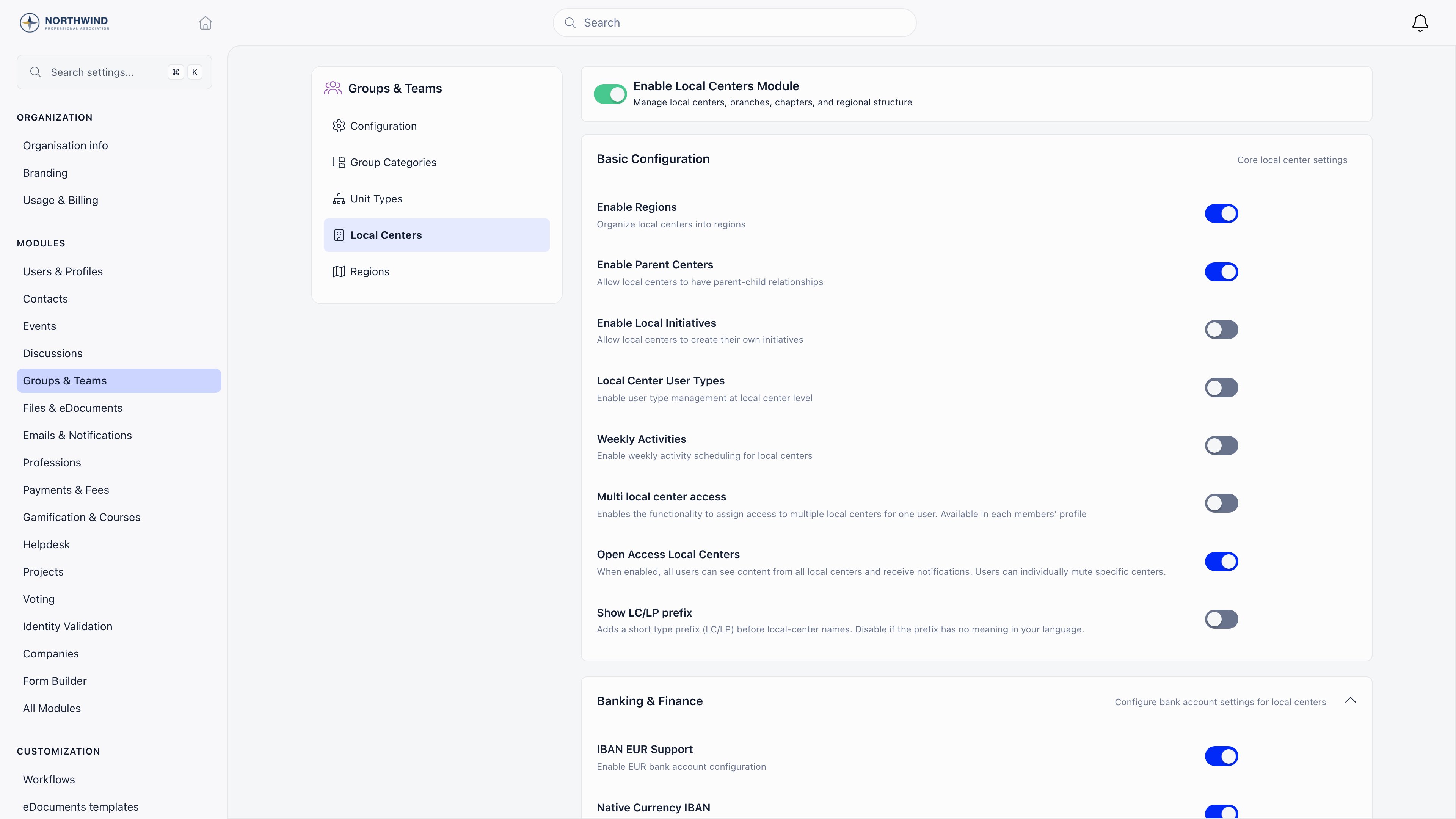 **Enable Local Centers Module** is on for a new organization, so the whole **Basic Configuration** block below it is already visible. Every switch inside that block starts off, and those are the ones you actually have to decide about. The organization in the screenshot has already turned three of them on, which is why they read blue there:
* **Enable Parent Centers**. Turn it on if you want any layer above your groups. It is not limited to one: county holding district holding group is a single chapter tree, built by flagging each layer that holds others with **It's a parent chapter**.
* **Enable Regions**. Turn it on only if you want a flat reporting label. It grants no permissions, and it adds a **Regions** entry to the module menu on the left.
* **Open Access Local Centers**. Turn it on only if every member should see content from every group and be notified about it.
The rest are still off in that screenshot, **Multi local center access** among them. Turn that one on only if named people need to reach a second group without moving there.
***
## Setup order
The order matters. Several of these screens are hidden until an earlier one is on, and a few decisions are hard to reverse once members exist. Each step says what you do, where in the interface it happens, and how you can tell it worked, so you can follow along with Orgo open beside you.
Work down the table above, at **Settings** → **Modules**. Turning a module on only reveals screens, so it is safe to do in one pass, and you can leave the settings inside each one until later.
Two of them change the settings menu itself, which is your proof the pass landed: **Enable Organizational Units** adds a **Unit Types** tab to **Groups & Teams**, and **Enable Regions** adds a **Regions** tab under **Local Centers**.
**Done when:** **Groups & Teams** shows a **Unit Types** tab beside **Configuration** and **Local Centers**, and every switch in the table above is in the position you left it after a page reload.
Enable your languages first at **Settings** → **Customization** → **Languages**, then do the replacements at **Settings** → **Customization** → **Texts**. That order matters: the Texts table grows one Custom Expression column per enabled language, so a language added later means going back through every row you already wrote.
Do the whole pass before you train anyone, so nobody learns Orgo's words and then has to unlearn them.
**Done when:** your own sidebar and page titles read in your vocabulary as soon as you save, and the Texts table has no empty Custom Expression cell in any enabled language.
See [Languages](/docs/platform/customization/languages) and [Texts](/docs/platform/customization/labels).
**Settings** → **Modules** → **Groups & Teams** → **Unit Types** → **Add Unit Type**. One type per layer of your structure, created top down: **Section** first, then **Patrol** with **Parent unit type** set to Section.
Tick **Within local center** on every type that belongs to a group. Without it the type has nowhere to live, and it will not appear as a tab on a chapter.
**Done when:** each type below the top one names its parent on the Unit Types list, and opening any chapter shows a tab named after your top-level type.
**Settings** → **Modules** → **Users & Profiles** → **Roles & User types** → **Add role**. Set **Level** to **User type**, fill in **Title** and **Plural title**, and create one per age band.
Give each one a **URL Slug** while you are there. The slug is what publishes a joining page at `/join/` for that age level, and it is also the way around the volunteer and parent picker limit described in [Adult volunteers](#adult-volunteers).
**Enable Local Centers Module** is on for a new organization, so the whole **Basic Configuration** block below it is already visible. Every switch inside that block starts off, and those are the ones you actually have to decide about. The organization in the screenshot has already turned three of them on, which is why they read blue there:
* **Enable Parent Centers**. Turn it on if you want any layer above your groups. It is not limited to one: county holding district holding group is a single chapter tree, built by flagging each layer that holds others with **It's a parent chapter**.
* **Enable Regions**. Turn it on only if you want a flat reporting label. It grants no permissions, and it adds a **Regions** entry to the module menu on the left.
* **Open Access Local Centers**. Turn it on only if every member should see content from every group and be notified about it.
The rest are still off in that screenshot, **Multi local center access** among them. Turn that one on only if named people need to reach a second group without moving there.
***
## Setup order
The order matters. Several of these screens are hidden until an earlier one is on, and a few decisions are hard to reverse once members exist. Each step says what you do, where in the interface it happens, and how you can tell it worked, so you can follow along with Orgo open beside you.
Work down the table above, at **Settings** → **Modules**. Turning a module on only reveals screens, so it is safe to do in one pass, and you can leave the settings inside each one until later.
Two of them change the settings menu itself, which is your proof the pass landed: **Enable Organizational Units** adds a **Unit Types** tab to **Groups & Teams**, and **Enable Regions** adds a **Regions** tab under **Local Centers**.
**Done when:** **Groups & Teams** shows a **Unit Types** tab beside **Configuration** and **Local Centers**, and every switch in the table above is in the position you left it after a page reload.
Enable your languages first at **Settings** → **Customization** → **Languages**, then do the replacements at **Settings** → **Customization** → **Texts**. That order matters: the Texts table grows one Custom Expression column per enabled language, so a language added later means going back through every row you already wrote.
Do the whole pass before you train anyone, so nobody learns Orgo's words and then has to unlearn them.
**Done when:** your own sidebar and page titles read in your vocabulary as soon as you save, and the Texts table has no empty Custom Expression cell in any enabled language.
See [Languages](/docs/platform/customization/languages) and [Texts](/docs/platform/customization/labels).
**Settings** → **Modules** → **Groups & Teams** → **Unit Types** → **Add Unit Type**. One type per layer of your structure, created top down: **Section** first, then **Patrol** with **Parent unit type** set to Section.
Tick **Within local center** on every type that belongs to a group. Without it the type has nowhere to live, and it will not appear as a tab on a chapter.
**Done when:** each type below the top one names its parent on the Unit Types list, and opening any chapter shows a tab named after your top-level type.
**Settings** → **Modules** → **Users & Profiles** → **Roles & User types** → **Add role**. Set **Level** to **User type**, fill in **Title** and **Plural title**, and create one per age band.
Give each one a **URL Slug** while you are there. The slug is what publishes a joining page at `/join/` for that age level, and it is also the way around the volunteer and parent picker limit described in [Adult volunteers](#adult-volunteers).
![Role editor with Level set to User type, Title and Plural title filled in, the Not eligible for fee and Parent switches below them, and a URL Slug field whose hint reads Used for the registration URL /join/[slug]](https://mintcdn.com/orgo-dc7abe63/o3AjqCN517NINQ7V/images/platform/users/user-type-edit.png?fit=max&auto=format&n=o3AjqCN517NINQ7V&q=85&s=f0e8c891d625a165839fe46a8101a35f) Note what is not on this screen: there is no permissions section. Levels above **User type** have one, and that is the whole point of the next step.
**Done when:** every age band appears in the Roles list with a green **User type** tag in the Level column, and `/join/` opens a joining page rather than a not-found.
Same screen, one role per post. Set **Level** to the layer the post belongs to: **Organisation** for national officers, **Parent chapter** for district commissioners, **Chapter** for group leaders, or one of your unit types for section leaders. Attach the permissions the post needs here, never to a user type.
**Done when:** the Roles list shows each post with the right Level tag, and the **Permissions** column is filled in for every post that is meant to administer anything.
**Chapters** → **Create chapter**, one per group. If you enabled layers above your groups, build top down: create each district or county first and tick **It's a parent chapter** on it, then create the chapters below it with **Belongs to parent chapter** set. The parent picker only offers chapters already flagged as parents.
Set the currency carefully. A chapter currency can be set once and never changed afterwards, because past payments and the connected Stripe account are bound to it.
**Done when:** every group appears in the chapters list, indented under the right layer above it, and each with the currency you intend to collect subs in.
From the chapter's unit tab, or from the drag-and-drop segmented board that `ADMIN_LOCAL` gets. Create your sections first, then the patrols inside them, so each patrol has a section to attach to.
**Done when:** the chapter's org structure shows every section, each patrol nested under its section, and no unit sitting at the top level by accident.
**Settings** → **Modules** → **Users & Profiles** → **Custom Fields**. Medical notes, dietary requirements, emergency contact, photo permission, and the safeguarding dates from your **Before you start** checklist.
Decide **Visibility** on each field now, and decide it against where the answer is collected. A field above **Public** is silently discarded on the public registration pages, so anything you need at sign-up has to be **Public** there, with profile visibility controlled separately.
Note what is not on this screen: there is no permissions section. Levels above **User type** have one, and that is the whole point of the next step.
**Done when:** every age band appears in the Roles list with a green **User type** tag in the Level column, and `/join/` opens a joining page rather than a not-found.
Same screen, one role per post. Set **Level** to the layer the post belongs to: **Organisation** for national officers, **Parent chapter** for district commissioners, **Chapter** for group leaders, or one of your unit types for section leaders. Attach the permissions the post needs here, never to a user type.
**Done when:** the Roles list shows each post with the right Level tag, and the **Permissions** column is filled in for every post that is meant to administer anything.
**Chapters** → **Create chapter**, one per group. If you enabled layers above your groups, build top down: create each district or county first and tick **It's a parent chapter** on it, then create the chapters below it with **Belongs to parent chapter** set. The parent picker only offers chapters already flagged as parents.
Set the currency carefully. A chapter currency can be set once and never changed afterwards, because past payments and the connected Stripe account are bound to it.
**Done when:** every group appears in the chapters list, indented under the right layer above it, and each with the currency you intend to collect subs in.
From the chapter's unit tab, or from the drag-and-drop segmented board that `ADMIN_LOCAL` gets. Create your sections first, then the patrols inside them, so each patrol has a section to attach to.
**Done when:** the chapter's org structure shows every section, each patrol nested under its section, and no unit sitting at the top level by accident.
**Settings** → **Modules** → **Users & Profiles** → **Custom Fields**. Medical notes, dietary requirements, emergency contact, photo permission, and the safeguarding dates from your **Before you start** checklist.
Decide **Visibility** on each field now, and decide it against where the answer is collected. A field above **Public** is silently discarded on the public registration pages, so anything you need at sign-up has to be **Public** there, with profile visibility controlled separately.
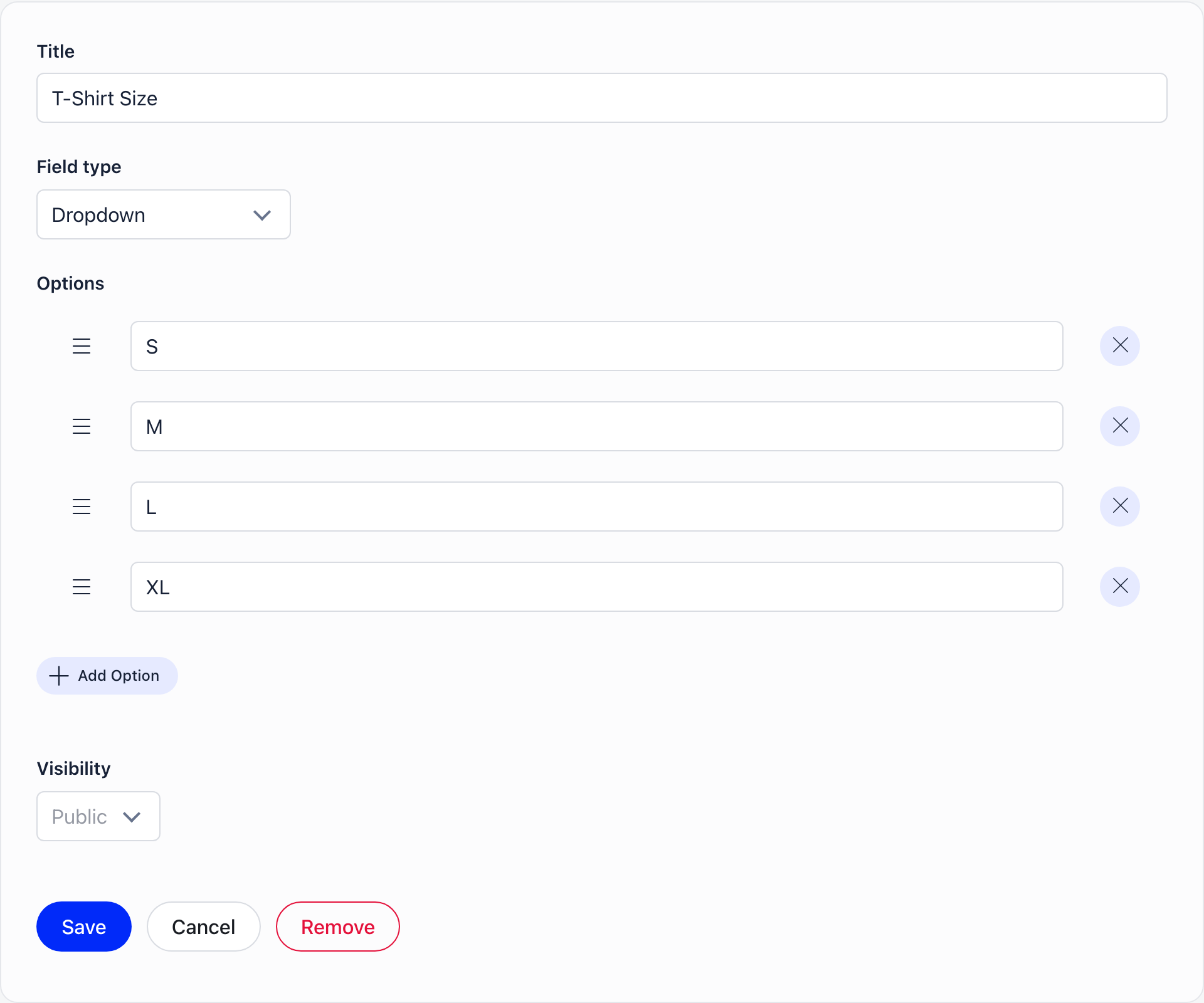 **Done when:** every field on your list exists, and for each one you can say in a sentence who reads it and which form collects it.
See [Custom fields](/docs/platform/users/custom-fields).
In that order, because each one depends on the last. The [registration form](/docs/platform/users/registration-form) must include **Birthday** and mark it required, or the age logic in the fee has nothing to read. Then create the [fees](/docs/platform/fees/fees) and one price per age level. Then build the [e-document templates](/docs/platform/contracts) for parental consent, the volunteer agreement and the code of conduct.
**Done when:** a test registration on your own joining page creates an account with a date of birth on it, that account is offered the right price for its age level, and any document you marked **Mandatory document** is waiting for it in onboarding.
[Import](/docs/platform/customization/import) handles members, badge categories, badges and badge assignments as separate passes. Run them in that order: an assignment cannot attach to a badge that does not exist yet, and a badge cannot file itself under a category that has not been imported.
**Done when:** the member count matches your source list, spot-checked members sit in the right chapter and unit, and their badge tabs show the awards you imported.
***
## Structuring your association
Four separate mechanisms, and picking the wrong one is the most expensive mistake on this page because moving people afterwards is manual work.
| Your structure | Model it as | Why |
| ---------------------------------------------------- | ------------------------------------------------------------------------------------------- | ------------------------------------------------------------------------------------------------------------- |
| National association | The organization itself | Everything lives inside it |
| District, county or area, and any layer between them | Parent chapter, with **Enable Parent Centers** on. Nest them as deep as your structure goes | `ADMIN_PARENT_LOCAL` and `HR_PARENT_LOCAL` reach an anchor chapter and every chapter beneath it, at any depth |
| Group or troop | Chapter | Owns its members, events, files, discussions, its own dues, and its own administrators |
| Section (Beavers, Cubs, Scouts, Explorers) | A unit type called Section, one unit per section | Units belong to a chapter, carry a member type and appear in the org chart |
| Patrol, six or lodge | A unit type called Patrol with **Parent unit type** set to Section | Units nest as deep as your chain of types |
| Age level as a category | User type | One per member. Drives fee price, menu visibility, registration form and reports |
| Region for reporting only | **Region** | A flat label. It grants nothing and is not a permission boundary |
The distinction that catches people out: a **unit** is where a member sits in the structure, a **user type** is what kind of member they are. Most associations need both, because a Cub sits in the Cub section (a unit) and is also a Cub for pricing and forms (a user type). A [private group](/docs/platform/groups/private-groups) is neither: it is a working space people join for a project.
Things to plan around:
* **Every member has exactly one chapter.** **Multi local center access** grants named extra chapters to a member from their profile, but that is an access grant, not a second home group. Moving someone for good is a [transfer request](/docs/platform/groups/transfers).
* **A member can hold roles in several units at once**, so a leader who runs the Cub section and sits on the group committee is two role assignments, not a choice.
* **The unit member Admin flag is not cosmetic.** It delegates scoped fee access and unit event attendance, so Orgo restricts it to people who already hold `HR_LOCAL`, `FINANCIAL_LOCAL` or `ADMIN_TENANT` over the chapter. Unit admins cannot appoint each other.
* **`ADMIN_PARENT_LOCAL` reach is computed from the holder's own primary chapter**, not from a branch you pick. Give it to someone whose chapter sits under North District and they administer North District and everything beneath it, however deep, and there is no control that points it somewhere else. Give it to a district commissioner whose own chapter is North District and it stays inside North District, because a chapter flagged **It's a parent chapter** anchors to itself and the grant never climbs to the county above.
* **Reshaping the tree is an organization-level job.** Changing a chapter's parent, or its **It's a parent chapter** flag, requires `HR_TENANT`. District and group administrators see those two fields greyed out and can edit everything else on the chapter form.
Detail: [Local Centers](/docs/platform/groups/local-groups), [Units](/docs/platform/groups/units), [User types and roles](/docs/platform/users/user-types), [Role Groups](/docs/platform/groups/role-groups).
***
## Youth members and parents
Turn on **Enable Family Members** and, if you want to hold details for relatives who never sign in, **Non-Member Family Profiles**. Both are at **Settings** → **Modules** → **Users & Profiles** → **Configuration** → **Family & Relationships**.
**Done when:** every field on your list exists, and for each one you can say in a sentence who reads it and which form collects it.
See [Custom fields](/docs/platform/users/custom-fields).
In that order, because each one depends on the last. The [registration form](/docs/platform/users/registration-form) must include **Birthday** and mark it required, or the age logic in the fee has nothing to read. Then create the [fees](/docs/platform/fees/fees) and one price per age level. Then build the [e-document templates](/docs/platform/contracts) for parental consent, the volunteer agreement and the code of conduct.
**Done when:** a test registration on your own joining page creates an account with a date of birth on it, that account is offered the right price for its age level, and any document you marked **Mandatory document** is waiting for it in onboarding.
[Import](/docs/platform/customization/import) handles members, badge categories, badges and badge assignments as separate passes. Run them in that order: an assignment cannot attach to a badge that does not exist yet, and a badge cannot file itself under a category that has not been imported.
**Done when:** the member count matches your source list, spot-checked members sit in the right chapter and unit, and their badge tabs show the awards you imported.
***
## Structuring your association
Four separate mechanisms, and picking the wrong one is the most expensive mistake on this page because moving people afterwards is manual work.
| Your structure | Model it as | Why |
| ---------------------------------------------------- | ------------------------------------------------------------------------------------------- | ------------------------------------------------------------------------------------------------------------- |
| National association | The organization itself | Everything lives inside it |
| District, county or area, and any layer between them | Parent chapter, with **Enable Parent Centers** on. Nest them as deep as your structure goes | `ADMIN_PARENT_LOCAL` and `HR_PARENT_LOCAL` reach an anchor chapter and every chapter beneath it, at any depth |
| Group or troop | Chapter | Owns its members, events, files, discussions, its own dues, and its own administrators |
| Section (Beavers, Cubs, Scouts, Explorers) | A unit type called Section, one unit per section | Units belong to a chapter, carry a member type and appear in the org chart |
| Patrol, six or lodge | A unit type called Patrol with **Parent unit type** set to Section | Units nest as deep as your chain of types |
| Age level as a category | User type | One per member. Drives fee price, menu visibility, registration form and reports |
| Region for reporting only | **Region** | A flat label. It grants nothing and is not a permission boundary |
The distinction that catches people out: a **unit** is where a member sits in the structure, a **user type** is what kind of member they are. Most associations need both, because a Cub sits in the Cub section (a unit) and is also a Cub for pricing and forms (a user type). A [private group](/docs/platform/groups/private-groups) is neither: it is a working space people join for a project.
Things to plan around:
* **Every member has exactly one chapter.** **Multi local center access** grants named extra chapters to a member from their profile, but that is an access grant, not a second home group. Moving someone for good is a [transfer request](/docs/platform/groups/transfers).
* **A member can hold roles in several units at once**, so a leader who runs the Cub section and sits on the group committee is two role assignments, not a choice.
* **The unit member Admin flag is not cosmetic.** It delegates scoped fee access and unit event attendance, so Orgo restricts it to people who already hold `HR_LOCAL`, `FINANCIAL_LOCAL` or `ADMIN_TENANT` over the chapter. Unit admins cannot appoint each other.
* **`ADMIN_PARENT_LOCAL` reach is computed from the holder's own primary chapter**, not from a branch you pick. Give it to someone whose chapter sits under North District and they administer North District and everything beneath it, however deep, and there is no control that points it somewhere else. Give it to a district commissioner whose own chapter is North District and it stays inside North District, because a chapter flagged **It's a parent chapter** anchors to itself and the grant never climbs to the county above.
* **Reshaping the tree is an organization-level job.** Changing a chapter's parent, or its **It's a parent chapter** flag, requires `HR_TENANT`. District and group administrators see those two fields greyed out and can edit everything else on the chapter form.
Detail: [Local Centers](/docs/platform/groups/local-groups), [Units](/docs/platform/groups/units), [User types and roles](/docs/platform/users/user-types), [Role Groups](/docs/platform/groups/role-groups).
***
## Youth members and parents
Turn on **Enable Family Members** and, if you want to hold details for relatives who never sign in, **Non-Member Family Profiles**. Both are at **Settings** → **Modules** → **Users & Profiles** → **Configuration** → **Family & Relationships**.
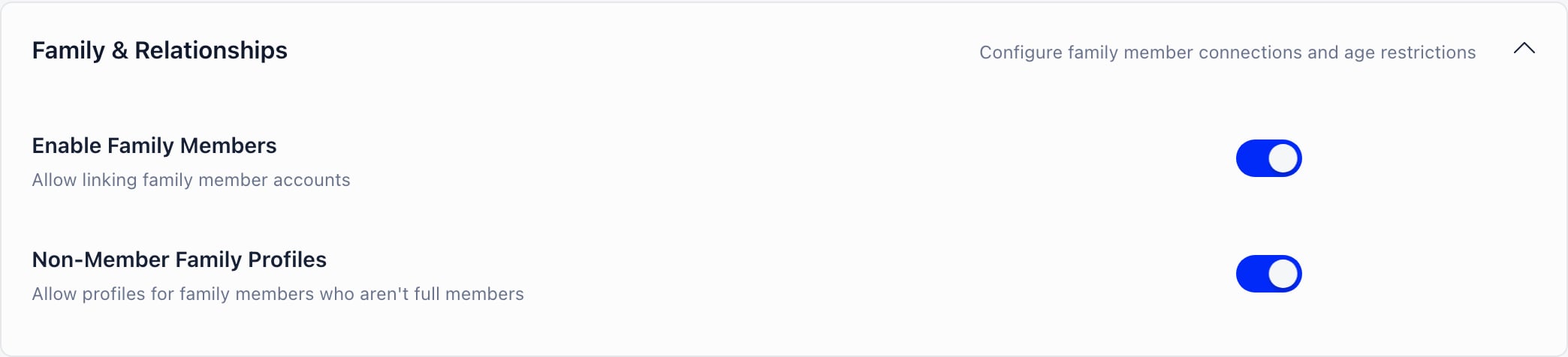 Those two switches are the entire block, which is worth noticing: the two age values described below are not on this screen or any other, so there is nothing here to tune them with.
A family is one record grouping parents, guardians and children. One family per person. Members reach it at **Profile** → **Edit** → **Family**; anyone with `HR_LOCAL` over the member's chapter sees and manages it from the same tab.
### Registering a child
The normal path is: the parent registers themselves, opens their Family tab, and uses **Add** in the Children section to register the child. That single action:
* creates an active account for the child, marked as a child account;
* records a parental consent date and method against both the account and the family membership;
* creates the parent's family if they do not have one and makes them its owner;
* treats the email as already confirmed, because the parent supplied it.
The child's email is optional, and a child registered without one gets a generated placeholder address. It cannot receive mail and cannot be used to sign in. Leave it blank only when you want a record rather than a login, which for under-8s is usually exactly what you want.
Ordinary members can create their own family and add non-member relatives. Linking an **existing** member account into a family requires `HR_LOCAL`, on purpose: otherwise anyone could attach themselves to anyone.
### What the age settings actually do
There are two age values on the organization, and neither behaves the way the names suggest.
| Setting | Where it appears | What it really does |
| --------------------------------- | ------------------------------------------------------------------------- | --------------------------------------------------------------------------------------------------------------------------------------------------------------------------------------------------------------------------------------- |
| **Minimum Registration Age** | Not on the settings screen. The field is commented out of the settings UI | Read in exactly one place: when a parent registers a child. If the child is younger and the waitlist is active for their chapter, the waitlist entry is flagged **underage** and the Children list shows an "In waitlist, underage" tag |
| **Children Auth Restriction Age** | Not on the settings screen either | Restricts no authentication at all. It only drives a notification when a young member reaches that age |
There is no age gate on public self-registration. Anyone can register through `/register` or `/join/` whatever birthday they type, and **Minimum Registration Age** is not consulted on those paths. If your jurisdiction requires parental consent below a given age, enforce it in your joining process and your terms, not in these settings.
### Consent
Parental consent is recorded when a parent registers a child, as a date and a method, and it is stored on both the account and the family membership. It is not shown on any screen and there is no consent report. If you need to evidence consent, or you need consent for something specific like photography or overnight stays, use an [e-document](/docs/platform/contracts) template instead: that produces a signed, dated PDF you can show someone.
### The birthday field is load-bearing
Add **Birthday** to your [registration form](/docs/platform/users/registration-form) and mark it required. Several features silently do nothing without it:
* age-conditioned fee prices skip the age check entirely for a member with no date of birth, and the member falls through to whatever price matches next;
* a member with no date of birth never matches an age-based [role group](/docs/platform/groups/role-groups);
* the notifications about children reaching an age never fire.
### Fees and families
Family membership does not change what anyone pays. Fees are resolved per member, there is no family tier and no sibling discount, and linking a child to a parent does not transfer or cover the child's fee. What a parent listed as managing a member **can** do is pay for them. For one payer covering several people by design, use [Companies](/docs/platform/users/companies) instead.
Detail: [Family Members](/docs/platform/users/family-members), [Waitlist](/docs/platform/users/waitlist).
***
## Adult volunteers
### Positions, not people
Permissions belong on roles, never on user types. A user type cannot carry a permission at all: the permissions section disappears from the editor the moment you set the level to **User type**. So "Cub Leader" as a category is a user type, and "Cub Leader" as a post with access to the section's members is a role. If you need both, create both.
Both live in the same list at **Settings** → **Modules** → **Users & Profiles** → **Roles & User types**, and the **Level** column is what tells them apart:
Those two switches are the entire block, which is worth noticing: the two age values described below are not on this screen or any other, so there is nothing here to tune them with.
A family is one record grouping parents, guardians and children. One family per person. Members reach it at **Profile** → **Edit** → **Family**; anyone with `HR_LOCAL` over the member's chapter sees and manages it from the same tab.
### Registering a child
The normal path is: the parent registers themselves, opens their Family tab, and uses **Add** in the Children section to register the child. That single action:
* creates an active account for the child, marked as a child account;
* records a parental consent date and method against both the account and the family membership;
* creates the parent's family if they do not have one and makes them its owner;
* treats the email as already confirmed, because the parent supplied it.
The child's email is optional, and a child registered without one gets a generated placeholder address. It cannot receive mail and cannot be used to sign in. Leave it blank only when you want a record rather than a login, which for under-8s is usually exactly what you want.
Ordinary members can create their own family and add non-member relatives. Linking an **existing** member account into a family requires `HR_LOCAL`, on purpose: otherwise anyone could attach themselves to anyone.
### What the age settings actually do
There are two age values on the organization, and neither behaves the way the names suggest.
| Setting | Where it appears | What it really does |
| --------------------------------- | ------------------------------------------------------------------------- | --------------------------------------------------------------------------------------------------------------------------------------------------------------------------------------------------------------------------------------- |
| **Minimum Registration Age** | Not on the settings screen. The field is commented out of the settings UI | Read in exactly one place: when a parent registers a child. If the child is younger and the waitlist is active for their chapter, the waitlist entry is flagged **underage** and the Children list shows an "In waitlist, underage" tag |
| **Children Auth Restriction Age** | Not on the settings screen either | Restricts no authentication at all. It only drives a notification when a young member reaches that age |
There is no age gate on public self-registration. Anyone can register through `/register` or `/join/` whatever birthday they type, and **Minimum Registration Age** is not consulted on those paths. If your jurisdiction requires parental consent below a given age, enforce it in your joining process and your terms, not in these settings.
### Consent
Parental consent is recorded when a parent registers a child, as a date and a method, and it is stored on both the account and the family membership. It is not shown on any screen and there is no consent report. If you need to evidence consent, or you need consent for something specific like photography or overnight stays, use an [e-document](/docs/platform/contracts) template instead: that produces a signed, dated PDF you can show someone.
### The birthday field is load-bearing
Add **Birthday** to your [registration form](/docs/platform/users/registration-form) and mark it required. Several features silently do nothing without it:
* age-conditioned fee prices skip the age check entirely for a member with no date of birth, and the member falls through to whatever price matches next;
* a member with no date of birth never matches an age-based [role group](/docs/platform/groups/role-groups);
* the notifications about children reaching an age never fire.
### Fees and families
Family membership does not change what anyone pays. Fees are resolved per member, there is no family tier and no sibling discount, and linking a child to a parent does not transfer or cover the child's fee. What a parent listed as managing a member **can** do is pay for them. For one payer covering several people by design, use [Companies](/docs/platform/users/companies) instead.
Detail: [Family Members](/docs/platform/users/family-members), [Waitlist](/docs/platform/users/waitlist).
***
## Adult volunteers
### Positions, not people
Permissions belong on roles, never on user types. A user type cannot carry a permission at all: the permissions section disappears from the editor the moment you set the level to **User type**. So "Cub Leader" as a category is a user type, and "Cub Leader" as a post with access to the section's members is a role. If you need both, create both.
Both live in the same list at **Settings** → **Modules** → **Users & Profiles** → **Roles & User types**, and the **Level** column is what tells them apart:
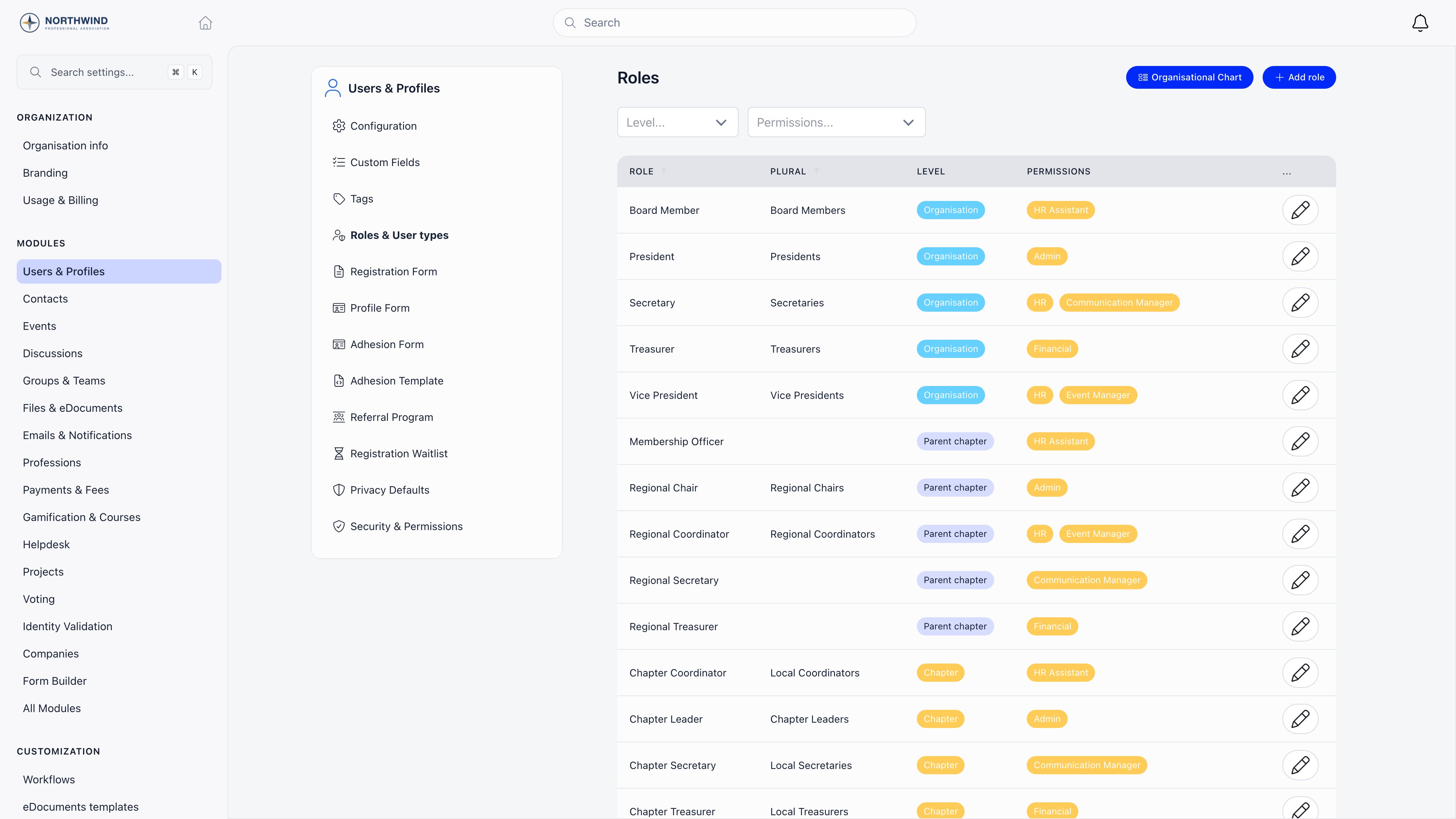 Read that column as the reach of the post. The **Level** and **Permissions** filters above it are the fastest audit you can run: filter on a permission and you get every post that carries it, which is the list you should be able to justify to your safeguarding lead.
Every role assignment has a **dateBegin** and an optional **dateEnd**. Ending the assignment ends the permissions it carried and leaves the assignment visible as history, which is what makes a leader handover one line of work rather than a permissions audit.
Match the role's level to the scope of the post:
| Post | Role level | Effective permissions |
| --------------------- | ---------------------- | ------------------------------------------------------------------------------------------- |
| National commissioner | **Organisation** | Tenant-level, for example `HR_TENANT` |
| District commissioner | **Parent chapter** | `ADMIN_PARENT_LOCAL` or `HR_PARENT_LOCAL` across the district and everything beneath it |
| Group scout leader | **Chapter** | `ADMIN_LOCAL` or `HR_LOCAL` over the group |
| Section leader | Your Section unit type | Scoped to that unit, plus the unit **Admin** flag where they need fee and attendance access |
### The volunteer flag, and its trap
**Enable Volunteer Roles** adds a **Volunteer** flag to a user type, and **Enable Family Members** adds a **Parent** flag the same way.
A user type flagged **Volunteer** or **Parent** is excluded from the **User Types** picker on the general registration form, so an adult cannot pick "Leader" or "Parent" for themselves at `/register`. The "I want to Volunteer" and parent opt-in switches that used to sit on that form are disabled in the product today and never render, even though the settings screen still offers **Text displayed below volunteer opt-in switch**.
The exclusion is stricter than it looks. The picker only offers a type that has never had either switch touched, so turning **Volunteer** on and then off again leaves the type out of the picker for good. If a type vanished from `/register` after you experimented with the flags, that is why, and giving the type a slug is the way back.
Route volunteers around it: give the volunteer user type a **URL Slug** and its own [registration form](/docs/platform/users/registration-form), then publish `/join/` as your leader application link. That page stamps the type from the slug and does not filter it out. Assigning the type after they join works too.
### Safeguarding checks: what Orgo does and does not do
This is the section to read carefully, because the feature name promises more than the feature delivers.
[Identity Validation](/docs/platform/identity-validation) collects a scan of an ID document, stores the details read off it, and puts the record in front of an administrator who approves or rejects it. Reviewing needs `HR_LOCAL` or above over the member's chapter.
What it does:
* accepts a document image (PNG, GIF, JPEG; PDFs are rejected), front and optionally back;
* reads Romanian documents automatically (old ID card, new ID card, passport), keyed off the CNP;
* for every other country, lets an administrator type the details in by hand;
* records who approved it and when, and writes an audit entry for every change;
* stores the document number and personal number encrypted as well as in plain text, and keeps images in an unguessable location.
What it does not do, and what you must therefore run outside Orgo:
* **no criminal record or vetting check.** It does not talk to any disclosure service, and nothing in the product performs a background check;
* **no reference or interview tracking;**
* **no expiry status.** An expired document keeps whatever status it had. Expiry is only checked at the moment somebody tries to approve it;
* **no re-check reminder.** Renewal reminders exist only for payment-linked identities, not for volunteers;
* **outside Romania, only a first and last name are required to approve a record.** Nothing forces an administrator to confirm the document is genuine.
The practical setup for a scouting association is therefore layered:
| What you need | Use |
| -------------------------------------------------------------------------- | ---------------------------------------------------------------------------------------------------------------------------- |
| Proof the volunteer signed the code of conduct and the volunteer agreement | An [e-document](/docs/platform/contracts) template with **Mandatory document** on, which holds them in onboarding until they sign |
| The date a disclosure or vetting check was completed, and when it expires | Two **Date** [custom fields](/docs/platform/users/custom-fields) with **Admin** visibility |
| A scan of the check itself | A **File Upload** custom field with **Admin** visibility, or Identity Validation if it is an ID document |
| Evidence the volunteer completed safeguarding training | A [course](/docs/platform/courses) with **Award badge on completion**, or a badge awarded by hand |
| The list of who is cleared | A member list column or export filtered on those fields |
Nothing in Orgo watches a **Date** custom field and warns you when it passes. There is no expiry engine and no reminder. Put a recurring calendar reminder on whoever owns safeguarding, and run the export on a schedule.
***
## Progression and recognition
Badges need the Gamification module (**Settings** → **Modules** → **Gamification & Courses** → **Gamification** → **Enable Gamification Module**).
| Layer | Where | Notes |
| ---------------------- | ------------------------------------------------- | ----------------------------------------------------------------------------------------------------------------------------- |
| **Badge Categories** | **Gamification & Courses** → **Badge Categories** | Optional, behind **Enable badge categories**. An image and a title. Keeps the award picker usable once you have a full scheme |
| **Badges** | **Gamification & Courses** → **Badges** | Title, artwork, category, an optional hours threshold, an optional points threshold, and a default note |
| **Volunteering hours** | The member's Badges tab | Behind **Enable hours tracking**. Each entry has a period, hours, title and notes |
| **Points and tiers** | **Gamification** → point rules | Behind **Enable tiers/levels by points**. Points come from payments, attendance, referrals and discussion activity |
Your scheme ends up as one list at **Settings** → **Modules** → **Gamification & Courses** → **Badges**:
Read that column as the reach of the post. The **Level** and **Permissions** filters above it are the fastest audit you can run: filter on a permission and you get every post that carries it, which is the list you should be able to justify to your safeguarding lead.
Every role assignment has a **dateBegin** and an optional **dateEnd**. Ending the assignment ends the permissions it carried and leaves the assignment visible as history, which is what makes a leader handover one line of work rather than a permissions audit.
Match the role's level to the scope of the post:
| Post | Role level | Effective permissions |
| --------------------- | ---------------------- | ------------------------------------------------------------------------------------------- |
| National commissioner | **Organisation** | Tenant-level, for example `HR_TENANT` |
| District commissioner | **Parent chapter** | `ADMIN_PARENT_LOCAL` or `HR_PARENT_LOCAL` across the district and everything beneath it |
| Group scout leader | **Chapter** | `ADMIN_LOCAL` or `HR_LOCAL` over the group |
| Section leader | Your Section unit type | Scoped to that unit, plus the unit **Admin** flag where they need fee and attendance access |
### The volunteer flag, and its trap
**Enable Volunteer Roles** adds a **Volunteer** flag to a user type, and **Enable Family Members** adds a **Parent** flag the same way.
A user type flagged **Volunteer** or **Parent** is excluded from the **User Types** picker on the general registration form, so an adult cannot pick "Leader" or "Parent" for themselves at `/register`. The "I want to Volunteer" and parent opt-in switches that used to sit on that form are disabled in the product today and never render, even though the settings screen still offers **Text displayed below volunteer opt-in switch**.
The exclusion is stricter than it looks. The picker only offers a type that has never had either switch touched, so turning **Volunteer** on and then off again leaves the type out of the picker for good. If a type vanished from `/register` after you experimented with the flags, that is why, and giving the type a slug is the way back.
Route volunteers around it: give the volunteer user type a **URL Slug** and its own [registration form](/docs/platform/users/registration-form), then publish `/join/` as your leader application link. That page stamps the type from the slug and does not filter it out. Assigning the type after they join works too.
### Safeguarding checks: what Orgo does and does not do
This is the section to read carefully, because the feature name promises more than the feature delivers.
[Identity Validation](/docs/platform/identity-validation) collects a scan of an ID document, stores the details read off it, and puts the record in front of an administrator who approves or rejects it. Reviewing needs `HR_LOCAL` or above over the member's chapter.
What it does:
* accepts a document image (PNG, GIF, JPEG; PDFs are rejected), front and optionally back;
* reads Romanian documents automatically (old ID card, new ID card, passport), keyed off the CNP;
* for every other country, lets an administrator type the details in by hand;
* records who approved it and when, and writes an audit entry for every change;
* stores the document number and personal number encrypted as well as in plain text, and keeps images in an unguessable location.
What it does not do, and what you must therefore run outside Orgo:
* **no criminal record or vetting check.** It does not talk to any disclosure service, and nothing in the product performs a background check;
* **no reference or interview tracking;**
* **no expiry status.** An expired document keeps whatever status it had. Expiry is only checked at the moment somebody tries to approve it;
* **no re-check reminder.** Renewal reminders exist only for payment-linked identities, not for volunteers;
* **outside Romania, only a first and last name are required to approve a record.** Nothing forces an administrator to confirm the document is genuine.
The practical setup for a scouting association is therefore layered:
| What you need | Use |
| -------------------------------------------------------------------------- | ---------------------------------------------------------------------------------------------------------------------------- |
| Proof the volunteer signed the code of conduct and the volunteer agreement | An [e-document](/docs/platform/contracts) template with **Mandatory document** on, which holds them in onboarding until they sign |
| The date a disclosure or vetting check was completed, and when it expires | Two **Date** [custom fields](/docs/platform/users/custom-fields) with **Admin** visibility |
| A scan of the check itself | A **File Upload** custom field with **Admin** visibility, or Identity Validation if it is an ID document |
| Evidence the volunteer completed safeguarding training | A [course](/docs/platform/courses) with **Award badge on completion**, or a badge awarded by hand |
| The list of who is cleared | A member list column or export filtered on those fields |
Nothing in Orgo watches a **Date** custom field and warns you when it passes. There is no expiry engine and no reminder. Put a recurring calendar reminder on whoever owns safeguarding, and run the export on a schedule.
***
## Progression and recognition
Badges need the Gamification module (**Settings** → **Modules** → **Gamification & Courses** → **Gamification** → **Enable Gamification Module**).
| Layer | Where | Notes |
| ---------------------- | ------------------------------------------------- | ----------------------------------------------------------------------------------------------------------------------------- |
| **Badge Categories** | **Gamification & Courses** → **Badge Categories** | Optional, behind **Enable badge categories**. An image and a title. Keeps the award picker usable once you have a full scheme |
| **Badges** | **Gamification & Courses** → **Badges** | Title, artwork, category, an optional hours threshold, an optional points threshold, and a default note |
| **Volunteering hours** | The member's Badges tab | Behind **Enable hours tracking**. Each entry has a period, hours, title and notes |
| **Points and tiers** | **Gamification** → point rules | Behind **Enable tiers/levels by points**. Points come from payments, attendance, referrals and discussion activity |
Your scheme ends up as one list at **Settings** → **Modules** → **Gamification & Courses** → **Badges**:
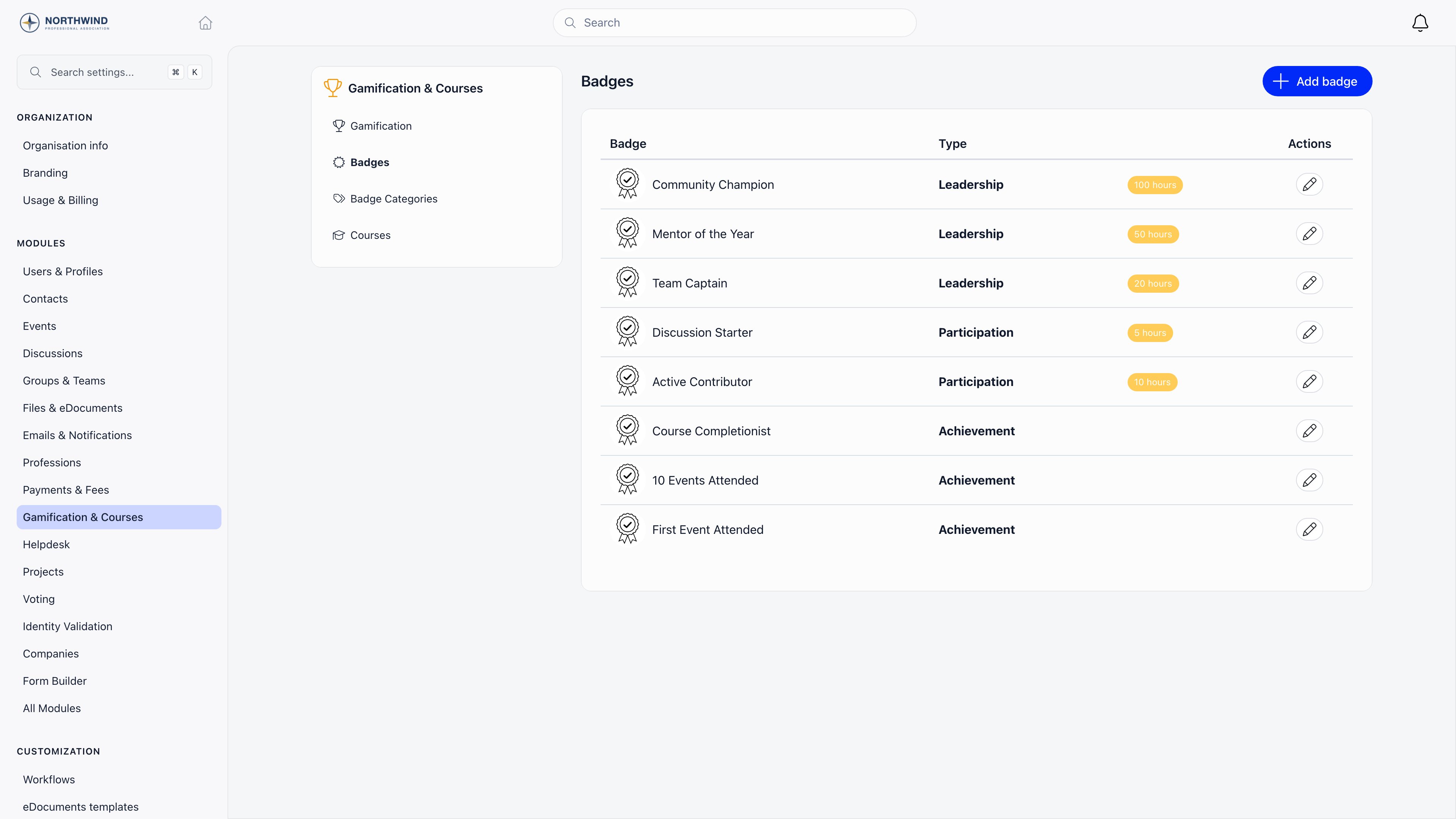 Two columns there are conditional, which is a quick way to check your settings took. The **Type** column, which holds the badge category, appears only when **Enable badge categories** is on. The amber hours pill appears only when **Enable hours tracking** or tiers is on, and it is the threshold that awards the badge automatically.
Four ways a badge reaches a member: awarded by hand from their Badges tab (`HR_TENANT`, or `HR_LOCAL` over their chapter), awarded automatically when their logged volunteering hours pass a badge's **Hours number**, awarded on event attendance when the event names a badge, and awarded when a course enrolment is marked complete. A member can hold a given badge only once, and every automatic path checks first, so re-marking attendance never duplicates an award.
Use **Pending** rather than **Completed** for work in progress. It is counted and filtered separately everywhere, which makes it a workable "started this badge" state.
Things to know before you load your whole scheme:
* **Deleting a badge deletes every award of it, from every member.** Deleting a category deletes the badges filed under it and their awards too. There is no undo.
* **Nobody is notified when a badge is awarded or removed.** Announce the ones that matter yourself.
* **A badge has no expiry and no renewal.** It records that something happened, not that a qualification is currently valid. For anything that lapses, use a **Date** custom field alongside it.
* **Tier auto-promotion needs an ordering number that the settings screen does not expose.** Tier cards on a profile light up from the points threshold alone, but the promotion that writes the badge onto the member also reads a `level` field you can only set through the API. Award tier badges by hand unless you are willing to use the API.
For leader training, [Courses](/docs/platform/courses) holds sections, lessons and quizzes with server-side scoring, restricted by user type and by chapter. Course completion awards a badge but produces no certificate: there is nothing to download or print.
Detail: [Badges](/docs/platform/badges), [Gamification](/docs/platform/gamification), [Courses](/docs/platform/courses).
***
## Camps and events
### Collecting what you need before a camp
Four steps, in this order. Editing any of it needs `EVENT_LOCAL` on the event's group, which `EVENT_TENANT` and `ADMIN_TENANT` satisfy across the organization.
Open the camp's **Modify** screen and switch on **Require registration form for members**, under **Registration**. Paid events turn it on automatically and lock the toggle, so a ticketed camp is already done here.
**Done when:** a **Registration form** entry appears in the event's sidebar, among **Participants**, **Program** and **Tickets**.
Open that **Registration form** entry. The left pane offers fields, the right pane is the form you are building.
Two columns there are conditional, which is a quick way to check your settings took. The **Type** column, which holds the badge category, appears only when **Enable badge categories** is on. The amber hours pill appears only when **Enable hours tracking** or tiers is on, and it is the threshold that awards the badge automatically.
Four ways a badge reaches a member: awarded by hand from their Badges tab (`HR_TENANT`, or `HR_LOCAL` over their chapter), awarded automatically when their logged volunteering hours pass a badge's **Hours number**, awarded on event attendance when the event names a badge, and awarded when a course enrolment is marked complete. A member can hold a given badge only once, and every automatic path checks first, so re-marking attendance never duplicates an award.
Use **Pending** rather than **Completed** for work in progress. It is counted and filtered separately everywhere, which makes it a workable "started this badge" state.
Things to know before you load your whole scheme:
* **Deleting a badge deletes every award of it, from every member.** Deleting a category deletes the badges filed under it and their awards too. There is no undo.
* **Nobody is notified when a badge is awarded or removed.** Announce the ones that matter yourself.
* **A badge has no expiry and no renewal.** It records that something happened, not that a qualification is currently valid. For anything that lapses, use a **Date** custom field alongside it.
* **Tier auto-promotion needs an ordering number that the settings screen does not expose.** Tier cards on a profile light up from the points threshold alone, but the promotion that writes the badge onto the member also reads a `level` field you can only set through the API. Award tier badges by hand unless you are willing to use the API.
For leader training, [Courses](/docs/platform/courses) holds sections, lessons and quizzes with server-side scoring, restricted by user type and by chapter. Course completion awards a badge but produces no certificate: there is nothing to download or print.
Detail: [Badges](/docs/platform/badges), [Gamification](/docs/platform/gamification), [Courses](/docs/platform/courses).
***
## Camps and events
### Collecting what you need before a camp
Four steps, in this order. Editing any of it needs `EVENT_LOCAL` on the event's group, which `EVENT_TENANT` and `ADMIN_TENANT` satisfy across the organization.
Open the camp's **Modify** screen and switch on **Require registration form for members**, under **Registration**. Paid events turn it on automatically and lock the toggle, so a ticketed camp is already done here.
**Done when:** a **Registration form** entry appears in the event's sidebar, among **Participants**, **Program** and **Tickets**.
Open that **Registration form** entry. The left pane offers fields, the right pane is the form you are building.
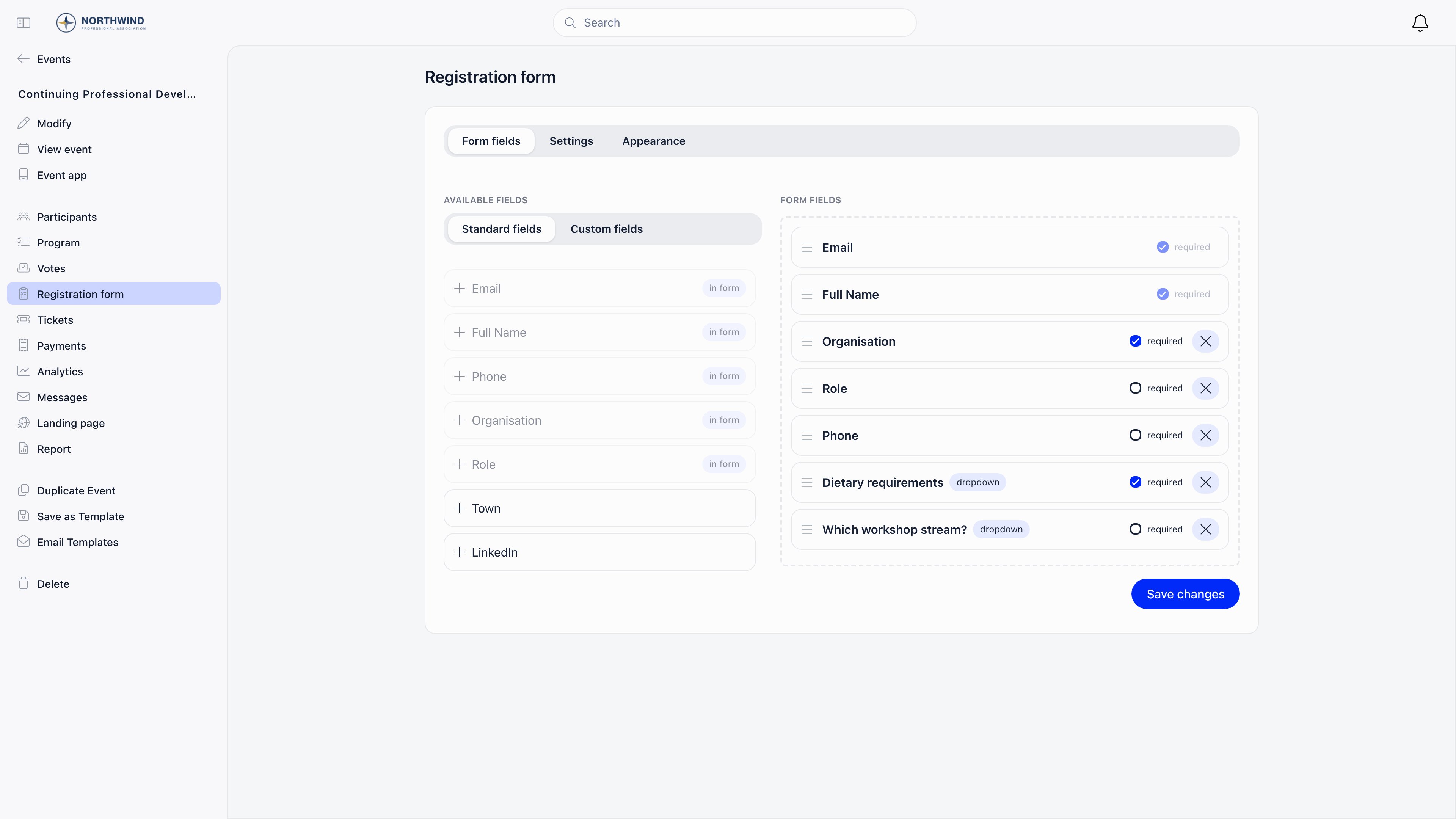 The **Standard fields** tab offers twelve fields with fixed labels (email, full name, phone, organisation, role, town, social links and company details) and **none of them covers dietary or medical information**. That is what the **Custom fields** tab beside it is for: **Text area** for medical notes and medication, **Checkboxes** for dietary requirements, **Yes/No** for photo permission, **Date** for a travel date, **Text input** for an emergency contact.
**Done when:** the form fields pane on the right lists every medical, dietary and emergency contact field you need, each marked required or not on purpose, and **Save changes** has been pressed.
Camp rules, refunds and cancellation go in **Custom text at bottom of registration form**, on the form's **Settings** tab. The GDPR and terms checkboxes are not yours to add: they appear on their own once your organization has the matching URLs, as the table under [Consent at registration](#consent-at-registration) sets out.
**Done when:** the public event page shows your rules text under the form, and both checkboxes appear if you expect them.
From the event sidebar, **Save as Template**. This is the only way to reuse the form you just built, because event custom fields cannot be copied from one event to another by hand.
**Done when:** the camp appears in your [event templates](/docs/platform/events/event-templates) list, and next year's camp is created from it rather than rebuilt.
Event custom fields belong to that one event. They are not your organization-wide [custom fields](/docs/platform/users/custom-fields), they do not appear on any other event, and there is no way to copy them across. That is why the template step is not optional: build the camp once with its full form, save it as an [event template](/docs/platform/events/event-templates), and create every future camp from that template.
### Where camp data actually lives, and who can read it
Custom field answers are stored per registration, on that attendee's record for that event. The same person answering differently at two camps keeps two answers, which is what you want for medical information that changes.
You read them in two places: the **Columns** menu on the **Participants** screen adds one column per custom field, and **Export** downloads a CSV that needs `EVENT_TENANT`, `EVENT_LOCAL` on the event, or event ownership.
Event registration custom fields have no visibility control and no encryption option. The builder only asks for a type and its options, so every answer is readable by everyone who can open the event's Participants screen: the event owner, `EVENT_LOCAL` or `ADMIN_LOCAL` on the group, `EVENT_TENANT`, `ADMIN_TENANT`, and admins of a private group running its own event.
If a medical detail should be tighter than that, keep it on the member's profile as an organization [custom field](/docs/platform/users/custom-fields) with **Admin** visibility, which is enforced on the server for reading and writing, and can be encrypted at rest when it is a text, number or date field. Then the camp form only asks "anything changed since last year?".
### Consent at registration
Three separate things, and only the last one is a real signature:
| What | Where it comes from |
| ------------------------------------------- | ----------------------------------------------------------------------------------------------------------------------------------- |
| The GDPR checkbox on the registration form | Appears automatically when your organization has a GDPR policy URL in [Organisation Info](/docs/platform/organisation/organisation-info) |
| The terms checkbox | Appears when your organization has a terms URL there |
| Camp rules, refund and cancellation wording | **Custom text at bottom of registration form**, on the form's Settings tab |
| A signed parental consent form | An [e-document](/docs/platform/contracts) template, assigned to the parent, signed on screen, rendered as a dated PDF |
### On the day
Every confirmed registration carries a QR code, delivered in the confirmation email as a PDF ticket, shown on the event page and in the event app. Scanning it sets the attendee's RSVP to **Attended**, which is the same thing an attendance figure counts. Scanning twice is harmless.
Sort the scanning permission out before the doors open. Scanning with a plain phone camera needs `HR_TENANT` or `EVENT_TENANT`. `EVENT_LOCAL` is **not** enough on that route: a section leader with local events permission gets an access error even though the ticket is valid. They can scan from inside the Orgo mobile app, where `EVENT_LOCAL` on the event's group is accepted, or you give door staff `EVENT_TENANT` for the weekend.
Two more camp-day realities. Check-in is online only, so at a site with no signal you fall back to a printed participant export and record the RSVPs afterwards. And walk-ins must exist on the participant list before they can be marked present: add them with **Invite**, then set them to **Attended**.
Detail: [Registration forms](/docs/platform/events/registration-forms), [Attendance](/docs/platform/events/attendance), [QR check-in](/docs/platform/events/check-in), [Ticketing](/docs/platform/events/ticketing).
***
## Setup checklist
One line per step in [Setup order](#setup-order), written as the outcome rather than the click. Work down it with Orgo open, and treat anything you cannot tick as unfinished.
* [ ] **Modules on.** Every module in the table above is in the position you chose, **Groups & Teams** shows a **Unit Types** tab, and **Enable Local Centers Module** is confirmed on rather than newly switched on.
* [ ] **Languages then vocabulary.** Every language you run in is enabled, and no Custom Expression cell in the Texts table is empty in any of them.
* [ ] **Emails checked after relabelling.** You have opened your system email templates and fixed the wording that Texts does not reach.
* [ ] **Unit types defined top down.** Each type below the top one names its parent, and every type that belongs to a group has **Within local center** ticked.
* [ ] **One user type per age level.** Each appears in the Roles list with a **User type** tag, and each that needs its own joining page has a working **URL Slug**.
* [ ] **One role per post.** Each carries the right level and the permissions it needs, and no permission is sitting on a user type.
* [ ] **Chapters created.** One per group, each under the right parent, each with the currency you will collect subs in. That currency cannot be changed later.
* [ ] **Units created inside them.** Sections first, patrols nested under their section, nothing stranded at the top level.
* [ ] **Custom fields in place with visibility decided.** For every field you can say who reads it and which form collects it, and nothing above **Public** is being asked for at public sign-up.
* [ ] **Birthday required at registration.** A test registration produces an account with a date of birth on it.
* [ ] **Fees priced per age level.** One price per level, assigned per member, not an age range on a single price.
* [ ] **Consent and conduct documents built.** Parental consent, the volunteer agreement and the code of conduct exist as e-document templates, with **Mandatory document** on where the person must be held until they sign.
* [ ] **Safeguarding records have a home.** A date field for each check that expires, a file field or Identity Validation for the evidence, and a named person with a calendar reminder to run the export, because nothing in Orgo watches those dates.
* [ ] **Members imported and spot-checked.** Counts match, sampled members sit in the right chapter and unit, badge categories and badges were imported before assignments.
* [ ] **Camp form saved as a template.** The full camp registration form, with its medical and dietary custom fields, exists as an event template so you never rebuild it.
* [ ] **Door staff can scan.** Whoever is on the gate either holds `EVENT_TENANT` or is scanning from inside the Orgo mobile app.
***
## Limits worth knowing before you start
Everything here is current behaviour, verified in the product. None of it is a reason not to use Orgo, but each one costs you a workaround if you find it late.
| Limit | What it means for you |
| ------------------------------------------------------------- | ------------------------------------------------------------------------------------------------------------------------------------------------------------------------------------------------------------------------------------------------------------------- |
| **Texts does not reach emails or PDFs** | Your relabelled vocabulary stops at the browser. Edit the email templates separately |
| **Role group age options start at 16** | The **Min age** and **Max age** selectors on a role group run from 16 to 120, so you cannot build an automatic group of 8 to 10 year olds. Model youth sections with units and user types instead, and keep role groups for adults |
| **Age-conditioned prices are not a range** | A fee price has **Age under** and **Age over**. Set both and the rule is OR, not AND: the member qualifies if they are under the first value **or** over the second. One price cannot express "ages 10 to 14". Use one price per age level and assign it per member |
| **No date of birth means no age check** | A member with no birthday passes every age restriction on a price and never matches an age-based role group. Make **Birthday** required at registration |
| **No family or sibling pricing** | Fees are resolved per member. There is no family tier and no discount for a second child. Companies are the only "one payer, many people" mechanism |
| **Parental consent is stored but never shown** | The date and method are recorded when a parent registers a child, and there is no screen or report for it. Use a signed e-document if you need to produce evidence |
| **Minimum Registration Age applies to one path only** | It is read when a parent registers a child from the Family tab, where it flags the waitlist entry as underage. Public self-registration ignores it |
| **Children Auth Restriction Age restricts nothing** | It only triggers a notification when a member reaches that age |
| **Identity Validation is not a background check** | It reads and stores an ID document. It does not vet anyone, and outside Romania approving one only requires a first and last name |
| **Nothing watches a date field** | No expiry engine for check renewals, first aid certificates or anything else you store as a **Date** custom field |
| **Badges have no expiry** | A badge records that something happened, not that it is still valid |
| **Deleting a badge deletes its awards** | And deleting a badge category deletes its badges and their awards |
| **Event custom fields do not travel** | They belong to one event. Use an event template |
| **Event custom field answers are not restricted** | No visibility level, no encryption. Anyone who can open Participants reads them |
| **Bulk invite does not send email** | **Send Invites to All Members** fills the participant list only. Announce the camp with a newsletter as well |
| **`EVENT_LOCAL` cannot scan with a phone camera** | Only inside the mobile app. Otherwise give door staff `EVENT_TENANT` |
| **Volunteer and parent user types are hidden at `/register`** | Use a `/join/` link for those types, or assign the type after they join |
| **A chapter currency is set once** | It can never be changed afterwards, because past payments and the connected Stripe account are bound to it |
***
## Troubleshooting
Because text replacements are applied in the browser and emails are rendered on the server. There is no setting that changes this. Edit the wording in [Email templates](/docs/platform/emails/email-templates), and remember that generated PDFs (invoices, adhesions, signed documents) are in the same position.
You cannot, with role groups: the **Min age** and **Max age** selectors only offer 16 upwards. That is a deliberate consequence of role groups being built for adult segmentation.
Model youth age bands with structure instead. Create a unit type called Section, one unit per age band inside each chapter, and a user type per age band. The unit gives you a real membership list with its own leaders; the user type gives you the filter, the fee price and the per-type registration form. Moving a child up an age band is then two edits, on their unit membership and their user type, both of which an `HR_LOCAL` administrator can do.
One fee price per age level, assigned per member. Create the membership fee product, add a price per level, and set each member's level on their profile or from **Finance** → **Local members fees**, where the fee column is a per-member dropdown recorded against a fee year.
Do not try to do it with **Enable Age Restrictions on Prices** alone. That feature adds **Age under** and **Age over** to a price, and when both are filled in the member qualifies if they are under the first value **or** over the second, which is the opposite of a band. It works for "under 18 pays less" and "over 65 pays less"; it cannot express "10 to 14". A member with no date of birth also passes the check entirely.
Almost always the missing email. A child registered without one gets a generated placeholder address that cannot receive mail and cannot be used to sign in, which is the intended behaviour when you want a record rather than a login.
If the child should have a login, add a real email to their account. If they should not, nothing is broken: the parent manages them from the Family tab and the child appears in lists, units and event registrations normally.
Two other reasons a child account looks stuck: the [waitlist](/docs/platform/users/waitlist) is active for that chapter, in which case the child is parked there rather than joined, and the "In waitlist, underage" tag appears when the child is below **Minimum Registration Age**.
Permission, not the ticket. Scanning through a phone camera opens a page that requires `HR_TENANT` or `EVENT_TENANT`, and `EVENT_LOCAL` does not satisfy it, so the person who organized the event may still be refused at the door.
Two fixes: have them scan from inside the Orgo mobile app, where `EVENT_LOCAL` on the event's group is accepted, or grant `EVENT_TENANT` to the people on the gate. Marking somebody present without scanning is wider than both: the event owner, `EVENT_LOCAL` on the group, `HR_TENANT` and group admins can all set an RSVP to **Attended** from the participant list.
Nowhere in the interface. Consent is captured when a parent registers a child through the Family tab, as a date and a method stored against the account and the family membership, but no screen displays it and there is no consent report.
If you have to be able to produce consent on demand, do not rely on it. Build an [e-document](/docs/platform/contracts) template for parental consent, mark it **Mandatory document** so the parent is held in onboarding until it is signed, and you get a dated PDF with the signature on it and a filterable list of who has signed.
Check the custom field's visibility. Anything above **Public** is discarded on the public registration pages, because the write check asks who is signed in and at registration nobody is. There is no error: the applicant fills the box, the account is created, and the answer is simply not there.
This bites youth organizations particularly hard, because medical and dietary questions are exactly the ones you would instinctively mark **User** or **Admin**. Two options: collect the field as **Public** at sign-up and control profile visibility separately with [Privacy settings](/docs/platform/users/privacy-settings), or ask the question after joining on the [profile form](/docs/platform/users/profile-fields), where the member is signed in and **User** visibility works as documented.
Look at where the permission was granted. A permission attached to a **role** ends when you end the role assignment, which is the whole reason to put permissions on roles. A permission ticked directly on the member's profile does not: it survives a chapter change, and it is now pointing at their new chapter.
Check three places on the profile: the permissions panel itself, any **Multi local center access** grants (which stay stored even when the setting is switched off, and come back exactly as they were if it is switched on again), and `_PARENT_LOCAL` permissions, whose reach is recomputed from the member's new primary chapter. That last one is the surprising case: a district-level permission follows the person to their new district rather than staying with the old one.
Nothing prevents that, and it is the most common self-inflicted wound of a relabelling pass. Chapters, units, private groups and role groups are four distinct things that a scouting association is tempted to call by two or three names between them.
Pick one word per concept before you open the Texts screen and write it down: for example District for parent chapters, Group for chapters, Section and Patrol for your two unit types, and Team for private groups. Then replace only the phrases that match your list. Remember a replacement changes that exact phrase everywhere, including inside sentences that merely use the word.
Move carefully. Deleting a badge deletes every award of it from every member, and deleting a category deletes the badges filed under it along with their awards. Nothing warns you afterwards, and nothing is recoverable from the interface.
To restructure without losing history, rename badges and reassign them to different categories rather than deleting and recreating. Courses and events that pointed at a badge you delete simply lose the link, so check those too.
***
## Related
* [Texts](/docs/platform/customization/labels) - replacing Orgo's vocabulary with your own
* [Units](/docs/platform/groups/units) - sections and patrols inside a group
* [Family Members](/docs/platform/users/family-members) - parents, guardians and child accounts
* [Badges](/docs/platform/badges) - the award scheme and how badges are given
* [Registration forms](/docs/platform/events/registration-forms) - what a camp asks at sign-up
* [Identity Validation](/docs/platform/identity-validation) - what an ID check does and does not prove
The **Standard fields** tab offers twelve fields with fixed labels (email, full name, phone, organisation, role, town, social links and company details) and **none of them covers dietary or medical information**. That is what the **Custom fields** tab beside it is for: **Text area** for medical notes and medication, **Checkboxes** for dietary requirements, **Yes/No** for photo permission, **Date** for a travel date, **Text input** for an emergency contact.
**Done when:** the form fields pane on the right lists every medical, dietary and emergency contact field you need, each marked required or not on purpose, and **Save changes** has been pressed.
Camp rules, refunds and cancellation go in **Custom text at bottom of registration form**, on the form's **Settings** tab. The GDPR and terms checkboxes are not yours to add: they appear on their own once your organization has the matching URLs, as the table under [Consent at registration](#consent-at-registration) sets out.
**Done when:** the public event page shows your rules text under the form, and both checkboxes appear if you expect them.
From the event sidebar, **Save as Template**. This is the only way to reuse the form you just built, because event custom fields cannot be copied from one event to another by hand.
**Done when:** the camp appears in your [event templates](/docs/platform/events/event-templates) list, and next year's camp is created from it rather than rebuilt.
Event custom fields belong to that one event. They are not your organization-wide [custom fields](/docs/platform/users/custom-fields), they do not appear on any other event, and there is no way to copy them across. That is why the template step is not optional: build the camp once with its full form, save it as an [event template](/docs/platform/events/event-templates), and create every future camp from that template.
### Where camp data actually lives, and who can read it
Custom field answers are stored per registration, on that attendee's record for that event. The same person answering differently at two camps keeps two answers, which is what you want for medical information that changes.
You read them in two places: the **Columns** menu on the **Participants** screen adds one column per custom field, and **Export** downloads a CSV that needs `EVENT_TENANT`, `EVENT_LOCAL` on the event, or event ownership.
Event registration custom fields have no visibility control and no encryption option. The builder only asks for a type and its options, so every answer is readable by everyone who can open the event's Participants screen: the event owner, `EVENT_LOCAL` or `ADMIN_LOCAL` on the group, `EVENT_TENANT`, `ADMIN_TENANT`, and admins of a private group running its own event.
If a medical detail should be tighter than that, keep it on the member's profile as an organization [custom field](/docs/platform/users/custom-fields) with **Admin** visibility, which is enforced on the server for reading and writing, and can be encrypted at rest when it is a text, number or date field. Then the camp form only asks "anything changed since last year?".
### Consent at registration
Three separate things, and only the last one is a real signature:
| What | Where it comes from |
| ------------------------------------------- | ----------------------------------------------------------------------------------------------------------------------------------- |
| The GDPR checkbox on the registration form | Appears automatically when your organization has a GDPR policy URL in [Organisation Info](/docs/platform/organisation/organisation-info) |
| The terms checkbox | Appears when your organization has a terms URL there |
| Camp rules, refund and cancellation wording | **Custom text at bottom of registration form**, on the form's Settings tab |
| A signed parental consent form | An [e-document](/docs/platform/contracts) template, assigned to the parent, signed on screen, rendered as a dated PDF |
### On the day
Every confirmed registration carries a QR code, delivered in the confirmation email as a PDF ticket, shown on the event page and in the event app. Scanning it sets the attendee's RSVP to **Attended**, which is the same thing an attendance figure counts. Scanning twice is harmless.
Sort the scanning permission out before the doors open. Scanning with a plain phone camera needs `HR_TENANT` or `EVENT_TENANT`. `EVENT_LOCAL` is **not** enough on that route: a section leader with local events permission gets an access error even though the ticket is valid. They can scan from inside the Orgo mobile app, where `EVENT_LOCAL` on the event's group is accepted, or you give door staff `EVENT_TENANT` for the weekend.
Two more camp-day realities. Check-in is online only, so at a site with no signal you fall back to a printed participant export and record the RSVPs afterwards. And walk-ins must exist on the participant list before they can be marked present: add them with **Invite**, then set them to **Attended**.
Detail: [Registration forms](/docs/platform/events/registration-forms), [Attendance](/docs/platform/events/attendance), [QR check-in](/docs/platform/events/check-in), [Ticketing](/docs/platform/events/ticketing).
***
## Setup checklist
One line per step in [Setup order](#setup-order), written as the outcome rather than the click. Work down it with Orgo open, and treat anything you cannot tick as unfinished.
* [ ] **Modules on.** Every module in the table above is in the position you chose, **Groups & Teams** shows a **Unit Types** tab, and **Enable Local Centers Module** is confirmed on rather than newly switched on.
* [ ] **Languages then vocabulary.** Every language you run in is enabled, and no Custom Expression cell in the Texts table is empty in any of them.
* [ ] **Emails checked after relabelling.** You have opened your system email templates and fixed the wording that Texts does not reach.
* [ ] **Unit types defined top down.** Each type below the top one names its parent, and every type that belongs to a group has **Within local center** ticked.
* [ ] **One user type per age level.** Each appears in the Roles list with a **User type** tag, and each that needs its own joining page has a working **URL Slug**.
* [ ] **One role per post.** Each carries the right level and the permissions it needs, and no permission is sitting on a user type.
* [ ] **Chapters created.** One per group, each under the right parent, each with the currency you will collect subs in. That currency cannot be changed later.
* [ ] **Units created inside them.** Sections first, patrols nested under their section, nothing stranded at the top level.
* [ ] **Custom fields in place with visibility decided.** For every field you can say who reads it and which form collects it, and nothing above **Public** is being asked for at public sign-up.
* [ ] **Birthday required at registration.** A test registration produces an account with a date of birth on it.
* [ ] **Fees priced per age level.** One price per level, assigned per member, not an age range on a single price.
* [ ] **Consent and conduct documents built.** Parental consent, the volunteer agreement and the code of conduct exist as e-document templates, with **Mandatory document** on where the person must be held until they sign.
* [ ] **Safeguarding records have a home.** A date field for each check that expires, a file field or Identity Validation for the evidence, and a named person with a calendar reminder to run the export, because nothing in Orgo watches those dates.
* [ ] **Members imported and spot-checked.** Counts match, sampled members sit in the right chapter and unit, badge categories and badges were imported before assignments.
* [ ] **Camp form saved as a template.** The full camp registration form, with its medical and dietary custom fields, exists as an event template so you never rebuild it.
* [ ] **Door staff can scan.** Whoever is on the gate either holds `EVENT_TENANT` or is scanning from inside the Orgo mobile app.
***
## Limits worth knowing before you start
Everything here is current behaviour, verified in the product. None of it is a reason not to use Orgo, but each one costs you a workaround if you find it late.
| Limit | What it means for you |
| ------------------------------------------------------------- | ------------------------------------------------------------------------------------------------------------------------------------------------------------------------------------------------------------------------------------------------------------------- |
| **Texts does not reach emails or PDFs** | Your relabelled vocabulary stops at the browser. Edit the email templates separately |
| **Role group age options start at 16** | The **Min age** and **Max age** selectors on a role group run from 16 to 120, so you cannot build an automatic group of 8 to 10 year olds. Model youth sections with units and user types instead, and keep role groups for adults |
| **Age-conditioned prices are not a range** | A fee price has **Age under** and **Age over**. Set both and the rule is OR, not AND: the member qualifies if they are under the first value **or** over the second. One price cannot express "ages 10 to 14". Use one price per age level and assign it per member |
| **No date of birth means no age check** | A member with no birthday passes every age restriction on a price and never matches an age-based role group. Make **Birthday** required at registration |
| **No family or sibling pricing** | Fees are resolved per member. There is no family tier and no discount for a second child. Companies are the only "one payer, many people" mechanism |
| **Parental consent is stored but never shown** | The date and method are recorded when a parent registers a child, and there is no screen or report for it. Use a signed e-document if you need to produce evidence |
| **Minimum Registration Age applies to one path only** | It is read when a parent registers a child from the Family tab, where it flags the waitlist entry as underage. Public self-registration ignores it |
| **Children Auth Restriction Age restricts nothing** | It only triggers a notification when a member reaches that age |
| **Identity Validation is not a background check** | It reads and stores an ID document. It does not vet anyone, and outside Romania approving one only requires a first and last name |
| **Nothing watches a date field** | No expiry engine for check renewals, first aid certificates or anything else you store as a **Date** custom field |
| **Badges have no expiry** | A badge records that something happened, not that it is still valid |
| **Deleting a badge deletes its awards** | And deleting a badge category deletes its badges and their awards |
| **Event custom fields do not travel** | They belong to one event. Use an event template |
| **Event custom field answers are not restricted** | No visibility level, no encryption. Anyone who can open Participants reads them |
| **Bulk invite does not send email** | **Send Invites to All Members** fills the participant list only. Announce the camp with a newsletter as well |
| **`EVENT_LOCAL` cannot scan with a phone camera** | Only inside the mobile app. Otherwise give door staff `EVENT_TENANT` |
| **Volunteer and parent user types are hidden at `/register`** | Use a `/join/` link for those types, or assign the type after they join |
| **A chapter currency is set once** | It can never be changed afterwards, because past payments and the connected Stripe account are bound to it |
***
## Troubleshooting
Because text replacements are applied in the browser and emails are rendered on the server. There is no setting that changes this. Edit the wording in [Email templates](/docs/platform/emails/email-templates), and remember that generated PDFs (invoices, adhesions, signed documents) are in the same position.
You cannot, with role groups: the **Min age** and **Max age** selectors only offer 16 upwards. That is a deliberate consequence of role groups being built for adult segmentation.
Model youth age bands with structure instead. Create a unit type called Section, one unit per age band inside each chapter, and a user type per age band. The unit gives you a real membership list with its own leaders; the user type gives you the filter, the fee price and the per-type registration form. Moving a child up an age band is then two edits, on their unit membership and their user type, both of which an `HR_LOCAL` administrator can do.
One fee price per age level, assigned per member. Create the membership fee product, add a price per level, and set each member's level on their profile or from **Finance** → **Local members fees**, where the fee column is a per-member dropdown recorded against a fee year.
Do not try to do it with **Enable Age Restrictions on Prices** alone. That feature adds **Age under** and **Age over** to a price, and when both are filled in the member qualifies if they are under the first value **or** over the second, which is the opposite of a band. It works for "under 18 pays less" and "over 65 pays less"; it cannot express "10 to 14". A member with no date of birth also passes the check entirely.
Almost always the missing email. A child registered without one gets a generated placeholder address that cannot receive mail and cannot be used to sign in, which is the intended behaviour when you want a record rather than a login.
If the child should have a login, add a real email to their account. If they should not, nothing is broken: the parent manages them from the Family tab and the child appears in lists, units and event registrations normally.
Two other reasons a child account looks stuck: the [waitlist](/docs/platform/users/waitlist) is active for that chapter, in which case the child is parked there rather than joined, and the "In waitlist, underage" tag appears when the child is below **Minimum Registration Age**.
Permission, not the ticket. Scanning through a phone camera opens a page that requires `HR_TENANT` or `EVENT_TENANT`, and `EVENT_LOCAL` does not satisfy it, so the person who organized the event may still be refused at the door.
Two fixes: have them scan from inside the Orgo mobile app, where `EVENT_LOCAL` on the event's group is accepted, or grant `EVENT_TENANT` to the people on the gate. Marking somebody present without scanning is wider than both: the event owner, `EVENT_LOCAL` on the group, `HR_TENANT` and group admins can all set an RSVP to **Attended** from the participant list.
Nowhere in the interface. Consent is captured when a parent registers a child through the Family tab, as a date and a method stored against the account and the family membership, but no screen displays it and there is no consent report.
If you have to be able to produce consent on demand, do not rely on it. Build an [e-document](/docs/platform/contracts) template for parental consent, mark it **Mandatory document** so the parent is held in onboarding until it is signed, and you get a dated PDF with the signature on it and a filterable list of who has signed.
Check the custom field's visibility. Anything above **Public** is discarded on the public registration pages, because the write check asks who is signed in and at registration nobody is. There is no error: the applicant fills the box, the account is created, and the answer is simply not there.
This bites youth organizations particularly hard, because medical and dietary questions are exactly the ones you would instinctively mark **User** or **Admin**. Two options: collect the field as **Public** at sign-up and control profile visibility separately with [Privacy settings](/docs/platform/users/privacy-settings), or ask the question after joining on the [profile form](/docs/platform/users/profile-fields), where the member is signed in and **User** visibility works as documented.
Look at where the permission was granted. A permission attached to a **role** ends when you end the role assignment, which is the whole reason to put permissions on roles. A permission ticked directly on the member's profile does not: it survives a chapter change, and it is now pointing at their new chapter.
Check three places on the profile: the permissions panel itself, any **Multi local center access** grants (which stay stored even when the setting is switched off, and come back exactly as they were if it is switched on again), and `_PARENT_LOCAL` permissions, whose reach is recomputed from the member's new primary chapter. That last one is the surprising case: a district-level permission follows the person to their new district rather than staying with the old one.
Nothing prevents that, and it is the most common self-inflicted wound of a relabelling pass. Chapters, units, private groups and role groups are four distinct things that a scouting association is tempted to call by two or three names between them.
Pick one word per concept before you open the Texts screen and write it down: for example District for parent chapters, Group for chapters, Section and Patrol for your two unit types, and Team for private groups. Then replace only the phrases that match your list. Remember a replacement changes that exact phrase everywhere, including inside sentences that merely use the word.
Move carefully. Deleting a badge deletes every award of it from every member, and deleting a category deletes the badges filed under it along with their awards. Nothing warns you afterwards, and nothing is recoverable from the interface.
To restructure without losing history, rename badges and reassign them to different categories rather than deleting and recreating. Courses and events that pointed at a badge you delete simply lose the link, so check those too.
***
## Related
* [Texts](/docs/platform/customization/labels) - replacing Orgo's vocabulary with your own
* [Units](/docs/platform/groups/units) - sections and patrols inside a group
* [Family Members](/docs/platform/users/family-members) - parents, guardians and child accounts
* [Badges](/docs/platform/badges) - the award scheme and how badges are given
* [Registration forms](/docs/platform/events/registration-forms) - what a camp asks at sign-up
* [Identity Validation](/docs/platform/identity-validation) - what an ID check does and does not prove