> ## Documentation Index
> Fetch the complete documentation index at: https://orgo.space/docs/llms.txt
> Use this file to discover all available pages before exploring further.
# User Statuses
> Control member access with Active, Inactive, Suspended, and Unapproved statuses
A user's status is the single most important field on their account. It determines whether they can log in, what they can see, and how they appear to other members. If a member is having access problems, their status is the first thing to check.
 ***
## The four statuses
| Status | Can log in? | Platform access | When to use |
| -------------- | ------------------------------- | ------------------------------------------------ | -------------------------------------------------------------------------------------------------------- |
| **Active** | Yes | Full access to all permitted features | This is the normal state for participating members. |
| **Unapproved** | Depends on config | Limited — may see a "pending approval" screen | New registrations awaiting admin review. Automatically set when **Status After Register** is Unapproved. |
| **Inactive** | Yes, but prompted to reactivate | Restricted — prompted to update profile or renew | Members who've lapsed, are on a break, or haven't renewed. Non-punitive. |
| **Suspended** | No | Blocked completely | Disciplinary action. The member did something wrong. This locks them out immediately. |
Changing a user to **Suspended** takes effect immediately — they're logged out and blocked. Make sure you've communicated the reason before doing this.
***
## How statuses change
Statuses change either automatically (during registration) or manually (by an admin). Here's the full picture:
### Automatic changes
| Event | Status change |
| ------------------------------------------------------- | --------------------------------------------------------------- |
| New user registers (Status After Register = Active) | → **Active** |
| New user registers (Status After Register = Unapproved) | → **Unapproved** |
| Admin approves unapproved user | Unapproved → **Active** |
| Adhesion application approved | May change to **Active** (depends on adhesion settings) |
| User resigns and admin approves | May change to **Inactive** (if member chose "Close my account") |
### Manual changes
Admins can change any user's status at any time. This is how you handle:
* Approving new registrations (Unapproved → Active)
* Lapsed memberships (Active → Inactive)
* Disciplinary action (Active → Suspended)
* Reinstating a member (Inactive/Suspended → Active)
***
## How to change a user's status
Go to the member directory and search for the user, or navigate directly to their profile.
Click **Edit profile** on their profile page.
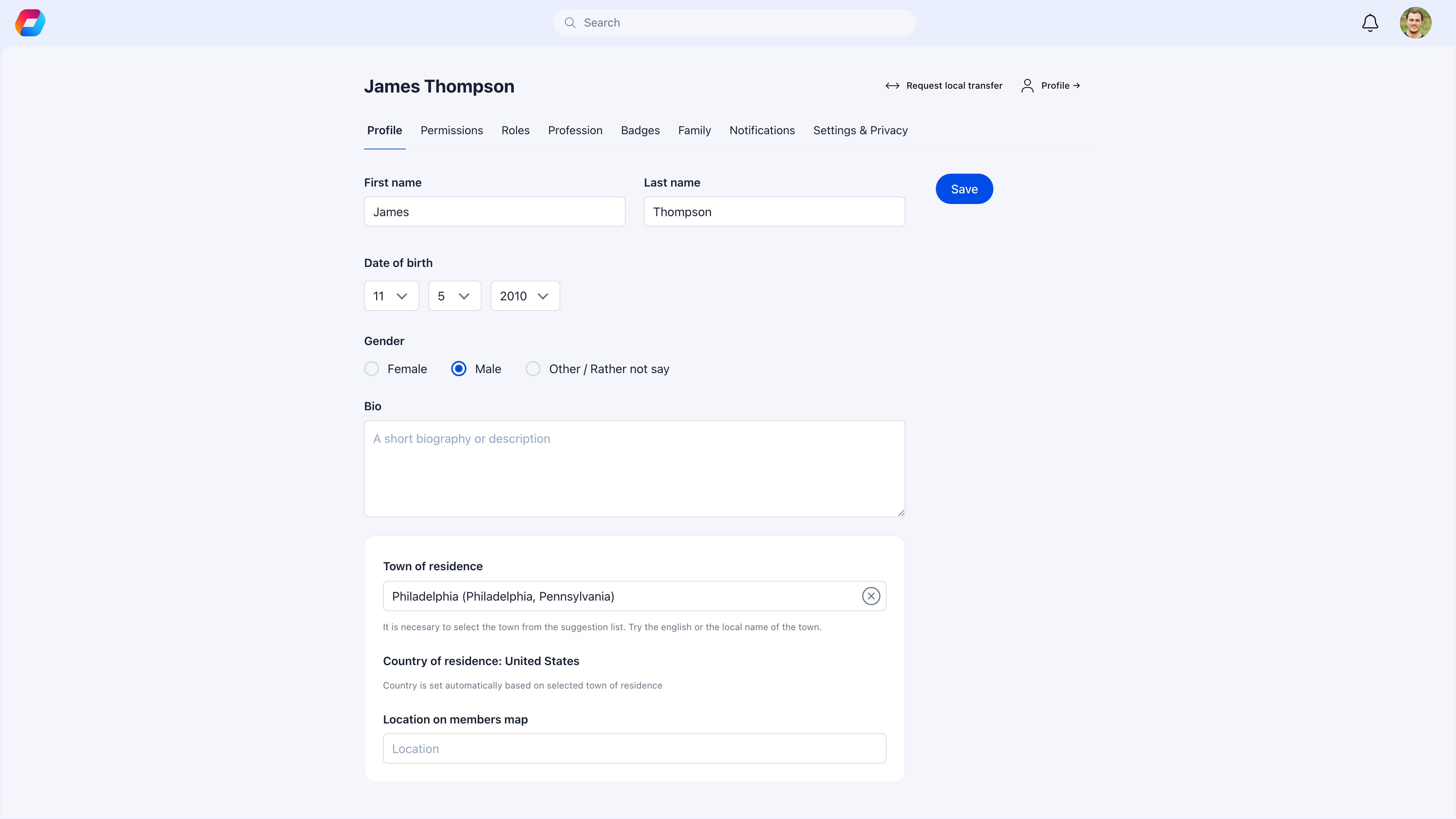
The status dropdown is on the **Permissions** tab — not the Profile tab.
Select the new status: Active, Inactive, Suspended, or Unapproved.
Click **Save**. The change takes effect immediately.
Only users with **HR Tenant** or **Admin Tenant** permissions can change member statuses.
***
## Configuring the default status for new members
When someone registers, what status do they get? This is one of the first things to configure.
Go to **Settings** → **Users & Profiles** → **Configuration** → **Status After Register**.
***
## The four statuses
| Status | Can log in? | Platform access | When to use |
| -------------- | ------------------------------- | ------------------------------------------------ | -------------------------------------------------------------------------------------------------------- |
| **Active** | Yes | Full access to all permitted features | This is the normal state for participating members. |
| **Unapproved** | Depends on config | Limited — may see a "pending approval" screen | New registrations awaiting admin review. Automatically set when **Status After Register** is Unapproved. |
| **Inactive** | Yes, but prompted to reactivate | Restricted — prompted to update profile or renew | Members who've lapsed, are on a break, or haven't renewed. Non-punitive. |
| **Suspended** | No | Blocked completely | Disciplinary action. The member did something wrong. This locks them out immediately. |
Changing a user to **Suspended** takes effect immediately — they're logged out and blocked. Make sure you've communicated the reason before doing this.
***
## How statuses change
Statuses change either automatically (during registration) or manually (by an admin). Here's the full picture:
### Automatic changes
| Event | Status change |
| ------------------------------------------------------- | --------------------------------------------------------------- |
| New user registers (Status After Register = Active) | → **Active** |
| New user registers (Status After Register = Unapproved) | → **Unapproved** |
| Admin approves unapproved user | Unapproved → **Active** |
| Adhesion application approved | May change to **Active** (depends on adhesion settings) |
| User resigns and admin approves | May change to **Inactive** (if member chose "Close my account") |
### Manual changes
Admins can change any user's status at any time. This is how you handle:
* Approving new registrations (Unapproved → Active)
* Lapsed memberships (Active → Inactive)
* Disciplinary action (Active → Suspended)
* Reinstating a member (Inactive/Suspended → Active)
***
## How to change a user's status
Go to the member directory and search for the user, or navigate directly to their profile.
Click **Edit profile** on their profile page.
The status dropdown is on the **Permissions** tab — not the Profile tab.
Select the new status: Active, Inactive, Suspended, or Unapproved.
Click **Save**. The change takes effect immediately.
Only users with **HR Tenant** or **Admin Tenant** permissions can change member statuses.
***
## Configuring the default status for new members
When someone registers, what status do they get? This is one of the first things to configure.
Go to **Settings** → **Users & Profiles** → **Configuration** → **Status After Register**.
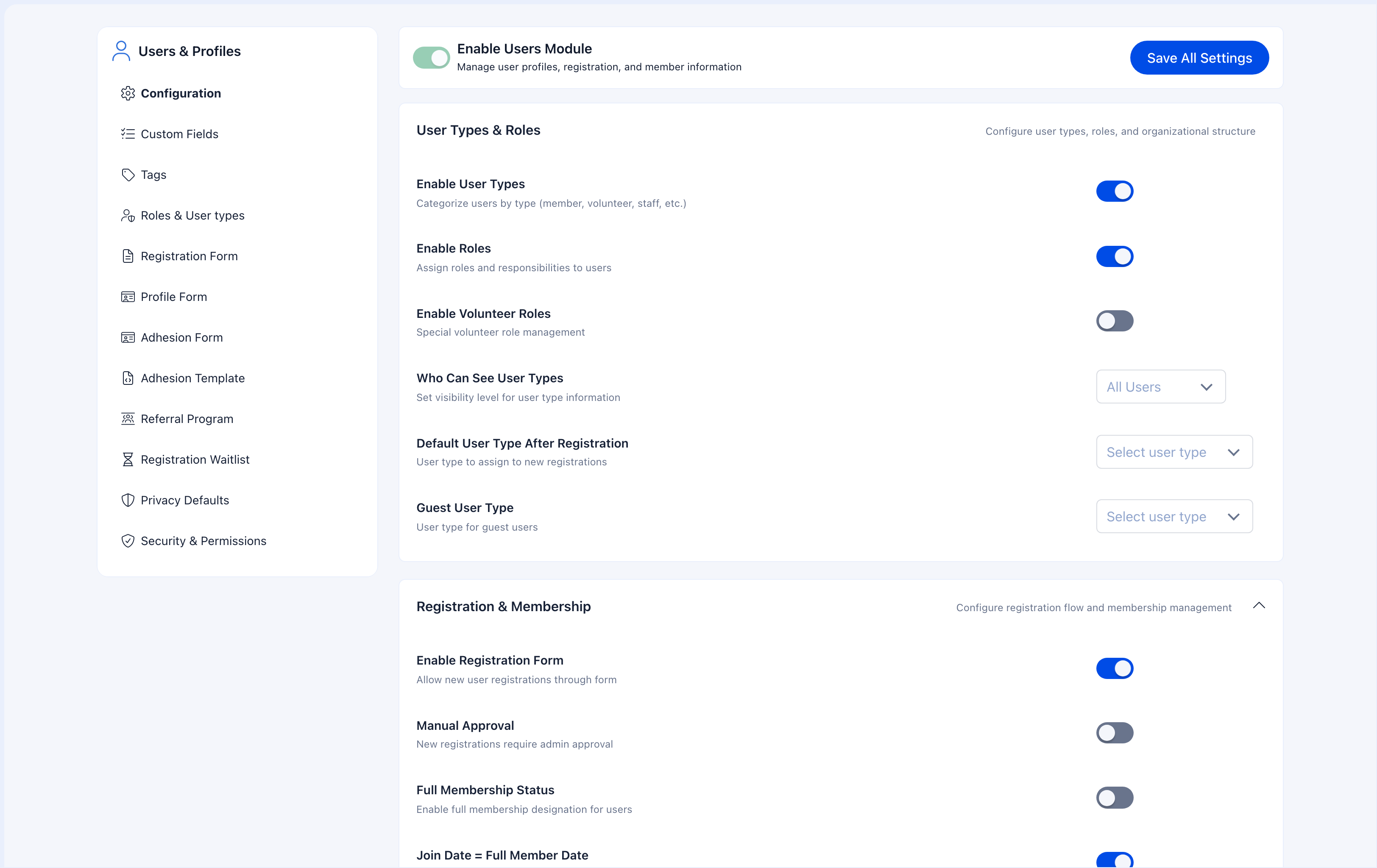 The configuration page includes a **Status After Register** dropdown that determines what status newly registered users receive (Active, Unapproved, or Inactive). Below it, a **Manual Approval** toggle controls whether admin review is needed before new users become Active.
| Setting | What happens | Best for |
| -------------- | ----------------------------------------------------------- | -------------------------------------------------------------------------------------- |
| **Active** | Members can use the platform immediately after registering | Open communities, social clubs, hobby groups — where you want zero friction |
| **Unapproved** | Members see a "pending" screen until an admin approves them | Organizations that need to vet new members but don't need a full application process |
| **Inactive** | Members are registered but can't do much until activated | Pre-launch setups, seasonal organizations collecting registrations before a start date |
If you want a full application process (not just approve/reject but with forms, documents, and interviews), use the [Adhesion module](/platform/users/adhesion) instead of Unapproved status. Adhesion gives you a proper workflow; Unapproved is just a gate.
***
## Statuses on a profile
A user's status appears as a colored badge on their profile page:
The configuration page includes a **Status After Register** dropdown that determines what status newly registered users receive (Active, Unapproved, or Inactive). Below it, a **Manual Approval** toggle controls whether admin review is needed before new users become Active.
| Setting | What happens | Best for |
| -------------- | ----------------------------------------------------------- | -------------------------------------------------------------------------------------- |
| **Active** | Members can use the platform immediately after registering | Open communities, social clubs, hobby groups — where you want zero friction |
| **Unapproved** | Members see a "pending" screen until an admin approves them | Organizations that need to vet new members but don't need a full application process |
| **Inactive** | Members are registered but can't do much until activated | Pre-launch setups, seasonal organizations collecting registrations before a start date |
If you want a full application process (not just approve/reject but with forms, documents, and interviews), use the [Adhesion module](/platform/users/adhesion) instead of Unapproved status. Adhesion gives you a proper workflow; Unapproved is just a gate.
***
## Statuses on a profile
A user's status appears as a colored badge on their profile page:
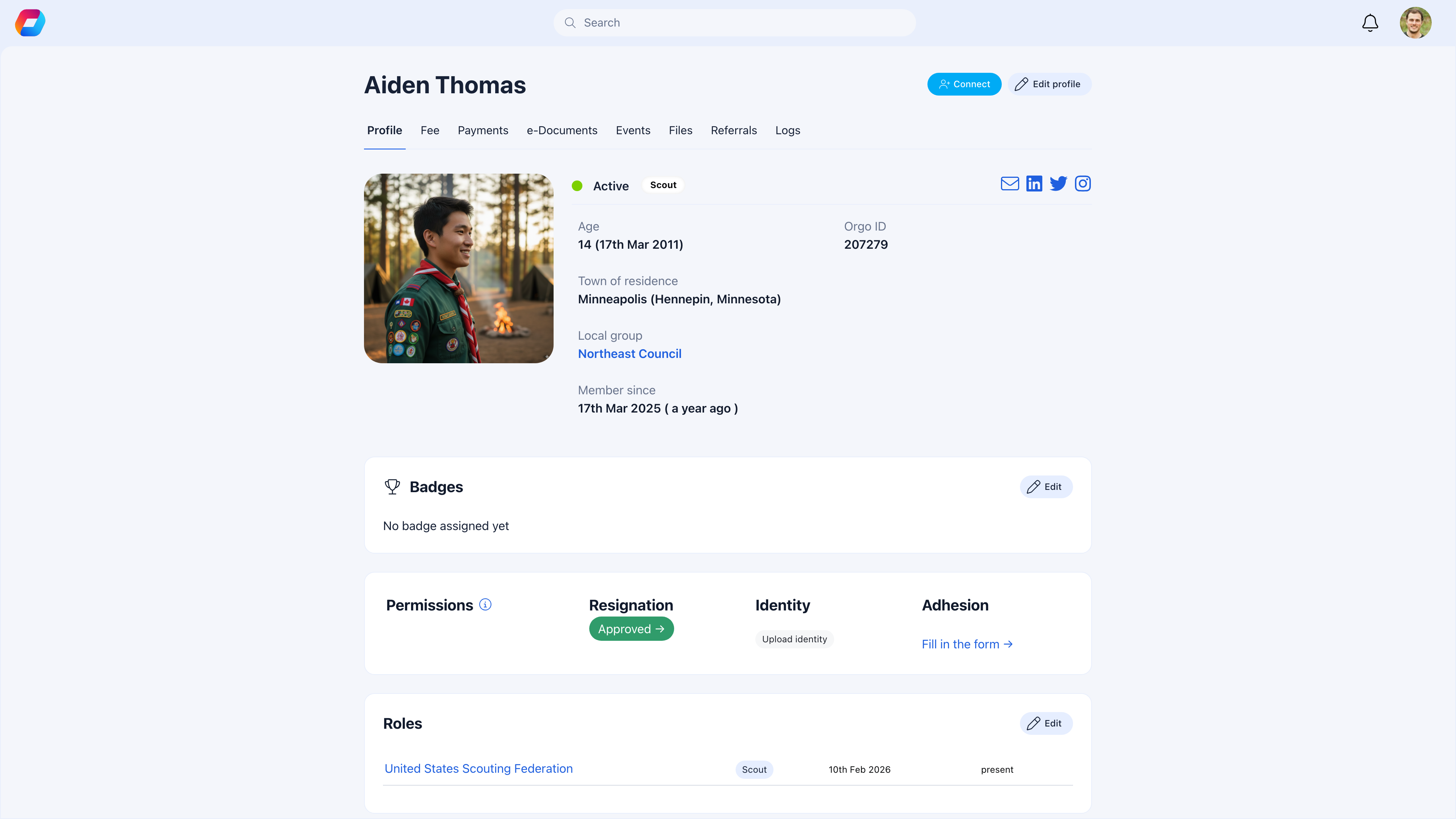 The badge colors are: green for Active, gray for Inactive, red for Suspended, and yellow for Unapproved.
***
## Common scenarios
Go to their profile → Edit → **Permissions** tab. Check the **Status** dropdown.
* **Suspended**: They're locked out. Was this intentional? If not, change to Active.
* **Unapproved**: They never got approved after registration. Approve them by changing to Active.
* **Inactive**: They can technically log in but may see a reactivation prompt. Change to Active if they should be participating.
If status is Active and they still can't log in, the problem is elsewhere (password, email, account deletion).
1. Go to their profile → Edit → **Permissions** tab
2. Change Status to **Suspended**
3. Save — they're immediately locked out
Before doing this, consider reaching out to the member. If you want a paper trail, ask them to [resign](/platform/users/resignation) instead, which records a reason. Suspension is for situations where you need immediate action.
If they were set to **Inactive**: Go to their profile → Edit → Permissions → change to **Active**.
If their account was **deleted**: It can't be restored. They'll need to register again.
If they **resigned** and it was processed: Their account may still exist (resignation doesn't delete data). Change their status back to Active.
If you're using **Unapproved** status and getting overwhelmed, consider:
* Switching to **Active** as the default (if you trust your registration process)
* Using [Adhesion](/platform/users/adhesion) instead, which has bulk management tools
* Asking another admin to help — anyone with HR Tenant or Admin Tenant permissions can approve users
**Inactive** is non-punitive. The member stepped away, their membership lapsed, or they're taking a break. They can still log in and may be prompted to reactivate.
**Suspended** is punitive. The member violated rules or needs to be blocked. They cannot log in at all. Think of it as "banned."
Use Inactive for natural departures, Suspended for enforcement.
Nothing. Status changes don't affect data. Their profile, activity history, roles, and everything else stays exactly the same. Status only controls access.
To remove data, the member must [delete their account](/platform/users/deletion-of-account). To formally record a departure, use [resignation](/platform/users/resignation).
***
## How statuses connect to other features
| Feature | How it interacts with statuses |
| ------------------------------------------------------- | -------------------------------------------------------------------------------------------------------- |
| [Adhesion](/platform/users/adhesion) | Approved applications can auto-change status to Active |
| [Resignation](/platform/users/resignation) | Approved resignations can set status to Inactive (if member chose "Close my account") |
| [Account Deletion](/platform/users/deletion-of-account) | Removes the account entirely — status no longer applies |
| [Registration Form](/platform/users/registration-form) | **Status After Register** determines initial status |
| [User Types & Roles](/platform/users/user-types) | Roles and permissions still exist regardless of status, but Suspended/Inactive users can't exercise them |
***
## Related
* [Resignation](/platform/users/resignation) — Formal departure with reason tracking
* [Account Deletion](/platform/users/deletion-of-account) — Permanent data removal
* [Adhesion](/platform/users/adhesion) — Application-based membership approval
* [Permissions](/platform/permissions) — Who can change statuses and other access control
The badge colors are: green for Active, gray for Inactive, red for Suspended, and yellow for Unapproved.
***
## Common scenarios
Go to their profile → Edit → **Permissions** tab. Check the **Status** dropdown.
* **Suspended**: They're locked out. Was this intentional? If not, change to Active.
* **Unapproved**: They never got approved after registration. Approve them by changing to Active.
* **Inactive**: They can technically log in but may see a reactivation prompt. Change to Active if they should be participating.
If status is Active and they still can't log in, the problem is elsewhere (password, email, account deletion).
1. Go to their profile → Edit → **Permissions** tab
2. Change Status to **Suspended**
3. Save — they're immediately locked out
Before doing this, consider reaching out to the member. If you want a paper trail, ask them to [resign](/platform/users/resignation) instead, which records a reason. Suspension is for situations where you need immediate action.
If they were set to **Inactive**: Go to their profile → Edit → Permissions → change to **Active**.
If their account was **deleted**: It can't be restored. They'll need to register again.
If they **resigned** and it was processed: Their account may still exist (resignation doesn't delete data). Change their status back to Active.
If you're using **Unapproved** status and getting overwhelmed, consider:
* Switching to **Active** as the default (if you trust your registration process)
* Using [Adhesion](/platform/users/adhesion) instead, which has bulk management tools
* Asking another admin to help — anyone with HR Tenant or Admin Tenant permissions can approve users
**Inactive** is non-punitive. The member stepped away, their membership lapsed, or they're taking a break. They can still log in and may be prompted to reactivate.
**Suspended** is punitive. The member violated rules or needs to be blocked. They cannot log in at all. Think of it as "banned."
Use Inactive for natural departures, Suspended for enforcement.
Nothing. Status changes don't affect data. Their profile, activity history, roles, and everything else stays exactly the same. Status only controls access.
To remove data, the member must [delete their account](/platform/users/deletion-of-account). To formally record a departure, use [resignation](/platform/users/resignation).
***
## How statuses connect to other features
| Feature | How it interacts with statuses |
| ------------------------------------------------------- | -------------------------------------------------------------------------------------------------------- |
| [Adhesion](/platform/users/adhesion) | Approved applications can auto-change status to Active |
| [Resignation](/platform/users/resignation) | Approved resignations can set status to Inactive (if member chose "Close my account") |
| [Account Deletion](/platform/users/deletion-of-account) | Removes the account entirely — status no longer applies |
| [Registration Form](/platform/users/registration-form) | **Status After Register** determines initial status |
| [User Types & Roles](/platform/users/user-types) | Roles and permissions still exist regardless of status, but Suspended/Inactive users can't exercise them |
***
## Related
* [Resignation](/platform/users/resignation) — Formal departure with reason tracking
* [Account Deletion](/platform/users/deletion-of-account) — Permanent data removal
* [Adhesion](/platform/users/adhesion) — Application-based membership approval
* [Permissions](/platform/permissions) — Who can change statuses and other access control