> ## Documentation Index
> Fetch the complete documentation index at: https://orgo.space/docs/llms.txt
> Use this file to discover all available pages before exploring further.
# User Types & Roles
> Categorize members by type and model your organizational structure with positions
User Types and Roles live on the same page but serve different purposes:
* **User type** = What kind of member they are (Scout, Volunteer, Student). A label for categorization and filtering.
* **Role** = What position they hold (President, Team Leader, Treasurer). About organizational structure and optionally granting permissions.
* **Permission** = What they can do in the platform (Admin, HR, Financial). System access. See [Permissions](/platform/permissions).
A member can be a "Volunteer" (type) who serves as "Team Leader" (role) with "HR Local" permission. These are three separate concepts.
 ***
## How to access
**Settings** → **Users & Profiles** → **Roles & User Types**
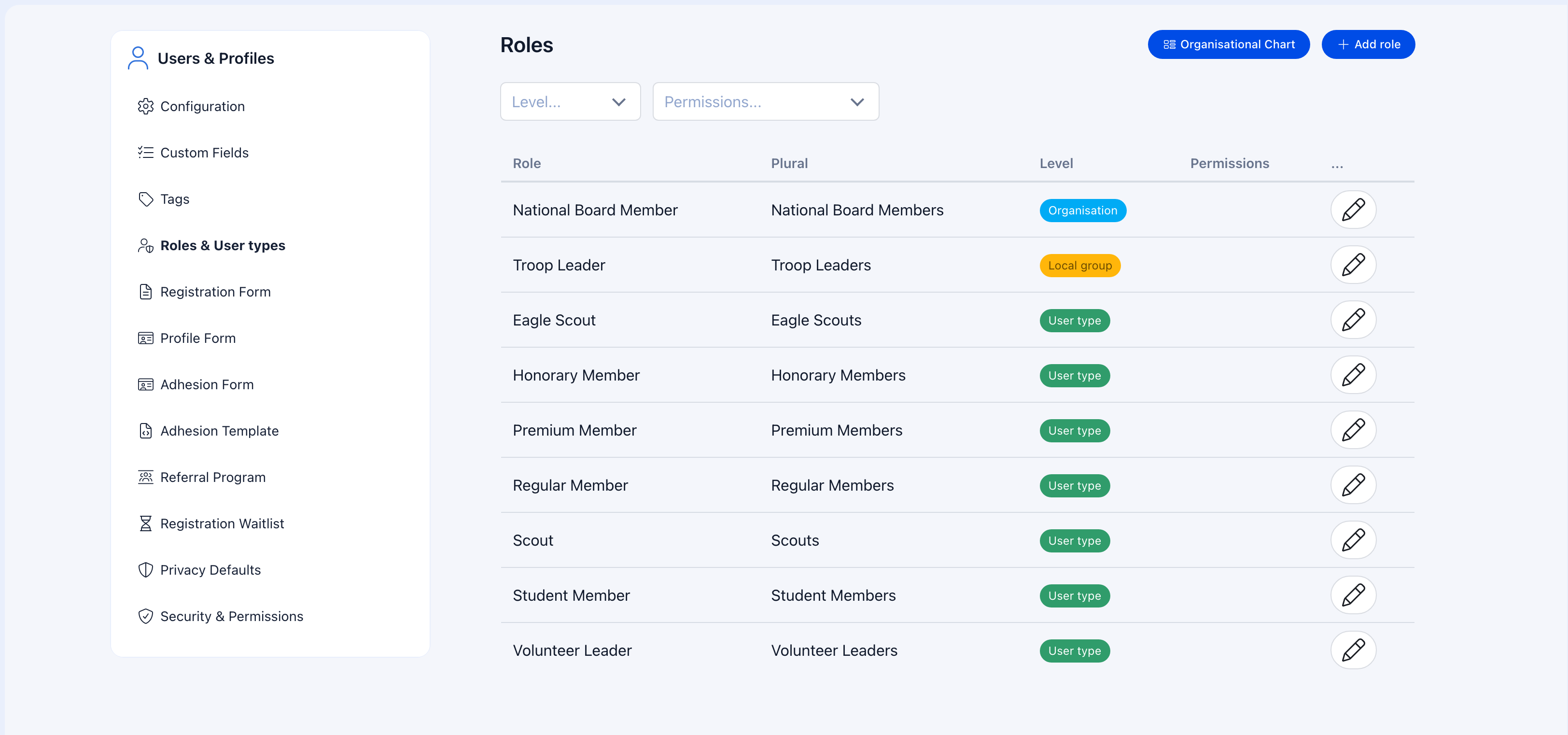
User types and roles share the same management page. User types are marked with a **User Type** badge; entries without the badge are organizational roles.
***
## User Types
### Do I need user types?
**Yes, if** your members fall into meaningfully different categories:
* Different fee structures (Student pays less than Professional)
* Different registration requirements (Leaders need qualifications, Scouts don't)
* Different communication needs (Volunteers get different newsletters than Alumni)
* Different access or privileges (only Full Members can vote)
**No, if** all your members are essentially the same. You can always add them later.
### Creating a user type
**Settings** → **Users & Profiles** → **Roles & User Types** → click **Create Role**
Toggle **Is User Type** on. This makes it a membership category rather than an organizational role.
Choose a clear, self-explanatory name. "Active Member" is better than "Type A".
The user type is now available for assignment.
### Assigning user types to members
| Method | How it works | Best for |
| --------------------------- | ------------------------------------------------------------------------------------------------------------------------------------------------ | -------------------------------- |
| **During registration** | Include the "User Type" field on the [Registration Form](/platform/users/registration-form). Members self-select. | When members know their category |
| **After adhesion approval** | Configure a "User type after approval" in [Adhesion](/platform/users/adhesion) settings. Type is auto-assigned when the application is approved. | Formal membership processes |
| **Manual assignment** | Admin goes to the member's profile and assigns a type | One-off changes, corrections |
| **Bulk import** | Assign types during CSV member import | Initial setup, migrations |
### What user types affect
| Feature | How user types interact |
| ------------------------------------------------------ | ---------------------------------------------------------------------- |
| [Registration Form](/platform/users/registration-form) | Each user type gets its own form with different fields. |
| [Adhesion](/platform/users/adhesion) | Auto-assign a type when an application is approved. |
| **Filtering** | Filter the member directory, event attendees, and newsletters by type. |
| **Fees** | Different types can have different fee structures. |
| **Reporting** | Generate reports segmented by type. |
| **Communication** | Send targeted newsletters to specific types. |
User types don't automatically grant permissions. A "Leader" user type doesn't give someone admin access. For that, use roles with permissions or assign permissions directly.
### User type visibility
Control who can see user type labels in **Settings** → **Users & Profiles** → **Configuration**:
| Setting | Who sees the type label |
| ---------------- | ------------------------------ |
| **User** | Everyone |
| **HR Local** | Local HR and above |
| **HR Tenant** | Organization-wide HR and above |
| **Admin Tenant** | Only organization admins |
***
## Roles
### Role scopes
Every role has a scope that determines where it applies:
| Scope | Where it applies | Examples |
| ----------------------- | ------------------------------------ | ----------------------------------------------------- |
| **National** | Organization-wide | National President, Secretary General, Board Member |
| **Local Center** | One specific branch | Branch President, Local Treasurer, Membership Officer |
| **Parent Local Center** | A parent center and all its children | Regional Director, Area Coordinator |
| **Unit** | A specific unit or team | Team Leader, Project Manager, Committee Chair |
### Creating a role
**Settings** → **Users & Profiles** → **Roles & User Types** → click **Create Role**
**Name** (e.g., "Branch President"), **Plural name** (e.g., "Branch Presidents"), and optionally a **Description**.
Enable one or more: **Is National**, **Is Local Center**, **Is Local Center Parent**, or associate with a Unit Type.
Select system permissions this role should grant. Everyone assigned this role automatically gets these permissions.
The role is now available for assignment.
### Role properties
| Property | Description |
| ---------------- | --------------------------------------------------------- |
| **Name** | Role title displayed everywhere |
| **Name Plural** | Used in listings (e.g., "Presidents") |
| **Position** | Display order — lower numbers appear first |
| **Chart Name** | Name shown in organizational charts (if different) |
| **Description** | Explanation of responsibilities |
| **Is User Type** | Marks this as a membership category instead of a position |
### Assigning roles to members
**Manual:** Open the member's profile → Edit → **Roles** tab → add the role with optional start/end dates.
**Via Role Groups:** Automatically assign roles based on criteria. [Learn more →](/platform/groups/role-groups)
**Via import:** Bulk-assign roles during CSV member imports.
### Roles with permissions
Instead of assigning permissions to individuals, attach permissions to roles. Everyone with that role automatically gets those permissions.
| Role | Attached permission | What it grants |
| ------------------ | -------------------- | ---------------------------------- |
| Branch President | ADMIN\_LOCAL | Full control of their local center |
| Regional Director | ADMIN\_PARENT\_LOCAL | Admin over a region |
| Membership Officer | HR\_LOCAL | Local member management |
| National Treasurer | FINANCIAL\_TENANT | Organization-wide financial access |
**Why this matters:** When someone steps down and a new person takes over, you just reassign the role. The old person loses permissions, the new person gains them. No manual permission juggling.
For the full list of permission levels, see [Permissions](/platform/permissions).
### Using start and end dates
When assigning a role, set **start** and **end dates** to track terms:
* The role is active only between those dates
* Permissions attached to the role are only active during the term
* After the end date, the role becomes historical (visible in history but no longer active)
This is useful for elected positions with fixed terms (President 2025-2026).
***
## Common scenarios
Keep it to 3-5 types. Examples:
**Sports club:** Athlete, Coach, Volunteer, Alumni
**Professional association:** Full Member, Associate, Student, Honorary
**Youth org:** Scout, Leader, Parent, Volunteer
**Community:** Member, Volunteer, Supporter
You can always add more later. Starting with too many creates confusion.
Think about positions, not people:
1. **National level:** President, VP, Secretary, Treasurer, Board Members → National roles
2. **Regional level:** Regional Directors → Parent Local Center roles
3. **Local level:** Branch President, Local Treasurer → Local Center roles
4. **Team level:** Team Leader, Project Manager → Unit roles
Assign people to roles. The [organizational chart](/platform/organisational-chart) auto-generates from this structure.
**Role-based permissions** when the permission should follow the position. Every Branch President should have ADMIN\_LOCAL — attach it to the role.
**Direct permissions** for exceptions. Someone who needs temporary financial access — assign FINANCIAL\_LOCAL directly on their profile.
Role-based is cleaner. Direct is for one-offs.
No — a member has one user type. If someone is both a "Volunteer" and an "Alumni", decide which is primary, or create a combined type like "Active Alumni". For multiple labels, consider using Tags instead.
It depends on context:
* If "Leader" is a **membership category** (like Scouts who've graduated), it's a **user type**
* If "Leader" is a **position** (like Team Leader of Unit 5), it's a **role**
If you need both, create a "Leader" user type AND specific role positions like "Unit Leader" with the right scope and permissions.
Go to their profile → Roles tab → set an end date on the old role → add the new role with a start date. If both roles have permissions, the transition happens automatically.
***
## Related
* [Permissions](/platform/permissions) — System permission levels and access control
* [Registration Form](/platform/users/registration-form) — Per-type registration forms
* [Role Groups](/platform/groups/role-groups) — Automatic role assignment based on criteria
* [Organizational Chart](/platform/organisational-chart) — Visual representation of your role structure
* [Adhesion](/platform/users/adhesion) — Auto-assign user type on approval
***
## How to access
**Settings** → **Users & Profiles** → **Roles & User Types**
User types and roles share the same management page. User types are marked with a **User Type** badge; entries without the badge are organizational roles.
***
## User Types
### Do I need user types?
**Yes, if** your members fall into meaningfully different categories:
* Different fee structures (Student pays less than Professional)
* Different registration requirements (Leaders need qualifications, Scouts don't)
* Different communication needs (Volunteers get different newsletters than Alumni)
* Different access or privileges (only Full Members can vote)
**No, if** all your members are essentially the same. You can always add them later.
### Creating a user type
**Settings** → **Users & Profiles** → **Roles & User Types** → click **Create Role**
Toggle **Is User Type** on. This makes it a membership category rather than an organizational role.
Choose a clear, self-explanatory name. "Active Member" is better than "Type A".
The user type is now available for assignment.
### Assigning user types to members
| Method | How it works | Best for |
| --------------------------- | ------------------------------------------------------------------------------------------------------------------------------------------------ | -------------------------------- |
| **During registration** | Include the "User Type" field on the [Registration Form](/platform/users/registration-form). Members self-select. | When members know their category |
| **After adhesion approval** | Configure a "User type after approval" in [Adhesion](/platform/users/adhesion) settings. Type is auto-assigned when the application is approved. | Formal membership processes |
| **Manual assignment** | Admin goes to the member's profile and assigns a type | One-off changes, corrections |
| **Bulk import** | Assign types during CSV member import | Initial setup, migrations |
### What user types affect
| Feature | How user types interact |
| ------------------------------------------------------ | ---------------------------------------------------------------------- |
| [Registration Form](/platform/users/registration-form) | Each user type gets its own form with different fields. |
| [Adhesion](/platform/users/adhesion) | Auto-assign a type when an application is approved. |
| **Filtering** | Filter the member directory, event attendees, and newsletters by type. |
| **Fees** | Different types can have different fee structures. |
| **Reporting** | Generate reports segmented by type. |
| **Communication** | Send targeted newsletters to specific types. |
User types don't automatically grant permissions. A "Leader" user type doesn't give someone admin access. For that, use roles with permissions or assign permissions directly.
### User type visibility
Control who can see user type labels in **Settings** → **Users & Profiles** → **Configuration**:
| Setting | Who sees the type label |
| ---------------- | ------------------------------ |
| **User** | Everyone |
| **HR Local** | Local HR and above |
| **HR Tenant** | Organization-wide HR and above |
| **Admin Tenant** | Only organization admins |
***
## Roles
### Role scopes
Every role has a scope that determines where it applies:
| Scope | Where it applies | Examples |
| ----------------------- | ------------------------------------ | ----------------------------------------------------- |
| **National** | Organization-wide | National President, Secretary General, Board Member |
| **Local Center** | One specific branch | Branch President, Local Treasurer, Membership Officer |
| **Parent Local Center** | A parent center and all its children | Regional Director, Area Coordinator |
| **Unit** | A specific unit or team | Team Leader, Project Manager, Committee Chair |
### Creating a role
**Settings** → **Users & Profiles** → **Roles & User Types** → click **Create Role**
**Name** (e.g., "Branch President"), **Plural name** (e.g., "Branch Presidents"), and optionally a **Description**.
Enable one or more: **Is National**, **Is Local Center**, **Is Local Center Parent**, or associate with a Unit Type.
Select system permissions this role should grant. Everyone assigned this role automatically gets these permissions.
The role is now available for assignment.
### Role properties
| Property | Description |
| ---------------- | --------------------------------------------------------- |
| **Name** | Role title displayed everywhere |
| **Name Plural** | Used in listings (e.g., "Presidents") |
| **Position** | Display order — lower numbers appear first |
| **Chart Name** | Name shown in organizational charts (if different) |
| **Description** | Explanation of responsibilities |
| **Is User Type** | Marks this as a membership category instead of a position |
### Assigning roles to members
**Manual:** Open the member's profile → Edit → **Roles** tab → add the role with optional start/end dates.
**Via Role Groups:** Automatically assign roles based on criteria. [Learn more →](/platform/groups/role-groups)
**Via import:** Bulk-assign roles during CSV member imports.
### Roles with permissions
Instead of assigning permissions to individuals, attach permissions to roles. Everyone with that role automatically gets those permissions.
| Role | Attached permission | What it grants |
| ------------------ | -------------------- | ---------------------------------- |
| Branch President | ADMIN\_LOCAL | Full control of their local center |
| Regional Director | ADMIN\_PARENT\_LOCAL | Admin over a region |
| Membership Officer | HR\_LOCAL | Local member management |
| National Treasurer | FINANCIAL\_TENANT | Organization-wide financial access |
**Why this matters:** When someone steps down and a new person takes over, you just reassign the role. The old person loses permissions, the new person gains them. No manual permission juggling.
For the full list of permission levels, see [Permissions](/platform/permissions).
### Using start and end dates
When assigning a role, set **start** and **end dates** to track terms:
* The role is active only between those dates
* Permissions attached to the role are only active during the term
* After the end date, the role becomes historical (visible in history but no longer active)
This is useful for elected positions with fixed terms (President 2025-2026).
***
## Common scenarios
Keep it to 3-5 types. Examples:
**Sports club:** Athlete, Coach, Volunteer, Alumni
**Professional association:** Full Member, Associate, Student, Honorary
**Youth org:** Scout, Leader, Parent, Volunteer
**Community:** Member, Volunteer, Supporter
You can always add more later. Starting with too many creates confusion.
Think about positions, not people:
1. **National level:** President, VP, Secretary, Treasurer, Board Members → National roles
2. **Regional level:** Regional Directors → Parent Local Center roles
3. **Local level:** Branch President, Local Treasurer → Local Center roles
4. **Team level:** Team Leader, Project Manager → Unit roles
Assign people to roles. The [organizational chart](/platform/organisational-chart) auto-generates from this structure.
**Role-based permissions** when the permission should follow the position. Every Branch President should have ADMIN\_LOCAL — attach it to the role.
**Direct permissions** for exceptions. Someone who needs temporary financial access — assign FINANCIAL\_LOCAL directly on their profile.
Role-based is cleaner. Direct is for one-offs.
No — a member has one user type. If someone is both a "Volunteer" and an "Alumni", decide which is primary, or create a combined type like "Active Alumni". For multiple labels, consider using Tags instead.
It depends on context:
* If "Leader" is a **membership category** (like Scouts who've graduated), it's a **user type**
* If "Leader" is a **position** (like Team Leader of Unit 5), it's a **role**
If you need both, create a "Leader" user type AND specific role positions like "Unit Leader" with the right scope and permissions.
Go to their profile → Roles tab → set an end date on the old role → add the new role with a start date. If both roles have permissions, the transition happens automatically.
***
## Related
* [Permissions](/platform/permissions) — System permission levels and access control
* [Registration Form](/platform/users/registration-form) — Per-type registration forms
* [Role Groups](/platform/groups/role-groups) — Automatic role assignment based on criteria
* [Organizational Chart](/platform/organisational-chart) — Visual representation of your role structure
* [Adhesion](/platform/users/adhesion) — Auto-assign user type on approval