
Every permission in Orgo is a pair: a domain, meaning which area of the platform, and a scope, meaning whose data. HR_LOCAL is member management, limited to one chapter. FINANCIAL_TENANT is money, across the whole organisation. There are six domains and three scopes, so eighteen checkboxes in total.
The part that is worth reading before you grant anything is that a permission can reach a member from two independent directions, and one of them is invisible on the screen where you would look for it.
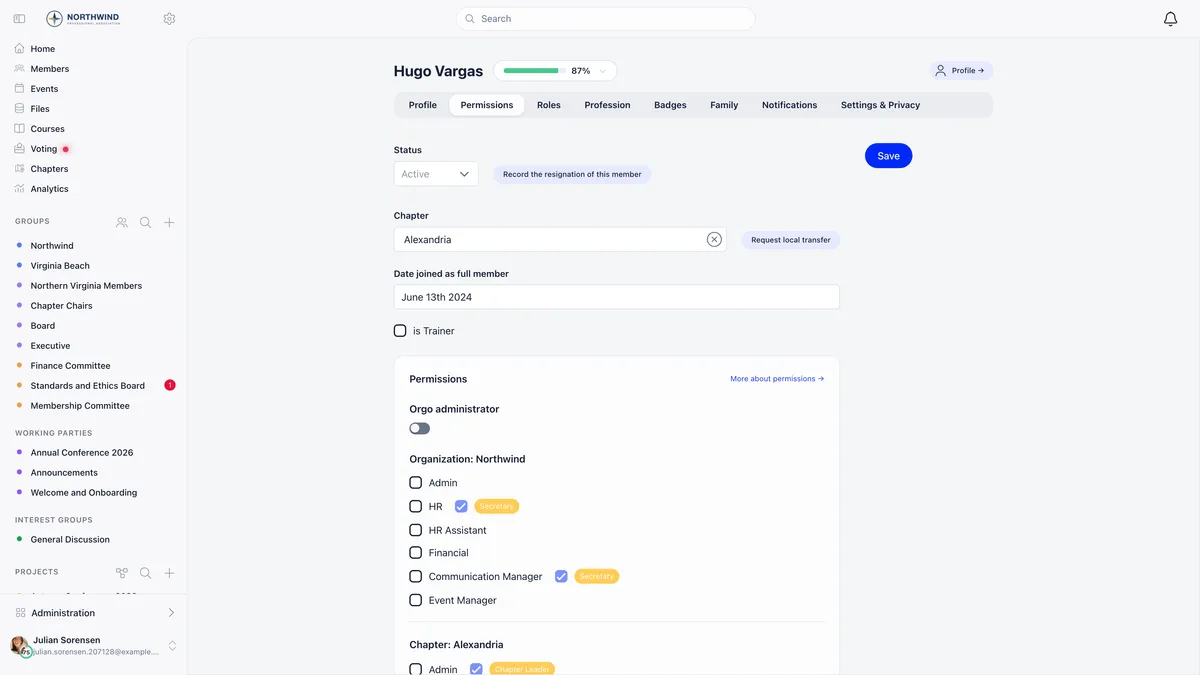
Look at the HR row in that screenshot. The plain checkbox is empty, and beside it a second, locked checkbox is ticked, carrying an orange tag reading Secretary. That is the permission arriving from a role. The same person holds chapter Admin the same way, from a Chapter Leader role. Nobody ticked either of those boxes on this profile, and unticking them here is not possible.
The two sources
Two consequences follow, and both come up constantly.
Only a role with no end date contributes. Ending a role removes the permissions it carried. Be aware that setting an end date takes effect straight away rather than on the date you typed, so a future end date is a way of ending a role now, not a way of scheduling it.
A directly ticked permission survives everything. It survives the role ending, and it survives the member moving to another chapter. That is the grant that quietly outlives the reason it was given, which is why the audit at the end of this guide matters.
The six domains and the three scopes
| Domain | Shown as | What it unlocks |
|---|---|---|
| ADMIN | Admin | The other five domains at the same scope, plus chapter settings, the waitlist, badges, roles, statuses, event types, invoices, API tokens and the email log |
| HR | HR | Member profiles and their Permissions and Roles tabs, adhesions, resignations, transfers, exports and bulk actions, merging duplicates, e-documents, the form builder |
| HR_ASSISTANT | HR Assistant | Awarding badges, logging badge hours, admin-only custom fields, reviewing identity documents |
| FINANCIAL | Financial | Products and payments, subscribers, fee records and statistics, chapter fee and payment settings, your own Orgo billing page |
| EVENT | Event Manager | Creating events beyond the level set in your event settings, plus the organiser-only options on the event form |
| COMMUNICATION | Communication Manager | Email campaigns and templates, lists and segments, newsletter widgets, the discussion moderation queue |
Each of those six can be granted at three scopes. Two of the three are chapter scopes, and they exist because multi-chapter management gives every branch a boundary of its own.
Chapter and parent chapter scopes only exist when the Local Centers module is on, and the parent chapter column also needs parent centers enabled. Without them the only checkboxes drawn are the organisation ones. Financial needs the Fees module and Event Manager needs the Events module, so a missing checkbox is often a missing module rather than a permission problem.
What a parent chapter grant actually reaches is worked through in setting up chapters, and it is not what most people assume: the reach is anchored to the holder’s own chapter and you cannot point it elsewhere.
Holding one permission can imply another
| Holding this | Also grants |
|---|---|
ADMIN_TENANT | Every permission check in the product |
HR_TENANT or FINANCIAL_TENANT | HR_ASSISTANT_TENANT |
HR_PARENT_LOCAL | HR_LOCAL and HR_ASSISTANT_LOCAL |
HR_LOCAL or FINANCIAL_LOCAL | HR_ASSISTANT_LOCAL |
FINANCIAL_PARENT_LOCAL | FINANCIAL_LOCAL, HR_ASSISTANT_LOCAL, HR_ASSISTANT_PARENT_LOCAL |
EVENT_PARENT_LOCAL | EVENT_LOCAL |
COMMUNICATION_PARENT_LOCAL | COMMUNICATION_LOCAL |
ADMIN_LOCAL | Every other domain within the same chapter |
That is the complete list. Nothing else is implied, and in particular HR_TENANT is not a special case of ADMIN_TENANT.
Orgo administrator is not a permission
There is one account flag that sits outside the whole model, and it is the single most common support question in this area.
The Orgo administrator switch at the top of the Permissions tab is what every Settings screen checks. ADMIN_TENANT passes every permission check in the product and still leaves Settings shut. Granting one is not granting the other, and the switch is only drawn for somebody who already holds it, so appointing a new administrator always lands back with an existing one.
What you are allowed to hand out
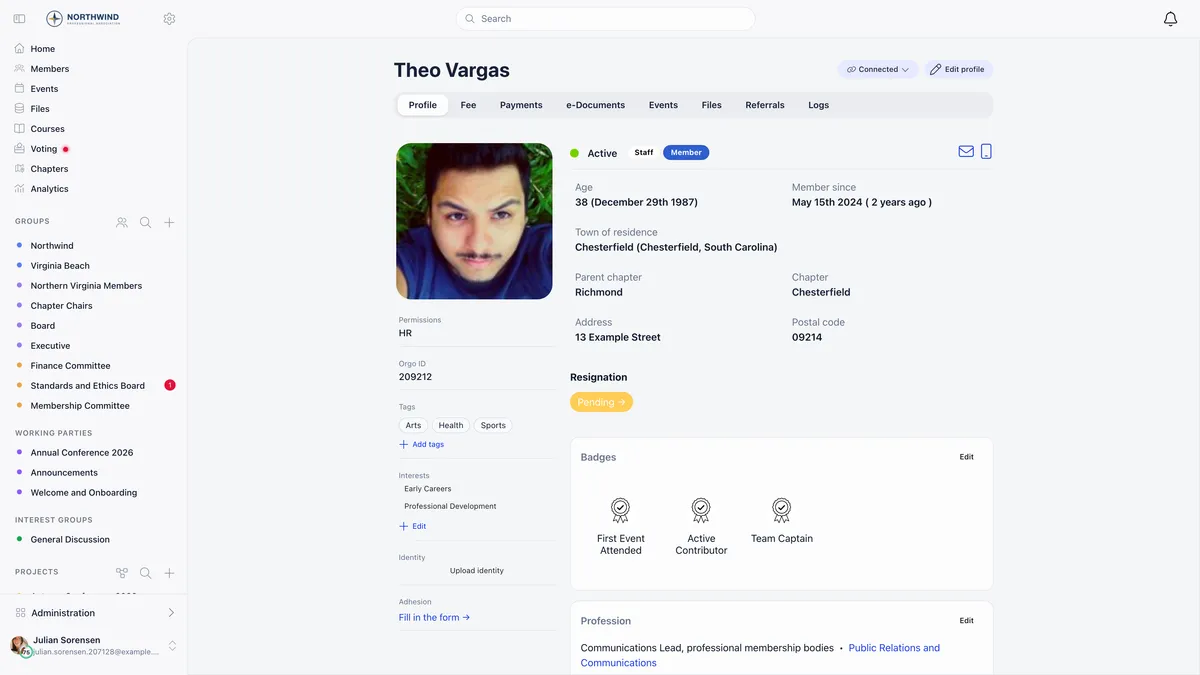
You see checkboxes at or below your own level, and only inside your own scope. Two separate rules are at work, and they are applied in that order.
Scope is checked first. A chapter-scoped person can grant nothing outside their own chapter, whatever their rank. A chapter president holding ADMIN_LOCAL can grant every chapter permission up to and including chapter Admin, and nothing at parent chapter or organisation scope at all.
Rank is then compared by permission family, not by reach. This is the counter-intuitive one.
Being organisation-wide does not put you above every chapter permission. That is the rule, not a fault, and the checkbox is simply not rendered rather than refused with a message. If someone needs to be able to appoint chapter administrators, either give them the Orgo administrator flag deliberately or make the appointment yourself.
Three more rules apply on top, and these are enforced when you save, not just hidden in the interface.
| Rule | What it means |
|---|---|
| Nobody edits their own permissions | Your own checkboxes are disabled on your own profile, and a save attempted another way is rejected outright with a message telling you another administrator has to do it |
Organisation-scope changes need ADMIN_TENANT | Adding or removing any organisation-scope permission is refused for anyone else |
| Chapter admins can be locked out entirely | Turning off Allow Local Admins to Modify User Permissions restricts permission changes, status changes and chapter role changes to organisation HR and admins. Chapter admins can still manage roles on the units below chapter level. It is on by default |
Attaching permissions to a role instead
Roles carry permissions, and for an ongoing responsibility that is the better home for them: a handover becomes one role ended and another started, rather than two profiles edited and one forgotten.
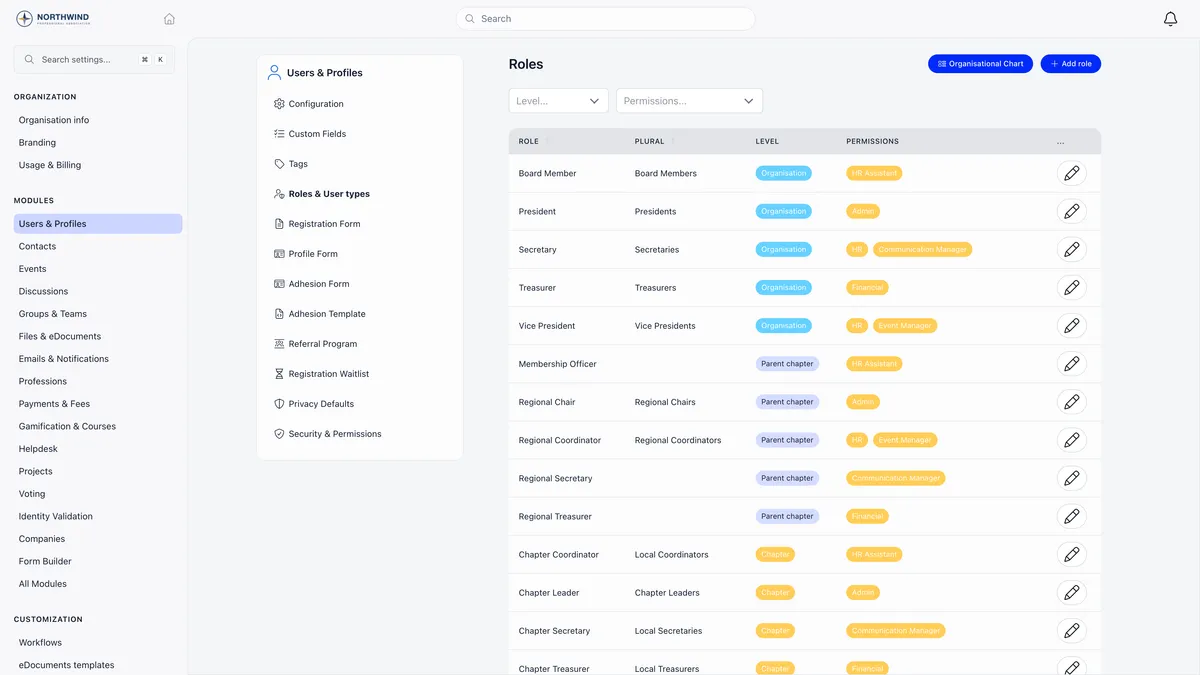
There is a catch, and it is the most important sentence in this guide for anyone tightening up their security.
Attaching a permission to a role and letting chapter secretaries hand that role out delegates it far more widely than ticking the same box ever would. That is a legitimate way to devolve appointments, but it should be a decision rather than a side effect.
Bars your organisation sets
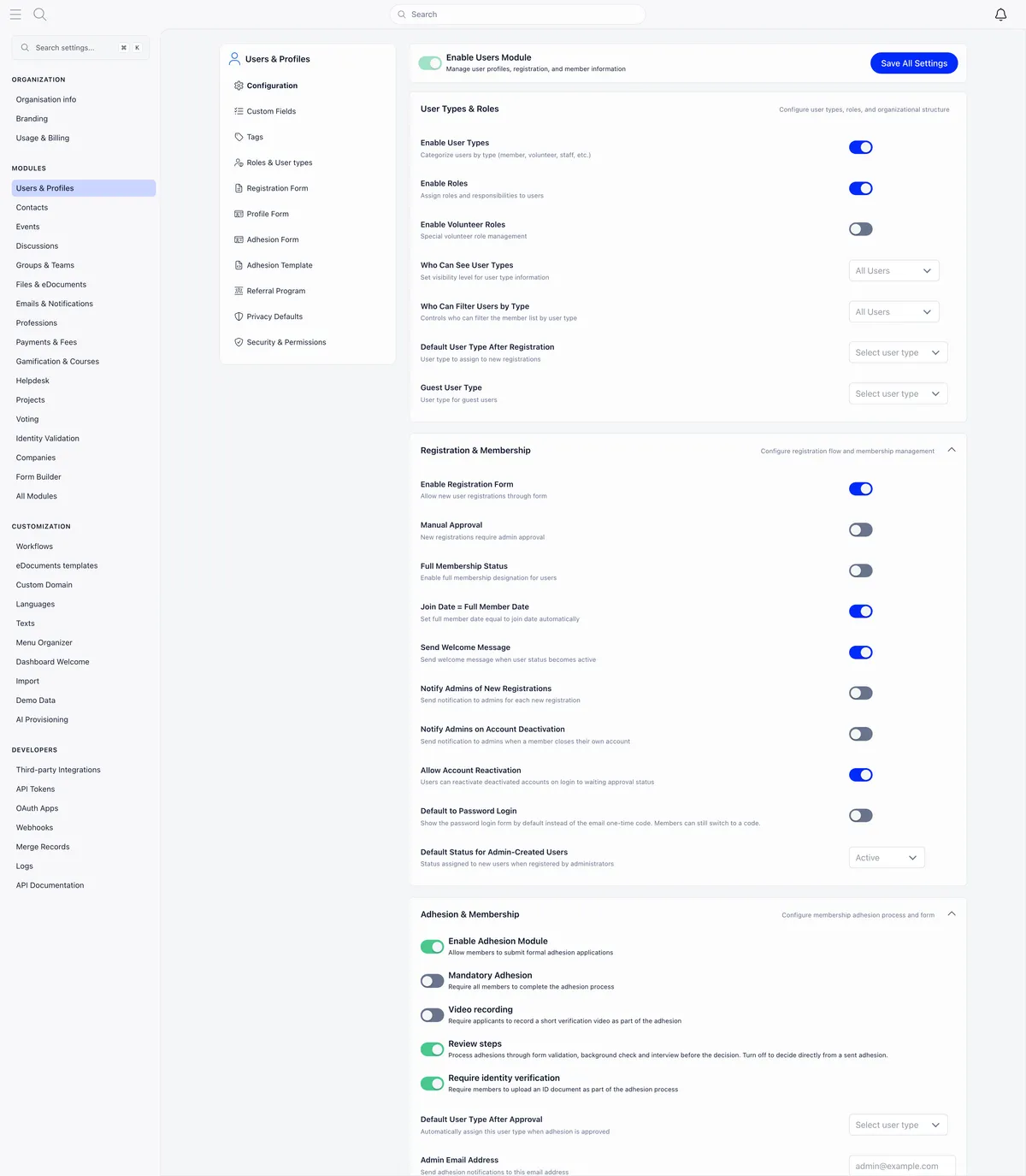
Some behaviour is not a permission somebody holds but a minimum level your organisation sets, one per module, on the security and permissions settings screen. Most default to plain member.
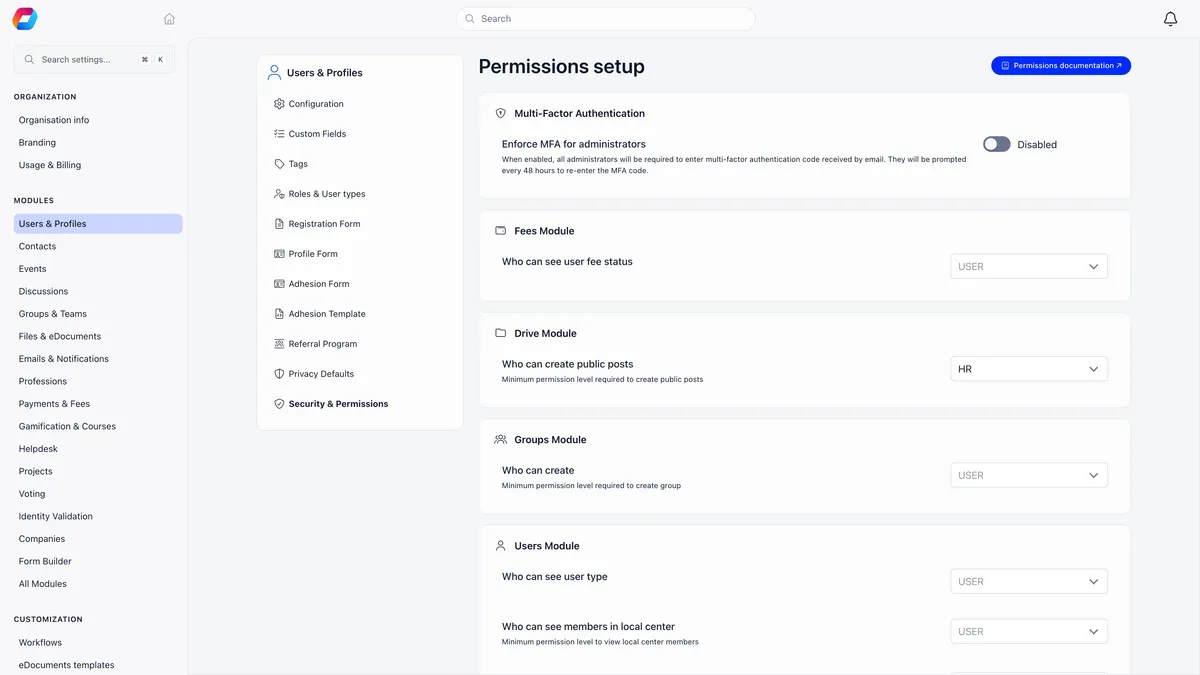
Who can browse the member directory, who can see another member’s fee status, who can start a discussion for the whole community, who can publish an event organisation-wide: all of these are bars rather than grants, and raising one of them is often the answer when a member sees something you would rather they did not. The same screen carries Enforce MFA for administrators, which asks anyone with organisation-level rights for an emailed code every 48 hours.
Which modules are on decides which permission checkboxes exist at all, and that is set separately.
Testing what somebody actually sees
Impersonation lets an administrator browse Orgo with a reduced permission set, which is the fastest way to answer “can the chapter treasurer see this”.
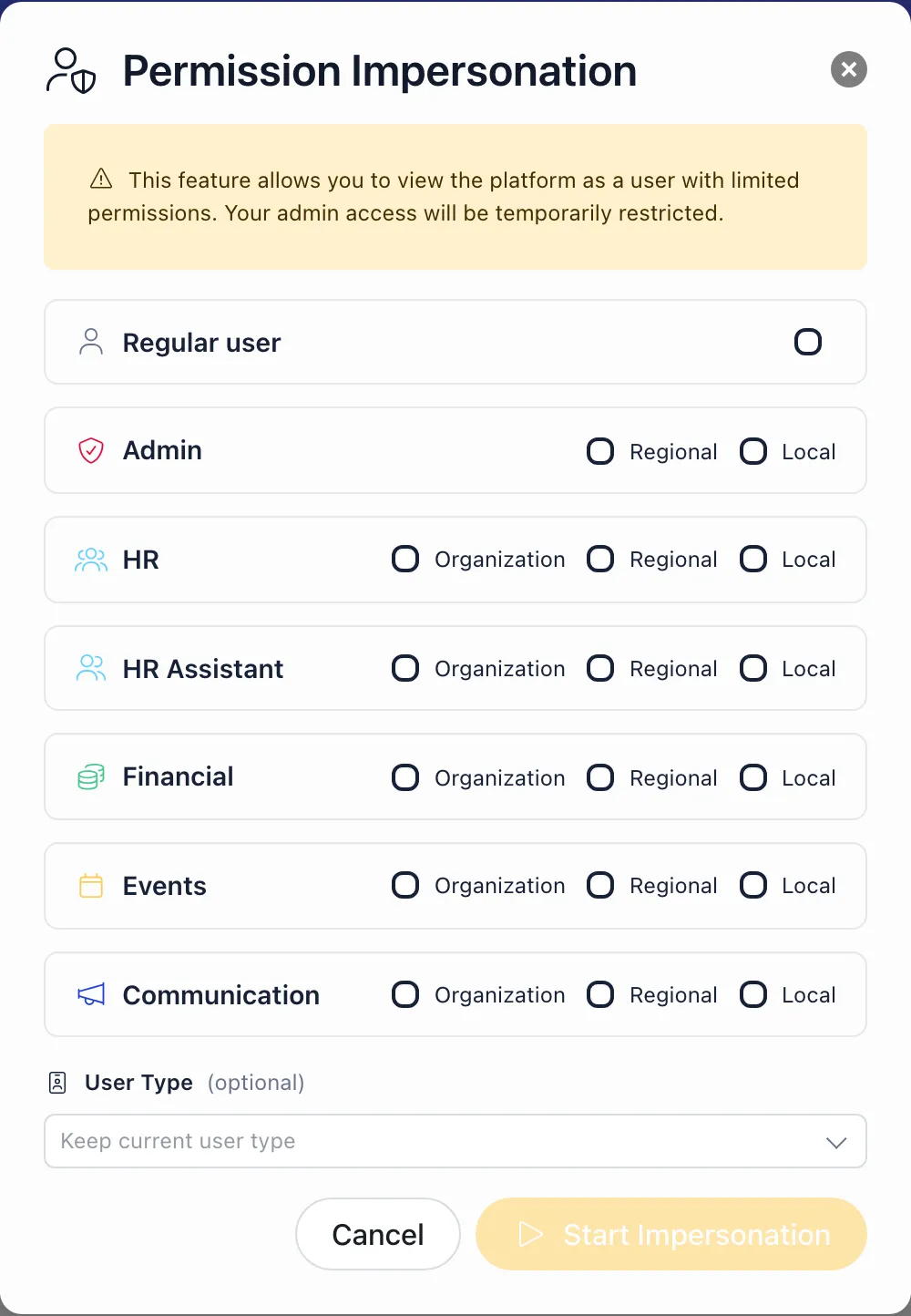
Notice what the Admin row offers: Regional and Local only. Organisation-wide Admin cannot be impersonated, and your Orgo administrator status is switched off for the whole session. That is the point of the feature rather than a limitation of it, but it means you genuinely lose your own access while a session is running, so plan to exit before doing admin work.
A session lasts an hour, starting a new one ends the previous one, and every start and end is recorded with the simulated permissions, your real ones, your address and your browser.
One trap. Because starting a session reloads the page you are on, and every Settings screen needs the Orgo administrator flag you have just given up, starting impersonation from anywhere under Settings drops you straight onto the login page. You are not signed out. Navigate to an ordinary page such as the dashboard and the banner with its Exit button is there again.
Auditing who holds what
Open the member list and use the Permissions filter. It lists Orgo administrator first, then every permission grouped by scope, and ticking several shows everybody holding any of them.
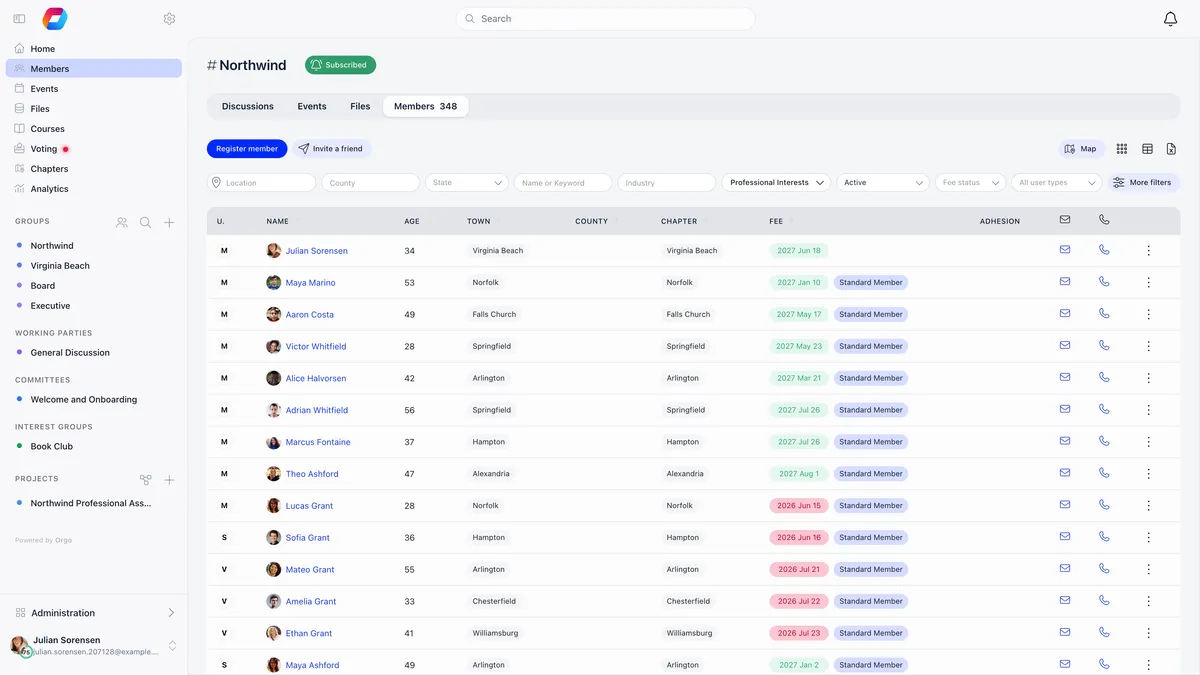
The filter reads effective permissions, so it catches the role-derived grants that no single profile screen shows you clearly. It requires organisation Admin rights, and anyone else asking is refused.
Run it whenever somebody leaves. Ending a role removes the permissions it carried, but a directly ticked checkbox survives both a role ending and a change of chapter, and that is the grant nobody remembers giving.
For the other direction, which roles carry which powers, the roles settings screen has a Permissions filter and a Permissions column showing each role’s grants as tags.
Troubleshooting
They have organisation Admin but Settings is missing
Settings screens check the Orgo administrator flag, which is the switch above the permission checkboxes and not a permission at all. Turn it on.
A checkbox is not in the list
Either the module it belongs to is off, or the scope is unavailable, or the permission is above your own level. Financial needs Fees, Event Manager needs Events, chapter permissions need Local Centers, and parent chapter permissions need parent centers on top of that.
A colleague says they keep getting logged out at one link
When a destination refuses you, Orgo sends you to the login screen rather than showing an access denied message. The session is intact and the page is remembered, which is exactly what an expired session looks like too.
The permission I granted has not taken effect
Changes apply on the member’s next page load. Ask them to reload. If it still has not, check whether the permission came from a role that has since been given an end date, because an end date takes effect immediately rather than on the date shown.
Related
- Permissions, the full reference
- Assigning permissions, who may grant what
- User types and roles
- Chapters and what a chapter-scoped grant reaches
- When someone cannot sign in at all
Frequently asked questions
Why can I not tick a permission I clearly outrank?
Rank is decided by permission family first, and only then by scope within that family, rather than by how far a permission reaches. Admin sits above HR, which sits above Financial, which sits above HR Assistant, with Events and Communication at the bottom. So an organisation-wide HR manager ranks below a chapter administrator and the Chapter Admin checkbox is never drawn for them. Scope is a separate gate applied before rank: a chapter-scoped person can grant nothing outside their own chapter whatever their rank.
Someone has ADMIN_TENANT but cannot open Settings. Why?
Settings screens check a separate account flag called Orgo administrator, not a permission. ADMIN_TENANT passes every permission check in the product and still leaves Settings closed. Turn on the Orgo administrator switch at the top of their Permissions tab, which only someone who already holds it can see.
A colleague says they get logged out at a particular link. Is their session broken?
Almost certainly not. When a destination refuses you, Orgo sends you to the login screen instead of showing a permission message, so a refusal and an expired session look identical. Compare the permission that destination needs against what they actually hold, using the Permissions filter on the member list to read their effective permissions rather than trusting one profile.