
A chapter is a geographic branch of your organisation: a city, district, council or region, with its own members, events, discussions, files, fees and administrators. Setting one up is three steps: create it, decide where it sits in the chapter tree, then grant chapter-scoped permissions to the people who run it.
Read the anchor rule before you grant anything. A chapter-scoped permission is not aimed at a chapter you pick. Orgo works its reach out from the holder’s own chapter, and for an ordinary chapter that reach starts one level up, which quietly includes that chapter’s siblings.
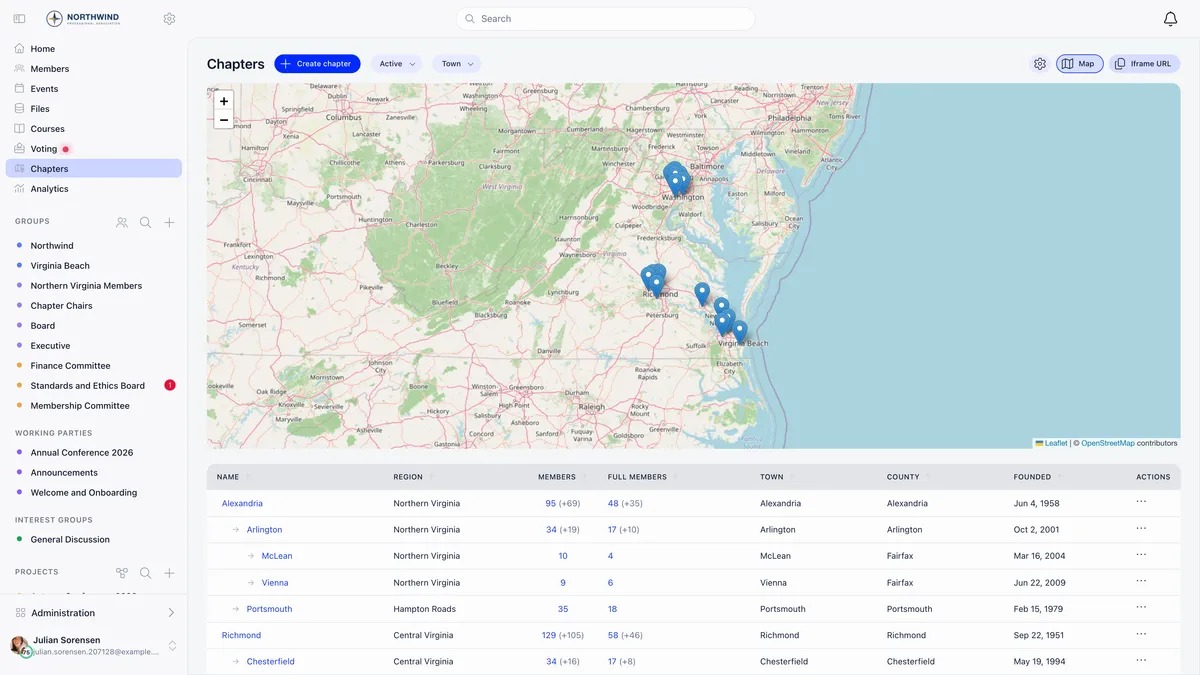
Chapters, local centers, and what your workspace calls them
The app says Chapters. Local center is the platform term used by the data model, the API and the permission names, so both appear in the product and in this guide.
Your sidebar labels are per workspace. The chapters destination may be renamed, moved or hidden entirely through Menu Organizer, so look for the destination rather than a fixed position in the menu. Chapter work is also split between the member area and the Administration menu, which is where local products, local member fees, transfer requests and local group settings live.

Before you start
| Requirement | Where |
|---|---|
| Enable Local Centers Module switched on | Settings, under the Groups and Teams module, Local Centers |
Organisation admin rights (ADMIN_TENANT) | The Create chapter button appears for organisation admins only |
Chapter admin rights (ADMIN_LOCAL) | Enough to edit a chapter, scoped to that chapter |
Two optional settings on the same screen change how chapters relate to each other. Enable Parent Centers lets a chapter point at another chapter as its parent, which is what builds the tree and what makes the parent-scope permissions mean anything. Enable Regions adds a flat region label you assign to each chapter, used for grouping, filtering and role group eligibility.
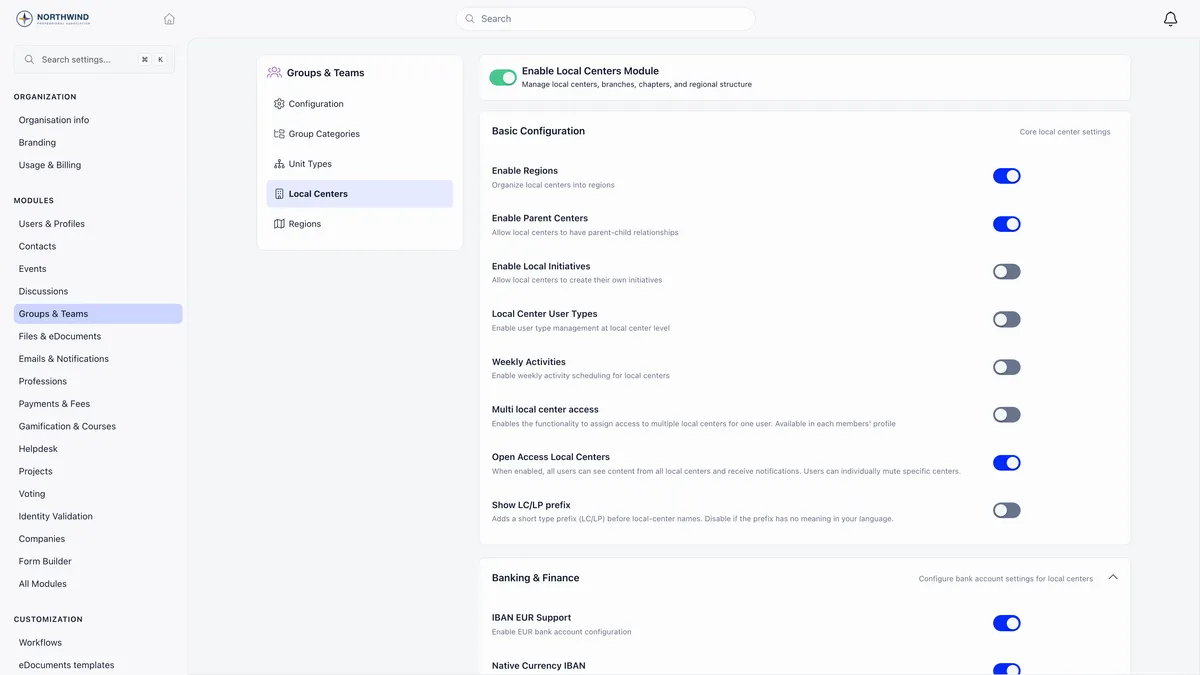
Parent chapters and regions are not the same thing. Parent chapters affect permissions. Regions grant nothing on their own.
Creating a chapter
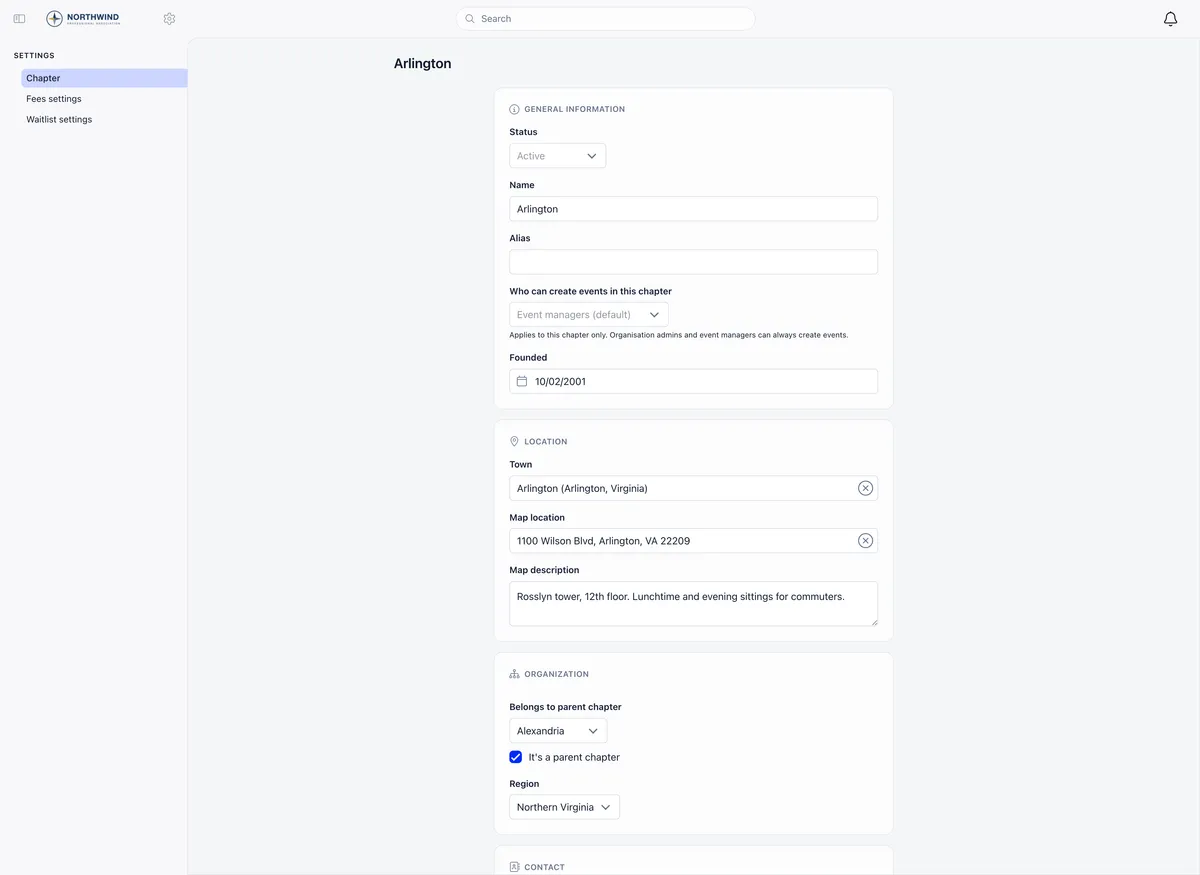
- Open Chapters and press Create chapter.
- Fill in General information: status, name, alias, who can create events in this chapter, and the founded date. Status and founded date are organisation admin only.
- Fill in Location: town, map location by address lookup, and a map description shown in the map pin popup.
- Set the Organization section: the parent chapter link, the parent chapter flag and the region. These fields appear only when the matching setting is on.
- Complete Payments, Contact and Online and Legal and Banking as needed.
- Save.
A chapter currency can be set once and never changed, because past payments and the connected Stripe account are bound to it. Set it deliberately.
Who can create events in this chapter sets the bar for that chapter alone: event managers, any member of the chapter, or chapter admins only. It does not travel down the tree, so opening one chapter to all its members never opens the chapters beneath it.
Putting a chapter in the tree
Two fields on the chapter form do the work, and they are independent.
| Field | What it means |
|---|---|
| It’s a parent chapter | This chapter is allowed to have chapters under it. It says nothing about whether it has a parent of its own. |
| Belongs to parent chapter | The chapter directly above this one. The picker offers only chapters already flagged as parent chapters. |
Tick both on the same chapter and it sits in the middle of the chain, a child of the one above and a parent of the ones below. There is no two-level limit: national, region, district and branch is a supported structure, and so is anything deeper.
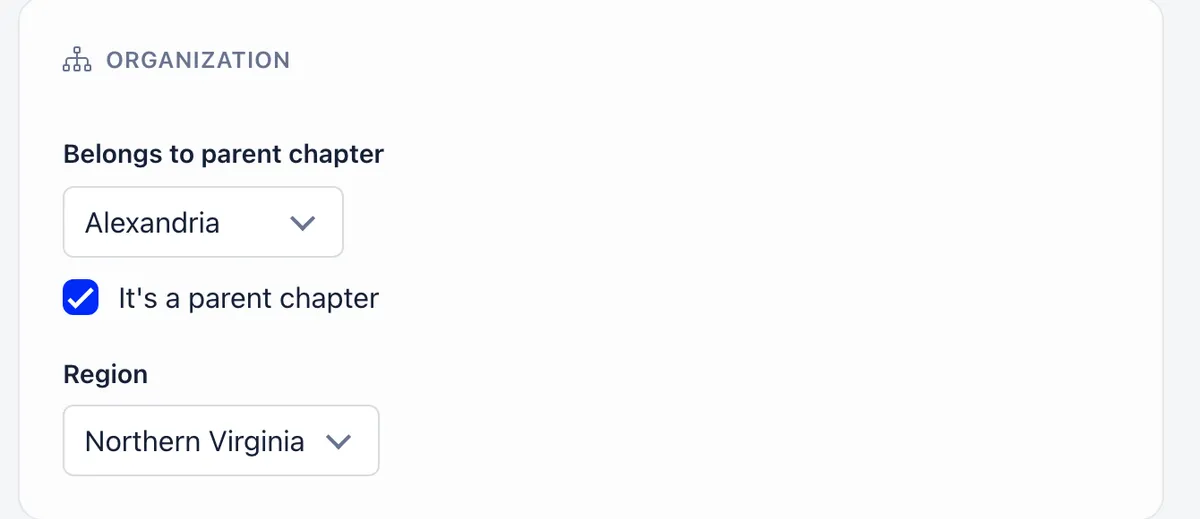
Four rules are checked when you save, and a refused save tells you which one you hit: the chosen parent must itself be flagged as a parent chapter, a chapter cannot be its own parent, a chapter cannot be placed under one of its own descendants, and the parent must belong to the same organisation. Separately, you cannot remove the parent flag from a chapter while chapters still point at it.
Changing where a chapter sits requires organisation-level HR rights (HR_TENANT). Chapter admins can see those two fields but not change them.
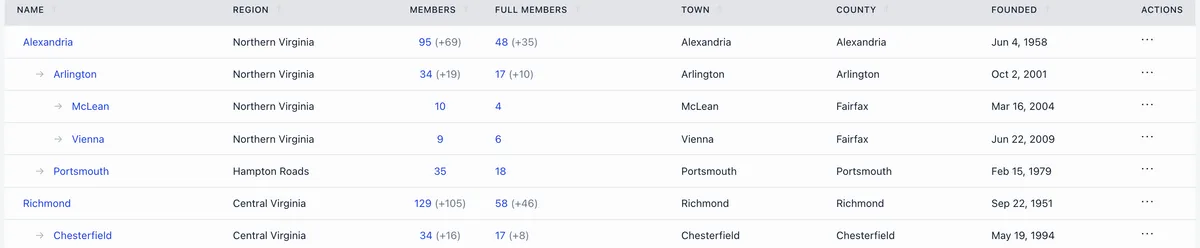
In the chapters list, a branch arrives together: each top-level chapter is followed by its whole branch, indented by depth. A member count followed by a figure in brackets is a branch total, and the bracketed part is the contribution of the chapters beneath, counted through the whole branch rather than one layer down. Subtract it to get the chapter’s own members.
The anchor rule
This is the rule to get right. A parent-scope permission (ADMIN_PARENT_LOCAL, HR_PARENT_LOCAL and the rest of the family) is anchored to one chapter, and the anchor is worked out from the holder’s own primary chapter. You do not choose it.
| The holder’s own chapter | The anchor |
|---|---|
| Flagged It’s a parent chapter | That chapter itself |
| Has no parent at all | That chapter itself |
| An ordinary chapter that has a parent | The chapter directly above it |
The permission then covers the anchor and every chapter below the anchor, however many layers down. It never reaches upward past the anchor, and it never crosses into another branch.
The third row is where organisations get caught. An ordinary chapter anchors one level up, so the grant reads as “everything under the same parent as this person”, and that includes their sibling chapters.
Written out for the same tree, where National holds North Region, North Region holds Riverside and Hillside, and Riverside is itself flagged as a parent and holds Riverside East:
| The holder’s chapter | HR_PARENT_LOCAL covers |
|---|---|
| National | National and every chapter beneath it |
| North Region | North Region, Riverside, Hillside, Riverside East |
| Riverside, flagged as a parent | Riverside and Riverside East only, never North Region |
| Riverside East, an ordinary chapter | Riverside and Riverside East |
| Hillside, an ordinary chapter | North Region, Riverside, Hillside, Riverside East |
Flagging a chapter as a parent is what pins the anchor to the chapter itself and stops a mid-level grant climbing to the top of the organisation. If a district officer should run the district and its branches but not the region above, flag the district as a parent chapter.
There is a second, quieter consequence of the same anchor. A plain chapter-scope permission is satisfied when the record’s chapter is the holder’s own chapter or their anchor chapter, so an ordinary chapter’s ADMIN_LOCAL also passes checks on the chapter directly above. It still never reaches downward into the chapters beneath.
Assigning chapter admins
Local permissions sit on a member’s profile, on the Permissions tab, under three headings that show each checkbox’s scope: Organization, Chapter and Parent chapter. Granting them needs HR or admin rights at organisation level.
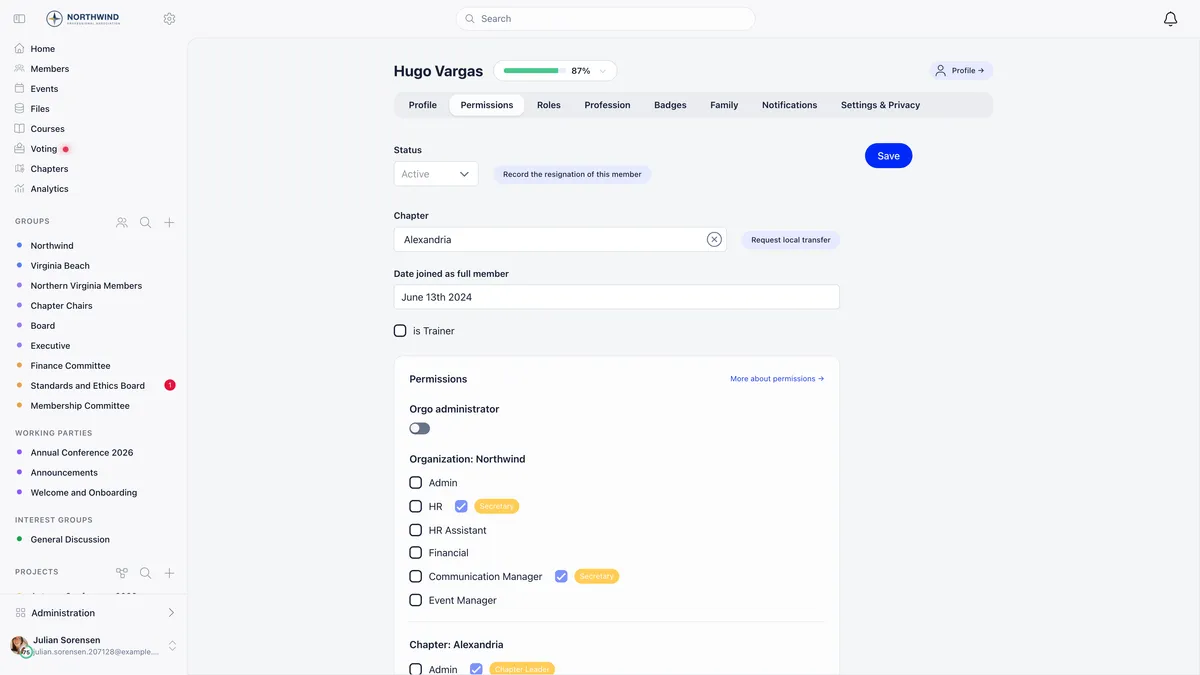
| Permission | What the holder gets |
|---|---|
ADMIN_LOCAL | Full control of the chapter, including editing it |
HR_LOCAL | Member management inside the chapter |
FINANCIAL_LOCAL | Fees and payments for the chapter |
EVENT_LOCAL | Events for the chapter |
COMMUNICATION_LOCAL | Communications for the chapter |
HR_ASSISTANT_LOCAL | Reduced member management |
The _PARENT_LOCAL variants of each | The same area, across the anchor chapter and every chapter beneath it |
The parent variants only mean anything when Enable Parent Centers is on, and local permissions are hidden entirely when the Local Centers module is off.
Note that the Orgo administrator switch at the top of the same panel is a separate thing. It controls the organisation Settings screens, and granting ADMIN_TENANT does not grant it.
What a chapter-scoped grant actually reaches
Wherever a parent chapter is the filter, the results cover its whole branch rather than one layer: members, fee and product payments, subscriptions, adhesions, transfer requests, resignation requests, waitlist entries, chapter analytics, and the member counts on the chapters list.
A plain chapter grant covers exactly the holder’s own chapter, never the chapters beneath it. That includes units: a chapter admin reaches the units of their own chapter however deeply nested, but not the units of a chapter below theirs. Administering a branch’s units needs a parent-scope permission.
What a chapter owns
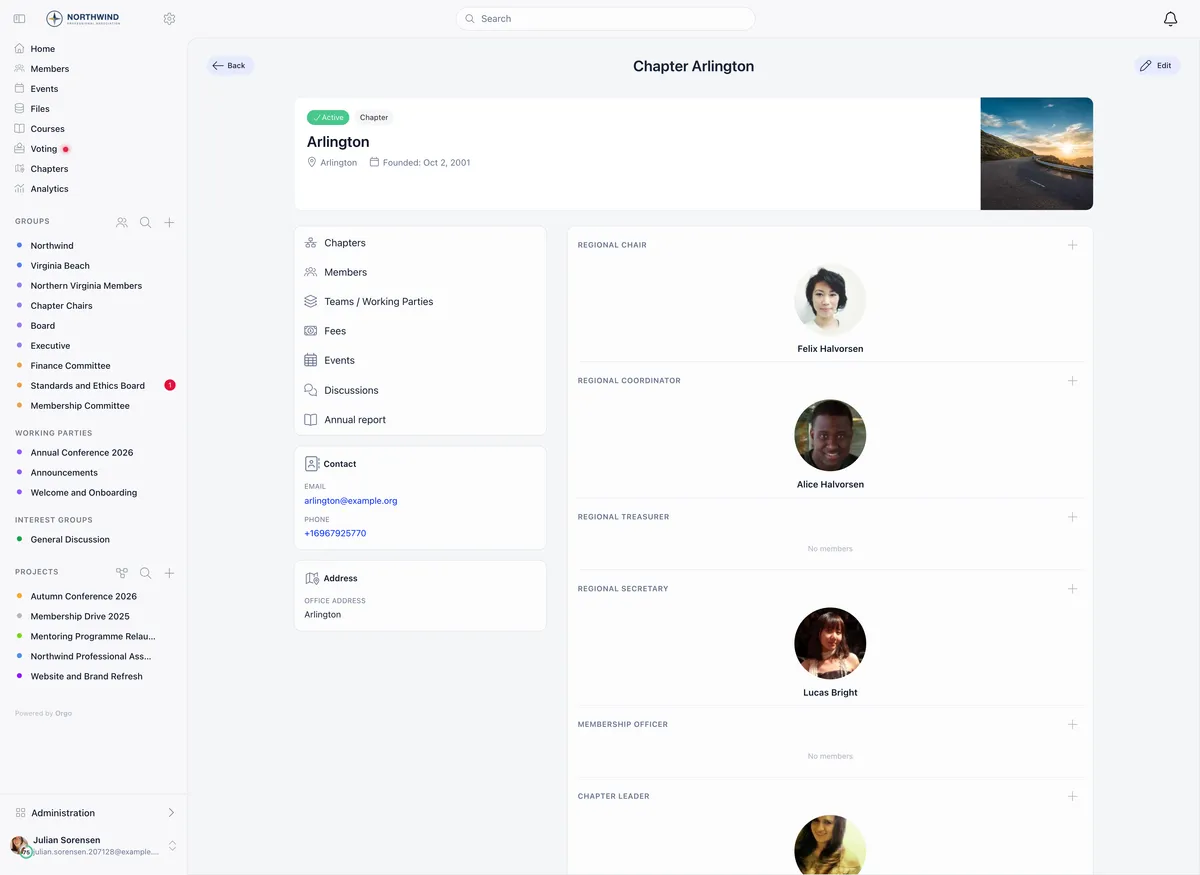
The chapter page opens with a card of shortcuts into the chapter, contact and address cards, and a Team panel that groups officers by role. Admins add a member to a role, drag members between roles and remove them. Adding someone from another chapter asks you to confirm the transfer.
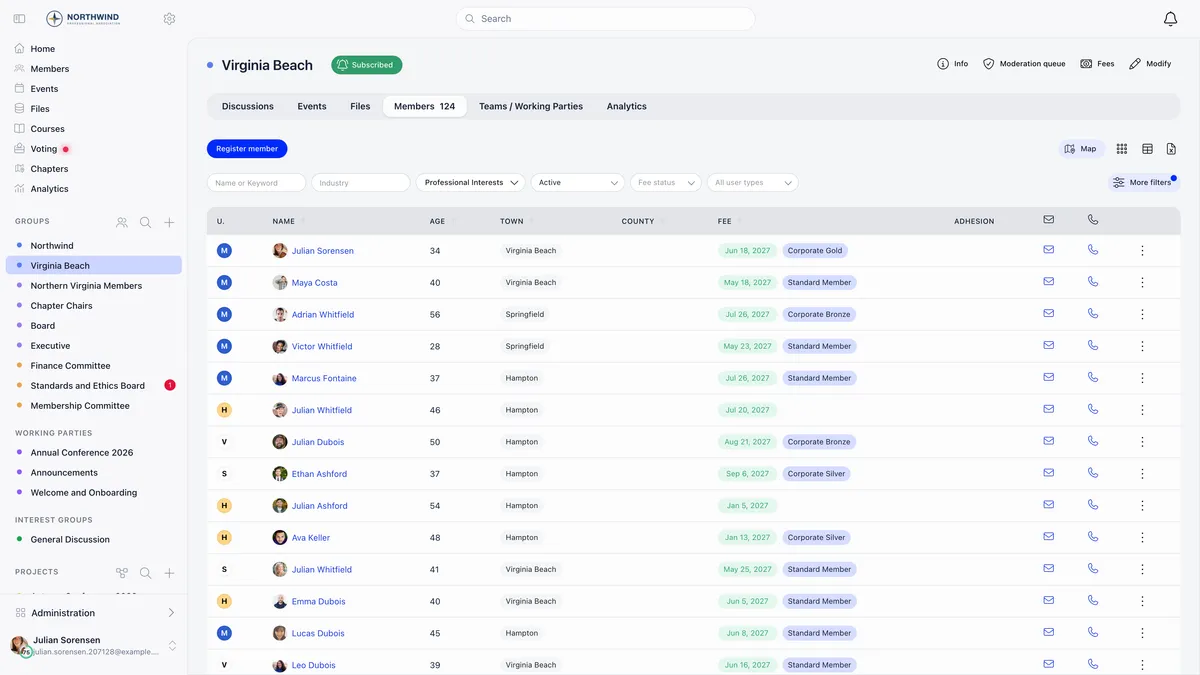
The tabs a chapter carries depend on which modules are on: discussions, events, files, members, one tab per local unit type, and analytics. Chapter analytics reuses the organisation dashboards scoped to the chapter, and each section appears only if the holder has the local counterpart of the permission that grants it organisation-wide.
The Team panel lists only the roles marked as chapter roles in your roles settings, and a parent chapter reads a different flag from an ordinary one. A chapter that is both a parent and a child shows both sets, because it holds both kinds of post.
A chapter can collect its own dues
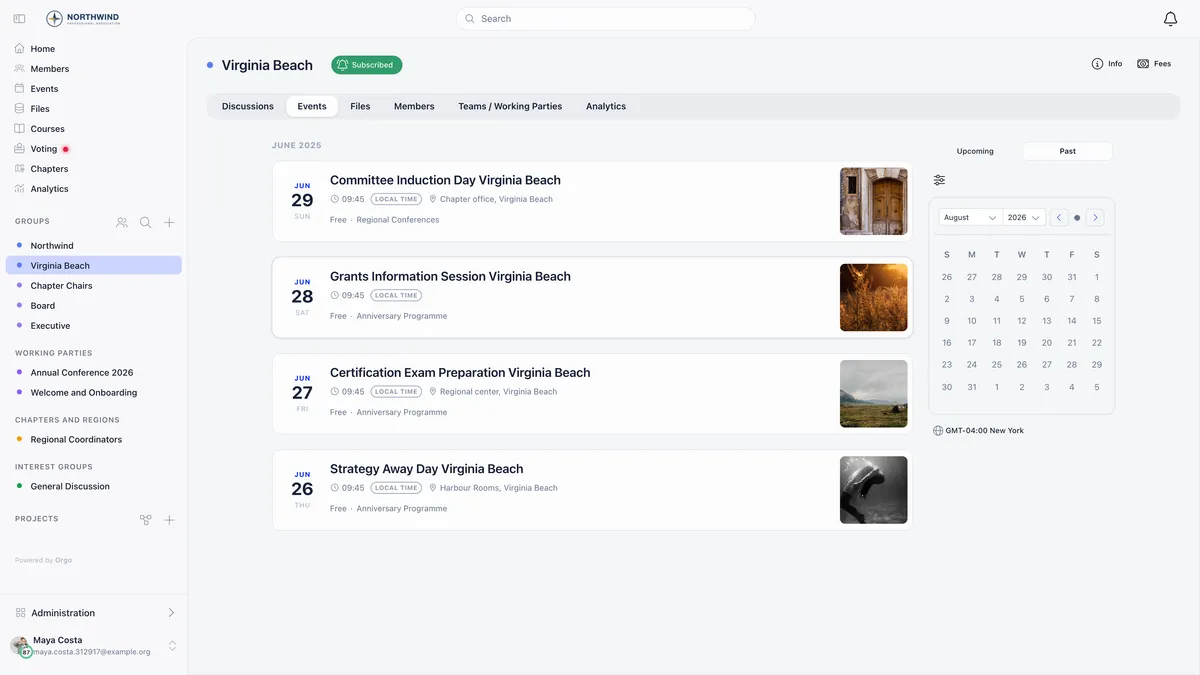
A chapter has its own settings sidebar, and where fees are active it carries its own fee product, default price and connected Stripe account, so local dues are collected and reported separately from national ones. Separate books per branch under one organisation is the core of Orgo’s multi-chapter management.

Filtering payments or subscriptions by a chapter requires financial rights over that chapter and refuses with an access error otherwise.
Giving somebody authority over a branch that is not theirs
Nothing on the permissions panel points a parent-scope grant at another branch. Three routes exist instead.
- Move their primary chapter with a transfer request. This changes their anchor, and with it everything a parent-scope grant reaches.
- Multi local center access, which lets organisation HR and admins grant named extra chapters on the profile, each with its own permission level and optional end date. It has to be switched on in the Local Centers settings first.
- An organisation-level permission, which covers everything.
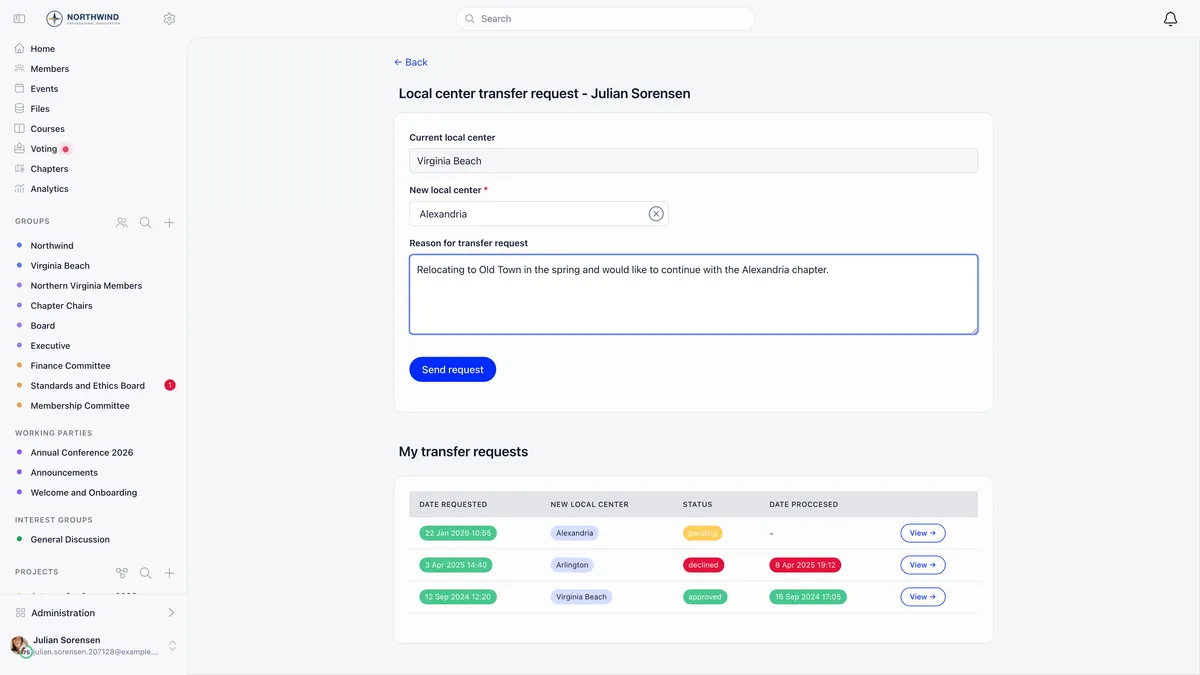
Every member has exactly one primary chapter. Extra chapter grants are access, not a second home chapter. For cross-chapter working spaces use a private group or a role group instead.
Statuses and closing a chapter
| Status | Effect |
|---|---|
| Active | Normal operation |
| Pending close | Still counted as active, signals a wind-down |
| Suspended | Still counted as active |
| Closed | The only inactive status. The chapter drops out of active lists |
The chapters list opens on the active filter, and that filter means the exact Active status, not the three that count as active. A chapter set to Pending close or Suspended disappears from the default view while still counting in member totals. The map, the destination picker on a transfer request and the extra-chapter picker read the same feed, so suspending a chapter also stops anyone transferring a member into it.
Deleting a chapter first checks for local Stripe customer records, pending invitations and transfer requests pointing at it. If any exist, Orgo sets the status to Closed and stamps an end date instead of removing the record, and both outcomes report success the same way. When a hard delete does go through, the members are not deleted with it: their chapter field is emptied, which leaves them failing every check that compares their chapter with something else. Move the members first.
Troubleshooting
A parent-scope permission is not reaching the chapters I expected
Work out the holder’s anchor from the table above, starting from their own primary chapter. If the grant is climbing higher than you want, flag their chapter as a parent chapter. If it is not reaching far enough, the holder’s chapter is deeper in the tree than you assumed, or their chapter is flagged as a parent when you did not intend it to be.
A chapter admin opens another chapter’s edit page and sees a blank screen
The route only asks whether they hold chapter admin rights somewhere, so the page loads. The form then renders for organisation admins and for the holder’s own primary chapter, so for anyone else it stays empty with no permission message. This includes somebody who holds multi local center access on that chapter, because the form checks the primary chapter only.
A member holding no chapter admin rights at all fails the route check instead and is sent to the login screen, which looks like an expired session and is not one.

Saving a chapter is refused when I change its parent
Two different refusals. A message about tenant-level permission means the editor holds chapter admin rights rather than organisation HR rights: the same edit saves fine if the parent selector and the parent chapter checkbox are left alone. A message about the parent being invalid, a chapter being its own parent, a descendant being chosen, or the parent flag not being removable means one of the four structural rules was broken. The most common one is picking a chapter that is not itself flagged as a parent chapter.
Members only see their own chapter
Membership travels up the tree and administration travels down. A member of a branch is placed in the spaces of the region and the national body above it, while a member of the national body is not placed in the branches below it.
Two settings change this. Open Access Local Centers lets every member see content from every chapter and mute the ones they do not want. Isolate Local Center Access does the opposite and hides the chapters above a member, one layer at a time. The two are mutually exclusive.
Related
- Local centers, the full reference
- Permissions and how a check is decided
- Assigning permissions
- Units, the teams inside a chapter
- Member transfers
- Collecting dues at chapter level
Frequently asked questions
Why does my chapter admin see chapters that are not theirs?
Because a parent-scope permission is anchored, not aimed. Orgo works the anchor out from the holder's own chapter. If their chapter is an ordinary chapter with a parent, the anchor is the chapter directly above them, so the grant covers that parent and every chapter beneath it, including their sibling chapters. Flagging their chapter as a parent chapter pins the anchor to their own chapter and stops the grant climbing.
How many levels of chapters can I have?
As many as you need. A chapter that has a parent can itself be a parent, so national, region, district and branch is a supported structure and so is anything deeper. A ceiling of 20 exists as a guard against a loop in the data, not as a limit you are expected to reach.
Why can I not change which parent chapter a branch belongs to?
Moving a chapter in the tree requires organisation-level HR rights. Chapter administrators can see the parent selector and the parent chapter checkbox but cannot change them, because the parent link decides who administers whom: moving a chapter hands its whole branch to a different set of administrators. Everything else on the chapter form stays editable with chapter admin rights.