

Where a member’s permissions come from
A member’s effective permissions are the union of three sources, recalculated whenever a role or a checkbox changes. Only active roles count: a role with an end date in the past contributes nothing.Recommended assignments
Attaching permissions to a role
1
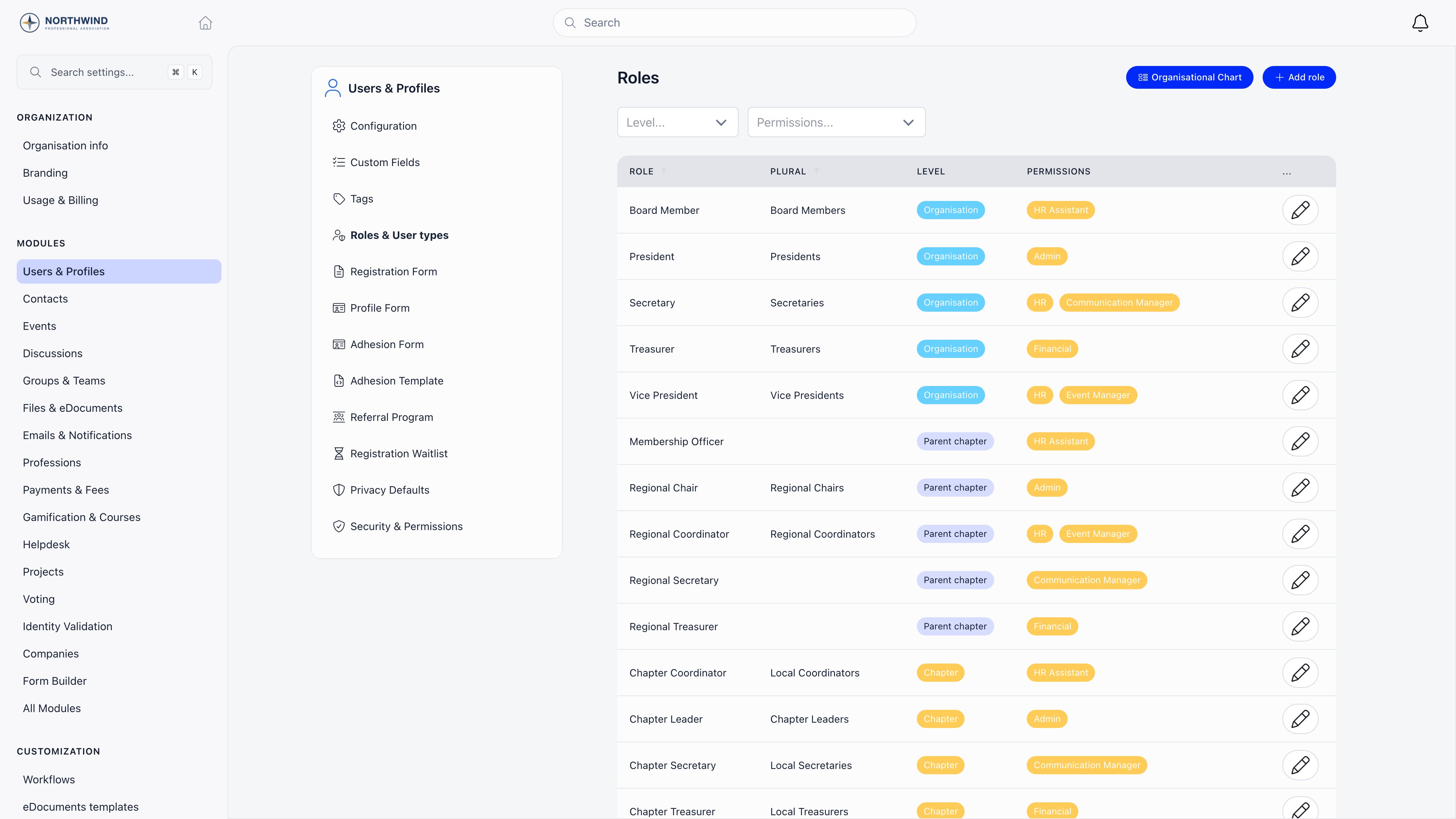
Open Roles
Settings → Users & Profiles → Roles & User types.
2
Add or edit a role
Give it a name and a plural, then pick a level: None, User type, Chapter, Parent chapter, Organization, or one of your unit types. Only the levels your modules support are offered.
3
Tick the permissions
The checkboxes are grouped Organization level, Local group level and Parent local center level. Only the groups your modules support appear.
4
Assign the role to members
On a member’s Roles tab. They pick up the role’s permissions immediately.
A role marked as a user type cannot carry permissions. Ticking the user type level clears the permission list. Use a separate role for the responsibility, or assign the permission directly.
A Parent chapter role attaches to the member’s own chapter when that chapter is flagged It’s a parent chapter, and otherwise to the chapter directly above it. It never attaches further up than that, so giving a district officer a parent-chapter role never files them against the region. A member whose chapter is neither a parent nor has one cannot be given a parent-chapter role at all, and the assignment is refused with “Members is not part of any parent local center”.
Assigning directly on a member
Open Members, the person, Edit, then the Permissions tab. It is visible if you hold HR or higher for that member’s chapter and local administrators have not been restricted (below). Checkboxes are grouped under Organization, Chapter and Parent chapter, each heading naming the actual organization, chapter or region. Changes apply on the member’s next page load, so ask them to reload if they had Orgo open. A permission that comes from a role shows a second, locked checkbox beside it with the role’s name on an orange tag. You cannot untick that one here; end the role instead.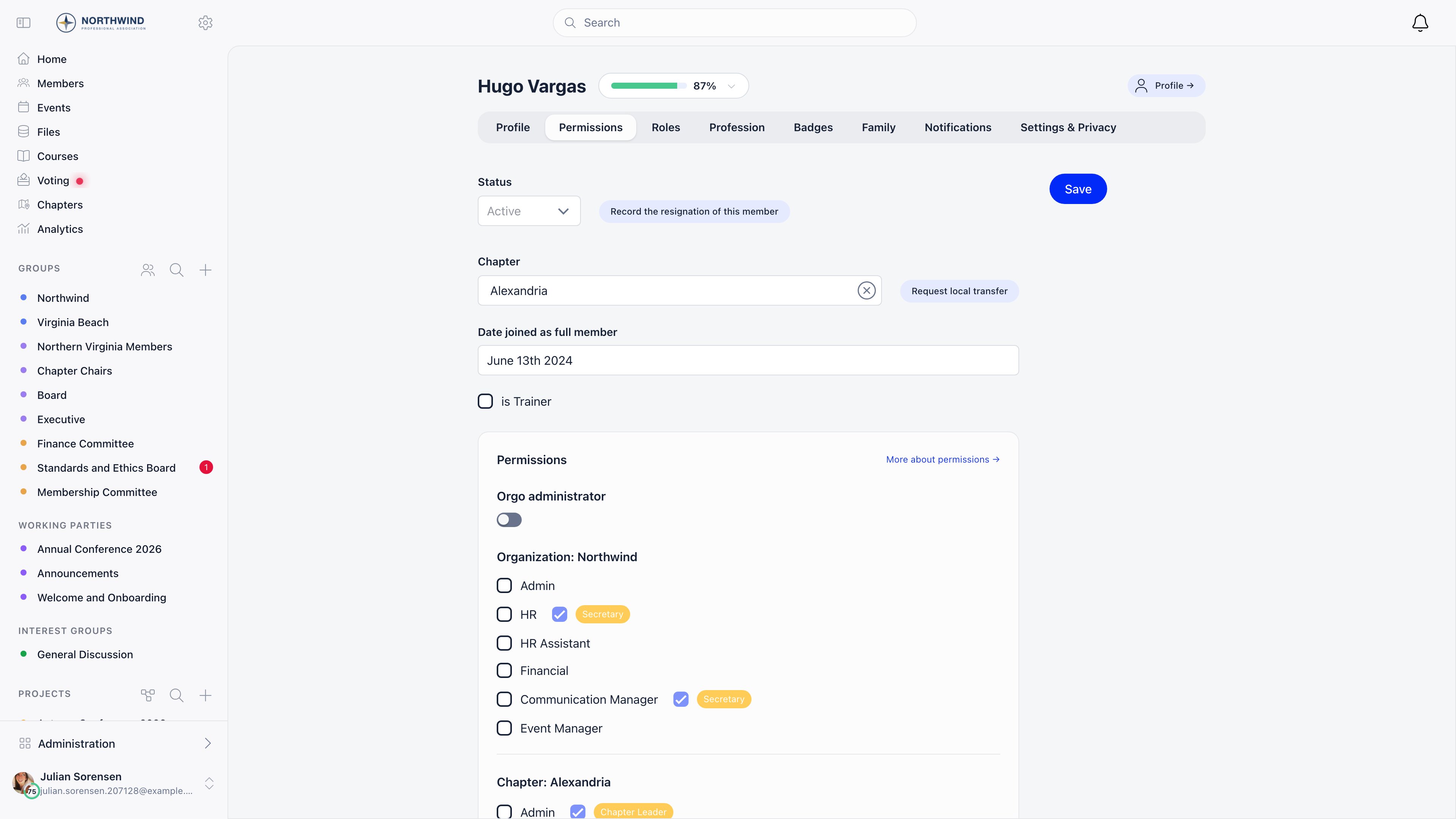
Rules on who may grant what
These are enforced on save, not just hidden in the interface.Worked example: what at or below your own level means
Your own level is a rank, and the rank comes from the permission’s family first and its scope second. Families, highest first:
Within a family, organisation beats parent chapter beats chapter. Across families it
does not: the whole Admin family sits above the whole HR family, and so on down.
Separately, you can never grant at a wider scope than your own, whatever your rank.
Two things fall out of that, and both surprise people:
- Being organisation-wide does not put you above every chapter permission. The
organisation’s secretary general holding
HR_TENANTranks belowADMIN_LOCAL, so they cannot tick Chapter administrator on anyone’s Permissions tab: the checkbox is simply not rendered for them. Nor can the treasurer holdingFINANCIAL_TENANTtickHR_LOCAL. The communications lead holdingCOMMUNICATION_TENANTranks at the very bottom and can hand out nothing except Events and Communication permissions. - A chapter-scope person cannot reach out of their scope at all, whatever their
rank. A chapter president holding
ADMIN_LOCALcan grant every chapter permission up to and includingADMIN_LOCAL, and nothing at parent chapter or organisation scope, because scope is checked before rank.
Assigning a role is not gated this way. Any role, including one carrying
ADMIN_LOCAL, can be assigned by anyone holding HR_LOCAL on that member’s chapter.
So attaching a permission to a role and letting chapter secretaries hand that role out
delegates the permission far more widely than ticking the same box directly ever would.
Review the Permissions column on Settings → Users & Profiles → Roles & User types
and decide deliberately which permissions are allowed to travel by role.Giving one person access to several chapters
Turn on Multi local center access in Settings → Groups & Teams → Local Centers. A Multi chapter access section then appears on each member’s Roles tab, visible toHR_TENANT and ADMIN_TENANT.
Each row pairs a chapter with a permission level: User, HR, Admin, Financial, HR Assistant, Event Manager or Communication Manager, all at chapter scope. Use Add Local Center Access for each extra chapter; the grant applies only to that chapter, so someone can be an HR manager in one and a plain member in another.
Testing permissions with impersonation
Impersonation lets an administrator browse Orgo with a reduced permission set, to see what a chapter treasurer or a plain member actually sees.1
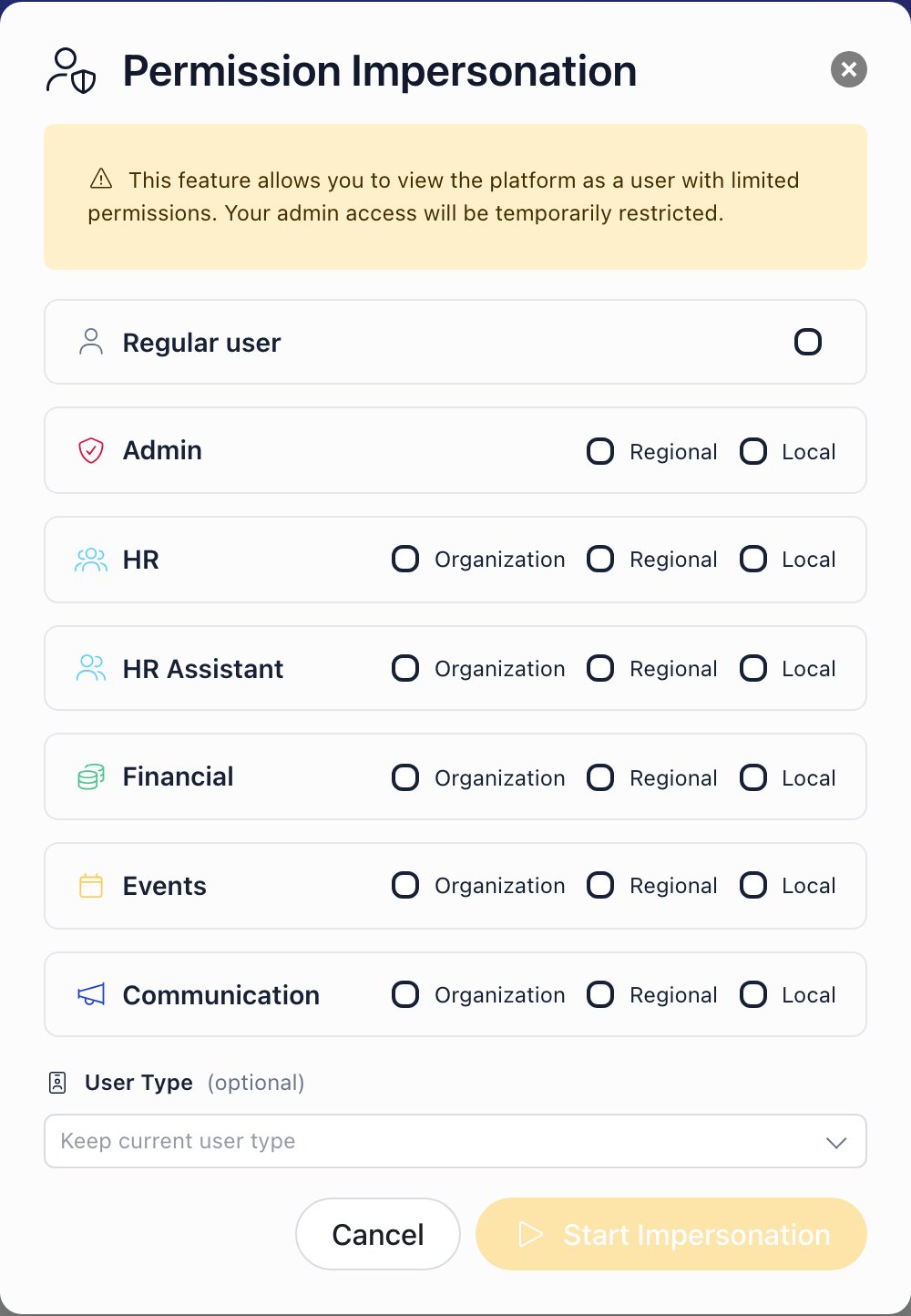
Open Permission Impersonation
Your profile menu, Permission Impersonation. It is offered to Orgo administrators, and hidden while a session is already running.
2
Choose what to simulate
Tick domains and scopes, or choose Regular user, which excludes everything else. You can also pick a user type, on its own or alongside permissions.
3
Browse
The page reloads and a banner reads Permission Impersonation Active with the simulated permissions listed.
4
Stop
Click Exit in the banner.
Auditing who holds what
Open Members and use the Permissions filter: it lists Orgo administrator first, then every permission grouped under Organization, Chapter and Regional. Tick several to see everyone holding any of them. It reads effective permissions, so it catches role-derived grants as well as those ticked directly on a profile, and it isADMIN_TENANT only; anyone else asking is refused.
For the other direction, which roles carry which powers, Settings → Users & Profiles → Roles & User types has a Permissions filter and a Permissions column showing each role’s grants as tags.
Run the member filter whenever someone leaves. Ending a member’s role removes the permissions it carried, but a directly ticked checkbox survives a role ending and survives a change of chapter.
Troubleshooting
They have ADMIN_TENANT but Settings is missing
They have ADMIN_TENANT but Settings is missing
Settings screens require the Orgo administrator flag, which is a separate switch above the permission checkboxes. Turn it on.
A permission checkbox is not in the list
A permission checkbox is not in the list
Either the module it belongs to is off (Financial needs Fees, Event Manager needs Events), or the scope is unavailable (chapter permissions need Local Centers, parent chapter permissions need Enable Parent Centers), or it is above your own level.
A chapter manager sees the wrong chapter's data
A chapter manager sees the wrong chapter's data
Check their chapter on the profile, and check the Multi chapter access rows on their Roles tab. A regional permission covers an anchor chapter and every chapter beneath it at any depth, so with a three-layer structure it can reach further than the layer you had in mind. Work the anchor out from their own chapter using What a parent-scope permission reaches.
A checkbox is missing even though I clearly outrank the person
A checkbox is missing even though I clearly outrank the person
Ranking is by permission family, not by reach.
HR_TENANT outranks HR_LOCAL
but not ADMIN_LOCAL, because Admin sits above HR in the family order.
FINANCIAL_TENANT does not reach HR_LOCAL. COMMUNICATION_TENANT reaches
almost nothing.This is the intended rule, not a bug, and it is enforced on save as well as in
the interface, so working around it by other means fails too. Worked through in
What at or below your own level means.
If you need someone to be able to appoint chapter administrators, either give them
the Orgo administrator flag or make the appointment yourself.Starting impersonation on a Settings page shows the login screen
Starting impersonation on a Settings page shows the login screen
Impersonation switches off your Orgo administrator status for the whole session,
and every Settings screen requires it. Because starting a session reloads the page
you are on, starting it from anywhere under Settings immediately fails the check
and lands you on the login page.You are not signed out. Navigate back to a page your simulated permissions can
open, such as the dashboard, and the Permission Impersonation Active banner
with its Exit button is there again. That banner is part of the normal
application layout, so it is not drawn on the login page, which is what makes this
look worse than it is. Start impersonation from an ordinary page and this does not
arise.
One Settings page opens for someone the rest refuse
One Settings page opens for someone the rest refuse
Settings → Users & Profiles → Roles & User types checks the
ADMIN_TENANT
permission, while every other Settings screen checks the Orgo administrator
flag. Someone who holds the permission but not the flag has no way into Settings
from the interface, since both entry points (the cog in the header and the item in
the profile menu) are drawn only for the flag. Send them a direct link, though, and
Roles & User types opens while every neighbouring link on that same sidebar bounces
them to the login page.Treat it as one page having a looser gate than intended, not as a supported way to
delegate role editing. If someone needs to manage roles, give them the Orgo
administrator flag knowingly, or make the change yourself.Being refused looks like being signed out
Being refused looks like being signed out
When a route refuses you, Orgo sends you to the login page rather than showing an
access denied message. Your session is intact and the page you wanted is
remembered, so this reads as a random sign-out when it is really a permission
refusal.If a colleague reports being logged out at a specific link, do not start with their
session. Compare the permission the page requires against what they actually hold,
using the Permissions filter on the member list to confirm their effective
permissions rather than trusting the checkboxes on one profile.
Related
- Permissions - the permission model itself
- User Types & Roles - creating the roles you attach permissions to
- Role Groups - groups that fill themselves from roles
- Local Groups - chapters, parents, and what chapter scope means
- Troubleshooting Access - when someone cannot sign in at all