

Before you start
Five decisions shape everything below. Settle them on paper first. Each one turns into a form field, a switch or a price row later, and the ones about identity documents and about chapter currency cannot be unwound in the product at all.- Statutes and membership rules to hand. You can say who is eligible to join, what the application has to contain, who signs it, and what your statutes oblige the party to keep on file afterwards.
- Identity document chosen, with the legal basis written down. You know which document you ask for, why you need it, how long you intend to keep it, and under which lawful basis you hold it.
- Territorial structure drawn. Every layer named, from the party down to the smallest branch, whether you need a region tier above your branches, and which currency each branch collects in. A chapter’s currency is set once and can never be changed.
- Dues schedule agreed. One price per membership category, the billing period, and whether branches keep part of what they collect.
- Reviewers named, branch by branch. For each branch, who validates the application, who runs the interview, and who takes the decision.
HR_TENANT sees the whole party, everyone else sees only the chapters they hold HR_LOCAL on. A branch with nobody holding HR_LOCAL has nobody watching its applications except tenant-wide officers.Who this is for
You are in the right place if most of these are true:- Somebody applies to join, a committee reviews the application, and the party admits them. Registering an account is not the same as being a member.
- You need a signed document per member, retrievable years later, with a record of who approved it and when.
- Your statutes divide the country into chapters, and possibly regions above them, each with its own officers.
- Members pay dues, and some chapters keep part of what they collect.
- You hold internal elections: leadership, congress delegates, candidate selection.
- Your statutes require decisions to be recorded and made available to members.
Joining: the adhesion
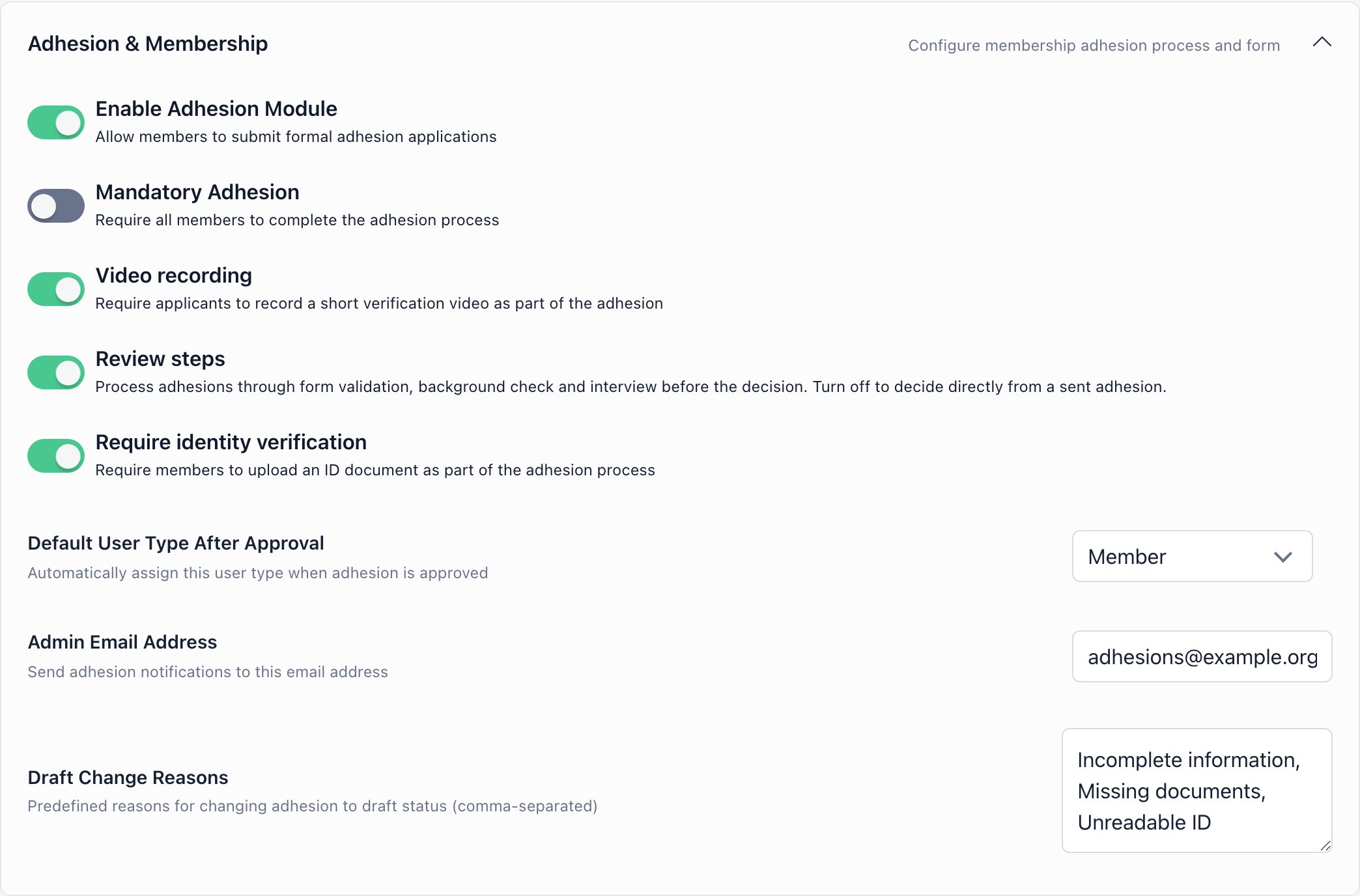
Adhesion is Orgo’s membership application module, and for a party it is the centre of the setup. An applicant fills in a form you define, uploads an identity document, signs the application in the browser, and sends it. Your team then moves it through a review chain and approves or rejects it. Full detail: Adhesion. Turn it on at Settings → Modules → Users & Profiles → Configuration → Adhesion & Membership → Enable Adhesion Module (ADMIN_TENANT). The module is off by default; Review steps and Require identity verification are both on by default once it is.
The three pieces you configure
{{signature}} and {{dateSignature}} in the signature block. Leave an area empty and Orgo falls back to its own default for that part.
What the applicant does
Start the application, upload the front of an identity document (and the back if the document carries information there), fill in the form, sign on a canvas, and send. Signing is what generates the PDF from your template with the signature embedded, and stores it as the application’s signed document. Send is refused until a signed document exists and, while Require identity verification is on, until an ID has been uploaded. Staff holdingHR_LOCAL over the applicant’s chapter can fill the form in on somebody’s behalf, for a paper application received at a branch office. They get no signature canvas: they upload the signed file instead, up to five files.
Reviewing
Management → Adhesions in the sidebar,HR_LOCAL. The queue is scoped: HR_TENANT sees the whole party, everyone else sees only chapters they hold HR_LOCAL on, and HR_PARENT_LOCAL and above get a chapter filter.
One row is one application. The chips across the top carry live counts per status, so the queue doubles as your backlog report, and the per-row controls open the signed document, the video, the identity record and the status picker without leaving the list.
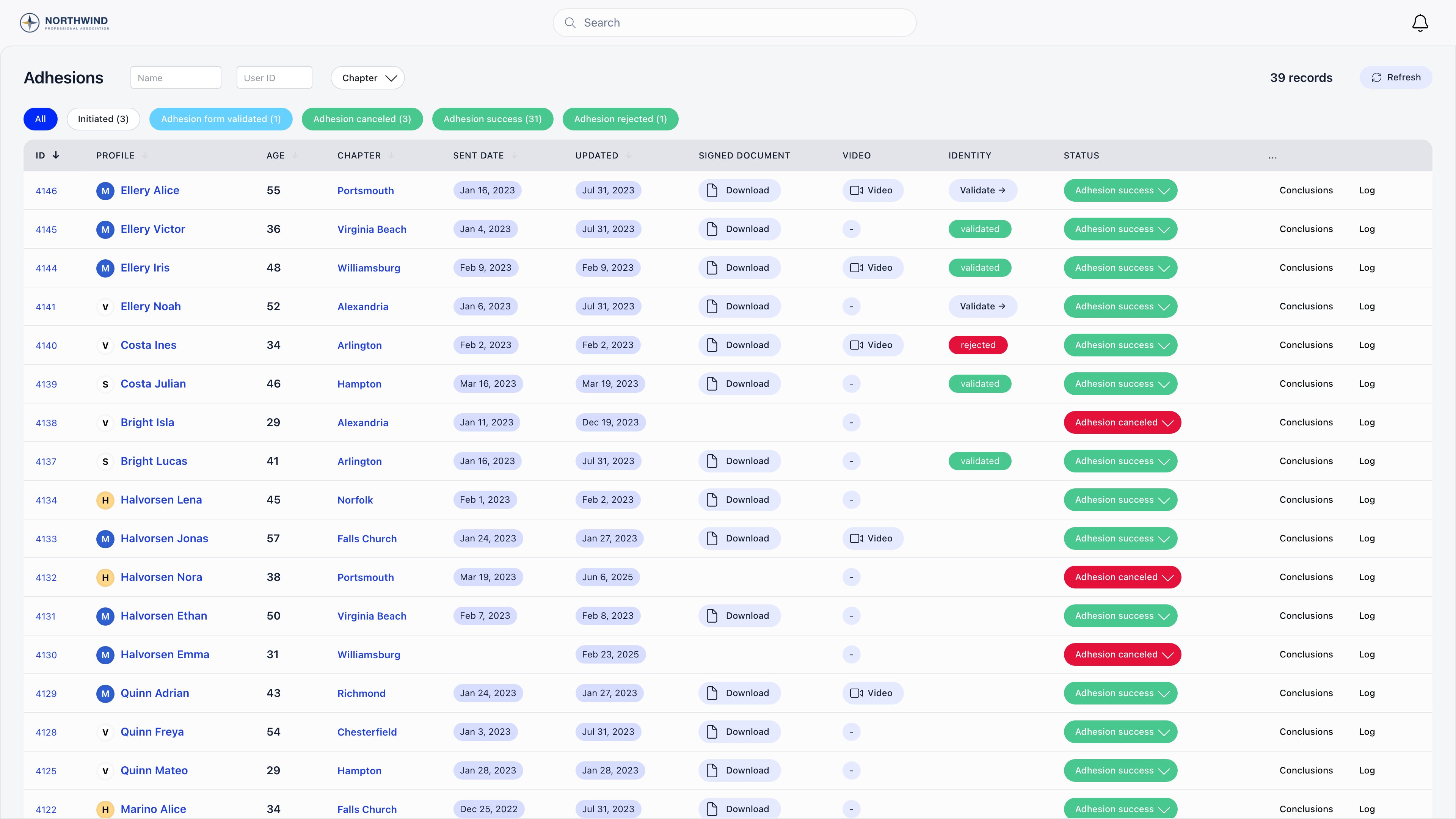
- Adhesion form validated is refused until the identity document has been validated, unless you turned identity verification off.
- Adhesion success and Adhesion rejected are refused until both the Interview conclusion and the Background conclusion have been saved on the Conclusions screen.
- Adhesion canceled requires a cancel reason.
- Sending an application back to Initiated opens your Draft Change Reasons picker, deletes the signed document so it must be signed again, and emails the applicant the reasons you selected.
What approval actually does
Approving sets the member’s full member flag, assigns the Default User Type After Approval (creating the underlying role assignment if they did not already have it), and stamps the date they became a full member. The approval email only goes out if the user type actually changed, so somebody who already held that type hears nothing.The audit record
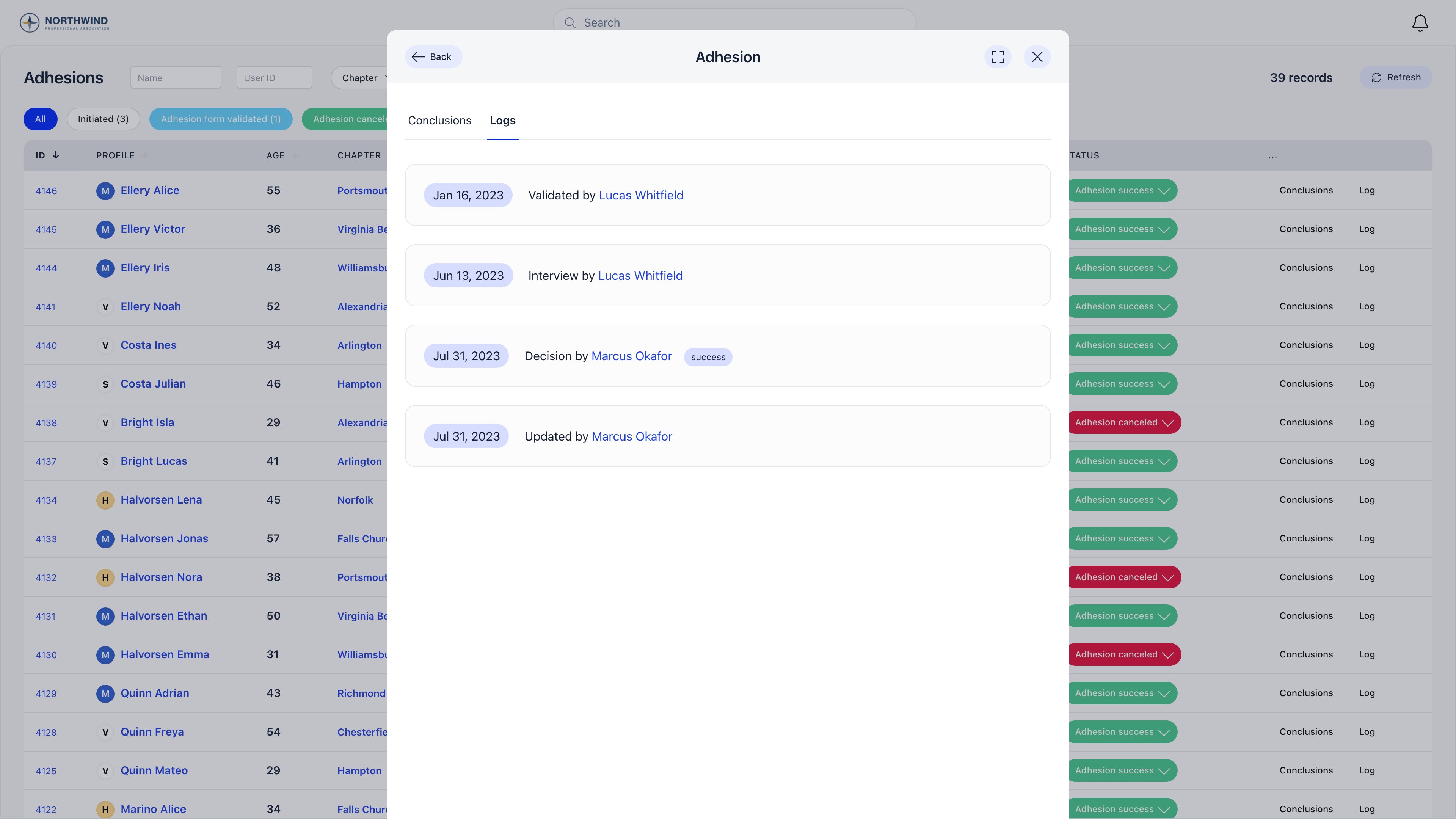
Conclusions and Log on a queue row open the same screen (/adhesion/{id}/log, HR_LOCAL). The log names who sent, validated, interviewed, decided on and last updated the application, each with a timestamp and a link to the person, followed by the field-level changes. That, plus the signed PDF, is the evidence that a member was admitted according to your statutes.
ADMIN_LOCAL or above, and members who already hold the configured success user type, are exempt. It is the right setting for a party that admits nobody without an application, and it makes your review turnaround into a support problem if the queue is slow. Turn it on after the first review round, not before.Verifying identity
Many jurisdictions require a verifiable identity before someone can be enrolled as a party member. Identity Validation is the feature that collects one.What it does
- Accepts an image of the document: PNG, GIF and JPEG. PDFs are rejected. Front, plus a back side when you switch on Document has information on the backside.
- Reads Romanian documents automatically (old ID card, new ID card, passport), keyed off the CNP. It extracts first name, last name, date of birth, document series and number, CNP, expiry date and document type from the front, and issue date, town, county and address from the back.
- For every other country the upload and review flow still works, but an administrator types the details in by hand.
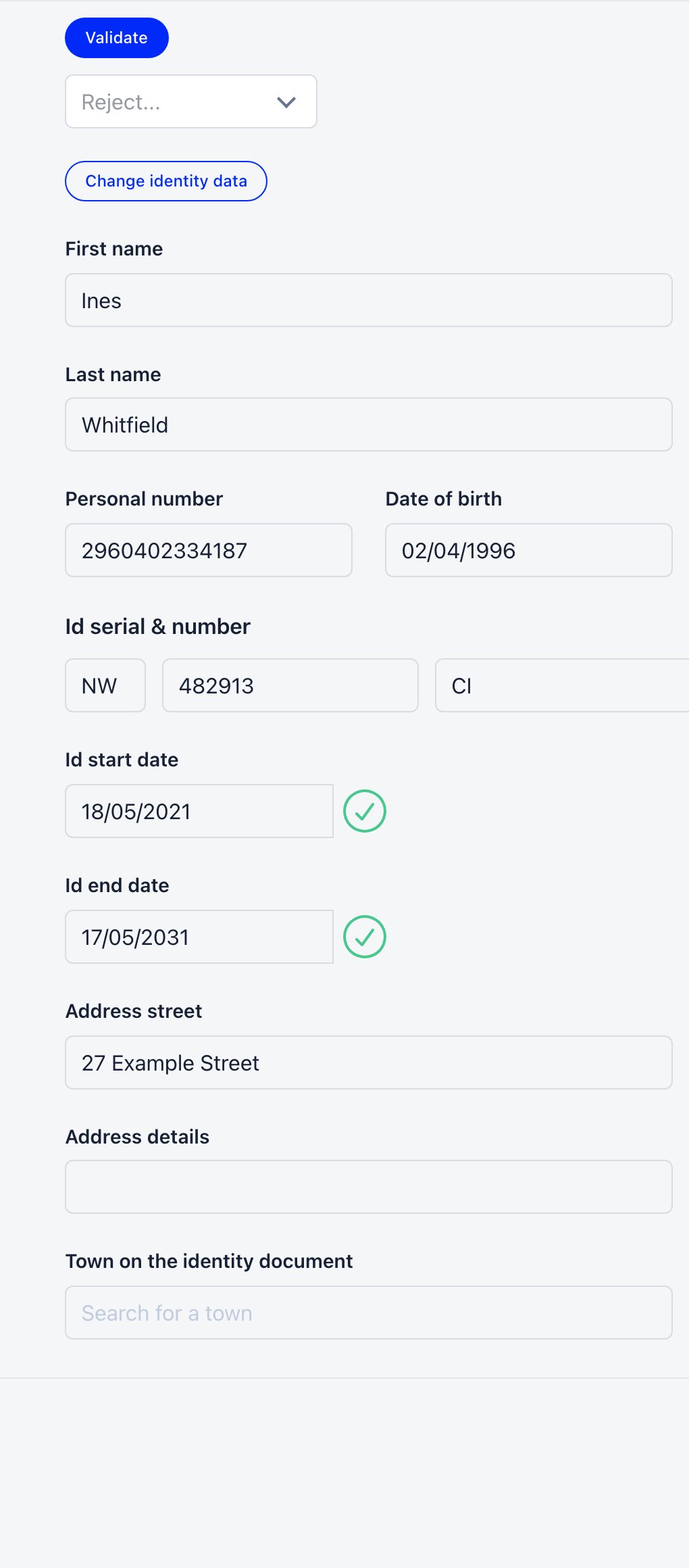
- Puts the record in front of a reviewer who Validates or Rejects it, stamping who approved it and when. Rejection requires one of three reasons and emails the applicant, who can upload again.
- Records the states Pending, Orgo validated (read automatically, still open for a human), Validated and Rejected.
HR_ASSISTANT_LOCAL over the member’s chapter, which HR_LOCAL, HR_PARENT_LOCAL, FINANCIAL_LOCAL and ADMIN_LOCAL all satisfy, as do the tenant-wide ADMIN_TENANT, HR_TENANT and FINANCIAL_TENANT.
The review screen is the whole feature in one place: the uploaded document on the left, and beside it the details read off it and the decision. Below is that second column.
What it does not do
Be honest with your members and your own committee about this. Identity Validation is document capture and human review, not verification.- It does not check the document against any register. Nothing talks to a national identity service, an electoral roll or a sanctions list.
- Outside Romania, approving a record only requires a first and last name. Nothing forces the reviewer to confirm the document is genuine, and nothing compares the photo to the person.
- There is no expired state. An expired document keeps whatever status it had; expiry is only checked at the moment somebody tries to validate it.
- There is no selfie or liveness step, and no way for the member to correct what was read. Everything after the upload is done by an administrator.
- There is no re-check reminder for members. The renewal reminders exist only for payment-linked identities.
The module toggle and the adhesion step are two different things
This trips people up. The identity step inside an adhesion is driven entirely by Require identity verification in the adhesion settings. It creates the same identity record and runs the same reading, whether or not the Identity Validation module is switched on. The module switch at Settings → Modules → Identity Validation governs the payment-linked flows (Require for Online Payments, the reminder ladder, subscription reconfirmation) and whether the identity emails appear in the template list. So a party that wants ID checks on membership applications and nothing else needs only the adhesion setting. Turn the module on when you also want identity tied to payments.Territorial structure
Orgo calls a territorial branch a chapter (local center in the data model, the API and the permission names). The Local Centers module is on by default; the layers above and below it are not.ADMIN_TENANT. See Chapters and Units.
There is no limit of two layers. Federal state holding region holding county holding branch is one chapter tree, built by flagging every tier that holds another with It’s a parent chapter and then setting Belongs to parent chapter on each tier below it. A tier in the middle carries both settings at once. Moving a chapter in the tree afterwards requires HR_TENANT, so plan the shape before you delegate.
Once they exist, Chapters in the sidebar is your map of the party. Each tier is indented under the one above it, in tree order, and a chapter’s members figure carries a (+N) count for everyone in the chapters beneath it, counted through the whole branch rather than one tier down.
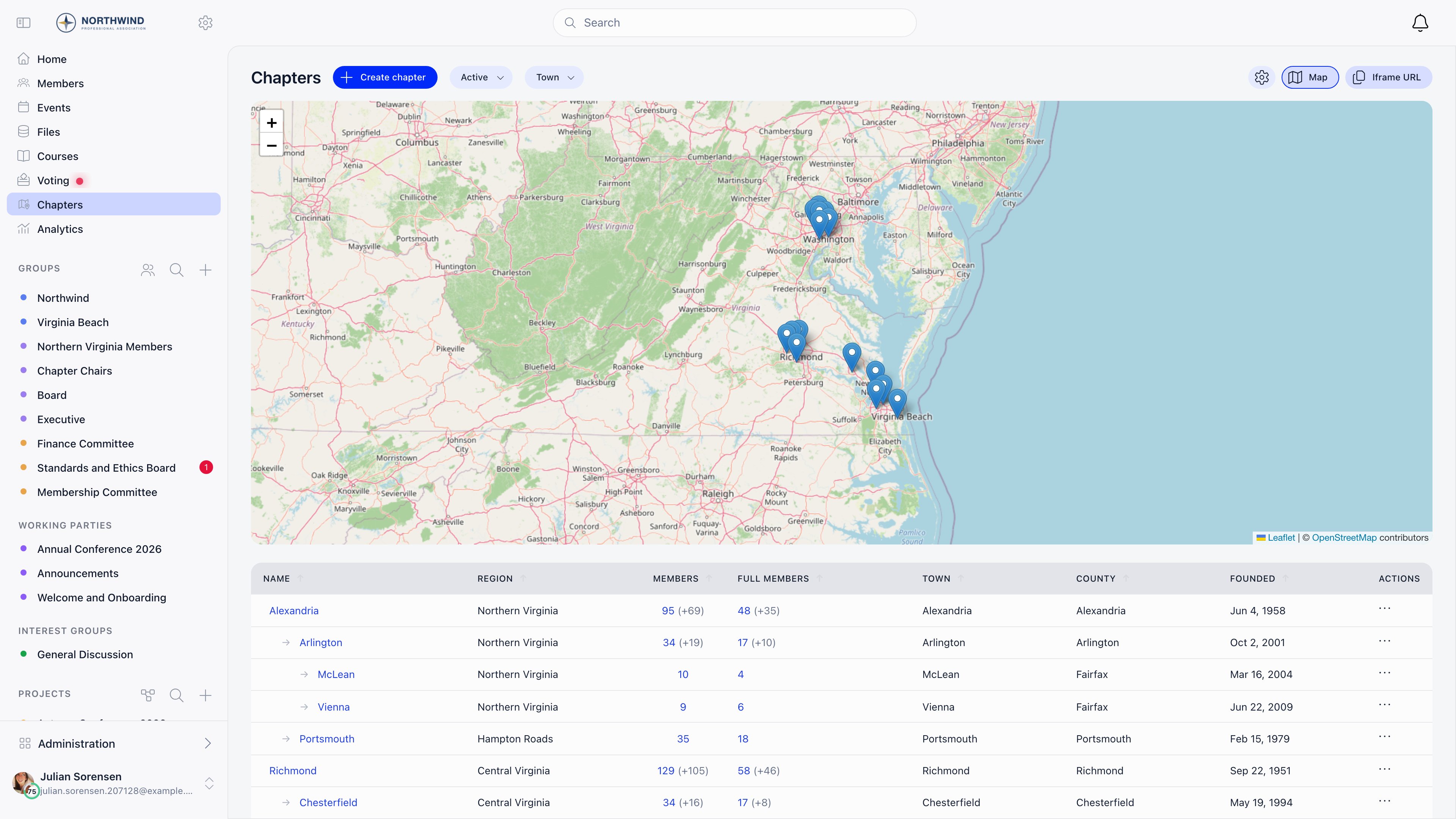
Officer permissions follow the layer
Permissions belong on roles, never on user types: a user type cannot carry a permission at all. Match the role’s level to the post.ADMIN_PARENT_LOCAL grants every local permission across one anchor chapter and every chapter beneath it, however many tiers down; ADMIN_LOCAL grants every non-parent local permission inside its own chapter alone. Both are computed from the holder’s own primary chapter, so a regional officer’s reach follows them if they move.
The anchor is the officer’s own chapter when that chapter is flagged It’s a parent chapter, and otherwise the chapter directly above theirs. A county chair filed against a county that is flagged as a parent therefore administers the county and its branches and nothing above it, which is what you want. A branch officer given the same permission anchors to their county instead, and so reaches every branch of that county.
When a member moves
A member has exactly one primary chapter. Moving them is a transfer request: somebody raises it with a written reason, and the receiving chapter approves it, not the one being left. That asymmetry is usually what a party wants, because the branch taking somebody on is the one with an interest in checking. Approval does three things: sets the primary chapter, ends the member’s open member-type role assignment stamped to the chapter they are leaving, and creates a new one in the destination. Everything else stays where it was created, including fee payments, invoices, discussions and any additional roles. Treat a transfer as a change of home branch, not as a data migration. The alternative, direct reassignment from the chapter selector on a member’s Permissions panel, needsHR_TENANT, records no reason and rewrites no role assignments. Use it to correct an import mistake, not to move a real person.
Membership dues
Dues are the ordinary Membership Fees machinery: a fee product with one price per membership level, selected as Membership Fee Product and Default Price under Settings → Modules → Payments & Fees → Membership fees.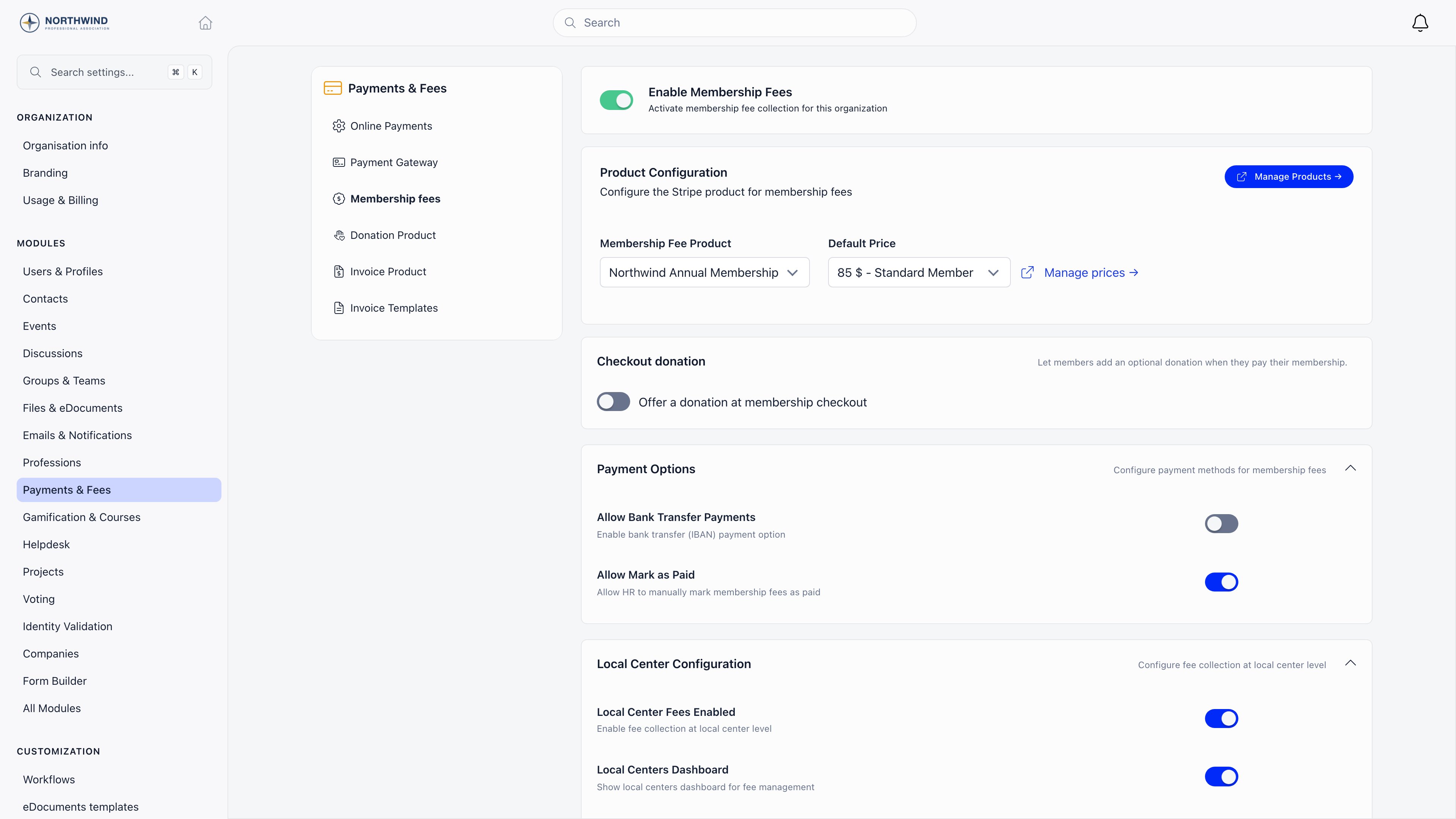
Chapter dues
If branches keep part of what they collect, turn on Local Center Fees Enabled and give each chapter its own fee product and default price. A member then carries two independent validity dates, one for the party and one for the branch, and can be current on one and expired on the other. A chapter that connects its own Stripe account receives its own chapter fee payments; without one they fall back to the party account. See Chapter fees. For the branch treasurer collecting cash at a meeting, switch on Local Center Members Table. That gives the Member fees table: one row per member, one column per period, a checkbox on everything still owed. Ticking and pressing Pay writes one pending payment batch stamped as a bank transfer, which anADMIN_TENANT then approves. Only approval moves anybody’s validity date.
Fundraising
Party fundraising, whether from members or from supporters who are not members, runs on the donation machinery: campaigns with suggested amounts, public campaign pages at/pay/<slug>, embeddable widgets, recurring giving and a donor wall.
Read the fundraising playbook rather than this page for that. Two of its limits bear directly on party compliance and are worth knowing before you promise anything:
- Donations produce no invoice, receipt document or annual giving statement. The donor gets a thank-you email, and Stripe’s own receipt if you enable it.
- A chapter designation on a gift is a label, not a bank instruction. Picking a chapter under Designate to stamps the payment with that chapter for filtering and permissions; the money still settles into the Stripe account the campaign resolves to. Only fee payments follow chapter Stripe routing.
Internal elections
E-voting covers leadership elections, congress motions and delegate selection. The module is on by default at Settings → Modules → Voting → Enable Voting Module.Eligibility
Three audiences, set on the Who is voting? cards: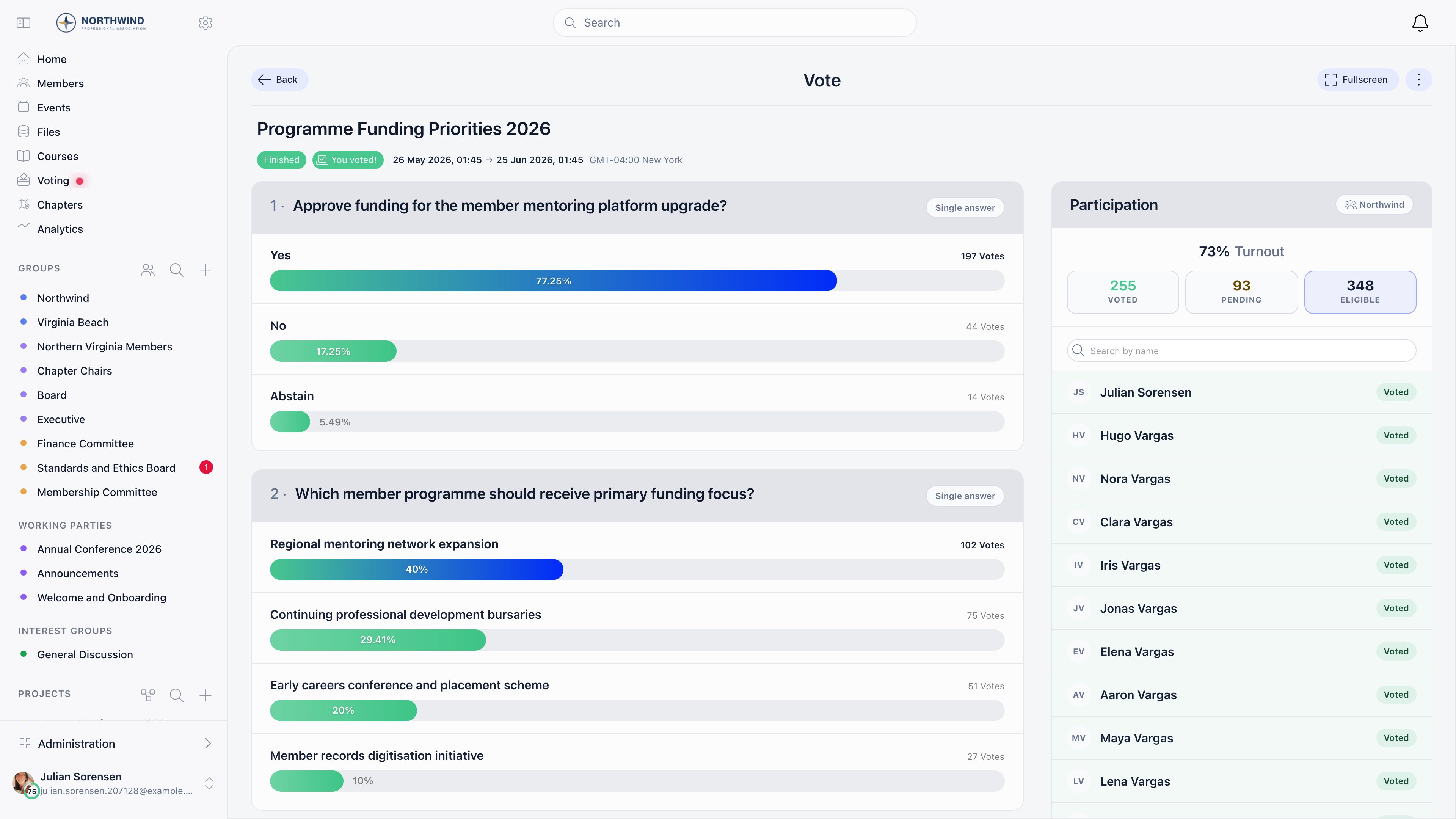
Anonymity, stated precisely
Anonymous voting is on by default. With it on, a ballot is stored with no reference to the person who cast it, and no linking record is written anywhere. This is structural, not a display rule: the storage that would hold the voter’s identity is never populated. Administrators can see who voted; they cannot see what anyone chose. With it off, each ballot is linked to its voter, the voter is warned of that on the ballot before answering, and after the vote closes the people who can manage it get an Individual results panel and a per-voter CSV export. The setting freezes once the vote is published or the first ballot is cast. A vote presented as secret can never be opened up afterwards, and the reverse is blocked too.HR_LOCAL on the vote’s group and above.What the integrity record proves, and what it does not
Voting in the member app returns an integrity code, shown once in the confirmation panel. Pasting it into Integrity verification in the vote’s actions menu confirms whether the tally recorded when that ballot was counted still matches the stored ballots. It proves: no ballot recorded at or before that point was altered, deleted or inserted afterwards. It does not prove: who cast the ballot, what option was chosen, that the voter was eligible, or that the result is correct. It carries no identity and is not a signature from an external authority. It is tamper evidence over the stored ballots, nothing more. Two practical gaps. Codes are issued only in the member app: the Event App and the emailed link for non-member attendees return none. And ballots cast from the Event App voting tab are recorded without the voter link even on a vote configured as non-anonymous, so they count in the totals but never appear in Individual results or the per-voter export. Run non-anonymous votes on the main member app. Finally: Orgo has no quorum and no majority threshold setting. It reports raw counts and percentages, and your commission applies the rule in your statutes and records the outcome itself.Publishing decisions and leadership
The register of decisions
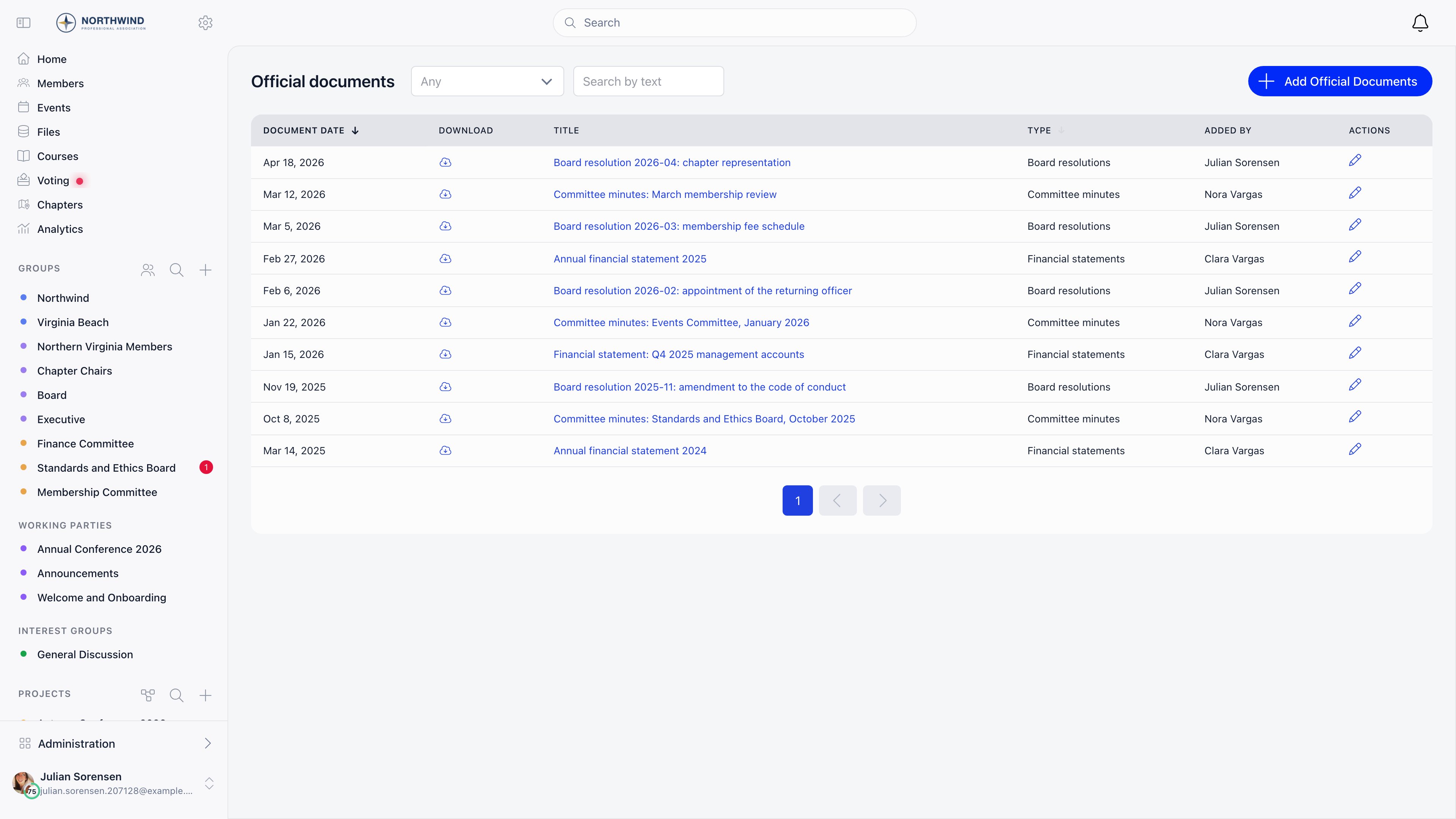
The Official Gazette is a dated, numbered register of your formal documents: congress resolutions, executive decisions, statutes, minutes. Turn it on at Settings → Modules → Files & eDocuments → Official Gazette → Enable Official Gazette Module (ADMIN_TENANT, off by default). It then appears in the sidebar as Official documents.
Each entry has a type, a subject, an optional document number, an official document date (which is what the list sorts by), free text for search, and one attached file. Numbering is yours: Orgo stores what you type and never generates one.
Who holds which office
The Organizational Chart draws your leadership from the roles you defined and who currently holds them. Nothing is drawn by hand: each box is a role, the number on it is how many members hold it with an open assignment and an Active account, and clicking it lists them. It needs Enable Roles (on by default) and Organizational Chart (off by default), both at Settings → Modules → Users & Profiles → Configuration, bothADMIN_TENANT. Roles land in sections by level: Central for organisation roles, Parent local centers, Chapters, and one section per unit type.
Every signed-in member can open it. There is no anonymous or public version, so it cannot serve as the leadership page on your website.
Handling special-category data
In the European Union, the fact that someone is a member of a political party is special-category personal data under Article 9 of the GDPR. That changes the calculation on every setting in this section: the default is not “what is convenient”, it is “who genuinely needs to see this”. Orgo gives you the controls. Your party is the data controller. Nothing on this page is legal advice, and no configuration of Orgo makes your party compliant by itself. What follows is what the product actually enforces, so you can map it against the advice you take.Who can see that somebody is a member
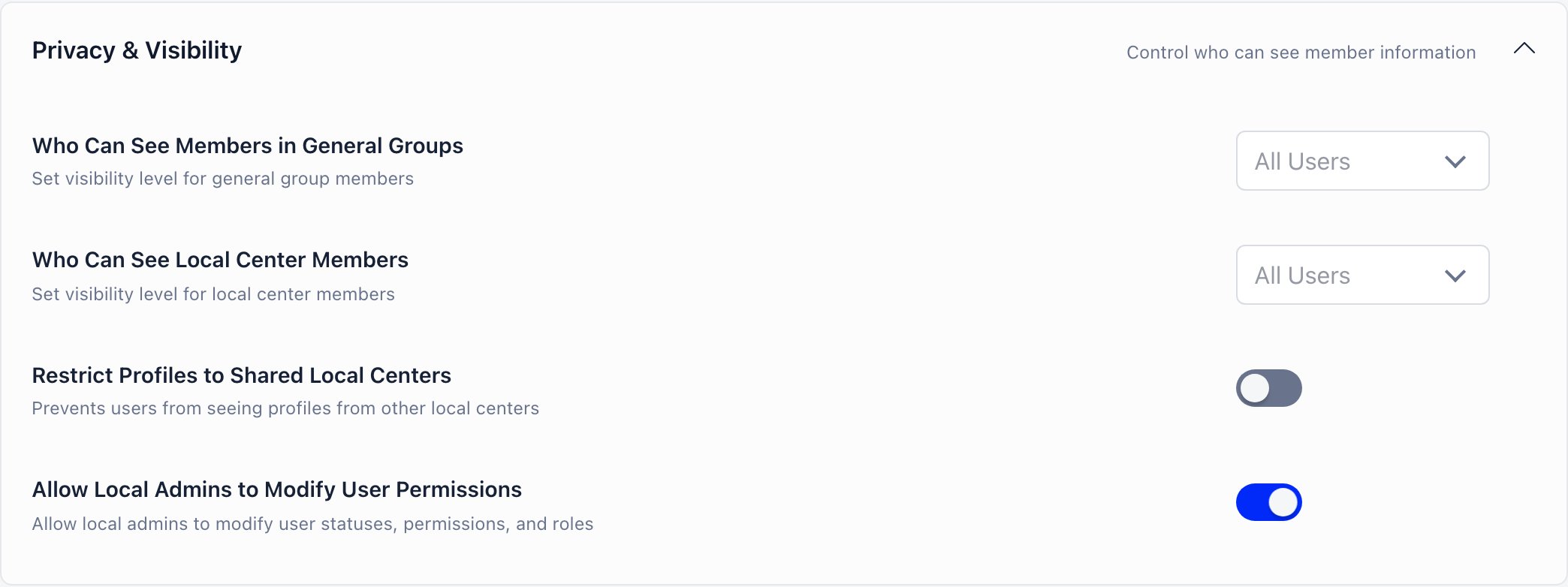
Four independent layers, and they do different jobs.ADMIN_TENANT and sit in one section of one screen, beside a fourth switch, Allow Local Admins to Modify User Permissions, which decides whether branch administrators can change statuses, permissions and roles at all.
The limits of the privacy switches
Make my profile completely private is the strongest member-side control: it removes them from member lists and directory queries entirely, and their profile URL returns “This profile is private”. It is overridden only byADMIN_TENANT, HR_TENANT, HR_LOCAL over their chapter, and ADMIN_PARENT_LOCAL inside its regional scope.
Three fields are hidden from ordinary members however the switches are set: date of birth, member card ID, and the identity verification record. Anonymous visitors and guest accounts always get the strictest treatment.
Exporting the member list
Exporting members to CSV requiresHR_LOCAL at minimum and is capped at 500 rows per page. A plain member cannot download the directory even for fields they can read on screen, so field visibility and bulk access are two separate controls. Every export writes a csv entry to your organization’s activity log naming who ran it.
What is stored about identity documents, and in what form
What an erasure request actually removes
This is the section to read before you answer a member’s request, because account deletion does much less than the word suggests. Deletion clears: email address, phone number, the sign-in identifier (rewritten with a random suffix), chapter, every role assignment row (deleted, not end-dated, so the history of who held which office disappears), followed units and discussions, and access. Company memberships are end-dated. The member is removed from the directory and every listing, and their profile page returns an error for everyone including administrators. Deletion keeps: first and last name, date of birth, gender, addresses and town, bio, profile photo, social links, profession and education fields, custom field values, uploaded identity documents, the adhesion record and its attachments, payments and invoices, event registrations and attendance, and discussion posts and comments. The account row itself stays; deletion sets a status. Note who may delete:ADMIN_TENANT (the button only appears for them), or ADMIN_LOCAL over the member’s chapter for a member who has one. HR_LOCAL and HR_TENANT cannot: they see “This profile can be deleted permanently only by organization Admin” and a Request delete button that opens a support request. Ordinary members cannot delete their own account unless they are on the guest user type, so build the erasure route into your privacy procedure rather than pointing members at a button they will not find.
Leaving, and the three ways to record it
A member who wants out and a member who wants their data gone are making different requests. Handle them differently.The audit trail you actually have
Settings → Developers → Logs,ADMIN_TENANT only. There is no local-admin view of it. It records adhesion creation and status changes, identity creation and changes, upload_identity, member profile edits with the before and after values, CSV exports of members and contacts, and encrypted custom field reads.
It does not record account deletion, and it does not write a row per record for cascades, bulk operations run by Orgo support, or background jobs. The per-application adhesion log at /adhesion/{id}/log is separate and reachable with HR_LOCAL.
What to turn on
Everything below requiresADMIN_TENANT to change, and the Settings screens themselves also require the Orgo administrator flag on your profile, which is a separate thing from the permission. See Permissions.
Joining and leaving
Identity
Structure
Dues
Governance
Data protection
Setup order
The order matters. Several screens stay hidden until an earlier switch is on, and two things cannot be undone afterwards: a chapter’s currency, and the fact that a member list left open has already been read.Fill in the organization profile, then set the privacy floor
Build the territorial structure at Groups & Teams, then Chapters
HR_TENANT, so get it right while you still hold everything yourself.Create roles for your offices and user types for membership categories
Add the custom fields the application will ask for
Write the adhesion template, then build the adhesion form
Turn the adhesion module on, with Mandatory Adhesion off
Run one application yourself, all the way to approval
Set up dues at Payments & Fees
Turn on the governance features
Turn on resignation, with the guest user type already set
Import your existing membership last
Only then consider Mandatory Adhesion
ADMIN_LOCAL or above still reach the rest of the platform.Limits worth knowing before you start
- Identity Validation is not identity verification. No register is consulted, no photo is compared, and outside Romania approving a record only requires a first and last name.
- Automatic document reading is Romania only. Old ID card, new ID card and passport, keyed off the CNP. Everywhere else an administrator types the details in.
- PDFs are rejected as identity uploads. PNG, GIF and JPEG only.
- There is no expired identity state and no re-check reminder for members. Expiry is only checked at the moment somebody tries to validate a document.
- Identity records cannot be deleted from the product, and there is no retention timer. Purging ID scans has to be arranged through Orgo support.
- Account deletion is not erasure. It keeps the name, profile fields, custom field values, uploaded identity documents and the adhesion record, writes no audit entry and notifies nobody.
- Ordinary members cannot delete their own account unless they are on the guest user type. An administrator does it on their behalf.
- Adhesion approval does not change the account status. A member approved while sitting on New request still cannot sign in.
- Creating a vote needs
ADMIN_TENANTorHR_TENANT. A branch administrator cannot open a ballot for their own branch. - Orgo has no quorum or majority threshold. It reports counts and percentages; your statutes are applied by people.
- The integrity code is tamper evidence, not a signature. It says no ballot recorded at or before that point was altered afterwards. It says nothing about identity, eligibility or the choice made.
- Event App ballots carry no voter link, even on a non-anonymous vote. Run non-anonymous votes on the main member app.
- The anonymity setting freezes at publication. A vote presented as secret can never be opened up, and the reverse is blocked too.
- The gazette has no per-entry visibility. Every signed-in member reads every entry; Private is a label, not a restriction.
- Gazette document types are reference data. New ones come from Orgo support, not from a settings screen.
- The organizational chart has no public version. It cannot serve as the leadership page on your website.
- Privacy defaults apply once, at account creation. Changing them later touches nobody, and a member can turn a field back on.
- Financial permissions read every profile field on their chapter’s members, privacy switches included.
- A transfer moves the person, not their data. Fees, invoices, discussions, additional roles and group memberships all stay attached to where they were created.
- A transfer is approved by the receiving chapter, never by the one being left.
- Chapter fees are one-off only and are never charged in the same checkout as the party fee.
- Donations produce no receipt document, and a chapter designation on a gift does not route the money to that chapter’s account.
- The activity log is
ADMIN_TENANTonly. There is no chapter-scoped audit view for a branch secretary.
Setup checklist
Work down this list once and your party is live. Each line is an outcome you can see on screen, in the same order as Setup order above.- Organization profile complete under Organisation info, with legal name, registration number, address, currency, timezone and the GDPR and terms URLs
- Privacy floor set before anybody joins: Who Can See Members in General Groups and Who Can See Local Center Members raised off All Users, and Restrict Profiles to Shared Local Centers deliberately on or off
- Chapters created, each under the right parent and each with the currency you will collect dues in, because a chapter currency can never be changed
- Roles created for every office at the level that matches the post, with permissions attached to roles and never to user types
- Guest User Type selected under User Types & Roles, before the resignation module goes anywhere near an on position
- Custom fields created, each with its visibility and its encryption decided
- Adhesion template written, with the placeholders your statutes need and
{{signature}}and{{dateSignature}}in the signature block - Adhesion form built, asking for every field the template has to print and nothing an applicant cannot answer
- Adhesion module on with Review steps, Require identity verification, Default User Type After Approval, Admin Email Address and Draft Change Reasons set, and Mandatory Adhesion still off
- One application run end to end by you: signed, sent, identity validated, both conclusions saved, approved, with the signed PDF checked and the log reading correctly
- Stripe connected and the fee product pointed at from Membership Fee Product and Default Price, plus Local Center Fees Enabled if branches keep part of what they collect
- Official documents in the sidebar and the organizational chart drawing your real leadership
- Resignation module on, with a test resignation leaving the member on the guest user type rather than on none
- Existing membership imported, spot-checked for chapter and membership category
- A written answer to “what do we do when a member asks us to erase their data”, because the product’s Delete does not answer it
- Mandatory Adhesion switched on only after a pilot chapter has run through the queue at a turnaround you are happy to defend
Troubleshooting
Why can I not move an application to Adhesion form validated?
Why can I not move an application to Adhesion form validated?
HR_ASSISTANT_LOCAL over the applicant’s chapter, which HR_LOCAL, FINANCIAL_LOCAL and ADMIN_LOCAL all satisfy, so it does not have to be the same person who handles the adhesion.The queue refuses my decision and asks for conclusions
The queue refuses my decision and asks for conclusions
We approved a member's application but they still cannot sign in
We approved a member's application but they still cannot sign in
Do we need the Identity Validation module on to check IDs on applications?
Do we need the Identity Validation module on to check IDs on applications?
A branch chair cannot open a vote for their own branch
A branch chair cannot open a vote for their own branch
ADMIN_TENANT or HR_TENANT, which are both organization-wide. ADMIN_LOCAL over a chapter does not qualify, even though the vote itself can be scoped to that chapter as a group vote.Two workable shapes. A national officer creates each branch ballot and hands management over: once a vote exists, HR_LOCAL on the vote’s group can publish, close, archive, duplicate and export it. Or you accept the wider grant and give branch election officers HR_TENANT, which lets them see and manage member data across the whole party. For most parties the first is the right trade.Can we prove to a member that their vote was counted correctly?
Can we prove to a member that their vote was counted correctly?
Our members can see the whole party membership list
Our members can see the whole party membership list
FINANCIAL_LOCAL.A member asked us to erase their data. What actually happens if we press Delete?
A member asked us to erase their data. What actually happens if we press Delete?
Should a departing member resign, be excluded, or be deleted?
Should a departing member resign, be excluded, or be deleted?
We approved a resignation and the member ended up with no membership category
We approved a resignation and the member ended up with no membership category
A member moved city and their branch says they never arrived
A member moved city and their branch says they never arrived
HR_LOCAL on the destination chapter, not the source. A source-side administrator can raise the request but cannot wave it through, so an unapproved request sits in the queue indefinitely: nothing expires it and nothing auto-approves it.The list has no menu entry of its own, which is why requests get forgotten. Bookmark it, and check that the destination branch has somebody holding HR_LOCAL.When it is approved, remember what does not move: their dues history, invoices, discussions, additional roles and group memberships all stay attached to where they were created. Settle anything outstanding at the old branch before approving if your accounting requires it.Our congress resolutions are visible to every member and some should not be
Our congress resolutions are visible to every member and some should not be
Members were not told about a new decision or a new officer
Members were not told about a new decision or a new officer
Applications are piling up and Mandatory Adhesion has locked members out
Applications are piling up and Mandatory Adhesion has locked members out
ADMIN_LOCAL or above, and members who already hold the configured success user type, are exempt.Short term, switch Mandatory Adhesion off while you clear the queue; the applications themselves are untouched. Longer term, either widen who reviews (the queue is open to HR_LOCAL per chapter, so branch secretaries can clear their own) or turn Review steps off if the interview and background steps are not something your statutes require.Related
- Adhesion - the application, its review chain, the signed document and the per-application log
- Identity Validation - what an ID check captures, and what it does not prove
- Resignation - formal departure, and what approval changes
- Privacy settings - who can see which member data, and where the switches stop
- E-voting - eligibility, anonymity and the integrity record
- Chapters - the territorial tier and its permission scopes
- Setup templates - the other playbooks