

Turning it on
Files is a module. An ADMIN_TENANT turns it on at Settings → Modules → Files & eDocuments → Drive: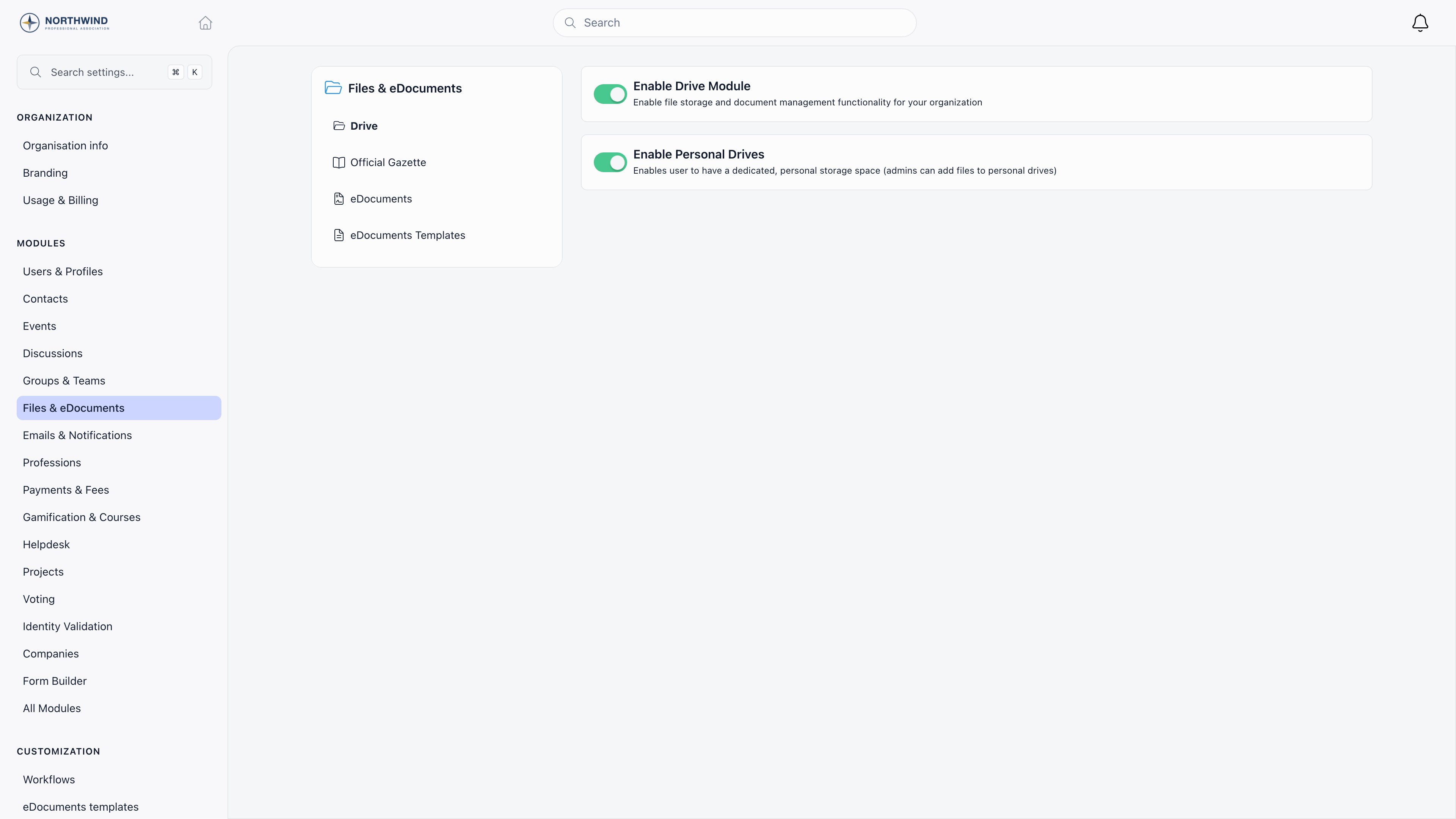
Where files live
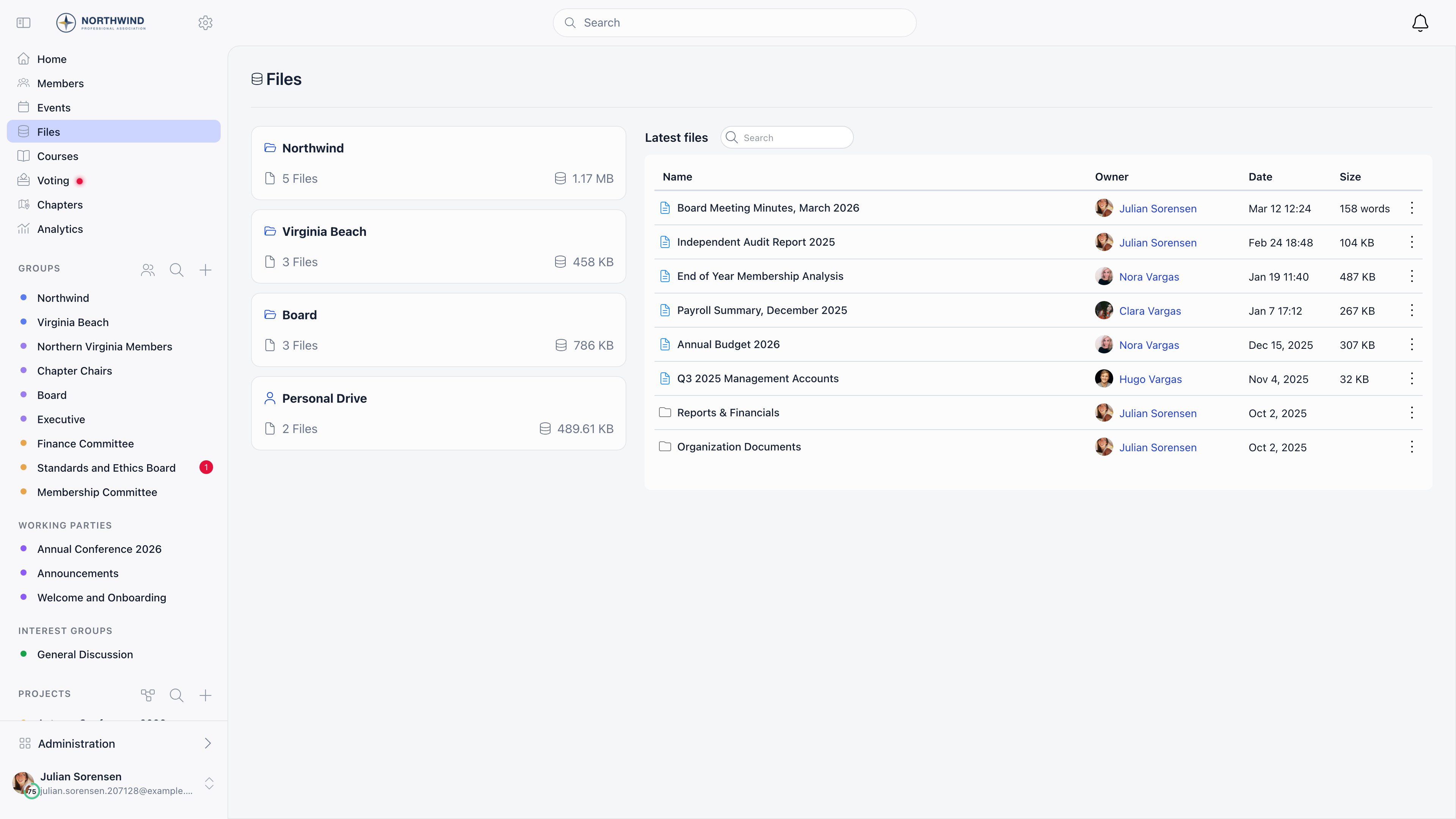
Files shows one card per drive you can reach, with its file count and total size.
Renaming, moving, deleting an item, and publishing or revoking its public link all need the same thing: you own it, you administer its group, or you are ADMIN_TENANT. Local admins get no rights over the organisation drive; their authority is scoped to the groups and local centers they administer.
Group drives are how you restrict who sees what. There is no per-file permission: a file inherits the audience of its drive, so leadership documents go in a leadership group.
The organisation drive is the drive with no group attached. Uploading there is restricted to HR_TENANT and ADMIN_TENANT by default, which is why an ordinary member sees the organisation card but no upload button on it. Group drives are open to their members unless the group sets Who can post? to Only admins.
What you can put in a drive
Upload limits
There is no allowed-types list: any format that is not blocked uploads. The blocked ones can execute code in a browser when opened from a link. Orgo also renames every uploaded file in storage to the original name plus 24 random characters, so the storage address cannot be guessed from the name.
Previews
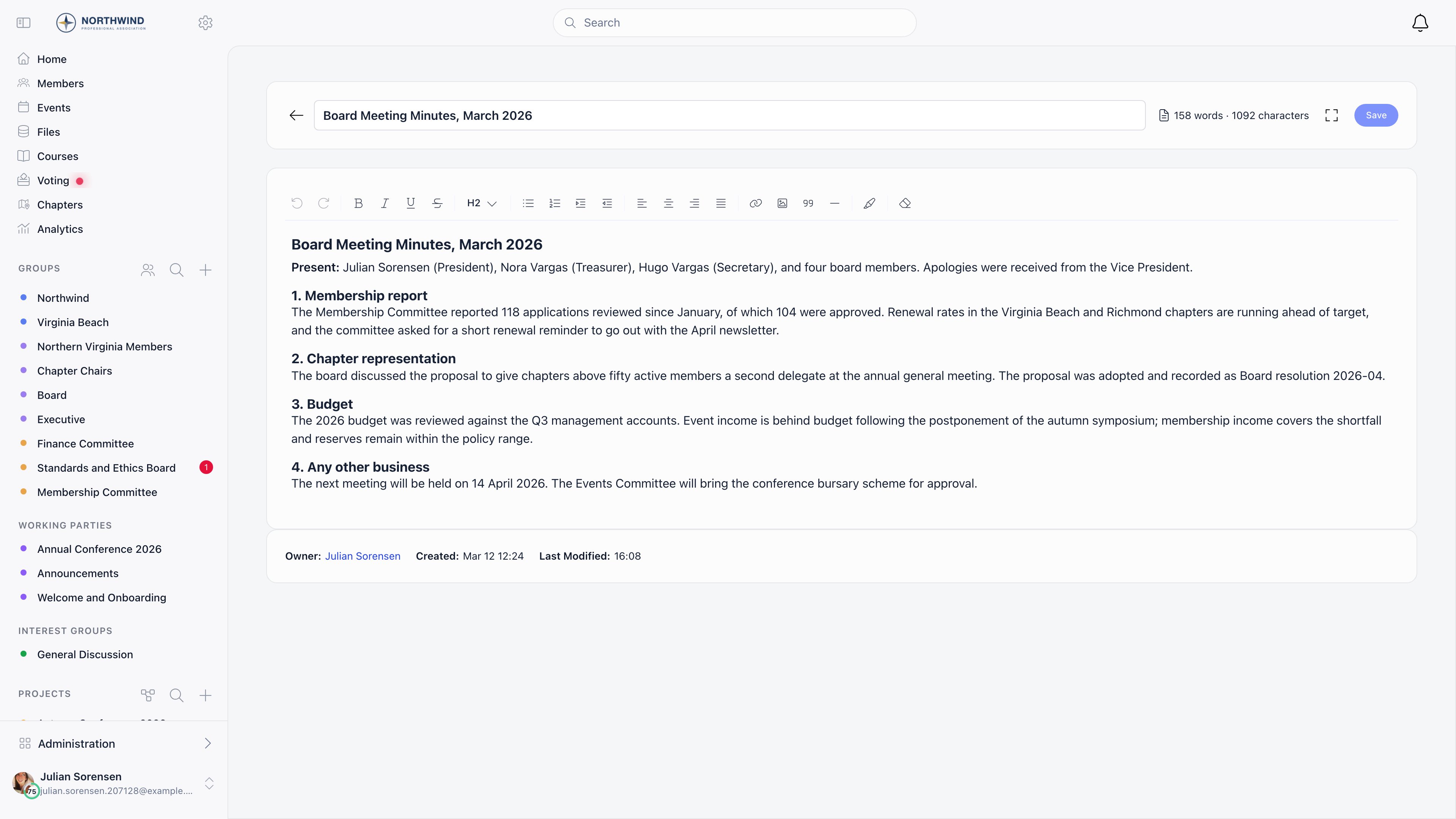
Images, PDFs and videos get an automatic thumbnail in the gallery; other formats show an icon. Office files (DOC, DOCX, XLS, XLSX, PPT, PPTX) offer a read-only browser preview through Microsoft Office Online, or a download, and cannot be edited inside Orgo. A video in a format browsers cannot play (MKV or AVI, for example) prompts you to upload it as download-only.Working with files
Sharing
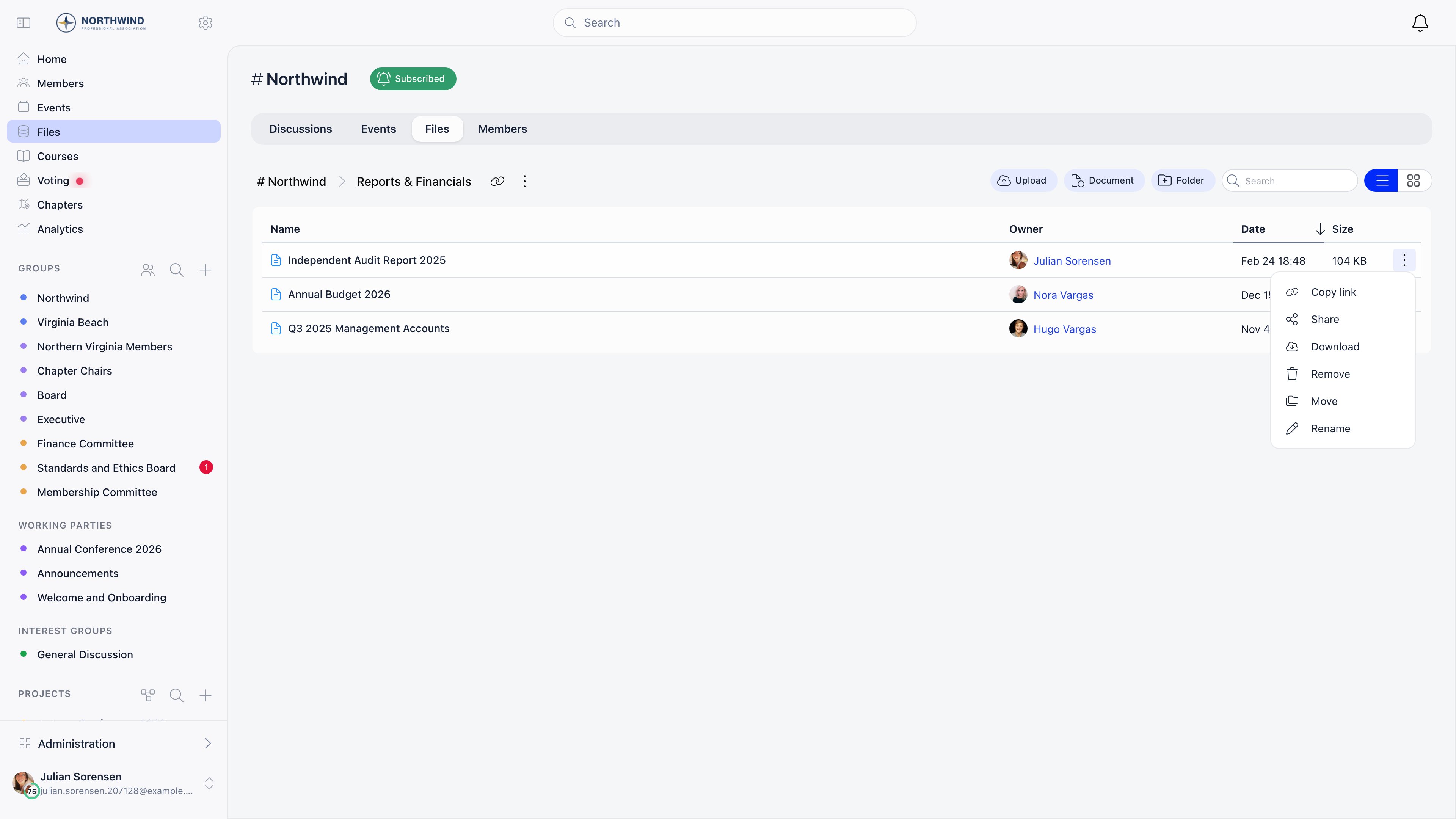
The Share dialog offers two links, and they behave differently.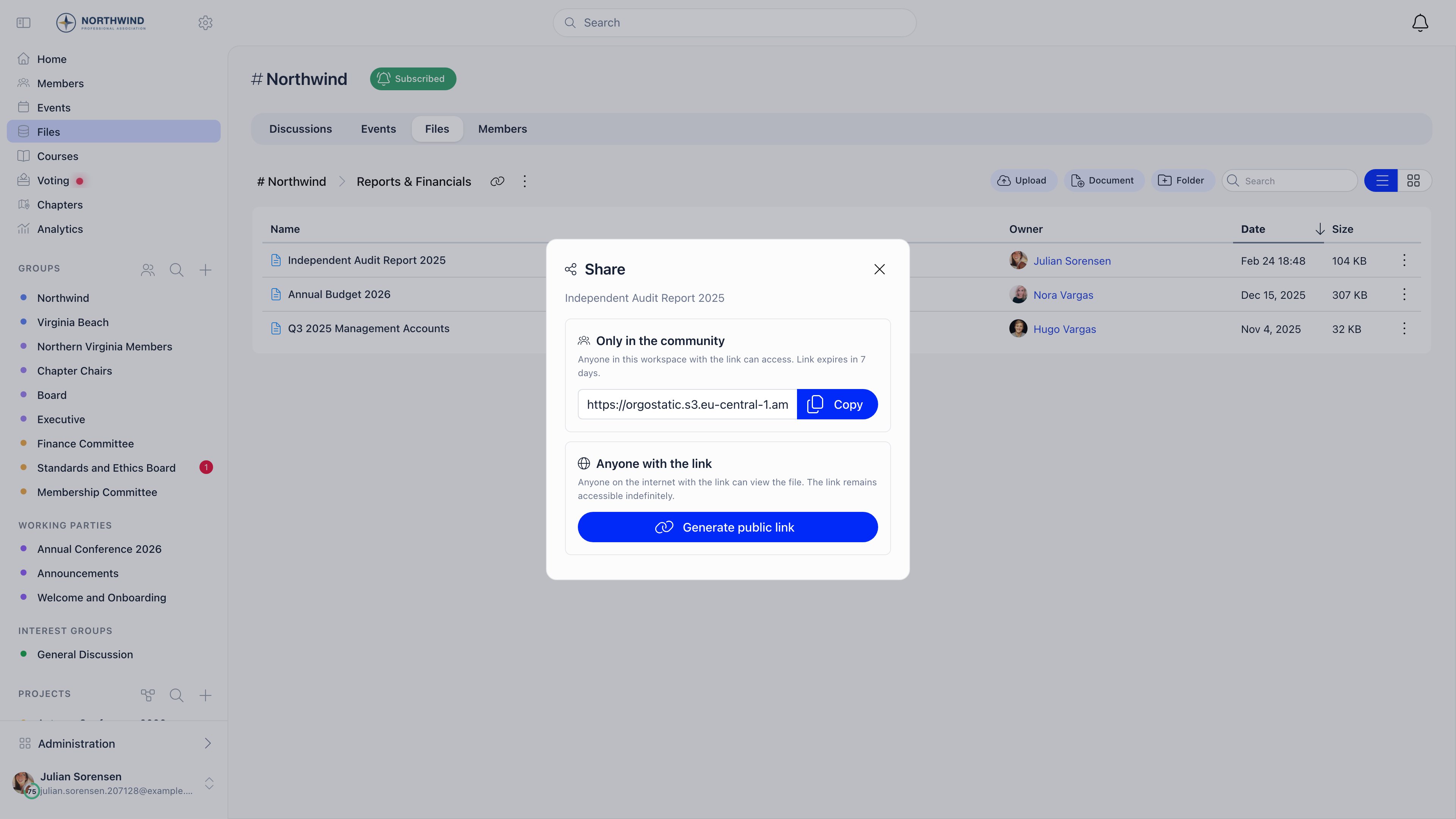
go.orgo.space/d/<code>.
Publicly shared files show a globe marker in the list, so you can see what is exposed. Video files get a branded viewer page instead of a raw download, with the organisation logo when video branding is enabled, and playable files also give you an Embed snippet for an external website.
Sharing a whole folder
Sharing a folder publishes a public folder page. Visitors browse the subfolders and open the files, and cannot navigate above the folder you shared. Publishing and revoking a large folder finishes in the background. The dialog shows Publishing… while that runs; the link itself works immediately. Files sit in Orgo’s cloud storage, readable without a login only while a public share link exists. There is no automatic expiry or archival, so an uploaded file stays until someone deletes it.Troubleshooting
A member cannot see a file, or I want different members to see different files
A member cannot see a file, or I want different members to see different files
Check which drive it is in: a group drive is visible only to that group. Groups are the boundary, so leadership documents go in a leadership group and general resources in the organisation drive. There is no per-file permission to set.
An upload failed
An upload failed
Files over 5 GB are rejected, and so are HTML, SVG, PHP, executable and script files. The upload panel shows the reason per file. Very large uploads also need the tab to stay open until they finish.
Can members edit an uploaded Word file in Orgo?
Can members edit an uploaded Word file in Orgo?
No. Office files open read-only. Download, edit locally and upload the new version, or use + → Document for content you want to keep editing inside Orgo.
Why does the rejection message say the maximum is 50 MB?
Why does the rejection message say the maximum is 50 MB?
The message is wrong, in every language. The size text shown when Dropzone
rejects a file still quotes 50 MB, while the limit the uploader actually
enforces is 5,000 MB. Trust the behaviour, not the sentence: anything under
about 5 GB uploads.If a file well under 5 GB is refused, the reason is the type, not the size.
PHP, HTML, XHTML, SVG, Windows and Linux executables and shell scripts are
blocked because they can run code in a visitor’s browser when opened from a
share link. Zip the file, or convert an SVG to PNG.
We deleted a group and its files went with it
We deleted a group and its files went with it
Yes, and there is no way back. A group drive belongs to its group at the
database level, so removing the group removes every file, folder and document
that lived in its drive, along with the stored copies.Before you delete or merge a group, download the folder as an archive, or
upload anything worth keeping to the organisation drive. Note that this is
the one case where Move does not help you, because Move never changes
which drive an item is in (see the next answer).Deleting a group is refused outright while a newsletter is still attached to
it, so a group that survives a delete attempt for that reason has not lost
its files. Anything else goes through.
How do I move a file from a group drive to the organisation drive?
How do I move a file from a group drive to the organisation drive?
You cannot, in one step. Move only changes which folder an item sits in
inside the drive it already belongs to, and the destination picker only lists
folders from that same drive. Dragging behaves the same way.Download the file and upload it again in the destination drive, then delete
the original. For a whole folder, use Download folder as archive first.Uploading into the organisation drive needs
HR_TENANT or ADMIN_TENANT by
default, so an ordinary member who wants a document promoted from their
group to the organisation drive has to ask somebody with that permission to
do the second half.A member cannot rename or delete a file in their own Personal Drive
A member cannot rename or delete a file in their own Personal Drive
Expected. Inside a personal drive, editing rights belong to whoever uploaded
the item, plus
HR_LOCAL of that member’s local center, HR_TENANT and
ADMIN_TENANT. Being the owner of the drive lets a member see and download
everything in it, but not change items somebody else put there.Worked example: HR uploads a signed contract into a member’s personal drive.
The member opens the Personal Drive tab, downloads the contract, and finds no
Rename, Move or Delete on that row. Files the member uploaded themselves show
all three. Ask HR to remove it, or upload a corrected copy alongside.The Personal Drive tab is missing from a member's profile
The Personal Drive tab is missing from a member's profile
Two things put it there. Enable Personal Drives has to be on in the Drive
module settings, and you have to be the member yourself,
HR_LOCAL of their
local center, HR_TENANT, or ADMIN_TENANT. Any other viewer, including a
local admin from a different local center, sees the profile without the tab.Personal drives are also left out of the normal drive listing on purpose, so
they never appear on the Files home as somebody else’s card.Search does not find a file I know is there
Search does not find a file I know is there
The search box on the Files home matches file titles only. It does not read
inside documents, it needs at least two characters, and it returns at most
ten results, ordered exact match first, then titles that start with your
term, then titles that contain it.Worked example: type
minutes in an organisation with forty files whose
titles contain that word and you get ten of them, with no “show more”. Add
the month or the committee to narrow it, or open the drive you expect the
file to be in and browse.The search also only reaches drives you can already open: your personal
drive, the organisation drive, and the drives of groups and local centers you
belong to. A file in a group you are not a member of is not missing, it is
out of scope. And because Rename changes the display title, search
follows the new name, not the name the file had when it was uploaded.Is Who can post? Only admins a security boundary?
Is Who can post? Only admins a security boundary?
Treat it as tidiness, not as access control. Set to Only admins it hides
the upload, document and folder buttons from ordinary members of that group,
which is what you want for an announcements-style group where files come from
the committee. It is one choice covering posts, events and files together, so
you cannot lock files while leaving posts open.The real boundary is who is in the group. Everyone in a group can read
everything in its drive whatever this setting says, and the setting is not
what keeps a determined member from adding a file. Put material that a
specific audience must not see in a group whose membership is that audience,
rather than relying on the posting rule.
A link I copied from Only in the community stopped working, or never expired
A link I copied from Only in the community stopped working, or never expired
Both happen, depending on the file.For a file that is not publicly shared, that link is a signed address to the
stored file with a seven-day life. After seven days it returns an error from
the storage provider rather than an Orgo page. Open Share again to get a
fresh one.For a file you have already published with Generate public link, the same
button hands you the permanent public address instead, because the file is
already world readable and a signed link would add nothing. That link outlives
the seven days, and revoking the public share kills it, which surprises people
who thought they had sent an internal link.Check the globe marker in the file list if you are not sure which of the two
you sent.
Related
- Groups - group drives and who belongs to them
- Permissions - what HR_TENANT, ADMIN_TENANT and the local roles unlock
- E-Documents - documents members sign electronically
- Discussions - attaching files to posts
- Modules - turning the Drive module on