

/register, plus an optional form per user type at /join/<slug>.
Built for any organization that lets people sign up themselves, and for organizations that need to ask different questions of different kinds of member. Replaces a website form plus a spreadsheet plus manual account creation.
Self-registration is one of four ways somebody gets an account. To create one yourself, invite a specific person, or import a spreadsheet, see Adding Members.
Where it lives
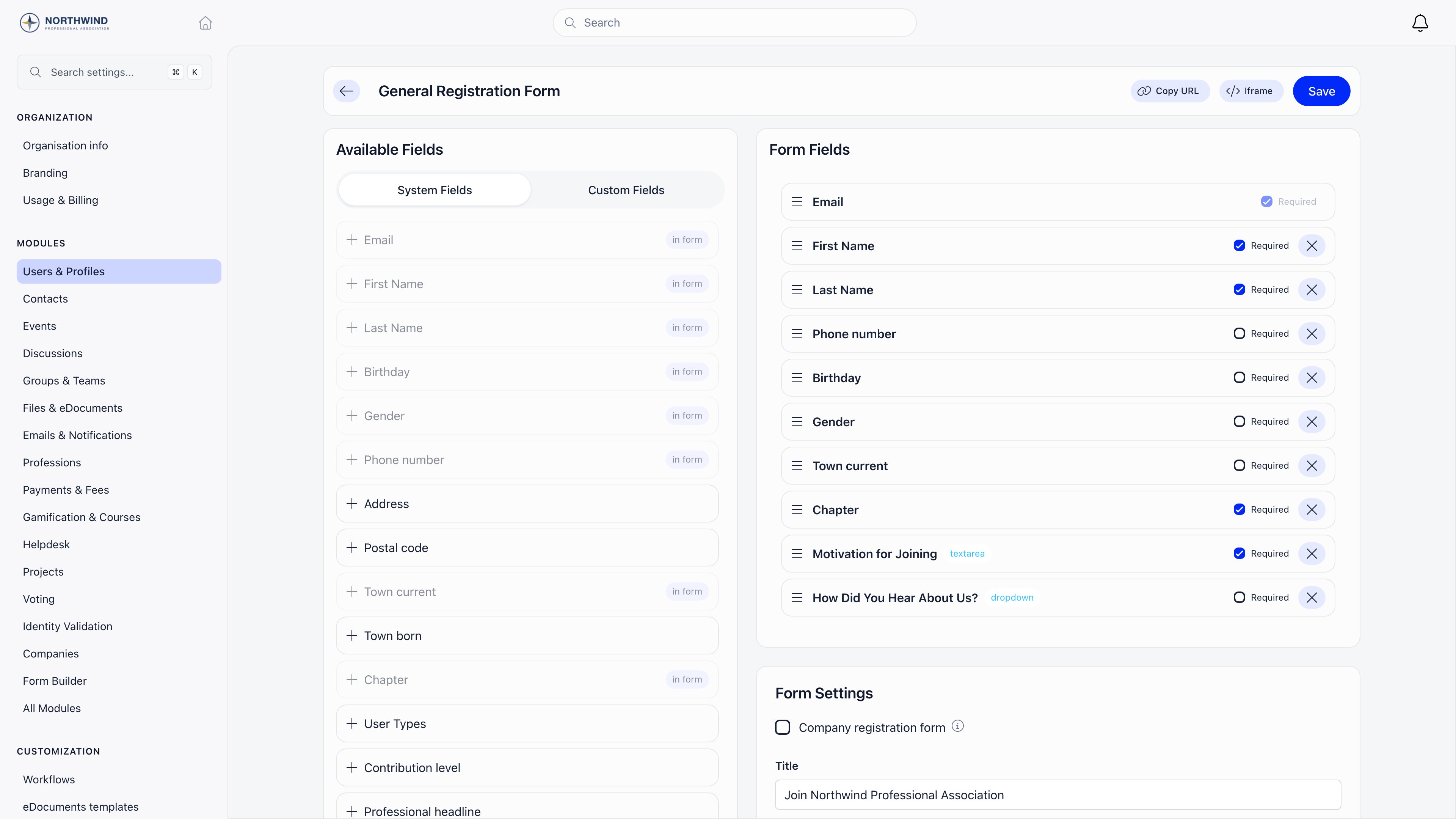
Settings → Users & Profiles → Registration Form. RequiresADMIN_TENANT.
The entry appears only when Enable Registration Form is on (Settings → Users & Profiles → Configuration → Registration & Membership). While it is off, self-registration is refused with “Registration is not possible.” and the Register link disappears from the login page. Invitation links are the exception: a valid one opens the form as normal, so you can close the door to the public and still admit the people you invite.
Registration page layout
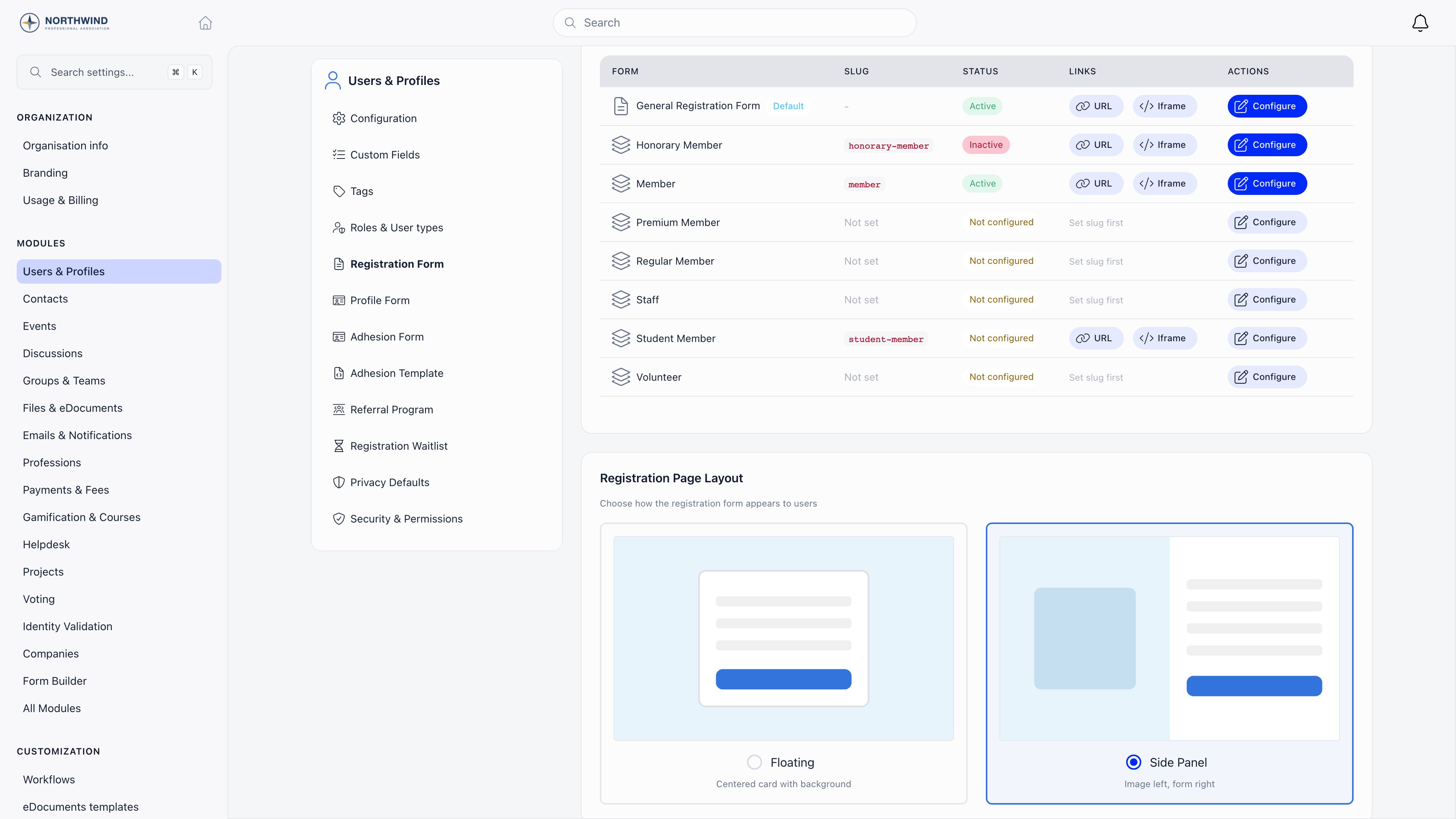
The side image is the login background image set in Branding. Phones and iframe embeds always render the centered layout regardless of this setting.
Building a form
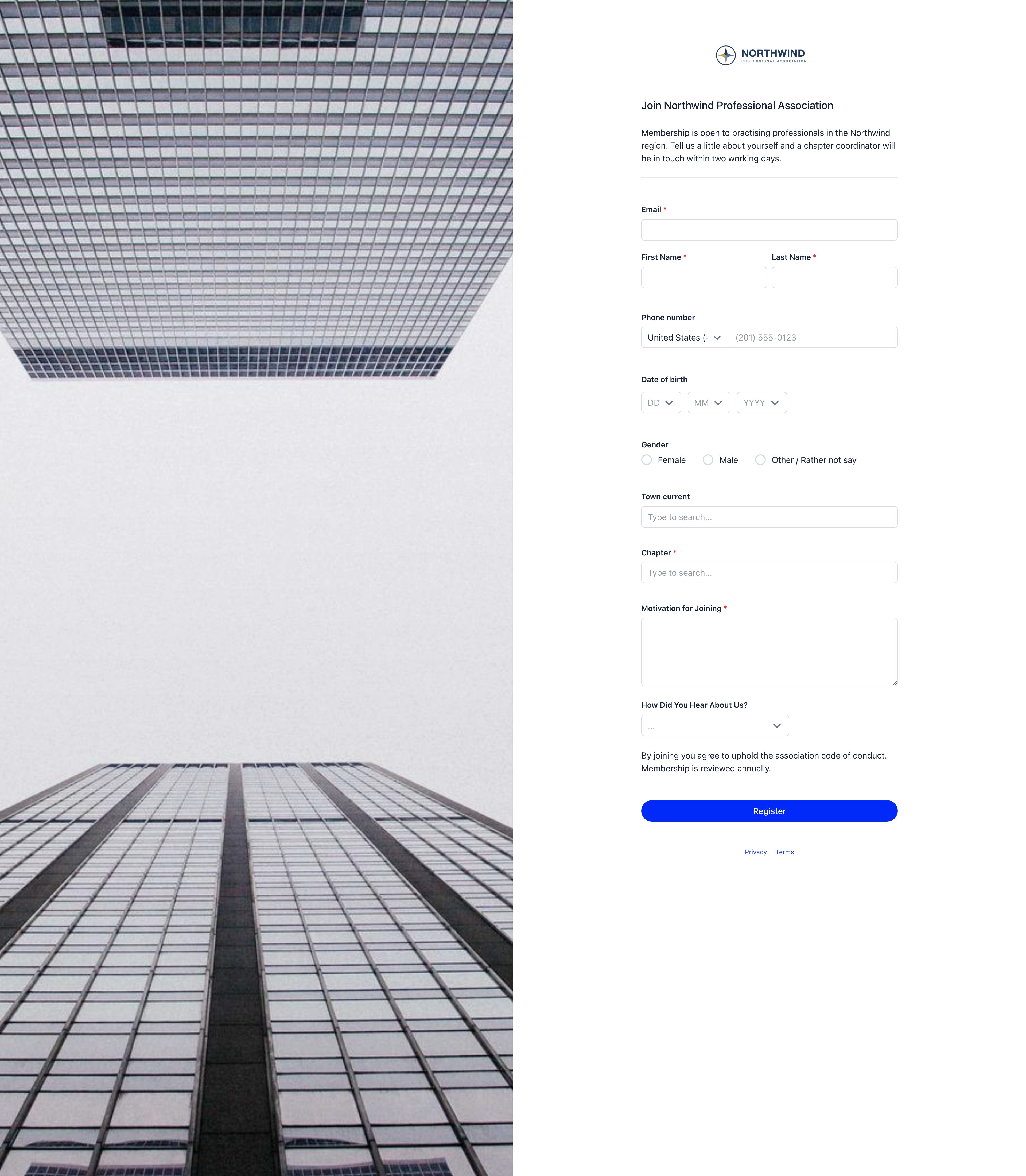
Two panels: Available Fields on the left with a System Fields and a Custom Fields tab, Form Fields on the right. Click or drag a field to add it, drag the handle to reorder, tick Required, and use the X to remove it. Email is permanent: always in the form, always required, never removable or optional, and the login identifier.System fields
These are the default labels. Rename vocabulary in Labels and both the builder and the public form show your wording, from the same catalogue.
Some older forms contain fields the builder no longer offers, such as a members-map location pin or a personal identification number. They keep working on
/register if they were already enabled, but you cannot add them to a new form. Use a custom field for identification numbers, which also lets you encrypt the value.Custom fields
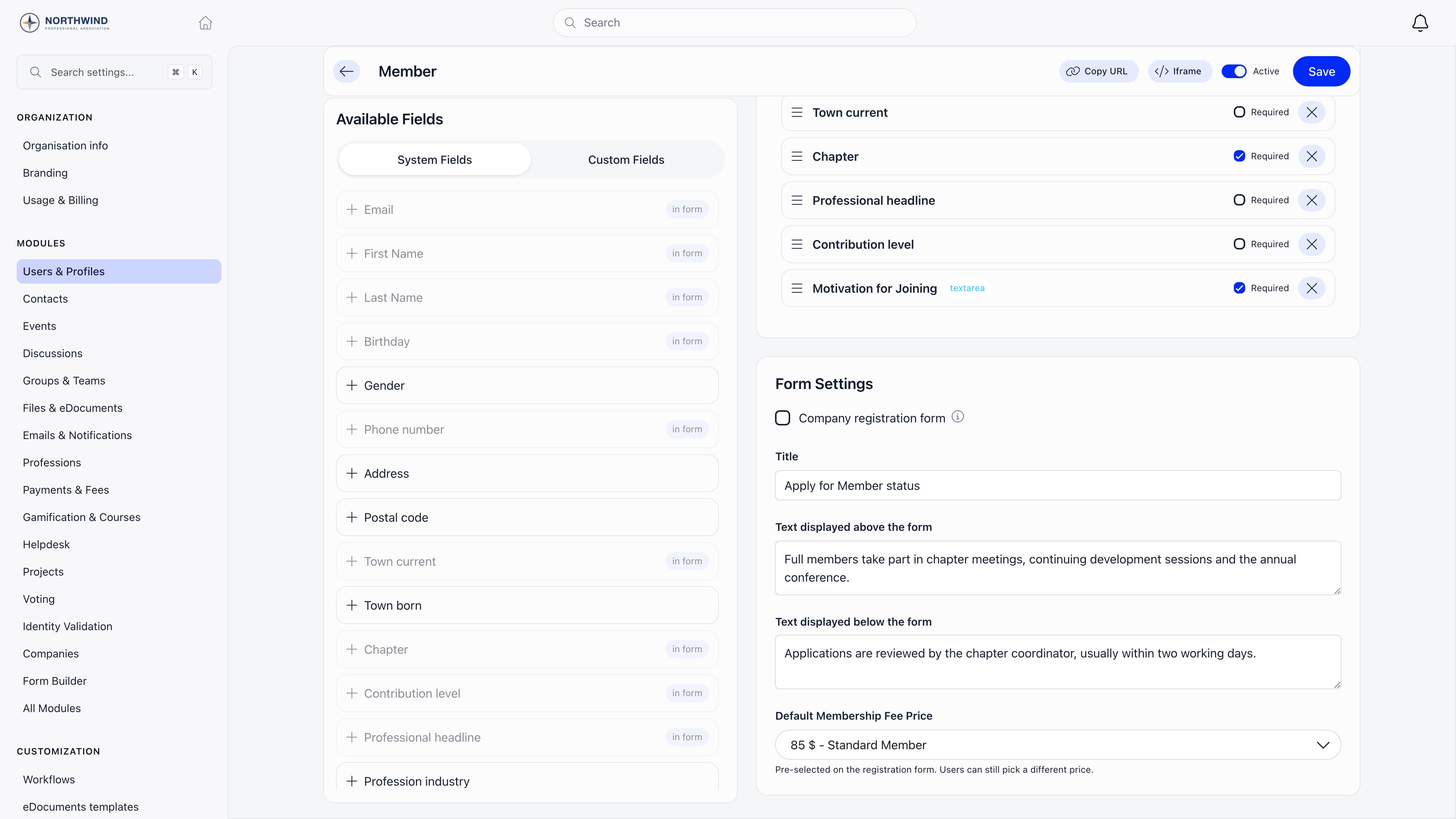
Every profile custom field is on the Custom Fields tab and can sit anywhere in the order, including between system fields. Two exclusions: file-upload custom fields cannot be used on a registration form, and admin-only custom fields never reach the public page.Form settings
Publishing and embedding
Set the slug on the user type itself (Roles & User types → edit the type → URL Slug). Use the Copy URL and Iframe buttons to grab either address.
iframe=1 strips the logo and outer chrome. workspace=<your-slug> names the organization, which matters when you embed on your own domain. lang= forces the interface language: bg, cs, de, en, es, et, fr, it, lt, nl, pr, ro, sk, ua.
What happens after someone submits
1
Spam checks
A hidden field must stay empty and the form must take at least three seconds to fill in. Failing either returns “Invalid submission detected”.
2
Account created, email unverified
No password is asked for. Orgo generates one and requires the member to set their own at first login. A six digit code is emailed, valid for five minutes.
3
Status resolved on verification
In this order: eligible for the waitlist becomes Waiting list with a queue position; a referral program requiring referrals becomes Awaiting referral with a personal referral link; Manual Approval on becomes Unapproved; otherwise Active.
4
Notifications go out
Organization admins and the member’s chapter admins are emailed about the new registration. At Active, the welcome message goes out if Send Welcome Message is on.
5
Member continues
An Active member is signed in immediately. Anything else lands on a status screen explaining what happens next.
Settings that change registration
Found under Settings → Users & Profiles → Configuration.The registration form has no age gate. Birthday is collected as data only. The minimum-age value is used only when a parent registers a child from inside the app, where a child below the threshold is flagged as underage on their waitlist entry, and the parent’s action is recorded as the consent. That value is not editable in the settings screens today.
Troubleshooting
Visitors see 'Registration is not possible.'
Visitors see 'Registration is not possible.'
Enable Registration Form is off. Turn it on to reopen self-registration, or leave it off and invite the people you want: a valid invitation link opens the same page and is not refused.
A /join link shows 'This registration form is not available or has been disabled.'
A /join link shows 'This registration form is not available or has been disabled.'
Three causes: the user type form has never been saved, its Active switch is off, or the slug in the URL does not match a user type. Check the row’s status on the Registration Forms page.
Someone says their email already exists
Someone says their email already exists
That email already has an account in this organization. The form offers a Sign in here link unless that account is inactive, suspended, excluded, or deleted. Emails are per organization, so one address can belong to several.
I changed the form but existing members are unaffected
I changed the form but existing members are unaffected
Correct: the form applies only to new sign-ups. To collect something from existing members, use the profile form instead.
Everyone gets the same user type, whatever the form says
Everyone gets the same user type, whatever the form says
Default User Type After Registration is applied last and wins. It is applied
after the type the applicant picked in the User Types field, after the type
implied by a
/join/<slug> form, and after the type an administrator chose while
creating a member by hand. Whatever any of those said, the finished profile carries
the default.The clue that this is what happened: the member still holds the role for the type
they signed up under, visible on their Roles tab, while the User type on their
profile shows the default. The role was granted at sign-up and never touched.Clear the setting if you use per-type forms or let applicants pick their own type.
A default only makes sense when there is exactly one answer for everyone, which is
precisely the case where the form does not ask.A field marked Required came through empty
A field marked Required came through empty
Required on a registration form is enforced by the browser. That is enough for
someone filling the form on your registration page, and it is not enforced anywhere
else, so an account created by any other route arrives without those answers:
- A member an administrator creates with Register member from the directory
- Anyone loaded through Import
- A child registered by their parent from inside the app
Settings search finds a setting the page does not have
Settings search finds a setting the page does not have
Search covers the settings catalogue rather than the page you land on, and a few
entries in the catalogue are for controls that are not currently built into the
Configuration screen. Minimum Registration Age and Children Auth Restriction
Age are the two you will meet from this page: both are findable in search, both
take you to Users & Profiles → Configuration, and neither has a control
there to scroll to. Nothing is broken and nothing is hidden by your permissions.For an age limit on the public form, there is nothing to configure: the form has no
age gate at all, as noted above. Collect the birthday and review applications with
Manual Approval, or gate joining behind Adhesion.
I turned registration off but the /join links still show a form
I turned registration off but the /join links still show a form
Enable Registration Form is checked when the account is created, not when the
page is served. The
/join/<slug> pages keep loading and keep looking completely
normal while the switch is off; the applicant fills everything in, presses submit,
and only then is refused with “Registration is not possible.”So switching registration off is not a way to take a campaign link down. If you are
closing sign-ups for one user type, turn off that form’s Active switch on the
Registration Forms page, which makes the link show “This registration form is not
available or has been disabled.” before anyone types anything. If you are closing
sign-ups altogether, turn off every user type form as well as the master switch, or
put people in a queue with the waitlist instead of
turning them away after the fact.Related
- Adding Members: all four routes into the platform compared
- User Types & Roles: per-type forms, slugs and what a type changes
- Custom Fields: organization-specific questions
- Profile Fields: what members fill in after joining
- Waitlist: queueing sign-ups instead of admitting them
- Adhesion: formal membership application after registration