

Turning it on
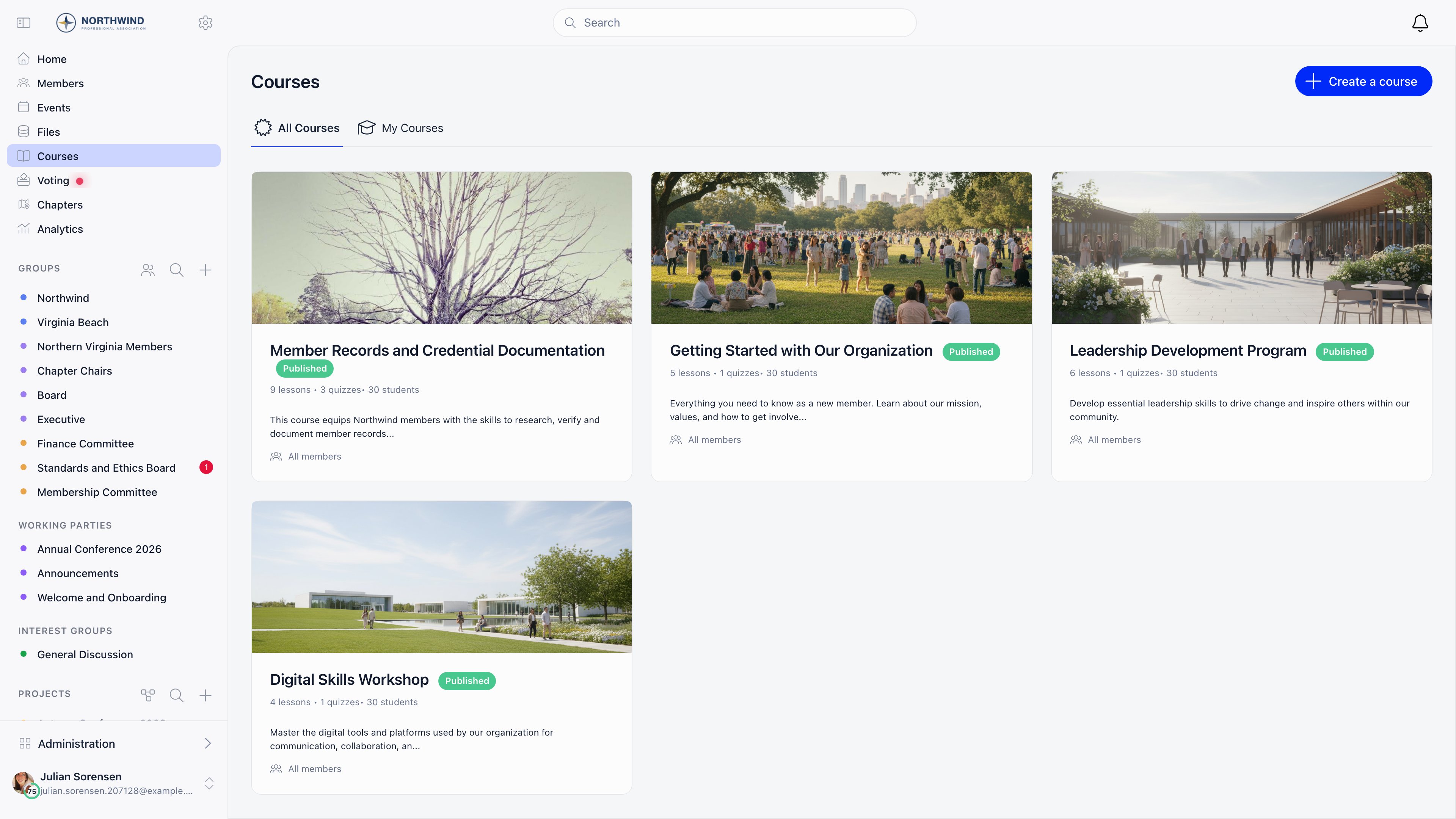
Courses is a module, on by default. Settings → Gamification & Courses → Courses has two switches:
Toggling the module requires
ADMIN_TENANT.
Who can do what
A local manager (
HR_LOCAL) must keep the course inside a local group they belong to. If they do not pick one when creating, their own group is filled in automatically, and they cannot later move the course to a group they have no rights over or make it organisation-wide.
Building a course
Courses → Create a course. The Course tab holds the settings; the Lessons and Students tabs unlock once the course is saved.
Two dropdowns sit in the header:
- Status: Draft or Published. Draft courses are visible only to
HR_TENANTand to a local manager of that course’s group. Everyone else gets a not-found. - Course type: Self-paced or User onboarding. See Onboarding courses.
Sections, lessons and quizzes
On the Lessons tab, add a section, then use Add new on that section for a Lesson or a Quiz. Sections and items are reordered by dragging. Each item has its own Draft or Published state and a menu with View, Edit, Duplicate, Rename and Delete.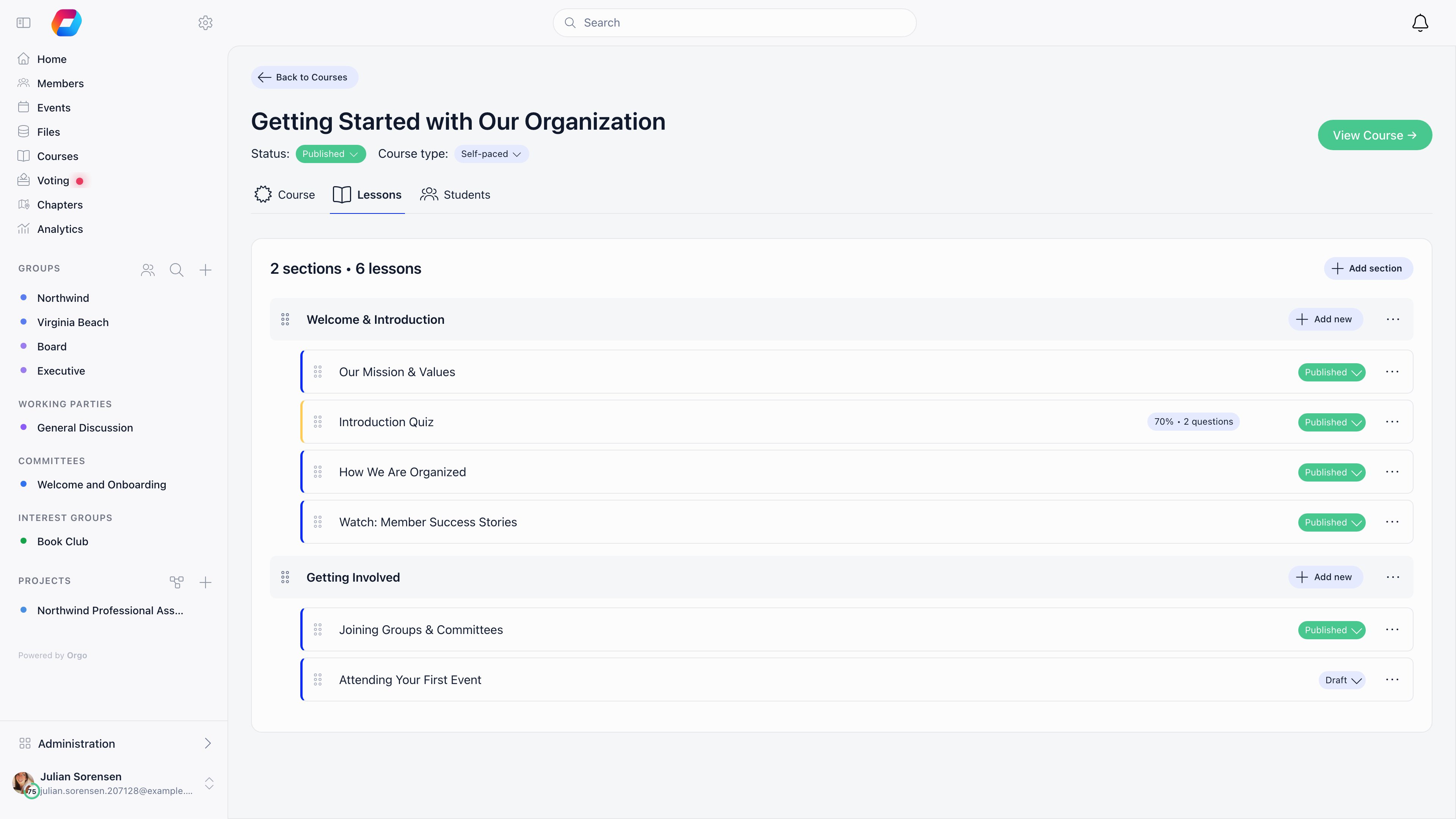
Quiz editor
Scoring is done on the server: each question is worth its points value (1 by default) and the score is the percentage of points earned. Nothing is graded by hand.
Enrolling members
Members enrol themselves with Enroll in course on the course page. They can leave a self-paced course they have not finished with Drop Course. Managers enrol people from the Students tab: Add member, pick one or more members, then Add. Enrolling somebody who is already on the course is rejected rather than duplicated. There is no approval queue, no invite-only mode and no prerequisites between courses. Access is controlled by the course’s user types and local group.Progress and completion
Progress is the share of published lessons and quizzes the member has completed. An enrolment moves from Enrolled to In progress on the first completed item, and to Completed at 100 percent. When an enrolment reaches Completed and the course has a badge (and Gamification is on), the badge is awarded automatically. Deleting a completed enrolment takes the badge back. Course completion does not produce a certificate: nothing is generated, and there is no certificate download.Tracking members
The Students tab lists everyone enrolled, filterable by All, Enrolled, In progress and Completed, and searchable by name. The table shows Member, Enrolled, Last update, Progress and Status. Row actions are View Profile, View Progress (opens the course in read-only mode as that member sees it) and Remove.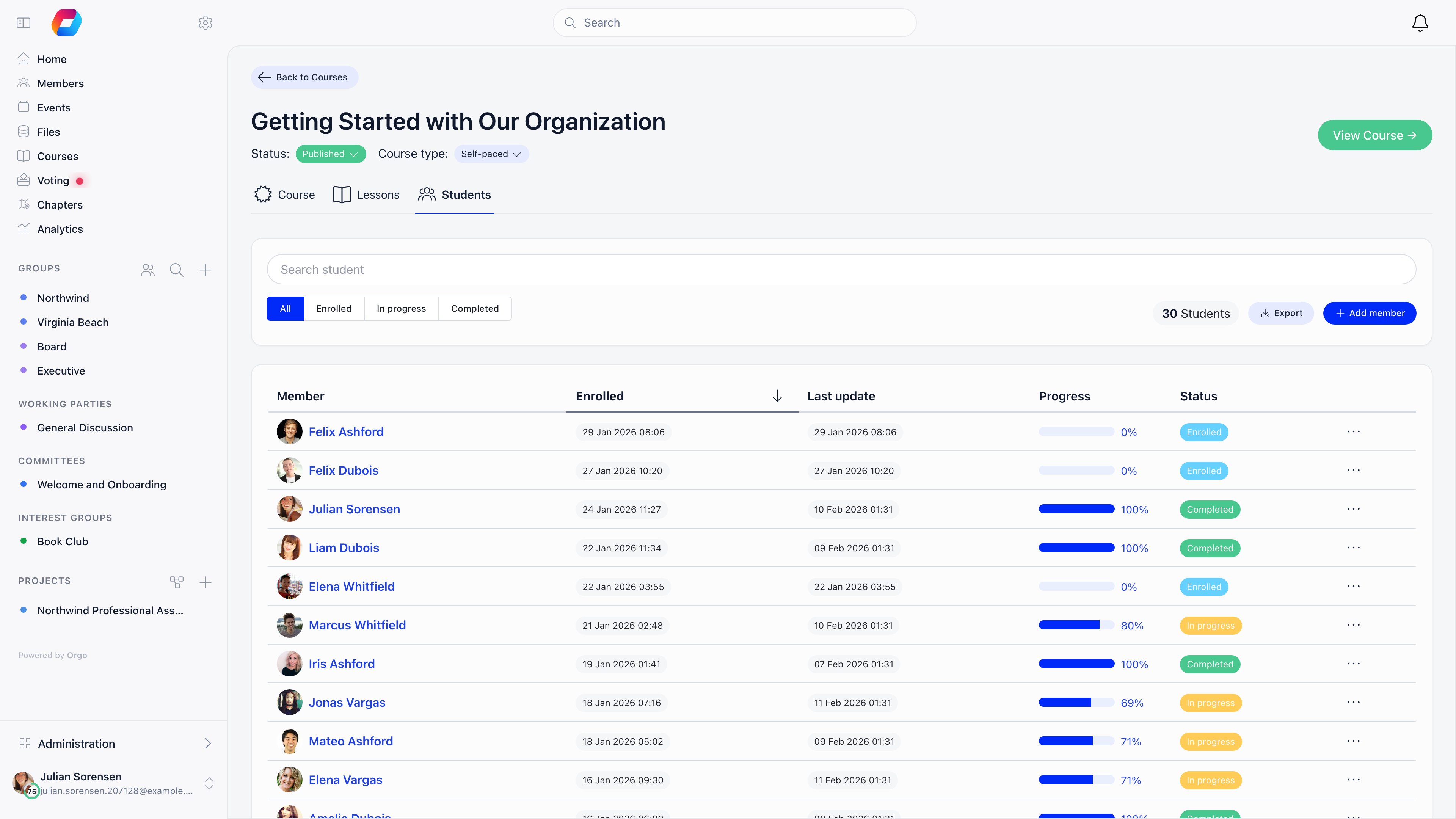
- Export Students (CSV): Name, Email, Enrolled Date, Last Accessed, Progress (%), Status, Completed Date.
- Export Quiz Results, one file per quiz: Student Name, Email, Attempt #, Score (%), Passed, Time Spent (s), Started, Submitted.
Onboarding courses
Set Course type to User onboarding to make a course part of the joining flow. Once enforcement is on, a member who opens Orgo is sent to a mandatory-course screen listing every published onboarding course that matches their user type and that they have not completed. The gate does not apply toHR_TENANT users, to the Event App, or to a member who owes a mandatory fee (the fee gate takes priority and runs first).
Deleting a course
A course with even one enrolment cannot be deleted. Remove the enrolments first, or set the course back to Draft to take it out of circulation.Automating around courses
If you use Workflows, three course triggers are available: Course Enrolled, Course Completed and All Onboarding Courses Completed. Use them to send a message, apply a tag or move a member forward once training is done.Related
- Badges & Gamification - award a badge on course completion
- User types - the audience filter on every course
- Permissions - what
HR_TENANTandHR_LOCALunlock - Local groups - scoping a course to one group
- Events - for training that happens in person