

What you can do
Create events
Dates, timezone, location or online link, cover image, capacity, and visibility.
Sell tickets and add-ons
Multiple ticket types with seat limits and sale windows, add-ons, discount codes, and Stripe checkout.
Publish a public page
A page non-members can open and register on without an Orgo account.
Check people in
QR tickets, a scanner in the mobile app, and manual check-in from the participant list.
Run the event app
Program, live feed, participants, 1:1 networking, and in-event votes for attendees.
Report on it
Per-event analytics, event reports, and annual summaries.
The events list
Events in the main menu opens the list: Upcoming and Past views, a hero card for the next event, a month calendar that dots the days with events, and a filter panel holding a search box over title and description, All event types, All statuses (only when custom statuses are enabled), SDG (only when SDG tagging is enabled), and a My events checkbox. Create an event opens the form in a panel over the list, with a Start from template button when your organization has event templates.Where events live
Every event belongs to one place, chosen in the Group field on the event form.
Chapters set their own bar. Who can create events in this chapter, on the chapter edit form, is one of Event managers (default) (
EVENT_LOCAL), Any member of this chapter (USER), or Chapter admins only (ADMIN_LOCAL). Any member of this chapter in practice means any signed-in member of your organisation: chapter membership is not checked. ADMIN_TENANT clears all three. EVENT_TENANT clears the first two, but not Chapter admins only: that one is satisfied by chapter admins and organization admins alone, so an organization-wide event manager is refused there. The setting covers only the chapter it is set on and is never inherited by the chapters below it, and anyone below the bar is refused on save with You do not have permission to create events in this local center.
Each event is also Members only or Public. Public needs the Who Can Create Public Events permission and is never offered for non-joinable (private) groups. Events start as drafts until someone publishes them. A draft appears in the events list only for the person who created it; other managers can open it by direct link, and ordinary members are turned away. See Create Event.
The event workspace
Opening an event gives it a sidebar whose entries depend on the event’s own settings and your permissions. “Manager” below means anyone who can manage the event: its owner, or a holder of the event permissions listed under Who can do what.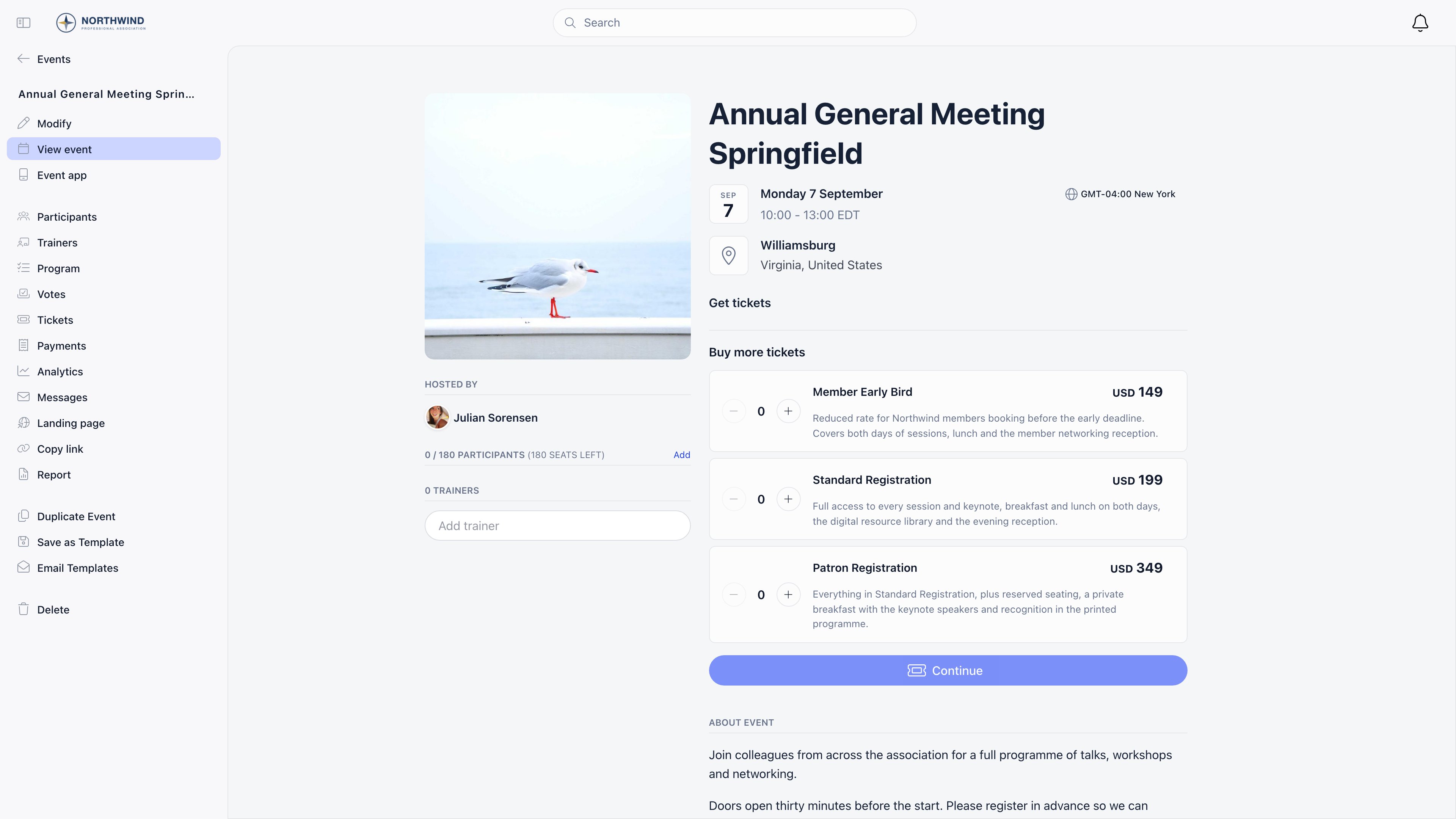
Module settings
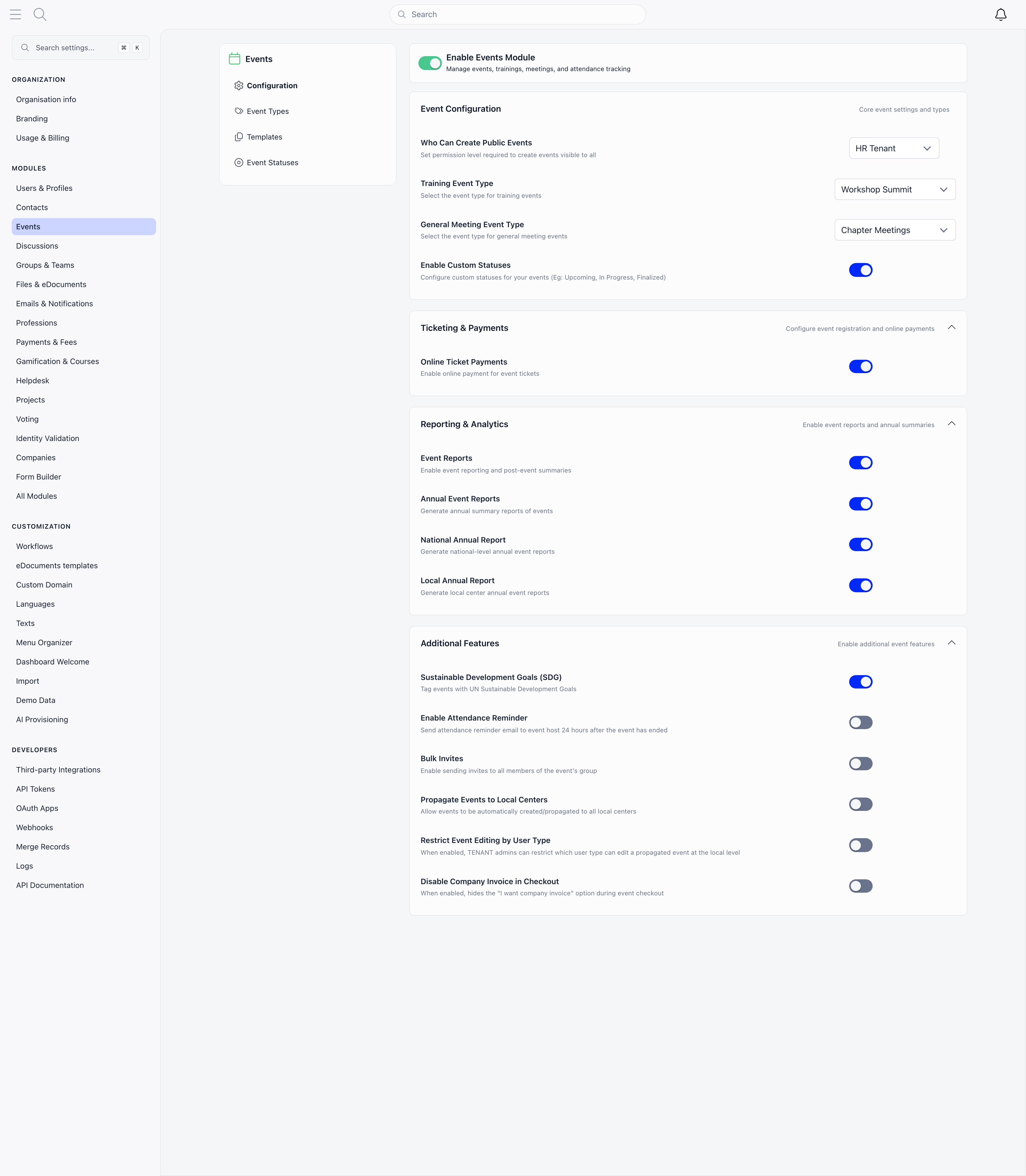
Settings → Modules → Events, requiringADMIN_TENANT.
Who can do what
Event owners can always manage their own event, whatever their permission level.
An event created at organization level has no group, and the permission check treats it as unscoped. Anyone holding
EVENT_LOCAL can therefore manage organization-wide events, not only events in their own center. Set Who Can Create Public Events to a tenant-level permission if that is not what you want.Related
- Create Event - every field on the form
- Event Types and Statuses - categories and workflow labels
- Event Templates - reusable event setups
- Ticketing - ticket types, add-ons, and checkout
- Attendance - invitations, RSVPs, and check-in
- Public event pages - what non-members see