

The member directory
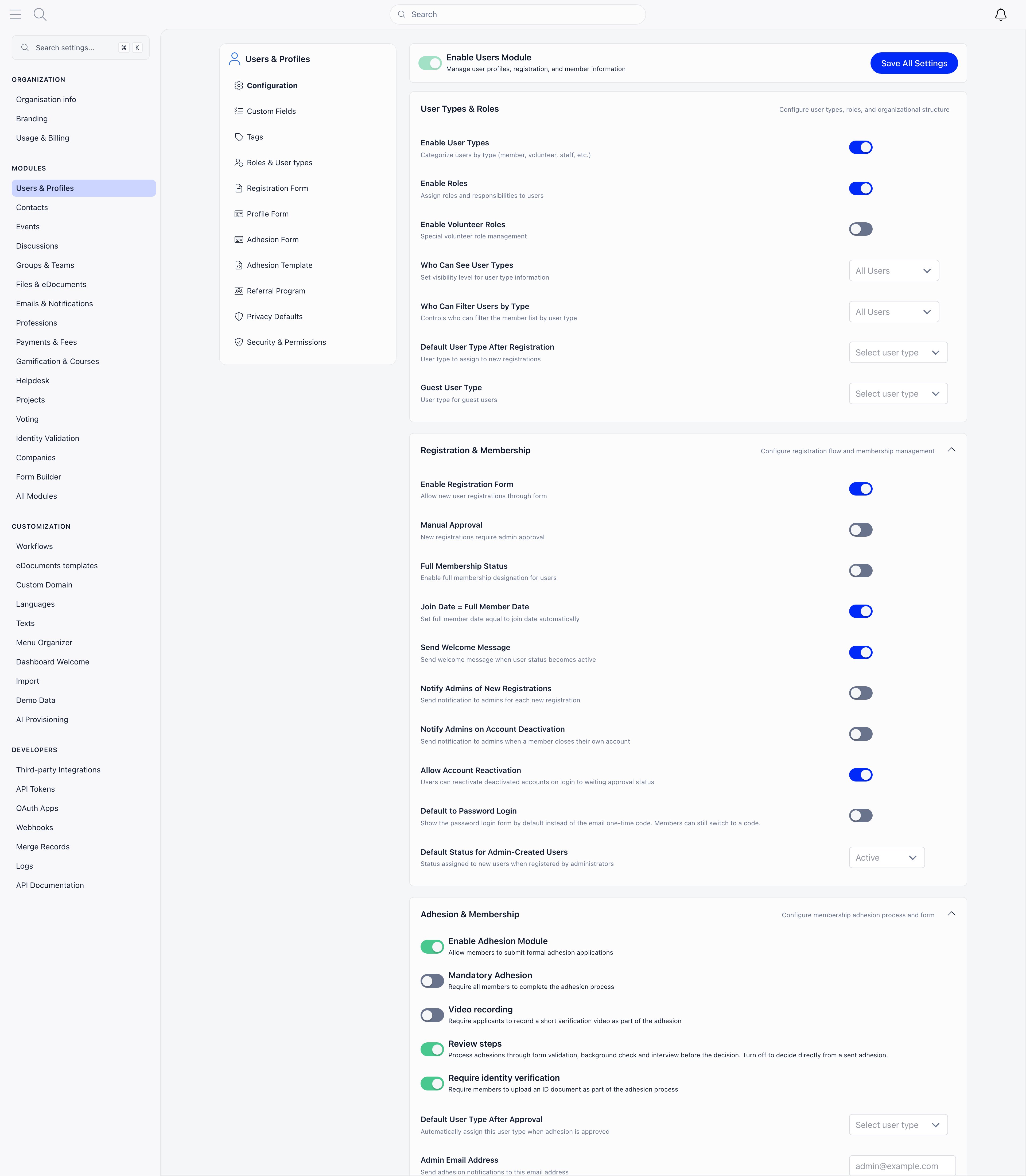
Members in the sidebar lists everyone in your organisation. Settings → Users & Profiles → Who Can See Members in General Groups decides who sees it at all: All Users, HR Local, HR Tenant, Admin Local or Admin Tenant. At an admin level, ordinary members never see the directory.Always reach the directory from the sidebar rather than by typing a URL. The
organisation-wide list lives at
/users?generalUnit=true; a bare /users has no
scope to show and renders an empty page. The same screen shows a single group’s
members at /users?unit={id}.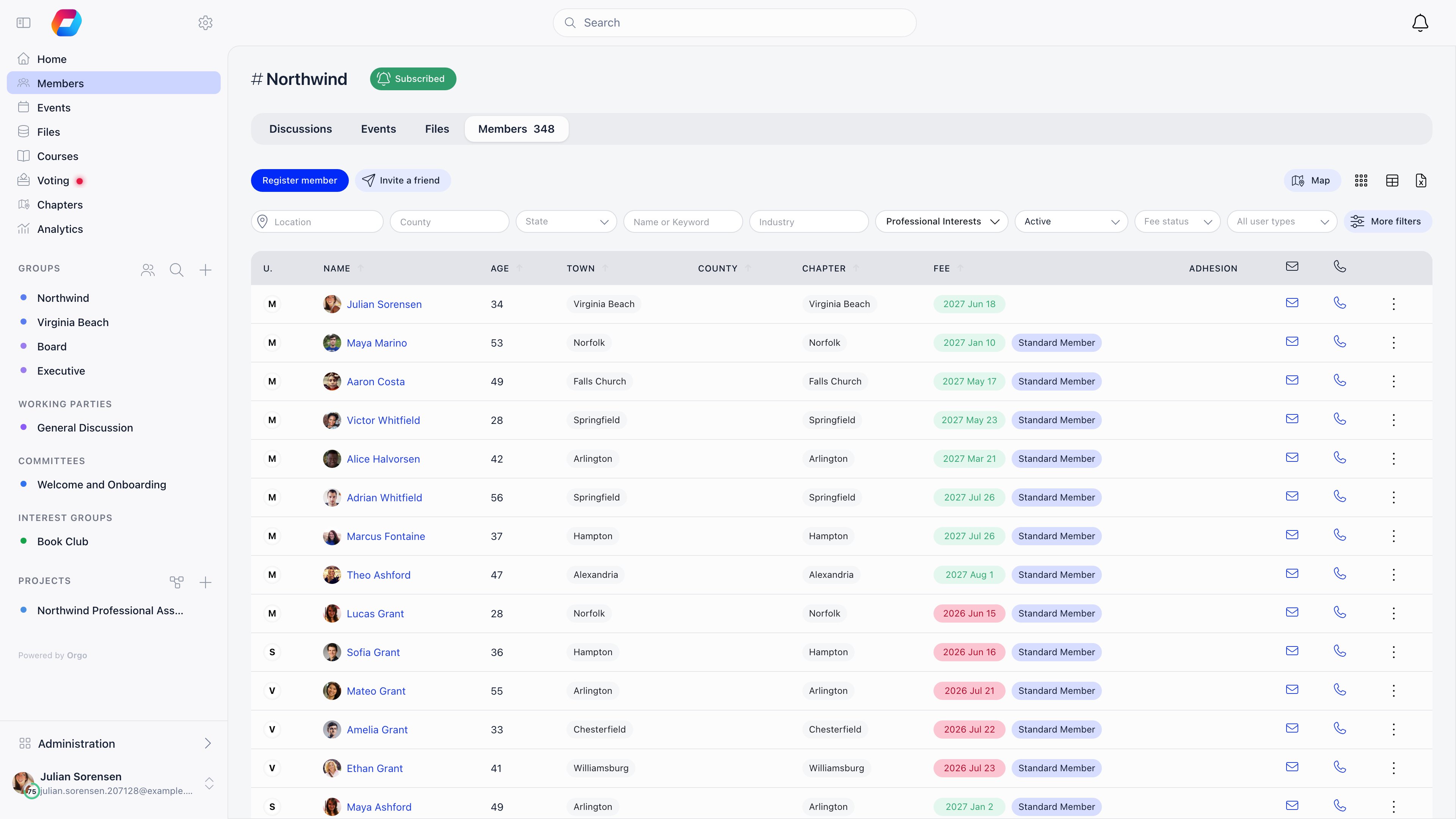
Filters
The filter bar changes with your permissions and active modules. Only these filters exist:Grace period only appears when the fee is mandatory, auto deactivation on
expiry is on, and the deactivation delay is more than zero days. It finds members
whose fee has expired but who are still inside that delay.
Columns, sorting and row actions
Sortable headers: name, user type, full member, age, card ID, town, country or county, chapter, fee date and status. Sorting applies to the whole result set, not just the current page. Columns are permission-gated rather than chosen:
The column menu itself (the table icon above the list) needs HR_TENANT, and it only
appears in the table view, never in Gallery or Map.
Each row’s menu holds View Profile, Modify Profile and Modify Roles
(ADMIN_LOCAL and above), plus making or removing a unit admin inside a unit.
Members pending approval (New request) or waitlisted get Approve and Add
to waiting list shortcuts next to the name, and a New requests (N) button
jumps to that queue. There is no multi-select: actions apply one member at a
time.
Export and adding members
The Excel icon exports the current filtered, sorted list as CSV. Exports are paged at 500 profiles: below that you confirm and download, above it you pick which page, so a large organisation needs several exports. Export needs HR_TENANT, or HR_LOCAL with a chapter selected, and each export is written to the audit log with the exact query used. A Members report in Reports has no such paging: the download holds every matching member in one file, however many there are. It needs ADMIN_TENANT and it is built from its own column and filter picker rather than from the list you are looking at, so the directory export stays the quicker route for a chapter admin or for the list already on screen. Register member creates an account directly; it needs HR_TENANT, or HR_LOCAL for your own local center. The status comes from Default Status for Admin-Created Users, and with an email address supplied the member gets a welcome message with a login link. For many people at once, use Import. Invite a friend, next to it, sends a registration link instead. All four routes side by side: Adding Members.Worked example: what a chapter treasurer sees
Permission names on their own do not tell you what lands on screen, because the directory gates the filters, the columns and the export separately. Here is the same person, a chapter treasurer holding onlyFINANCIAL_LOCAL on their own
chapter, walking through the list.
So a treasurer who needs to work through unpaid members chapter by chapter needs
FINANCIAL_LOCAL and HR_LOCAL on that chapter: FINANCIAL_LOCAL for the
money, HR_LOCAL for the export and the status column. The fee filters are a
bigger step: FINANCIAL_TENANT unlocks Fee type but not Fee status, which
only HR_TENANT opens, and both reach every chapter in the organisation. Before
widening someone’s scope that far, check whether the chapter-scoped screens in
Local group fees already answer the
question they are asking.
Two implications worth remembering for any permission you hand out:
FINANCIAL_LOCAL,HR_LOCALandHR_PARENT_LOCALall implyHR_ASSISTANT_LOCAL, so any of them unlocks contact details.EVENT_LOCALandCOMMUNICATION_LOCALdo not.- Filters and columns are not the same gate. Seeing a value in a column does not mean you can filter or sort a list by it, and being able to read the list does not mean you can export it.
The member profile
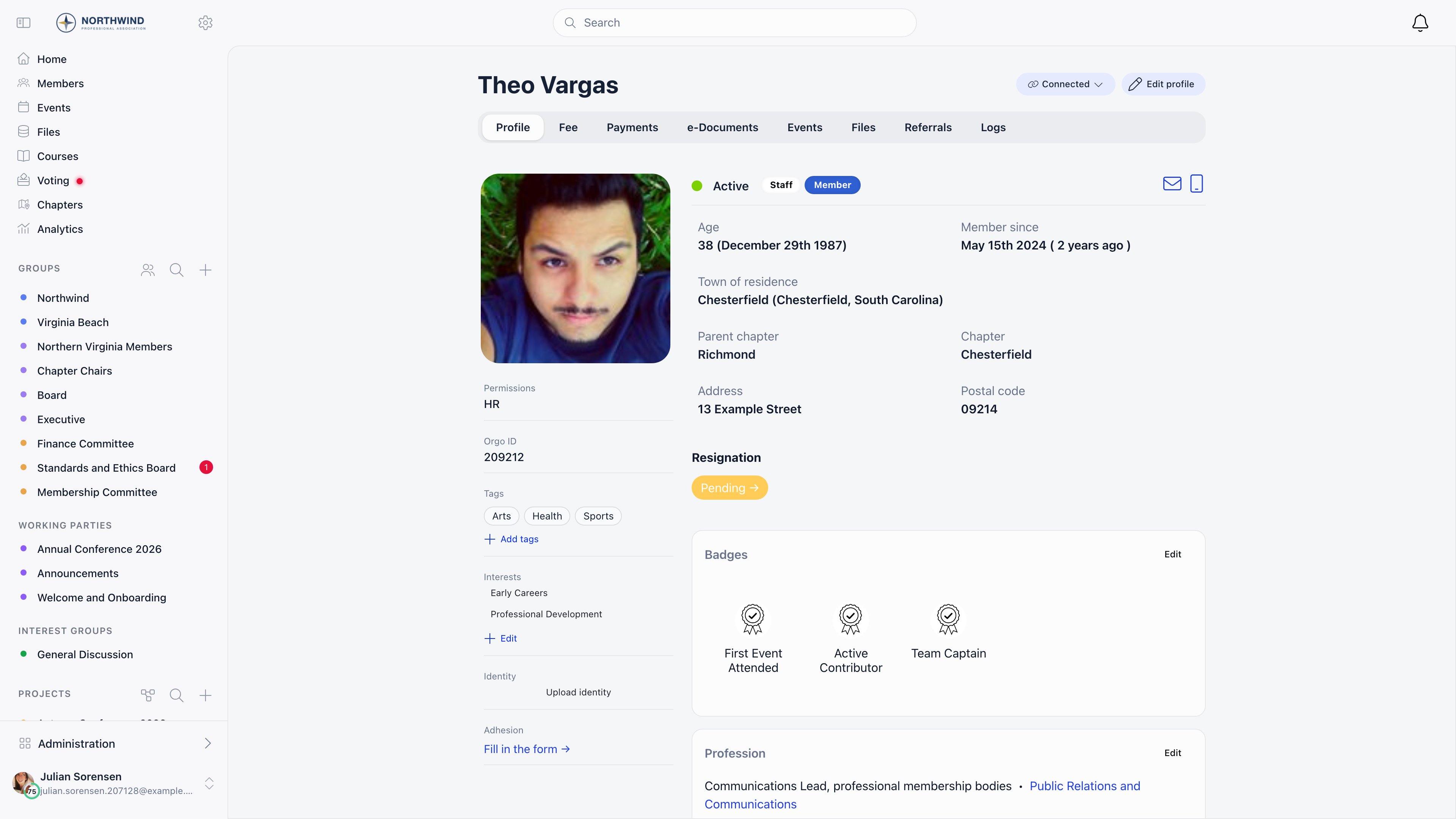
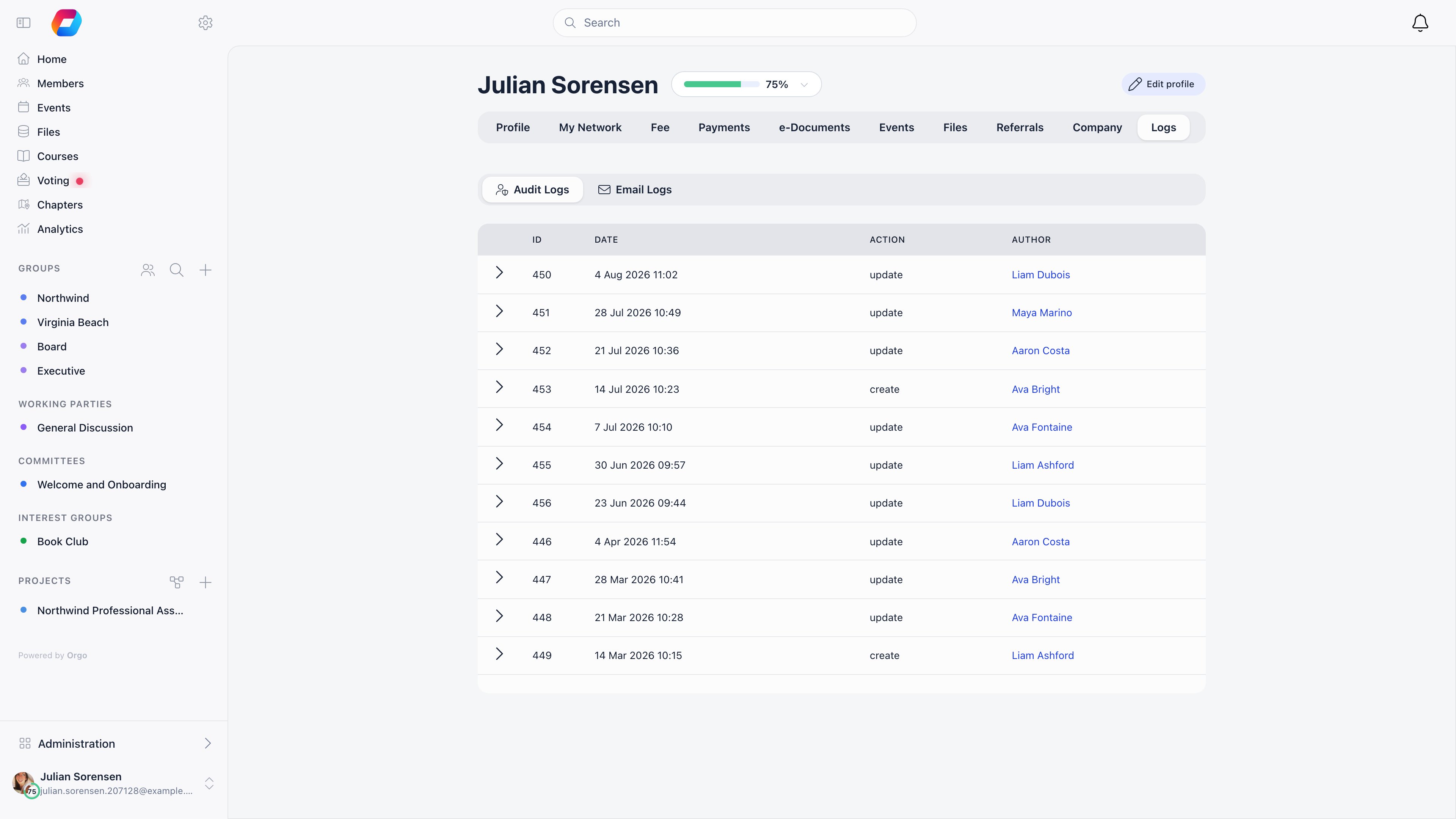
Clicking a name opens the profile in a modal you can expand to a full page (/user/{id}). Which tabs appear depends on modules, permissions and whether the
profile is your own.
Setting up
1
Design your registration form
Start minimal: you can collect more later.
Registration form
2
Create user types, if you need them
Use these when members fall into categories that behave differently, such as
Scout and Leader. Each type can have its own registration form.
User types
3
Decide whether signups need approval
Turn on Manual Approval to review each one from the directory.
Statuses
4
Configure profile and custom fields
5
Set privacy defaults
Members can restrict themselves further, never less.
Privacy settings
6
Assign permissions before you open registration
Choosing what to turn on
Troubleshooting
A member cannot log in
A member cannot log in
Start with their status: Inactive, Suspended, New request (still awaiting
approval) and Unconfirmed email all block access. Full elimination sequence in
Troubleshooting member access.
I need new information from existing members
I need new information from existing members
Add the field in Profile Fields and mark it
required. On their next visit, members with missing required fields are
redirected to an onboarding screen that lists exactly what is missing.That redirect only knows about a fixed set of fields: first name, last name,
date of birth, gender, phone, address, town born, town current, and the
Facebook, Twitter, LinkedIn, Instagram, Telegram and TikTok links, plus any
custom field. Marking anything else required, in particular Bio,
Postal code, Website, Location on members map, the three
Profession fields or any of the company fields, still marks it required
on the profile form, so a member who opens that form cannot save without it.
What it does not do is trigger the prompt, so nobody is ever sent there and
the field quietly stays empty for everyone who does not edit their profile.
If one of those is what you actually need, collect it with a
custom field instead, which the prompt does
check.
Members see photo cards instead of the table
Members see photo cards instead of the table
The directory opens in Gallery for everyone who is not an Orgo
administrator, and in the table for those who are. Nothing is missing: the
view toggle above the list switches between table, Gallery and Map, and your
choice is remembered in that browser from then on. If a colleague says a
column is missing, first check that they are looking at the table and not at
Gallery, since the column menu is only offered in the table view.
A colleague sees fewer columns than I do
A colleague sees fewer columns than I do
Columns are not a shared setting. Each one is gated on the permission in the
table above, evaluated per person and, for chapter permissions, per chapter.
Turning a column on from the column menu changes what you see, not what your
colleagues see.The two that surprise people most: email, phone and age need
HR_ASSISTANT_LOCAL, which HR_LOCAL, HR_PARENT_LOCAL and
FINANCIAL_LOCAL all imply but EVENT_LOCAL and COMMUNICATION_LOCAL do
not; and the custom-field columns need HR_TENANT, so a chapter
administrator does not get them even on their own chapter’s list.Someone can see the Members link but the page is empty or refuses them
Someone can see the Members link but the page is empty or refuses them
Sidebar entries and page permissions are configured in two different places
and can disagree. Each entry in the sidebar carries its own permission, set
in Settings → Customization →
Menu Organizer, while what the
Members page shows is decided by Settings → Users & Profiles →
Configuration → Who Can See Members in General Groups. Set the menu
entry more generously than that setting and people see a link that leads to
an empty page.Fix it at whichever end reflects your intent: raise the menu entry’s
permission to match the visibility setting, or lower the visibility setting
if the members really should see the directory. Do not assume a hidden link
means a protected page, or that a visible link means an accessible one.
Related
- Adding Members - the four ways people get an account
- Lists & Segments - reusable audiences built from member criteria
- User Statuses - what each status blocks
- Permissions - who can do what
- Custom Fields - data Orgo does not ship with
- Contacts - people who are not members