

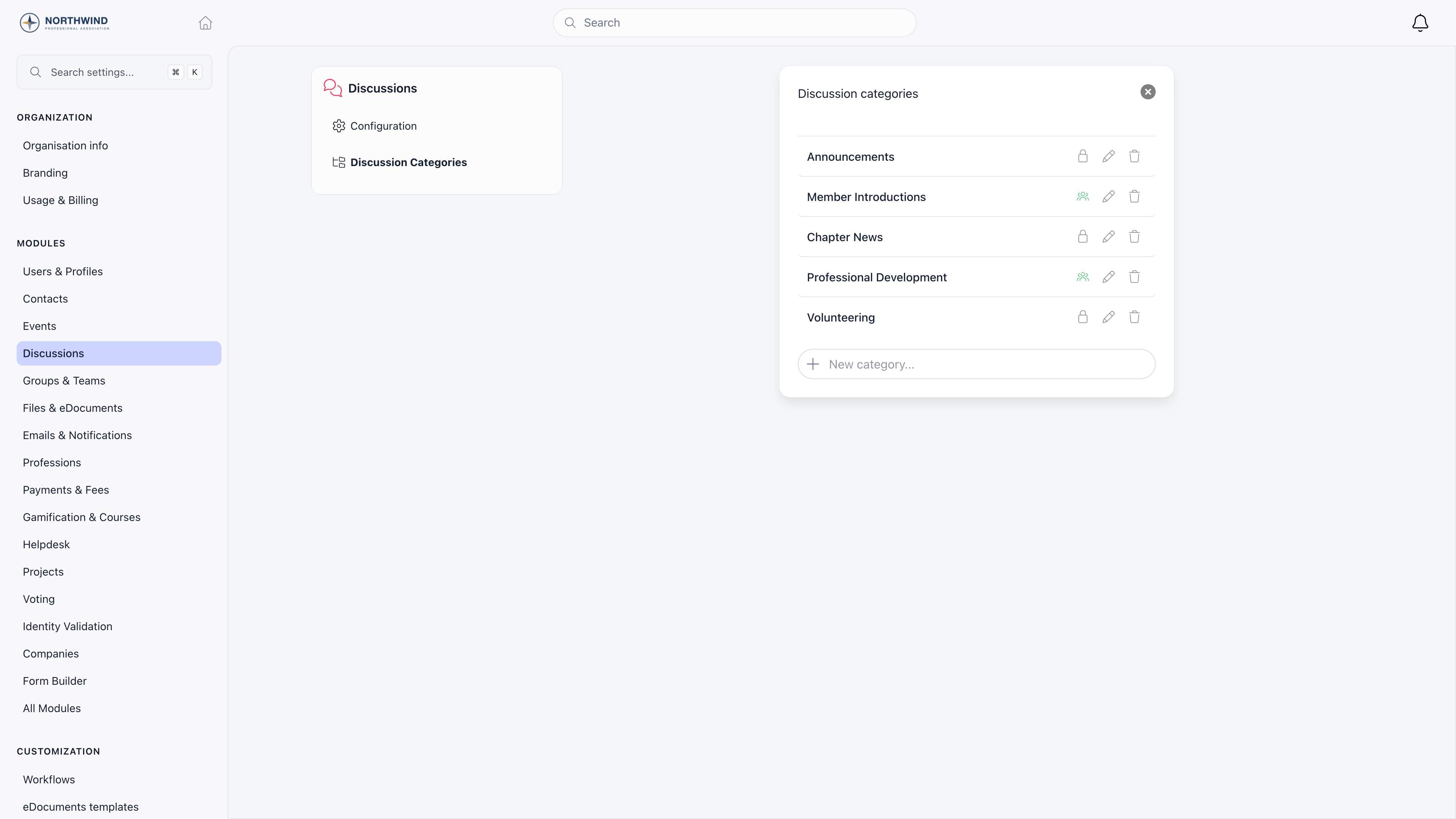
Turning categories on
Settings and then Discussions, and switch on Enable Discussion Namespaces (on by default). A Discussion Categories entry appears under the module.Organization categories and group categories
Where you create a category decides its scope, and there is no way to change that afterwards.
A group category also decides where the post lands. When a member picks a category that belongs to a group, the new discussion is created in that group even if they started writing from somewhere else. Changing the category on an existing post does not move it.
Managing categories
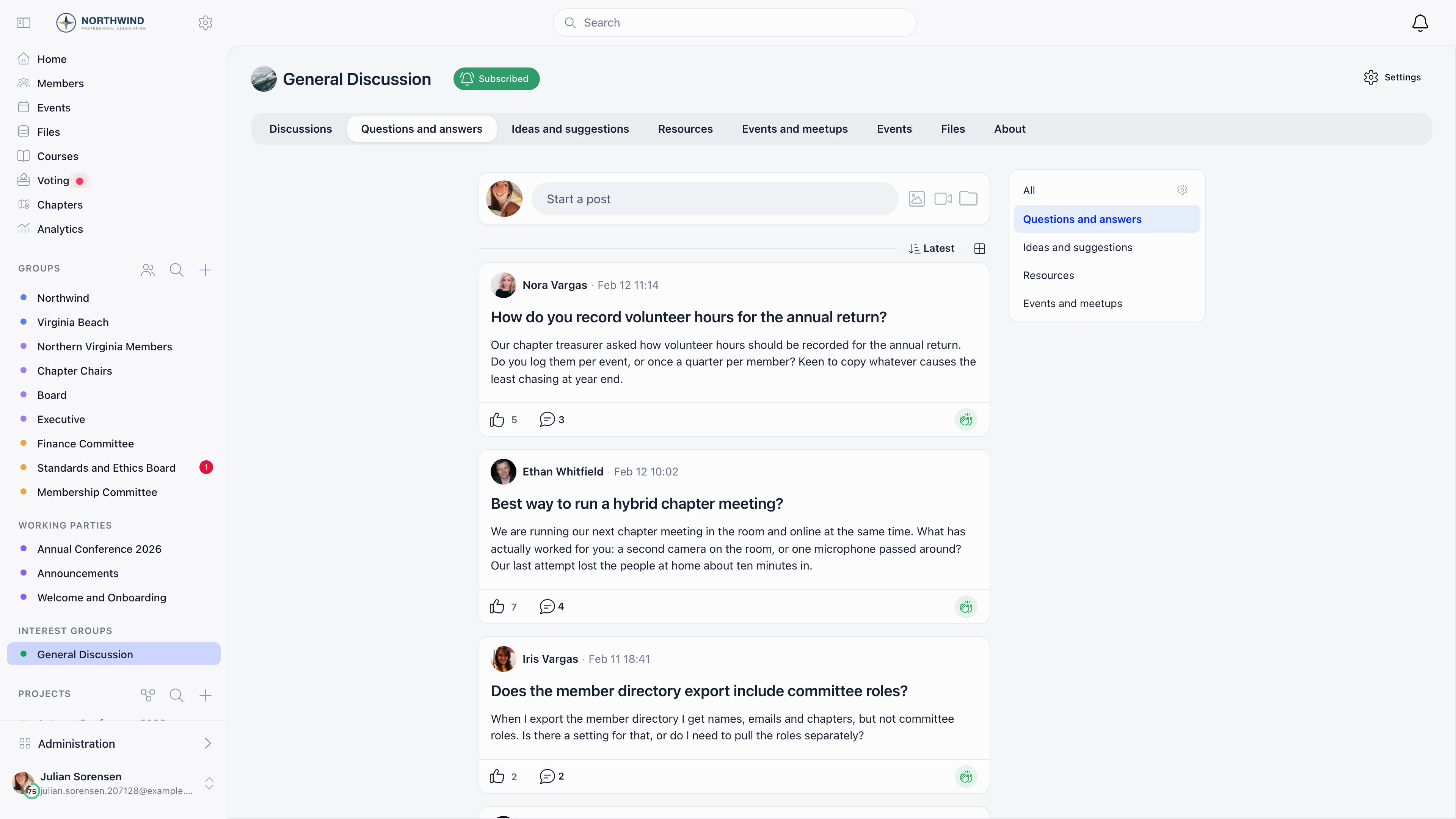
Open the category manager with the gear icon next to All in the category panel, or from Settings and then Discussions and then Discussion Categories.1
Create
Type a name into the New category… box and press Enter. New categories start with posting open to everyone.
2
Set who can post
The people icon means anyone can post in the category. Select it to switch to the padlock, which restricts posting to admins and moderators. Select it again to reverse.
3
Rename
The pencil icon edits the name in place. Existing posts keep the category, so they follow the new name.
4
Delete
The bin icon removes the category. Only categories with no discussions in them can be removed, so move or delete those posts first.
Who can manage categories
The permission depends on where the category lives, and it matches the permission needed to moderate the same place.The “anyone can post” switch
Each category carries its own posting permission, and in the organization-wide feed it can widen access rather than narrow it.A member who does not meet Who Can Create Public Discussions can still post in the organization feed if they choose a category set to “anyone can post”. Leave that switch on the padlock for categories you want to keep as announcement channels.
Tag groups inside a category
A category can carry tag groups (topic types), each holding a fixed list of tags. When a category has them:- the composer shows one tag picker per group, so a post can be labelled along several axes at once
- the sidebar shows one filter per group, plus text search, author and “my posts” filters for that category
POST /topic_types, then POST /topics for their values). Most organizations do not need them: free tags typed as #hashtags on a post already filter the feed.
Common questions
Should every group have its own categories?
Should every group have its own categories?
Only busy ones. A group with a handful of posts a month reads fine as a single feed. Add categories once members start scrolling past things they do not care about.
Nobody uses the categories
Nobody uses the categories
Choosing one is optional, so posts stay uncategorized unless people are nudged. Keep the list short, name categories the way members already talk, and make sure admins categorize their own posts.
Can I use the same categories everywhere?
Can I use the same categories everywhere?
Yes, by creating them organization-wide. They are then offered on posts that are not tied to a group. A group’s own feed only offers that group’s categories, so a shared set has to be recreated per group if you want it in group feeds too.
Deleting a category does nothing
Deleting a category does nothing
The category still has discussions in it. Reassign or delete those discussions first, then delete the category.
Can I link straight to one category?
Can I link straight to one category?
Yes. A filtered feed has its own address,
/discuss?category=<id> for the organization feed or /discuss?unit=<id>&category=<id> inside a group, so it can be added to the sidebar with the Menu Organizer.Related
- Discussions the feature overview
- Moderation holding and hiding posts
- Groups where group categories live
- Menu Organizer pinning a category to the sidebar
- Permissions the permission levels used above