

Use it when a person signs in to software you run: your website, a custom mobile app, an internal tool. For a script or a cron job that acts on nobody’s behalf, use an API token instead. To let people sign in to Orgo with Google or Microsoft, you want SSO Authentication, which points the other way.
Registering an application
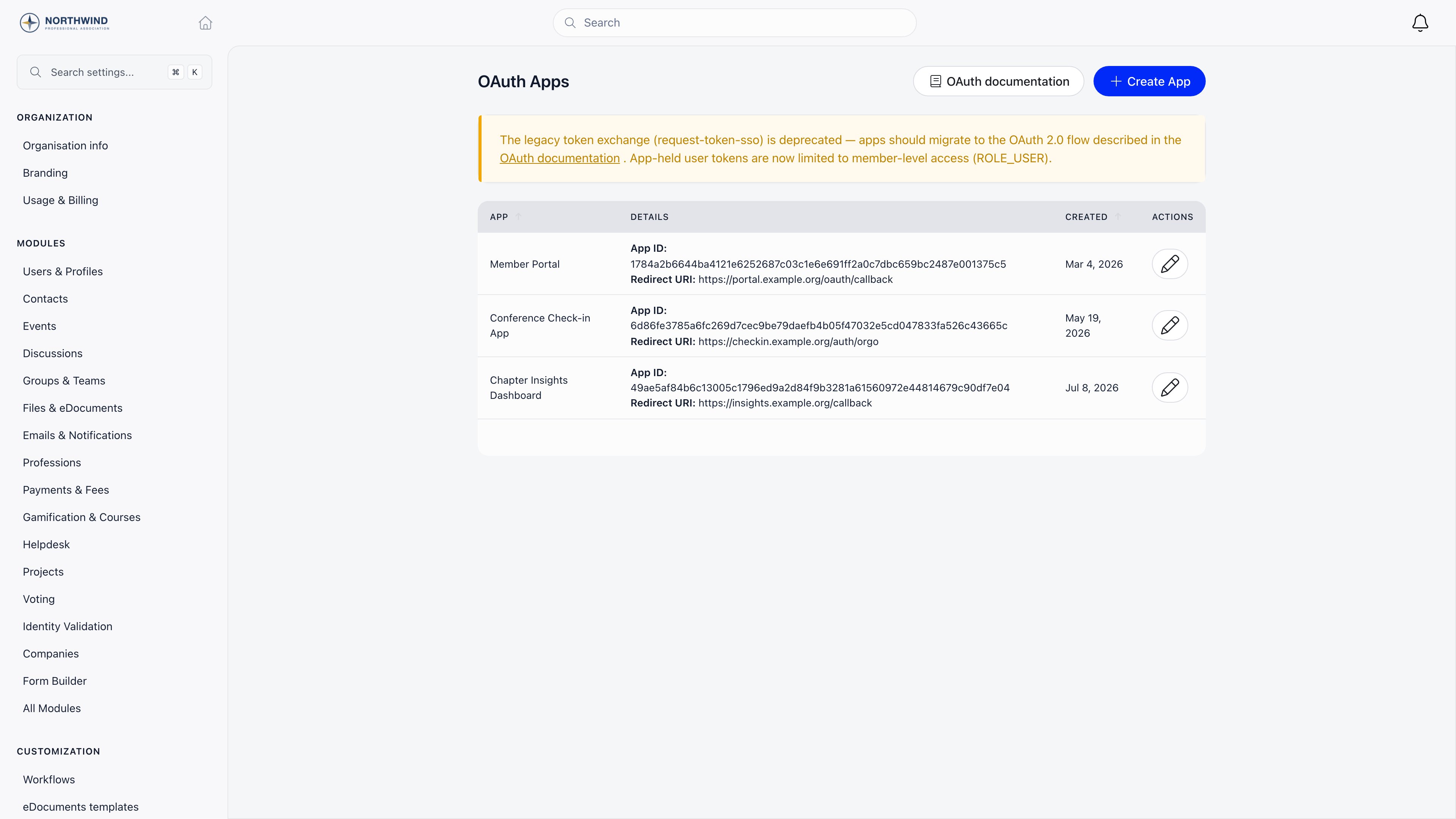
Settings → Developers → OAuth Apps → Create App. Requires ADMIN_TENANT.
On save, Orgo shows the App ID (your
client_id) and the App Secret (your client_secret) once. Copy the secret then: it is not shown again. If it is lost, open the app and use Generate new App Secret, which invalidates the old one.
Apps created here are confidential clients bound to your organization: only members of your organization can authorize them.
A developer can also self-register a public client against your tenant, without an administrator, through the standard dynamic-registration endpoint. Those clients get no secret and are authenticated by PKCE alone. Registration is throttled to 10 clients per hour per IP address. See Authentication.
What an app you register can never do
A token issued to an app registered on this page is capped at member level, whoever authorizes it. If an administrator connects the app, it still cannot perform administrative actions. This is deliberate and not configurable. An app you register holds a long-lived shared secret and runs unattended, so it must not be able to inherit an administrator’s authority.Self-registered public clients are treated differently, and on purpose. They hold no secret, PKCE binds the code to the one browser that started the flow, and the token is short-lived and tied to the member who approved it. Such a client stands in for that member’s own session, so it carries their own authority rather than a member-level cap. An interactive tool an administrator connects to their own account, an AI assistant for example, therefore works with that administrator’s permissions.
GET, HEAD and OPTIONS only. Anything else is rejected with 403 and “This application has read-only access and may not act on your behalf.”
The consent screen tells the member which of the two applies, along with the app’s name, the scopes requested and the redirect URI, before they approve.
The flow
code_verifier.
1. Authorization request
2. Code exchange
Authorization: Basic header or in the body, never both.
3. Identify the member
sub and tenant_id always, name / given_name / family_name / picture with profile, email and email_verified with email, groups and roles with those scopes. GET /api/v1/me returns the fuller Orgo profile.
Lifetimes
An authorization session that is started and not completed expires after 30 minutes; the member simply restarts the flow.
Endpoints and scopes
Configure your client from the discovery document rather than hardcoding paths:/.well-known/openid-configuration serves the same document, and public signing keys are at /api/v1/oauth/jwks.json.
Request only what you need: fewer scopes means a simpler consent screen and less data leaving Orgo.
Built-in developer page
Orgo ships an OAuth reference inside the app at Settings → Developers → OAuth Apps → OAuth documentation, filled in with your own organization’s host so developers can copy working URLs.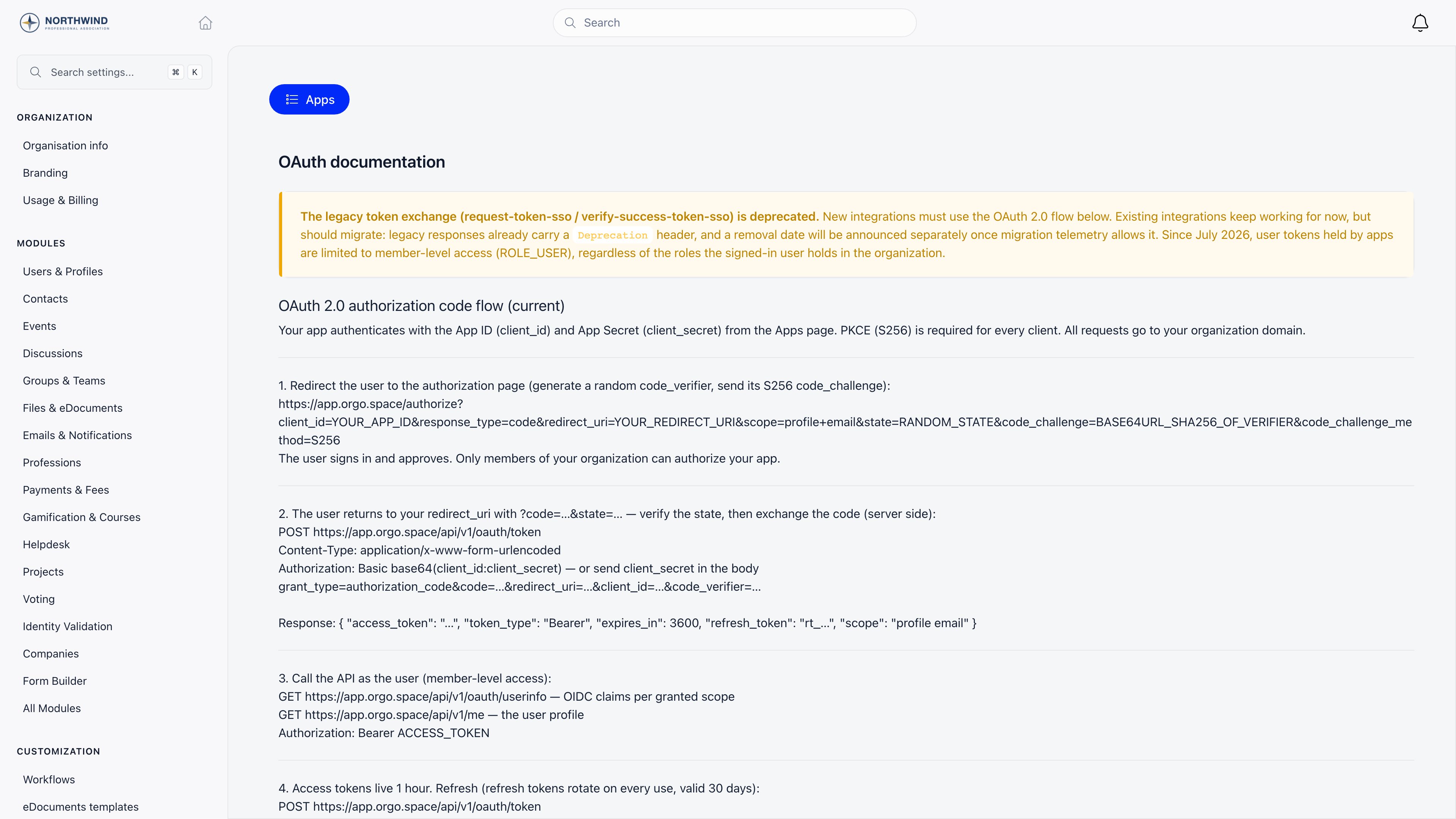
Legacy token exchange
The olderrequest-token-sso / verify-success-token-sso handshake is deprecated. Existing integrations keep working and its responses now carry a Deprecation header, but new ones must use the OAuth 2.0 flow above. A removal date will be announced separately.
Troubleshooting
invalid redirect URI
invalid redirect URI
The
redirect_uri in your authorization request must match the one registered on the app exactly. Watch trailing slashes, http versus https, and port numbers.401 invalid_client
401 invalid_client
Wrong or missing App Secret, or a secret sent by two methods at once. Use either the Basic header or the body.
400 invalid_grant
400 invalid_grant
The code was already used, it expired (10 minutes), or the
redirect_uri differs from the one sent to /authorize.429 at the token endpoint
429 at the token endpoint
Too many failed secret attempts for that App ID: 10 within 5 minutes. Wait for
Retry-After. A request with the correct secret is never throttled.This application belongs to a different organization
This application belongs to a different organization
The member is signed in to another workspace than the one the app was created in. They must switch workspaces before approving.
Building a single-page app
Building a single-page app
Self-register as a public client rather than using an app created here: no secret to leak, PKCE authenticates it.
Related
- API Access - tokens for server-to-server access
- Authentication - the full authentication reference
- Integrate OAuth login - end-to-end walkthrough
- Integrations - inbound SSO and third-party services
- Permissions - what member level means in Orgo