

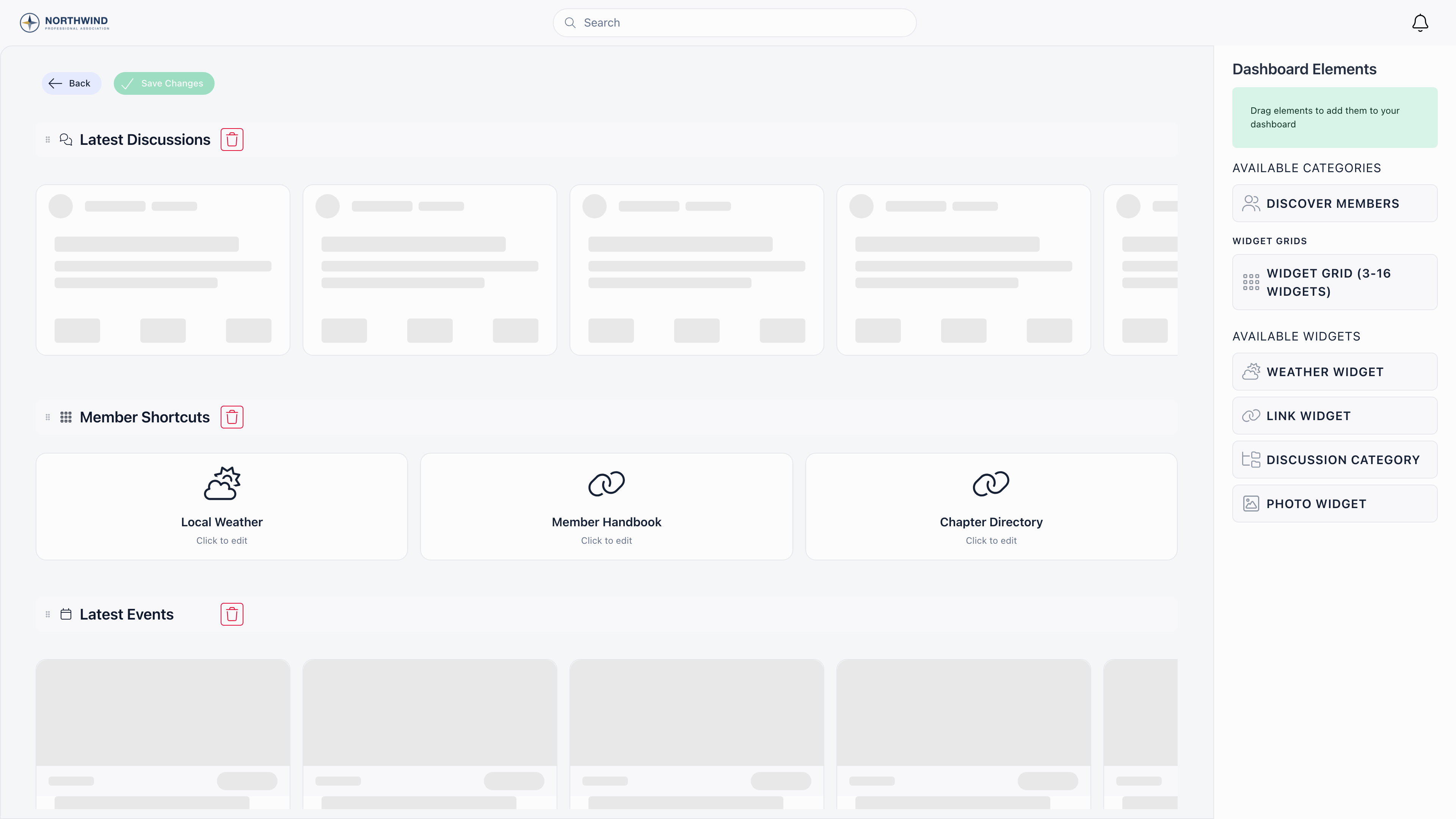
Requires ADMIN_TENANT and Use Custom Dashboard, a switch under Settings → Modules → Users & Profiles → Advanced Settings. Its own help text says it: when enabled, the home page shows the configurable dashboard with widgets instead of the default feed. While it is off, this page is hidden from Settings and redirects to the dashboard.
Building the dashboard
1
Open the page
It opens in edit mode already, with the palette on the right and a grip handle and delete button on every category. After you press Save Changes it drops back to a plain preview, and an Edit Dashboard Layout button brings the palette back.
2
Drag a category onto the page
Drop it between existing categories to control where it lands. A blue line shows the insertion point.
3
Fill widget grids
A grid shows empty slots. Click one to open the widget picker, or drag a widget straight from the palette into a slot. Drag a placed widget onto another slot to swap them.
4
Configure each widget
Click a placed widget to open its settings: title, icon, background colour and its type-specific options.
5
Rename and reorder
Click a category name to edit it inline. Drag the grip handle to move a category up or down. The first category is the top of the dashboard.
6
Save Changes
The button stays disabled until something has actually changed. Nothing is applied to members until you press it.
Content sections
Orgo fills these; there is nothing to configure inside them.
Each can be added once. Once it is on the dashboard it disappears from the palette. Discover members only appears in the palette when User Recommendations is on (Settings → Modules → Users & Profiles → Advanced Settings), and it is hidden from the dashboard again if that switch is later turned off.
Widget grids
The palette offers one grid category, Widget Grid (3-16 widgets). It starts with three slots and grows a slot at a time as you fill it, up to sixteen. Add as many grid categories as you need.
Every widget also takes a Widget Title, an icon picked from a searchable list (or none), and a Background Color. Deleting a widget removes any images it held.
Organizations set up before the dynamic grid may still have fixed grids of 3, 4, 6, 8 or 16 slots. Those keep working exactly as before; only new grids use the flexible one.
Where the configured dashboard appears
With the Custom Dashboard feature on, the member dashboard at /dashboard renders your configured categories at the top, followed by the standard dashboard content. Without the feature, members get Orgo’s default feed dashboard and this page is unavailable. The layout is responsive: grids sit side by side on desktop and stack into fewer columns on mobile. Category order is the same on both, so put the thing you most want seen first.Troubleshooting
Save Changes is greyed out
Save Changes is greyed out
Nothing has changed yet. The button enables on the first real edit. Renaming a category only counts once you confirm the inline edit.
A content section is missing from the palette
A content section is missing from the palette
Each is single-use: if it is already on the dashboard it will not appear again. Discover members additionally requires member recommendations to be enabled.
A section shows nothing for some members
A section shows nothing for some members
Content sections render each member’s own data. Latest Discussions is empty for someone in no groups; Latest Events is empty when nothing upcoming is visible to them. Pair a content section with a widget grid so the dashboard is never blank.
I want a different dashboard per role
I want a different dashboard per role
The layout is one for the whole organization. Only the Photo Widget varies by audience, through its user type specific photos. For role-specific messaging use Dashboard Welcome, which does target by user type.
Related
- Dashboard Welcome - the greeting above the dashboard
- Menu Organizer - the sidebar equivalent
- Discussions - what the discussion sections and widgets point at
- Events - what the events section shows
- Customization - everything under Settings → Customization