

Before you start
- Online Payments must be on (Settings → Modules → Online Payments). It is on by default.
- A Stripe account must be connected, or the one-off payment option cannot be enabled at all; a campaign owned by a local center needs that chapter’s own account. See Stripe Integration.
- FINANCIAL_TENANT, or FINANCIAL_LOCAL for a local-center campaign, to create, edit or delete one. The same permission gates the payments list, widgets, and message moderation.
Donations vs fees
Both are products, so both share prices, payments, invoices, and Stripe. Only donations get goals, donor messages, the donor wall, and widgets.
Creating a campaign
Finance → Products → Create Product, then pick the Donation card.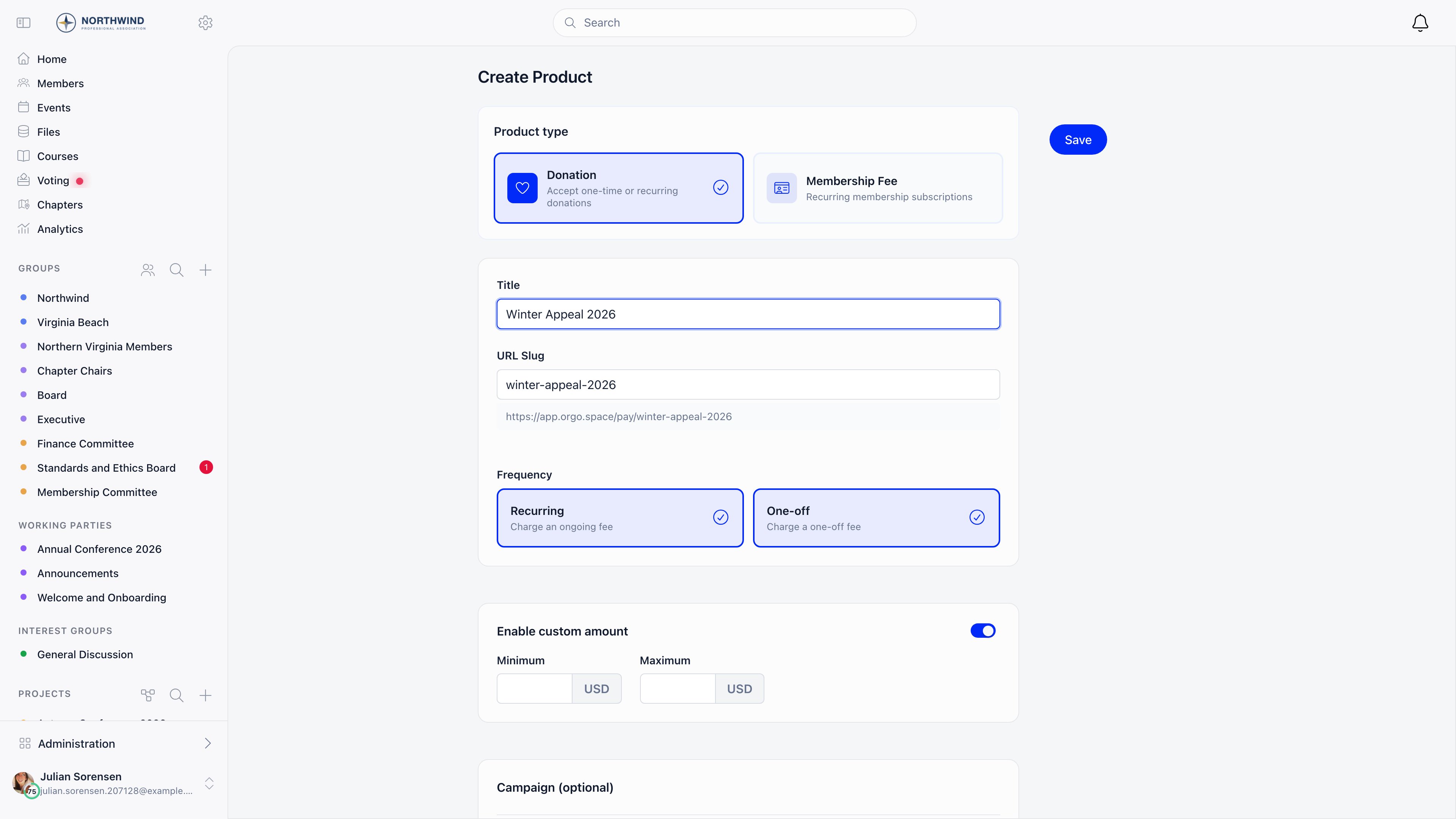
Campaign settings
Donation products only, on the create and edit form:The first organisation-level donation product you create is registered as the organization’s default donation product. A campaign scoped to a chapter never claims it. That default is what the shortcut URLs
/donate, /doneaza, and /presedinte resolve to. You can change it later under Settings → Online Payments → Donation Product.Suggested amounts and options
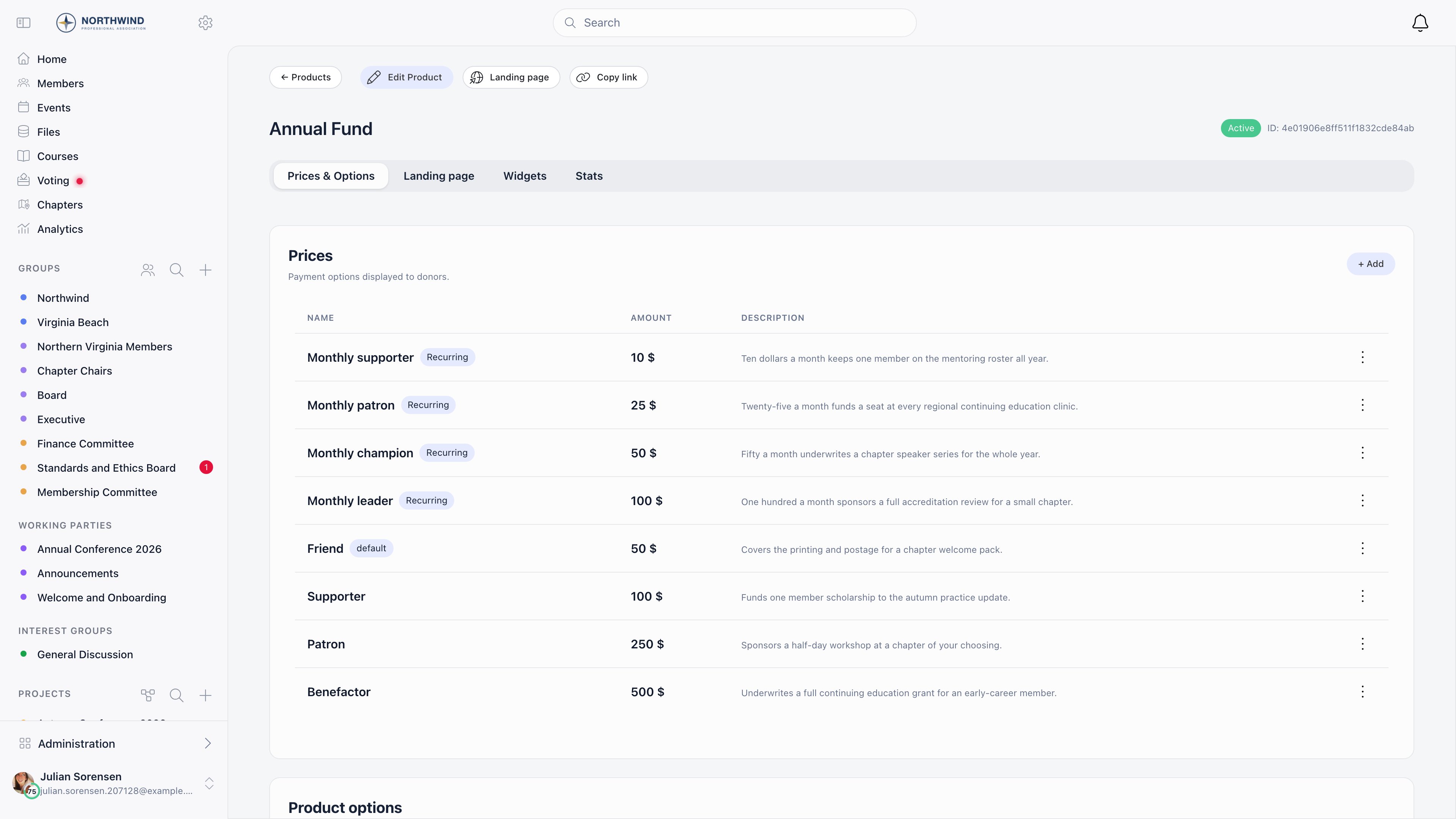
The Prices & Options tab holds everything the donor picks from. Prices are the suggested amount buttons: name, amount, currency, description, tagged One-time or Recurring. Mark one as the default (pre-selected on load), and archive retired ones rather than deleting them so past payments keep resolving. A new campaign arrives with six suggested amounts already created (50, 100, 200, 300, 500 and 1000 in your organisation currency, with 100 pre-selected), plus a matching recurring set when Recurring is on. Edit or archive them to suit your campaign. Generate only appears while a campaign has no prices at all, so you have to clear the seeded ones first. It reads your organization’s country and currency and the campaign title and description, then creates three A/B variations of three amounts each, registers the prices in Stripe, and switches A/B testing on. Product options are the designations a donor chooses from, such as which program the gift funds. Add them inline, drag to reorder, rename in place, and archive when a designation closes; each has its own shareable link that pre-selects it on the public page. They appear under Designate to at checkout, and when Has local center option is on a Support chapter entry is appended to the same dropdown and opens a chapter picker.A/B testing suggested amounts
Turn on Pricing A/B Testing to run more than one set of suggested amounts side by side. Add a variation, drop prices into it, and enable it. Traffic is split evenly between the enabled variations, and the split percentage is shown on each row.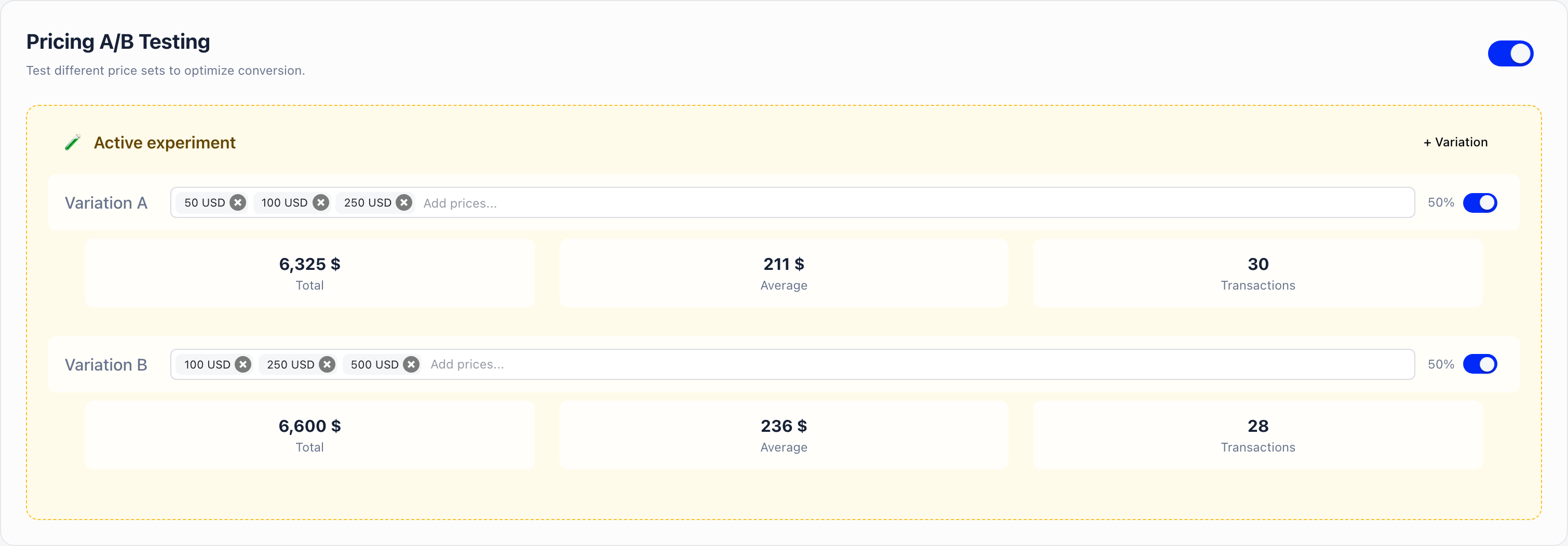
Tracking the money
Payments lists every donation with its status, donor, location, designation, amount, date, confidentiality flag, and type (one-time or recurring). Everyone who can open the list can filter by payment ID, payer name, user ID, date range, type and status. The email, designation and chapter filters, and the Record payment button, are shown only to FINANCIAL_TENANT.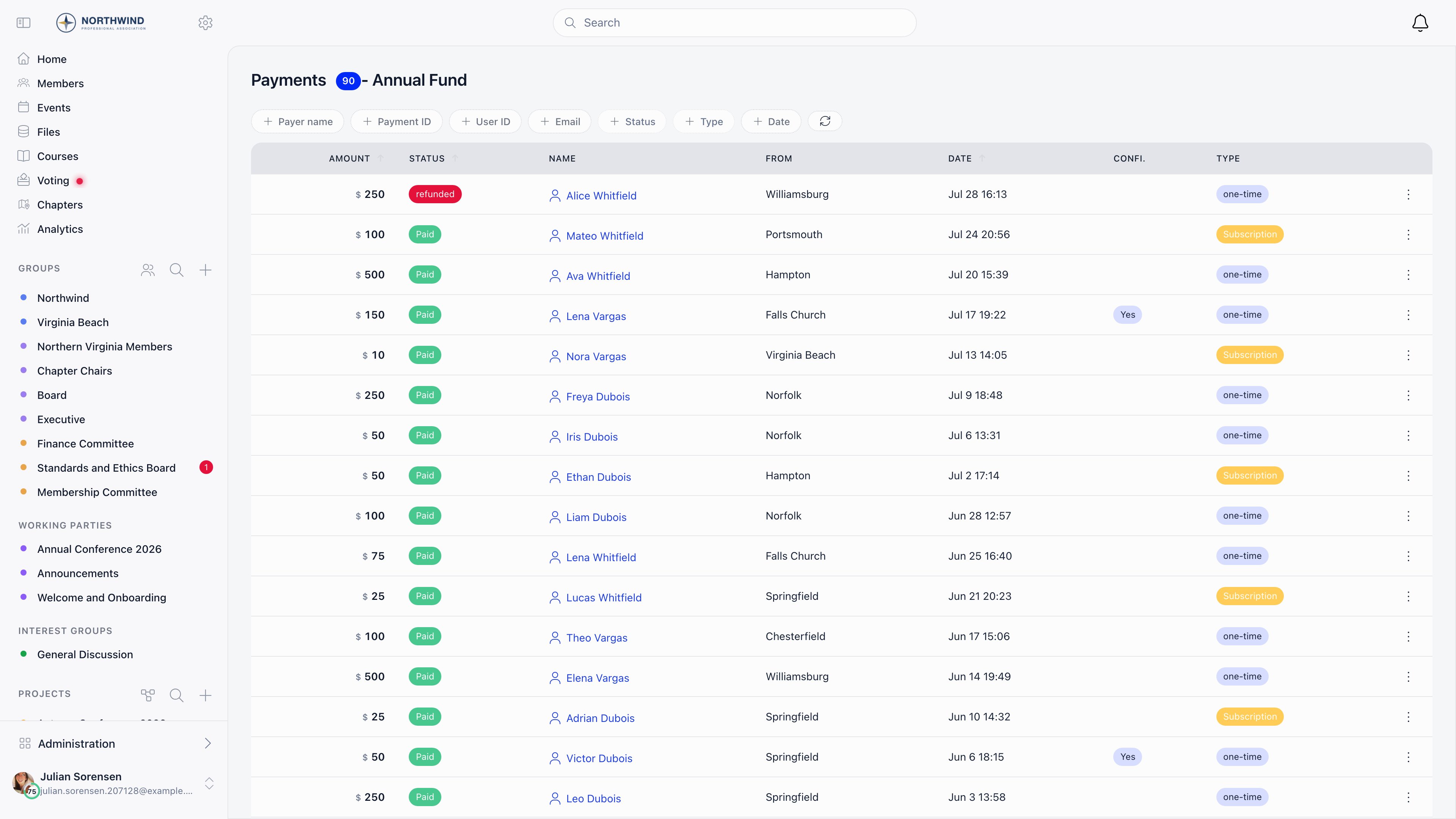
refunded; only a payment already in success can be refunded, and one still on hold is cancelled instead. Both actions need FINANCIAL_LOCAL on the chapter the donation was designated to, or FINANCIAL_TENANT when it was not designated to one. ADMIN_TENANT covers both. A chapter treasurer cannot refund an undesignated gift.
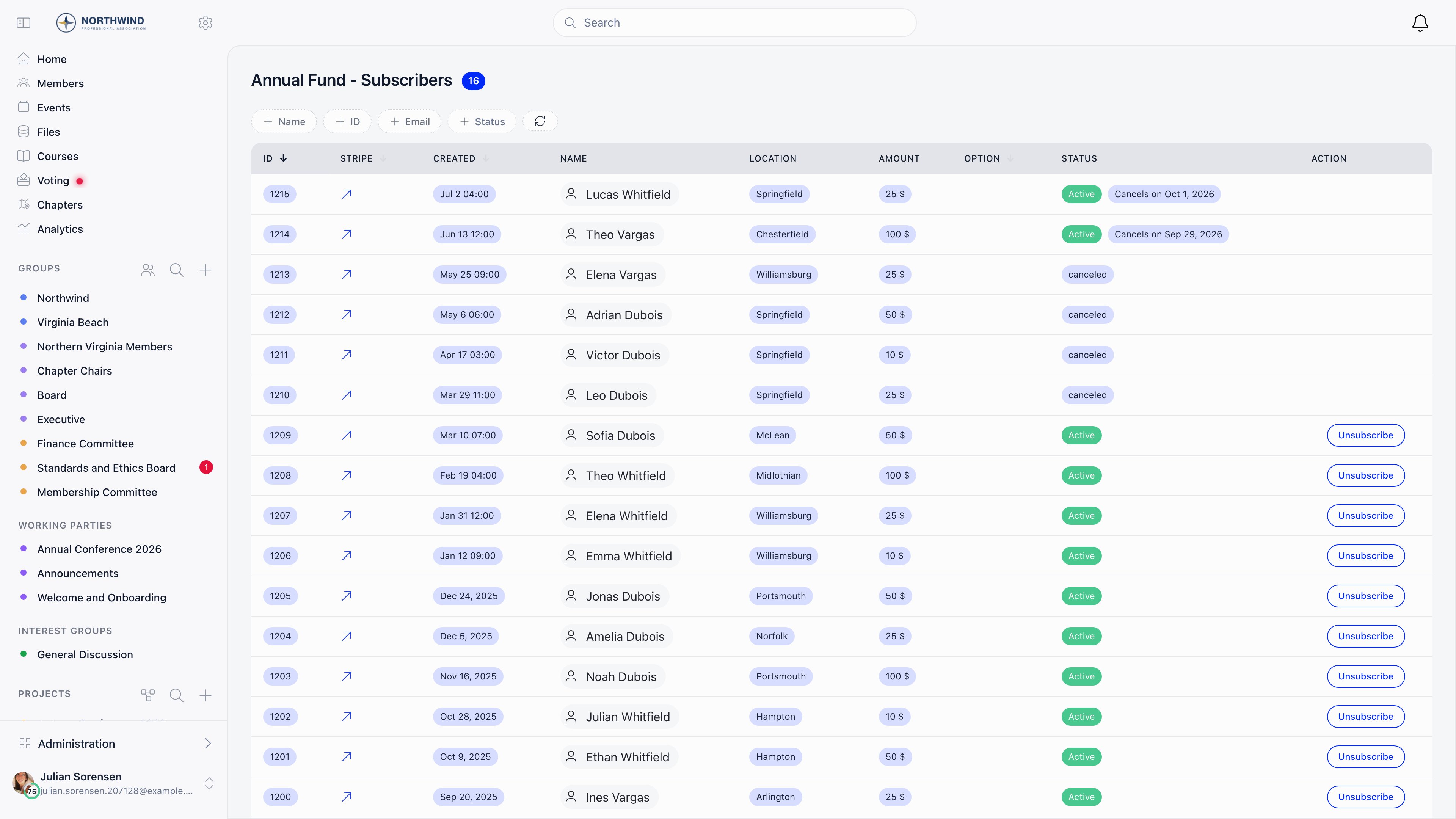
Subscribers lists the recurring donors on the campaign: name, status, chapter, designation, amount, and identity-validation state where that is required. Statuses are Active, Canceled, Canceling, No identity upload, Identity validation pending, Waiting for subscription, and Pending. An admin can cancel a subscription from here with Unsubscribe.
What the donor pays
Cover the processing fee lets the donor add the payment processing cost on top, so the full intended amount reaches you. The fee shown is 2.9% of the amount plus a fixed per-currency component, for example 0.30 USD, 0.25 EUR, 0.20 GBP, or 1.20 RON. Donations are supported in 19 currencies: USD, EUR, GBP, CAD, AUD, CHF, DKK, NOK, SEK, PLN, CZK, HUF, BGN, RON, HRK, JPY, MXN, SGD, HKD. Each carries its own minimum charge (0.50 USD and EUR, 0.30 GBP, 2.00 RON), so a very small custom amount can be rejected even when your own minimum allows it. After a successful one-off donation the donor sees your thank-you message on the page and, as soon as Stripe confirms, gets a donation thank-you email with the amount and the campaign name, customizable under Email Templates. Your version has no language of its own: it is sent to every donor as written. See Email templates. Offline gifts (cash, cheque, bank transfer) are not handled by the public page. Record them from the member’s payments view instead, which requires FINANCIAL_TENANT. See Recording payments.Two other places donations show up
Supporters. Nominate one campaign as the Recurring Donation Product under Settings → Online Payments. A member with an active, non-confidential subscription to it is flagged as a supporter on their profile and in the member directory. Cancelling clears the flag; a subscription the donor marked confidential never sets it. Donation ask at fee checkout. A membership fee product can carry an optional donation prompt on its own checkout, configured under Settings → Modules → Membership Fees with its own prompt text, minimum and maximum. Separate from a donation campaign; see Membership Fees.Common questions
How do I run a time-limited fundraiser?
How do I run a time-limited fundraiser?
Set a Target date. When a goal is set, the public progress bar shows that date instead of the completion percentage, which is what creates the deadline pressure. The date does not stop payments by itself; archive the campaign to close it, which replaces the form with a “payments disabled” notice.
How do I push monthly giving over one-off?
How do I push monthly giving over one-off?
Enable both frequencies. The public page then shows a Give once / Monthly toggle with a “Boost your impact by giving monthly” prompt. In widgets, set Default Donation Type to monthly and leave Show Monthly Upsell on.
Can a donor give anonymously?
Can a donor give anonymously?
Yes, if Enable payment confidentiality is on. The donor ticks the box and their name becomes “anonymous” on the donor wall and on their message; their identity is still recorded on the payment for your records.
Why can I not delete a campaign?
Why can I not delete a campaign?
A campaign with any recorded payment cannot be deleted. Archive it instead, which keeps the history and stops new donations.
Related
- Donation pages and widgets - the public page, donor messages, embeds
- Products - product types, prices, and payment settings
- Stripe Integration - connecting payment processing
- Membership Fees - required, non-voluntary payments
- Local Center Fees - chapter-level collection