

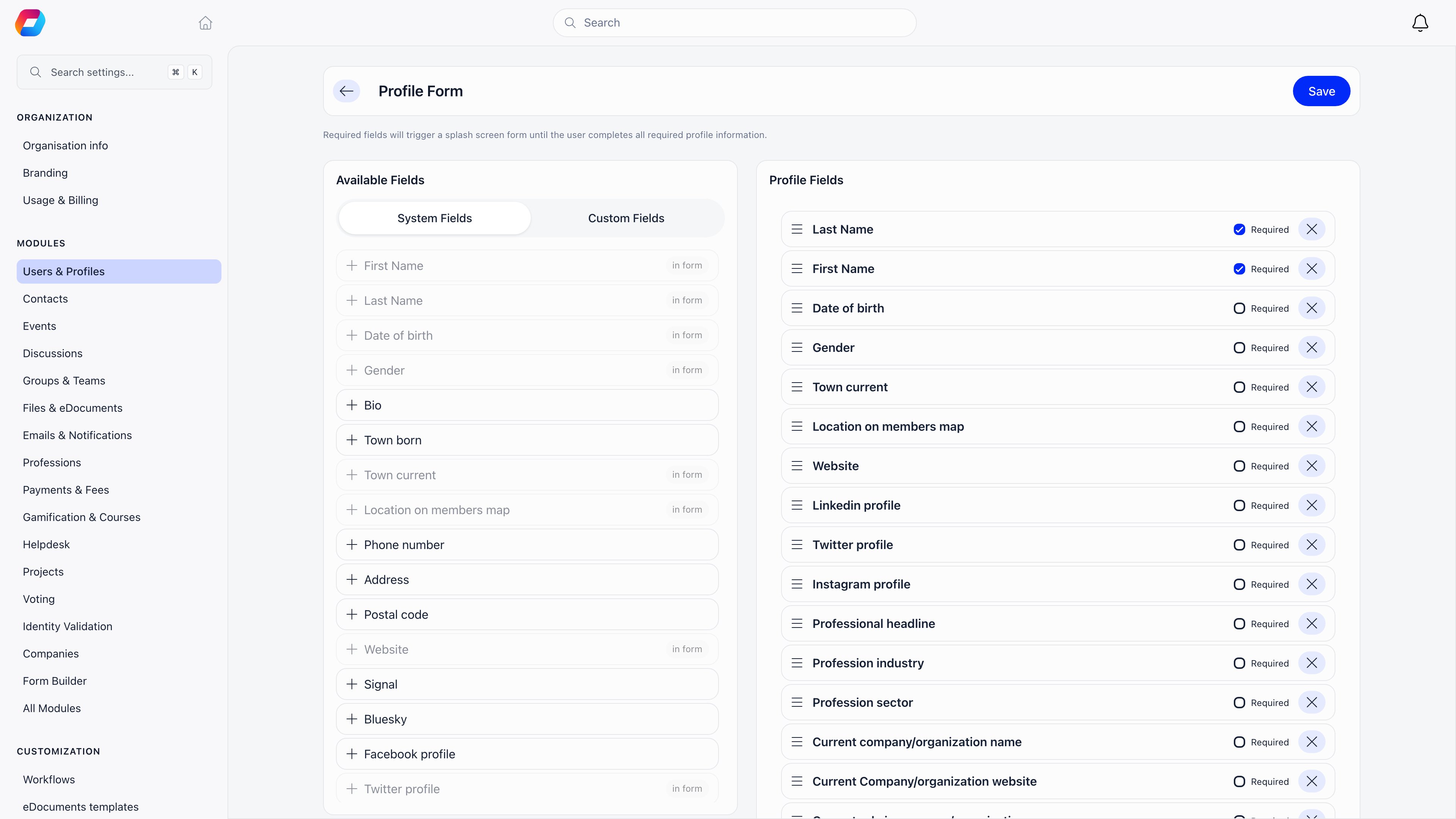
How to access
Settings → Users & Profiles → Profile Form. RequiresADMIN_TENANT.
Building the form
1
Pick fields from the left panel
Available Fields has two tabs: System Fields (Orgo’s built-in profile columns) and Custom Fields (the ones you created). The Custom Fields tab is disabled until you have at least one custom field. Click a field or drag it across to add it. Fields already in the form are greyed out and marked in form.
2
Order them
Drag rows in the right panel to reorder. The order you set is the order members see, with built-in and custom fields interleaved however you arrange them.
3
Mark what is required
Tick Required on any row. Custom field rows also offer Immutable.
4
Save
Nothing is stored until you press Save at the top right.
Built-in fields you can add
Profile picture is not on this list. It is always available and is not configurable here.
The profession, organisation, and billing fields do not render on the Profile tab. They appear on a separate Profession tab on the member’s profile, and only when the Professions module is active. Profession headline is the exception: with Professions switched off it renders inline on the Profile tab instead.
Required fields and the completion screen
Marking a field Required does more than star it on the form. On their next page load, any member with an empty required field is redirected to a completion screen at/hello-member and cannot navigate away until they fill it in.
That screen is shared with the other things Orgo asks a member to settle on first sight: profile, privacy, notifications, timezone, groups, and unsigned e-documents. Only the steps that actually apply are shown.
Two exceptions are worth knowing:
- Admin-only custom fields are never required of members. If a custom field’s visibility is Admin, it is skipped when checking whether the member’s profile is complete.
- Not every built-in field can enforce itself. The completion check only recognises first name, last name, date of birth, gender, phone number, address, town born, town current, and the Facebook, Twitter, LinkedIn, Instagram, Telegram, and TikTok fields. Marking any other built-in field required (bio, postal code, website, map location, Signal, Bluesky, or any profession, organisation, or billing field) shows it as required on the form but does not trigger the completion screen. Required custom fields are always enforced.
Immutable custom fields
Immutable is available on custom field rows only. Once the field has a value for a member, it becomes read-only on the profile form.Profile completion percentage
When Profile Completion Enabled is on (Settings → Users & Profiles → Configuration, on by default), members see a completion ring in the header and sidebar with the fields they are still missing. The percentage is calculated over profile picture and email, which always count, plus first name, last name, date of birth, gender, and town current when those are on the profile form, plus one combined “social profile” item when any social field is on the form. Having any single social link filled satisfies that item. Fields that are not on your profile form are not counted against members.Registration form compared with the profile form
A field can sit on both with different settings. Phone can be optional at registration and required on the profile, so new members can skip it while signing up and get asked for it on their next visit.
Common scenarios
I need a new piece of information from all existing members
I need a new piece of information from all existing members
Create the custom field, add it to the profile form, tick Required, and save. Members are prompted the next time they open Orgo.
I marked a field required but nobody is being prompted
I marked a field required but nobody is being prompted
Check it against the enforced list above. Several built-in fields, including bio, postal code, website, and everything on the Profession tab, display as required but do not drive the completion screen. Use a custom field if you need enforcement.
A member entered the wrong value in an immutable field
A member entered the wrong value in an immutable field
The profile form will not let you change it, and that applies to administrators too. Untick Immutable, correct the value, then tick it again.
I removed a field by mistake
I removed a field by mistake
Add it back and save. The values members had already entered were never deleted, so they show up again.
Related
- Custom Fields for creating the fields this form offers
- Registration Form for what is asked at sign-up
- Privacy Settings for who can see profile data
- Adhesion for the membership application form
- Permissions for what
ADMIN_TENANTcovers