

Turning it on
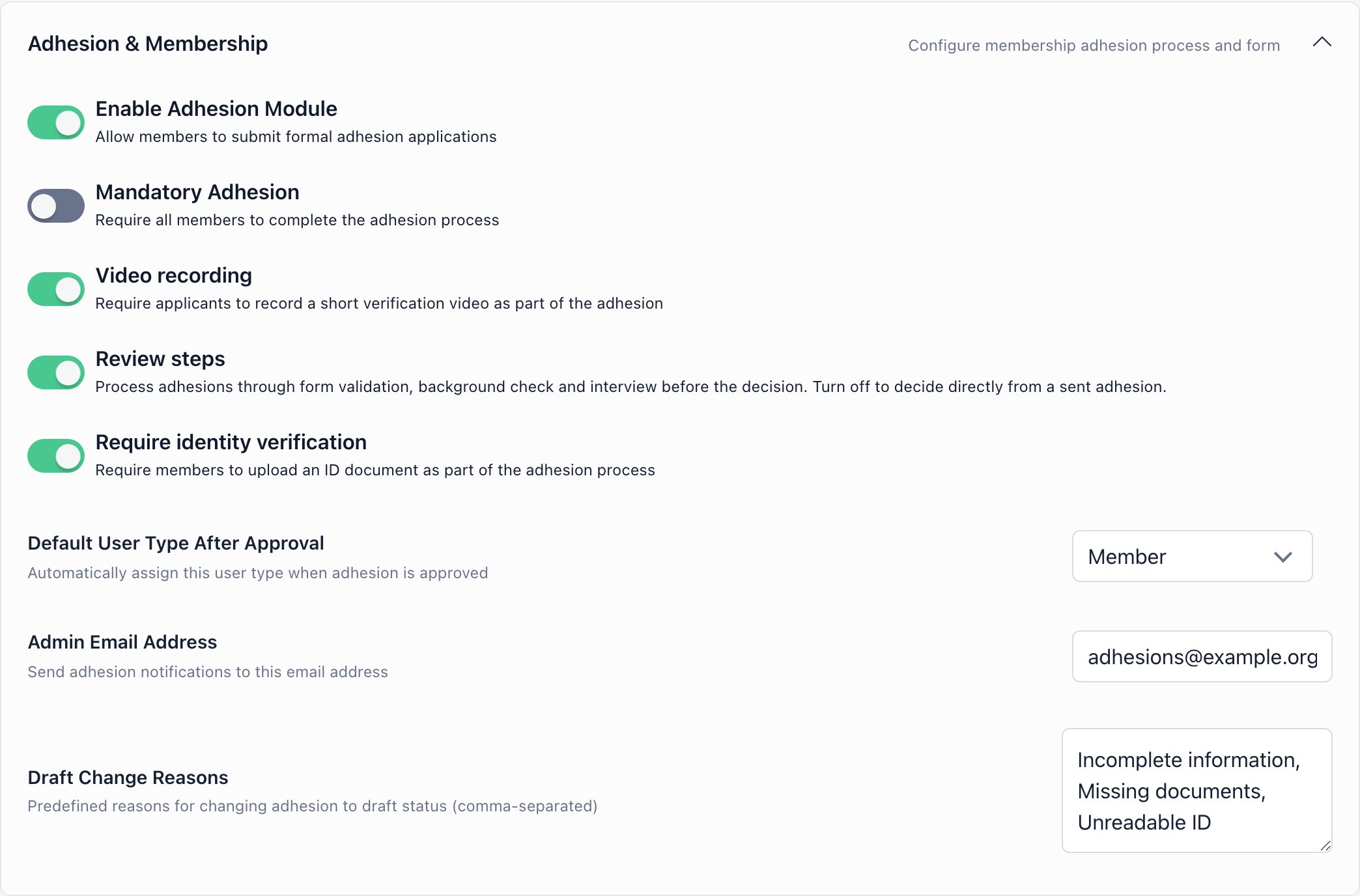
Settings → Users & Profiles → Configuration → Adhesion & Membership. RequiresADMIN_TENANT.
Building the form
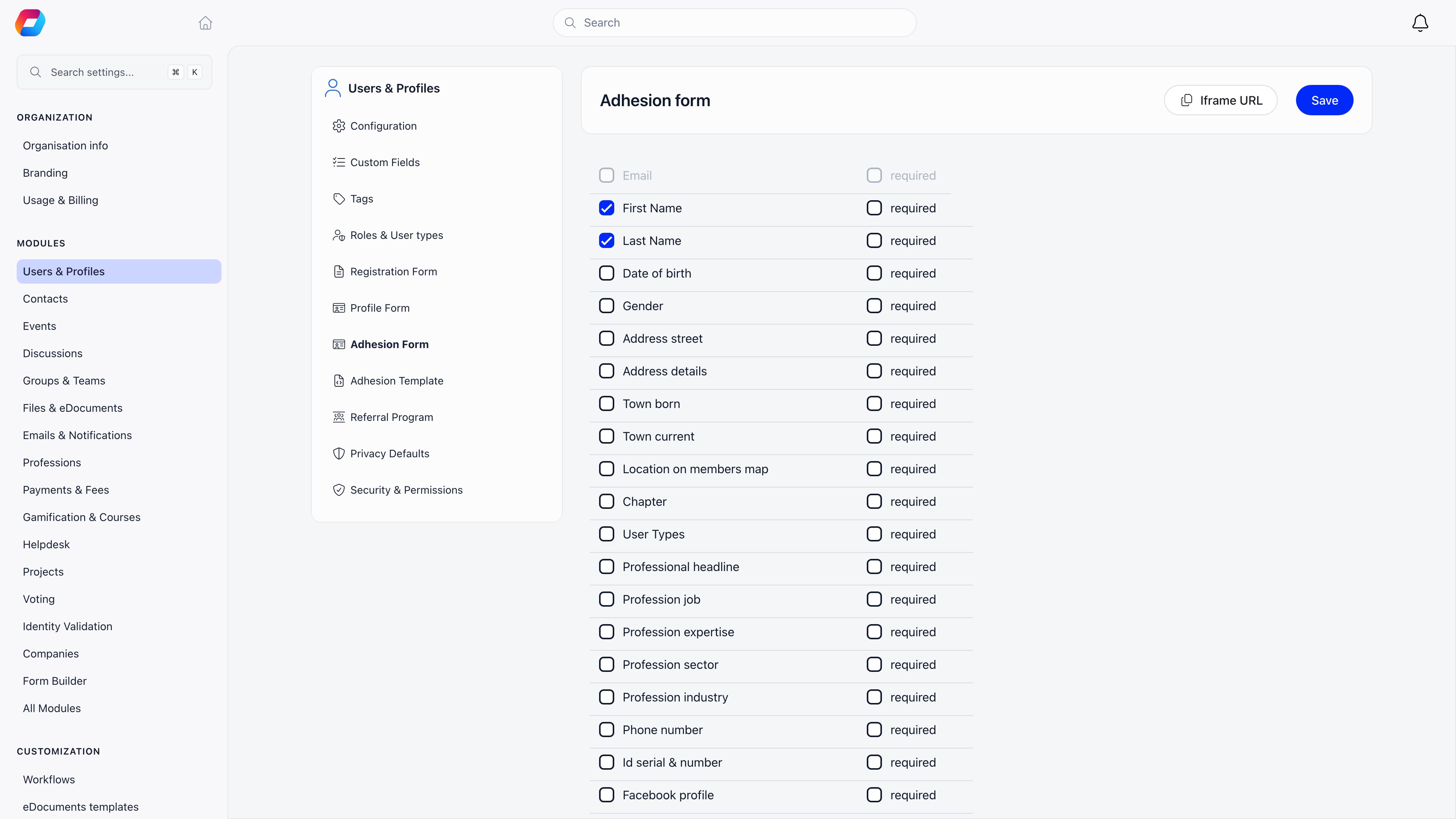
Settings → Users & Profiles → Adhesion Form (ADMIN_TENANT). Each row has two checkboxes, include the field and make it required. Email is always included, always required, and cannot be unchecked.
What the applicant does
The member opens My Adhesion from their profile menu (/adhesion), or lands on it automatically when adhesion is mandatory. Staff with HR_LOCAL over the member’s chapter can fill it in on their behalf from the member’s profile, which opens the same page for that member. /adeziune still resolves to it as well.
1
Start adherence
Creates the application in Initiated status. Everything after this point is editable only while it stays in Initiated.
2
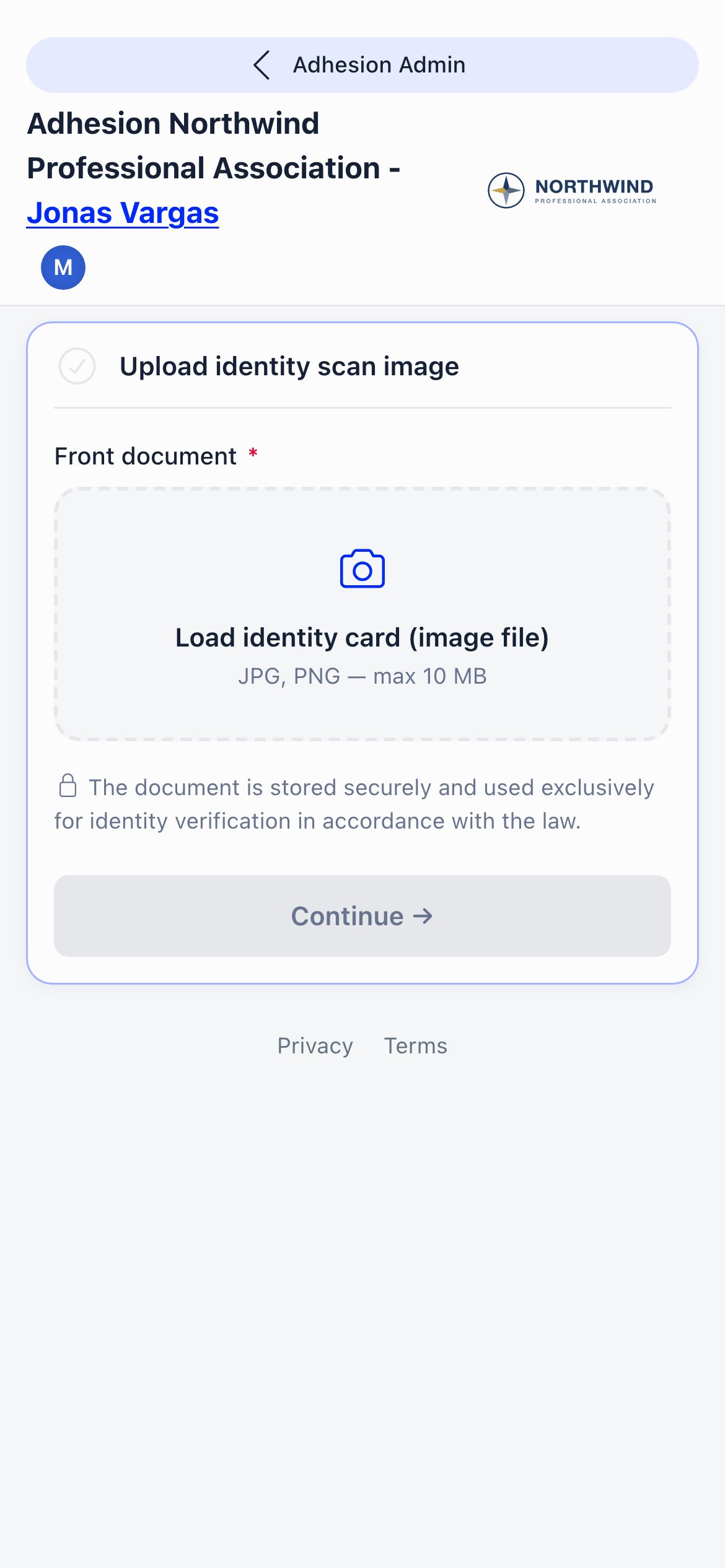
Upload identity scan image
Shown only when Require identity verification is on. The front of the document is required; a back side can be added with the “Document has information on the backside” switch. Orgo runs OCR on the upload to pre-fill identity fields; if OCR fails the upload still succeeds and the applicant types the details manually.
3
Complete the adhesion profile form
The fields you selected in the form builder. Required custom fields must all have a value before the next step unlocks.
4
Adhesion signature
The applicant can download the unsigned document first, then signs on a canvas. Signing generates the PDF from your template with the signature embedded and stores it as the application’s signed document. Staff filling the form on someone else’s behalf get no canvas: they upload the signed file instead, up to 5 files.
5
Send adhesion
Moves the application to pending. Blocked until a signed document exists and, when identity verification is on, until an ID document has been uploaded. When the member sends it themselves, Orgo emails the configured admin address plus every HR member of their chapter.
6
Video recording
Only when Video recording is on. The recorder walks the applicant through a set of questions with a 5 minute total limit, and can be re-recorded while the application is Initiated or pending.
Reviewing applications
Management → Adhesions in the sidebar, or/adhesions. Requires HR_LOCAL.
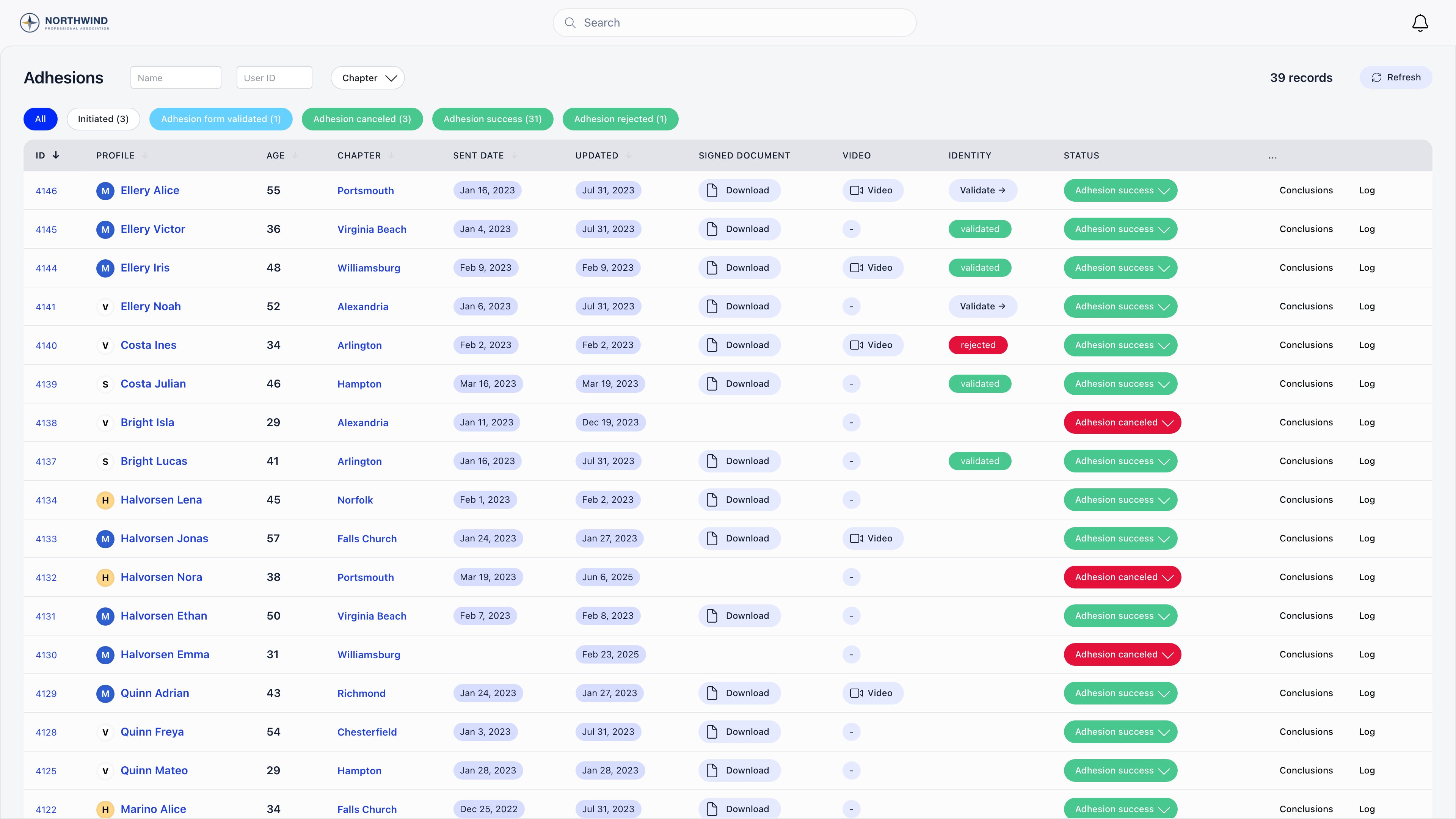
HR_PARENT_LOCAL or above, by chapter. HR_TENANT sees the whole tenant; everyone else is restricted to chapters they hold HR_LOCAL on. Applications marked Duplicated, and applications belonging to deleted members, never appear.
With Review steps on, the queue offers the full chain: pending, validated, background checked, interviewed, then the decision. With it off, the review statuses are hidden and an admin goes straight from a sent application to success, rejected or canceled.
Gates on each move:
- Adhesion form validated requires a validated identity document, unless identity verification is off for the tenant.
- Adhesion success and Adhesion rejected require both the Interview conclusion and the Background conclusion, whenever Review steps is on.
- Adhesion canceled requires a cancel reason.
- Moving back to Initiated opens the Draft Change Reasons picker, deletes the signed document so it has to be signed again, and emails the applicant with the reasons you selected.
Approval does not change the member’s account status. A member whose account is Inactive or Unapproved stays that way after approval; change the status separately.
Conclusions and the audit log
The Conclusions and Log buttons on each row open the same screen, also at/adhesion/{id}/log with HR_LOCAL.
Conclusions holds three free-text notes: Interview conclusion, Background conclusion, and Adhesion cancel reason. They can be saved while the application sits at validated, background checked, interviewed or canceled. They are read-only once it reaches Adhesion success or Adhesion rejected, and cannot be saved at all while it is still Initiated, pending, Duplicated or a decision has been made.
Log shows who sent, validated, interviewed, decided on and last updated the application, each with a timestamp and a link to the person, followed by the system log entries with the raw field-level changes.
The generated document
Settings → Users & Profiles → Adhesion Template (ADMIN_TENANT). The editor is three raw HTML areas (Header, Main Template, Footer), not a rich text editor. Leave one empty and Orgo falls back to its built-in default for that part. Preview renders your markup in a modal.
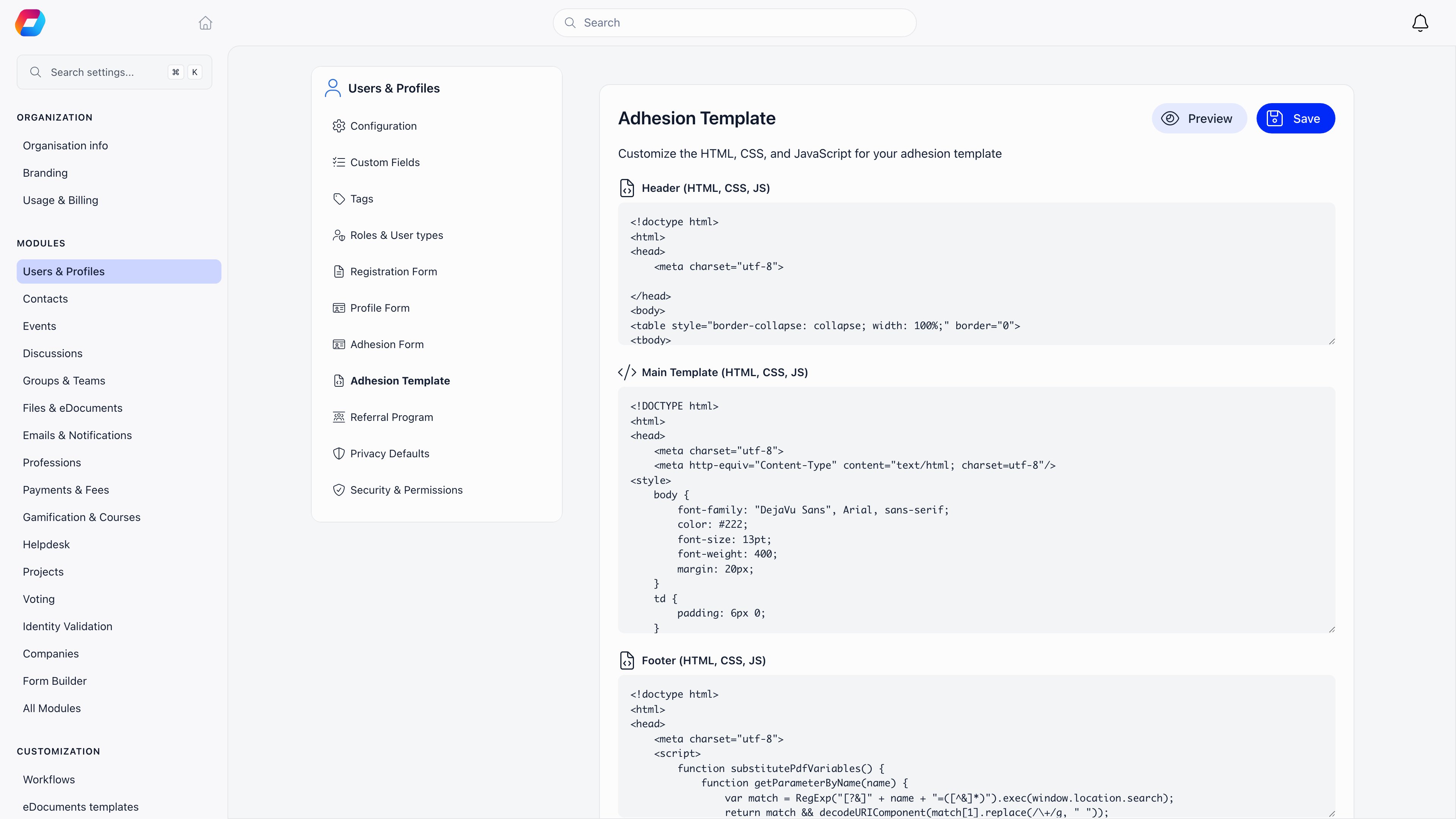
For a custom field, use
{custom_field_<id>} with the field’s numeric id (single braces). File-type custom fields render as a download link; yes/no fields render the labels you configured. {{educationDegree}}, {{certifications}} and {{experiences}} expand to HTML tables, so put them on their own line rather than inside a sentence.
Emails
Five emails belong to this flow. They are listed under Adhesion at Settings → Emails & Notifications → Emails, each with its own switch and Turn all off for the five together, and each can be reworded with Edit text (see Email templates). Your wording reaches every applicant as written, whatever language they read the platform in.Troubleshooting
The applicant cannot press Send
The applicant cannot press Send
Sending needs a signed document and, when identity verification is on, an uploaded ID. If the form was filled by staff, the signed file has to be uploaded manually.
I cannot move an application to Adhesion form validated
I cannot move an application to Adhesion form validated
The identity document has to be validated first, with the Validate button in the Identity column of the queue. If you do not run identity checks, turn Require identity verification off and both the precondition and the upload step disappear.
The queue refuses my decision and asks for conclusions
The queue refuses my decision and asks for conclusions
With Review steps on, open Conclusions on that row, save both the Interview and Background conclusions, then set the status.
The applicant says they never got the approval email
The applicant says they never got the approval email
It only goes out when approval actually changes their user type, so nothing is sent if they already held the type set in Default User Type After Approval. Also check that the email is switched on under Adhesion on the Emails page.
An application needs to be redone from scratch
An application needs to be redone from scratch
Set its status back to Initiated: this deletes the signed document and reopens every step. Applications that were rejected or marked Duplicated also show a Reopen button on the applicant’s own page for staff with
HR_LOCAL.A member resigned but still shows an application
A member resigned but still shows an application
Approving a resignation detaches the application from the member when a guest user type is configured, so their profile no longer points at it. The application row itself is kept as a record.
Related
- Identity Validation - the ID document check the validation step depends on
- User Types - what gets assigned on approval
- Custom Fields - adding your own questions to the form
- Registration Form - what people fill in before the application
- User Statuses - the account status, which approval does not change