

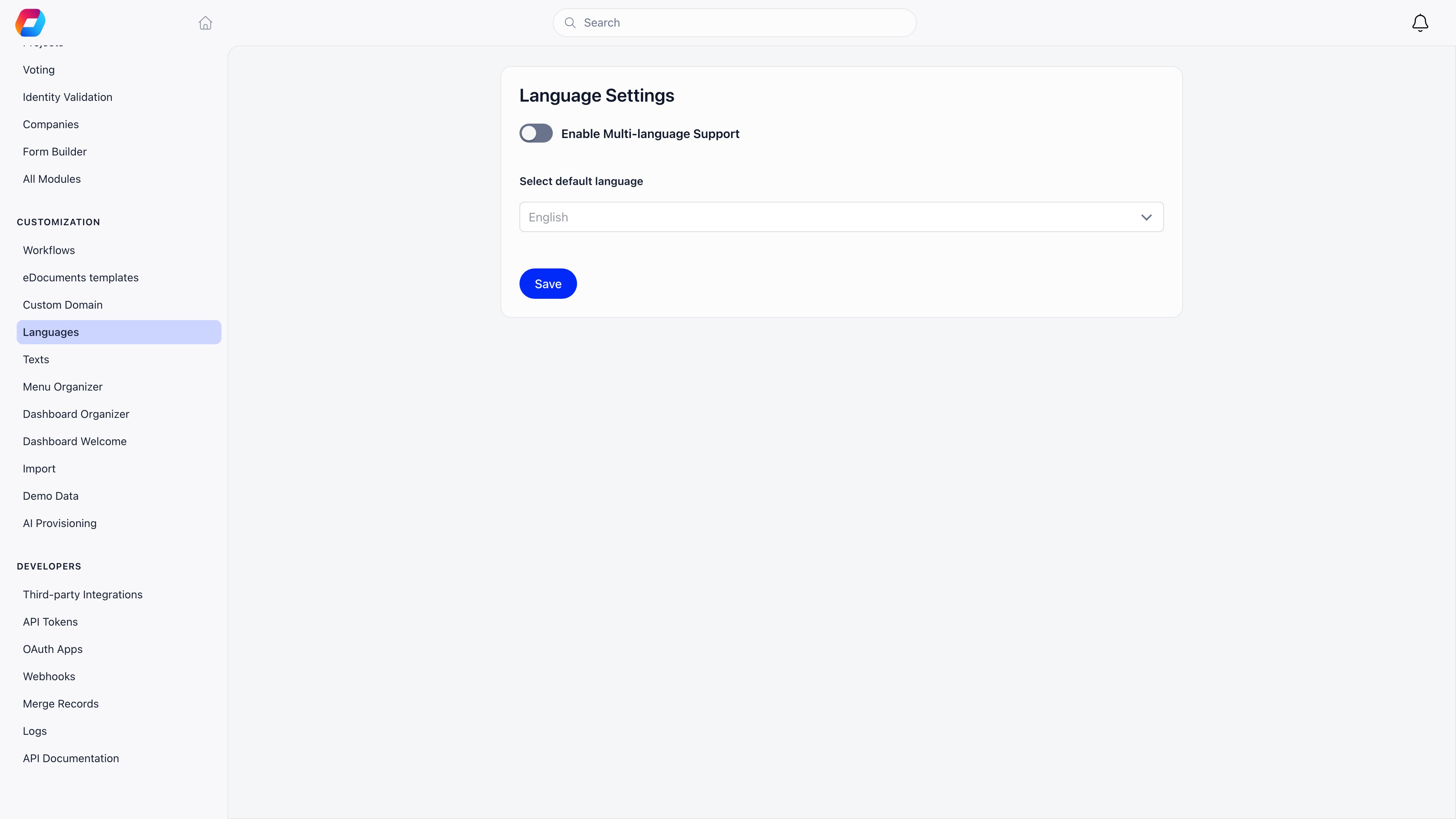
Every page in this section requires ADMIN_TENANT. Local, HR and financial admins do not see the Settings area.
What is in the section
Demo organizations get two extra entries, Demo Data and AI Provisioning, for loading sample content. They disappear once the organization is no longer marked as a demo.
The page called Labels in earlier documentation is Texts in the app. The doc page kept its address.
A sensible order for a new organization
1
Languages
Decide the default and which languages members may pick. Doing this first means every later step, including your wording, is written against the right set.
2
Texts
Replace the handful of phrases that are wrong for your organization: Members to Scouts, Local Center to Troop. You fill in one column per enabled language, which is why languages come first.
3
Import
Bring in your existing records. Import structure before people so references resolve.
4
Menu Organizer
Hide what you do not use, promote what you do, restrict admin sections to the right permissions.
5
Dashboard Welcome
Write the greeting new members land on. This is the highest-read text you will write.
6
Dashboard Organizer
If you turned on Use Custom Dashboard, compose the dashboard sections and widget tiles.
What Customization does not cover
Troubleshooting
I do not see Settings at all
I do not see Settings at all
The Settings area needs ADMIN_TENANT. Local center admins, HR and financial roles do not have it, by design.
Dashboard Organizer is missing from the list
Dashboard Organizer is missing from the list
It appears only when Use Custom Dashboard is on, under Settings → Modules → Users & Profiles → Advanced Settings.
Members are not seeing my changes
Members are not seeing my changes
Wording and menu changes reach a member on their next page load or session start. A hard refresh clears anything stuck. Menu and dashboard edits are staged: neither applies until you press save.
Is there a way to undo everything?
Is there a way to undo everything?
Only per tool, and only where the tool provides it. The Menu Organizer has Reset to defaults. Text replacements are removed row by row. Dashboard categories are deleted individually. There is deliberately no single reset for the whole section.
Related
- Branding - logos and login page
- Modules - turn features on and off
- Organization Info - the organization’s own details
- Permissions - the permissions the menu and dashboard scope against
- Workflows - automation, also under Customization