

Program
The agenda is built from the event’s sessions, which are sub-events of the main event. If the event has no sessions, there is no Program tab and the app opens on Details instead.Program is the label everywhere in the interface: this tab, the event sidebar entry that builds it, and the tab on the public event page. Only the underlying addresses still say agenda, which is why the embed URL and the
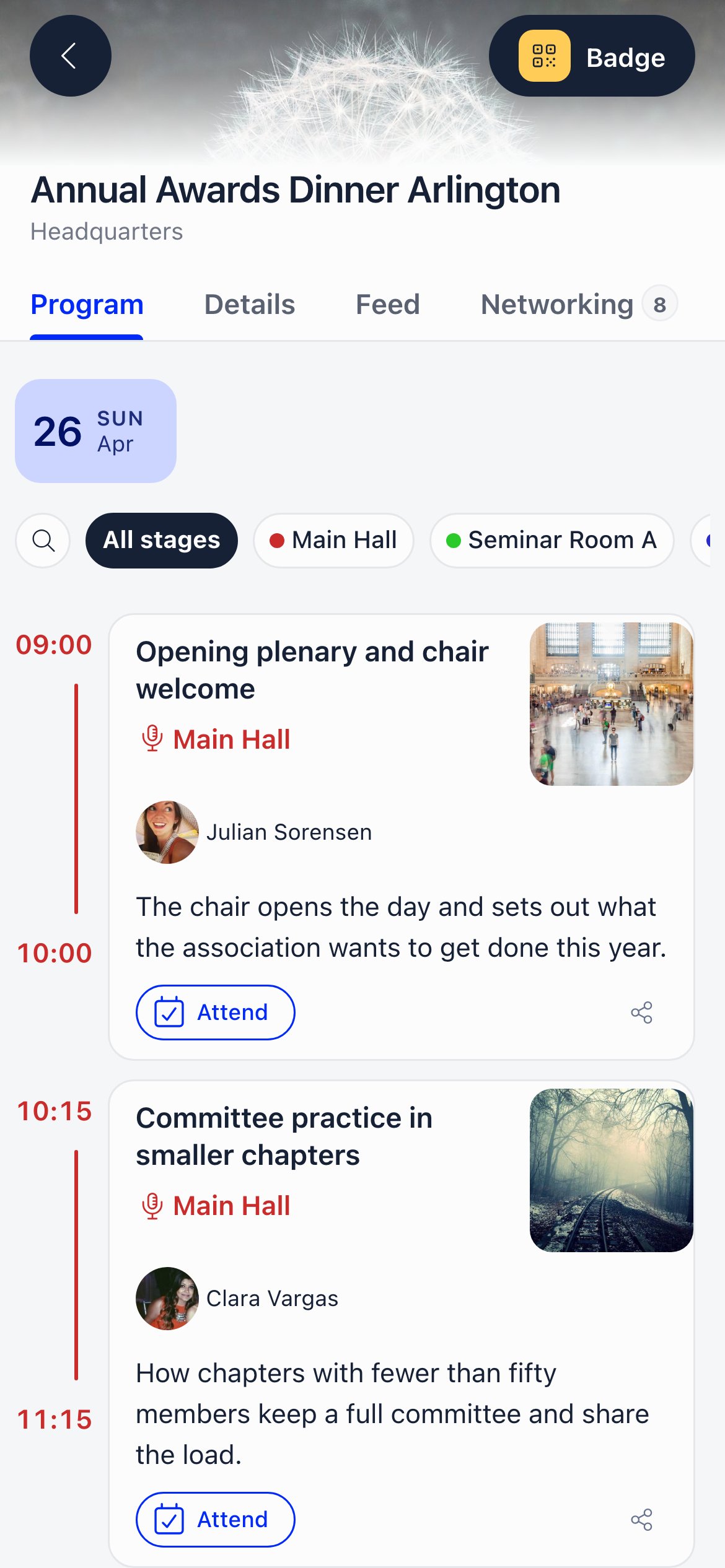
{eventAgendaUrl} email placeholder use that word.- Day chips across the top, then sessions in the order you arranged them.
- Per session: title, description, start and end time, place, tags, cover image, speakers, and how many people are attending.
- Search sessions or speakers, and a stage filter when your sessions use stages.
- A toggle between All sessions and My Agenda, with a count. It appears only once the attendee has marked at least one session.
- Tapping a speaker opens their profile with their other sessions and any co-speakers.
- A copy-link action for sharing a session.
- Only people with an active registration on the main event can mark sessions. An organiser who is not registered can browse the agenda but not add themselves to sessions, so rosters and reports stay clean.
- Sessions someone is attending also affect 1:1 networking: a meeting slot that overlaps one of their sessions is flagged as a clash before they book it.
Feed
The Feed is the event’s announcement stream. It updates live, so a post published from the organiser’s laptop appears on attendees’ phones without a refresh.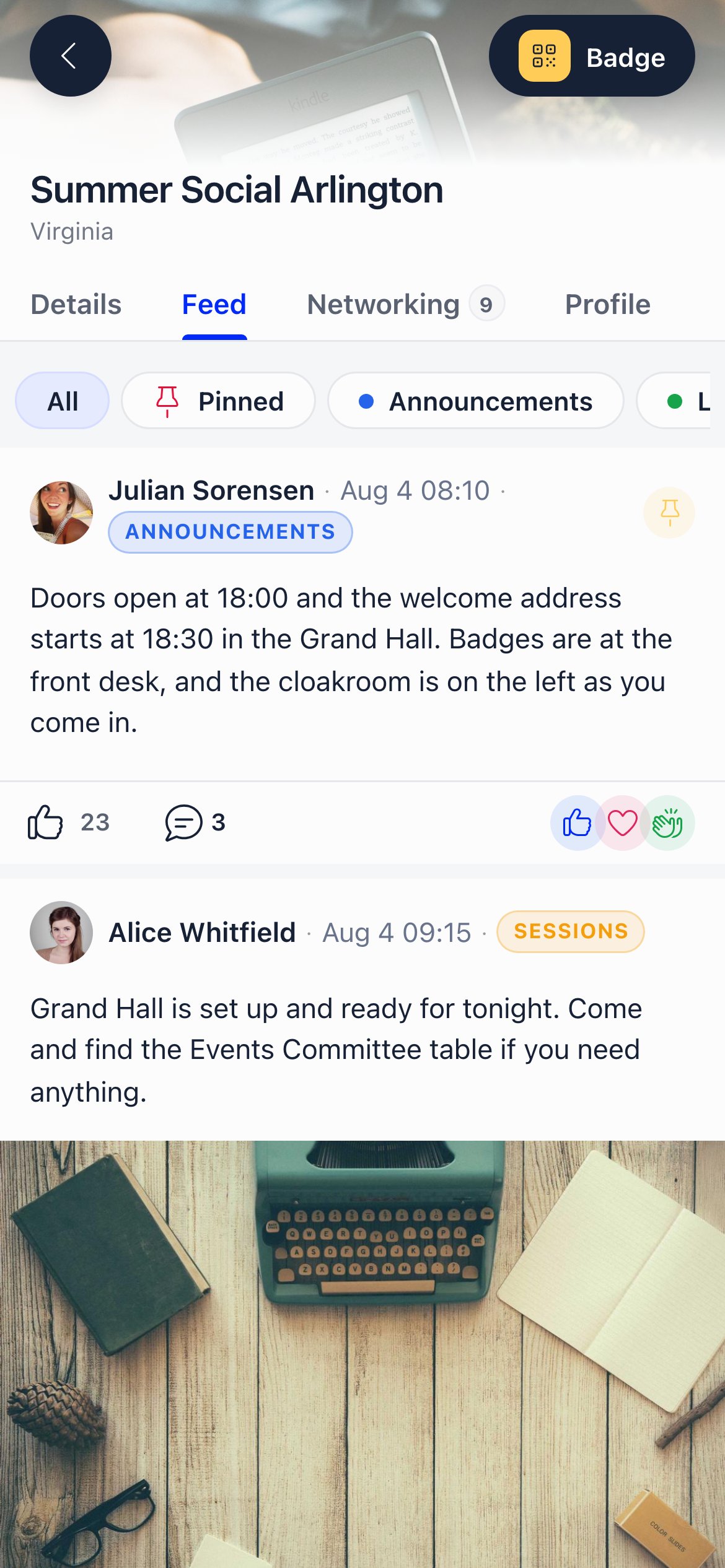
What a post can contain
Text, images, mentions of other members, and a link preview. Replies can carry images too. Posts can be filed under categories that you define per event, each with its own name and colour; attendees filter the feed by category with the chips at the top, or by Pinned. Pinned posts sit at the top of the feed, most recently pinned first.
Notifications
Publishing a post notifies every active attendee (in-app, push and email, depending on each person’s settings). Replying notifies the author of the post you replied to, unless you are replying to yourself.
Vote
The Vote tab appears when the event has at least one vote that is upcoming, live or closed. Drafts never appear. Each vote shows its state: upcoming, Live, or Finished, with the number of questions and the participation rate. Attendees answer every question and submit once; the tab then shows “You voted”. Submitting is refused before a vote opens and after it closes. Results follow the vote’s own configuration. Some show results immediately, others only once voting has ended, in which case attendees see “Result will be available at the end of the voting period”. Votes that stay open until everyone has voted or until an administrator closes them say so on the card. Eligibility to see and cast an event vote is a registration with status Registered or Invited that is not cancelled. Note this is slightly narrower than the rule for opening the app itself, so someone whose registration is awaiting an invoice payment can browse the app but cannot vote. See E-Voting for how votes are created and configured.Participants (organisers only)
The Participants tab is the full administrative attendance screen, embedded in the app so organisers can work from a phone at the venue. It shows every registration, including people who have hidden themselves from the attendee directory, with the same filters, columns, invites, exports and status management as the desktop participant list. It appears only for people who can manage the event (ADMIN_TENANT, EVENT_TENANT, or EVENT_LOCAL on that event), and only on phones. On a desktop the event sidebar already offers the same screen, so the tab is hidden to keep the tab strip short. Anyone without the permission who opens the URL directly is redirected to Networking or Program.
See Event Attendance for what that screen does.
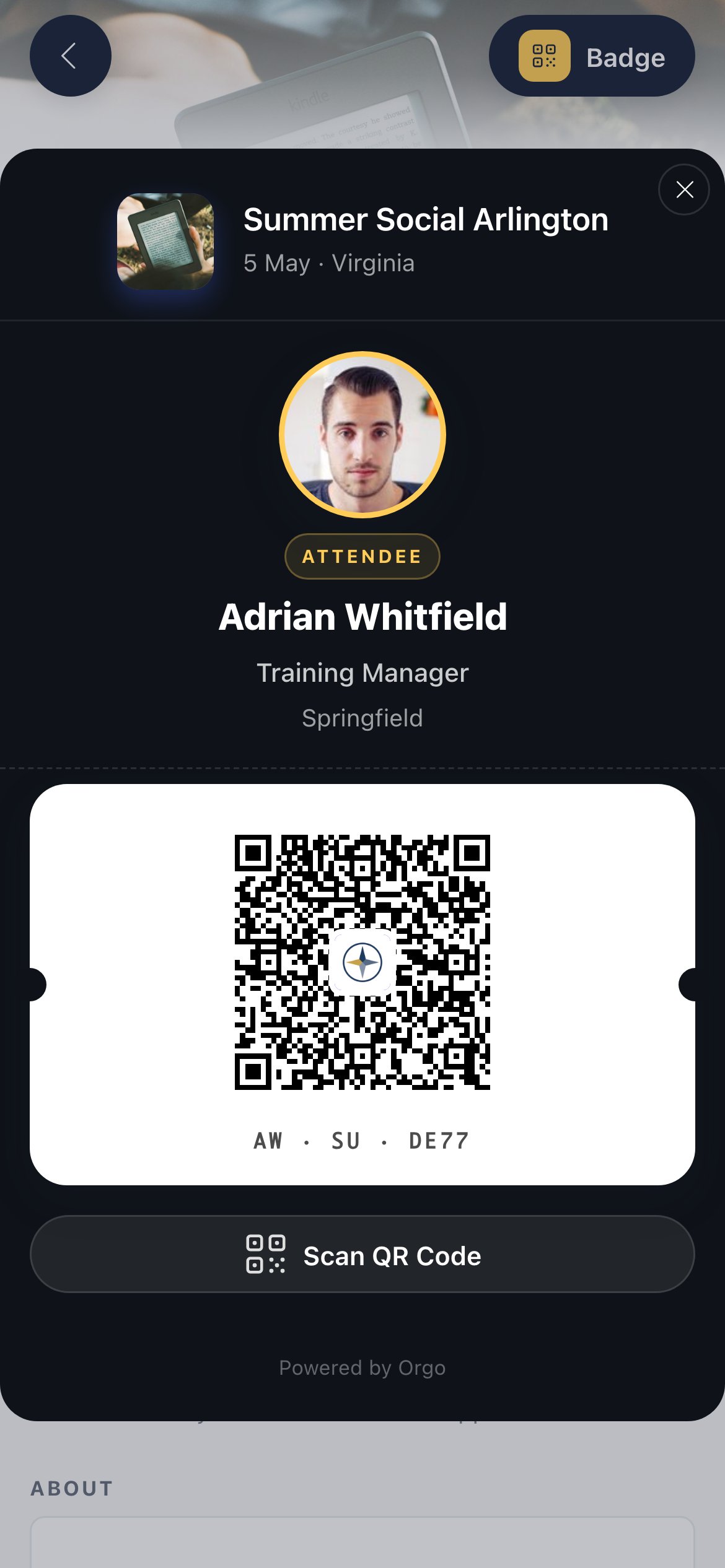
Badge and scanning
Troubleshooting
There is no Program tab
There is no Program tab
The event has no sessions. Add sub-events to the event and the tab appears; until then the app opens on Details.
An organiser cannot add themselves to a session
An organiser cannot add themselves to a session
Marking sessions requires an active registration on the main event. Managing an event is not the same as attending it. Register them for the event and the option appears.
An attendee cannot post to the feed
An attendee cannot post to the feed
Starting a post is limited to the event owner,
EVENT_LOCAL admins and ADMIN_TENANT. Everyone else replies and reacts. This keeps the feed an announcement channel rather than an open forum.A post was deleted but still shows in the thread
A post was deleted but still shows in the thread
Deleting a post that already has replies leaves an empty placeholder so the replies keep their context. Posts with no replies are removed completely.
Someone can open the app but the Vote tab rejects them
Someone can open the app but the Vote tab rejects them
Voting requires a registration that is Registered or Invited. A registration awaiting an invoice payment grants access to the app but not to voting. Take the payment or change the status.
Related
- Event App - Access, login and the tab overview
- Event App: networking - Directory, connections and 1:1 meetings
- E-Voting - Creating and running votes
- Event Attendance - The participant list and statuses
- Notifications - How attendees receive feed alerts