

Where products live
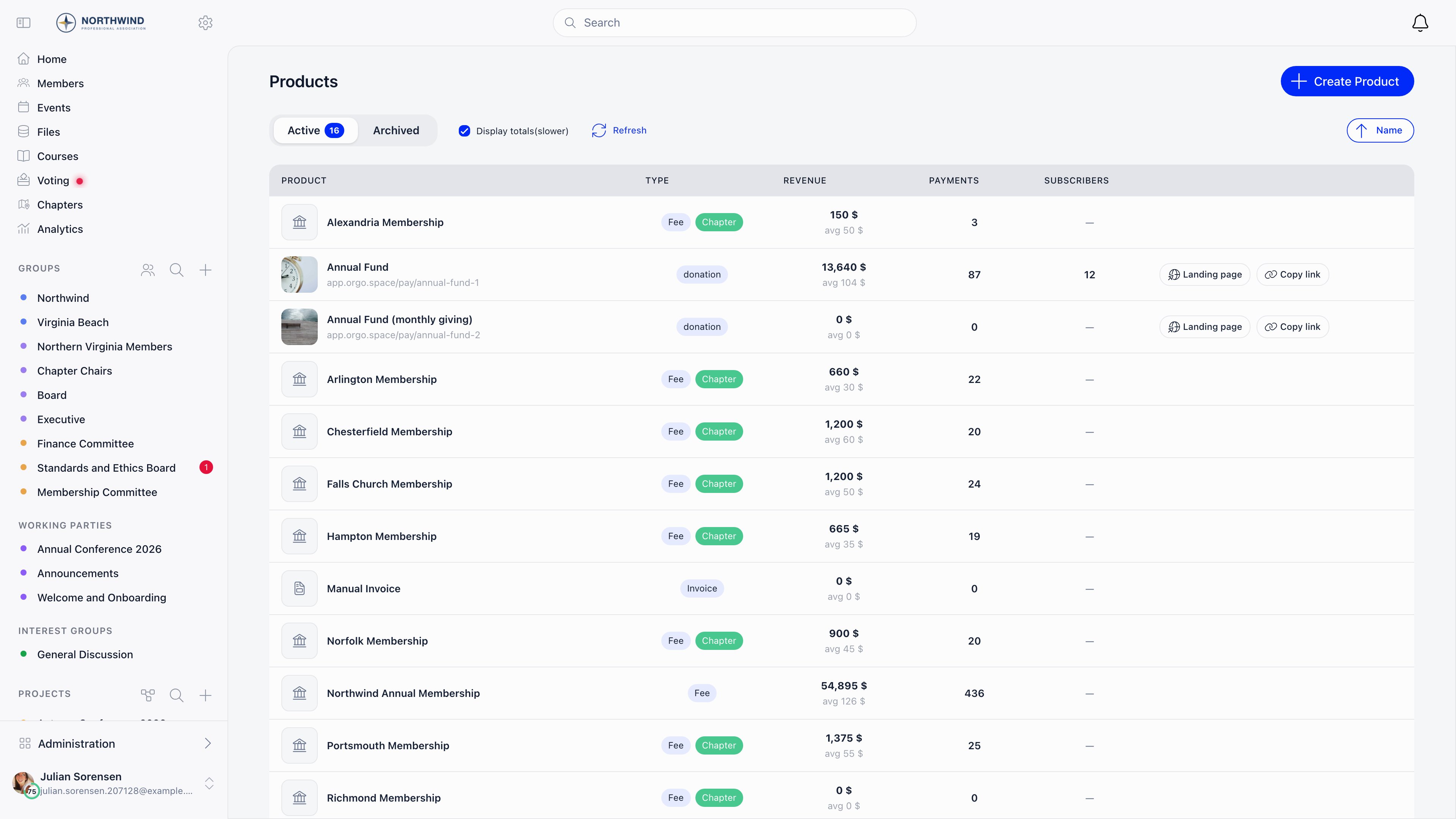
Finance → Products (route/products/tenant). The Finance section appears when the Payments or Fees module is active, and the screen requires FINANCIAL_LOCAL. Creating or editing an organisation-level product requires FINANCIAL_TENANT; a local center finance admin with FINANCIAL_LOCAL sees Finance → Local products instead, and anything they create is stamped with their own local center.
The list has Active and Archived tabs and a Display totals(slower) checkbox that adds collected amounts per product. Event ticket products are excluded, being managed inside the event.
Product types
Two further types exist in data,
commerce and digital_asset, but the create form only offers Donation and Membership Fee, so neither can be created from the interface.
The first organisation-level donation product you create also becomes the tenant default donation product. Set the membership fee product explicitly under Settings → Payments & Fees → Membership fees; do not rely on it being picked up automatically.
Creating a product
Products → Create Product.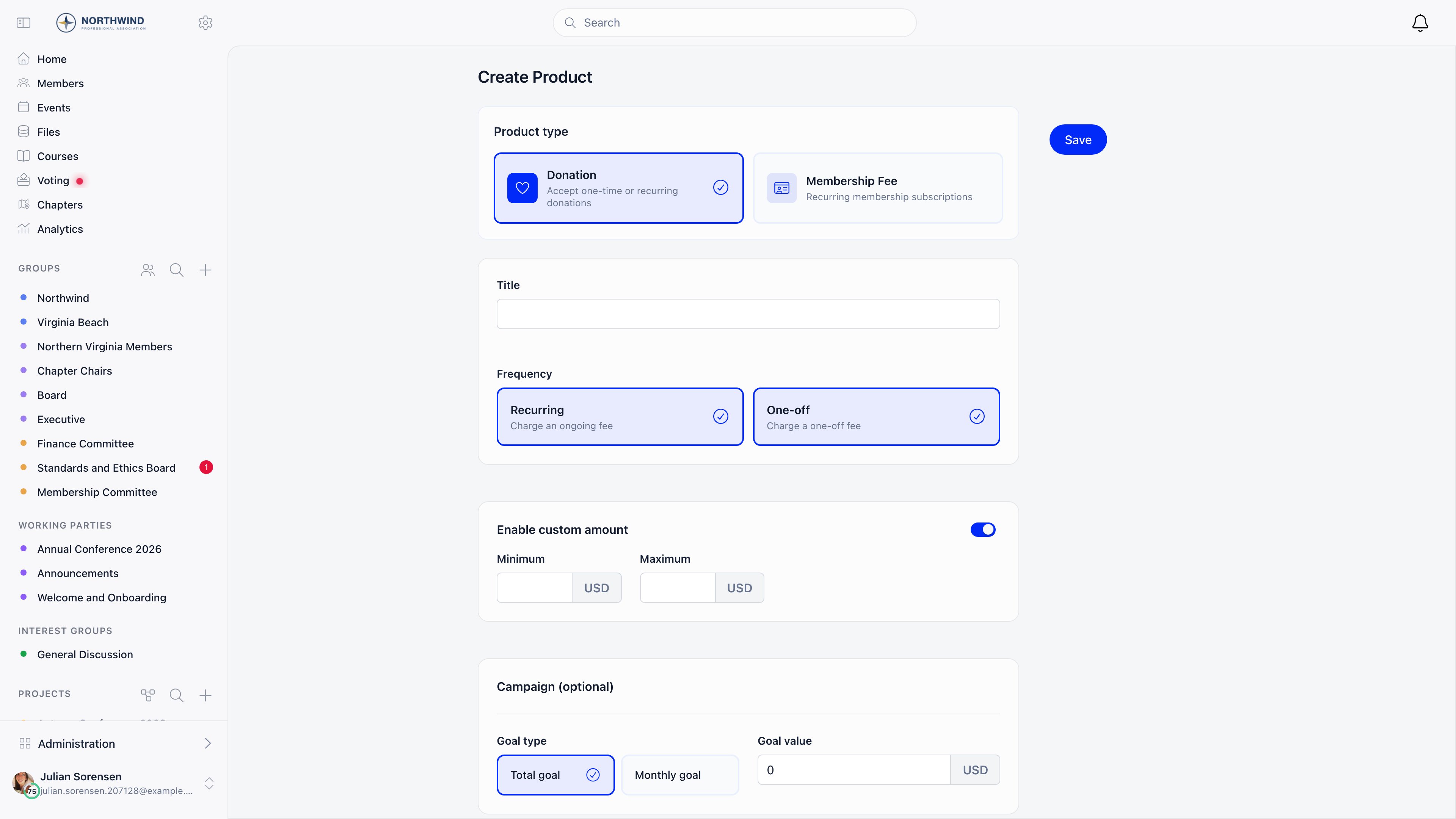
Donation products also carry page toggles here: Disable newsletter subscription, Messages of support from donors, Display top 50 recent donations, Disable register checkbox for non-members, Require full address and Enable payment confidentiality. See Donation pages.
Prices
Open a product and use the Prices & Options tab. Every purchasable amount is a price row; there is no separate concept of a “tier”.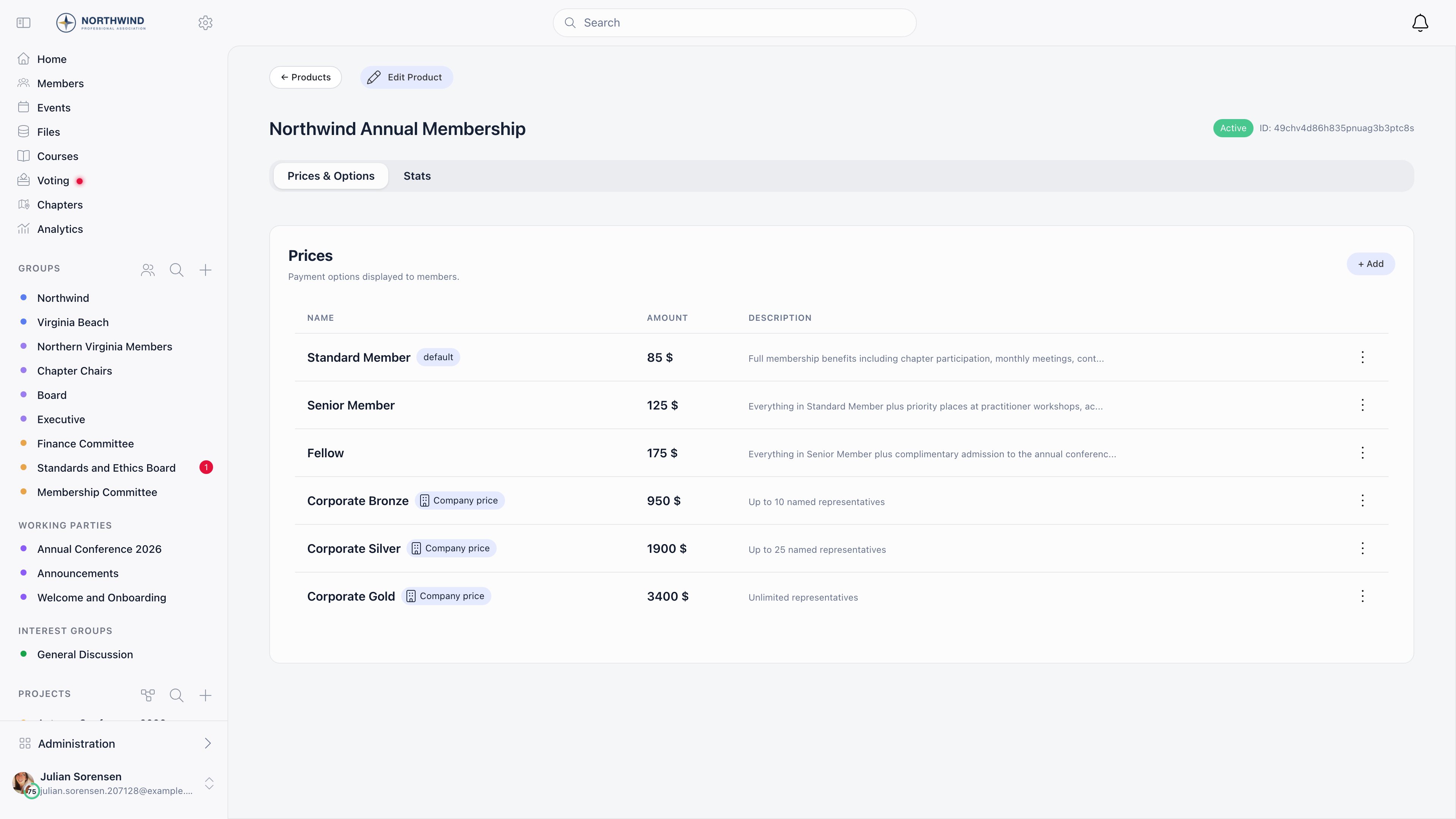
Each row’s menu offers modify, Go to Price in Stripe, Make default, Archive and delete. Members only ever see prices that are not archived, not hidden, and inside their valid dates;
HR_TENANT sees all of them.
Worked example: a membership fee product
An example, not a default. One fee product, Period annually, Cycle beginning September, holding five prices. Nothing here is preconfigured; each row is one price you add on Prices & Options.HR_TENANT is what puts the Is only assignable by admins and Is bundle switches on the form; a finance admin without it will not see either.
Price versions
A fee price carries Valid from and Valid to dates, and each version points back at the one it replaced. That chain lets a payment recorded for 2024 still resolve at the 2024 amount after you raise the price for 2026. To raise a price, open it, choose New price version, then fill in New price, Valid from and optionally Valid to. Orgo closes the old version by setting its Valid to to the day before the new one starts, so the two never overlap. To work out what a member owed on a given date, the version whose validity window contains that date wins; if none does, Orgo falls back to the organisation default price. The Prices table gains Valid From and Valid To columns and an expandable Previous Version row as soon as any history exists.Worked example: taking a level from 120 to 135
You charge 120 a year and want 135 from the 2026 membership year, which starts on 1 September 2026.1
Version the current price
Open the 120 price, choose New price version, enter New price 135 and Valid from 1 September 2026. Leave Valid to empty so the new amount runs until you version it again.
2
Let Orgo close the old one
The 120 row is stamped Valid to 31 August 2026 and linked to the new row. You do not set that date yourself, and you should not: setting both by hand is how gaps and overlaps appear.
3
Check what history resolves to
A payment recorded in March 2026 against the 2025 period still resolves at 120, because the date it covers falls inside the old window. Anything covering 1 September 2026 onwards resolves at 135. Members carry on pointing at the same level; there is nothing to reassign.
4
Next year, version the newest row
A 2027 rise is a new version of the 135 row, not a second version of the 120 one. Versions form a chain, and the chain has to stay in order.
Options
Donation products, and only donation products, can carry Product options: a designation the donor picks on the payment page, for example which programme the gift supports. Add them inline under the prices table, drag to reorder, archive the ones you retire. Each active option has its own deep link into the payment page, so you can send donors straight to one designation.The rest of a product
Troubleshooting
The Recurring option is greyed out
The Recurring option is greyed out
No connected Stripe account: the organisation account for organisation products, the chapter’s own for local center products. See Stripe Integration.
I cannot change a price amount
I cannot change a price amount
The price already has payments against it. Create a new price version instead, so past payments keep resolving at the old amount.
Members do not see a price I created
Members do not see a price I created
It is archived, hidden from members, or outside its Valid from / Valid to window.
The VAT or registration fee fields are missing
The VAT or registration fee fields are missing
Both are opt-in per organisation: Enable VAT on Fees and Enable One-time Registration Fee, under Settings → Payments & Fees → Membership fees. While they are off, no VAT and no registration fee are charged, whatever a price row stores.
A local center needs its own fee
A local center needs its own fee
Create it from Finance → Local products and configure it per chapter. See Local Center Fees.
Orgo refuses to delete a price
Orgo refuses to delete a price
Four different things block it, and the message says which: payments already taken against it, event attendees registered on it, use by a ticket bundle, or a newer price version pointing back at it. The last one is the only one you can clear, by deleting the newer version first. Otherwise archive the price: it disappears from checkout and keeps its history.
Orgo refuses to delete a product
Orgo refuses to delete a product
Deletion is only for products that have never taken money; anything with payments against it is refused, and the message tells you so. Archive it instead, which also archives it in Stripe when it exists there.
Creating the product fails and the title looks fine
Creating the product fails and the title looks fine
A title made only of spaces counts as blank and is rejected with “Product name is required.”, because Stripe will not accept a product without a name. Type a real title rather than a placeholder space.
I cannot switch the frequency off
I cannot switch the frequency off
A saved product must keep at least one of Recurring and One-off, so whichever one is currently alone cannot be cleared. One-off is also unavailable while no Stripe account is connected, the organisation’s for organisation products and the chapter’s own for local center products.
Access denied when opening or saving a product
Access denied when opening or saving a product
Organisation products need
FINANCIAL_TENANT. FINANCIAL_LOCAL reaches only products belonging to a chapter the holder is attached to, which is why a chapter finance admin can open Local products but not the organisation membership fee. Event ticket products are the exception: they are gated on EVENT_TENANT instead.A price will not accept the settings I give it
A price will not accept the settings I give it
Two combinations are refused outright. “The default price cannot be set as admin assignable only” means the price you selected as Default Price under Settings → Payments & Fees → Membership fees cannot also be Is only assignable by admins (hidden for members): point Default Price at another price first. And a price created as a bundle cannot be turned back into an ordinary price once its bundle has been sold, has event attendees, or has members assigned to it.
A price exists in Orgo but not in Stripe
A price exists in Orgo but not in Stripe
Prices are only pushed to Stripe when an account is connected at the time you save them, so anything created before you connected Stripe stays local, and Go to Price in Stripe has nothing to open. The product itself is created in Stripe on the first checkout that needs it, and saving the price again after that pushes it across.
Related
- Membership Fees: turning a fee product into collected dues
- VAT: when VAT applies and how it is stored
- Stripe Integration: connecting payment processing
- Donations: running fundraising campaigns
- Local Center Fees: chapter-level fee collection