

/email-lists). They require the newsletter module, and the menu entry appears
for COMMUNICATION_TENANT. HR_TENANT also has full access.
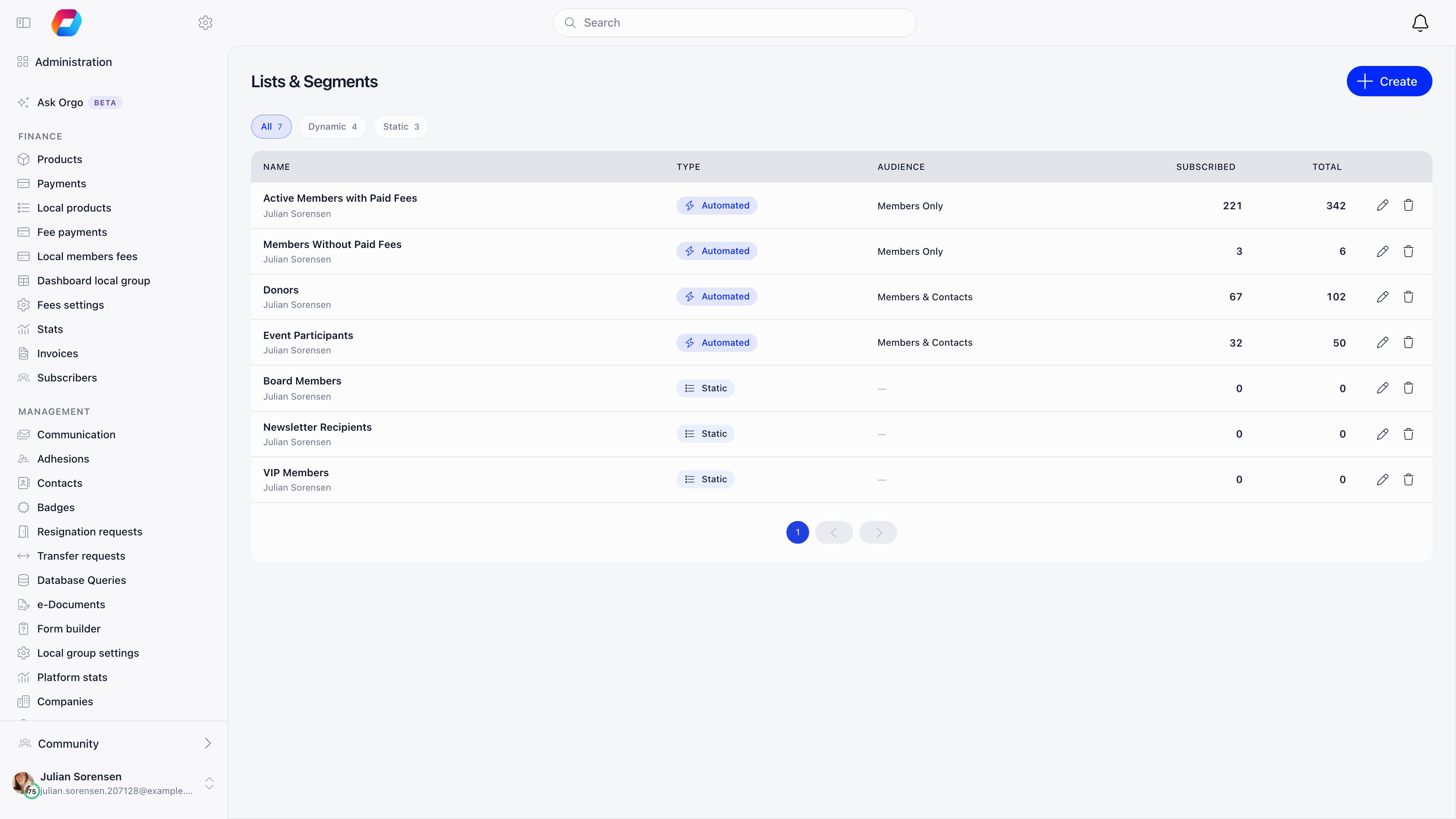
Two kinds of list
Automated lists are defined by criteria and re-evaluate themselves. Someone who becomes eligible tomorrow is in the list tomorrow, with no action from you. Manual lists contain exactly the people you put in them, and change only when you change them.Creating a list
1
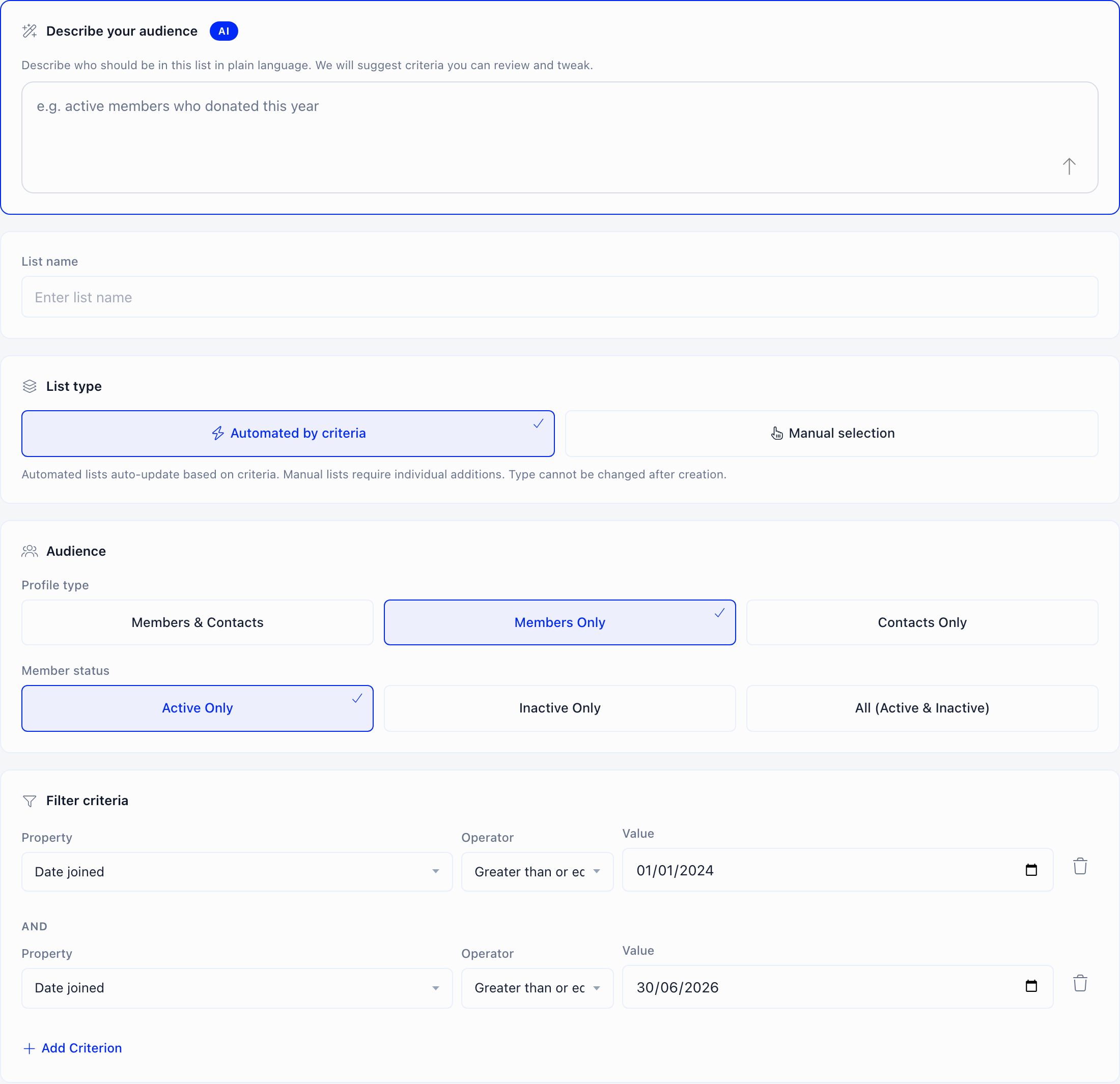
Describe the audience, or skip straight to criteria
The Describe your audience panel takes a plain-language description of up
to 1000 characters, for example “active members in Norfolk who joined this
year and have not paid”, and turns it into a name, a scope and a set of criteria,
with an estimate of how many people match. It is a starting point, not the
saved definition: review what it produced before saving.
2
Name the list and pick the type
Automated by criteria or Manual selection. This cannot be changed later.
3
Set the profile type
Members & Contacts, Members Only or Contacts Only. Contacts are
people in your database who are not members: newsletter subscribers, past
attendees, donors who never joined. See Contacts.
4
Set the member status
Active Only, Inactive Only or All (Active & Inactive). Active Only
is the default, so a list silently excludes lapsed members until you widen it.
This is the one audience setting you can still change after creation.
5
Add criteria
Add as many as you need. Criteria always combine with AND: every condition
must be true. There is no OR and no grouping.
You can also start from Ask Orgo. When an answer there is a set of people, it
offers Save as segment (or Open in editor on a list proposal), which opens
this builder with your question already in the describe box and the suggestion
already running.
What you can filter on
Available criteria depend on the profile type, because members and contacts do not carry the same data.
Local center only appears when your organisation uses local centers.
Status is always offered on Members Only; on the contact scopes it appears
only when contact statuses are turned on.
For the two donation criteria, picking a donation value reveals a Product
selector so you can narrow to one donation campaign rather than all of them.
Choosing “Attended specific event” reveals an event search.
Operators
Which comparisons you get depends on the criterion, and the Operator dropdown is hidden when only one applies:
So “under 18” or “joined after March” are comparisons rather than exact matches.
There is no free-text criterion: you cannot build a list by name or email address.
Working with a saved list
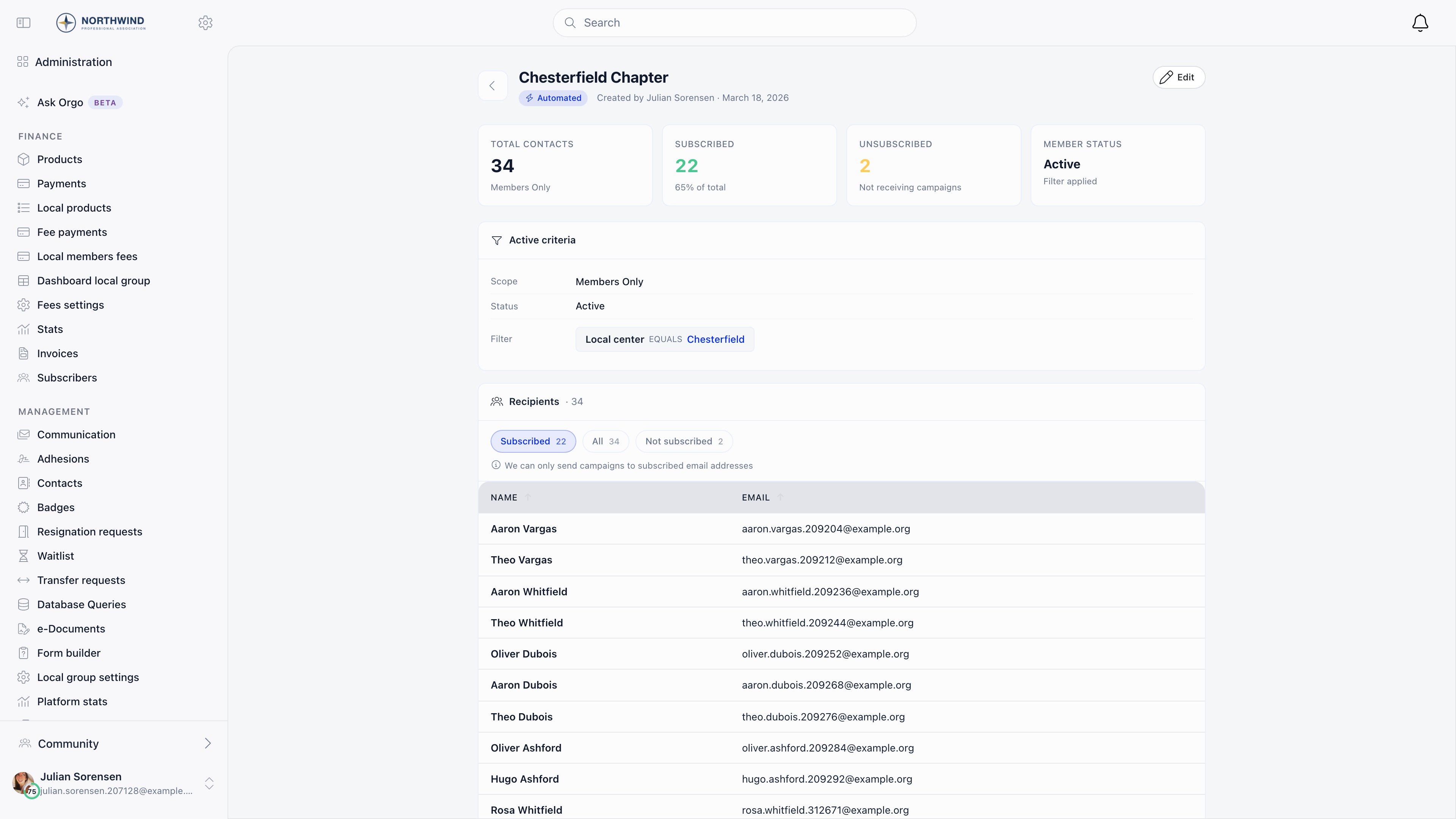
Automated lists have no add or remove buttons. To change who is in one, change
its criteria.
A list is not the same thing as an audience
When you compose a newsletter you pick one audience, and a saved list is only one of the choices:
The other five are derived from the platform’s own structures and cannot be saved
or reused. Reach for a list when the audience is a question about the people
themselves rather than a group, an event or a previous campaign.
Someone whose only communication permission is COMMUNICATION_LOCAL sees just one
option, Members from a group. From a list is hidden from them, along with
the two database-wide options and event attendees. Local campaign managers send to
a group they manage, not to a saved list.
When a list is not enough
List criteria cover the questions organisations ask most often, and they only combine with AND. If you need something they cannot express, such as a report across several years of payment history, ask about custom database queries: those are set up for your organisation and appear on the statistics page rather than here, behind the analytics query feature and FINANCIAL_TENANT or explicit query access.Related
- Newsletter - composing and sending to a list
- Users & Profiles - the member directory the criteria draw on
- Contacts - non-member people who can be in a list
- Custom Fields - extra data on a profile
- Permissions - what COMMUNICATION_TENANT and HR_TENANT unlock