

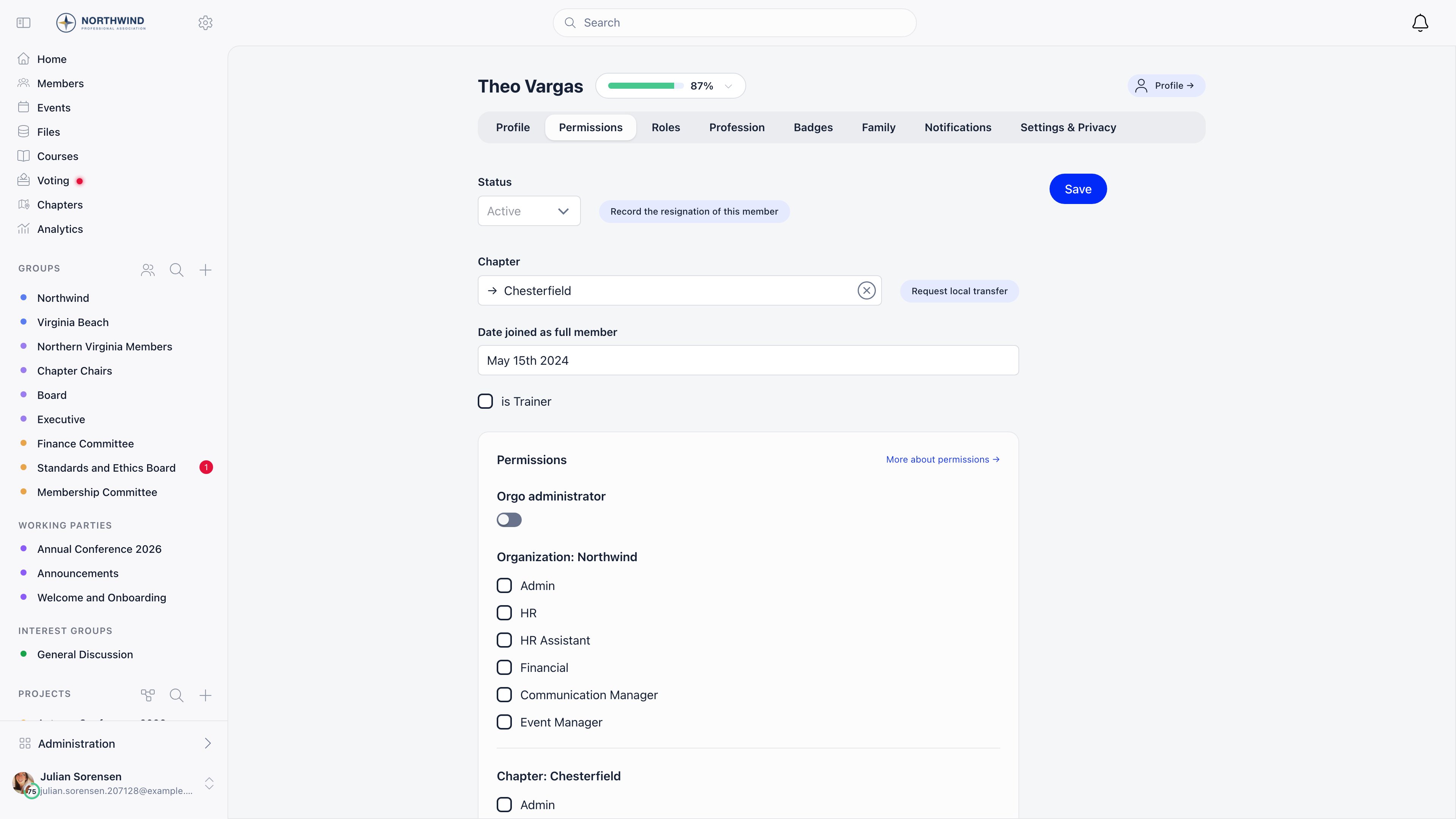
The statuses
Three statuses always exist. The rest are switched on per organisation (see Turning on the extra statuses).
Three more statuses exist but are never chosen by hand:
What a status change actually does
The date of the most recent change is stored on the member automatically, so
“when did this member go inactive” is answerable without an audit trail.
Who can change a status
Status is edited through the admin edit endpoint, which requiresHR_LOCAL over
that member’s local group; HR_TENANT and ADMIN_TENANT cover every local
group. Turning off Allow Local Admins to Modify User Permissions
(Settings → Users & Profiles → Configuration) leaves only
HR_TENANT and ADMIN_TENANT, and local admins are refused with “Only tenant
administrators can modify user status.”
Members have one self-service route: Close account on their Settings &
Privacy → Close account page sets them to Inactive. See
Deletion of account.
Where a new member’s status comes from
Self-registration creates the account as Unconfirmed email; once the member clicks the verification code or link it becomes, in this order, Waiting list if the registration waitlist is on and they chose a local center, else Awaiting referral if the referral programme requires referrals, else New request (UNAPPROVED) if Manual Approval is on,
else Active. Accounts created
by an administrator use Default Status for Admin-Created Users instead,
which offers Active, Inactive, Unapproved, Waiting list, Suspended and Excluded.
These settings all live under Settings → Users & Profiles →
Configuration:
Approving new members
With Manual Approval on, the member directory grows a New requests button showing the count awaiting approval. Each row has two inline actions, Approve (sets Active) and Add to waiting list (parks them on Waiting list), both needing the same permission as any other status change.Reactivation from the login screen
With Allow Account Reactivation on (the default), an Inactive member who tries to sign in is offered a reactivation prompt instead of a flat refusal. Accepting puts them on New request and emails your administrators, who approve them like any other pending member: deliberately the same review a new registration gets, not a jump back to Active. With the setting off, they are told to contact support and an administrator changes the status by hand.Turning on the extra statuses
Waiting list, Excluded, Unreachable, Helping hands and Contributor are off by default, switched on under Settings → All Modules → Extra User Statuses (ADMIN_TENANT). Suspended is on out of the box. Only the statuses
you switch on appear in the status dropdown and in the member directory’s status
filter.
The Statuses screen under Settings → Contacts is a different feature. Those
are contact statuses (your own labels for people in the CRM, with a colour and an
ordering) and they do not apply to members. See
Contacts.
Common questions
What is the difference between Inactive and Suspended?
What is the difference between Inactive and Suspended?
For access, nothing: both block the login and cut open sessions. The
difference is what they mean and what they allow next.Inactive is where a member lands by lapsing or by closing their own account.
It is the only status the reactivation prompt works with, so it is the one
to use when you expect the person back. Suspended is an administrator
blocking someone, and the only way out of it is an administrator changing
the status by hand.Use Excluded rather than Suspended when the departure is permanent and you
want your records to say so. The access effect is identical.
Does changing status remove any data?
Does changing status remove any data?
No profile data is removed by an ordinary status change. Role assignments
are the exception: every open role is end-dated, and the rows stay in the
member’s history with a closed date rather than disappearing. Reinstating
someone does not reopen them, so check the Roles tab after any
reinstatement.Deletion is the one status that does remove things. See
Deletion of account for exactly what
it clears.
I set someone to Excluded and now nobody can open their profile
I set someone to Excluded and now nobody can open their profile
Expected: a non-Active profile is only reachable by an admin with HR access
over their local group. Ordinary members get a refusal, which is usually
what an exclusion is meant to achieve.If an Active member’s profile is unreachable, that is privacy rather
than status, see
Privacy settings.
I moved a member to Unreachable and they are still using the app. Why?
I moved a member to Unreachable and they are still using the app. Why?
Only Inactive, Suspended, Excluded and Deleted cut open sessions
immediately. Waiting list, Unreachable, Helping hands, Contributor and New
request block the next sign-in but leave the current session running until
its token expires.So the descriptive statuses are filing labels with a delayed effect, not an
eject button. If you need someone out now, use Suspended or Inactive.
A local admin gets 'Only tenant administrators can modify user status'
A local admin gets 'Only tenant administrators can modify user status'
That message comes from Allow Local Admins to Modify User Permissions
being off, under Settings → Users & Profiles → Configuration.
With it off, only
HR_TENANT and ADMIN_TENANT can change any status,
including approving new registrations and parking someone on the waiting
list.Either turn the setting back on, or handle status changes centrally. There
is no middle setting that allows approvals but blocks other status changes.A different message (“Access Denied”) usually means the admin lacks
HR_LOCAL over that member’s local group, which is a separate check that
applies even when the setting is on.The status I need is not in the dropdown
The status I need is not in the dropdown
The dropdown is built from what your organization has switched on.
- Waiting list, Suspended, Excluded, Unreachable, Helping hands and Contributor each appear only when that status is enabled under Settings → All Modules → Extra User Statuses. Suspended is on out of the box, the rest are not.
- New request appears only while Manual Approval is on.
- Awaiting referral and Deleted are never offered: the referral programme and the Delete account action set them.
- Unconfirmed email appears only while the member is already in it. Once you move them to something else you cannot put them back; resend the verification instead.
I reactivated a member and they were sent a welcome email
I reactivated a member and they were sent a welcome email
Send Welcome Message fires on every transition into Active, not only at
registration, and it is on by default. Reinstating a lapsed member,
approving a New request and bulk-activating an imported list all trigger it.Turn it off under Settings → Users & Profiles → Configuration
before a bulk reactivation, then turn it back on.
A member is Active but still cannot sign in
A member is Active but still cannot sign in
Then status is not the cause. The sign-in refusal names the status it
rejected, so an Active member being refused means the block is somewhere
else: an unset password, an unverified email address, multi-factor
authentication, or a gate the app applies after the login succeeds.Work through Troubleshooting member access.
Someone closed their own account. What happens next?
Someone closed their own account. What happens next?
Closing sets them to Inactive and signs them out at once. Their profile
data, history and role records stay, with the roles end-dated.If Allow Account Reactivation is on, they can start the return
themselves from the login screen: accepting the prompt moves them to New
request and emails your administrators, who approve them like any other
pending member. Those admin emails are the local center’s admins when local
centers are active, and your tenant admins otherwise, and they are silenced
along with the rest of New Member Admin Notification if you have that
system email switched off.Notify Admins on Account Deactivation only covers closures a member
performs themselves. Setting someone to Inactive from the admin side does
not send it, on the assumption that the admin doing it already knows.
Related
- Troubleshooting member access - what to check when a login fails
- Resignation - formal departure with a reason on record
- Deletion of account - what deletion removes and what it keeps
- Registration form - where new members enter the chain
- Permissions - the permissions named on this page