

Turning it on
Two switches on the event form, under Features:
Editing them needs event ownership,
EVENT_LOCAL, EVENT_TENANT or ADMIN_TENANT.
The participant directory
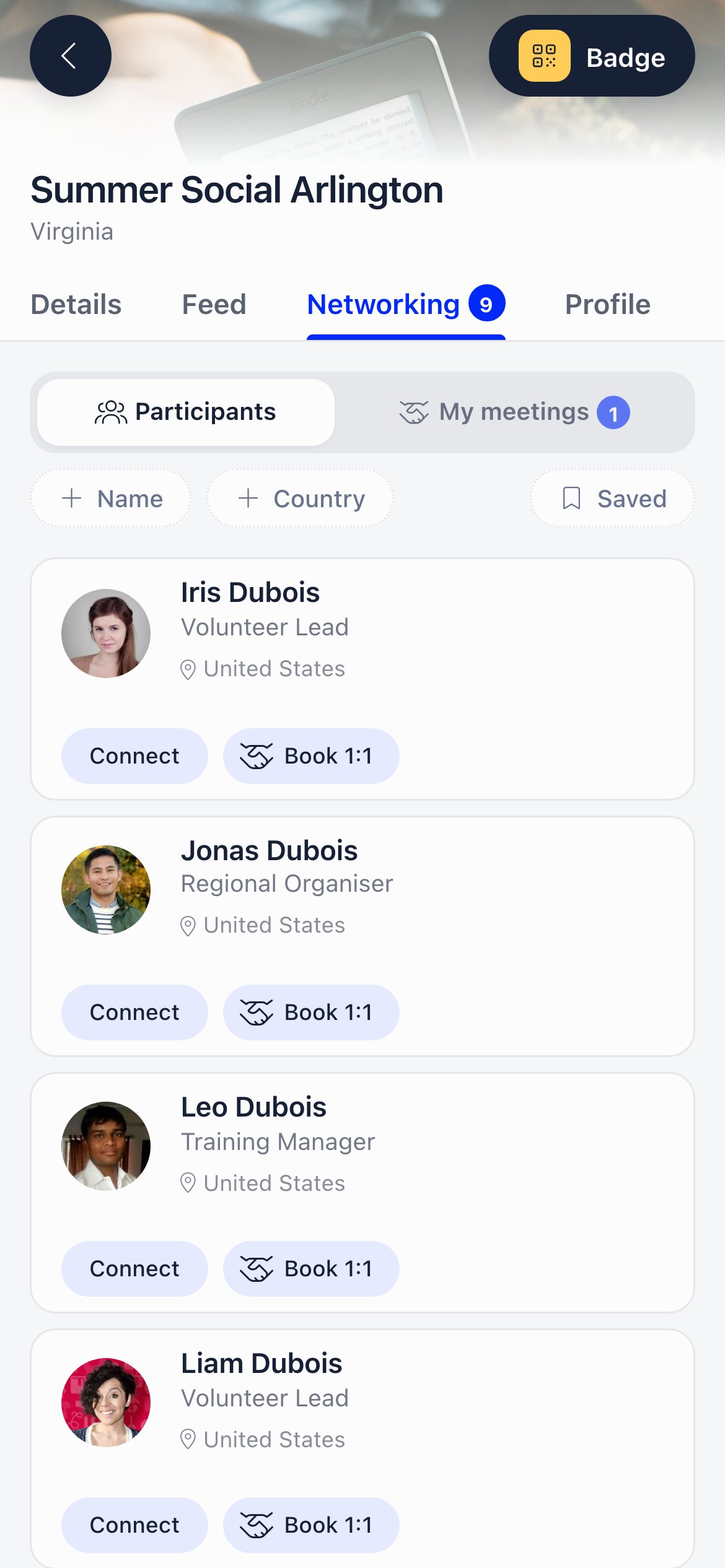
Attendees can search by name, filter by country, and filter to people they have saved. Each card shows the photo, name, headline, country, bio (expandable), LinkedIn and Bluesky links, and phone and email when the person has chosen to share them. Who appears in it- People whose registration is Registered, Invited, or Awaiting invoice payment, and not cancelled.
- Only people with an email address on file. A registration with no email is skipped.
- One card per person, even if they hold several tickets.
- Up to 500 people. Larger events show the first 500 by surname.
ADMIN_TENANT, EVENT_TENANT, EVENT_LOCAL) see the full roster in this tab too, including people who hid themselves, with phone and email unmasked regardless of the individual’s privacy choices. The Participants tab is the same data in the administrative screen.
Privacy controls
Every attendee controls their own visibility from the Profile tab, and the choice applies to every event they attend, not just this one.For members these are the same privacy flags as their normal Orgo profile, so a change made here also applies across the platform, and the other way round. For non-member attendees the flags live on their contact record.
Connections
Connect sends a lasting connection request, the same relationship used elsewhere in Orgo, not just for this event. The recipient accepts or rejects it; the card shows Connect, Pending, Awaits you, or Connected. There is a fifth state: after a rejection the card shows a greyed-out, non-clickable Connect tag, visually near-identical to the live button.- Only members can send and receive connection requests. Non-member attendees do not have this button; 1:1 meetings are their equivalent.
- One connection per pair of people.
- Removing an accepted connection deletes it and the pair can connect again. Rejecting or withdrawing a pending one is effectively permanent from inside the Event App: the card keeps showing a greyed-out Connect and the request is refused, and the 21-day cooldown that applies elsewhere in Orgo never lifts here.
1:1 meetings
Meetings are fixed 15-minute slots.1
Pick a person
Tap Book 1:1 on their card, or scan their badge QR code and book from the result panel.
2
Pick a slot
The grid shows every 15-minute slot in the event’s agenda, day by day, with a status: available, warned, or full. Warned means it clashes with a meeting you already have or with an agenda session you said you would attend. You can still book a warned slot.
3
Add a message and send
The meeting is created as pending and a space is assigned automatically. Both people get an email and an in-app notification.
4
The other person accepts or declines
Accepting moves it to confirmed. Declining releases the slot back to everyone else. Either person can cancel a meeting at any point until the slot has passed, and the other one is notified.
- Only days that have at least one agenda session are bookable, and only between the first start and the last end on that day. An event with no agenda has no bookable slots.
- Slots are aligned to :00, :15, :30 and :45.
- Sessions marked as not available for networking are cut out of the grid.
- A slot is full when no space has capacity left. Pending and confirmed meetings hold capacity; declined and cancelled ones release it.
Networking spaces
Spaces are the rooms or tables the meetings happen in. Without at least one space, no slot has capacity and nothing can be booked. Open the event and use Networking spaces in the event sidebar. The entry appears once Enable 1:1 networking is on, and only for people who can manage the event (event owner,EVENT_LOCAL, EVENT_TENANT or ADMIN_TENANT).
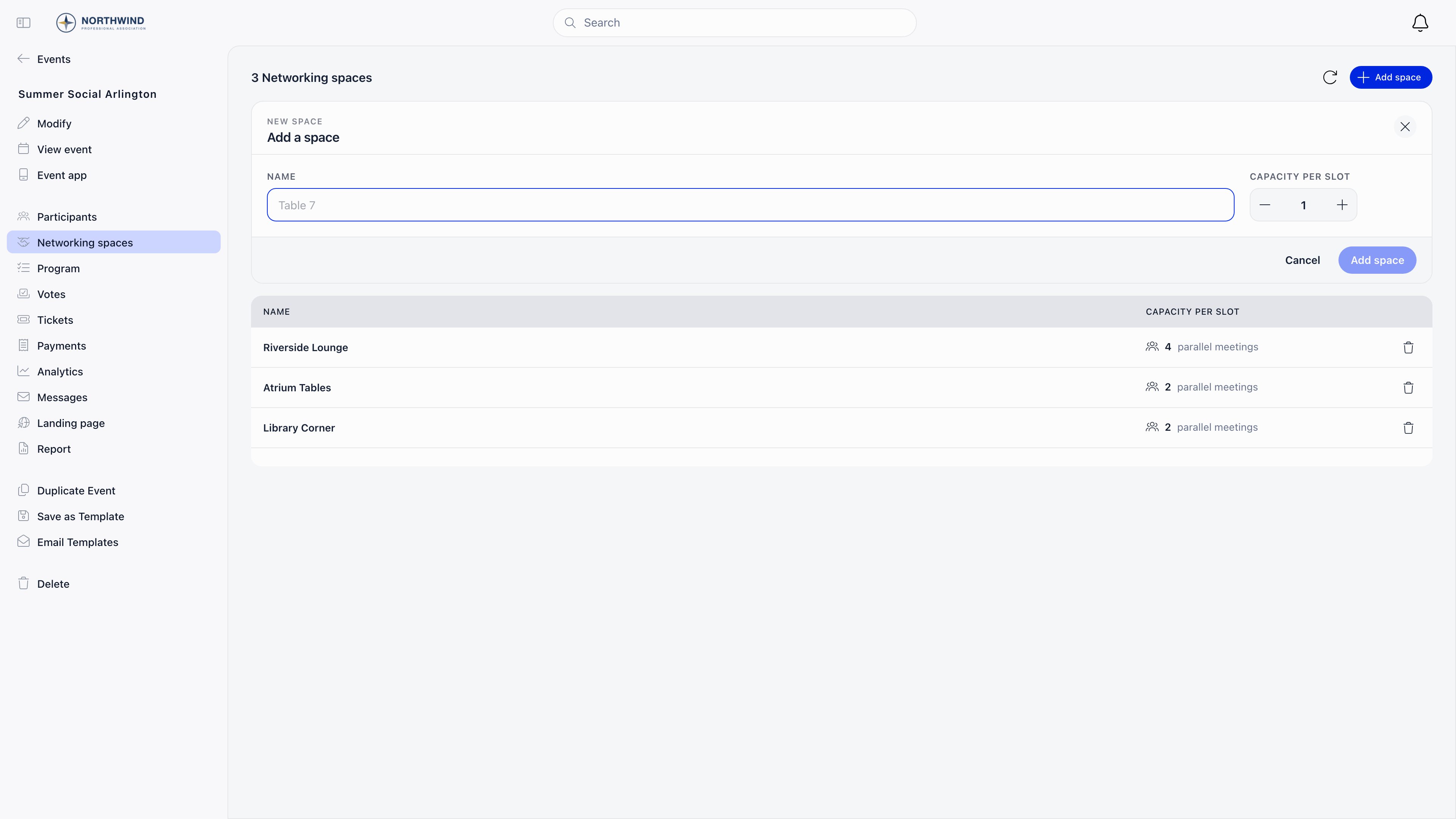
Attendees never choose a space. It is assigned when the meeting is created. Deleting a space keeps existing meetings at their slot but they lose the space reference.
Saved people
Scanning another attendee’s badge QR code offers to save them. Saved people are filterable in the directory with the Saved pill. This is a private, per-event list for the person who scanned. It creates no connection and writes nothing to your contact records.Troubleshooting
The Networking tab is not there
The Networking tab is not there
Visibility of attendee list is off for that event. Turn it on in the event’s Features section.
The tab is there but nobody can book anything
The tab is there but nobody can book anything
Check three things: Enable 1:1 networking is on, the event has agenda sessions (the bookable window comes from the agenda), and at least one networking space exists.
An attendee is missing from the directory
An attendee is missing from the directory
Either they set their profile visibility to organisers only, their registration has no email address on file, or their registration status is not one that grants access. An organiser sees hidden attendees in this tab anyway, so compare what they describe against what you see rather than against the Participants tab.
Phone numbers are missing on most cards
Phone numbers are missing on most cards
That is the default for non-member attendees: their phone and email start private and stay hidden until they choose to share. Members start with both visible.
Every slot shows as full
Every slot shows as full
Total capacity is the sum of the capacity of your spaces. With one 1:1 table only one meeting can happen per 15 minutes across the whole event. Add spaces or raise their capacity per slot.
A non-member attendee cannot send a connection request
A non-member attendee cannot send a connection request
Connections are a member-to-member relationship. Non-member attendees use 1:1 meetings instead.
Related
- Event App - Access, login and the tab overview
- Event App: Program, feed and votes - The other in-event tabs
- Create Event - Where the Features switches live
- Event Attendance - Registration statuses that grant access
- Privacy Settings - The member-level privacy flags this shares