

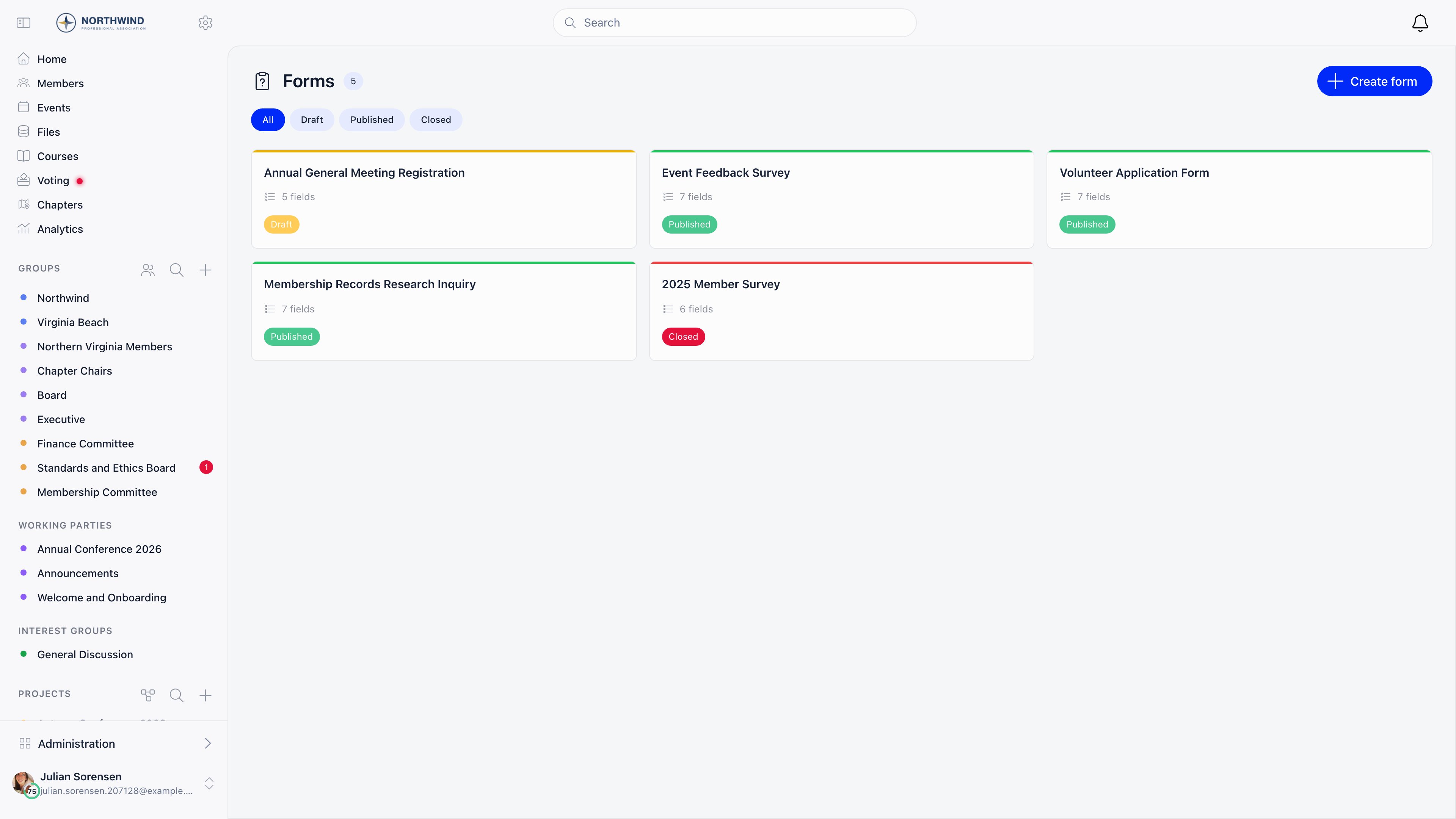
Turning it on and who can use it
Enable the module at Settings → Modules → Form Builder → Enable Form Builder Module, which requiresADMIN_TENANT.
Opening the Forms area requires ADMIN_TENANT or HR_TENANT. Creating a form
requires HR_TENANT, EVENT_TENANT or COMMUNICATION_TENANT; editing or
deleting one requires one of those three, or that you own it. ADMIN_TENANT
covers everything on this page.
A form you create belongs to you: its statistics, responses, and publish action
are open to you as its owner, and to anyone holding ADMIN_TENANT,
COMMUNICATION_TENANT, or EVENT_TENANT.
Building a form
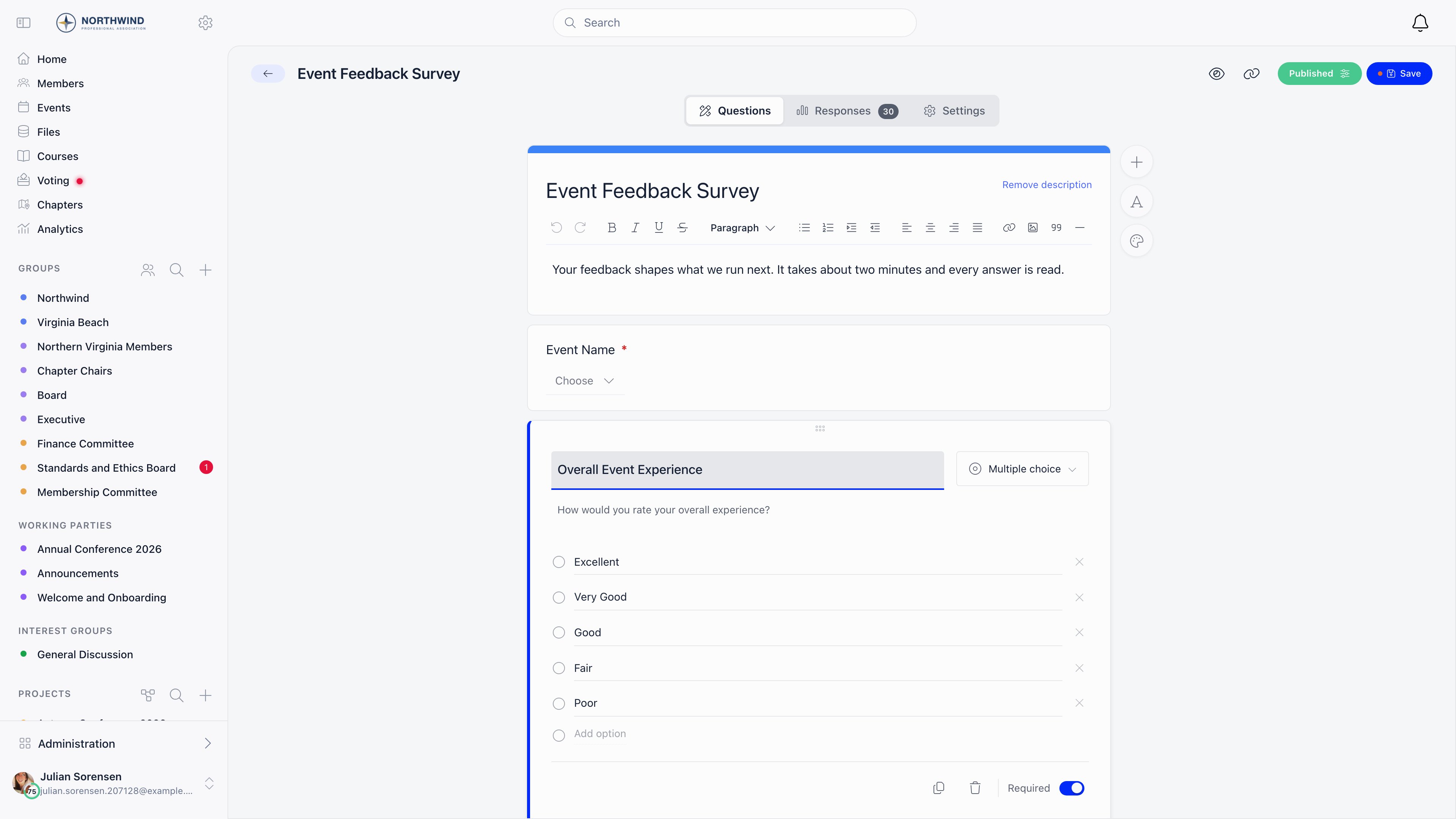
Create form makes a draft called “Untitled form” immediately and opens the builder; rename it in the top bar. On the Questions tab, the header card holds the title respondents see and an optional rich-text description. Add questions with the + button on the right, each with a title, an optional description shown under it, a type, and a Required toggle. Add text inserts a rich-text block that displays instructions between questions and collects no answer. Drag a question by the handle at the top of its card to reorder. Save keeps the form as a draft; Publish saves everything and opens the form to responses. Deleting a question inside the builder marks it “Will be deleted” and offers a Restore button until you press Save. To copy a question, use the duplicate action in the question editor: questions belong to one form, cannot be reused on another, and never appear on the Custom Fields settings page.Question types
There is no file-upload question and no conditional or branching logic. Every
respondent sees every question in the order you set. For a file, collect it
through a custom field on the profile or
registration form, or ask for a link to it in a short-answer question.
Settings
The Settings tab holds who may answer and when.
The device check behind Limit to one submission per device is a hash of the
respondent’s IP address and browser user agent. It deters casual repeat entries
but is not an identity check: a different network or browser gets a fresh
attempt.
Display options live behind the palette button on the Questions tab: a
header image, whether to show the title and description, whether to show your
organisation’s logo, and the colour of the submit button.
Publishing and sharing
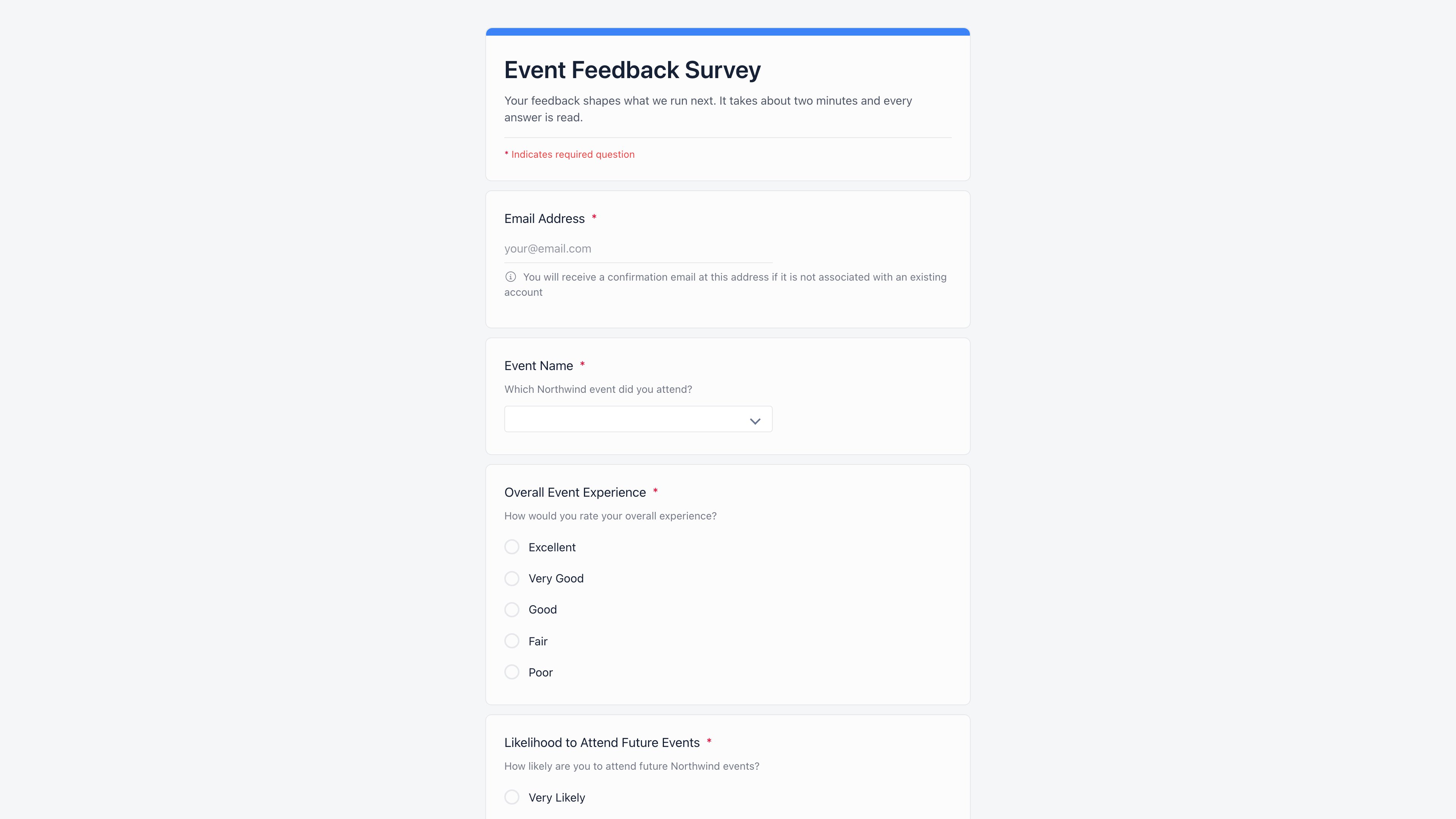
Publishing generates a seven-character short code and builds a shareable page with social-media preview tags. The link button in the top bar copies the responder link,https://<your-app-host>/share/form/<code>. Respondents do not
need an Orgo account to open it unless the form is set to Only registered
users, and a signed-in member gets their email filled in automatically and
skips the verification step.
Reading the responses
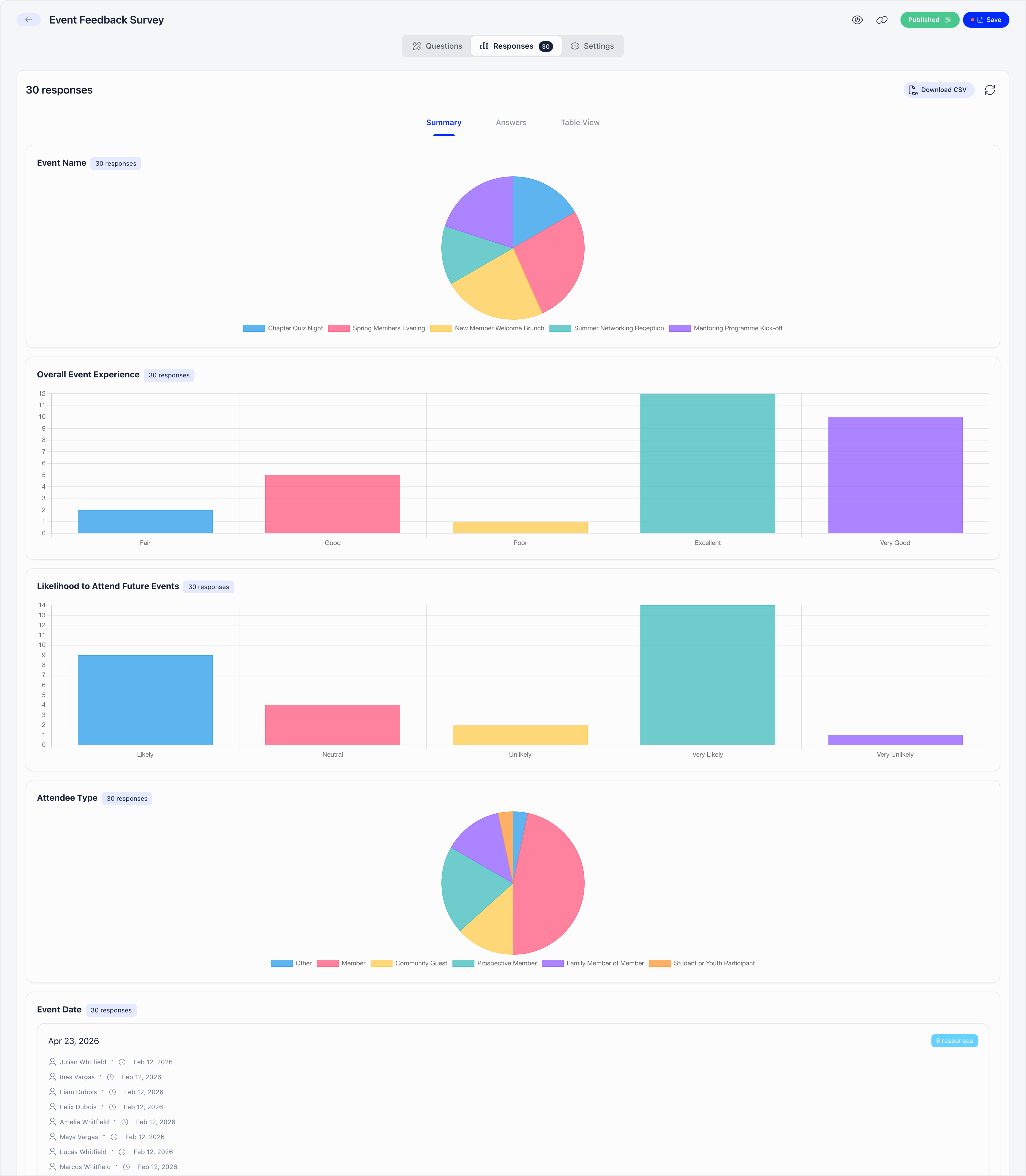
The Responses tab counts confirmed responses, and flags separately how many are still pending an email confirmation. It offers three views.- Summary draws a chart per choice question and lists the text answers grouped by identical value, each with who submitted it and when.
- Answers walks through responses one at a time, in the same layout the respondent saw. Covers the 100 most recent confirmed responses.
- Table View is one row per response, one column per question, paginated 100 rows at a time.
What a response creates
On a form set to Anyone with email verification, an email that matches a member is linked to that member, an email that matches an existing contact is linked to that contact, and an unknown email creates a new contact with the first and last name given on the form, marked as coming from a form. Unless the respondent is signed in as the owner of that email, the response is held as pending and a confirmation email goes out. Clicking the link inside confirms the response, confirms the contact’s email address, and lands the respondent on the thank-you page. The link is valid for 24 hours; after that the form has to be submitted again. Pending responses are counted separately and are excluded from the charts, the table, and the export until they are confirmed, which is the usual reason a response someone swears they sent is not visible.A member’s or contact’s submissions on their record
Every form a person has answered is also listed on their own record, so you can see what they told you without opening each form’s Responses tab.- Member: open the member, then More → Forms (the More menu sits at the end of the profile’s tab row).
- Contact: open the contact and look for the Forms card.
HR_LOCAL or FINANCIAL_LOCAL for that
person (so HR_TENANT and FINANCIAL_TENANT holders, and chapter administrators
for members of their own chapter). The member themself does not get this tab on
their own profile, and a person with form-builder rights alone (for example
COMMUNICATION_TENANT) does not see it either.
1
Read the list
A table, newest first, ten rows per page, with Form (the form’s name),
Submitted (date and time) and Status. Status reads Confirmed, or
Awaiting confirmation while the person has not yet clicked the confirmation
link in the email (see What a response creates).
2
Open the answers
Select a row. A window titled with the form’s name shows the person’s answers.
The same window opens from a Forms entry on the
Activity timeline.
Unlike the Responses tab above, the list includes submissions still awaiting
confirmation, and it is open to anyone with
HR_LOCAL or FINANCIAL_LOCAL on the
person, whether or not they own the form or hold COMMUNICATION_TENANT or
EVENT_TENANT. Opening a submission from here therefore follows the profile’s
permissions, not the form builder’s.Standalone forms versus the other builders
If the answer belongs on a person’s profile forever, use one of the
profile-based builders. If it belongs to one question you asked once, use Forms.
Troubleshooting
Where can I see which forms a particular member answered?
Where can I see which forms a particular member answered?
On the member’s profile, More → Forms. It lists each form with the date
and whether the answer is confirmed, and selecting a row shows the answers. It
needs
HR_LOCAL or FINANCIAL_LOCAL on that member. Contacts have the same
list in their Forms card.The Forms tab is missing from a member's profile
The Forms tab is missing from a member's profile
Only holders of
HR_LOCAL or FINANCIAL_LOCAL for that member see it. It is
in the More menu rather than the main tab row, and it disappears from the
menu once it has been opened, because it then has its own tab. Holding
COMMUNICATION_TENANT or EVENT_TENANT does not help: those open the form
builder’s Responses tab, not this list.Why can I open the Forms area but not the responses on a colleague's form?
Why can I open the Forms area but not the responses on a colleague's form?
The Responses tab, the statistics, the recalculate button and the Publish
action all check the same thing: that you created the form, or that you hold
ADMIN_TENANT, COMMUNICATION_TENANT, or EVENT_TENANT. HR_TENANT is not
on that list, and it does not imply any of the three.Worked example: two colleagues both hold HR_TENANT. Both reach /forms,
both create and publish their own forms, and neither can open the other’s
Responses tab, because for each of them the other’s form fails every branch
of the check. The requests are refused rather than returning an empty table.Fixes, in order of preference: give the people who read results
COMMUNICATION_TENANT or EVENT_TENANT, keep one shared account as the
owner of forms the whole team reads, or ask the owner to send the CSV.Note the asymmetry: HR_TENANT can edit and delete a colleague’s form, but
not read its answers. Reading results is deliberately the narrower right.I deleted a form. Can I still reach its answers?
I deleted a form. Can I still reach its answers?
Not from the app. Deleting sets the form’s status to
DELETED, and every
signed-in read of forms filters that status out: the form disappears from the
list, and so do its Responses tab, its statistics and its CSV export. The
public link stops working too, because the public page only serves forms that
are published or closed.Nothing is destroyed. The submissions, the answers and the contacts created
from them all stay in the database. But there is no undelete button, so
Download CSV before you delete anything you might want to read again. To
take a form out of circulation without losing access to the answers, use
Not accepting responses instead of Delete.Which really stops responses, Schedule auto-close or Not accepting responses?
Which really stops responses, Schedule auto-close or Not accepting responses?
They work differently and only one of them is a hard stop.Not accepting responses changes the stored status of the form to closed.
The submit endpoint accepts nothing but a published form, so responses stop
at the source, and closing the form also computes its final statistics.Schedule auto-close is evaluated when the form is read. Once the date has
passed, the form reports itself as closed and the public page shows the
“Form Closed” panel in place of the questions, but the stored status is still
published.For an audited cut-off (a vote, a deadline with money attached) set the
switch when the deadline arrives rather than relying on the date alone. One
detail worth knowing: turning Not accepting responses on clears the
scheduled date, so reopening the form later does not silently re-arm an old
schedule. Reopening also queues a fresh recalculation of the statistics.
Two people tried to answer and the second one got the thank-you page
Two people tried to answer and the second one got the thank-you page
That is Limit to one submission per device. The device is a hash of the
respondent’s IP address and browser user agent, so it is really “one answer
per network plus browser build”, not one answer per person.Worked example: five colleagues answer from the same office router. The first
two use different browsers and both get through. The next three are all on
the same version of the same browser, so they produce the same hash as one of
the first two and see the thank-you page without their answers being saved.
The same person on a phone that switches from office wifi to mobile data
counts as a new device and can answer again.Two more details. Only confirmed responses block a device, so on a form set
to Anyone with email verification a first respondent who never clicks the
confirmation link leaves the device open. And nothing deduplicates by email
or by member account: the device hash is the only repeat guard there is, on
every submission mode.
The Summary count and the Table count do not agree
The Summary count and the Table count do not agree
They read different sources. Table View counts confirmed submission rows
live. Summary reads a stored statistics record that Orgo maintains in the
background as answers arrive.When the background update falls behind, Orgo forces a full recalculation
only once 50 or more responses have landed since the last one. Below that it
serves what it has, which is why a form collecting a handful of answers a day
can show a Summary that trails the table by a few responses for a while. The
refresh button next to Download CSV forces the recalculation immediately.On a closed form the stored record is final by design: the refresh button
will not move it, and that is what “closing a form freezes its statistics”
means in practice.
My CSV is missing the oldest responses
My CSV is missing the oldest responses
The export stops at 10,000 rows and takes the newest ones, ordered by
submission date, with no warning in the file or on screen.Worked example: a form with 12,300 confirmed responses exports a CSV with the
most recent 10,000 in it. The 2,300 oldest are simply absent, and the row
count in the file is the only clue.Below 10,000 the export is complete. Above it, read the older responses in
Table View, which pages through everything 100 rows at a time, or split
long-running collection across more than one form.
Related
- Contacts for the records created by public responses
- Profile activity for the timeline that also links to form answers
- Custom Fields for fields that live on member profiles
- Registration Form for collecting data at sign-up
- Event Registration Forms for questions asked at booking
- Permissions for the permission names used above