

Before you start
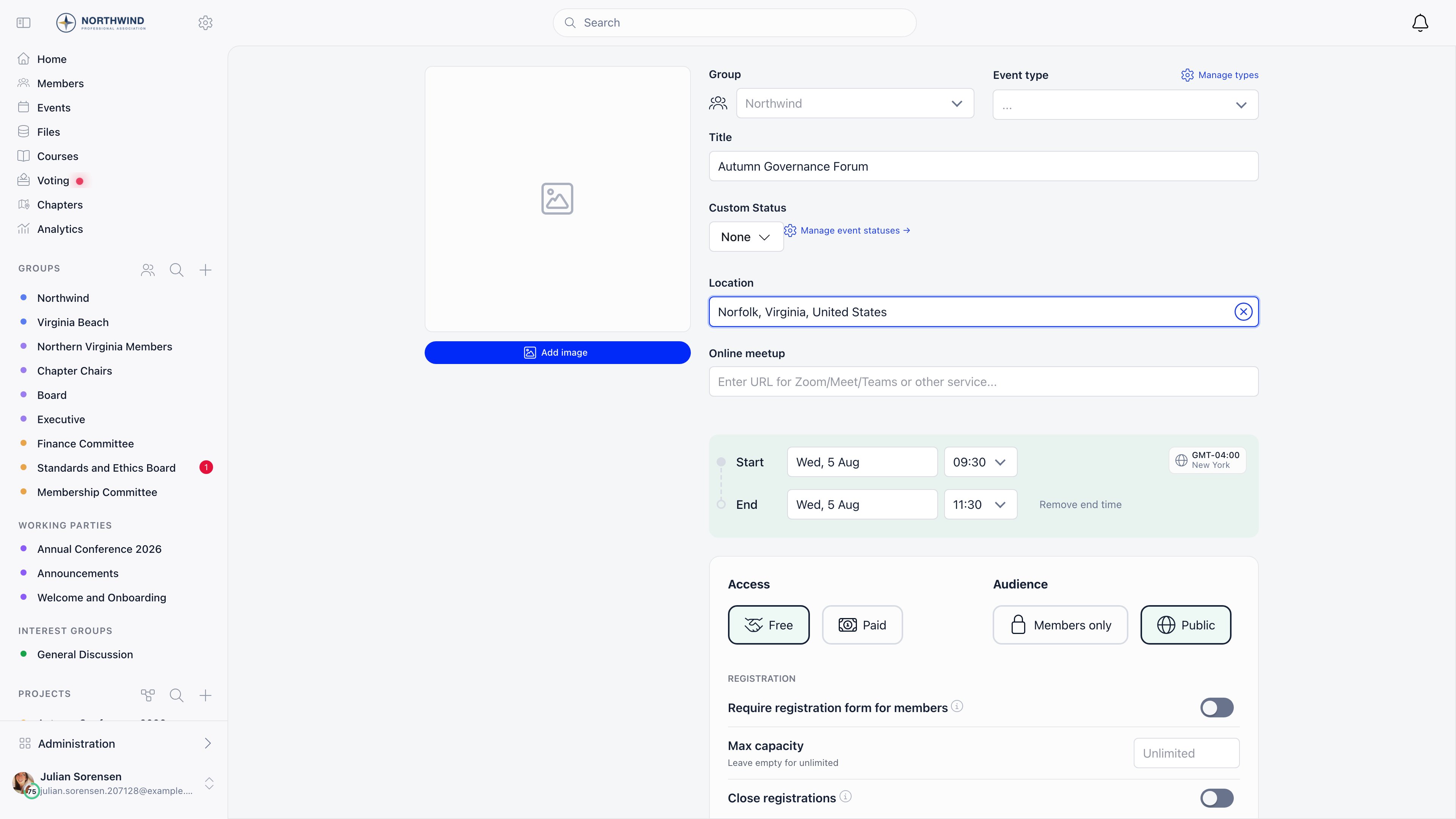
Go to Events and select Create an event, or open a group and use its Events tab. You can reach the form if you either hold the permission set in Settings → Modules → Events → Who Can Create Public Events, or belong to at least one group. If neither is true, the page tells you so and offers a link to browse groups. Reaching the form is not the same as being allowed to save into every group it offers. Each chapter carries its own Who can create events in this chapter setting, and a group can be set so that only its admins create events; either is checked when you save and refuses with a permission message. See Local Centers.Cover image
The image panel sits on the left of the form. Upload a PNG or JPEG and a cropper opens: position and scale the image there, then confirm. Covers are square (1:1) and saved at 800 by 800 pixels. If you keep design templates for event artwork, build them at 1:1. A 16:9 banner gets cropped to the centre square, so text near the left and right edges disappears. The same file is reused at several sizes across the event list, the event page, the public page, and the mobile app.Event details
Choosing the event type set as Training Event Type in module settings adds a Training type selector. Choosing the type set as General Meeting Event Type adds the general meeting checkboxes (general meeting, elective, extraordinary).
There is no recurrence feature. For a weekly meeting, create the first event and use Duplicate Event from the event sidebar for each later date, or build an event template so each new instance starts pre-filled.
Access and audience
This block only appears if you can manage events (EVENT_LOCAL or the tenant’s public-posting permission).
Access is Free or Paid. Paid is only offered when the Online Payments module is active, and only to holders of FINANCIAL_TENANT or EVENT_TENANT. Choosing Paid turns the event into a ticketed one and creates a linked product behind the scenes, plus a Stripe product when a Stripe account is connected. Saving a Paid event needs EVENT_TENANT specifically. FINANCIAL_TENANT reveals the option but the save is rejected with a permission error. See Ticketing.
Audience is Members only or Public. The Public option is shown only if you hold the permission named in Who Can Create Public Events, and it is hidden entirely for non-joinable (private) groups. The server enforces both rules, so a request that sets Public without the permission is saved as Members only rather than rejected.
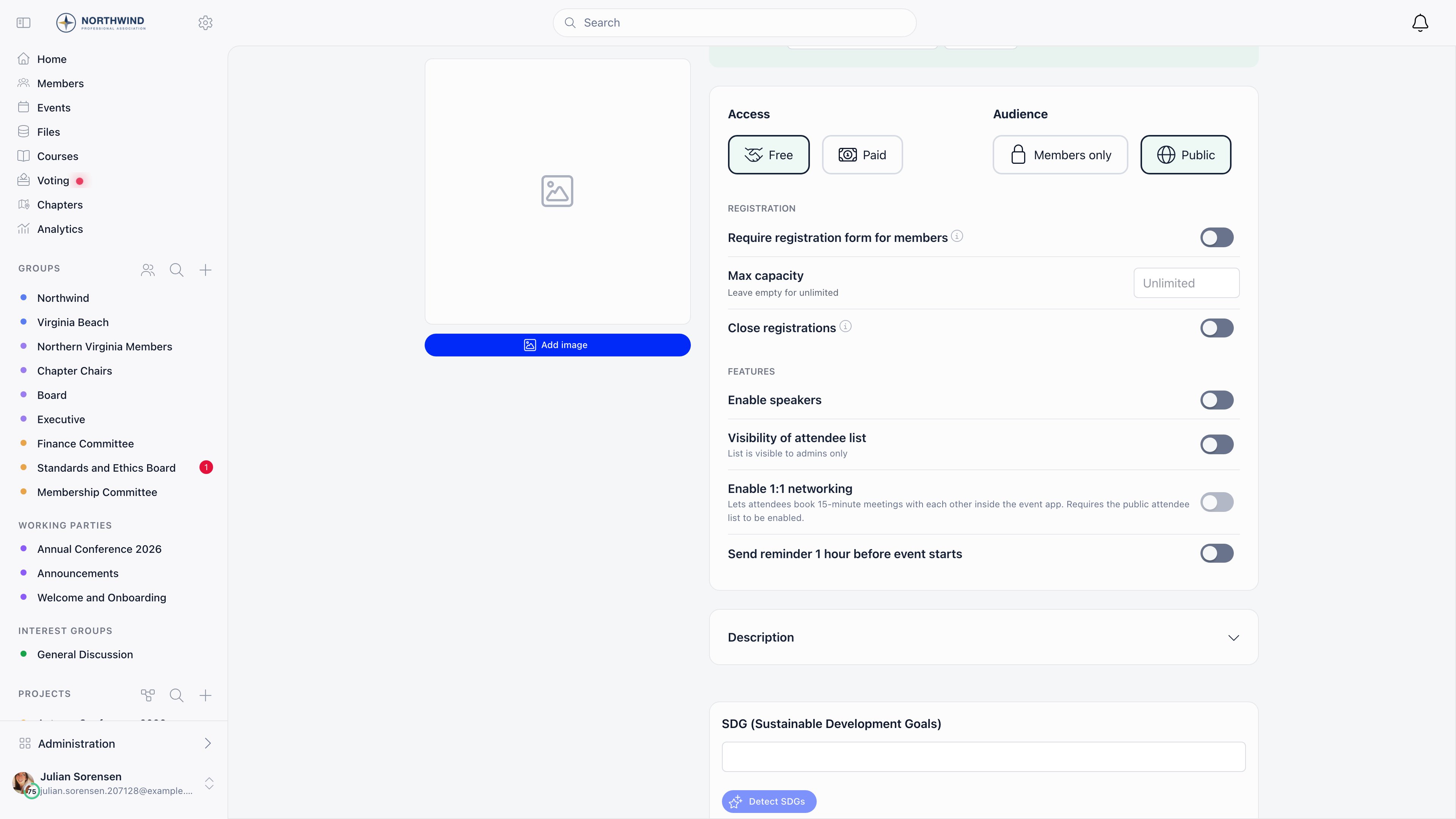
Registration
Features
Optional sections
Gamification (when tiers are enabled and you holdEVENT_TENANT): award Points for the event, and optionally a badge granted to participants marked as attended.
SDG (when the SDG setting is on): tag the event with any of the 17 UN Sustainable Development Goals. Detect SDGs proposes tags from the title and description, and needs a title plus at least 20 characters of description. Admins get a Disable SDG functionality link that switches the setting off organization-wide.
Send attendance reminder 24 hours after event ends appears when the module setting is on: the reminder goes to you, the host, so attendance actually gets recorded.
Restrict editing to user type appears when Restrict Event Editing by User Type is on and you hold EVENT_TENANT or ADMIN_TENANT. Local users then need the chosen user type to edit the event, and deleting it requires EVENT_TENANT.
Propagate event to all local centers appears on creation only, for EVENT_TENANT holders, when both the Local Centers module and Propagate Events to Local Centers are on, and the selected group is not private. Saving then creates one published copy in every active local center rather than a single event, and returns you to the events list. A second toggle, Send invites to members, adds every member of all those centres to each copy’s participant list as Invited. It does not currently send any email, so announce the event separately.
Draft, publish, invite
New events are saved as drafts. A draft appears in the events list only for the person who created it; other managers can open it by direct link, and ordinary members are turned away. An event whose dates are already in the past is published immediately on save. Open the event and the draft banner reads “Only you can see this event” with a Publish Event button.1
Publish
Publishing a future event notifies the members of its group. Publishing a past event does not notify anyone.
2
Choose whether to invite
If Bulk Invites is enabled, publishing asks whether to invite all members of the group, with Send Invites and Skip Invites.
3
Invite later
A published event shows Send Invites to All Members until invites go out. Sending switches to “Sending invites…” and then to a confirmation. Invites cannot be sent while the event is still a draft.
After publishing
Editing is at Modify in the event sidebar. Everything stays editable except the hosting group, which the form locks on publish. Attendees are not told automatically when you change details, so send them a message from the event’s Messages entry. Deleting behaves differently either side of five participants. Under five, the delete is refused if any attendee has a payment attached. From five upwards the event is hidden rather than erased: it disappears from every list and its address stops working, but the record and its attendees are kept. There is no undo button, so recovering one means asking Orgo support.Related
- Events overview - module settings and the event workspace
- Event Types - categories and custom statuses
- Event Templates - pre-filled events, tickets, and forms
- Ticketing - ticket types, add-ons, and checkout
- Attendance - invitations, RSVPs, and check-in