

Organization Settings is the control center for everything that defines your Orgo workspace — your name, logos, registration flow, email templates, and which features are turned on. This is where you go first when setting up a new workspace, and where you come back whenever you need to change how your organization presents itself to members. Settings (gear icon in the sidebar)
Requires Tenant Admin permissions. Only organization administrators see the gear icon in the sidebar. If you don’t see it, ask your organization’s main admin to grant you Tenant Admin access.

The Settings page

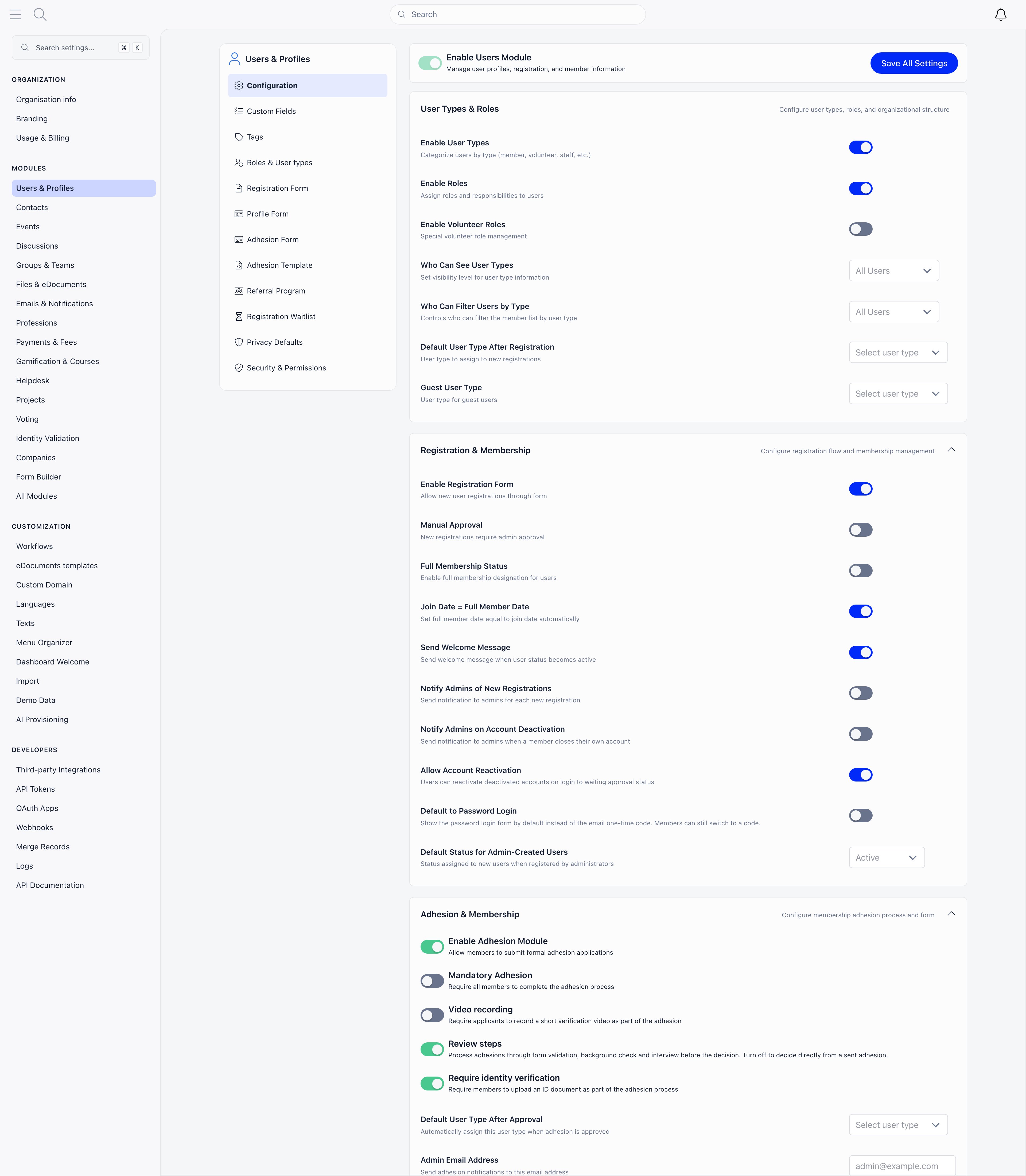
Open Settings from the gear icon at the bottom of the sidebar. The settings area is organized into four sections, each handling a different aspect of your workspace: Settings page showing the sidebar with ORGANIZATION, MODULES, CUSTOMIZATION, and DEVELOPERS sections alongside the module configuration area

Organization

Your organization’s identity — name, country, contact details, legal information, currency, social media links, and visual branding (logos and login background). This information flows into invoices, emails, registration pages, and the mobile app.

Modules

Enable or disable platform features like Events, Discussions, Fees, Newsletter, Courses, and more. Each module can be individually configured — turn on what your organization uses, leave the rest off to keep the interface clean.

Customization

Tailor the member experience — set languages, rename default terminology (e.g., “Members” to “Scouts”), rearrange the sidebar menu, configure the dashboard layout, write welcome messages, and import data from CSV files.

Developers

Technical integrations — API access tokens for third-party systems, OAuth application configuration for single sign-on, and webhook endpoints for real-time event notifications.
If you’re setting up a new workspace, configure Settings in this order:
  1. Organization Info — Set your name, country, timezone, contact details, and currency first. These appear everywhere.
  2. Branding — Upload your logos and set the login background so the platform looks like yours from the start.
  3. Modules — Enable the features you need (Events, Discussions, Fees, etc.) and disable the rest.
  4. Customization — Set languages, rename terms, organize the sidebar menu, and configure the dashboard.
  5. Forms — Configure what data you collect during registration and on member profiles.
  6. Email Templates — Review and customize the automated emails members will receive.

Organization identity

The Organization section contains two pages that define how your workspace looks and is identified:

Organization profile

Basic details card showing organization name, country, timezone, and language The Organization Info form is split into themed cards: basic details (name, country, timezone), contact information (email, phone, address, legal URLs), social media links, and financial details (currency, legal name, VAT, IBANs). The two required fields are Organization Name and Office Email — the save button won’t work without them. Fill in what applies to your organization and skip what doesn’t. Financial details are especially important if you plan to use the Fees or Donations modules, since they appear on every invoice and receipt.

Branding

Logo upload grid with light theme, dark theme, squared, and icon variants Upload four logo variants so your brand looks correct in every context: horizontal logos for the expanded sidebar and email headers (one for light mode, one for dark mode), and square logos for the collapsed sidebar, mobile app icon, and favicon (again, one per theme). Use PNG with transparent backgrounds for all four. Below the logo grid, paste a publicly accessible HTTPS URL for the login background image — this appears behind the login, registration, and password reset screens. Branded login page with custom background and logo The result is a fully branded experience: members see your logo in the sidebar, your branding in emails, and your imagery on the login page. Dark mode users see the dark variants automatically.

Forms

Forms control what data you collect from members at different stages. They’re configured inside the Users & Profiles module and use the same drag-and-drop builder across all three form types:

Registration Form

The form new members fill in when signing up. Controls the first impression — keep it short to reduce drop-offs. Email is always required and cannot be removed.

Profile Form

Fields visible on a member’s profile after registration. Can include file uploads (photos, documents) since the member is already authenticated. Mark fields as required to trigger a splash screen prompt on next login.

Adhesion Form

A separate application form for prospective members who need approval before joining. Useful for organizations with membership criteria, vetting processes, or paid applications that require admin review.
Settings → Modules → Users & Profiles → Registration Form Registration form builder with available fields on the left and form layout on the right The form builder works the same way for all three form types: available fields are listed on the left panel, and your form layout is on the right. Drag fields from left to right to add them, drag to reorder, and toggle the required checkbox for each field. Key details:
  • Email is always included and cannot be removed — it’s how Orgo identifies each member
  • Switch between System Fields (built-in fields like name, phone, address) and Custom Fields (fields you created) using the tabs on the left
  • Add a title and intro text in the Form Settings section below the field list — this appears at the top of the form
  • Click Iframe to get an embeddable link you can place on your website, so visitors can register without leaving your site
  • If you have User Types configured, each type gets its own form — you can require different fields for different member types
File upload fields (photos, documents) only appear on the Profile Form — they require authentication, so they’re excluded from the Registration Form. Collect documents after the member has created their account.

Email templates

Settings → Modules → Emails & Notifications → Templates Every automated email Orgo sends — welcome messages, event reminders, fee payment confirmations, password resets, newsletter opt-ins — has a customizable template. Templates are organized by category (Authentication, Events, Fees, etc.), and each template has a rich text editor where you can modify the subject line, body text, and dynamic placeholders. Email templates page with category sidebar and template cards Click any template card to open the editor. Templates with a yellow Disabled tag won’t be sent until you enable them — this lets you prepare email content before activating it. Each template includes dynamic placeholders (like {firstName} and {organizationName}) that automatically fill in per-recipient data. The template categories match your enabled modules: if you enable the Events module, the Events email category appears with templates for event confirmations, reminders, and cancellations. If you disable a module, its email templates are hidden but preserved — re-enable the module and they come back with your customizations intact.
Missing an email template category? It means the related module isn’t active. Go to Settings → Modules, enable the module, and the email template category appears automatically.

Real-world example

Scenario: A regional arts council launching Orgo for 800 members — visual artists, performers, and administrators.
  1. Organization Info: Set name “Regional Arts Council”, country, timezone, office email. Add privacy policy and terms URLs for registration compliance. Set currency to EUR, add legal name and VAT for invoice generation.
  2. Branding: Upload the council’s horizontal logo (teal on transparent) for light mode, white version for dark mode. Square logo with just the icon for mobile. Login background: a photo from last year’s annual exhibition.
  3. Modules: Enable Events (exhibitions, workshops), Discussions (member forum), Fees (annual membership dues), and Files (shared resources). Disable Courses, Newsletter, and E-Voting for now.
  4. Registration Form: Keep it minimal — email, first name, last name, and a custom “Artistic Discipline” dropdown field. Move detailed profile fields (bio, portfolio link, address) to the Profile Form with a splash screen prompt.
  5. Email Templates: Customize the welcome email with the council’s tone and a link to the getting-started guide. Disable the event reminder email until events are set up.

Troubleshooting

The Settings page requires Tenant Admin permissions. If you’re a local admin, HR manager, or regular member, you won’t see the gear icon. Ask your organization’s main administrator to either grant you Tenant Admin access or make the changes you need on your behalf.
Email template categories are tied to active modules. If you don’t see the “Events” category, it’s because the Events module isn’t enabled. Go to Settings → Modules, enable the relevant module, and the corresponding email template category appears immediately. Your existing customizations are preserved even when toggling modules off and on.
The splash screen prompt triggers after login, not during registration. Make sure the field is both visible and required on the Profile Form page (Settings → Modules → Users & Profiles → Profile Form). Members see the prompt on their next login after you make the change — it doesn’t retroactively appear mid-session.
The organization name propagates to the sidebar, emails, and registration pages immediately after saving. However, already-sent emails and already-generated invoices/receipts won’t update — they preserve the name from when they were created. Browser-cached pages may also show the old name until the member refreshes. For the mobile app, members may need to force-close and reopen the app.