

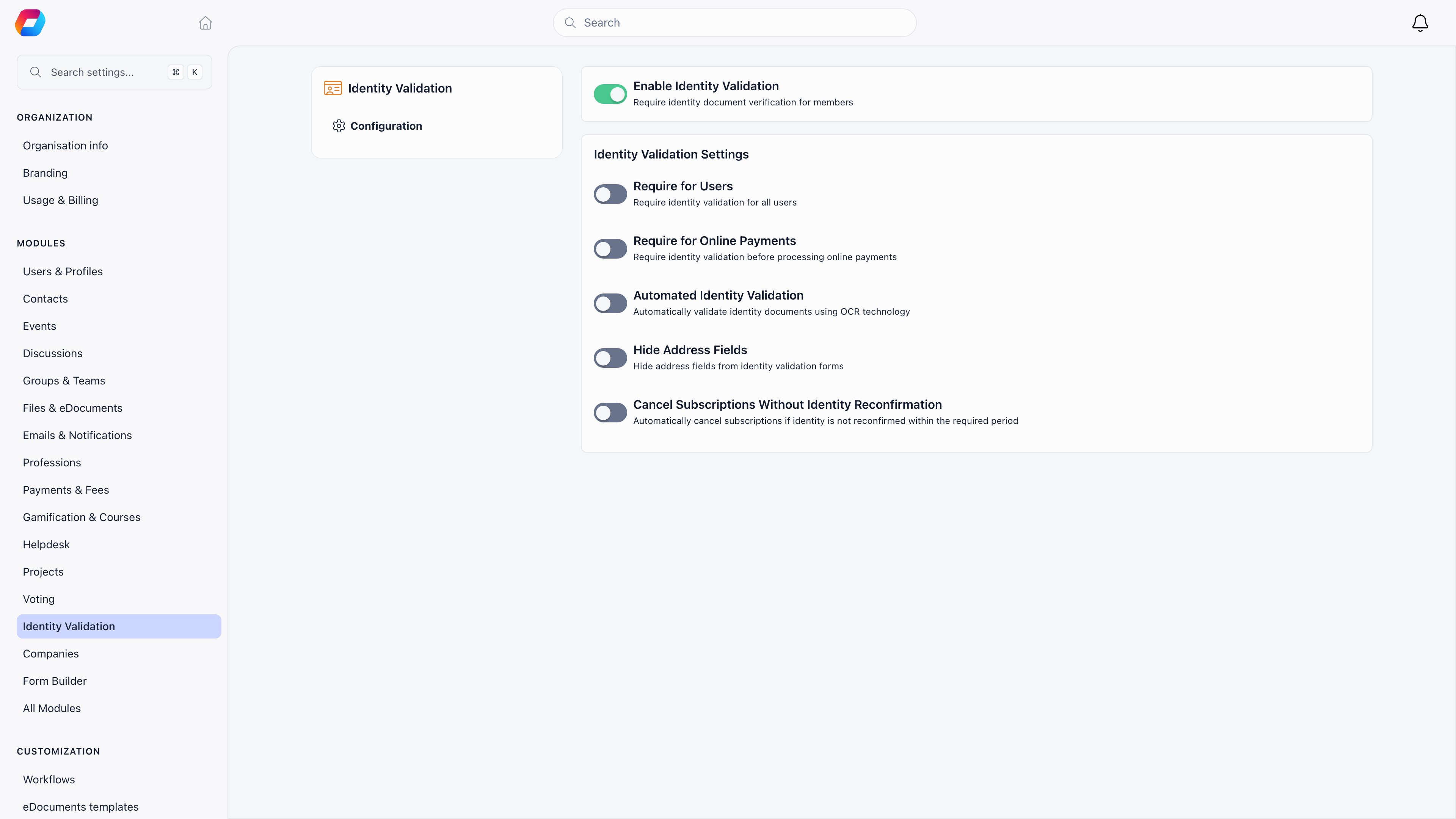
Enabling it
Settings → Modules → Identity Validation. RequiresADMIN_TENANT.
What the member does
A member reaches the upload page from their own profile, where the identity row shows Upload identity if nothing has been submitted. Payment and renewal emails link to the same form with the payment attached.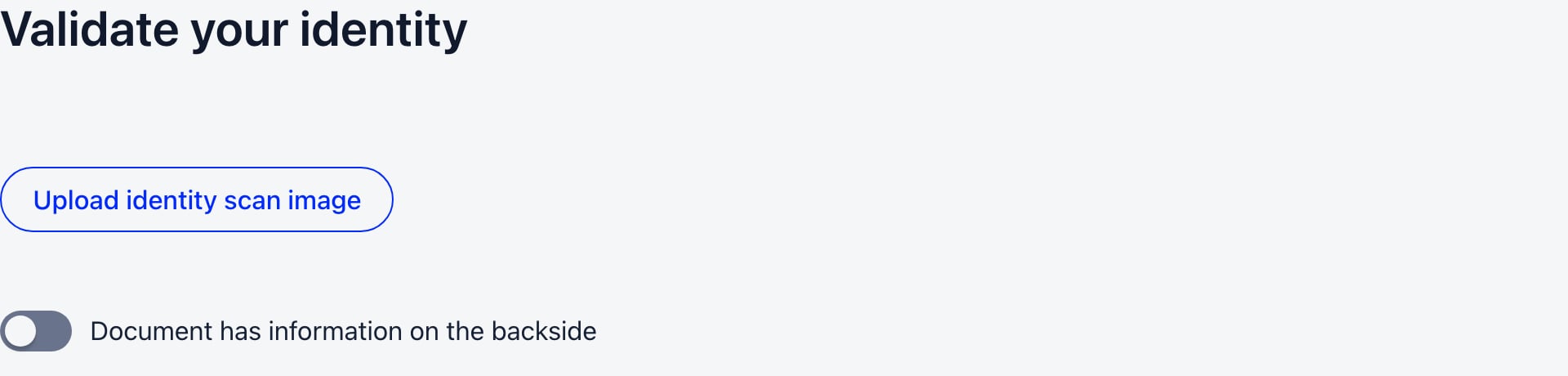
1
Upload the front of the document
PNG, GIF and JPEG are accepted. PDFs are rejected.
2
Turn on Document has information on the backside if needed
A second upload button appears. The new Romanian ID card needs this, because the address and issue date are on the back.
3
Send
The record is created with status Pending and the reading runs in the background.
What automatic reading extracts
From the front: first name, last name, date of birth (derived from the CNP), document series, document number, CNP, expiry date and document type. From the back: issue date, town, county, street and address details. Reading is best effort. If it fails, the record is still created and an admin fills in the details. Two cases do stop the upload with an error: the document has no readable CNP, or the CNP shows the person is under 18.What the admin does
There is no central review queue. You open an identity record from wherever it is referenced:- a member profile or contact record, where the status tag links straight to it;
- Payments and Subscribers on a product;
- the adhesion list.
HR_ASSISTANT_LOCAL over the member’s local center. That is the widest of the HR levels, so it is satisfied by HR_LOCAL, FINANCIAL_LOCAL and ADMIN_LOCAL, by their parent center equivalents, and by the tenant-wide HR_TENANT, FINANCIAL_TENANT and ADMIN_TENANT. If you want identity documents seen by fewer people than that, review who holds local finance and HR permissions before turning the module on.
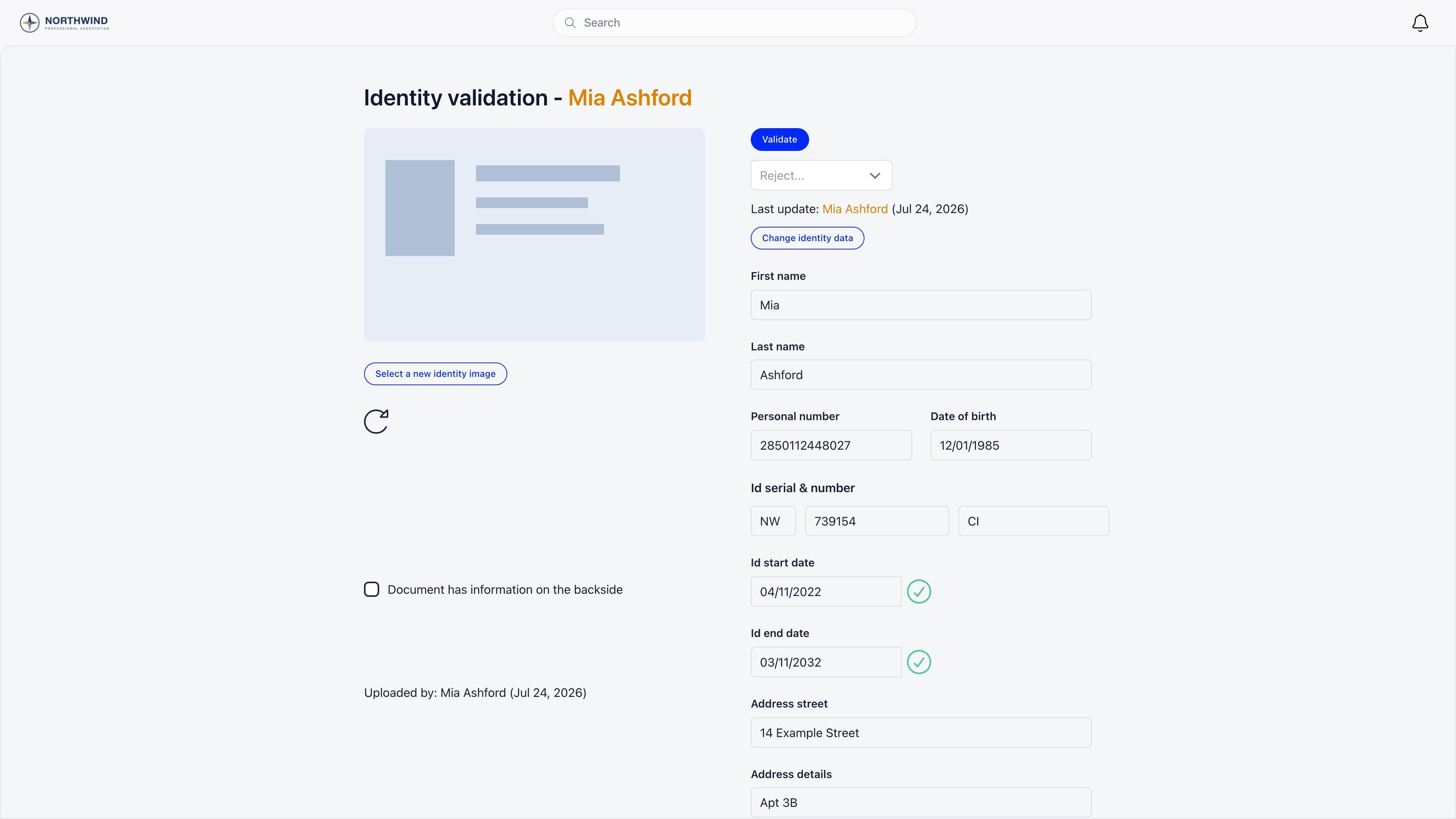
For organisations registered in Romania, Validate refuses the record unless the first name, last name, document number, CNP, document type, issue date, expiry date and date of birth are all filled in, the document is not expired, the issue date is in the past, and the person is at least 18. Everywhere else only first and last name are required.
Statuses
There is no expired status. An expired document keeps its old status, and expiry is enforced at the moment someone tries to validate it.
Reminders and renewals
All of these only run when Require for Online Payments is on.- Upload reminders for a payment or subscription with no document go out on an hourly job, up to three times: about two hours after the payment, again after a day, and again after three days. The ladder stops at ten days.
- For an active subscription, Orgo emails the member 7, 4 and 2 days before the renewal date asking them to confirm or replace their document. The email offers both “same document” and “upload a different one”.
- With Cancel Subscriptions Without Identity Reconfirmation on, a subscription renewing within a day and still unconfirmed is cancelled.
- A member can only replace a subscription document inside the last 7 days before renewal, and not at all while the current one is in the Orgo validated state.
- Every upload attached to a payment emails everyone holding
FINANCIAL_TENANT.
Data handling
The document number and the CNP are written to the database twice: once as plain text and once encrypted. Document images go to Orgo’s S3 media bucket under an unguessable file name. Every create and every change to an identity record writes an audit entry naming the admin and the fields that changed. Orgo has no delete operation for an identity record and no retention timer. The record is only removed when the underlying member or contact row is deleted from the database, which closing an account does not do on its own. If your retention policy requires ID scans to be purged after a period, that has to be arranged outside the product, through Orgo support.Identity data is not part of the member privacy switches. A member cannot hide their identity record, and other members never see it: only the permission levels listed above can open one.
Related
- Privacy Settings governs the rest of a profile
- Adhesion can pair a membership application with a document check
- Permissions explains the roles named above
- Donations is where the payment-linked flow is most used
- Stripe Integration covers the checkout side of the same flow