

Turning it on
Settings → Modules → Helpdesk → Enable Helpdesk Module (needsADMIN_TENANT).
Once it is on, a Support entry appears in every member’s profile menu (top-right
avatar). Nothing else has to be configured for members to start writing in, but a ticket
with no support team behind it notifies nobody.
Configuration
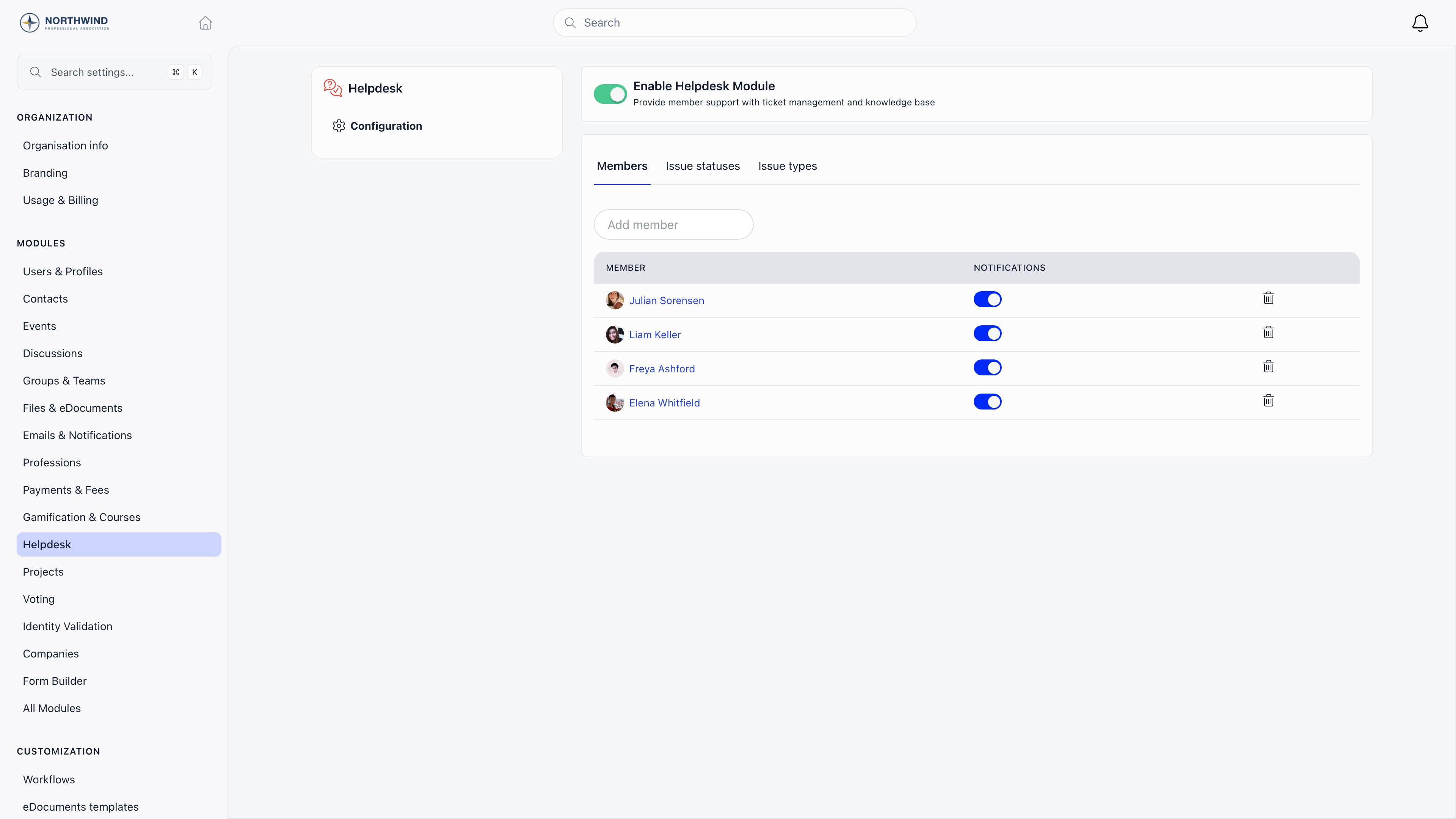
The Helpdesk configuration page has three tabs.Members
Search for a member and add them to the support team. Each row has a Notifications switch: only team members with it on are notified when a new ticket arrives. Removing someone from the team also clears them as the default assignee on issue types and unassigns every issue they were assigned to.Issue statuses
Your ticket workflow. Add a status, click its name to rename it, pick a colour, drag rows to reorder. A new status starts out named New status. Unless your organisation was set up with sample data, this tab starts empty, so define your statuses before inviting members to write in. Closing is separate from status: a closed ticket loses its status and is filed under Closed instead.Issue types
The categories members choose from when raising a ticket, with the same rename, colour and reorder controls. Each type can carry a Default assignee, picked from the support team. When a ticket of that type is created (or edited) with nobody assigned, Orgo assigns that person automatically.How a member raises a ticket
1
Open Support
Profile menu (top-right avatar) → Support.
2
Click Add issue
A form opens with a Request type dropdown, a subject line and a description.
3
Attach anything relevant
Photos, videos and files can be added to the description.
4
Send
The ticket appears in the list, and the member is subscribed to it automatically so
every reply reaches them.
HR_TENANT see every ticket in the organisation.
Working a ticket
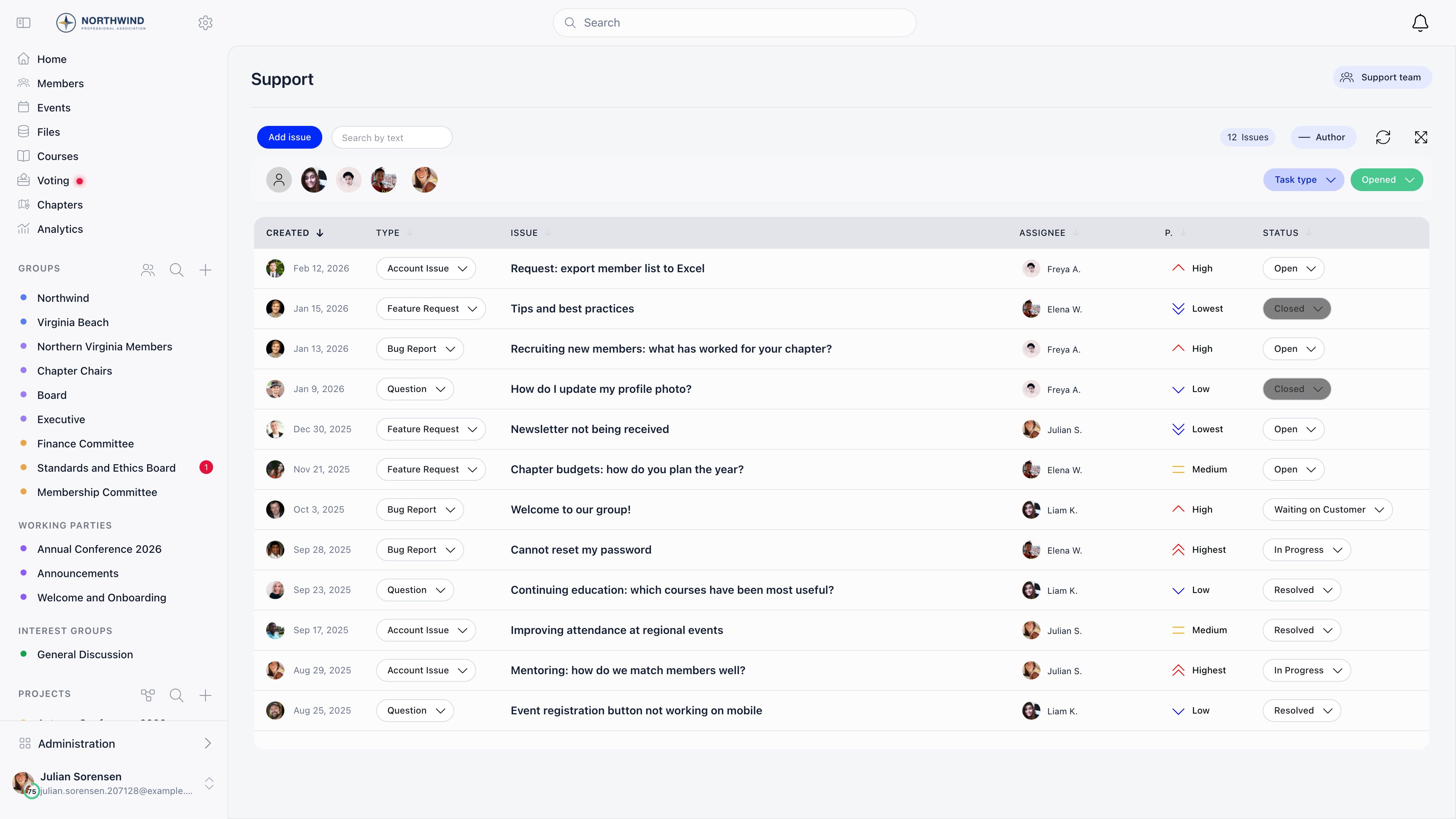
Open a ticket to read it, reply in the comment thread, and set the fields in the sidebar. From the list you can change type, status, assignee and priority inline without opening the ticket.
Closing offers two options: Close, or Close and comment, which asks for a closing
message before archiving. Closed tickets drop out of the default list and come back with
the Closed status filter.
There are no private replies. Every comment on a ticket is visible to the member who opened
it, so keep internal discussion somewhere else.
Finding tickets
The board defaults to Opened. Support team members get the full filter row: free-text search over the subject, a Task type filter, a status filter (Opened, any individual status, or Closed), assignee avatars including unassigned, and a mentions-of-me toggle. Everyone gets column sorting by creation date, priority, type or status, and an author button that shows or hides the requester column. The list updates live as colleagues change tickets, without a refresh.Notifications
Changing a ticket’s status, type or priority notifies nobody. Comment notifications follow
each member’s own comment preference; see Notifications for the
per-member controls.
Common questions
Members cannot find the Support link
Members cannot find the Support link
It only appears when the Helpdesk module is enabled, and it lives in the profile menu behind the avatar, not in the sidebar.
Nobody was notified about a new ticket
Nobody was notified about a new ticket
Check the Notifications switch on each row of the support team list. A team member with it off still sees tickets but is not alerted.
Tickets have no status
Tickets have no status
The Issue statuses tab starts empty on a fresh organisation. Create your statuses under Settings → Modules → Helpdesk → Issue statuses.
Can I route tickets automatically?
Can I route tickets automatically?
Yes, through issue types. Give each type a default assignee and every new ticket of that type lands on that person.
What is the difference between Help Desk and Issues?
What is the difference between Help Desk and Issues?
Same board, different scope. The help desk is organisation-wide and members write into it; issues belong to a project group and only its members see them.
Are there response-time reports?
Are there response-time reports?
No. Orgo does not compute resolution times or per-agent workload for the help desk.
Related
- Issues - the same board scoped to a project group
- Notifications - how members control what reaches them
- Permissions - what
ADMIN_TENANTandHR_TENANTunlock - Members - member records behind each ticket
- Contacts - people without an account, who cannot raise tickets