Sell tickets with multiple price tiers, member pricing, addons, vouchers and QR check-in
Orgo Event Ticketing sells event tickets from inside your membership platform, with member-only
pricing tied to your fee levels, addons, discount vouchers, and QR code check-in.Built for membership organisations running paid events for members and non-members: professional
associations, youth organisations, alumni networks, trade unions, and similar member-based groups.Replaces Eventbrite, Ticket Tailor or Cvent with ticketing tied directly to your member database
and your own Stripe account. Orgo charges no per-ticket fee, you pay only Stripe’s rate.Buyers pay by card in an inline Stripe checkout, receive a ticket by email, and check in at the door
by QR scan.The same screen continues below the fold with the rest of Addons and then
Vouchers.
Ticketing is a property of the individual event, not a module you switch on once.
1
Connect Stripe
The Online Payments module must be active and your Stripe account connected, otherwise the
Paid option does not appear on the event form. See
Stripe Setup.
2
Set the event to Paid
On the event form, under Access, choose Paid instead of Free. This section is only
visible to users with FINANCIAL_TENANT or EVENT_TENANT.
3
Add ticket types
A Tickets entry appears in the event sidebar. Open it and add one or more ticket types.
4
Publish
Tickets appear on the event page as soon as they are within their
availability window.
Switching an event to Paid also forces Require registration form for members on, and the
toggle becomes read only. Every ticket buyer goes through the
registration form, never a simple RSVP.
The Max capacity field disappears from the event form once ticketing is on, and event-level
capacity is not applied to ticket sales. Cap attendance with Max Seats on each ticket type
instead.
The Tickets and Payments sidebar entries appear only for FINANCIAL_TENANT or
EVENT_TENANT, and only once the event is Paid. Every write on the Tickets page (ticket types,
addons and vouchers alike) requires EVENT_TENANT, which ADMIN_TENANT satisfies. EVENT_LOCAL
alone can run the event and edit its registration form but
cannot change what is on sale.
The ticket list labels each ticket automatically: Active, Upcoming (start date in the
future), Expired (end date passed), Sold Out, Only N left! (fewer than 10 seats),
Limited availability (fewer than 20 seats), and archived. The public page is vaguer: the
exact count at 10 seats or fewer, “limited” between 11 and 20, nothing above 20.
Members only tickets stay visible to logged-out visitors but cannot be selected. They carry a
members only badge, and the page shows a notice with login and register buttons.
Members only checks that the browser is signed in, and nothing else. It does not check that
the person is one of your members, that their account is active, or that their fee is paid. Any
signed-in account can select the ticket.Use it to put the right price in front of the right person and to stop your own members choosing
the wrong tier. Do not rely on it to keep a member rate away from non-members. If a price must
not reach the public, do not put it on a ticketed event.
Adding levels under Restrict to specific membership levels narrows this to buyers whose recorded
membership level is on the allowlist. Two things about that comparison are worth knowing:
It reads the level stored on the member’s record, not whether that membership is still paid up.
A lapsed member on a listed level still matches.
A member who does not qualify is not refused, they simply never see the ticket. It is absent
from the list with no badge and no explanation, which is why the usual report is “the members
ticket is not on the page”.
A member with no membership level assigned sees no level-restricted tickets at all.Only one membership-restricted ticket is allowed per attendee per event, counted across the whole
event rather than per ticket type. That count includes only attendees linked to a member account, and
only tickets that carry named levels.These checks are skipped when the person doing the booking holds EVENT_TENANT, holds EVENT_LOCAL
on the event’s group, or owns the event, so an organiser can still book on someone’s behalf. The test
is against the person doing the booking, not the person attending.
The membership level list is read from your organisation’s membership fee
product. If no membership fee product is configured the dropdown is empty, and Members only then
simply means any signed-in member.
Two tickets with adjoining availability windows give you early bird then regular pricing; a
members-only ticket beside a members-and-external one gives you member and non-member prices;
tickets priced 0 still separate members from guests.
Every structure below is built from the same ticket type fields. The amounts and dates are
examples, not defaults: nothing here is preconfigured.
What you want
How to build it
Early bird, then regular
Two ticket types on the same event. “Early Bird” at 60, Available until 31 March 23:59. “Regular” at 80, Available from 1 April 00:00. Both stay listed all along: the early bird turns Expired and the regular sits at Upcoming until its window opens. Neither is selectable outside its window.
Member versus non-member
”Member” at 40 with Availability set to Members only, “Standard” at 70 with Members & external. A logged-out visitor sees both, can select only Standard, and gets the login and register prompt on the member one.
Tiered access by membership level
Start from a members-only ticket, then add levels under Restrict to specific membership levels: “Student rate” at 25 restricted to your Student level, “Full rate” at 55 restricted to Standard and Senior. A member whose level is not listed is refused. Because only one membership-restricted ticket is allowed per attendee per event, these tiers are mutually exclusive by construction.
Free event with categories
Price every type 0: “In person” with Max Seats 120, “Online” with no seat limit. A zero-priced ticket goes through free registration with no card step, so the attendee still fills in the registration form and still gets a QR ticket. An event where every ticket has a price cannot be used for free registration.
Paid event with one free category
Mix them: a paid ticket type and a 0 priced one on the same event. The free one is completed without a card; the paid ones go to Stripe.
One ticket per person
Turn on Allow only one ticket per order at the top of the Tickets page. For anything larger, note that one browser session can hold at most 10 tickets per event, so a company buying 12 places has to do it in two checkouts.
A ticket priced 0 is not the same as a members-only ticket priced 0. Price decides whether Stripe is
involved; Availability decides who can select it. You can combine them freely.
Addons are extras sold alongside a ticket: a meal, a workshop track, parking, a partner place. They
live in the Addons section of the Tickets page, and you need at least one ticket type first.
Setting
What it does
Tickets
Which ticket types the addon is offered with. At least one is required, and the selection is locked once the addon exists.
Name
What buyers see, for example “Spouse/Partner”.
description
Detail line under the name.
price
Cost per unit, read only after creation. Set to 0 for a free extra.
Max per ticket
How many of this addon one ticket can carry. Empty means unlimited.
Total inventory
Overall stock across all buyers. Empty means unlimited. When it runs out the addon shows Sold Out.
Creates a separate attendee
The buyer fills in a separate name and email, producing its own attendee record, ticket and check-in, linked back to the ticket that bought it. This is how you sell a “+1”.
An addon that has been purchased cannot be deleted. Set Archived on it instead, which hides it
from checkout while keeping the sales history. Archiving is available on the older addon editor at
/events/edit/addons/<event uuid>, which you have to reach by typing the URL.
Vouchers are per-event discount codes, listed under Vouchers on the Tickets page. Buyers enter
the code at checkout under Have a voucher code?.
Setting
What it does
Voucher code
Stored and matched in upper case, and unique within the event.
Active
Turns the code off without deleting it. Shown when editing.
Discount type
Percentage or Fixed amount.
Discount value
The percentage (max 100) or the fixed amount.
Currency
Fixed-amount vouchers only. Defaults to your organisation currency.
Max uses
Number of separate checkouts that may use the code. Each checkout counts once whatever the ticket quantity. Empty means unlimited.
Max tickets per use
Percentage vouchers only. Caps how many tickets in one order the percentage applies to.
Max discount amount
Percentage vouchers only. A ceiling on the money taken off.
Restrict to ticket types
Empty applies the code to every ticket type.
Valid from / Valid to
Optional date window.
The list shows each voucher’s status (Active, Upcoming, Expired, Limit reached or
Inactive) and its usage count. A voucher that takes the order to zero completes without a card
payment. Deleting a voucher does not change discounts already applied to past orders, and a refund
does not give a use back.
A fixed-amount voucher comes off the order total once, not off each ticket. A percentage voucher is
the one that surprises people, because the percentage is applied to the order’s average ticket
price, multiplied by the number of tickets it is allowed to cover.Example. An order of two Regular tickets at 80 and one Student ticket at 25 totals 185.
Voucher
Discount taken
Why
20%, no other limits
37.00
20% of the whole 185.
20%, Max tickets per use 2
24.67
The average ticket is 61.67; two of them is 123.34; 20% of that. Not 20% of the two dearest tickets.
20%, Max tickets per use 2, Max discount amount 20
20.00
The cap wins.
20%, Restrict to ticket types Regular
32.00
Only the two Regular lines count, so the average is 80.
If you want a percentage to apply to specific tickets, set Restrict to ticket types. Max
tickets per use limits how many tickets are covered but does not choose which ones.
Listed cheapest first. Sold out, upcoming and expired tickets are shown but not selectable.
2
Fill in the registration form
One card per ticket, collecting every attendee’s details; logged-in members arrive prefilled. See
Registration Forms.
3
Add extras and a voucher
Addons appear under Extras in the order summary. A voucher code can be applied and removed
before paying.
4
Consent and pay
The buyer confirms your GDPR policy and terms, then pays inline through Stripe without leaving
the page.
5
Get the tickets
A paid order sends the buyer one confirmation email with every ticket attached as its own PDF,
including tickets created by addons. On a free order each attendee registered under a different
email address gets their own confirmation too.
With the Invoices module on, the checkout also offers I want company invoice. Ticking it
adds a billing step for company details, after which the buyer can still pay by card or choose
Pay via bank transfer, which issues an invoice and confirms the tickets once payment arrives.
Hide the option with Settings → Events → Disable Company Invoice in Checkout.
The Payments entry in the event sidebar opens the order list, headed Orders.Each row shows the order id, status, the buyer (member or contact), amount, the voucher code if one
was used, and the payment date. Filter by name, email, or status (open, paid, refunded);
rows can also read on-hold or canceled. Where a Stripe account is connected, an arrow link
opens the payment or invoice in the Stripe dashboard.The Ticket type column stays empty for event ticket orders. It reads a product option, which is
a fee-product concept; event ticket purchases record the ticket tier as the product price instead.
To see which tier someone bought, use the Ticket column on
the participant list or the Revenue by ticket table in
Analytics.Refund appears on paid orders that were paid by card and requires FINANCIAL_LOCAL or higher. It
refunds the full amount, with no partial refund in the interface, and on success cancels every
attendee record created by that order, returns their seats to the ticket type, and returns any addon
quantities to stock. Voucher usage is not returned. Orders paid by bank transfer have no Refund
button: handle those in Stripe or through
invoice cancellation.With the Invoices module on, an ADMIN_TENANT user gets a Generate Invoice button on paid orders
that have no invoice yet, and a View Invoice link once one exists.
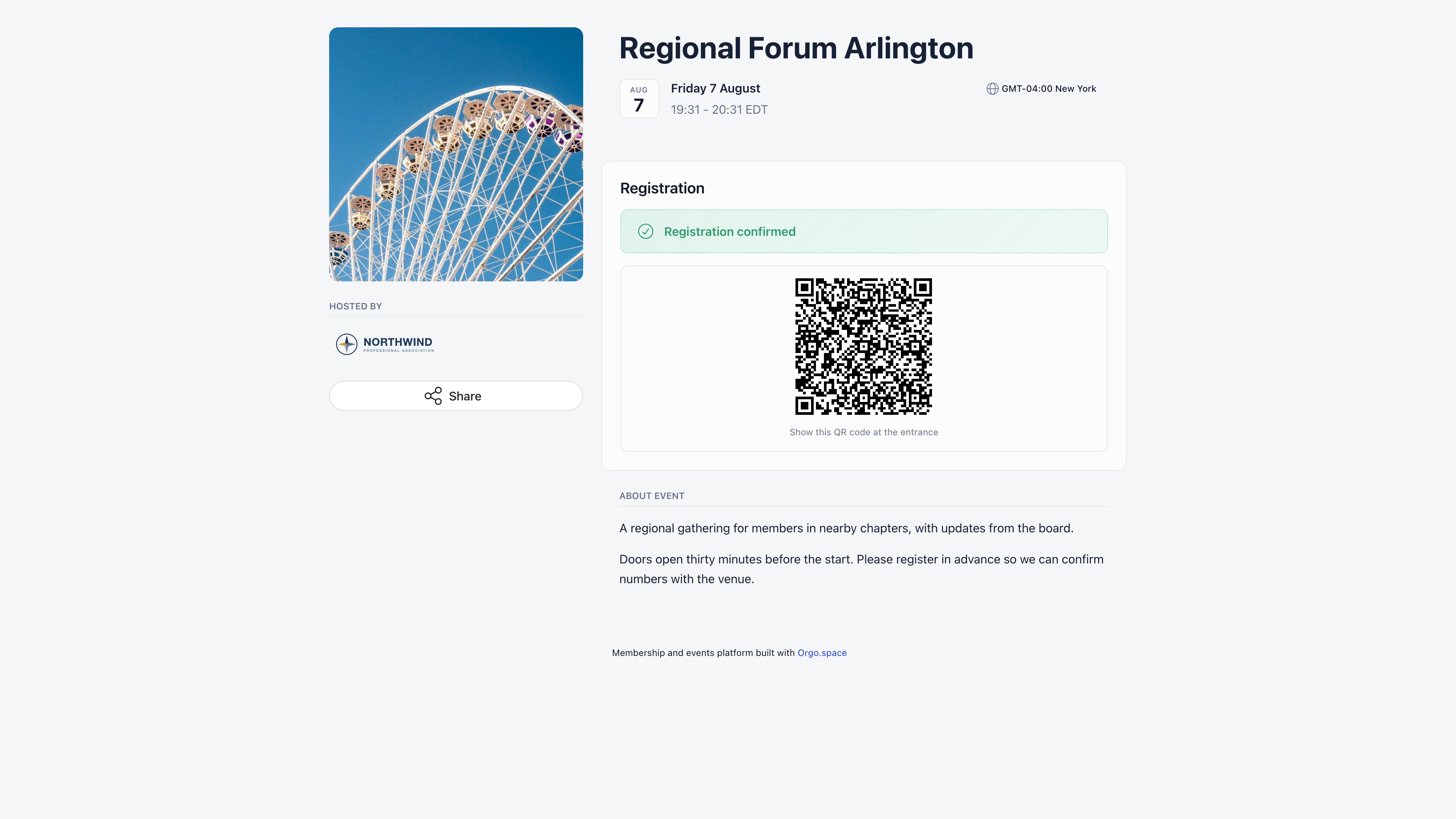
Every attendee record carries a random token that becomes their QR code, delivered in the
confirmation email and shown on the event page. Scanning it at the door opens the check-in screen
with the attendee’s name, ticket type, payment status and addons.
Scanning requires HR_TENANT or EVENT_TENANT. A local event admin with only EVENT_LOCAL cannot
scan. The full flow, walk-ins and manual check-in are covered in
Check-in.
A member can download their own ticket as a PDF from the internal event page, and an administrator
can download someone else’s only with HR_LOCAL over that person. The public event page above has no
download button: it renders the status badge and the QR code only.
I need a discount code rather than a separate cheap ticket
Use a voucher. It is the only discount mechanism in Orgo: there is no automatic
group or bulk pricing.
Someone bought a ticket but cannot attend, can they transfer it?
There is no self-service transfer. An administrator cancels and refunds the original
registration, then invites the replacement as a complimentary attendee or has them buy a ticket.
I set a ticket price wrong and it is already saved
Prices are locked after creation because payments reference them. Add a corrected ticket type and
set the wrong one’s Available until to now, or delete it if nobody has bought it.
A ticket says Sold Out but I know seats are free
Seats in other people’s carts count as taken. Wait for the 8 minute hold to clear before raising
Max Seats.
A member cannot select the members-only ticket
Check that their membership fee is active and on a matching level, then whether they already hold
another membership-restricted ticket for this event: only one is allowed.
I want to stop sales without deleting anything
Turn on Close registrations on the event form. No new registrations or ticket purchases are
accepted, and existing attendees keep their tickets.
Deletion is blocked as soon as the ticket type has history, and the message names the reason:
payments taken against it, attendees registered on it, or use by a ticket bundle. The records
that point at it have to keep pointing at something. Set its Available until to now instead:
it stops selling, keeps its history, and shows as Expired in the list.
Saving a ticket is rejected because of its dates
The purchase window has to sit inside the event’s own lifetime: Available from cannot be
earlier than the date the event was created, and Available until cannot be later than the
event’s end (its start, if no end is set). The form also nudges the two dates apart by an hour if
you set them so that the end falls before the start.
A buyer is told they cannot hold more than 10 tickets
One browser session can hold at most 10 tickets per event across all ticket types, and the
message tells the buyer how many more they may take. This is a cap on a single cart, not on the
event: they complete that checkout and start another one for the rest.
A voucher code is rejected as invalid
“Invalid voucher code” covers four cases at once: the code does not exist on this event
(vouchers are per event, so a code created on last year’s event will not carry over), it is
switched off with Active, it is outside its Valid from / Valid to window, or it has
reached Max uses. Codes are stored and matched in upper case, so capitalisation in the email
you sent does not matter.
The voucher took off less than the buyer expected
See How the discount is worked out. The usual causes are
Max discount amount capping the money, Max tickets per use limiting how many tickets the
percentage covers, or the percentage landing on the order’s average ticket price rather than on
the dearest tickets.
Checkout fails with a message about the name
“Name can only contain letters, spaces, hyphens, apostrophes and periods.” Something that is not
a name went into a name box, most often a phone number. Orgo checks every buyer, attendee and
addon-attendee name before the card is charged rather than after, so the money is never taken.
Checkout fails because the tickets use different currencies
One order cannot mix currencies. This only happens when ticket types on the same event were
saved with different currencies; rebuild the odd one out in the event’s currency.
An addon cannot be added to an order
Three separate limits produce three different messages: Max per ticket (“Maximum N of X per
ticket allowed”), Total inventory (“Only N X available”), and an archived addon (“no longer
available”). Inventory counts sales across all buyers, so it can run out mid-event.
An attendee lost the confirmation email, can I resend it?
There is no resend button. A signed-in member can open the event page and download their own
ticket as a PDF; an administrator with HR_LOCAL over that member can download the same PDF and
forward it. The QR code is fixed when the attendee record is created and never regenerated, so a
re-downloaded ticket scans exactly like the original, and an attendee who shows the QR from the
original email is equally valid.
The Tickets page and the public event page disagree about how many seats are left
They count differently, and both are right. The Sold Out and Only N left! tags on the
admin ticket list subtract only tickets already sold. The public page also subtracts seats
currently held in other people’s carts, so it can warn buyers, or refuse them outright, while
your list still looks comfortable. The two converge once the open carts are paid for or their
8 minute holds expire.
I refunded an order but the voucher still counts as used
Refunding returns seats and addon stock but never a voucher use. On a limited-use code, raise
Max uses by the number of orders you refunded, otherwise the code retires early.