

/tenants/import),
titled Data Import System.
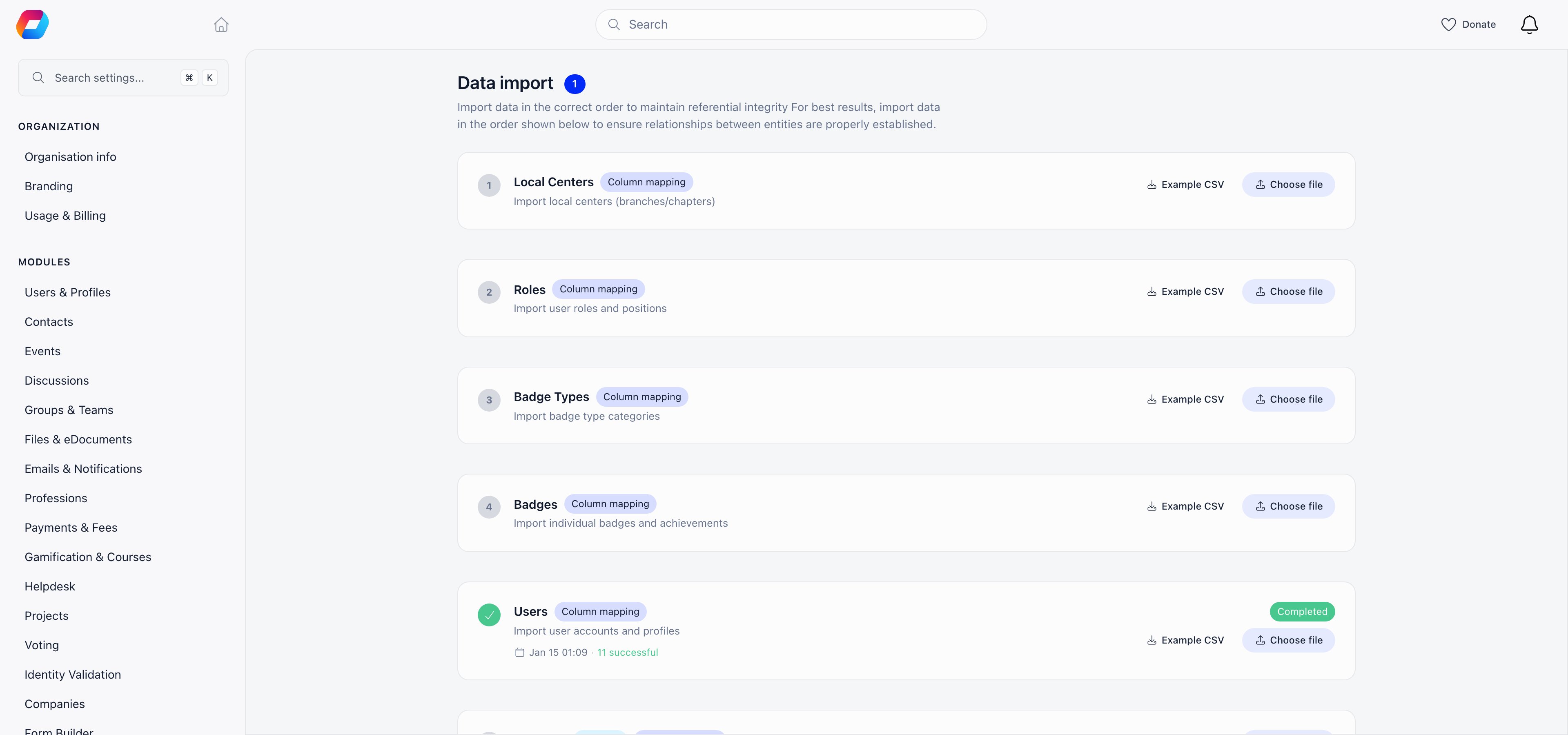
How an import runs
1
Choose what to import
Each card on the page is one import type. They are ordered so that earlier runs create
the records later ones point at: structure first, then people, then the rows that link
them. Cards belonging to a module you have switched off do not appear. Each card also
offers an example file, which is the quickest way to see what that type can read.
2
Upload the file
Pick a
.csv or .txt file of up to 50 MB. Orgo reads the top of it, works out the
delimiter, and opens the mapping screen on the draft it just created.
See Preparing your file.3
Check the match preview
Payments, role assignments, company memberships and badge awards point at records you
already have. For those, the wizard runs a sample of your rows through the columns you
have chosen and shows you what each one would match, without creating anything.
See Linking to existing records.
4
Map the columns
A sheet-style view of your file, one settings panel per column. For every column you
choose where its values go, and Orgo proposes a destination from the header you wrote.
See Mapping columns, and, on member
and contact files, Custom fields.
5
Start the import
Start import becomes available once every required group has a column mapped to it;
until then the wizard names the ones still missing. Pressing it creates any custom
fields you declared, then runs the file in the background, in batches, so you can close
the tab.
6
Review the result
The step card and the Import History table show progress while the run is going,
refreshed every three seconds, with counts of successful, failed and skipped rows.
Counts move one batch at a time, so a small file sits at 0% and then finishes. Expand a
history row to read the per-row messages. The history keeps the 50 most recent imports.
Orgo does not email you when an import finishes. Keep the page open, or come back to the
history table.
What you can import
Which cards you see depends on your modules, not on your permissions: Local Centers needs
the Local Centers module, Units needs Enable Organizational Units, the three product
steps need Payments and Fees, Events and Event Attendance need Events, Companies and
Company Members need Companies, and the three badge steps need Gamification. Users,
Contacts, Roles, User Roles and the two modify steps are always there.
The nineteenth type, List members, is not on this page. To add people to a manual list
from a spreadsheet, open the list itself and use the CSV import inside it. See
Lists and Segments.
What each type reads, which columns are required, and what it treats as the same record on
a second run: Import reference.
File formats
CSV and TXT only. Orgo does not read.xlsx or .xls. If your data is in Excel,
Numbers or Google Sheets, use Save as or Download as and choose CSV first, one
sheet per file.
The limit is 50 MB per file. A larger one is refused before the upload starts, with
“File is larger than the 50 MB import limit”. Split it and run the parts one after another.
Comma, semicolon and tab are all fine: Orgo works out which one your file uses.
Preparing your file covers the rest,
including where the header row may sit and how dates and yes/no columns are read.
Who can run an import
Every part of the import page, and every import action behind it, requiresADMIN_TENANT.
Local, HR and financial admins do not see the Settings area at all, so importing is a
tenant-admin job even for data that belongs to one chapter.
Creating versus updating
Sixteen of the steps only create. A row that matches a record you already have counts as skipped, and the existing record is left exactly as it was. A second run of the same file therefore adds very little, as long as its rows carry something to be recognised by: an email, a name, a legacy id. What counts as a match is listed per type in the reference. The two steps under Modify existing records, Modify Users and Modify Contacts, are the ones that write over what is already there. They match a person first, then update only the columns you filled in: an empty cell leaves the stored value alone, so a blank cannot be used to clear a field. Usernames, passwords, permissions and API tokens are never written by any import.If you used the old importer
Three habits are worth unlearning.- Columns are chosen, not guessed. The old page matched your headers against a fixed
list of exact names, so
E-mail addressmissed andemailhit. Now you pick the destination for each column yourself, and Orgo only suggests. - A legacy id column is no longer required. Files that carry your old system’s identifiers still work and still dedupe on them, but a file that has never had them is fine too: a member is found by email, a role or a chapter by name.
- A column you do not map is dropped. It is not turned into a text custom field the way an unrecognised header used to be. If you want a column stored, map it, and declare a new custom field for it if there is nowhere obvious to put it.
Related
- Preparing your file - formats, headers, dates, yes/no columns and example files
- Mapping columns - the mapping screen, suggestions and what has to be filled in before you can start
- Custom fields - writing into fields you have, and declaring new ones from a column
- Linking to existing records - how a payment finds its payer, and what the match preview is telling you
- Import reference - every import type, column by column
- Adding Members - the other ways people get an account
- Where contacts come from - importing contacts, and how they differ from members
- Lists and Segments - importing people straight into a list
- Custom Fields - the profile fields an import can fill or create
- Merging Duplicates - cleaning up records an import doubled