

Turning it on
1
Enable roles
Settings → Modules → Users & Profiles → User Types & Roles → Enable Roles. This is on by default.
2
Enable the chart
Settings → Modules → Users & Profiles → Profile Settings → Organizational Chart. This is off by default.
3
Find it in the menu
Members open it from the sidebar under Organization → Organisational Chart. The menu entry only appears when both settings above are on.
ADMIN_TENANT. Once the chart is visible, every signed in member of your organization can open it. There is no anonymous or public version of the chart, and no per group visibility setting.
How the chart is built
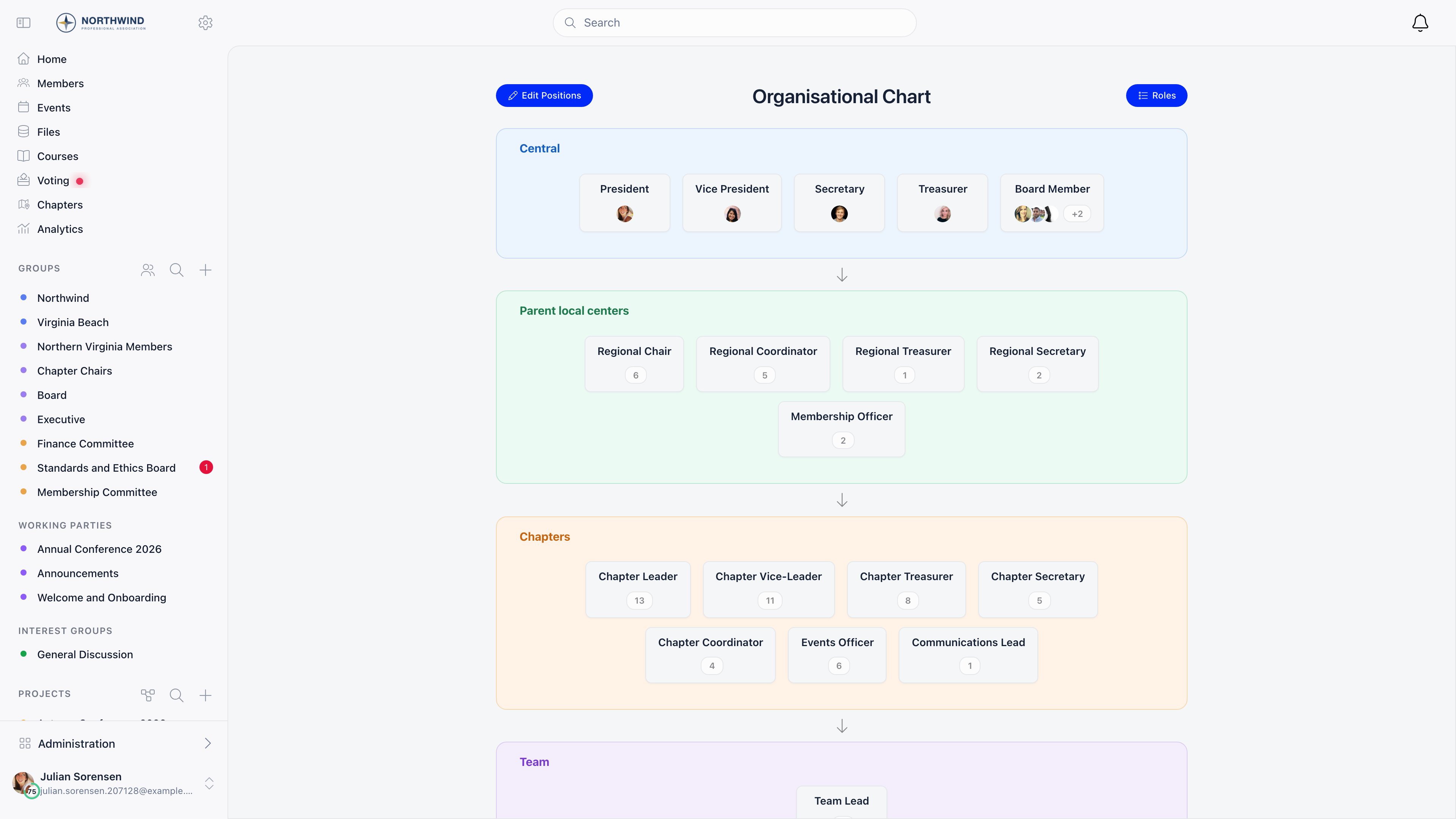
Roles carry a level and a position number, and those two properties are the whole layout. The level decides which section a role lands in:The chart has these two chapter sections and no more, whatever the shape of your chapter tree. Chapters nest to any depth, but a role is either a chapter role or a parent-chapter role, so a district commissioner and a national officer at parent-chapter level land in the same Parent local centers section. The chart does not draw the layers of the tree; use the chapters list for that.
User types do not appear on the chart. They are a different kind of role (they describe what a member is, not a position held) and they are excluded from both the layout and the counts.
What the numbers mean
The count on a box is the number of assignments that are still open (no end date) held by members whose account status is Active, across the whole organization. Ending a member’s role or deactivating their account removes them from the count on the next page load. In the Central section a box that has holders shows their photos instead of the number: up to three, stacked, each one linking to that member’s profile, with+N beside them when more than three people hold the role. Boxes in the other sections show the number itself.
A box with no holders is greyed out and cannot be clicked.
Looking someone up
Click a role box that has at least one holder to open the member list.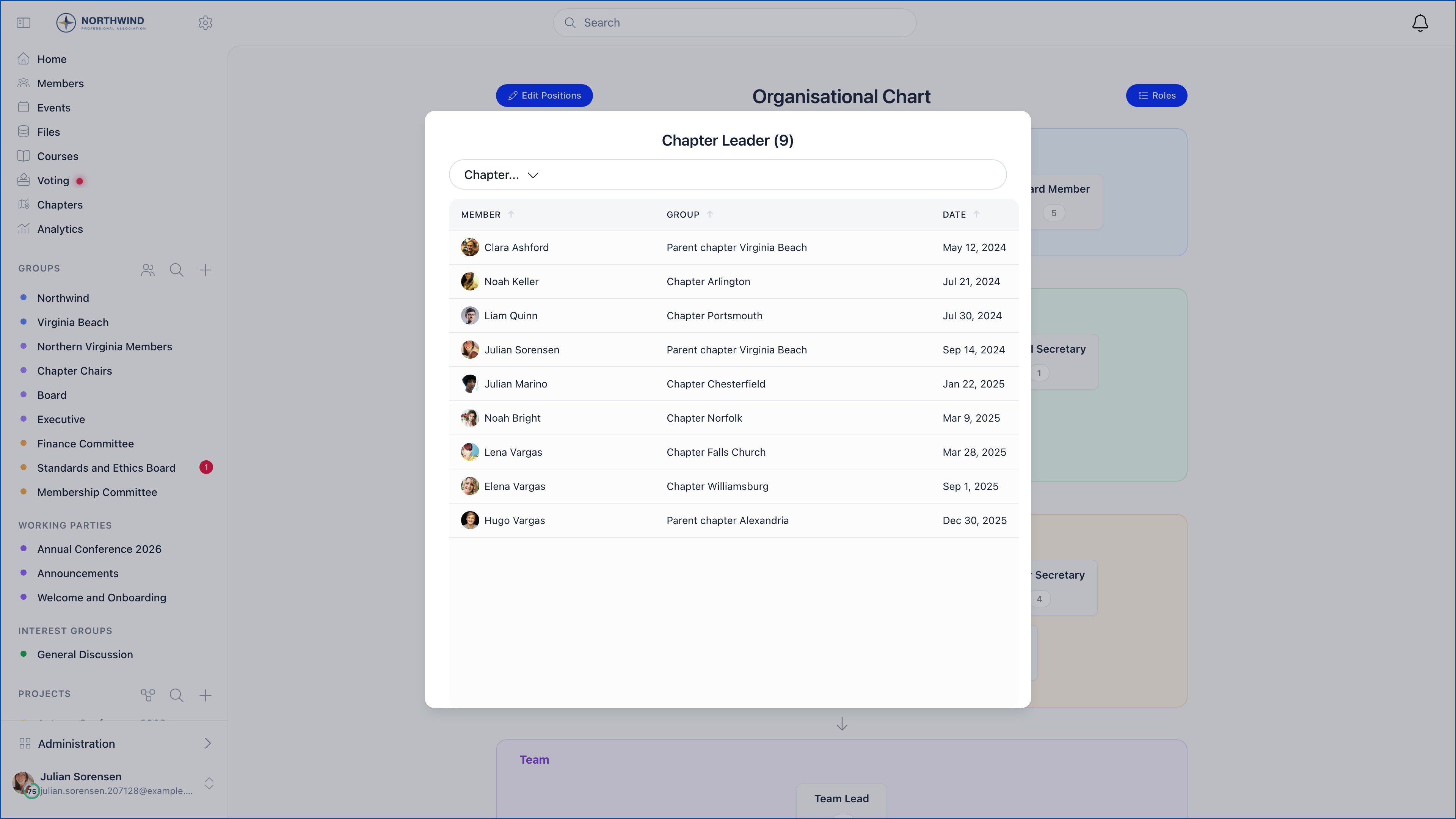
For chapter and parent chapter roles a dropdown at the top filters the list to one chapter, with a search box for organizations that have many. The list pages at 100 members at a time.
Editing the structure
Administrators withADMIN_TENANT see an Edit Positions button. Everyone else sees a read only chart.
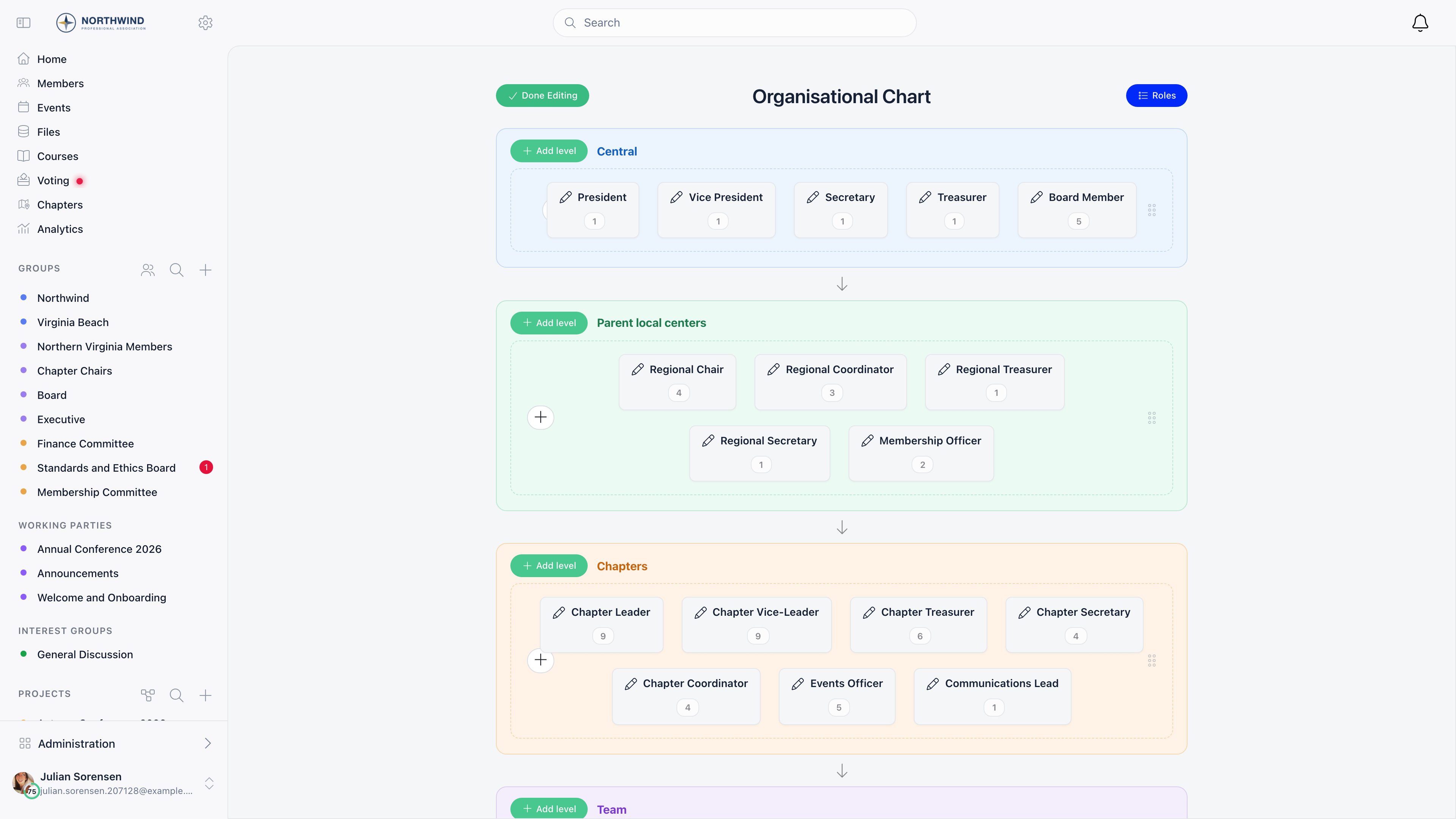
- Add level, which appends an empty row to a section
- +, which opens the role form with the section and row prefilled
- Drag a role box onto another row or another section to move it, or onto another box to swap the two
- Drag a whole row by its handle to reorder rows within a section
- Click a role box to open its form, edit it, or delete it
The role form
User types additionally expose Not eligible for fee, Parent, Volunteer, and font and background colours. Selecting the User type level clears any permissions on the role: user types never carry permissions.
Putting people on the chart
Assignments are made on the member, not on the chart. Open a member, go to the Roles tab, and tick the roles they hold.
A parent-chapter assignment is filed against the member’s own chapter when that chapter is flagged It’s a parent chapter, and otherwise against the chapter directly above it. It is never filed further up, so a district officer’s parent-chapter role stays with the district rather than moving to the region.
The tab itself appears for
HR_TENANT, or for HR_LOCAL on that member’s chapter. When Allow Local Admins to Modify User Permissions is turned off, local administrators can see the tab but the checkboxes are read only, and only HR_TENANT can change assignments.
A chapter’s own page also shows its team, grouped by role in the same position order as the chart.
Common questions
The chart is empty or a section is missing
The chart is empty or a section is missing
A section only renders when at least one role is set to that level. Open Edit Positions, check that your roles have the right level, and confirm the chapter sections require local centers to be active.
A role box shows no number
A role box shows no number
No member currently holds it with an open assignment and an active account. Boxes with no holders cannot be clicked.
A former officeholder still appears
A former officeholder still appears
Their assignment has no end date. Open their profile, go to Roles, and untick the role. The count updates on the next load of the chart.
Can I publish the chart on our website?
Can I publish the chart on our website?
No. The chart is only reachable by signed in members of your organization.
Two roles are on the same row and I want them stacked
Two roles are on the same row and I want them stacked
Rows are blocks of one hundred position numbers. Use Edit Positions and drag one role down to another row, or add a level and drag it there.
Related
- Permissions - what each permission on a role unlocks
- Assigning permissions - roles, role groups and direct permissions
- Members - member profiles and the Roles tab
- Local groups - chapters and their teams
- Official Gazette - the record of decisions your officers publish