

Requires ADMIN_TENANT. The setting is written through the tenant record, and the server checks both the role and that the tenant is your own, so the menu is not the only thing standing in the way.
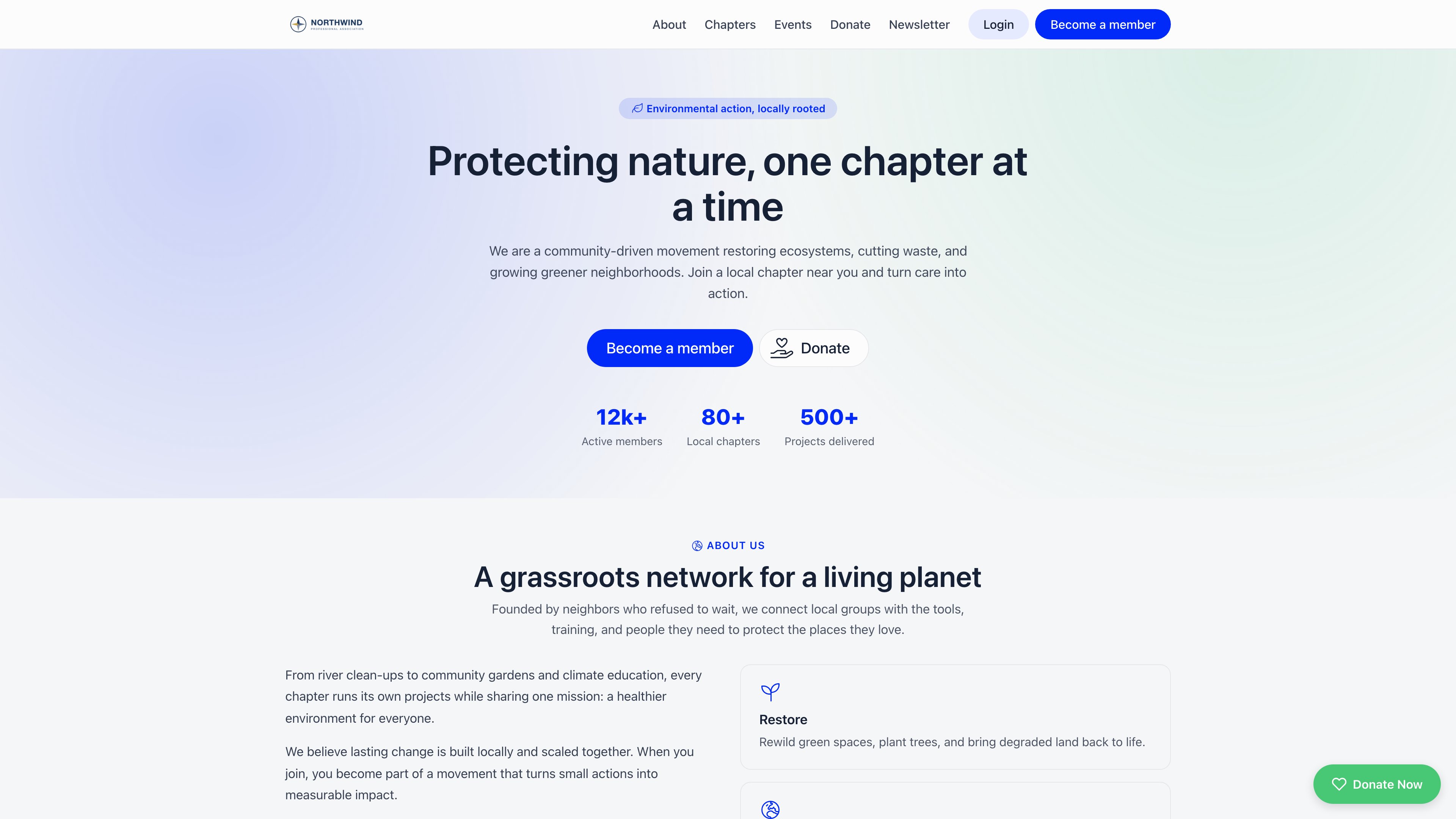
The four pages
All four exist and are reachable the moment your community does, whether or not you turn on the front door. They share one header and footer, both drawn from your organization.
The header carries your logo, links that scroll to each homepage section, a Login button and a Become a member button that opens your registration form. The footer repeats those links and prints your organization’s contact email, name and the current year. Your logo is used if you have uploaded one under Branding; without one, the header prints your organization’s name as plain text.
Turning it on
1
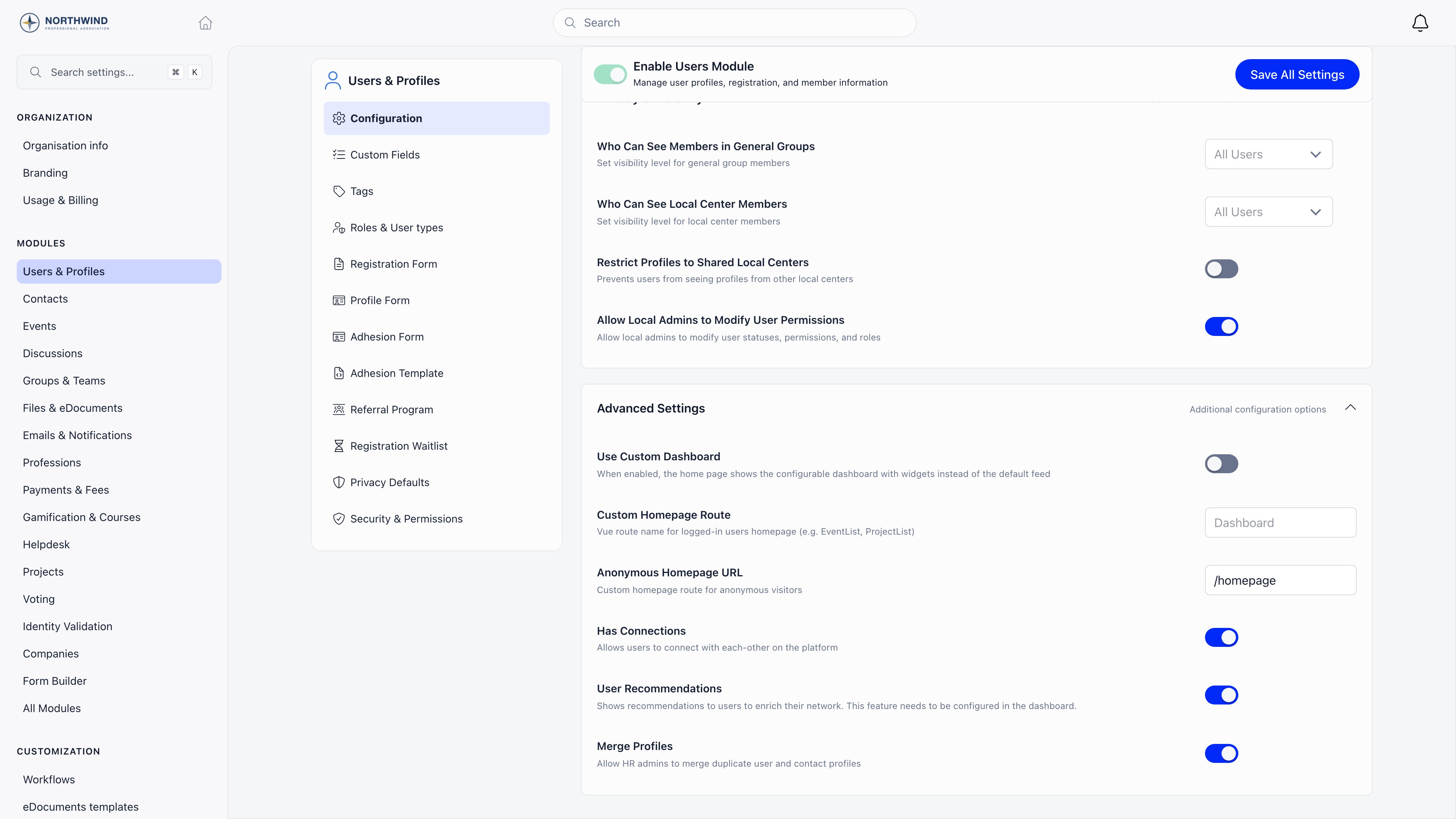
Open the Users & Profiles module settings
Settings → Modules → Users & Profiles, stay on Configuration, and scroll to the Advanced Settings card at the bottom.
2
Type a path into Anonymous Homepage URL
Enter
/homepage. It must begin with a forward slash. The field saves itself about a second after you stop typing, and a Settings saved automatically toast confirms it, so there is nothing to press.3
Check it in a private window
Open your community address in a private window or a browser you are not signed into. You should land on the public homepage instead of the sign-in screen. Signing out and reloading is not the same test: what changes is where a visitor with no session is sent.
The redirect only fires on your bare address. A visitor who follows a deep link into the members’ area, say to a member profile, still meets the sign-in screen, which is the point.
What is on the homepage
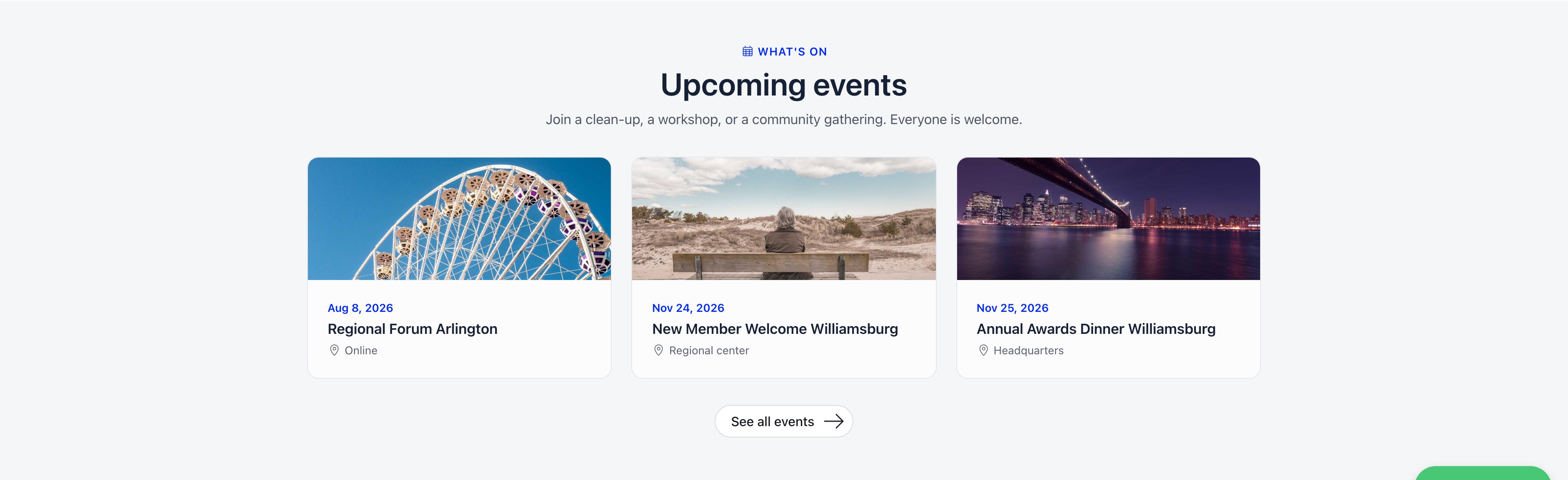
A hero and five sections, stacked. The header links scroll between them. About. Three fixed pillars describing the shape of the organization. Chapters. A map with a pin on each active local center, and a See all chapters button through to the directory. The pins come from the map location on each local center, so a center with no coordinates is simply absent from the map.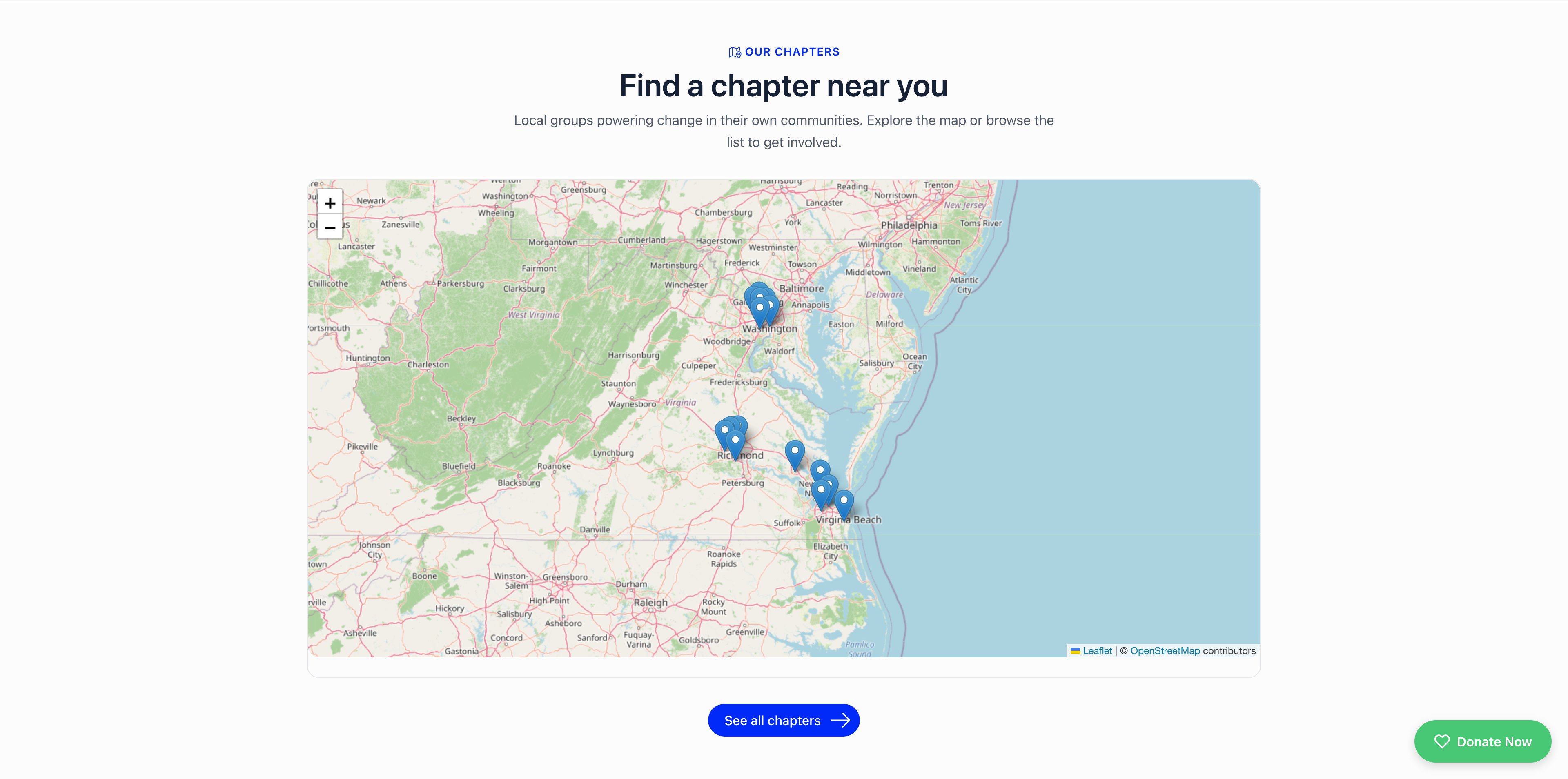
What is yours and what is fixed
This is a template, not a page builder. Knowing which half is which saves a long search for an editor that does not exist. Drawn from your organization: the logo, the organization name, the contact email in the footer, the interface language, your local centers and their descriptions, coordinates, languages, meeting days and contact details, your public events and their cover images, your donation product, and your newsletter. Fixed in the product, the same for every organization: the hero headline and sub-headline, the three statistics under it, the About pillars, every section heading and sub-heading, and the footer tagline. They are written in the general voice of a community organization and cannot be edited from Settings today. If that copy does not fit you, the honest options are to leave the front door on the sign-in screen and point your public traffic at a site you control, or to talk to support.Search engines and your address
While your community runs on anorgo.space address, every page is served with a noindex, nofollow instruction, so search engines are told to skip the public site along with everything else. That is deliberate: it keeps members’ area URLs out of search results.
The instruction is tied to the address, not to the pages. Move your community onto a domain you own and it stops being added, which is what makes the public site indexable. Set that up under Custom Domain before you promote these pages anywhere.
Troubleshooting
I filled in the field and visitors still land on the sign-in screen
I filled in the field and visitors still land on the sign-in screen
Almost always a missing leading slash.
/homepage works, homepage and Homepage do not, and neither reports an error. Confirm the field reads exactly /homepage. If it does, check you tested the bare address in a private window: the redirect only applies to the bare address, and only to a visitor with no session.Visitors get a Page not found screen
Visitors get a Page not found screen
The path is right in shape but wrong in spelling, so it matches no page and falls through to the 404 screen. The four valid paths are
/homepage, /chapters, /chapter/<id> and /community-events. Almost every case is a typo in /homepage.The map has no pins, or a chapter is missing from it
The map has no pins, or a chapter is missing from it
The map plots the map location saved on each local center. A center with no coordinates, or one that is not active, does not appear. Fill in the map location on the chapter’s own form, under Local Centers. The directory at
/chapters is a separate list and does show a center with no coordinates, so a chapter visible in the list but absent from the map is missing its location.The Events section is empty though we have events coming up
The Events section is empty though we have events coming up
The section only shows events that are both public and in the future. An event that is not marked public is invisible here even to members who are signed in elsewhere. See Sharing Events.
A chapter's town is followed by a stray placeholder like [object Object]
A chapter's town is followed by a stray placeholder like [object Object]
A display fault, not corrupted data. When a local center has a Region assigned, the directory card and the chapter page print the region as a placeholder instead of its name. Nothing else is affected, the region itself is stored correctly, and clearing the Region field on that chapter removes the stray text at the cost of losing the region grouping elsewhere. Report it to support rather than editing your data around it.
The events page shows a calendar but no list of events
The events page shows a calendar but no list of events
/community-events embeds your public events listing rather than redrawing it, and the embedded list can come up blank while the calendar beside it still marks the dates. Open the events listing directly to confirm your events are there and reachable. Until it settles, link people to the homepage Events section, which builds its cards independently and is unaffected.Members say they get the public site instead of their dashboard
Members say they get the public site instead of their dashboard
Signing in takes them to the dashboard as usual. What keeps bringing a member back to the public site is a bookmark saved on one of these four pages, since they stay open to everyone. Ask them to open the bare address rather than the bookmark. If signed-in members are landing somewhere other than the dashboard, that is Custom Homepage Route, in the same settings card, not this feature.
The public site is not showing up in Google
The public site is not showing up in Google
Expected while you are on an
orgo.space address: those pages are served with a noindex instruction. Move to a domain you own under Custom Domain first, then submit the address to the search engine.Related
- Website Builder - Write a site of your own: your pages, your news, your menus, your domain
- Custom Domain - Serve the site from an address you own, and make it indexable
- Branding - The logo the site’s header and footer use
- Local Centers - The chapters behind the map and the directory
- Sharing Events - What makes an event public enough to appear here
- Donation Pages & Widgets - The donation product the Donate section needs
- Newsletter signup widgets - Where the newsletter form’s subscribers land
- Permissions - What ADMIN_TENANT unlocks