

/tenants/modules/emails/templates). Admins (ADMIN_TENANT) and
communication managers (COMMUNICATION_TENANT) can open it and edit wording;
communication managers reach the same page from the main menu at
/email-templates. Only admins can switch emails on or off, see
System emails.
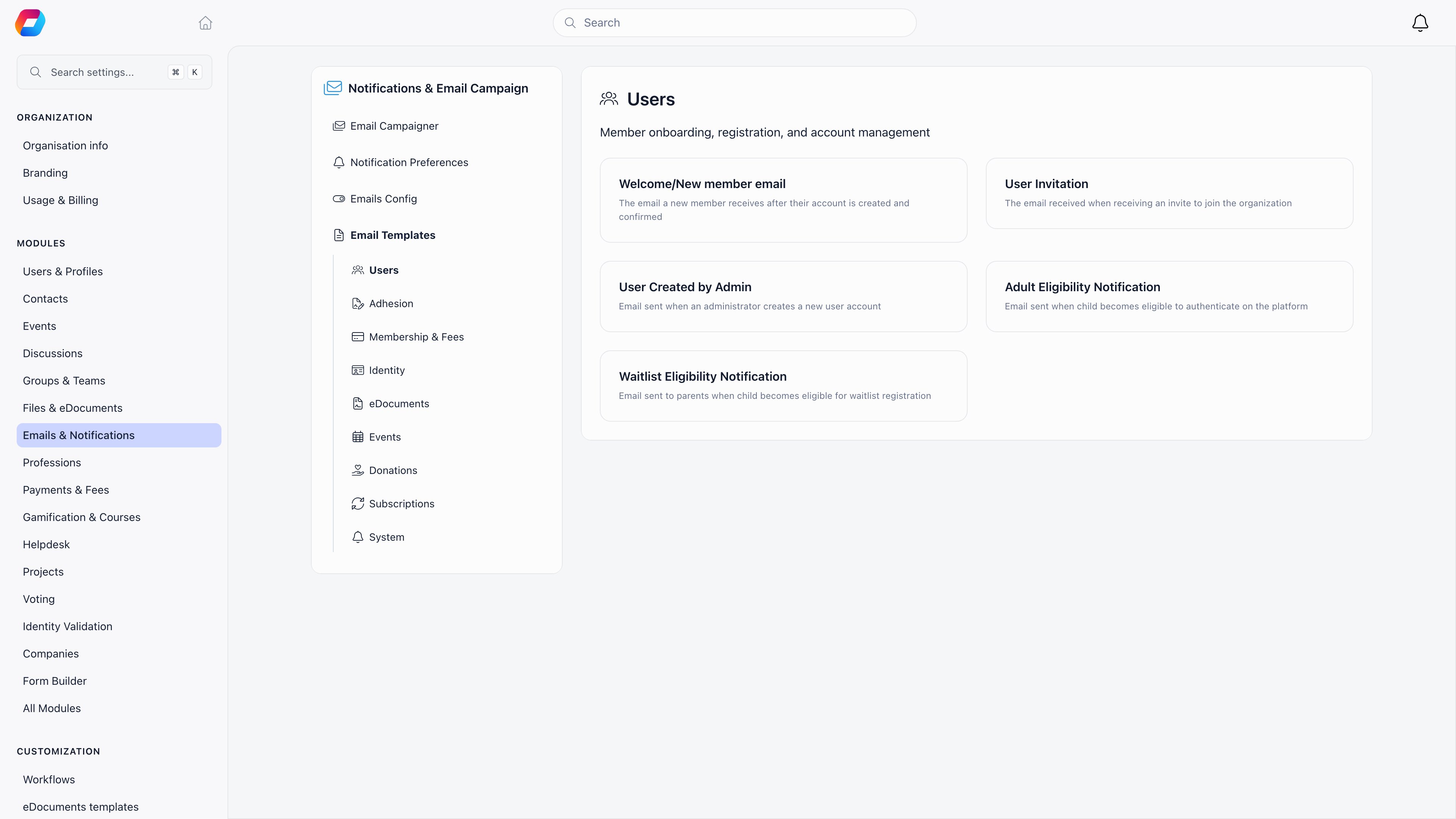
Finding an email
The page lists every email your organisation sends, one card per section: Users, Referrals, Adhesion, Membership & Fees, Identity, eDocuments, Events, Donations, Subscriptions, Admin alerts, Sign-in & security and Activity notifications.- The sections also appear under Emails in the left menu. Clicking one scrolls the page to it.
- Search emails matches names and descriptions.
- The filters narrow the list to Editable emails, those that Can be turned off, or those that are Off. Each filter shows how many emails it holds.
Previewing an email
Click any row to open a preview of the email as your members receive it, with your wording, your logo and colour, and your own account’s details filled in. This works for every email on the page, including the ones you cannot edit or switch off. The subject line sits above the email. Sign-in codes show a sample code. Activity notifications (new discussions, comments, mentions, votes and the discussion summary) show sample content in your organisation’s language.Changing the wording
1
Open the editor
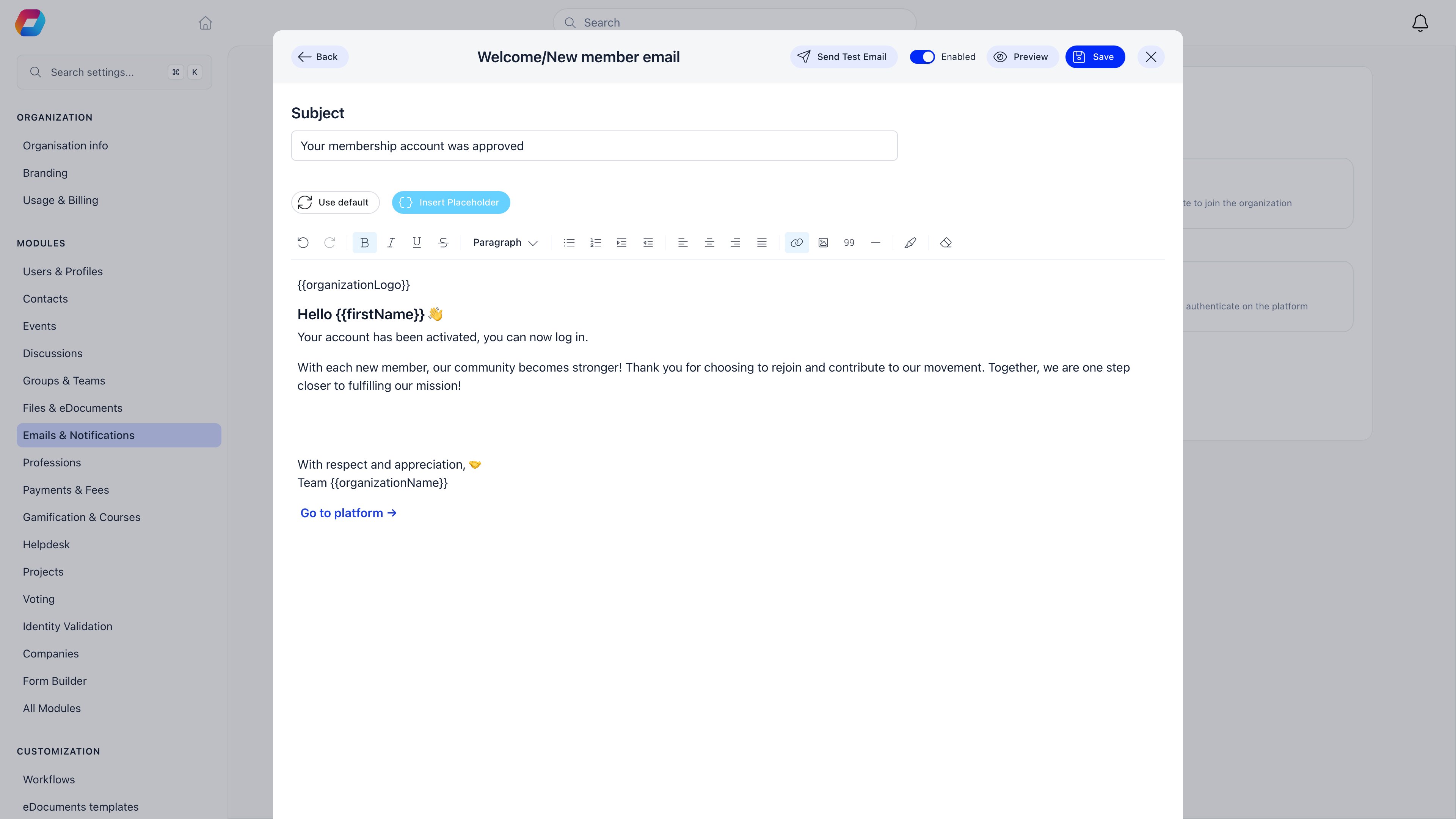
Click Edit text on the row, or Edit text in the preview. The email
opens exactly as it is sent, with every text you can change outlined.
2
Click a text and type
A heading or a button label is plain text: Enter keeps your change,
Escape puts the previous wording back. A paragraph can also take
bold, italic and links, from the buttons above the email.
3
Insert placeholders
Click where the value should go, then pick it from Insert Placeholder. The
menu lists only what this email can fill in.
4
Change the subject
The Subject field sits above the email. Leave it alone and members keep
getting the default subject in your language.
5
Preview
Preview shows the email with your changes and your account’s details. Back
to Editor returns to editing.
6
Send a test
Send Test Email sends the email with your unsaved changes to your own
address, with
[TEST] in front of the subject. It saves nothing.7
Save
Save makes your wording the one members receive from that moment on.
Placeholders
A placeholder is written{{name}} and is replaced with real data when the email
is sent. Most emails can use these:
Individual emails add their own: event emails carry the event’s name, date and
place, contract reminders the document and its expiry date, renewal reminders the
expiry date and the product. The Insert Placeholder menu is the authoritative
list for the email you have open.
Save refuses a placeholder the email cannot fill and names it, so a typo such
as
{{firstname}} cannot reach your members as literal text. Pick a replacement
from Insert Placeholder.Going back to the original
Use default in the editor toolbar removes your wording and your subject for this email, after you confirm. It cannot be undone: the email goes back to the built-in version exactly as it was before you touched it.Language
The built-in wording exists in English, Romanian, German, Bulgarian, Lithuanian, Spanish, French, Italian, Dutch, Ukrainian and Portuguese. Orgo uses your organisation’s default language; any other language falls back to English. Your wording is saved for the language you wrote it in. If you later change the organisation’s default language, members get the built-in wording in the new language until you edit the email again. The invoice email is not a template at all. It and the PDF it carries render in your organisation’s default language across all 14 interface languages, falling back to English only when the default is not one of them. See Invoices.Emails customised in the old editor
An email you customised before the inline editor arrived was saved as a whole document. Members still receive that saved version, without the current design, and the editor says so in a notice above the email. Saving the email in the editor replaces it with the current design and your texts.What you cannot change
- Sign-in & security emails (login, multi-factor, verification, password and email-change codes and confirmations, and the event app code) can be previewed but not edited. They carry live one-time codes, so their wording is fixed.
- Activity notifications can be previewed but not edited. Each member chooses which ones they get, see Notifications.
- A few admin alerts, such as Reactivation request, Group transfer request, Resignation request and Referral received, can be switched off but not edited.
Troubleshooting
My change did not appear in the email members got
My change did not appear in the email members got
Check that you pressed Save rather than only previewing, then check
Email logs: the log stores the body that was
actually sent, which settles it immediately.
Save says the email cannot fill a placeholder
Save says the email cannot fill a placeholder
That value is not available to this email, often because of a typo or a
placeholder copied from another email. Delete it and pick a replacement from
Insert Placeholder.
The email still has the old design
The email still has the old design
It was customised in the old editor. Open it in the editor and save: it moves
to the current design and keeps your texts.
The test email never arrived
The test email never arrived
Test sends go to the address on your own account and use the same sending path
as everything else, so a missing test usually means a delivery problem rather
than a template problem. Check your spam folder, then see
Emails.
I want the original wording back but only for one sentence
I want the original wording back but only for one sentence
Clear that text in the editor and save. To reset the whole email, use Use
default.
Related
- System emails - what each email is for, when it sends, and switching it off
- Emails - sender identity and language rules
- Email logs - the body that actually went out
- Newsletter builder - designing campaigns rather than system emails
- Languages - the setting that picks the built-in language