A setup playbook for running member communication on Orgo: which modules to enable, in what order, and which channel to use for what
This page is for the person who has decided to run their organization’s member
communication on Orgo and now has to configure it. It routes you: what to switch
on, in what order, and which page documents each step.Built for organizations replacing a mailing list tool plus a Facebook group
plus a folder of copy-pasted announcement emails. Replaces the guesswork
about which of those Orgo covers.One of the setup templates. Read it alongside
whichever one describes your core operation, since every organization
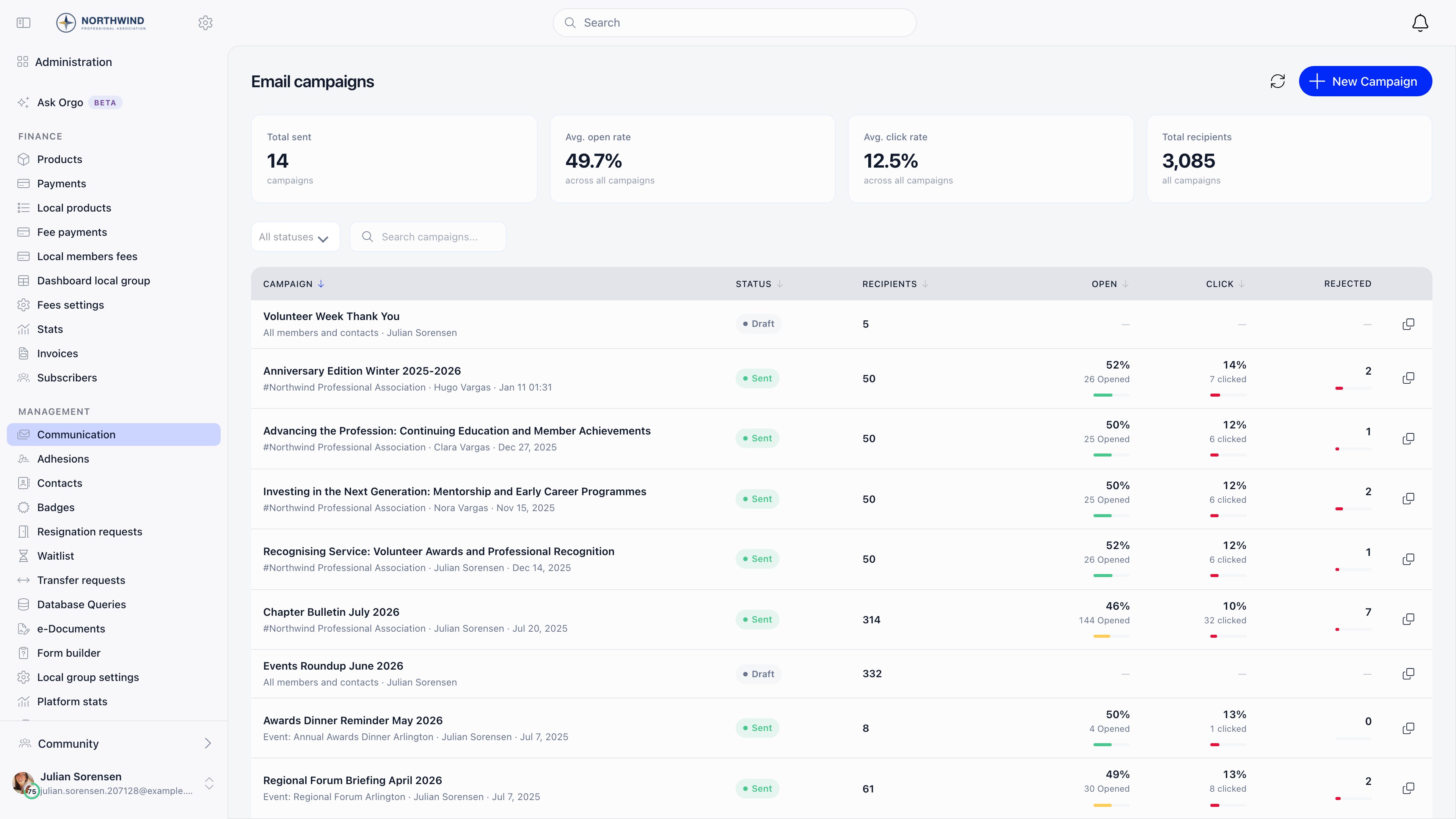
communicates.Everything below leads to one screen: Administration → COMMUNICATION →
Email campaigns, where campaigns are written, sent and measured.
Have these ready. Each one blocks a step further down, and finding out late
means resending mail.
A sender address you control on your own domain, not a personal mailbox
Access to your domain’s DNS, if you want mail to leave as your address instead of no-reply@orgo.space
A written answer to “who should receive what”: what goes to everyone, what to one chapter, what to a saved segment
A decision on language, knowing that automatic email is written in the organization’s default language, available in English, Romanian, German, Bulgarian, Lithuanian, Spanish, French, Italian, Dutch, Ukrainian and Portuguese
ADMIN_TENANT on your own account, because every setting below lives in Settings
Turns on campaigns, campaign templates, Lists & Segments, signup widgets and the email log, and adds the COMMUNICATION section to the administration sidebar
The module settings above are admin work you do once. Sending is a separate set
of permissions, assigned per person.
See Assigning permissions.
Permission
What it unlocks
COMMUNICATION_TENANT
Campaigns for the whole organization, campaign templates, Lists & Segments, signup widgets, moderation queue. Covers everything COMMUNICATION_LOCAL does
COMMUNICATION_LOCAL
Email campaigns for the local centers they manage, and only the Members from a group audience. Lists, tenant-wide audiences and event audiences are hidden from them
COMMUNICATION_PARENT_LOCAL
The same as COMMUNICATION_LOCAL, extended to every center below their anchor center, at any depth
EVENT_TENANT
Campaigns attached to an event, and signup widgets
HR_TENANT
Creating and editing lists, alongside COMMUNICATION_TENANT
ADMIN_TENANT
All settings above, the email log, and adding or removing individual people on a manual list
Adding and removing people on a manual list needs ADMIN_TENANT, one level
higher than everything else on the Lists screen. A COMMUNICATION_TENANT holder
sees the Add, Add CSV and remove buttons and gets refused when using
them. If someone maintains manual lists, give them ADMIN_TENANT.
Do these in order. Steps 1 and 2 change what every later email looks like, so
doing them last means resending things.
The three settings screens in steps 3, 5 and 6 have no Save button. Each switch
saves as you flip it and a Saving indicator appears while it does.
1
Fix the sender identity
Set your contact email under Settings → Organisation, then ask
support to verify it for sending. Verification needs DNS records on your
domain, so it is not a switch you can flip in Settings yourself.Until it is verified, mail leaves as no-reply@orgo.space with your contact
address as Reply-To. See Emails.Done when mail your members receive arrives from your own address rather
than no-reply@orgo.space.
2
Set the organization language
Settings → Customization → Languages. Automatic email is written
in the organization’s default language, not the recipient’s, and is
available in English, Romanian, German, Bulgarian, Lithuanian, Spanish, French, Italian, Dutch, Ukrainian and Portuguese. Anything else falls back to English. See
Languages.Done when the default language on that screen is the language you want
every automatic email written in.
3
Decide what automatic email goes out
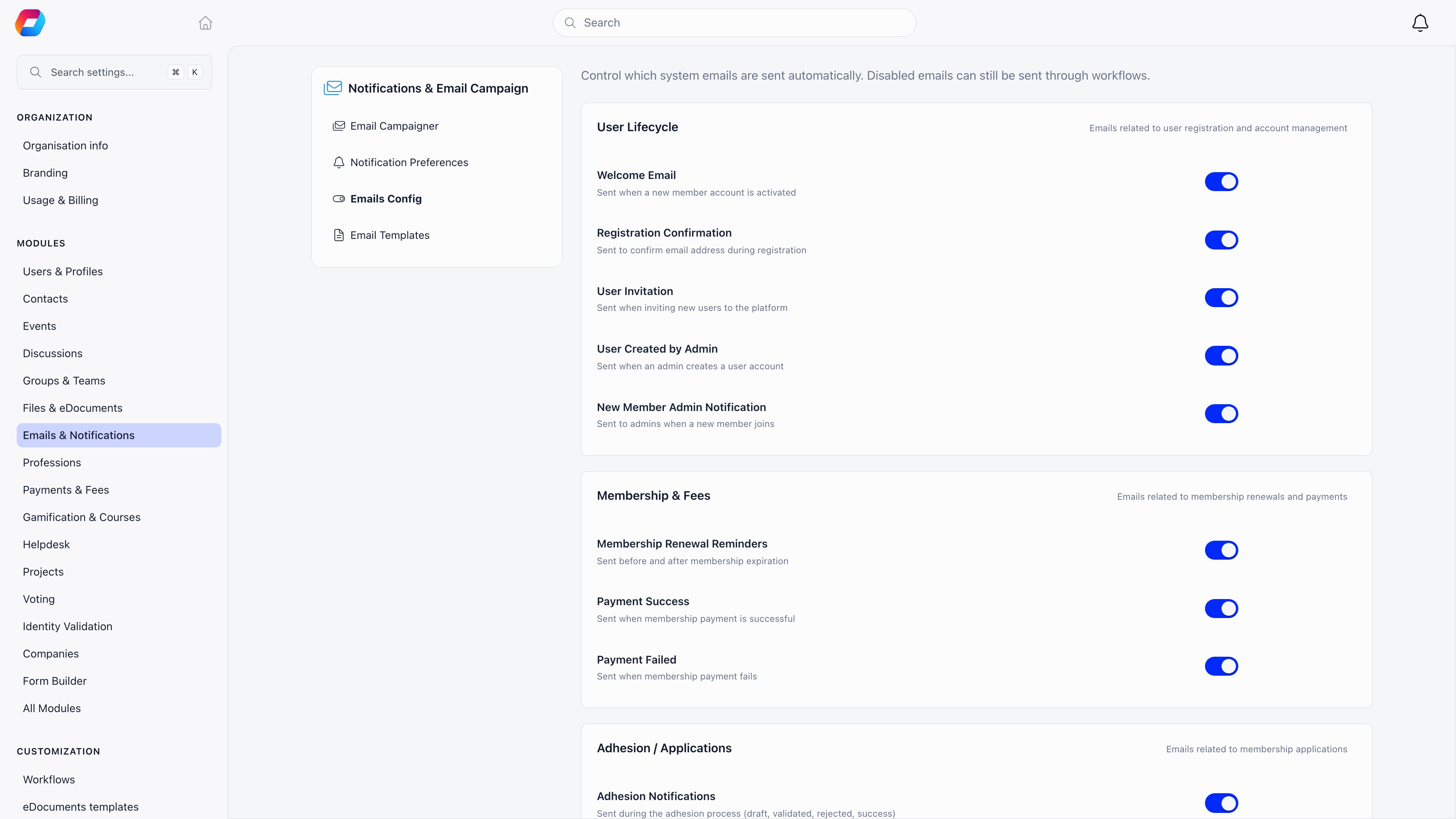
Settings → Notifications & Email Campaign → Emails lists every
automatic email by section (Users, Membership & Fees, Adhesion and the rest),
each with its own switch. Click an email to preview it. Walk them before you
invite anyone, so members do not receive a reminder ladder you have not read.
See System emails.Done when every email is on deliberately or off deliberately, rather
than on because nobody looked.
4
Rewrite the templates that do not sound like you
On the same page, Edit text opens the email as it is sent: click a
sentence and type your own, change the subject, insert placeholders. Your
wording is saved for the organization’s language and every recipient gets it.
See Email templates.Done when the emails a new member meets in their first week read like
your organization wrote them.
5
Set the notification defaults before importing members
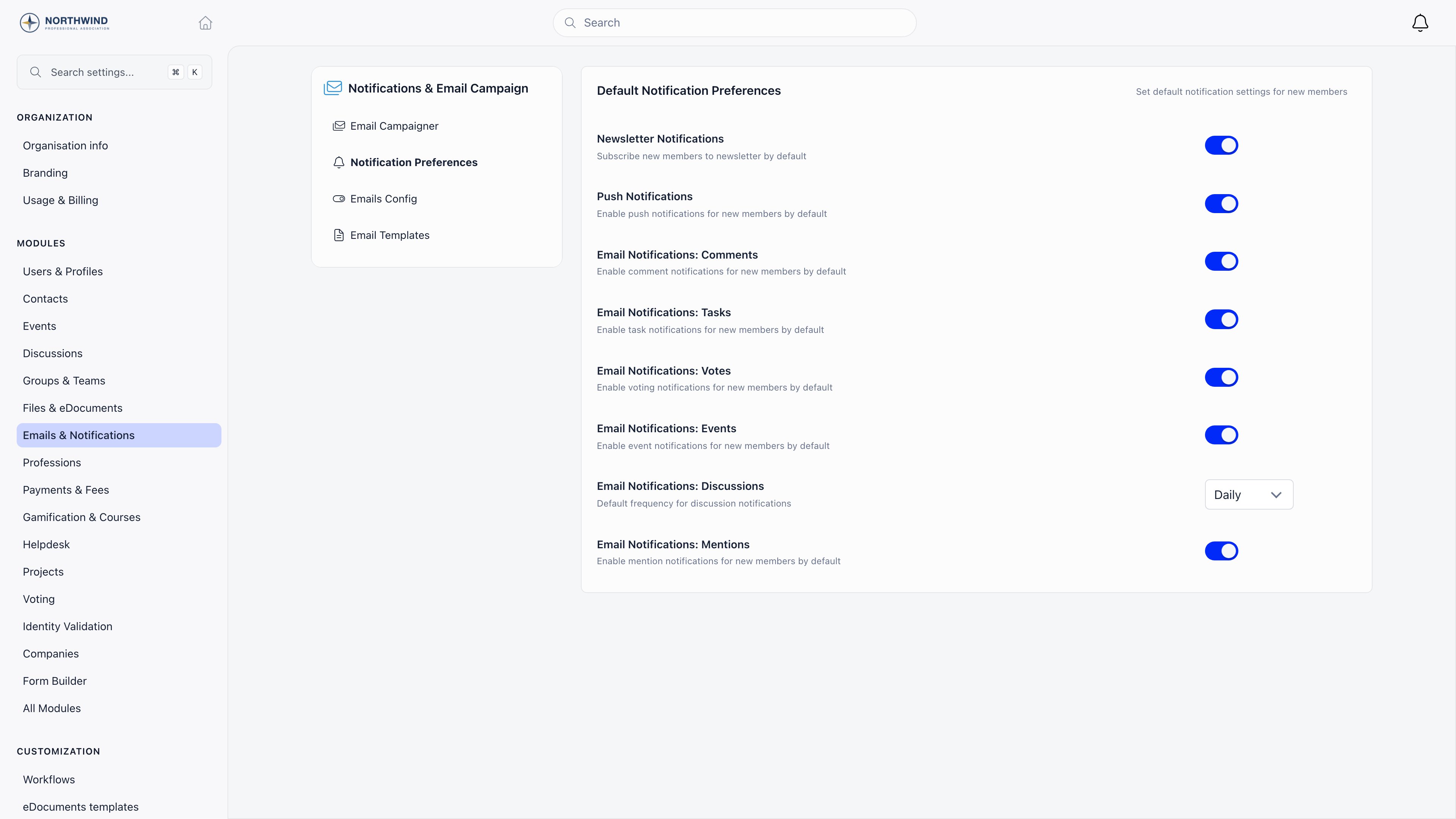
Notification Preferences, same menu. These are the settings new accounts
are created with: newsletter, push, and email for comments, tasks, votes,
events, mentions and discussions.They are applied once, at account creation. Changing them later does nothing
for anyone who already exists, so get them right first. See
Notifications.Done when the switches describe what a brand-new member should be signed
up for. Everyone already imported keeps whatever they have.
6
Turn on the campaign module
Settings → Notifications & Email Campaign → Email Campaigner →
Enable Email Campaign Module, then grant COMMUNICATION_TENANT to
whoever writes campaigns. See Newsletter.Done when a COMMUNICATION section appears in the administration
sidebar for the people you granted the permission to.
7
Build the audiences you will reuse
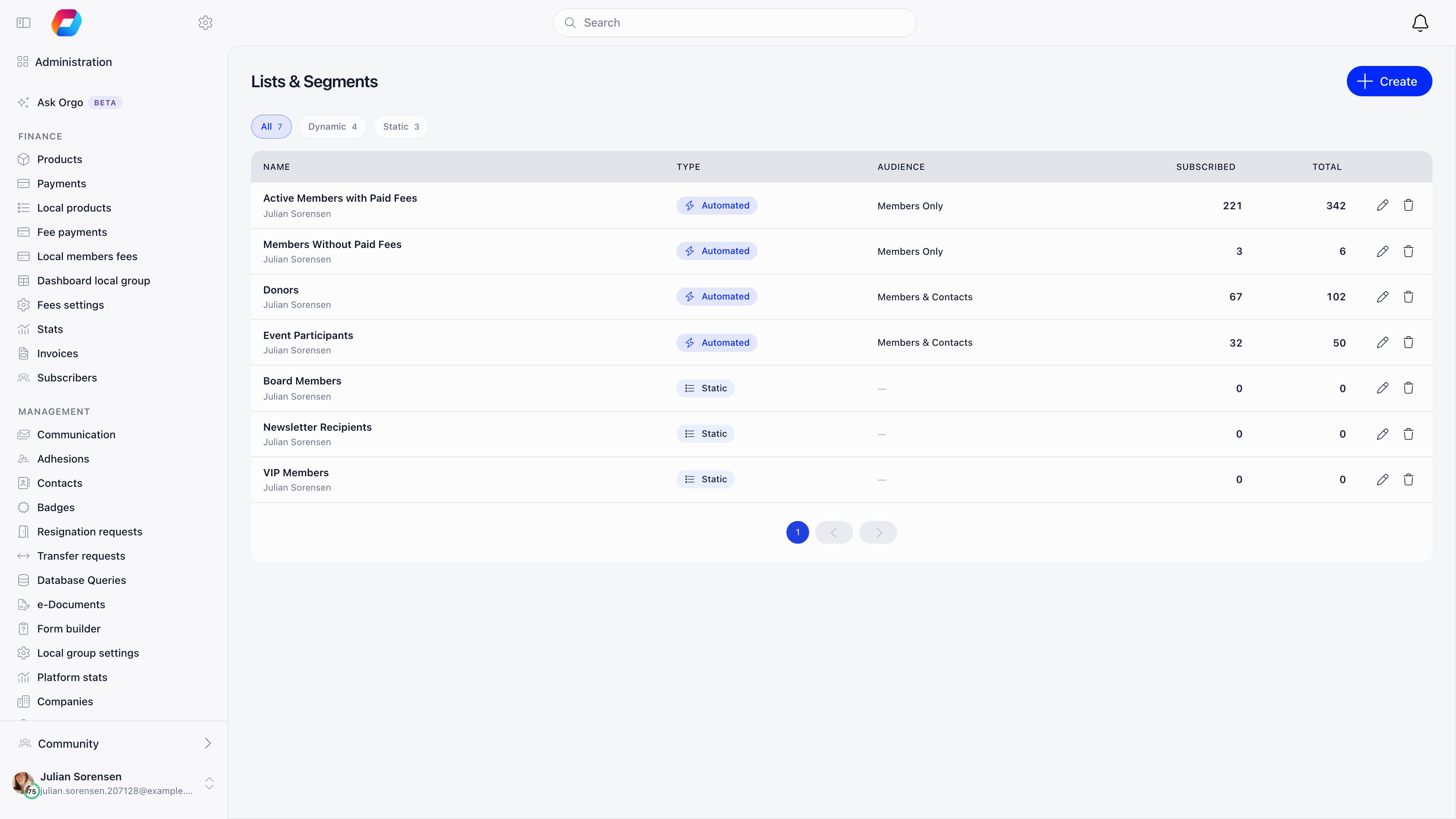
Administration → COMMUNICATION → Lists & Segments. A saved list
is the only audience you can define by a question about the people
themselves. See Lists & Segments for the criteria,
and Email lists for how a list behaves once
email starts moving.Done when each list shows a Subscribed count beside its Total.
The subscribed number is the one a campaign actually sends to.
8
Collect subscribers from your website
Embed a signup widget so new subscribers
land in Orgo as contacts rather than in a spreadsheet. Set Default
Newsletter Widget UUID on the Email Campaigner screen to decide which
widget is served when a page asks for your organization’s widget without
naming one.Done when a test signup on your own site appears in Orgo as a contact.
9
Design one reusable template
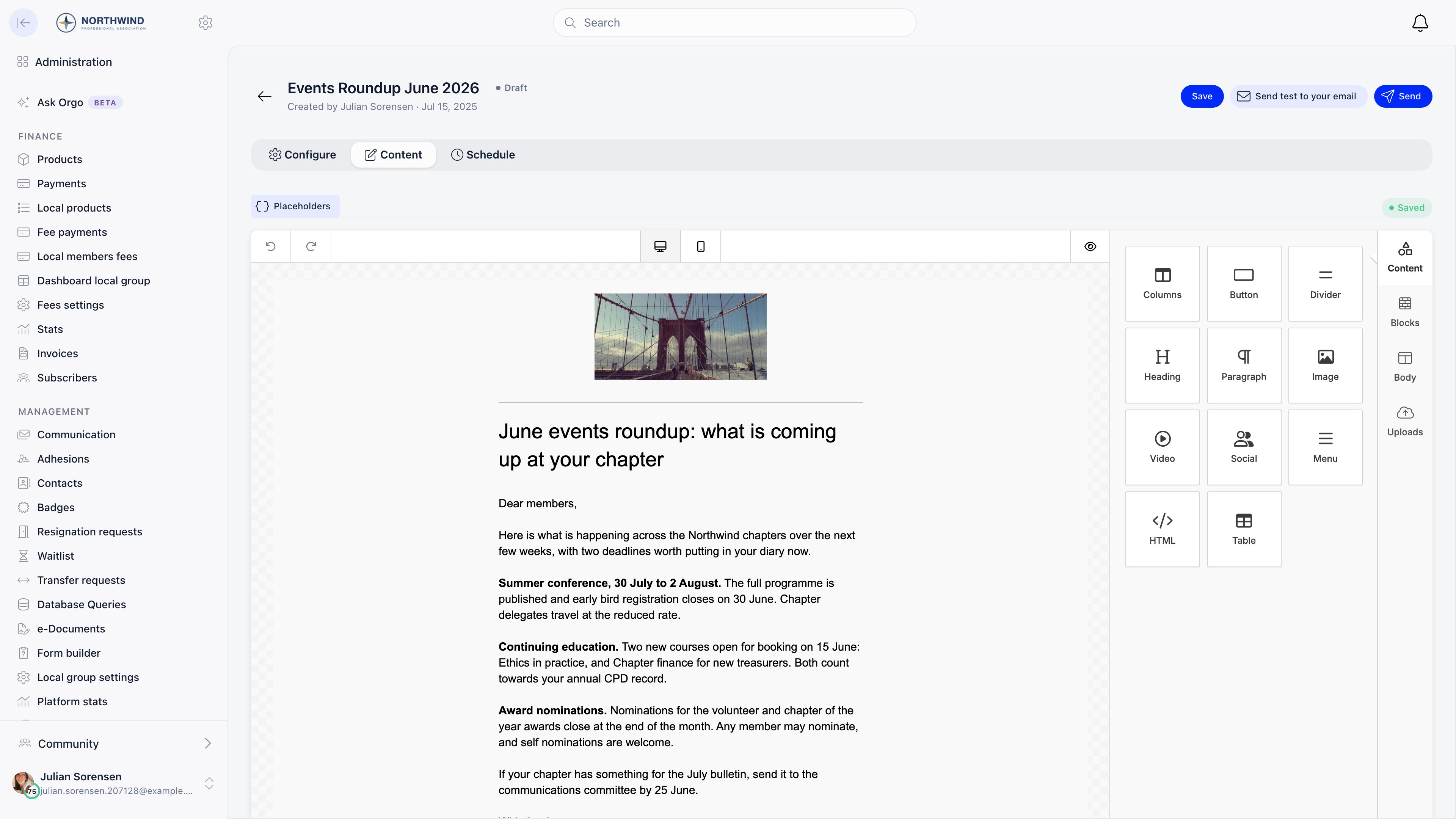
Open any draft campaign and switch to the Content tab: that is the
drag-and-drop newsletter builder. Build the
house style once, then save it as a campaign template so month two is a copy
rather than a rebuild.Done when the design is listed under Campaign templates and the
Content tab shows Saved rather than Saving.
10
Send a test, then the first campaign
Send test to your email, in the campaign header, renders the
placeholders against your own record, which is the only reliable way to
catch an empty field. Then Send, or set a time on the Schedule tab
at least 2 minutes ahead on a 15-minute boundary. See
Newsletter.Done when the campaign shows Sent and its Report tab starts filling
in as delivery events arrive.
The most useful table on this page. Find the row that matches what you are
about to send, then check the last column before you write it.
Channel
Use it for
Who receives it
Can a member opt out
Newsletter campaign
A deliberate one-way announcement to a chosen audience
Active members with an email address and newsletter email on, plus subscribed contacts, narrowed by the audience you picked
Yes. Every campaign carries an unsubscribe link and one-click unsubscribe headers
Discussion post
Two-way conversation inside a group, role group or local center
Members who can see that group. Notification email depends on their own preference
Yes. Mute the group, or set discussions to Daily, Weekly or off
Notification, in-app
Telling someone that something happened to them
The people the event concerns, and followers of the group
No. The record is always stored and always visible under the bell
Notification, email
The same events, in an inbox
The subset of notification types that email at all: discussions, comments and replies, mentions, events, votes, tasks and membership changes
Partly. Each category has a member toggle, except membership and role changes, which always email
Notification, push
Time-sensitive nudges to a phone or browser
Members with Push notification subscribed on and a registered device. Everything except file uploads
Yes, one master switch
System email
One person’s own membership, payment, ticket, document or account
The person the event is about, whatever their subscription state
No. Only an admin can silence one, per category or per template
Two rules follow from that table. Anything that is about the individual (their
fee, their ticket, their password) is a system email and must not be reproduced
as a campaign. Anything that is a conversation belongs in discussions, because a
campaign has no reply path beyond your Reply-To mailbox.
Example 1: a monthly member newsletter to a saved segment
1
Build the segment once
Administration → COMMUNICATION → Lists & Segments → create an
Automated by criteria list, profile type Members Only, member status
Active Only. Add criteria; they always combine with AND. Needs
COMMUNICATION_TENANT or HR_TENANT.
2
Save the design as a campaign template
Build the layout once in the builder and
save it under Campaign templates, so month two is a copy rather than a
rebuild.
3
Create the campaign
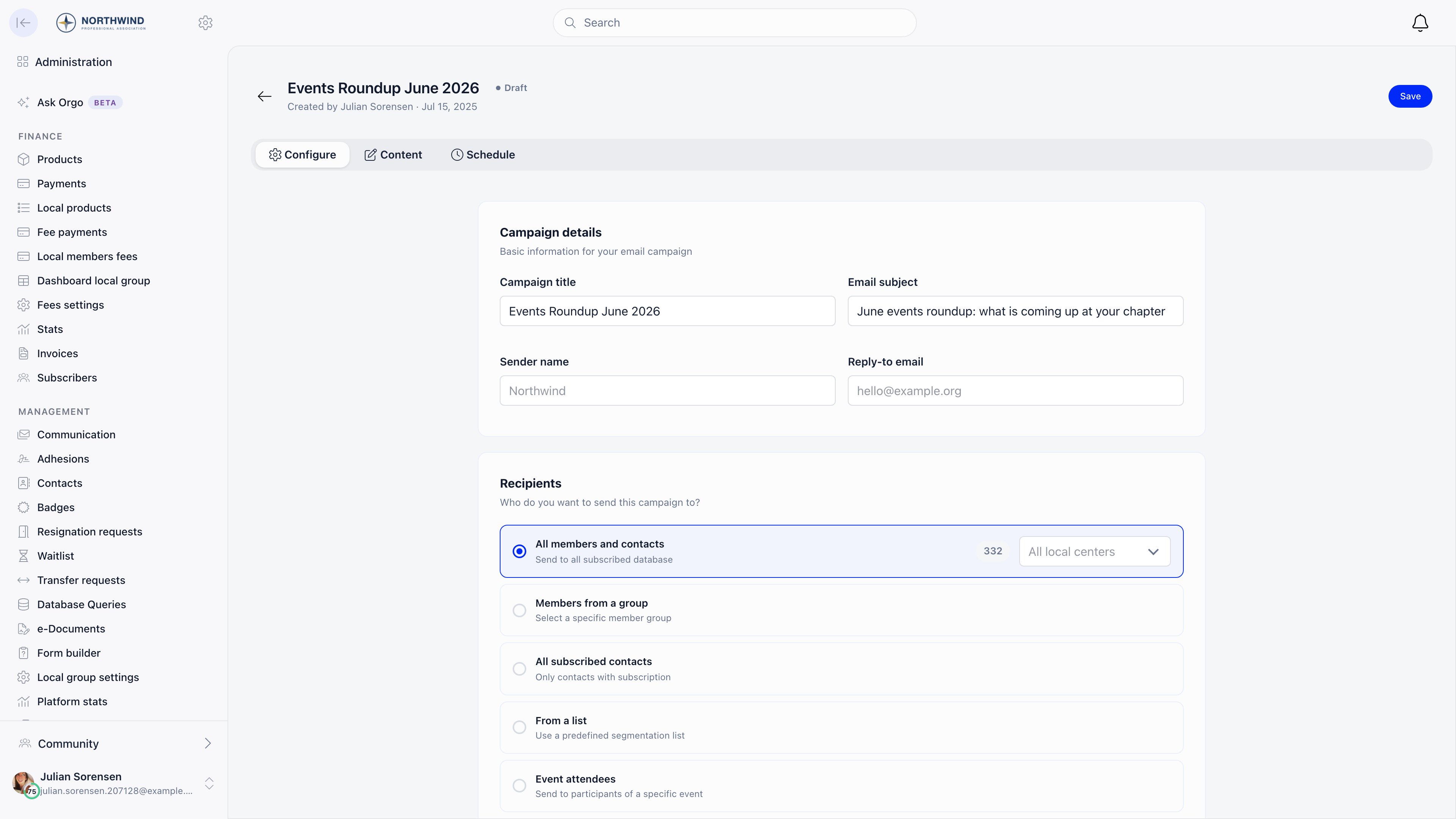
Email campaigns → new campaign. On the Configure tab, campaign title
is internal and email subject is what members see. In Recipients, choose
From a list and pick your segment. The number next to the option is the
subscribed count, not the list total.Only one option can be selected. Audiences cannot be combined, which is the
reason the segment exists.
4
Test, then schedule
Send test to your email, then schedule at least 2 minutes ahead on a
15-minute boundary. Because the list is automated, it is resolved again at
send time, so members who joined since you drafted are included.
5
Next month
Duplicate campaign on last month’s send, or Start Campaign from the
template. Both keep the settings so only the content changes.
Give the chapter's communicator COMMUNICATION_LOCAL
They see Email campaigns and nothing else in the COMMUNICATION section,
and inside a campaign only the Members from a group audience. Tenant-wide
audiences, saved lists and event audiences are hidden.
2
They pick their own group
A local center, group or role group they manage. Members outside their
center cannot be reached: the center boundary is applied again when the send
is resolved, on top of whatever audience was chosen.
3
If you are sending centrally instead
A COMMUNICATION_TENANT holder gets the same result two ways: Members
from a group pointed at that local center, or All members and contacts
narrowed with the local center dropdown.
Example 3: an event follow-up to the people who did not open it
1
Send the first email from the event
Send email for participants on the event files the campaign under that
event’s messages and unlocks the event placeholders ({eventTitle},
{eventDateBegin}, {eventRegisterUrl} and the rest). Needs
EVENT_TENANT, or a communication permission.
2
Read the report, then wait a day
A sent campaign opens on its Report tab: Sent, Opened, Clicks, Bounce
and Unsubscribed, each with the percentage underneath, over a campaign
details card recording the subject, sender, audience and send date.Open rates need the mail client to load images, so give it a day or two
before treating an unopened message as unread.
3
Follow up with non-openers
On the sent campaign, Follow up with non-openers (the count is in the
button) creates a draft named “Follow-up: …” locked to people who received
the original and never opened it, minus anyone who bounced, complained or
unsubscribed.The button sits in the campaign header next to Duplicate campaign, and
only while that count is above zero. A campaign everyone opened does not
offer it.
4
Change the subject line, then send
The audience is recalculated at send time, so late openers drop out. If
nobody is left, Orgo refuses both the copy and the send.
An Event attendees audience does not check the newsletter subscription flag.
Registered members and external registrants receive it even if they unsubscribed
from campaigns, because event mail is treated as informational. Use it for
logistics, not for marketing.
Four things a customer has to get right.Verified sender identity. The From address is your contact email only after
Orgo has verified it, which needs DNS records on your domain and is done by
support rather than in Settings. Until then mail leaves as no-reply@orgo.space.
Reply-To is your contact email either way, verified or not. A
custom domain hands you the DKIM records and the two
bounce. records that make SPF align with your own domain; the DMARC policy and
the SPF record on your apex remain yours to maintain.Unsubscribe handling. Campaign email carries one-click unsubscribe headers,
so a member can opt out from the mail client without opening the message. If your
design contains no {unsubscribeUrl}, Orgo appends an unsubscribe footer before
sending. You cannot re-subscribe someone on their behalf.An unsubscribe applies to every account sharing that email address, in every Orgo
workspace, because it matches on the address rather than the account.Which sends ignore subscription flags. Three cases, all deliberate:
System emails. A renewal reminder, invoice or ticket confirmation goes to
the person it concerns whether or not they unsubscribed and whether or not they
are in any list. Only that email’s switch on the Emails page stops one.
Event attendee campaigns. As above, the subscription flag is not consulted.
Membership and role change notifications. When an admin adds someone to a
group or changes their roles, the member is emailed and no preference switches
it off.
Language. Automatic email follows the organization’s default language,
falling back to English for a language email does not cover, and wording you
change yourself reaches every recipient. The
invoice email and the PDF it carries are the
exception: they cover all 14 interface languages, falling back to English only
when the organization default is not one of them.Campaigns are whatever language you wrote them in, so a bilingual organization
either writes both versions into one email or sends one campaign per language
segment. A ?lang= parameter on a link opens the platform in that language
regardless.
The campaign says Sent but nothing seems to have been delivered
Take these in order.
Open the campaign’s Report tab. Sent counts recipients with a
delivered or bounced event from the mail provider, so a Sent figure of
zero means nothing left the platform, and a high bounce figure means it
left and was rejected.
Check the recipient count on the audience. A list of 900 with 620
subscribed sends to 620, and an audience whose members are all inactive or
have no email address resolves to nobody.
If the campaign belongs to a local center, remember the center boundary is
applied on top of the audience, so a tenant-wide list can resolve to a
handful of people.
Check whether the send is still in flight. Recipients go out at three per
second per worker, so a large campaign is still arriving for several
minutes after the status changes.
A member says they never got it
Answer it with the email log rather than by
reasoning about settings. A campaign writes one log entry per recipient,
tagged Newsletter and linked to the campaign.
No row at all: they were not in the resolved audience. Check the account
is Active, has an email address, and has newsletter email on in their
notification settings, since all three are required for every audience
except event attendees.
A row with the wrong address: an old address, a typo, or a placeholder
address left by a data import.
A row with the right address: it left Orgo. Ask them to check spam and
quarantine, and check the campaign report for a bounce or complaint
against them.
Subject starting with FAILED: it was queued and could not be delivered
after repeated attempts, and the entry records why.
A member unsubscribed in one workspace and stopped receiving from another
Expected, and the most confusing behaviour in this area. Unsubscribe links
match on the email address, not on the account, so one click switches that
category off for every Orgo account sharing the address, across
organizations. The one-click header does the same for all categories at once.The fix is to turn the categories back on per account, on each affected
profile’s Notifications tab. Nothing else is needed: the person is not
removed from any list, and list membership and subscription state are
independent of each other.Worth knowing while investigating: opening an unsubscribe URL with a plain
GET never unsubscribes anyone. It redirects to the preferences page, so link
prefetchers in mail clients cannot opt someone out by accident.
A member set Daily or Weekly and no digest ever arrives
A digest run only picks up members with at least one unread discussion
notification in the window. Comments, events, mentions, votes and task
activity never trigger one, so a member whose groups are quiet gets nothing
however the frequency is set.Then check, in order: that the member is Active, that their address is
valid, that the frequency on their profile actually matches the run (daily
looks back 25 hours, weekly looks back 7 days, so someone who chose Weekly
just after the weekly run waits almost a week), and that this is not a demo
organization, which never sends notification email at all.Also note that sending a digest marks every unread notification read for
that member, not only the ones listed in it, so the bell badge clearing is
not evidence that they read anything.
Members complain about the volume of email
Work on the individual profile’s Notifications tab, not on the tenant
defaults: the defaults are seeds applied once at account creation and
changing them does nothing for anyone who already exists.Set New discussion to Daily or Weekly first, since discussions are
usually the bulk and the only category that batches. Then switch off the
individual categories they object to. If the volume persists, the traffic is
coming from something with no toggle: membership and role changes always
email, and system email follows the switches on the Emails page instead of
member preferences.
We want one announcement to reach everyone, including people who unsubscribed
There is no override, by design. Unsubscribing stops campaigns, and no
audience except event attendees ignores it. If the message is genuinely
about the recipient’s own membership (a fee change, a governance
obligation), it belongs in the system email that already covers that event,
or in a new one, rather than in a campaign that consent rules exclude people
from.
The setup order above, in the form you can tick off. Two lines are conditional:
the manual-list permission only matters if you keep manual lists, and the widget
only matters if you collect subscribers from a website.
Contact email set under Settings → Organisation, and verification requested from support
Default language set under Settings → Customization → Languages
Every email on the Emails page reviewed and switched on or off deliberately
Emails that did not sound like you rewritten with Edit text on the Emails page
Notification Preferences set before any member import, since they apply only at account creation
Enable Email Campaign Module on, and COMMUNICATION_TENANT granted to whoever writes campaigns
ADMIN_TENANT given to anyone who maintains manual list membership
The lists and segments you will reuse built, each showing a subscribed count
A signup widget embedded on your website, and Default Newsletter Widget UUID pointed at it
One house-style design saved under Campaign templates
A test send checked in your own inbox, with every placeholder filled in