

Requires ADMIN_TENANT. Every workflow endpoint, including the trigger and action catalogues the builder loads, checks the tenant admin role server side.
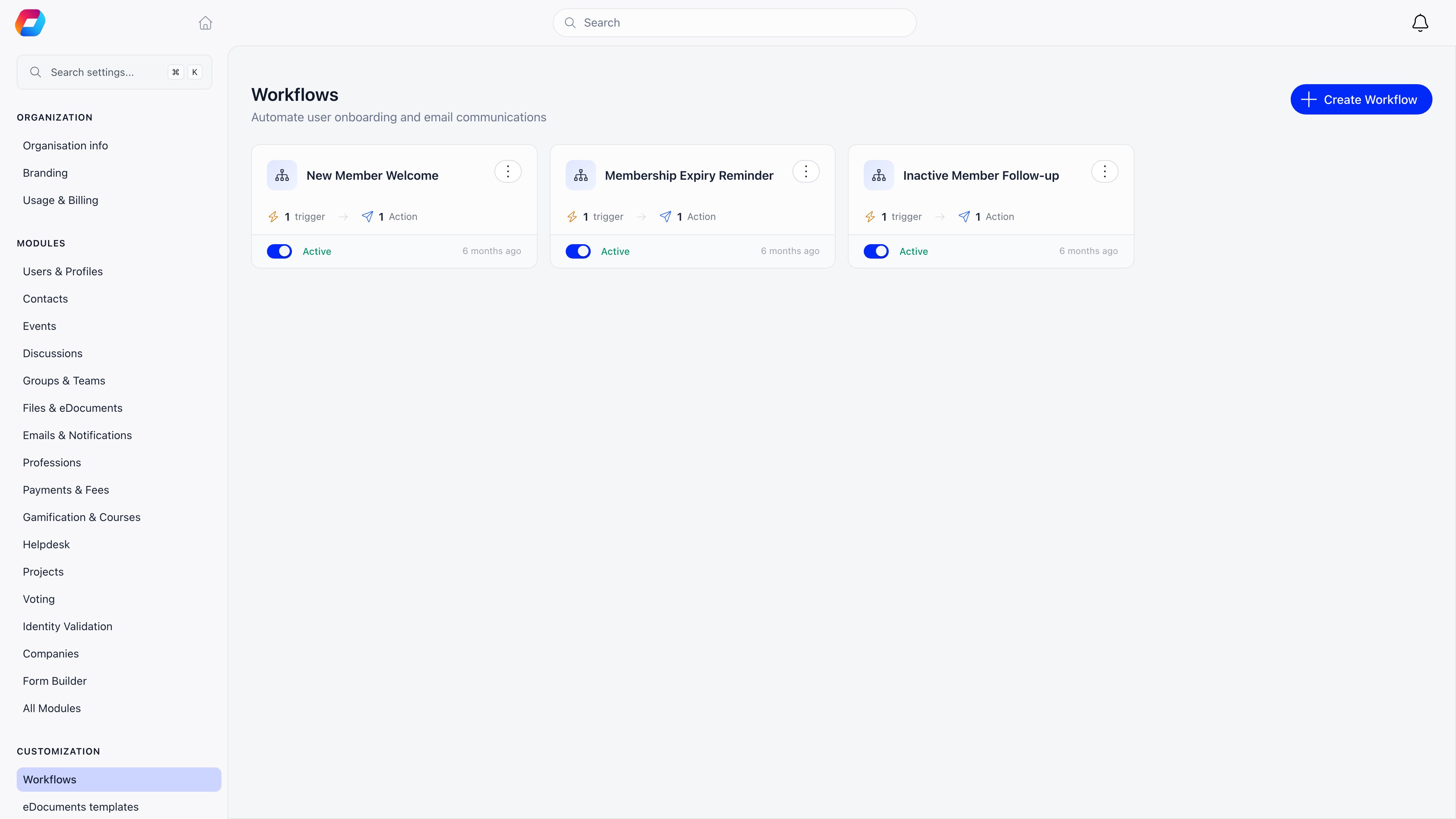
The list
Each card shows the workflow’s name, description, trigger and action counts, when it was last saved, and an Active / Inactive switch you can flip without opening it. Clicking the card opens the builder; the three-dot menu offers:- View Logs: every run of that workflow.
- Clone: a full copy, always created inactive, with ” (Copy)” appended to the name.
- Delete: permanent, and it takes the triggers, conditions and actions with it.
Building a workflow
1
Name it
The name sits in the top bar, beside Save. An unnamed workflow saves as “Untitled Workflow”.
2
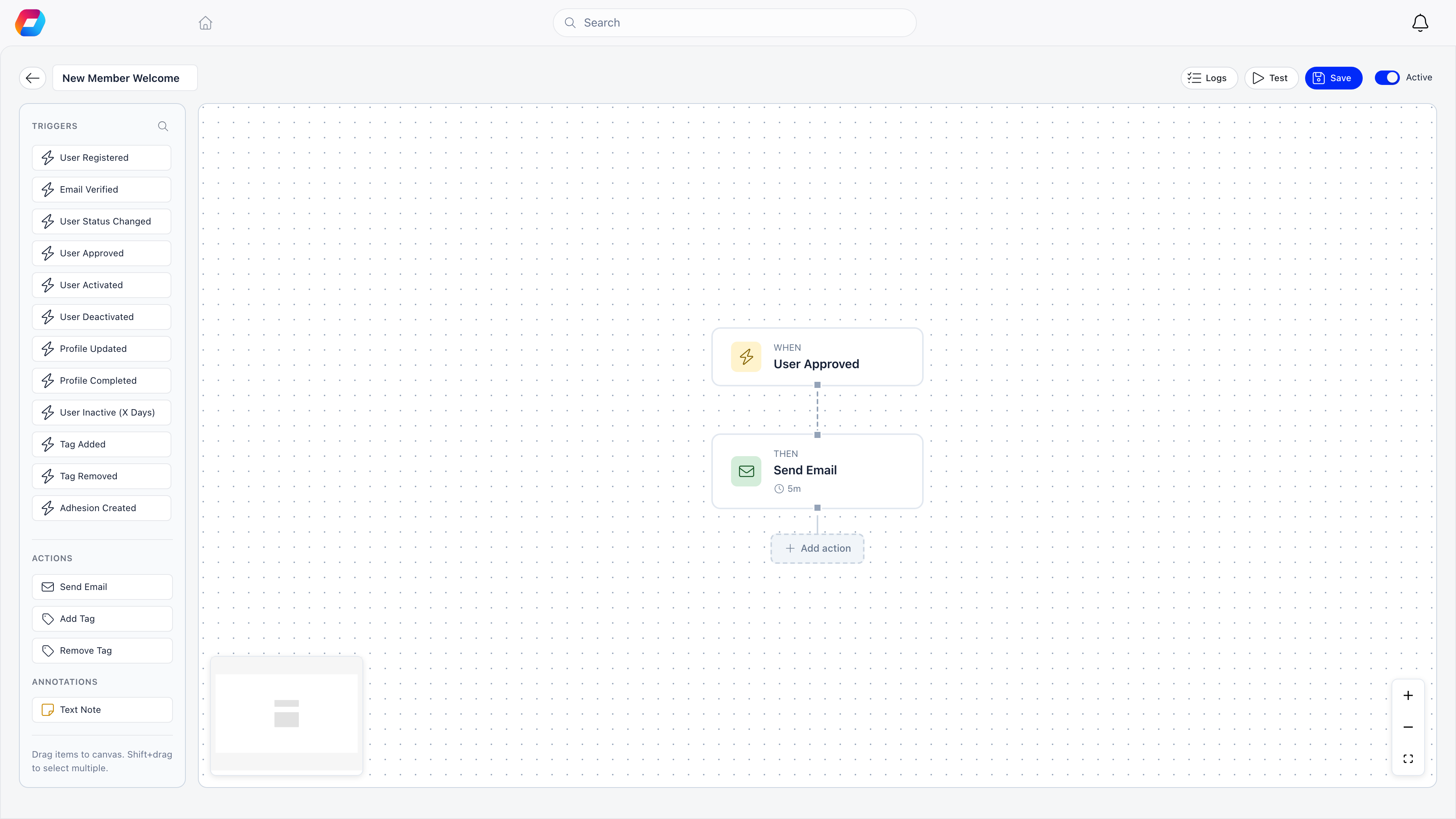
Drag a trigger onto the canvas
The left sidebar lists every trigger, grouped by category and searchable. Drop one on the canvas and it becomes a When node.
3
Add an action under it
Drag Send Email, Add Tag or Remove Tag from the sidebar, or click Add action on the prompt below a node. Actions become Then nodes wired to the trigger above them.
4
Configure each node
Click a node to open its settings, then Done to apply.
5
Save, then test
Save persists the workflow and the canvas layout. Test only becomes available once the workflow is saved and has at least one trigger and one action.
6
Switch it on
Flip the Active switch. Activation is refused server side unless the workflow has at least one trigger and at least one action, so a canvas holding only a trigger, or only notes, stays inactive.
Triggers
The catalogue, grouped as it appears in the dropdown:
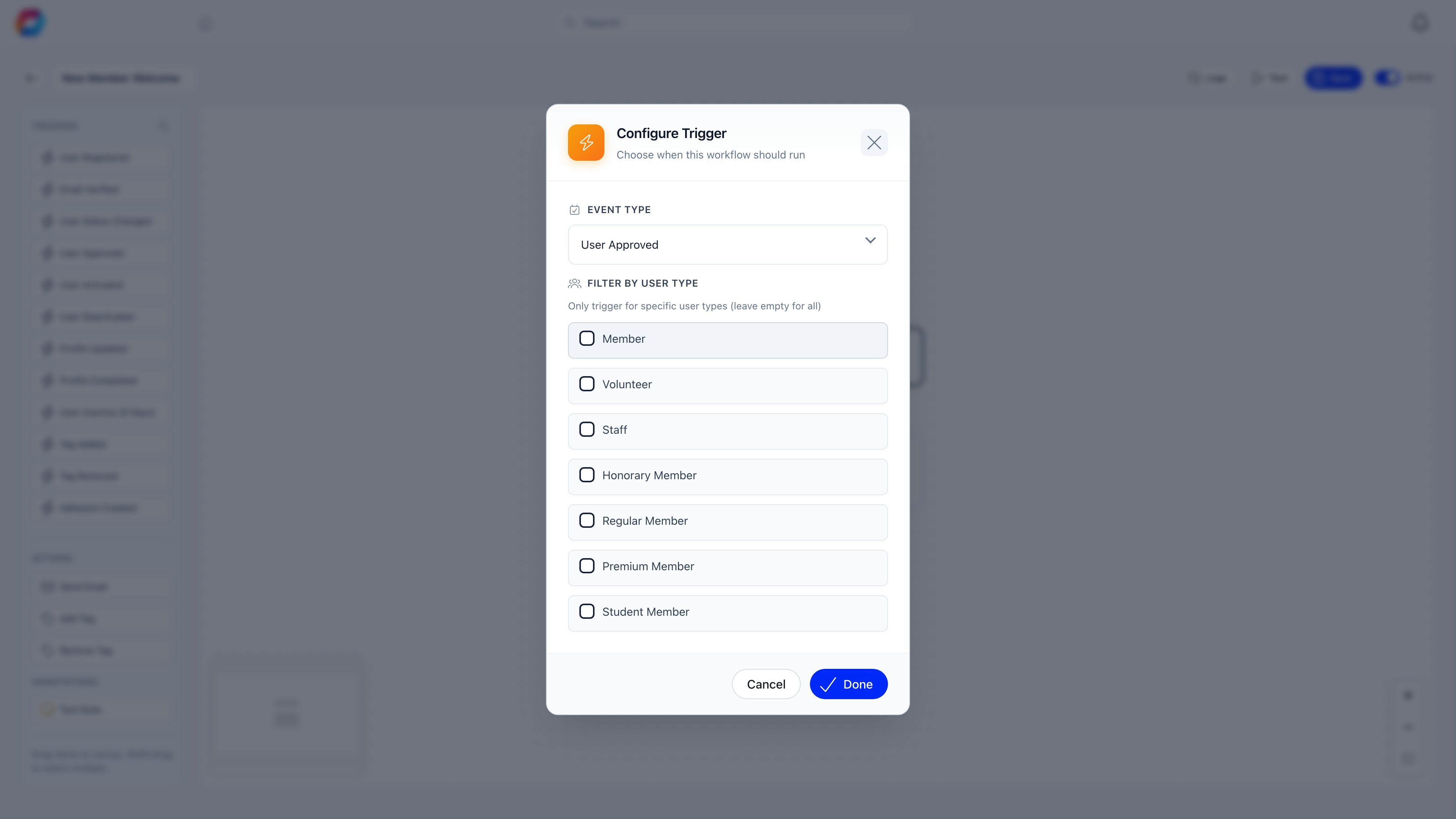
Three triggers narrow further with a filter on a specific record: Donation Payment Success by donation product, Event Attendance by event, and Tag Added / Tag Removed by tag. An empty selection means “any”. The event picker loads up to 500 events alphabetically, so a very large calendar will not offer every event as a filter option.
User Inactive (X Days) asks for a number of days between 1 and 365. It fires once, on the day a member crosses that threshold, based on the last time their record changed, and is evaluated by a daily job at 06:00 UTC.
Person-related triggers can also be restricted by user type with checkboxes; all unchecked means every type.
Actions
Send Email needs a Subject Line and Email Content in the rich editor; the builder refuses to save without both, as tag actions refuse to save without a tag. These placeholders are replaced per recipient at send time, in the subject line as well as in the body. The Insert Placeholder control writes into the body editor only, so type them by hand in the subject.
{{firstName}} · {{lastName}} · {{fullName}} · {{userEmail}} · {{userCompanyName}} · {{platformLink}} · {{profileLink}} · {{unsubscribeUrl}}
Delays
Every action has an optional Delay: days, hours (0 to 23), minutes (0 to 59). Without one the action runs as soon as the trigger fires. With one, Orgo records the action as scheduled and a job picks it up every 5 minutes once it is due, so it runs within about five minutes of its scheduled time.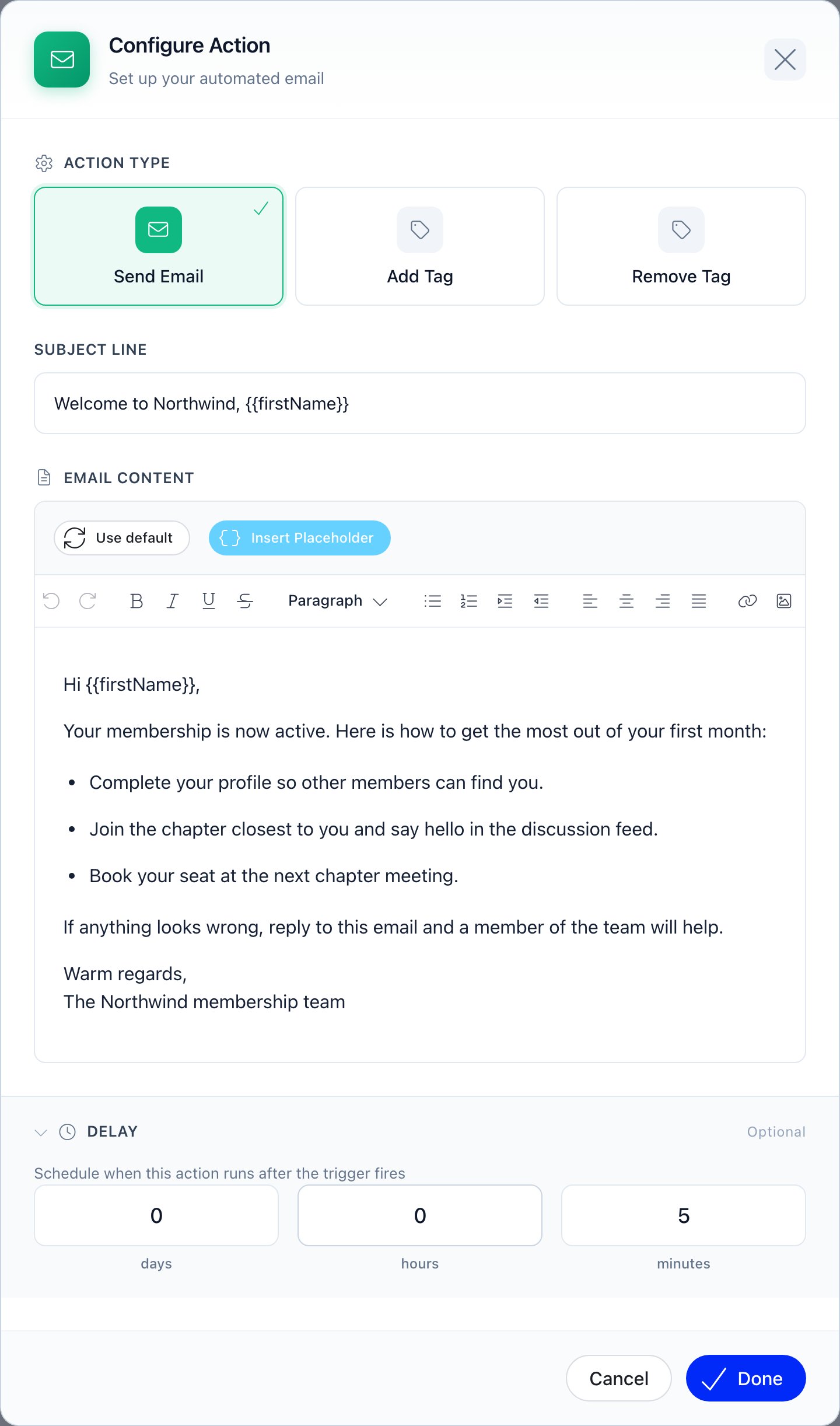
Testing before you switch it on
Test is a dry run against yourself: it checks the configuration and reports whether the workflow would run, without sending anything or changing any record. It tests the stored version, not the unsaved canvas, so save first. A dry run is not a delivery test. To confirm an email’s wording and placeholders, trigger the workflow once on a real test account.Execution logs
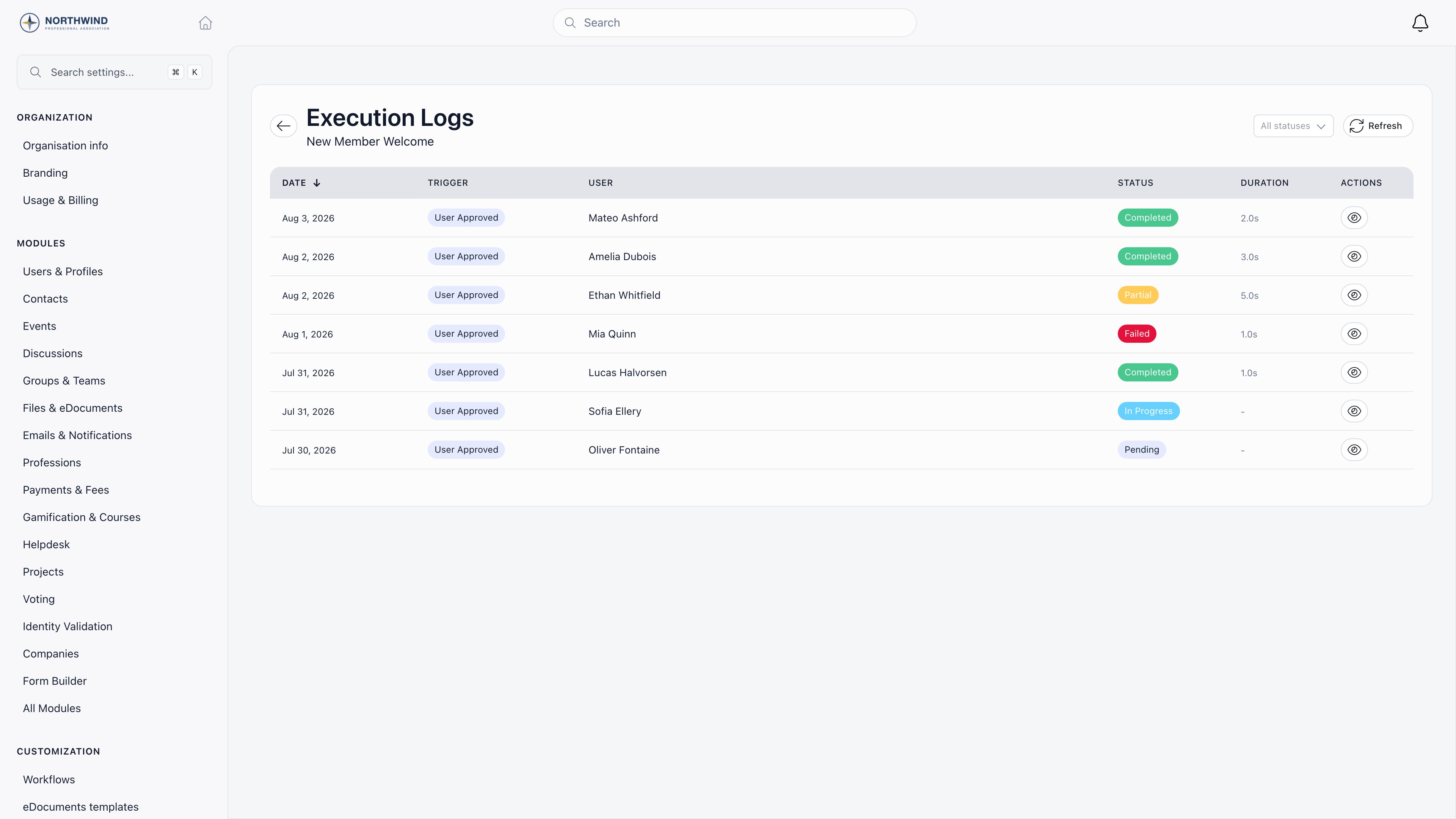
Open View Logs from the list, or Logs from the builder’s top bar. Each row is one run: the date, which trigger fired, who it ran for, the status, and how long it took. Filter by status, or hit Refresh.
The eye icon opens the detail view: start and finish timestamps, the person, any error message, a timestamped step-by-step execution log, and the raw trigger payload. A run for a non-member (an external event attendee held as a contact) shows the person with an External tag.
Workflows run in the background, so a run appears in the log a moment after the triggering event.
Things worth knowing
- Actions belong to the trigger they are connected to. With two triggers on one canvas, only the actions wired to the trigger that fired will run.
- A clone does not carry those connections over. The drawing is copied, the links are not, so every action in the copy would run for every trigger. Open the copy, check the wiring, save once before activating.
- Editing replaces, it does not merge. Saving rewrites the workflow’s triggers and actions from what is on the canvas.
- Deactivating keeps everything. An inactive workflow stops reacting to events but keeps its configuration and its logs.
Troubleshooting
The workflow is active but nothing happens
The workflow is active but nothing happens
Check the execution log first. No rows means the trigger never matched: confirm the event really occurs in your organization, and that the user type filter or the product/event/tag filter is not excluding everyone. Completed rows with no email mean the action was configured but delivery failed, which the detail view’s execution log names.
A delayed email never arrived
A delayed email never arrived
Open the run in the execution log. A delayed action is logged as scheduled with its target time. If it failed, the reason is stored against it and it is not retried on its own: fix the cause and trigger the workflow again.