

How the screen opens
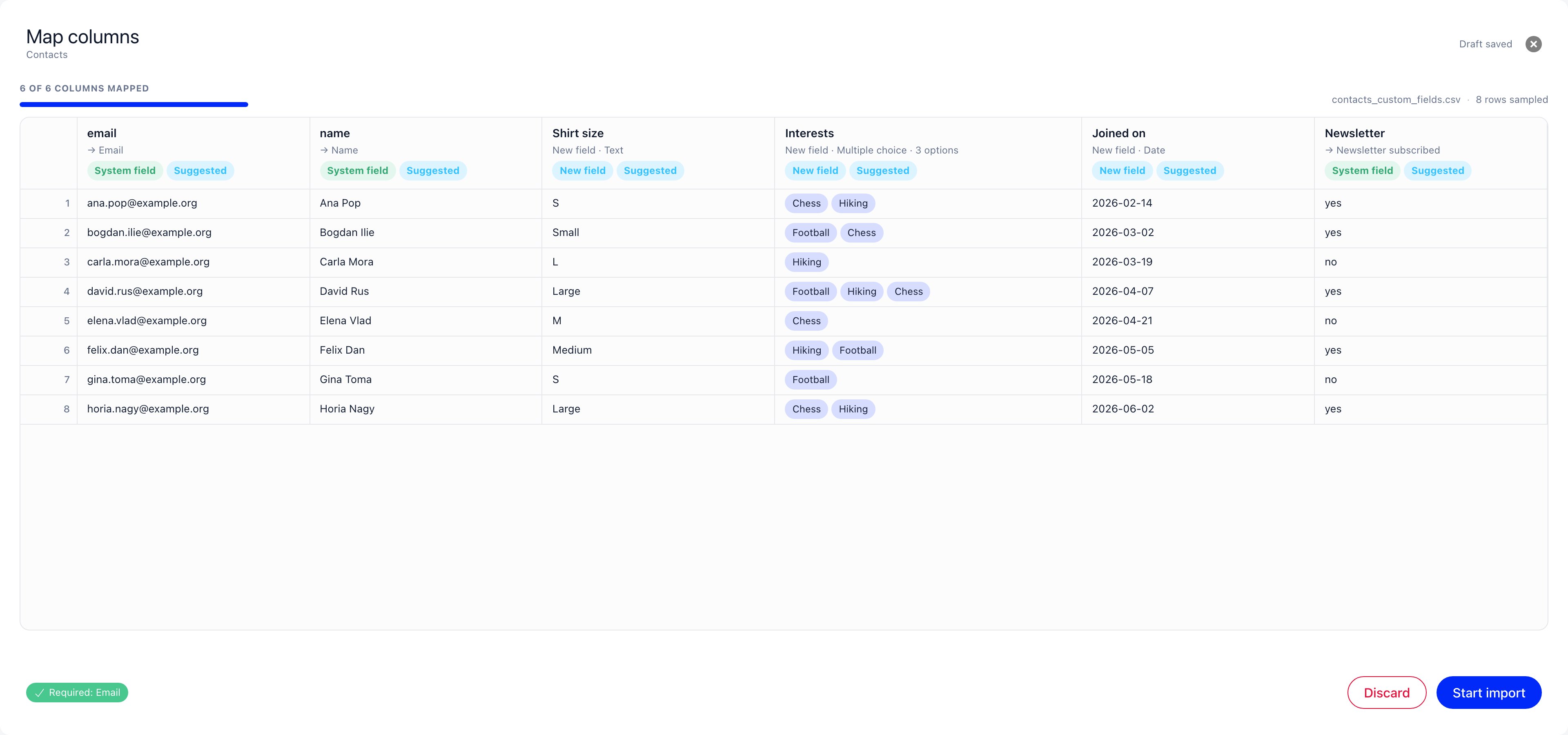
On Settings → Customization → Import, pick a step and choose your file. For a step that supports mapping, the action button reads “Map columns” rather than “Start Import”. Press it and the wizard opens over the whole page. The header shows the title “Map columns” with the import type underneath it (“Users”, “Contacts”, “Product Payments”, “Event Attendance” and so on). To the right of the title sits the save state: “Saving…” while a change is being stored, then “Draft saved”. Your choices are saved as you make them. That draft is a mapping, not an import. Close the screen with the “Close” X in the header or the Escape key. Clicking the dimmed page behind it does nothing, on purpose.The sheet
Under the toolbar, the screen is your file: the header row across the top, the first 20 rows underneath, numbered down the left. The header row and the numbers stay in place while you scroll, and the sheet scrolls sideways for a wide file. Above the sheet on the left is the progress line, counting mapped columns against the total (“7 of 12 columns mapped”), over a thin bar. On the right are the file name and the number of rows Orgo read (“200 rows sampled”). The sampled figure is the larger one: Orgo reads up to 200 rows of your file to work out its suggestions and to collect the distinct values in each column, and it draws the first 20 of them for you to look at.What a column header shows
Each column header is a button, and it stacks three things.- The name from your file, exactly as you wrote it. Long names are cut short on screen, with the full text on hover.
- A summary of where the column is going.
- Its status chips.
And one chip per status:
A second chip, “Suggested”, sits beside the status chip while the column is
still on the wizard’s own guess. It disappears the moment you change anything
about that column, so the chips left showing “Suggested” are exactly the
decisions you have not reviewed yet.
The column settings panel
1
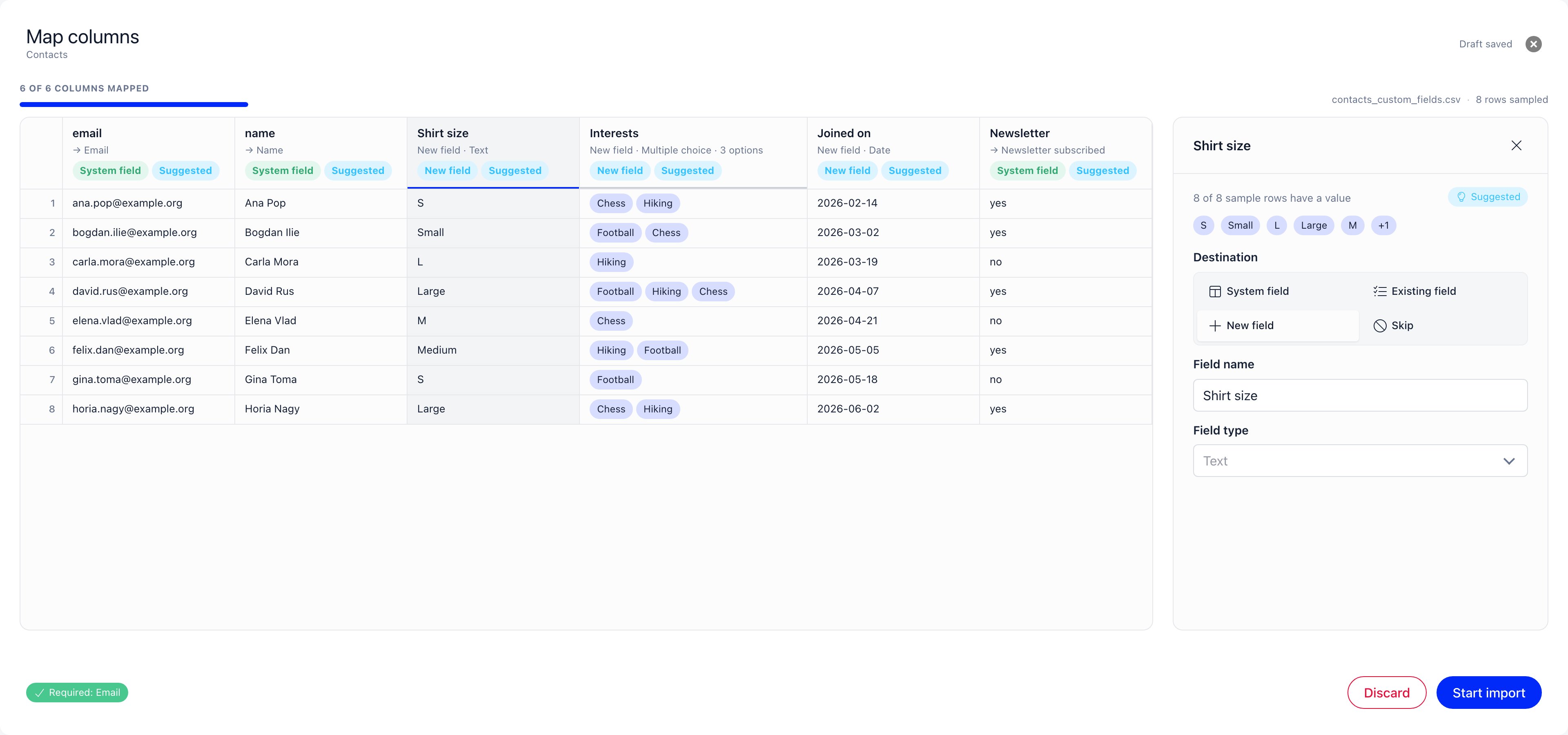
Read the column facts at the top
A line such as “18 of 200 sample rows have a value” tells you how full the
column is, followed by up to five of the distinct values it holds and
a “+N” tag for the rest. A column that is nearly empty, or full of values
you did not expect, is worth catching here rather than after the import.
2
Choose a destination
“Destination” is a block of four buttons: “System field”,
“Existing field”, “New field” and “Skip”. Import types that do not
carry profile fields, such as events or products, offer only “System
field” and “Skip”.
3
If it is a system field, pick the field
A select labelled “System field” opens with the placeholder “Choose a
field”. Types with grouped fields list them under group headings (“Payer”,
“Product”, “Price tier”, “Event”, “Attendee”, “Member”,
“Role”, “Company”, “Badge” and the rest); people types list theirs
flat. A field another column has already taken is greyed out and its name
carries the suffix “(already used)”.
4
If it is an existing field, search for it
“Existing custom field” is a search box with the placeholder “Search your
profile fields”; it opens the whole list on focus. Each suggestion shows the
field name with its type beside it, and once you pick one the help text under
the box reads “Type” and the type name. An empty search says “No matching
field”. A field with a lock icon is encrypted and cannot be chosen, see the
troubleshooting below.
5
If it is a new field, name it and type it
“Field name” is pre-filled with the header from your file, and “Field
type” offers “Text”, “Long text”, “Number”, “Date”, “Yes /
No”, “Dropdown”, “Single choice” and “Multiple choice”. The field
is created when you press Start import, not before.
6
If it is skipped, that is the whole panel
A single line reads “This column is left out of the import.”
7
For a choice field, set the delimiter and match the values
A “Multiple choice” column gets “Values in a cell are separated by”,
three buttons reading ”,” “Comma”, ”;” “Semicolon” and ”|”
“Pipe”, with a “Split preview” underneath showing how three of your own
cells break apart under the choice you made. Every choice column then gets
“Match values to options”: a table of “Value in file” against
“Option label” for a new field, or “Option” for an existing one, where
you decide that “M”, “Male” and “male” are all one option. That table is
covered in full on Custom Fields in an
import.
Why a type was suggested
Every column arrives with a guess already made, marked “Suggested”. Orgo works it out in this order. First, where the column should go. If the header matches one of the system fields for this import type, it points there. If it matches a profile field your organization already has, it points at that field with the type that field already uses. Otherwise it proposes a new field, and only then does it need to guess a type. The type guess looks at the values in the sampled rows and takes the first rule that fits:- A delimited list. If a comma, semicolon or pipe appears in at least a third of the filled cells, and the pieces it produces repeat across rows rather than being all different, the column is read as “Multiple choice” with that character as the delimiter. The repetition test is what stops a column of free text full of commas from being mistaken for a list.
- Yes or no. Every filled cell is one of true, false, 1, 0, yes or no, in any casing, so the column becomes “Yes / No”.
- Numbers. Every filled cell is a number, so the column becomes “Number”.
- Dates. Every filled cell is a real date written as
YYYY-MM-DD, so the column becomes “Date”. - A short set of repeating values. At least 20 filled cells sharing no more than 15 distinct values, so the column becomes “Single choice” and the distinct values become its options.
- Anything else becomes “Text”.
yes; no is a list before it is a yes or no
question, and a column of only 1 and 0 is a yes or no question before it is a
number.
A suggestion is a starting point, nothing more. The “Suggested” chip is there
so you can tell at a glance which columns are still running on a guess, and
changing anything about the column clears it.
What the sample rows show
The 20 rows are not raw text; they are a preview of what the import would store under the mapping as it stands right now. Change a column and its cells redraw.- A multiple choice column splits each cell on its delimiter and shows one small tag per piece. The tag reads the option label the piece resolves to, and hovering shows the raw text from your file.
- A single choice column shows the resolved option label, and underneath it,
in smaller muted text, the raw text from your file, but only when the two
differ. A cell reading
Sthat resolves to an option calledSmallshows “Small” over “S”. A cell that already reads “Small” shows one line. - A skipped column keeps its raw values on screen but the whole column is dimmed, so it reads as present but inactive.
- An empty cell shows a faint dash. Empty means empty: the import writes nothing for it, so a blank cell cannot be used to clear a value.
Before Start import can be pressed
Two things have to be true, and both are reported in the footer beside the button. Every required group is satisfied. Each requirement is one chip. Its label is the group, then the ways of satisfying it: fields that must go together are joined by ” + ”, and the alternatives are joined by ” or ”. A satisfied chip is green with a check mark and reads plainly, for example “Payer: Payer email or Payer name”. An unsatisfied chip is grey with an exclamation mark and has the word needed appended, for example “Payer: Payer email or Payer name needed”. A simple type shows a single chip: a Users import needs only an email address, so its chip reads “Required: Email”. A type that links to other records shows one chip per reference plus a “Required fields” chip for the columns on the row itself. Every chip has to be green. No system field is used twice. If two columns claim the same one, a red chip appears in the footer reading “Each system field can be filled by one column only” followed by the fields in question, and in the panel the select turns red with “Another column already fills this field”. Pick a different field for one of them, or skip it. Start import also stays disabled while the preview is still loading, while a start is already under way, and while a change cannot be saved. In that last case the header replaces “Draft saved” with the reason: “Mapping is not valid” when the choice itself is refused, or “Could not save the mapping” when the request did not get through. What does not block the button: columns you left skipped, and columns still reading “Needs attention” because you opened “Existing field” and never picked one. Those are simply not imported.Unmapped columns are dropped
This is the one that surprises people, so it is worth saying flatly: a column you leave skipped is thrown away. Its values are not stored anywhere, and no field is created for it. If a column matters, give it a destination. If it does not, skipping it is exactly right and costs nothing. The one place to be careful is a column you assumed would “just come across” because it did on an older import: in this screen, only the columns you point somewhere are read.Leaving and coming back
Closing the screen does not throw anything away. The mapping is saved as you go, and the import sits waiting. Back on Settings → Customization → Import, the step you were working on now shows the chip “Mapping columns” and two buttons: “Continue mapping”, which reopens the screen exactly where you left it, and “Discard”, which throws the whole thing away after asking. The confirmation is explicit about what is lost: “The uploaded file and this mapping will be deleted. Nothing has been imported yet.” There is one draft per step. Uploading a new file for the same step means dealing with the draft first. And a mapping is never reused: each import is mapped from scratch, on its own file.Troubleshooting
Start import stays greyed out
Start import stays greyed out
Read the footer chips first. Any chip that is still grey names what is
missing, and every chip has to be green before the button wakes up. If they
are all green, look at the header where “Draft saved” normally sits: a
message there means your last change could not be stored, and the button
stays disabled until it can be. The usual cause is a column set to “System
field” with no field chosen, or two columns fighting over the same field.
A column shows Needs attention
A column shows Needs attention
You chose a kind of destination but not the destination itself: “System
field” or “Existing field” with nothing picked underneath. The other
cause is a clash, where two columns claim the same system field and both are
flagged. Open the column and either finish the choice or set it to
“Skip”.
The progress line counts fewer columns than I mapped
The progress line counts fewer columns than I mapped
The progress line (“7 of 12 columns mapped”) counts only columns with a
real destination. Skipped columns and columns still reading “Needs attention”
are not counted, so a file you have completely decided can sit well under
100% and still be ready to import. Trust the footer chips, not the bar.
An error message names a field I do not recognise
An error message names a field I do not recognise
Messages that come back when you press Start import use the internal
column names, not the friendly labels on screen:
payer_email rather than
“Payer email”, and the normalized version of your own header (lower case,
spaces turned into underscores) rather than the header as you typed it. They
are also written in English whatever language the rest of the page is in.
Match the name to the field by its shape: payer_email is “Payer · Payer
email”, shirt_size is your column “Shirt Size”.I cannot select a field that has a lock on it
I cannot select a field that has a lock on it
That field is encrypted, and an import cannot write into it. Encrypted fields
hold things like identity numbers, and the import writes values by a route
that would store them unprotected, so it is refused rather than allowed to
leak. Clicking the locked row does nothing at all, which is why the column
stays on “Needs attention”. Map the column to something else or skip it,
and enter those values through the profile instead.
Related
- Data Import - the whole import process, start to finish
- Preparing Your File - what to fix in the spreadsheet before you upload it
- Custom Fields in an import - existing fields, new fields, and matching values to options
- Linking Records - how a row finds the person, product or event it belongs to
- Import Reference - every import type, its fields and its required columns
- Custom Fields - the profile fields an import can fill or create