

Turning it on and who can use it
Settings → Modules → Emails & Notifications → Enable Email Campaign Module. The same page holds the Default Newsletter Widget UUID used by signup widgets.
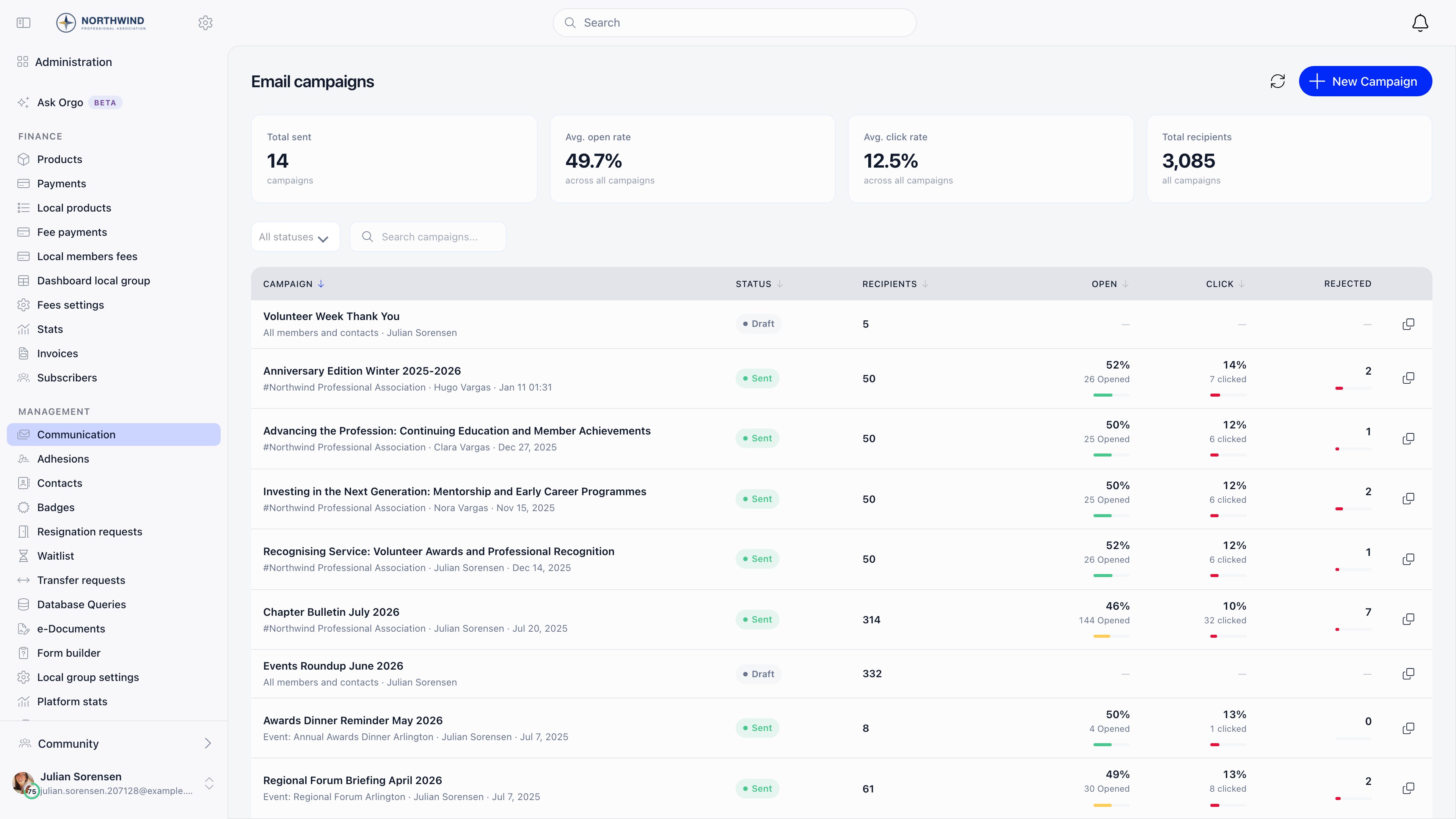
The module adds a COMMUNICATION sidebar section: Email campaigns
(
COMMUNICATION_LOCAL), Campaign templates, Lists & Segments,
Newsletter subscription (all COMMUNICATION_TENANT), and Email Log
(ADMIN_TENANT).
Building a campaign
Three steps: Configuration, Design content, Preview & send.1
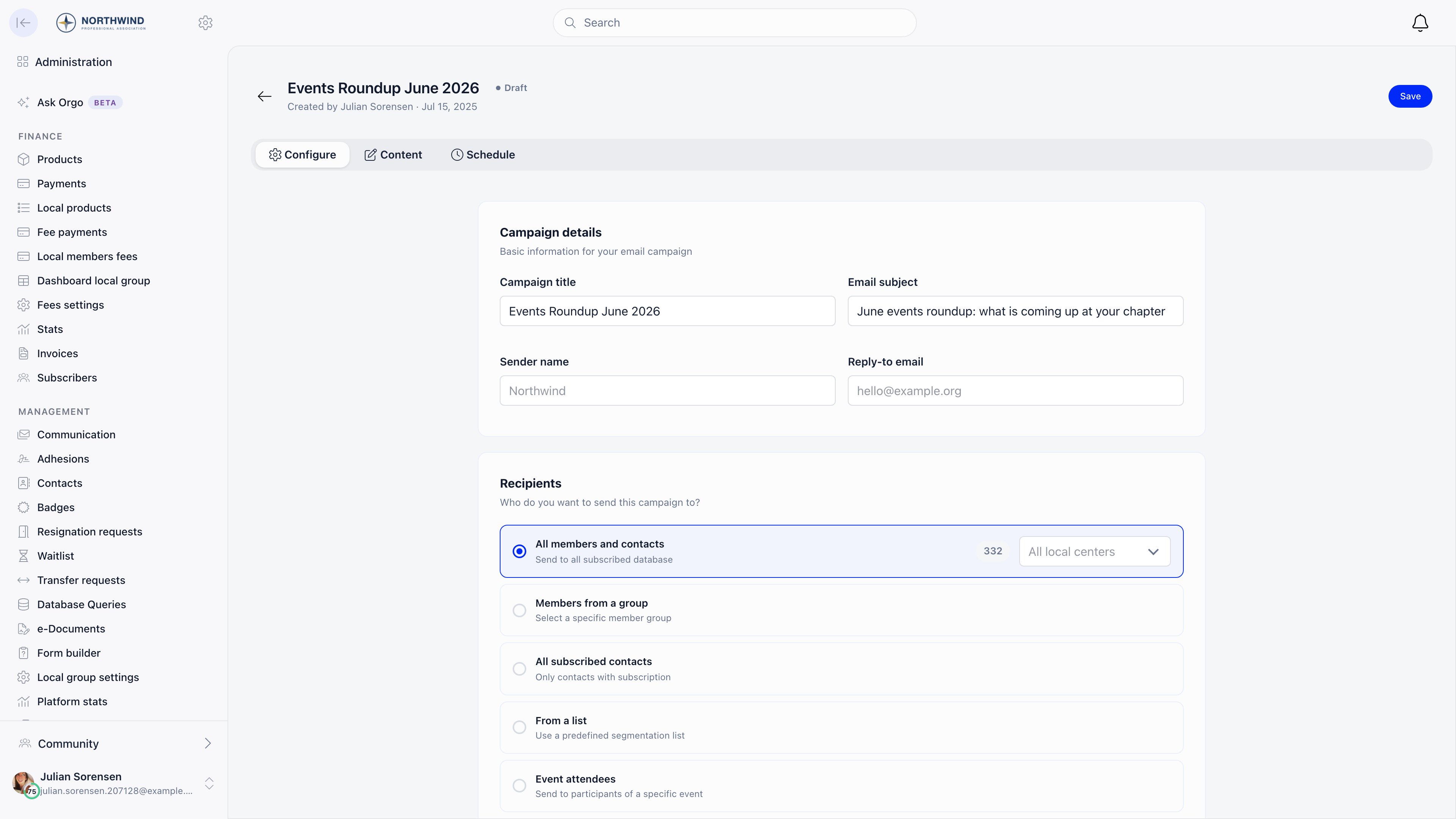
Fill in the campaign details
Campaign title is internal, Email subject is what recipients see.
Sender name defaults to your organization’s short name and Reply-to
email to its contact email; override either per campaign.
2
Choose the audience and a template
Pick a recipient option below (its recipient count appears next to it), then
start from Blank or from a saved template.
3
Design, test, send
Build it in the editor, check it with
Send test to your email against your own data, then Send or use the
Schedule tab.
Audiences
A member is included when the account has an email address and newsletter email
is on in their notification settings; a contact when it has an email address and
is marked newsletter subscribed. The database-wide audiences also require the
account to be active. A manual list does not: it sends to the people in it,
inactive included, and drops only accounts that were merged away or deleted.
Nothing else filters: previously bounced addresses are not removed automatically,
so clean those up from the report.
New members inherit the Newsletter Notifications default from Settings →
Modules → Emails & Notifications at the moment their account is created.
Changing that default later does not touch anyone who already exists.
- Follow up with non-openers (count in the button) creates a draft named “Follow-up: …” locked to people who received the original but never opened it, minus anyone who bounced, complained, or unsubscribed. The set is recalculated at send time, so late openers drop out; if nobody is left, Orgo refuses both the copy and the send.
- Duplicate campaign creates a draft named “Copy …” keeping the content, the subject, and the audience.
Sending and scheduling
Picking a date and time
The Schedule tab on a draft campaign and the Schedule dialog in the content editor’s side menu are the same form and follow the same rules.- Today is the earliest date you can pick. A campaign written this morning can go out this afternoon. The fields open on tomorrow at 09:00 as a default, so change the date if you want it to leave today.
- The time picker steps in 15 minutes, which is the boundary a schedule has to land on.
- Anything less than 2 minutes away is refused: the form shows “Scheduled time must be at least 2 minutes in the future” and keeps the confirm button disabled. The same check runs again on the server.
- The timezone dropdown decides what the clock time means. The date and time you type are read in that timezone, so 09:00 in Europe/Bucharest leaves at 09:00 in Bucharest wherever you happen to be sitting. It defaults to your own timezone, or the organization’s if your profile has none.
- Rescheduling follows the same rules, and removing a schedule puts the campaign back to Draft.
The 2-minute check inside the form is measured against your device clock rather
than against the timezone you selected. Scheduling same-day into a timezone
several hours from your own can make the two disagree, so the warning appears on
a time that is genuinely fine, or a time the form accepted is refused on save.
Push the send a few hours out, or schedule in your own timezone, and it does not
arise.
Reporting
The Report tab shows Sent, Opened, Clicks, Bounce, and Unsubscribed, the campaign details (subject, sender, audience, author, sent date, plus reply-to and the public URL when those are set), and Top links with click counts per URL. Export CSV gives one row per recipient per recorded action (delivered, opened, clicked, bounced, complained, unsubscribed, rejected, failed) with name, email, and action.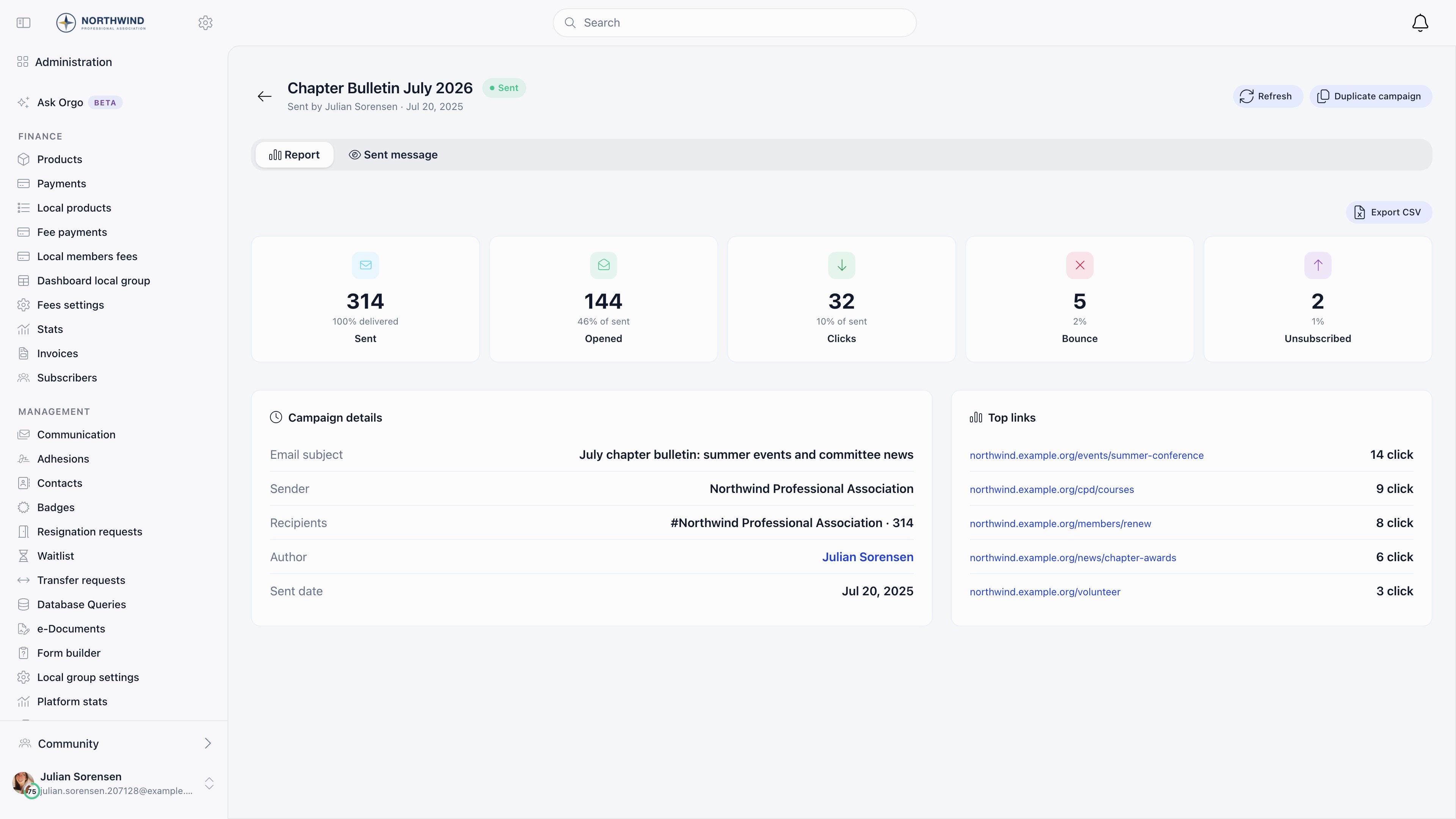
- Sent counts distinct recipients with a delivered or bounced event, so it reflects what actually left the platform.
- Opened and Clicks are unique per recipient, not per event. Open tracking needs the mail client to load images, so real opens are undercounted.
- Results are cached, refreshed when older than five minutes or when a newer delivery event arrives, and frozen 30 days after the last event. Refresh re-reads them on a sent campaign.
- Values are capped so sent never exceeds the recipient count and opens and clicks never exceed sent, so a figure can differ slightly from a raw event count.
Unsubscribes and public links
Every campaign email carries one-click unsubscribe headers, so a member can opt out from their mail client without opening it. If your design has no unsubscribe placeholder, Orgo appends an unsubscribe link (and, for members, a link to their notification preferences) to the footer before sending. You cannot re-subscribe someone on their behalf. Generate public link for this newsletter publishes a browser-readable copy: copy a short share URL, upload a social preview image, and the campaign appears in the campaigns gallery (/newsletter-gallery), the in-app archive where
members see sent campaigns addressed to them or to everyone.
Common questions
The recipient count changed between saving and sending
The recipient count changed between saving and sending
The count is a live preview; the stored number is recalculated when you
press Send, so people who joined, left, or unsubscribed in between are
reflected.
A member says they never received it
A member says they never received it
Check the account is active, has an email address, has newsletter email on
in their notification settings, and fell inside the audience. Then read the
email log and the CSV export, which record
bounces and rejections per recipient.
Sending an email about one event
Sending an email about one event
Use Event attendees, or start from the event with Send email for
participants, which files the campaign under the event’s own messages list
and unlocks the event placeholders.
Related
- Newsletter builder for the editor, placeholders, and templates
- Signup widgets for collecting subscribers from your website
- Notifications for the automatic messages members get
- User lists for building reusable audiences
- Contacts for non-member recipients